You can use Automation Hub to synchronize your customers' events thanks to the HTTPS and SFTP integrations that allow you to import data from your external sources to Synerise.
This use case describes how to prepare an automated workflow that launches every day and imports data about customers' complaints to Synerise as custom events. The automation connects to an external resource using the SFTP protocol and imports data from a CSV file. One of the challenges addressed in this use case is the data transformation that consists of adding and renaming columns in the CSV file.
## Prerequisites
---
- Host the .csv file with customer complaint data on an SFTP server.
- Prepare sample of data that will be used in data transformation.
To do this, you can take the real file and remove rows until about 10 are left.
## Process
---
1. [Create data transformation rules](/use-cases/synchronize-complaint-data-as-custom-events#create-data-transformation-rules) that will transform data from the .csv file.
2. [Prepare a workflow](/use-cases/synchronize-complaint-data-as-custom-events#prepare-a-workflow) that imports events from the SFTP server to Synerise.
## Create data transformation rules
---
In this part of the process, you define the rules of modifying data. Each of the following sub-steps describes the individual changes performed on the file.
The data transformation diagram which is the output of this part of the process is used later to [automate sending the data](/use-cases/synchronize-complaint-data-as-custom-events#prepare-a-workflow).
The sample file is used to configure the data transformation diagram and preview its results. With a [library of nodes](/docs/automation/data-transformation-and-imports/transformations-and-data-operators) you can modify the file by adding, renaming, and merging columns as well as editing the values in the rows, and so on.
In this example, we will use the **Add column** and **Rename column** nodes to transform a complaint file so it meets Synerise's import requirements.
1. Go to **Automation Hub > Data Transformation > Create transformation**.
2. Enter the name of the transformation.
3. Click **Add input**.
### Add file with sample data
This node allows you to add a data sample. In further steps, you define how the data must be modified. Later, when this transformation is used in the workflow, the system uses the rules created with the sample data as a pattern for modifying actual data.
4. On the pop-up, click **Add example**.
5. Upload the file with the sample data.
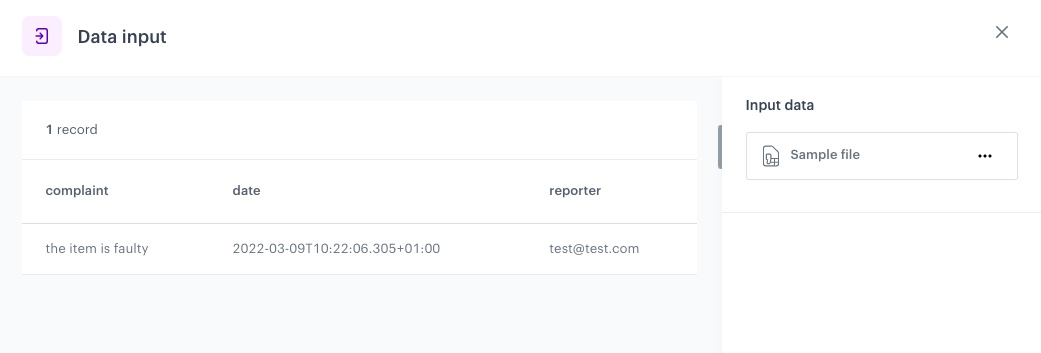
This is the sample used in this article:
```
reporter,complaint,date
test@test.com,the item is faulty,2022-03-09T10:22:06.305+01:00
```
The configuration of the Data input node
6. Click **Generate**.
### Add column
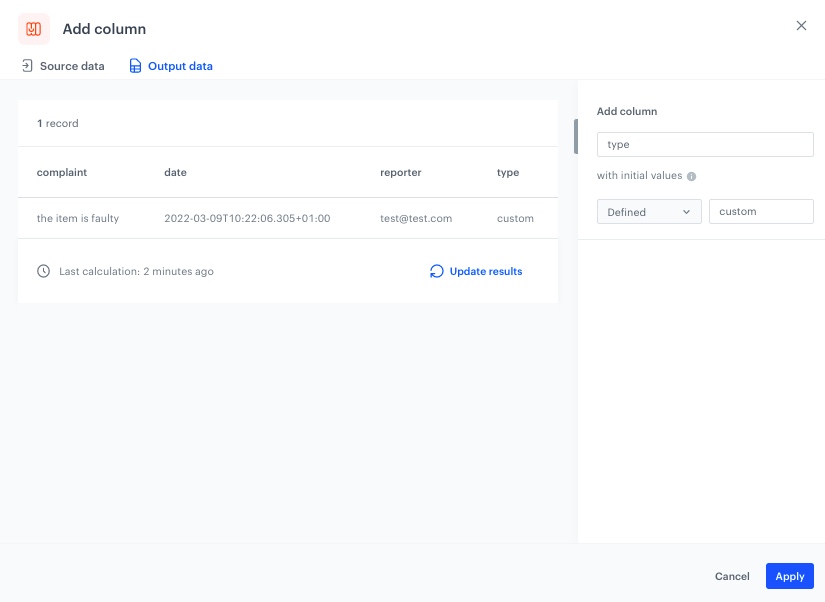
You can use the **Add column** node to create a new column to the file, with a defined value. In this example, we need to add following columns: **type**, **label**, **action**.
1. On the canvas, click the right mouse button.
2. From the dropdown list, select **Add column**.
3. Click the Add column node.
4. In the configuration of the node:
1. In the **Add column** field, enter the unique column name.
In our case: `type`.
2. Select the **Defined** option.
The rows in the new column will be filled with the value you define.
3. As the value, enter `custom`
Example of the configuration of the Add column node, type
4. Confirm by clicking **Apply**.
5. Before you save the settings, you can check the preview of the file after changes on the **Output data** tab.
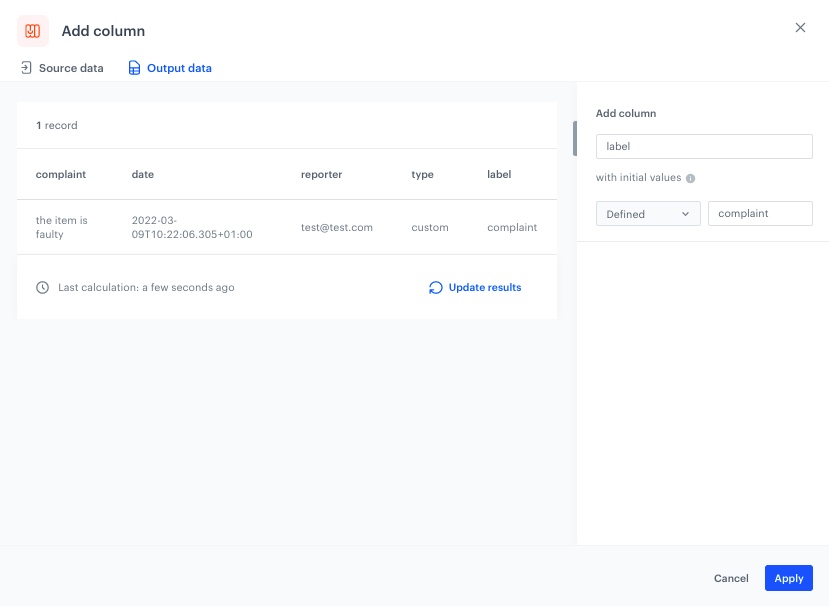
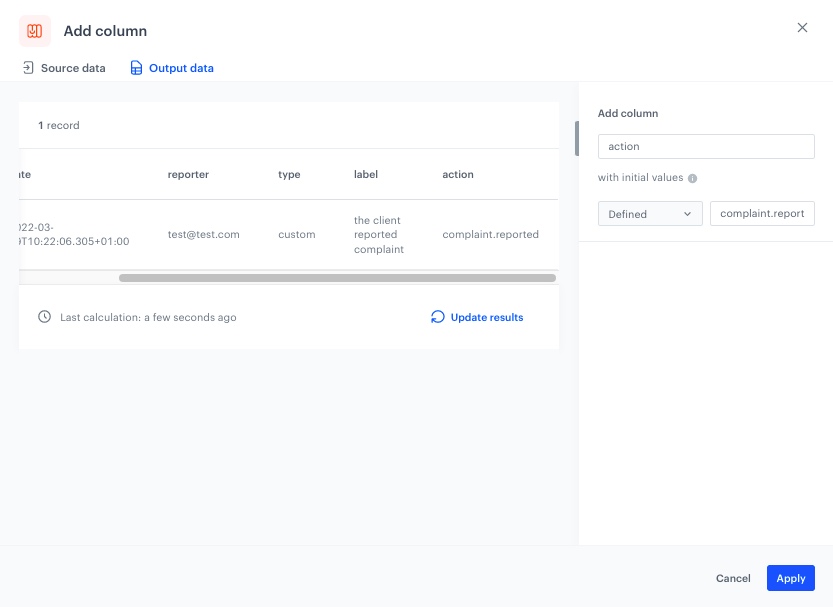
5. Add two more **Add column** nodes by repeating steps 1-4 with the following changes:
- as the first column, add `label` and as the value to insert, enter `complaint`
- as the second column, add `action` and as the value to insert, enter `complaint.reported`
Example of the configuration of the Add column node, labelExample of the configuration of the Add column node, action
### Rename column
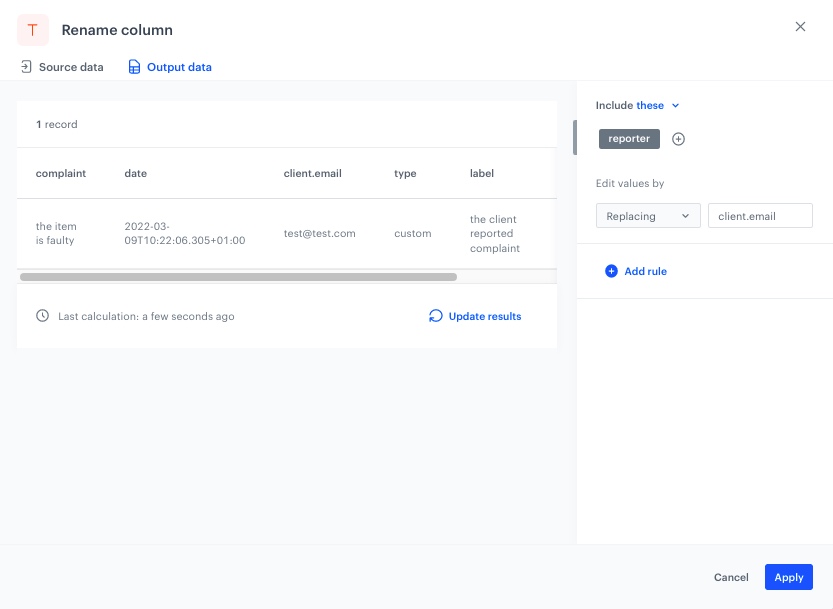
The column name is the key under which the data will be imported to Synerise and appear in the output file. In this example, we will use the **Rename column** node to rename the **reporter** column to **client.email**.
1. On the canvas, click the right mouse button.
2. From the dropdown list, select **Rename column**.
3. Click the Rename column node.
4. In the configuration of the node:
1. Click **Add rule**.
2. Select the **Include these** option.
This is the default option. All column names you select will be changed as you specify in the further configuration.
3. Click **Add column**.
4. From the dropdown list, select the columns you want to rename.
5. Under the **Edit values by** subheader, select the **Replacing** option.
This options finds values matching the conditions and replaces them with the value you specify.
6. In the right field, enter the name you want to replace the original name with. In our example, it is "client.email".
Example of the configuration of the Rename column node
6. To add more rules, click **Add rule** and repeat steps from a to f.
5. Before you save the settings, you can check the preview of the file after changes in the **Output data** tab.
6. Confirm by clicking **Apply**.
### Add the finishing node
This node ends the transformation and passes the modified data to the automation where the Data Transformation is used.
1. On the canvas, click the right mouse button.
2. From the dropdown list, select **Data output**.
3. In the upper right corner, click **Save and publish**.
**Result**:
The diagram of data transformation
After the data transformation is published, you can use it in the Data Transformation node while preparing a workflow that imports the files.
## Prepare a workflow
---
As the final part of the process, create a workflow which imports the custom events every day to Synerise.
1. Go to **Automation Hub > Workflows > New workflow**.
2. Enter the name of the workflow.
### Define the launch date
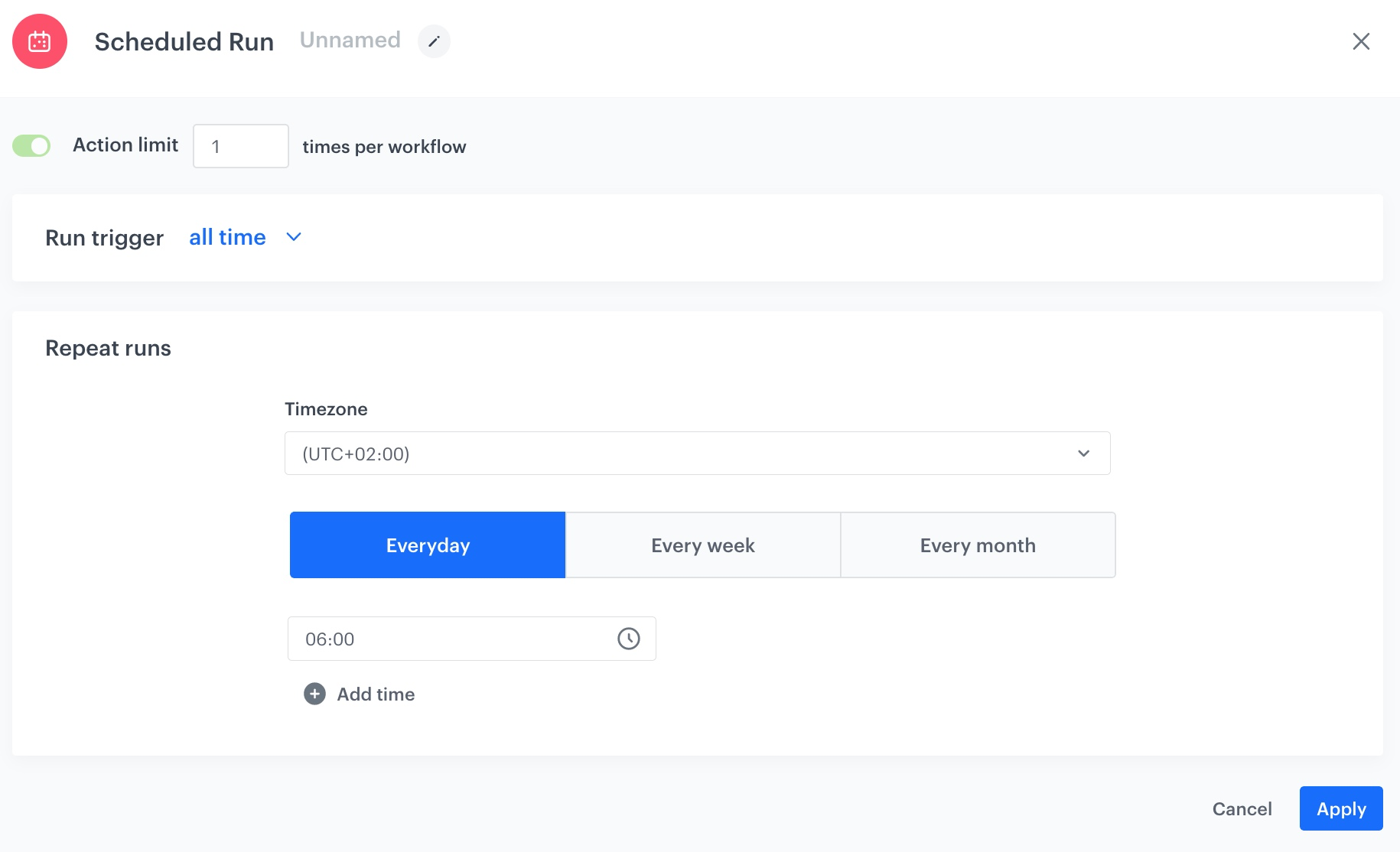
1. As the trigger node, add **Scheduled Run**.
2. In the configuration of the node:
1. Leave the **Run trigger** option at default (**all time**).
2. From the **Timezone** dropdown list, select the time zone consistent with the timezone selected for your workspace.
3. Define the frequency of the workflow (for example, everyday at 6.00 A.M.).
The workflow will automatically launch everyday at the specified time.
The configuration of the Scheduled Run node
4. Confirm by clicking **Apply**.
### Configure settings for SFTP protocol
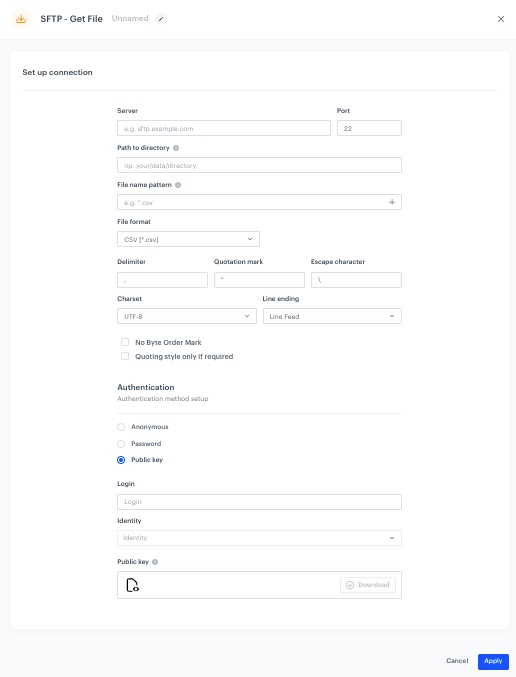
Use **Get File** node to transfer the files from the workflow to your server using SFTP protocol.
1. Add the **Get File** node by clicking **THEN > SFTP**.
2. In the [**configuration of the node**](/docs/automation/integration/sftp-integrations/sftp-get-file) :
1. Enter the path to your server.
2. Select the port.
3. Enter the path to the directory.
4. Enter the name of the file where the data will be saved.
6. From the **File format** dropdown list, select the **CSV** format.
7. Verify and modify the delimiters if needed.
8. In the **Authentication** section, select the method of authentication.
The configuration of the SFTP node
3. Confirm by clicking **Apply**.
### Select the data transformation rules
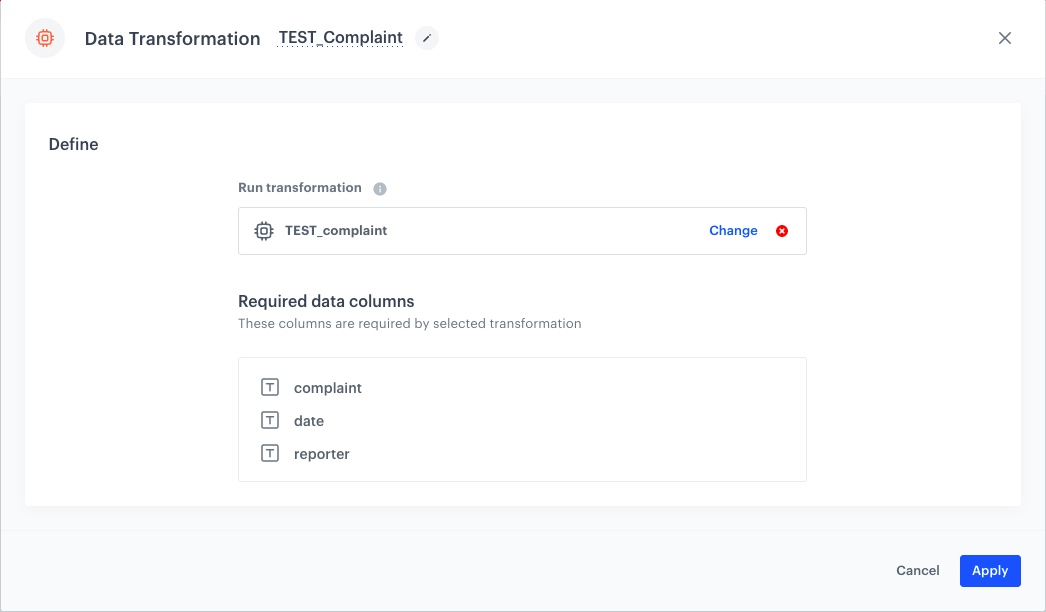
7. Add a **Data Transformation** node.
8. In the configuration of the node, select the [data transformation you have created before](/use-cases/synchronize-complaint-data-as-custom-events#create-data-transformation-rules).
Example of the configuration of the Data Transformation node
9. Confirm by clicking **Apply**.
### Import events
1. Add the **Import Events** node. In the settings of the node, you can check the list of the required columns.
2. Confirm by clicking **Apply**.
### Add the finishing node
12. Add the **End** node.
13. In the upper right corner, click **Save & Run**.
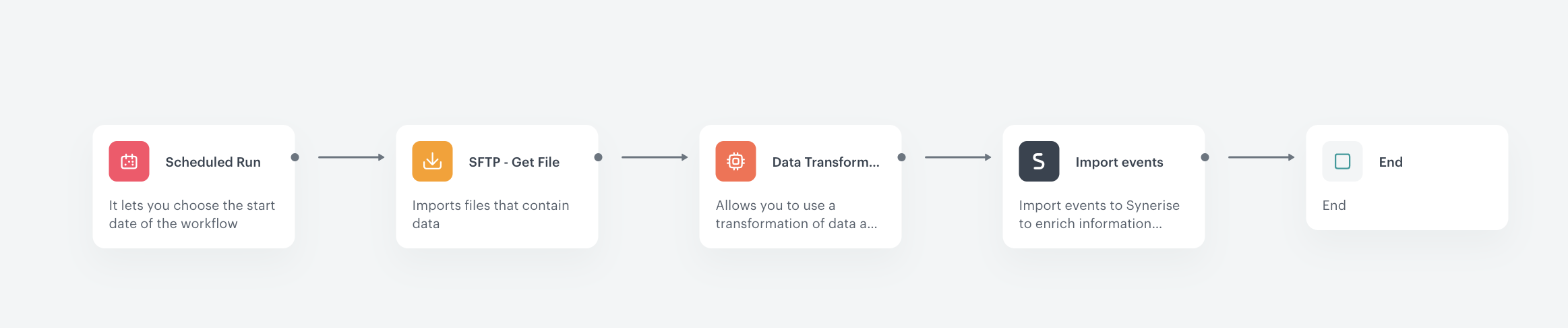
**Result**:
The workflow configuration
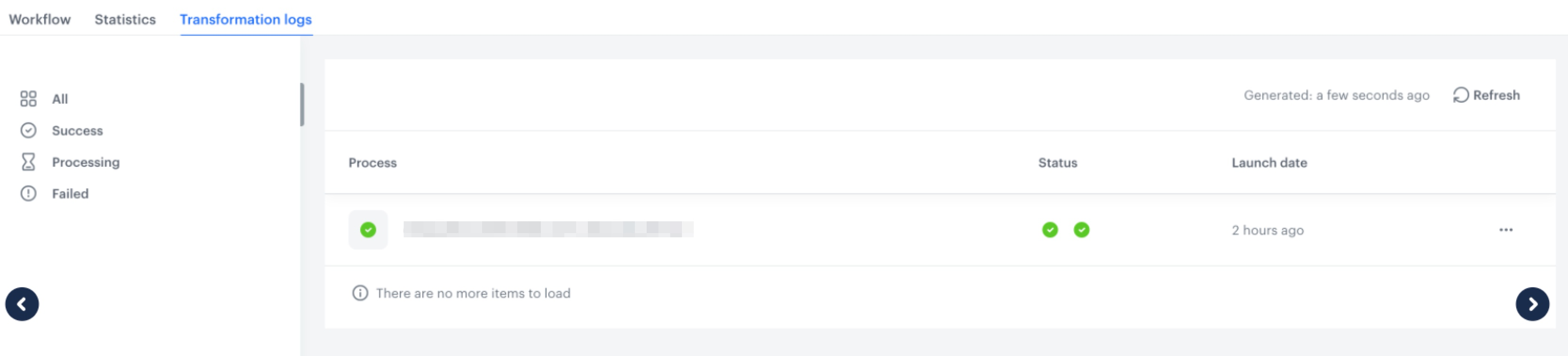
You can monitor the flow of the workflow in the **Transformation logs** tab. It contains information about each execution of the workflow.
The logs for the workflow
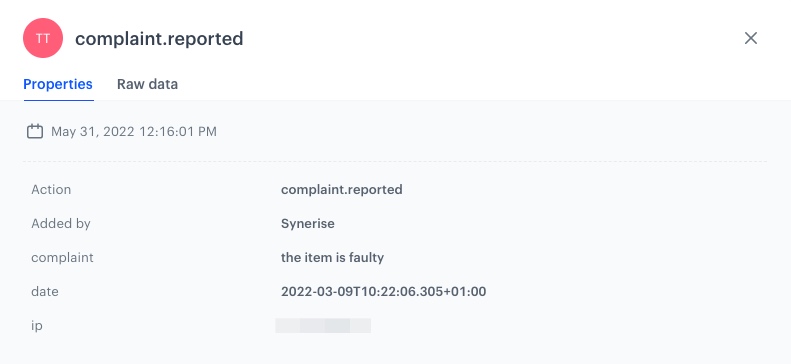
In the customer's profile you can see the custom event added from the workflow.
The custom event in customer's profile
## Check the use case set up on the Synerise Demo workspace
---
You can check the [data transformation rules](https://app.synerise.com/automations/data-transformation/64abbea9-fcaf-48a8-a90a-c1f04ff81ade) directly in Synerise Demo workspace.
Also, you can check there the created [workflow](https://app.synerise.com/automations/automation-diagram/4f2777ae-7655-4e98-8609-5354bd4d962c).
If you’re our partner or client, you already have automatic access to the **Synerise Demo workspace (1590)**, where you can explore all the configured elements of this use case and copy them to your workspace.
If you’re not a partner or client yet, we encourage you to fill out the contact [form](https://demo.synerise.com/request) to schedule a meeting with our representatives. They’ll be happy to show you how our demo works and discuss how you can apply this use case in your business.
## Read more
---
- [Data Transformation](/docs/automation/data-transformation-and-imports/introduction)
- [Events](/docs/assets/events/introduction-to-events)
 **Automation Hub > Data Transformation > Create transformation**.
2. Enter the name of the transformation.
3. Click **Add input**.
### Add file with sample data
This node allows you to add a data sample. In further steps, you define how the data must be modified. Later, when this transformation is used in the workflow, the system uses the rules created with the sample data as a pattern for modifying actual data.
4. On the pop-up, click **Add example**.
5. Upload the file with the sample data.
This is the sample used in this article:
```
reporter,complaint,date
test@test.com,the item is faulty,2022-03-09T10:22:06.305+01:00
```
**Automation Hub > Data Transformation > Create transformation**.
2. Enter the name of the transformation.
3. Click **Add input**.
### Add file with sample data
This node allows you to add a data sample. In further steps, you define how the data must be modified. Later, when this transformation is used in the workflow, the system uses the rules created with the sample data as a pattern for modifying actual data.
4. On the pop-up, click **Add example**.
5. Upload the file with the sample data.
This is the sample used in this article:
```
reporter,complaint,date
test@test.com,the item is faulty,2022-03-09T10:22:06.305+01:00
```