If you manage the customers' data in several places at once, you can use  Automation Hub to synchronize it. It's possible thanks to the HTTP and SFTP integrations that allow you to send data from Synerise to external sources and the other way round.  

This use case describes how to prepare an automated workflow that launches every day and sends the updated list of customers with the agreement for email communication from Synerise to an external resource using the SFTP protocol.

One of the challenges addressed in this use case is modifying the value of the customer attribute (a newsletter agreement attribute) so the data structure is consistent. 

## Prerequisites
---
- You must have customers in **Behavioral Data Hub > Profiles**.  
- You must have a target resource with which you synchronize the data (in this use case, an SFTP server is used).

## Process
---
1. [Create a segmentation of customers](/use-cases/synchronize-profile-data-with-external-services#prepare-a-segmentation) whose data you want to send to the external resource.
2. [Prepare data transformation](/use-cases/synchronize-profile-data-with-external-services#prepare-data-transformation) to modify the data to meet the requirements of the external resource data structure.  
3. [Prepare a workflow](/use-cases/synchronize-profile-data-with-external-services#prepare-a-workflow) that sends the data of customers from Synerise to the external resource.

## Prepare a segmentation
---
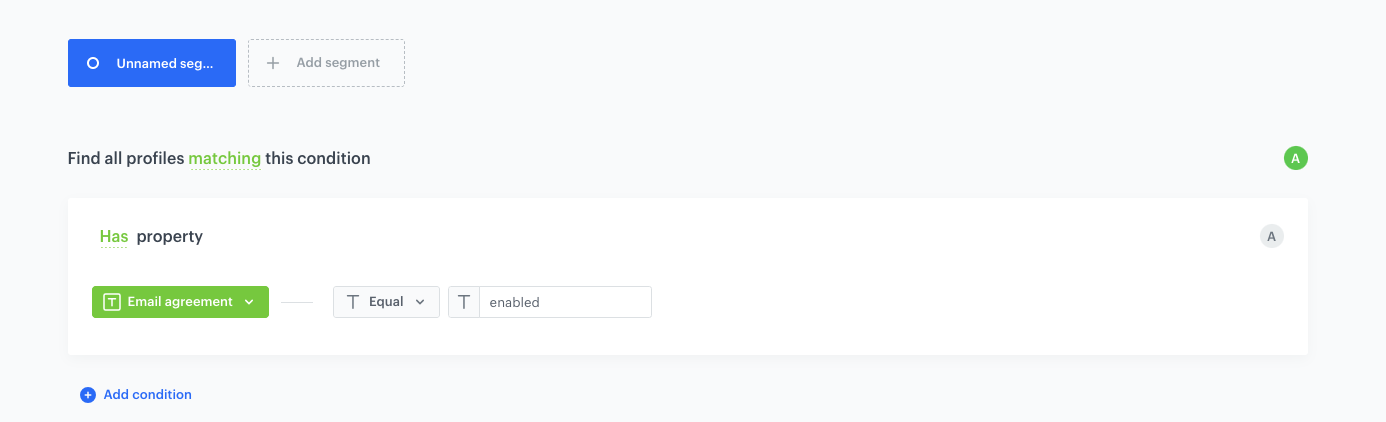
As the first part of the process, create a segmentation of customers who agreed to receive emails. Data of these customers will be sent to the external resource.

1. Go to <img src="/api/docs/image/54176ad07f146575310749eba44b7c2f42c1b327/icons/decision-hub-icon.svg" alt="Decision Hub icon" class="icon" > **Decision Hub > Segmentation > New segmentation**.  
2. As the name of the segmentation, enter `Subscribers`.  
3. Click **Choose filter**.
4. From the dropdown list, select `newsletter_agreement`.  
5. As the logical operator, select **Equal**.  
6. In the text field, enter `enabled`.  
7. Click **Save**.

    <figure><img src="/api/docs/image/54176ad07f146575310749eba44b7c2f42c1b327/use-cases/all-cases/_gfx/synchronize-segmentation.png" class="full" alt="The configuration of the segmentation"><figcaption>The configuration of the segmentation</figcaption></figure>

## Prepare data transformation
---

In this part of the process, you define the rules of modifying data before sending it to the SFTP server, so the data is consistent. For the purposes of this case, a `newsletter_agreement` parameter value will be changed from `enabled` to `true`. Additionally, we add a parameter which marks data as imported, so this import can be distinguished in the SFTP server.  

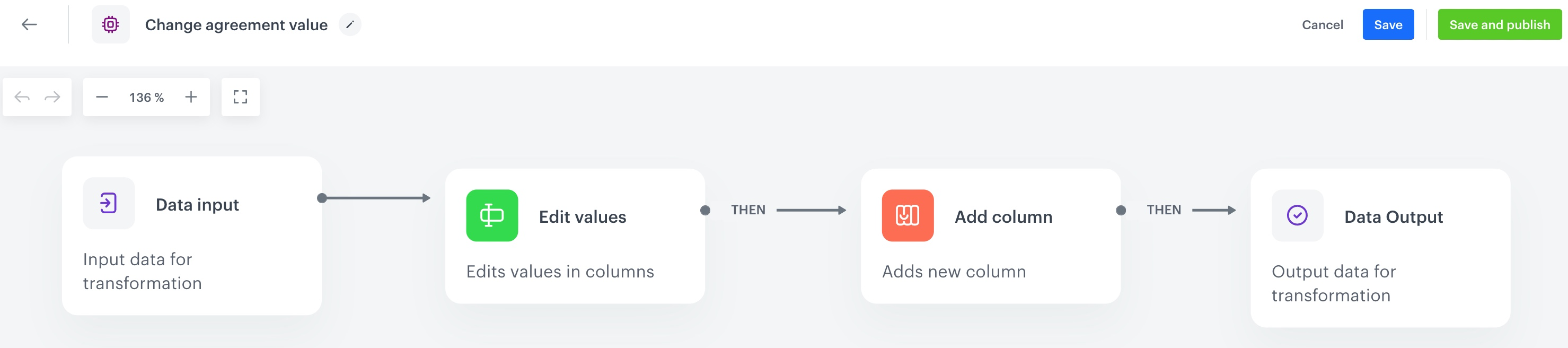
The data transformation diagram which is the output of this part of the process is used later to [automate sending the data](/use-cases/synchronize-profile-data-with-external-services#prepare-a-workflow).  


### Prerequisites
You need a sample of data that will be used in data transformation. You can add it in two ways:
- Prepare a `.csv` file with a few columns and example values.  
    
  <details class="accordion"><summary>Click here to see an example file</summary><div class="accordion-content"><pre><code class="language-plaintext">clientId,email,newsletter_agreement 111111111,john.doe@synerise.com,enabled 222222222,kathy.smith@synerise.com,enabled 333333333,lily.novak@synerise.com,enabled 444444444,matt.turner@synerise.com,enabled</code></pre></div></details>

- Export several customers from **Behavioral Data Hub > Profiles** to a `.csv file`.
    
  <details class="accordion"><summary>Click here to read the instructions</summary><div class="accordion-content"><ol> <li>Go to <strong>Behavioral Data Hub &gt; Profiles</strong></li> <li>On the list, select several customers.</li> <li>At the top of the list, click the <strong>Export</strong> button.</li> <li>On the pop-up, enter the name of the export.</li> <li>Select three attributes: <strong>email</strong>, <strong>clientId</strong>, and <strong>newsletter_agreement</strong>.</li> <li>Click <strong>Apply</strong>. </li> <li>On the pop-up, click <strong>Go to Reports</strong>. </li> <li>On the list, find your export. </li> <li>Next to the export, click the <img src="/api/docs/image/54176ad07f146575310749eba44b7c2f42c1b327/icons/threedoticon.png" alt="Three dot icon" class="icon" > icon. </li> <li>From the context menu, select <strong>Download</strong>.<br><strong>Result</strong>: A <code>.csv</code> file is downloaded.</li> </ol></div></details>


1. Go to <img src="/api/docs/image/54176ad07f146575310749eba44b7c2f42c1b327/icons/automation-hub-icon.svg" alt="Automation Hub icon" class="icon" > **Automation Hub > Data Transformation > Create transformation**.  
2. Enter the name of the transformation.  
3. Click **Add input**.  

### Add file with sample data

This node allows you to add a data sample. In further steps, you define how the data must be modified. Later, when this transformation is used in the  workflow, the system uses the rules created with the sample data as a pattern for modifying actual data.

4. On the pop-up, click **Add example**.  
5. Upload the file with the sample data.  
6. Click **Generate**.  
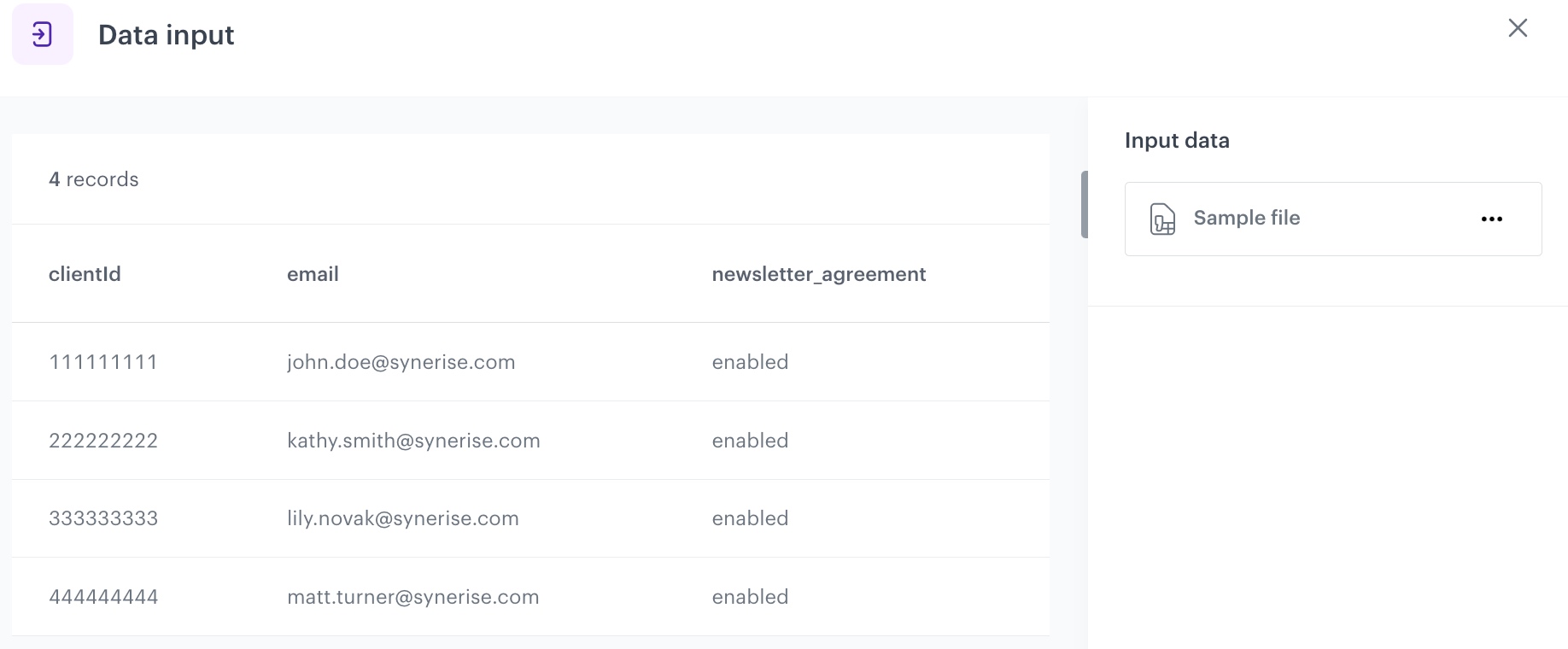
 <figure><img src="/api/docs/image/54176ad07f146575310749eba44b7c2f42c1b327/use-cases/all-cases/_gfx/synchronize-data-input.png" class="full" alt="The configuration of the Data input node"><figcaption>The configuration of the Data input node</figcaption></figure>

### Edit the newsletter_agreement value

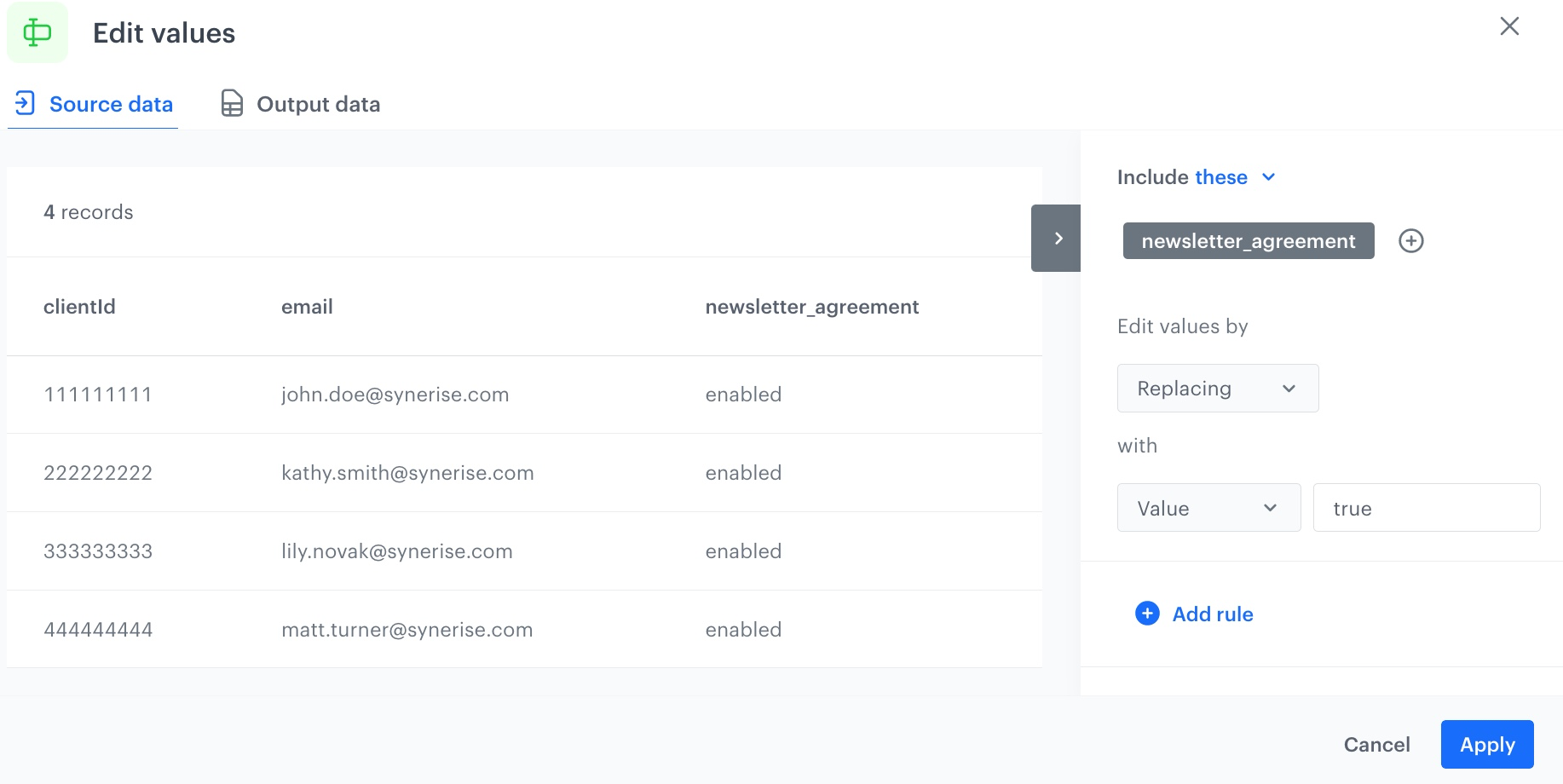
This node allows you to replace the `enabled` value of the `newsletter_agreement` attribute with `true`.

7. On the canvas, click the right mouse button.  
8. From the dropdown list, select **Edit values**.
9. Click the **Edit values** node.  
10. In the configuration of the node:  
    1. Click **Add rule**.  
    2. Click **Add column**.  
    3. Select the **newsletter_agreement** column.  
    4. Under **Edit values by**, from the dropdown list, select **Replacing**.  
    5. In the left dropdown, leave the **Value** option at default.  
    6. In the text field, enter `true`.  
    7. Confirm by clicking **Apply**.

 <figure><img src="/api/docs/image/54176ad07f146575310749eba44b7c2f42c1b327/use-cases/all-cases/_gfx/synchronize-edit-values.png" class="full" alt="The configuration of the Edit values node"><figcaption>The configuration of the Edit values node</figcaption></figure>  

### Add the parameter which marks data as imported

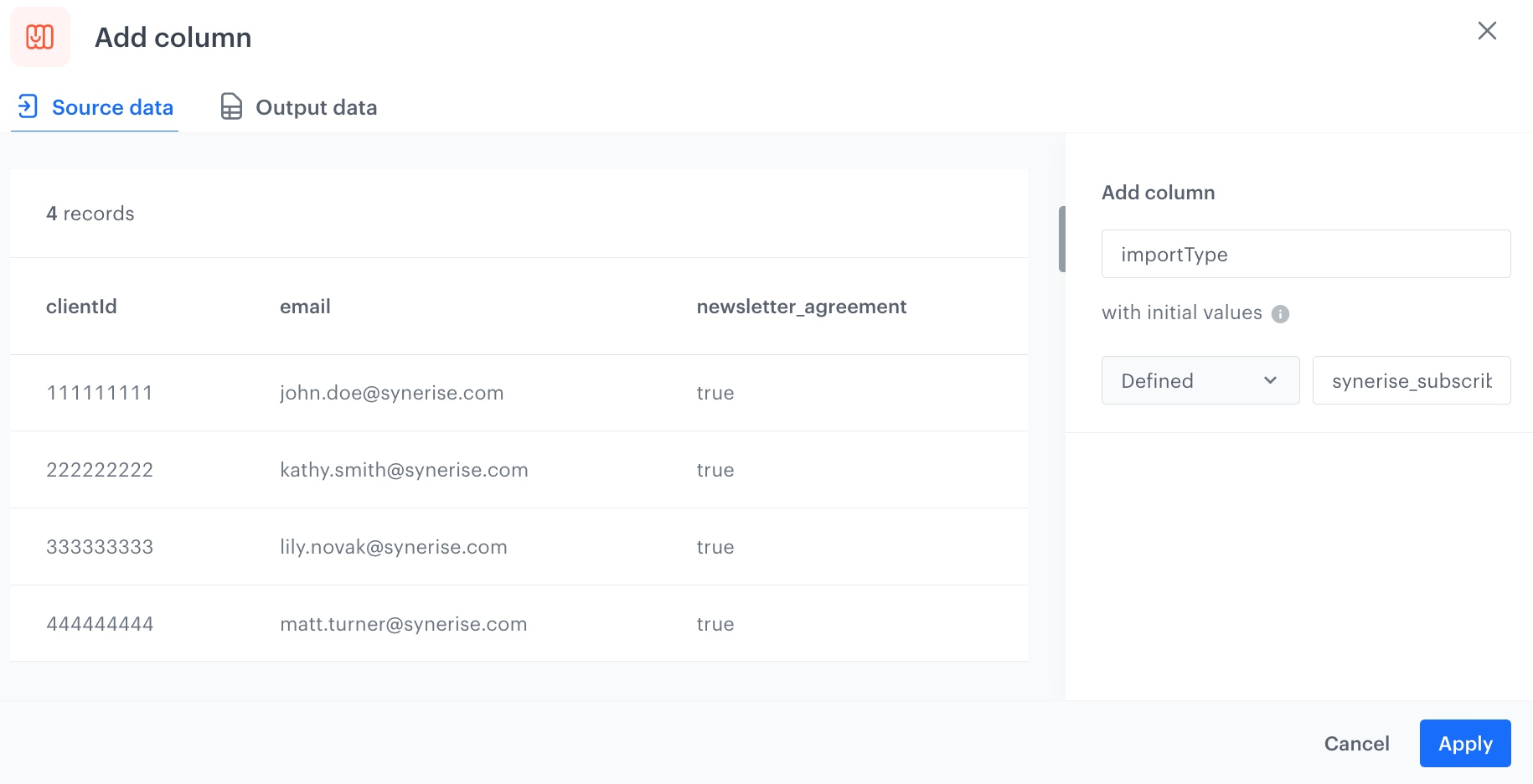
This node allows you to add a column to the data - in result, you can easily identify the import in the external source (the SFTP server).

11. On the canvas, click the right mouse button.  
12. From the dropdown list, select **Add column**.    
13. In the configuration of the node:  
    1. In the **Add column** field, enter `importType`.  
    2. In the dropdown, leave the **Defined** value.  
    3. In the text field, enter `synerise_subscribers`. 
    4. Confirm by clicking **Apply**.

    <figure><img src="/api/docs/image/54176ad07f146575310749eba44b7c2f42c1b327/use-cases/all-cases/_gfx/synchronize-add-column.png" class="full" alt="The configuration of the Add column node"><figcaption>The configuration of the Add column node</figcaption></figure> 

### Add the finishing node

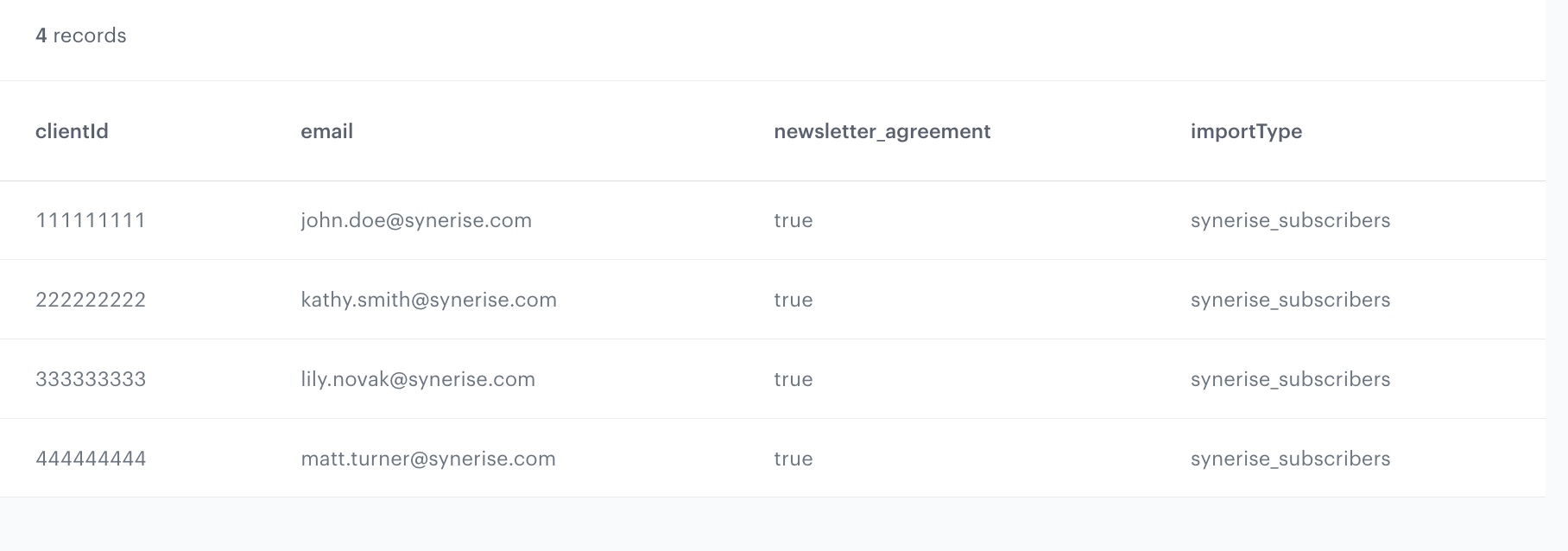
This node lets you preview the output of the modifications to the sample data.

14. On the canvas, click the right mouse button.
15. From the dropdown list, select **Data output**.  
    <figure><img src="/api/docs/image/54176ad07f146575310749eba44b7c2f42c1b327/use-cases/all-cases/_gfx/synchronize-output-data.png" class="full" alt="The preview of modifications to the file"><figcaption>The preview of modifications to the file</figcaption></figure>
15. In the upper right corner, click **Save and publish**.  
 
    <figure><img src="/api/docs/image/54176ad07f146575310749eba44b7c2f42c1b327/use-cases/all-cases/_gfx/synchronize-data-transformation.png" class="full" alt="The diagram of data transformation"><figcaption>The diagram of data transformation</figcaption></figure>


## Prepare a workflow
---
As the final part of the process, create a workflow which sends the customers' data every day to the external source using the SFTP protocol. 

1. Go to <img src="/api/docs/image/54176ad07f146575310749eba44b7c2f42c1b327/icons/automation-hub-icon.svg" alt="Automation Hub icon" class="icon" > **Automation Hub > Workflows > New workflow**.  
2. Enter the name of the workflow.  

### Define the launch date

3. As the trigger node, add **Scheduled Run**.  
4. In the configuration of the node:  
    1. Leave the **Run trigger** option at default (**all time**).  
    2. From the **Timezone** dropdown list, select the time zone consistent with the timezone selected for your workspace.  
    3. Define the frequency of the workflow (for example, everyday at 6.00 A.M.).  
    The workflow will automatically launch everyday at 6.00 A.M. 
    4. Confirm by clicking **Apply**.
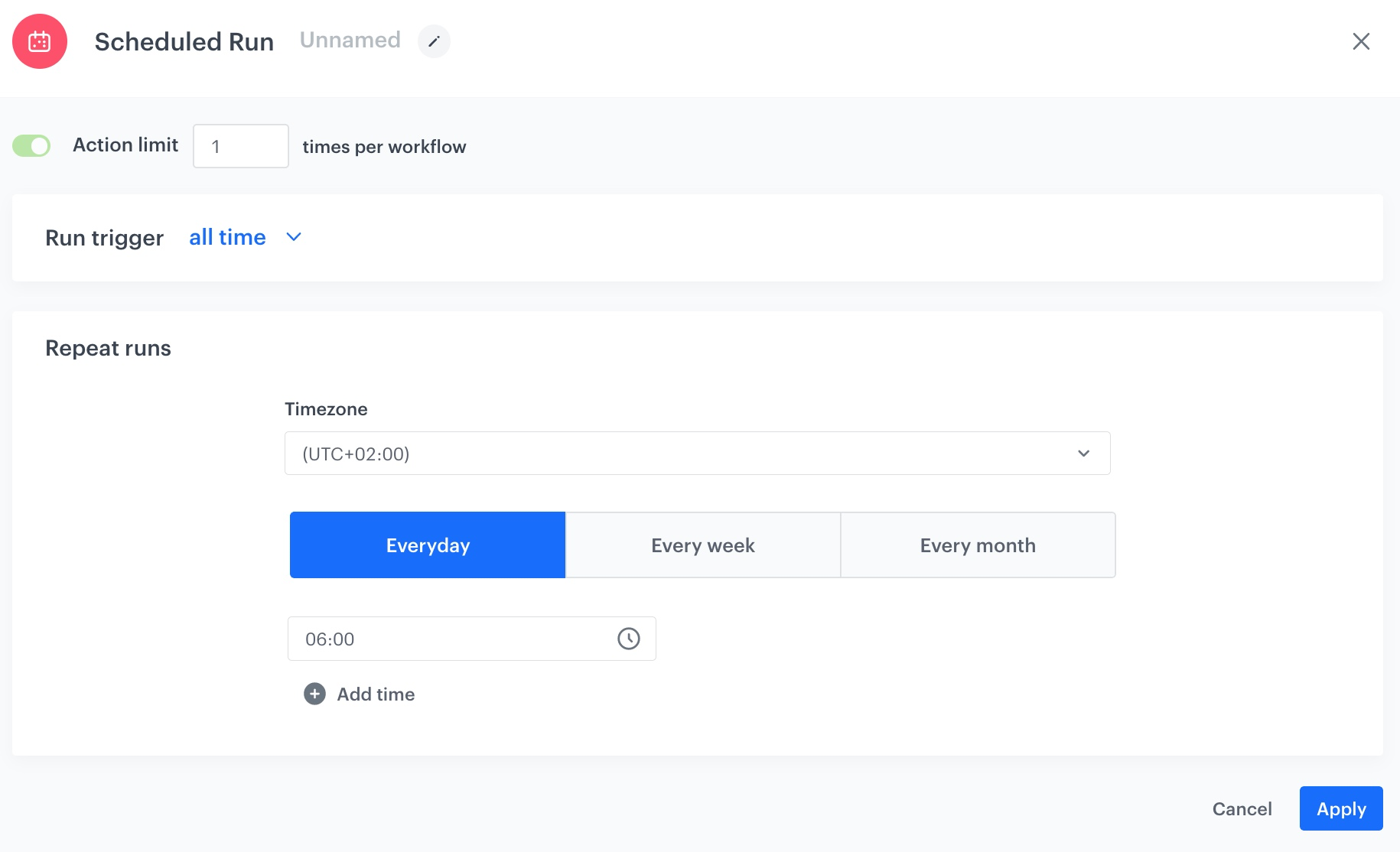
<figure><img src="/api/docs/image/54176ad07f146575310749eba44b7c2f42c1b327/use-cases/all-cases/_gfx/synchronize-scheduled-run.png" class="full" alt="The configuration of the Scheduled Run node"><figcaption>The configuration of the Scheduled Run node</figcaption></figure>

### Select customers to export

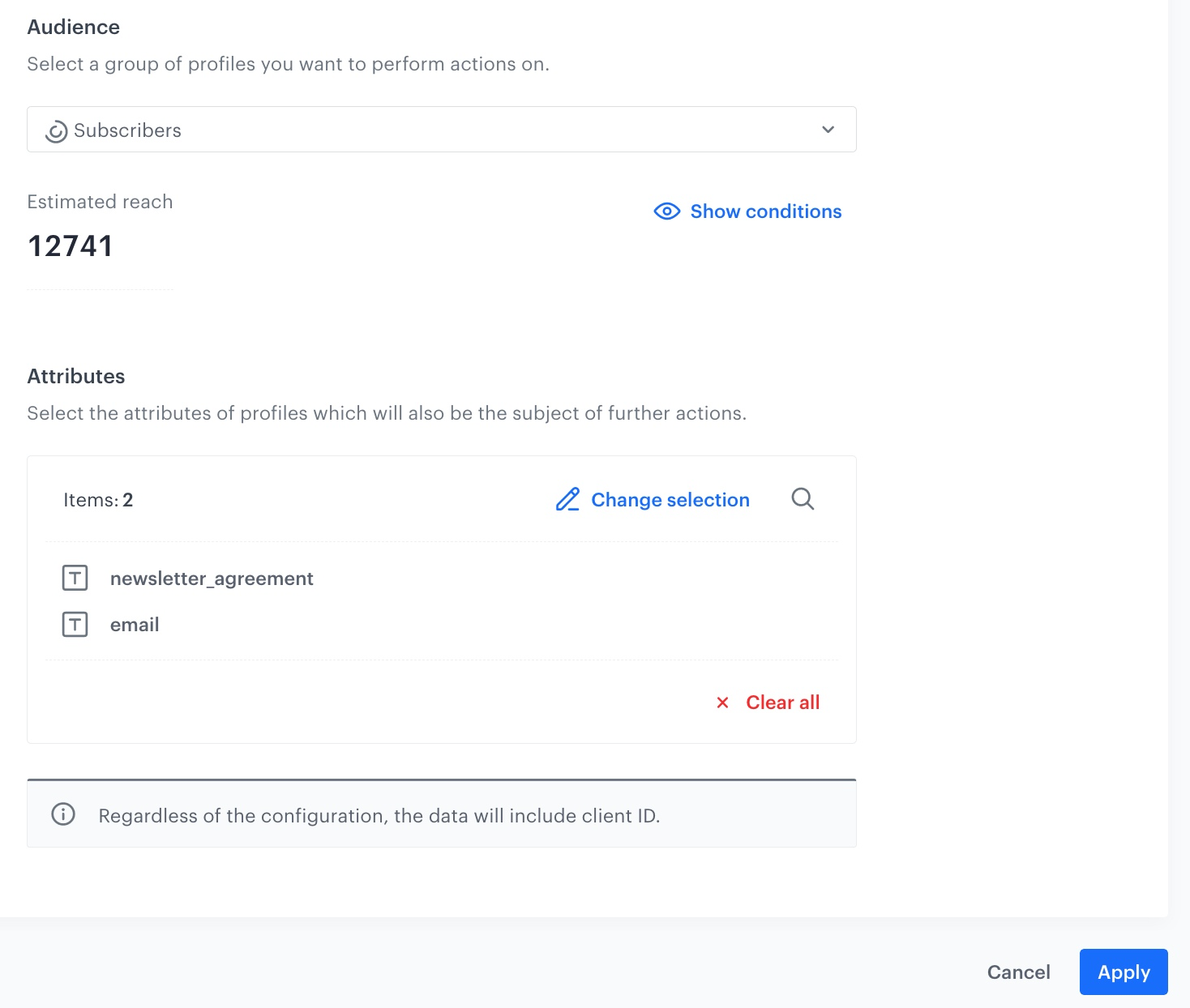
5. Add a **Get Profiles** node.  
6. In the configuration of the node:  
    1. Select the segmentation you [created in the first part of the process](/use-cases/synchronize-profile-data-with-external-services#prepare-a-segmentation).  
    2. In the **Attributes** section, select **newsletter_agreement** and **email**. 
    3. Confirm by clicking **Apply**.  

   <figure><img src="/api/docs/image/54176ad07f146575310749eba44b7c2f42c1b327/use-cases/all-cases/_gfx/synchronize-get-profiles.png" class="full" alt="The configuration of the Get Profiles node"><figcaption>The configuration of the Get Profiles node</figcaption></figure>

### Select the data transformation rules

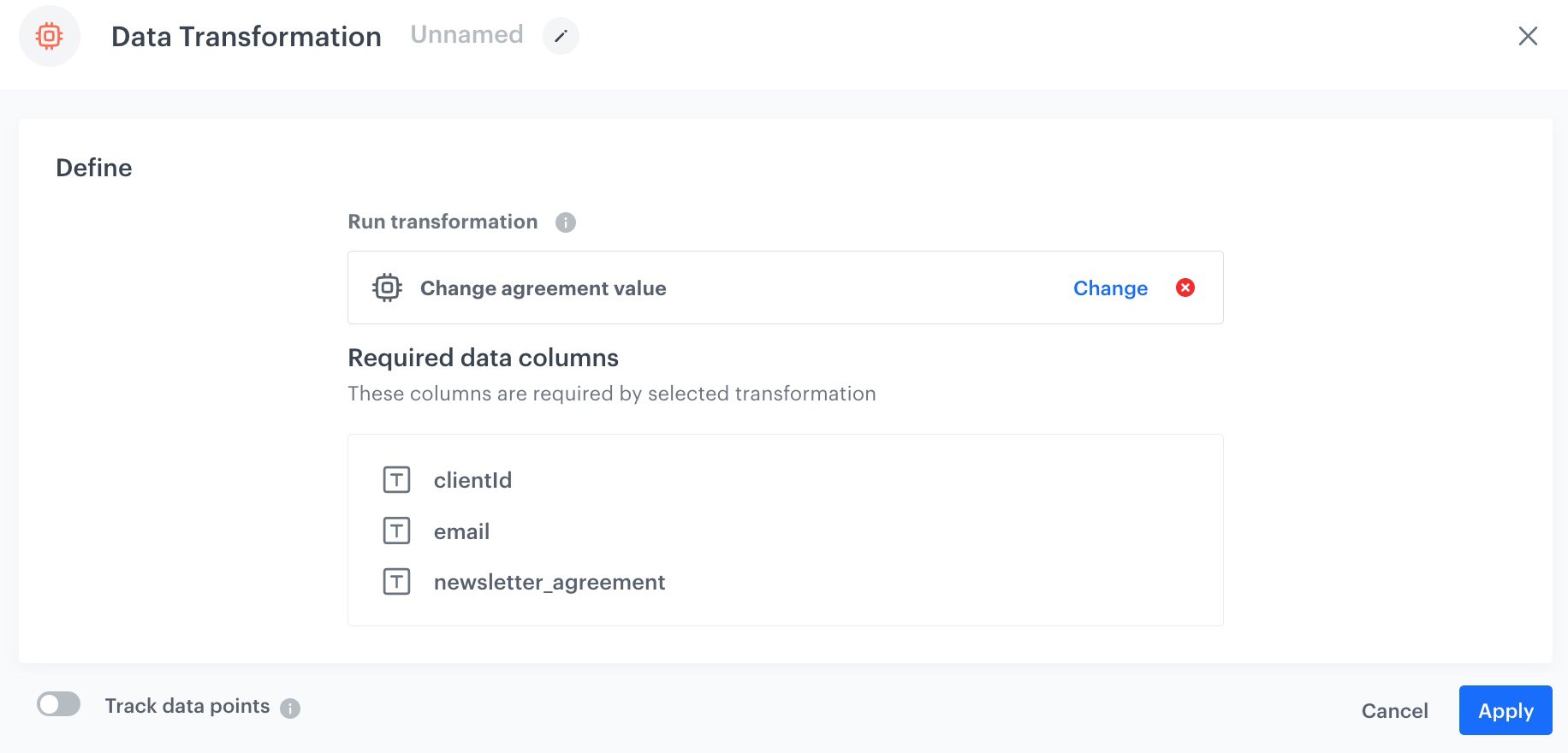
7. Add a **Data Transformation** node.  
8. In the configuration of the node, select the [data transformation you have created before](/use-cases/synchronize-profile-data-with-external-services#prepare-data-transformation).  
9. Confirm by clicking **Apply**.  

 <figure><img src="/api/docs/image/54176ad07f146575310749eba44b7c2f42c1b327/use-cases/all-cases/_gfx/synchronize-auto-data-trans.png" class="full" alt="The configuration of the Data Transformation node"><figcaption>The configuration of the Data Transformation node</figcaption></figure>

### Configure settings for SFTP protocol

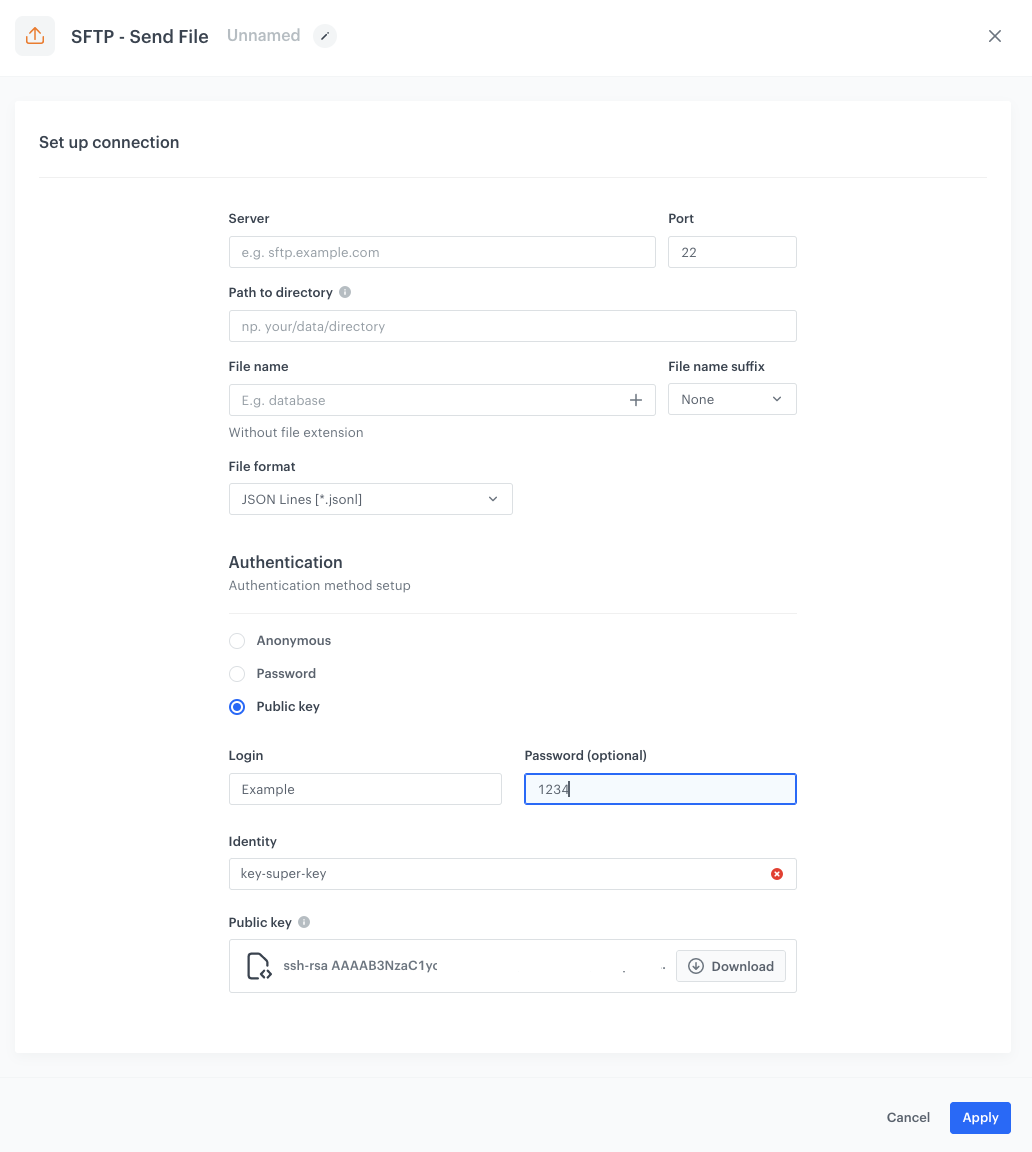
10. Add the **Send File** node by clicking **THEN > SFTP**.  
11. In the configuration of the node:  
    1. Enter the path to your server.  
    2. Select the port.
    3. Enter the path to the directory.
    4. Enter the name of the file.  
    5. If needed, in the **File name suffix**, select the suffix of the file name.  
    6. From the **File format** dropdown list, select the **CSV** format.  
    7. Verify and modify the delimiters if needed.  
    8. In the **Authentication** section, select the method of authentication.  
    9. Confirm by clicking **Apply**. 
    
      <figure><img src="/api/docs/image/54176ad07f146575310749eba44b7c2f42c1b327/use-cases/all-cases/_gfx/synchronize-sftp.png" class="large" alt="The configuration of the SFTP node"><figcaption>The configuration of the SFTP node</figcaption></figure>

### Add the finishing node

12. Add the **End** node. 
13. In the upper right corner, click **Save & Run**.  
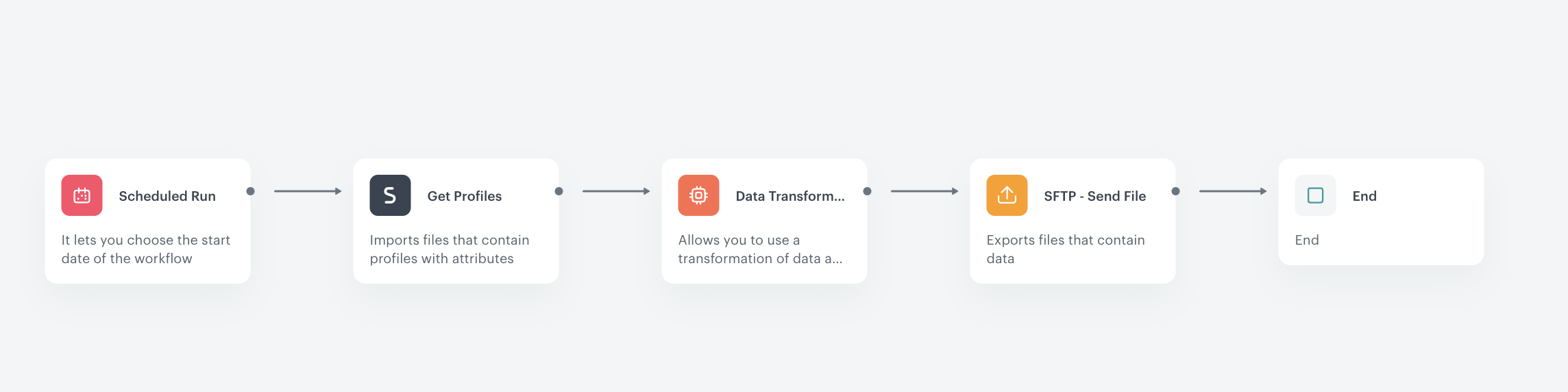
    **Result**:  
    <figure><img src="/api/docs/image/54176ad07f146575310749eba44b7c2f42c1b327/use-cases/all-cases/_gfx/synchronize-workflow.png" class="full" alt="The workflow configuration"><figcaption>The workflow configuration</figcaption></figure>

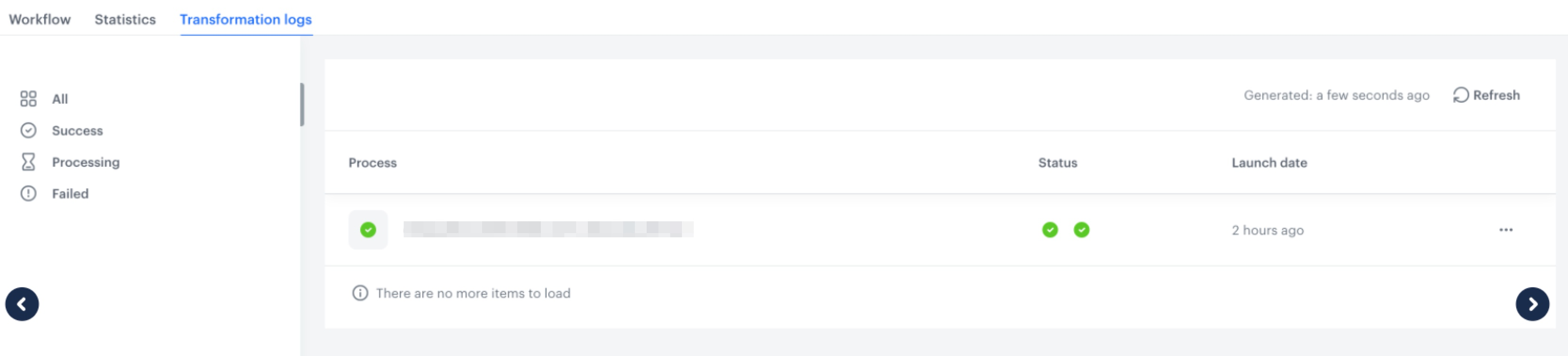
You can monitor the flow of the workflow in the **Transformation logs** tab. It contains information about each execution of the workflow.  
    <figure><img src="/api/docs/image/54176ad07f146575310749eba44b7c2f42c1b327/use-cases/all-cases/_gfx/synchronize-logs.png" class="full" alt="The logs for the workflow"><figcaption>The logs for the workflow</figcaption></figure>


## Check the use case set up on the Synerise Demo workspace
---

You can check the configuration of each item created in this use case on our Synerise Demo workspace:  
- [Segmentation of customers who agreed to receive newsletters](https://app.synerise.com/analytics/segmentations/7655038e-99bc-4876-9d7a-90f801ae6a5c).
- [Data Transformation](https://app.synerise.com/automations/data-transformation/19add353-ade6-406f-8e1c-db51229aa785).
- [The workflow](https://app.synerise.com/automations/automation-diagram/72a4d7e2-d2a0-40bd-a1a2-373bb7ae33b8).

If you’re our partner or client, you already have automatic access to the **Synerise Demo workspace (1590)**, where you can explore all the configured elements of this use case and copy them to your workspace.  

If you’re not a partner or client yet, we encourage you to fill out the contact [form](https://demo.synerise.com/request) to schedule a meeting with our representatives. They’ll be happy to show you how our demo works and discuss how you can apply this use case in your business.


## Read more
---
- [Data Transformation](/docs/automation/data-transformation-and-imports/introduction)  
- [Segmentations](/docs/analytics/segmentations)
- [Workflows](/docs/automation)