You can integrate Synerise with Microsoft Teams using a dedicated node to build a variety of business scenarios. One of them is building a workflow that sends messages to a Microsoft Teams channel based on metrics, expressions, reports or any other analyses created in Synerise. Sending alerts can be additionally dependent on the value of these analyses and you can send messages if the value of the analyses is greater or lower than a specific number.

This particular use case uses a metric which analyzes percentage decline of transactions every day. If the number of transactions decreased the day before by 50% compared to the average for the last 30 days, the message with alert is sent to a specific channel on Microsoft Teams. The message to the channel contains information with the value of the metric. 


## Prerequisites 
---
- Implement transaction events using [SDK](/developers/web/transactions-sdk) or [API](https://developers.synerise.com/DataManagement/DataManagement.html#operation/CreateATransaction).
- Create a workflow from a channel in Teams by following steps below (skip point 4):
1. Go to Power Automate to create [a workflow from a channel in Teams](https://support.microsoft.com/en-us/office/creating-a-workflow-from-a-channel-in-teams-242eb8f2-f328-45be-b81f-9817b51a5f0e). Save workflow to generate incoming webhook URL. 
2. Edit the created workflow by filling out the **TeamId** and **ChannelId** fields. These values will be suggested. If not:
    - To get the value of **TeamId**, go to the MS Teams application and retrieve a link to the team. **TeamId** is the part of generated URL groupId=XXXX. 
    - To get the value of **ChannelId**, go to the MS Teams application and retrieve a link to the channel. **ChannelId** is a part of generated URL channel/XXXXXXXX. 
3. Save the changes in the workflow.  
4. If you want to send an interactive message (such message can contain links, simple surveys, sections), prepare it in [AdaptiveCard](https://adaptivecards.io/designer/).


## Process
---

In this use case, you will go through the following steps:
1. [Create a metric which counts the change in transactions](/use-cases/teams-integration#create-a-metric-which-counts-the-change-in-transactions). It calculates percentage change in transactions the day before compared to the daily average for the last 30 days.
2. [Create a workflow](/use-cases/teams-integration#create-a-workflow) which sends the message to the Microsoft Teams channel.

## Create a metric which counts the change in transactions
---
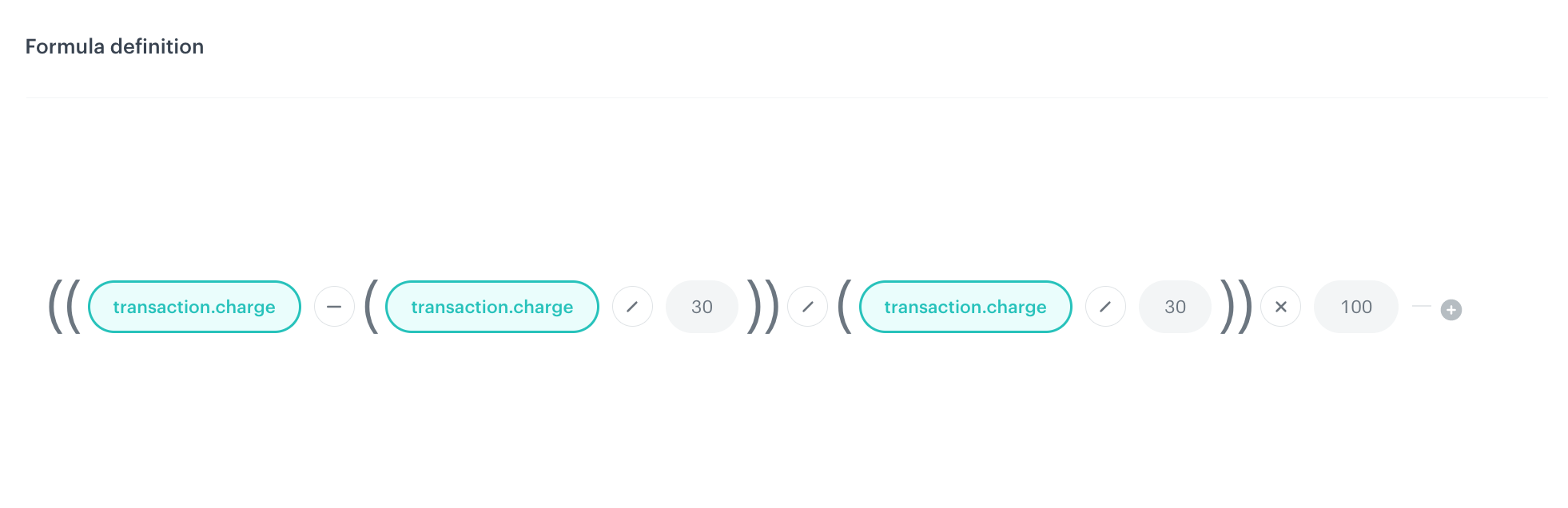
In this step, we will create the metric, whose result will be later sent in the Microsoft Teams message. This specific metric will count the change in the amount transaction.charge events in comparison to the average from previous 30 days. The result of the metric will be expressed as a percentage. The message to the channel will contain information with the value of the metric. 

1. In Synerise, go to <img src="/api/docs/image/54176ad07f146575310749eba44b7c2f42c1b327/icons/decision-hub-icon.svg" alt="Decision Hub icon" class="icon" > **Decision Hub > Metrics > New metric**.
2. Enter the name of the metric.
2. Choose the **Formula metric**.
3. Build the formula of the metric as shown in the screen below:  
    <figure>
    <img src="/api/docs/image/54176ad07f146575310749eba44b7c2f42c1b327/use-cases/all-cases/_gfx/teams-metric2.png" alt="Configuration of the metric which counts the change in transactions" class="full">
    <figcaption> Configuration of the metric which counts the change in transactions </figcaption>
    </figure>

    Where:
    - The time range for the first `transaction.charge` event (on the left side) is set to Last 1 day before 1 day.
    - The time range of the second `transaction.charge` event (in the middle) is set to Last 30 days before 2 days.
    - The time range of the third `transaction.charge` event (on the right side) is set to Last 30 days before 2 days.
4. Confirm by clicking **Apply**.  

**Results:** The results will show by how many percent transaction events increased or decreased in comparison to the average from previous 30 days.

## Create a workflow
---

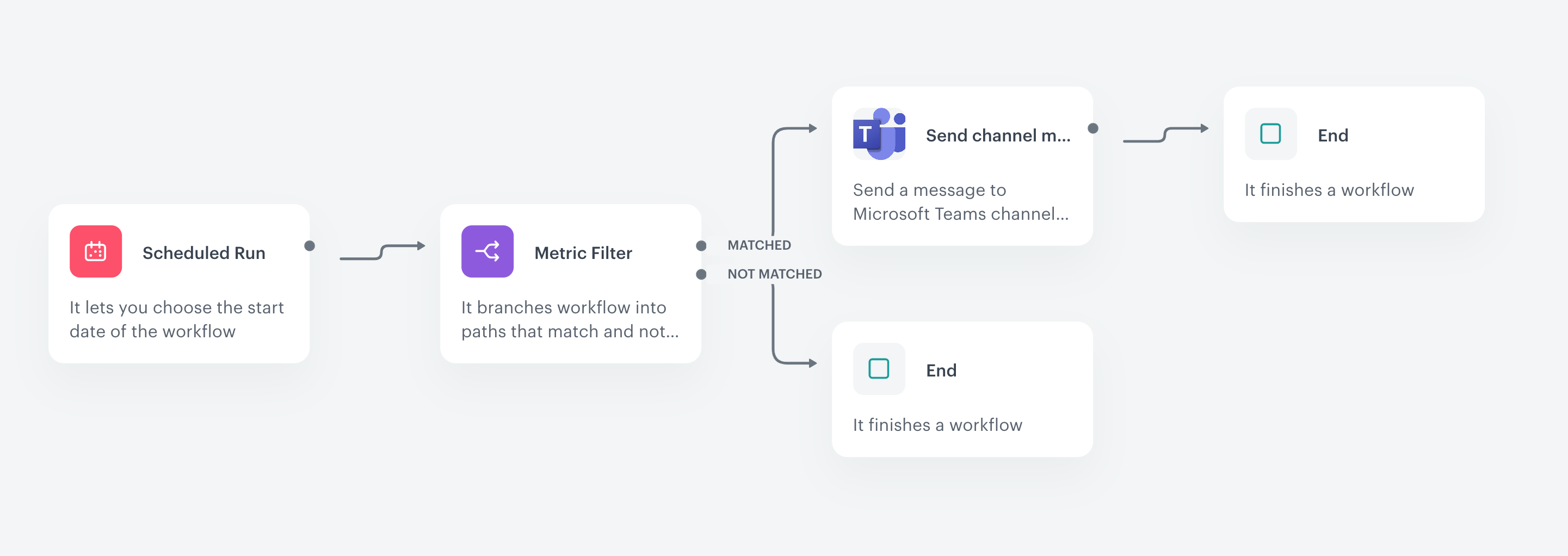
In this part of the process, you will create a workflow that sends a message to the Microsoft Teams channel if the number of transaction events decreased more than 50% comparing to the average in previous 30 days. 

1. In Synerise, go to **Automation Hub > Workflows > New workflow**.
2. Enter the name of the workflow.  

### Configure the trigger
---
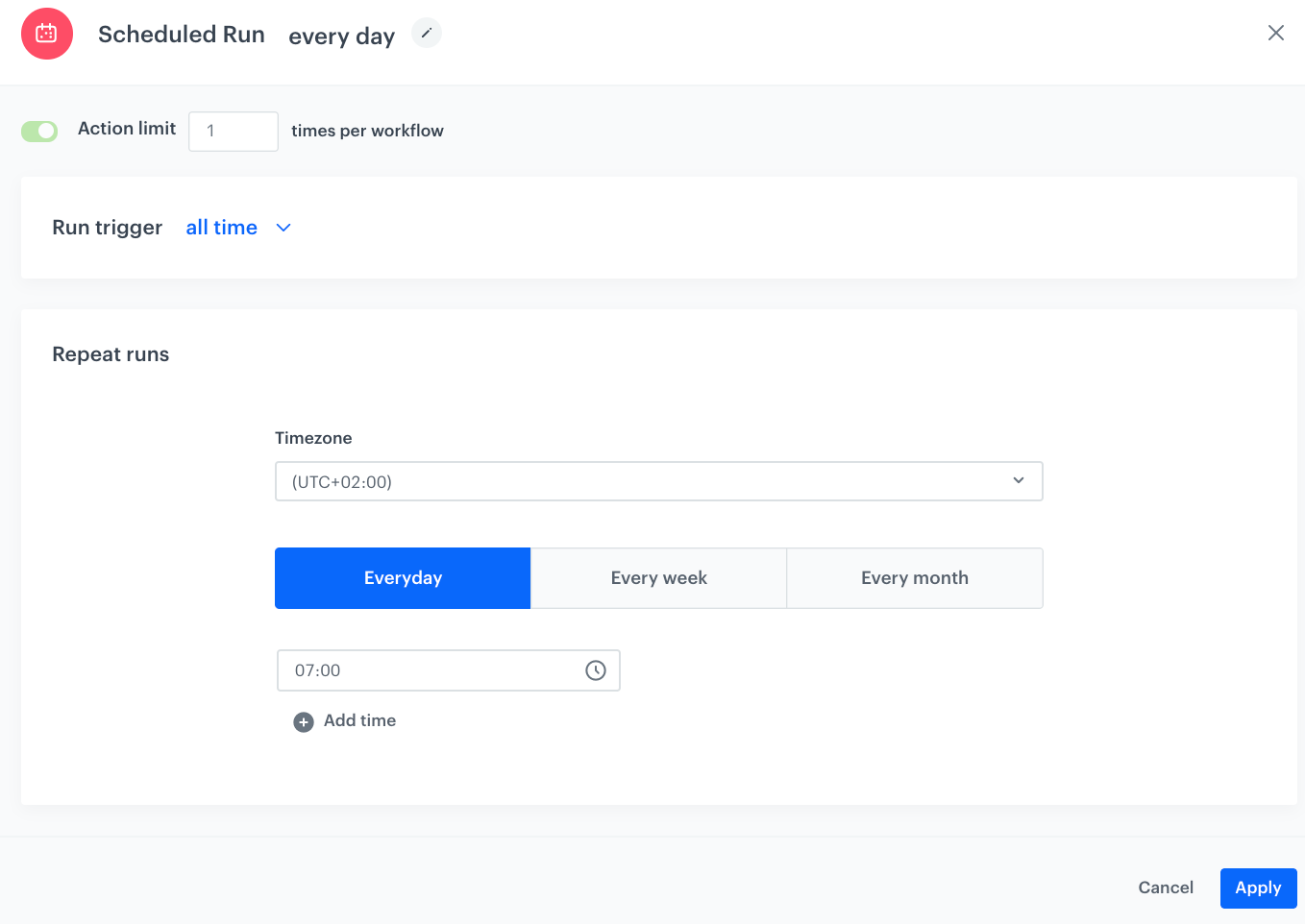
As the first node, select the **Scheduled Run** node in which you will define the frequency of triggering this workflow and schedule the start of the workflow.

1. Start with the **Scheduled Run** node. In the configuration of the node:
    1. Set the **Run trigger** option to **all time**.
    2. Select the **Everyday** tab.
    3. Select the time zone.
    
       <div class="admonition admonition-important"><div class="admonition-icon"><svg xmlns="http://www.w3.org/2000/svg" fill="none" viewBox="0 0 24 24" stroke="currentColor" stroke-width="2.5"><path stroke-linecap="round" stroke-linejoin="round" d="M12 8v4m0 4h.01M21 12a9 9 0 11-18 0 9 9 0 0118 0z" /></svg></div><div class="admonition-body"><div class="admonition-content">

       Select the time zone consistent with the time zone selected for your workspace.

       </div></div></div>

    3. Select the time when the workflow will be launched.  
    4. Confirm by clicking **Apply**.

  <figure>
    <img src="/api/docs/image/54176ad07f146575310749eba44b7c2f42c1b327/use-cases/all-cases/_gfx/scheduled-run-slack.png" alt="The configuration of the Scheduled Run node" class="full">
    <figcaption> The configuration of the Scheduled Run node </figcaption>
    </figure>

### Configure the Metric Filter 
---
In the **Metric Filter** node, you will select [the metric prepared in the previous part of the process](/use-cases/teams-integration#configure-the-metric-filter). The continuation of the workflow will depend on the result of the metric. If the metric result is lower than 50, the alert about significant transaction events decrease will be sent to a Microsoft Teams channel.

1. On the **Scheduled Run** node, click **THEN**.
2. Choose the [metric created in the previous step](/use-cases/teams-integration#create-a-metric-which-counts-the-change-in-transactions).
3. As the condition, by using the mathematical operators, set the metric result to be less or equal `-50`. 
4. Apply changes.


### Configure Microsoft Teams Integration node
---
In this step, you will configure the settings of the outgoing integration that sends the message to the Microsoft Teams channel. 

#### Create a connection

1. On the **Metric Filter** node, click **THEN**.
2. From the dropdown list, select **Microsoft Teams > Send Channel Message**.  
3. In the configuration of the node:  
    - If you already create a connection, select the connection from the list.  
    - If you haven't created any connection yet:  
    1. At the bottom of the dropdown list, click **Add connection**.
    2. In the **Incoming Webhook URL** field, enter the incoming webhook URL you created as a part of [prerequisites](/use-cases/teams-integration#prerequisites).
    3. Click **Next**.  
    4. In the **Connection name** field, enter the name for the connection you created. 
    5. Click **Apply**.  
      **Result**: A connection is created and selected. 

#### Define the integration parameters

1. In the **Type of message** dropdown list, select the **Simple message**.
2. In the **Text of message** field, enter the text of message that will be sent to Microsoft Teams channel. In the message, you can insert the result of metric created in the [previous step](/use-cases/teams-integration#create-a-metric-which-counts-the-change-in-transactions). This way the result of the metric will be sent to the Microsoft Teams.

See the example message with metric insert:


<pre><code class="language-jinja">Check the transaction level! It decreased for more thank 50% comparing to the average from last 30 days. The metric result is: {% metricsvar metric_id:78d31e68-d886-4fcb-9ca3-b2136e74be01 %}{{ metric_result }}{% endmetricsvar %}%.</code></pre>


<div class="admonition admonition-important"><div class="admonition-icon"><svg xmlns="http://www.w3.org/2000/svg" fill="none" viewBox="0 0 24 24" stroke="currentColor" stroke-width="2.5"><path stroke-linecap="round" stroke-linejoin="round" d="M12 8v4m0 4h.01M21 12a9 9 0 11-18 0 9 9 0 0118 0z" /></svg></div><div class="admonition-body"><div class="admonition-content">

Check the instruction of [usage inserts with metrics](/developers/inserts/insert-usage#metrics). It might be helpful in creating your own message.

</div></div></div>


### Add final setting to your workflow
---
5. Add the **End** node.
6. Launch the workflow by clicking **Save&Run**. 

  <figure>
    <img src="/api/docs/image/54176ad07f146575310749eba44b7c2f42c1b327/use-cases/all-cases/_gfx/teams-alert.png" alt="Configuration of the workflow that sends alert messages based on the metric results to the Microsoft Teams channel" class="full">
    <figcaption> Configuration of the workflow that sends alert messages based on the metric results to the Microsoft Teams channel</figcaption>
    </figure>

**Result**: The message is sent to the Microsoft Teams channel.  

## Check the use case set up on the Synerise Demo workspace
---

Directly in our Synerise Demo workspace, you can check the configuration of the [metric which counts the percentage change in transaction events](https://app.synerise.com/analytics/metrics/78d31e68-d886-4fcb-9ca3-b2136e74be01) and the [workflow configuration](https://app.synerise.com/automations/automation-diagram/8a90a0f0-e019-475e-a8c5-c00b92a9c71c).


If you’re our partner or client, you already have automatic access to the **Synerise Demo workspace (1590)**, where you can explore all the configured elements of this use case and copy them to your workspace.  

If you’re not a partner or client yet, we encourage you to fill out the contact [form](https://demo.synerise.com/request) to schedule a meeting with our representatives. They’ll be happy to show you how our demo works and discuss how you can apply this use case in your business. 

## Read more
---
- [Automation Hub](/docs/automation)
- [Integration](/docs/automation/integration)
- [Inserts](/developers/inserts)
- [Metrics](/docs/analytics/metrics)


