Create a buzz around your product and draw attention to your store, while attracting a larger audience by offering significant discount for a limited time. Build anticipation and excitement among your loyalty and future customers with an early preview of the remarkable discount opportunity.

This use case describes how to create a high discount promotion for one product with an early preview. The customer will receive a 70% discount for a specific product three days in advance, which can be redeemed only on the weekend.

## Prerequisites 
---
- Implement promotions in your [mobile application](/developers/mobile-sdk/loyalty), website or through [API](https://developers.synerise.com/LoyaltyandEngagement/LoyaltyandEngagement.html#operation/profileLogin)
- [Implement transactional events](/developers/web/methods-reference#tracking-transactions).
- [Import the product feed to a catalog](/use-cases/import-product-feed-to-catalog).


## Create a promotion
---
Create a straightforward weekend promotion for a specific product with a substantial discount rate (for example 70%). The promotion will be previewable three days prior to its activation. 

1. Go to <img src="/api/docs/image/54176ad07f146575310749eba44b7c2f42c1b327/icons/ai-hub-icon.svg" alt="Image presents the AI Hub icon" class="icon"> **AI Hub > Regular Promotions > Add Promotion**.
2. Enter a name for the promotion.
3. Select the **For selected items** type of promotion.
4. In the **Audience** section, choose **Everyone**.
5. In the **Content** section:
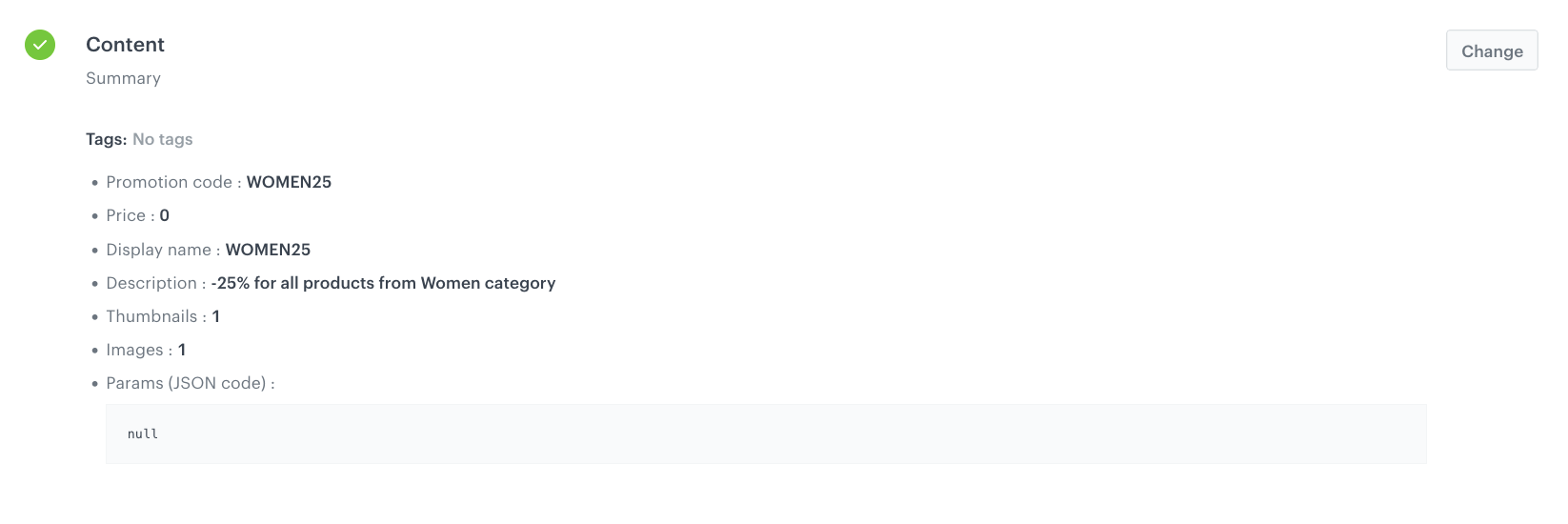
    1. Define the name, descriptions, thumbnail, and image of the promotion.
    3. Optionally, you can add tags to the promotion and JSON code with additional promotion parameters.
    2. Confirm the settings by clicking **Apply**.
    <figure>
    <img src="/api/docs/image/54176ad07f146575310749eba44b7c2f42c1b327/use-cases/all-cases/_gfx/prom_early_content.png" alt="The view of Content configuration"  class="large">
    <figcaption>Content configuration</figcaption>
    </figure> 
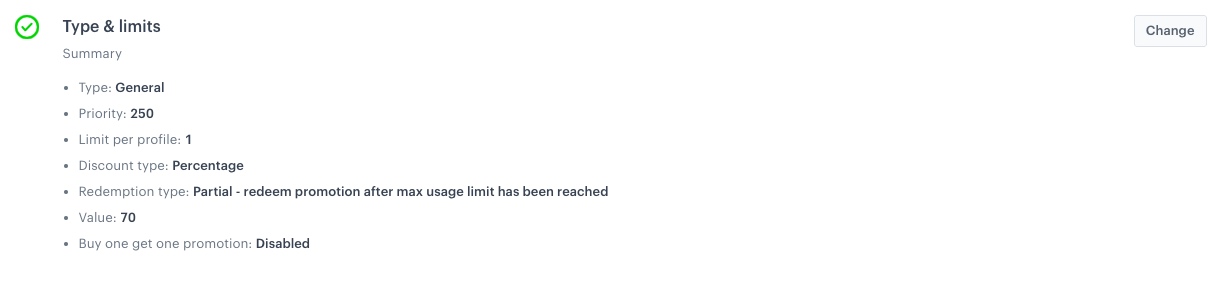
6. In the **Type and limits** section:
    1. Leave **General** in the **Type section**.
    1. In the **Type section** field, select **General** (default option).
    2. In the **Priority**, enter a number that defines the priority of the promotion.
    
       <div class="admonition admonition-note"><div class="admonition-icon"><svg xmlns="http://www.w3.org/2000/svg" fill="none" viewBox="0 0 24 24" stroke="currentColor" stroke-width="2.5"><path stroke-linecap="round" stroke-linejoin="round" d="M13 16h-1v-4h-1m1-4h.01M21 12a9 9 0 11-18 0 9 9 0 0118 0z" /></svg></div><div class="admonition-body"><div class="admonition-content">

       Priority defines the order of display in the customer’s view. 1 is the highest priority. If two or more promotions applicable to a customer have the same priority, the order of display is determined by the date of creation. The one that was created earlier takes the priority over the other promotion.

       </div></div></div>

    3. Select the **Single** tab (default choice).
    4. In the **Limit per profile** field, type `1`.
    5. From the **Discount type** dropdown list, select **Percentage**.
    6. In **Discount mode**, leave the default option (**Static**).
    7. In the **Value** field, type `70`.
    8. Confirm the settings by clicking **Apply**.
        <figure>
        <img src="/api/docs/image/54176ad07f146575310749eba44b7c2f42c1b327/use-cases/all-cases/_gfx/prom_early_tl.png" alt="The view of Type and limits configuration"  class="large">
        <figcaption>Type and limits configuration</figcaption>
        </figure> 
7. In the **Schedule** section:
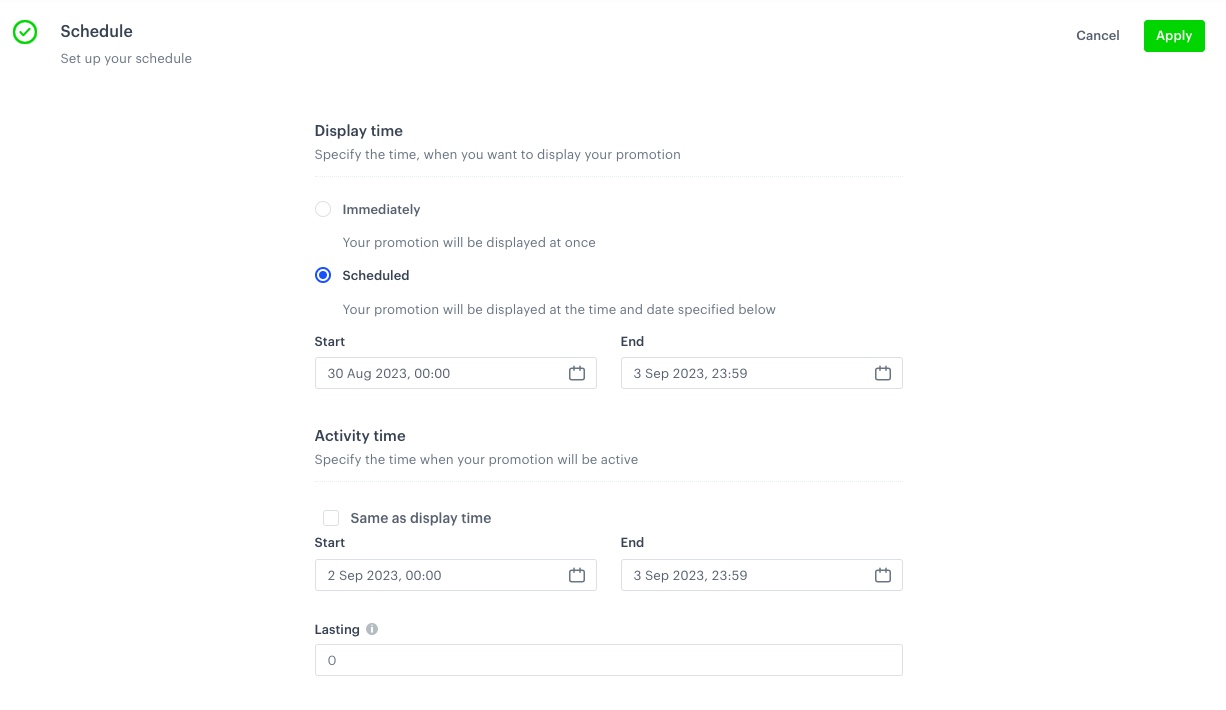
    1. In the **Display time** section, choose **Scheduled**.
    2. Pick the dates in the **Start** and **End** fields, in this case the promotion should start three days before the weekend and end on Sunday.
    3. In the **Activity time** section, deselect **Same as display time**.
    4. Set a date range when the promotion can be activated. Pick the dates in the **Start** and **End** fields, in this case promotion should be active on a selected weekend.
    3. In the **Lasting** field, you can enter the time (in seconds) that a promotion remains redeemable after it is activated. `0` is interpreted as infinity.
    4. Confirm the settings by clicking **Apply**.
        <figure>
        <img src="/api/docs/image/54176ad07f146575310749eba44b7c2f42c1b327/use-cases/all-cases/_gfx/promo_teas_schedule.png" alt="The view of Schedule configuration"  class="large">
        <figcaption>Schedule configuration</figcaption>
        </figure> 
8. In the **Items** section:
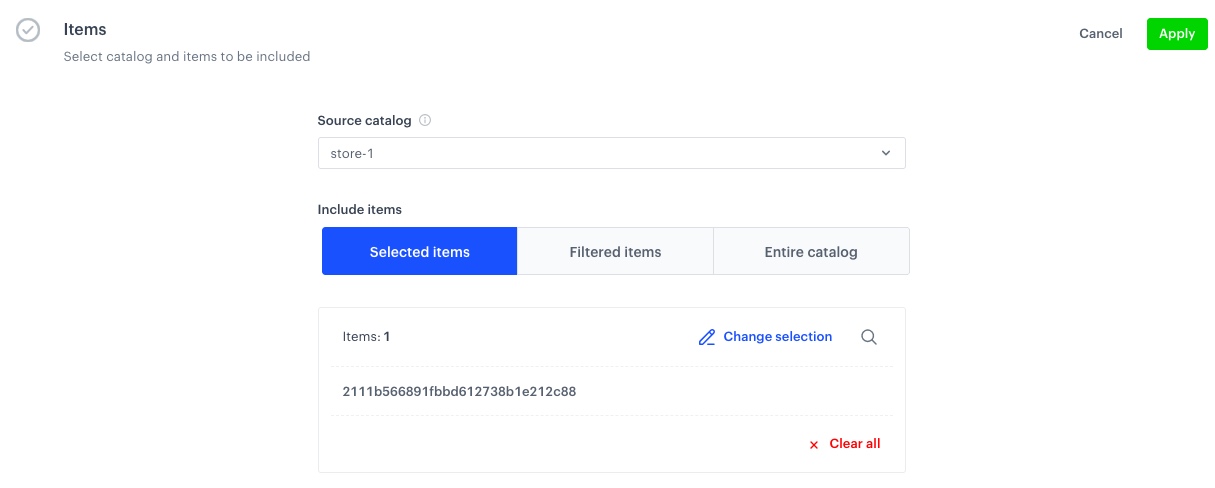
    1. From the **Source catalog** dropdown list, select a catalog of items.
    2. In the **Include items** section, choose **Selected items**.
    3. Click **Select items** and select the product you want the discount to apply to.
    <figure>
    <img src="/api/docs/image/54176ad07f146575310749eba44b7c2f42c1b327/use-cases/all-cases/_gfx/step_prom_items.png" alt="The view of Items configuration"  class="large">
    <figcaption>Items configuration</figcaption>
    </figure> 
9. To apply configuration and run the promotion, click **Publish**.

## Check the use case set up on the Synerise Demo workspace
---
You can check the [promotion configuration](https://app.synerise.com/campaigns/promotions/90f3a031-7026-4313-af56-8538d7bea0d0) directly in Synerise Demo workspace. 

If you’re our partner or client, you already have automatic access to the **Synerise Demo workspace (1590)**, where you can explore all the configured elements of this use case and copy them to your workspace.  

If you’re not a partner or client yet, we encourage you to fill out the contact [form](https://demo.synerise.com/request) to schedule a meeting with our representatives. They’ll be happy to show you how our demo works and discuss how you can apply this use case in your business. 

## Read more
---

- [Catalogs](/docs/assets/catalogs/introduction-to-catalogs)
- [Promotions](/docs/ai-hub/promotions)