Happy customers are loyal customers. Satisfied customers are those who become advocates for your business and help you grow it by sharing their positive experiences with others. To perpetuate positive customer experiences, you need to make them feel appreciated and noticed. For example, you can use transaction history to identify individuals with a transaction anniversary on the current day and reward them with a discount code delivered in the form of a mobile push message.
This use case describes the process of creating a workflow that will send a mobile push with a promo code to a segment of customers who have a transaction anniversary on the current day.
## Prerequisites
---
- Implement transaction events using [SDK](/developers/web/transactions-sdk) or [API](https://developers.synerise.com/DataManagement/DataManagement.html#tag/Events).
- Implement mobile push notifications in your mobile application: [iOS](/developers/mobile-sdk/configuring-push-notifications/ios), [Android](/developers/mobile-sdk/configuring-push-notifications/android).
- Create a [voucher pool](/docs/assets/code-pools).
## Process
---
1. [Create an aggregate](/use-cases/transaction_anniversary#prepare-an-aggregate) that returns the timestamp of the customer's first transaction.
3. [Create a mobile push template](/use-cases/transaction_anniversary#create-mobile-push-template)
2. [Create a workflow](/use-cases/transaction_anniversary#create-a-workflow) that sends a mobile push with a discount code for the customers who made their first transaction exactly one year ago.
## Prepare an aggregate
---
Build an aggregate that returns the timestamp of the customer's first transaction.
1. Go to **Behavioral Data Hub > Live Aggregates > Create aggregate**.
2. As the aggregate type, select **Profile**.
2. Enter the name of the aggregate.
3. Click **Analyze profiles by** and select **First**.
4. Select the **transaction.charge** event.
5. As the event parameter, select **TIMESTAMP**.
6. Set the period from which the aggregate will analyze the event to **Lifetime**.
7. Save the aggregate.
Configuration of the aggregate
## Create mobile push template
---
1. Go to **Experience Hub > Mobile Push > Templates**.
2. You can use the template from the folder or create your own one using the mobile push code editor.
To use the template, click **New Template**.
3. Choose what type of message you want to create. In our case it's **Simple Push**.
4. Choose how you want to create a mobile push message. In this use case, we will use **Visual Builder**.
5. Create your mobile push message according to your business needs.
For more information on creating a simple mobile push, visit our [User Guide](/docs/campaign/Mobile/simple_push).
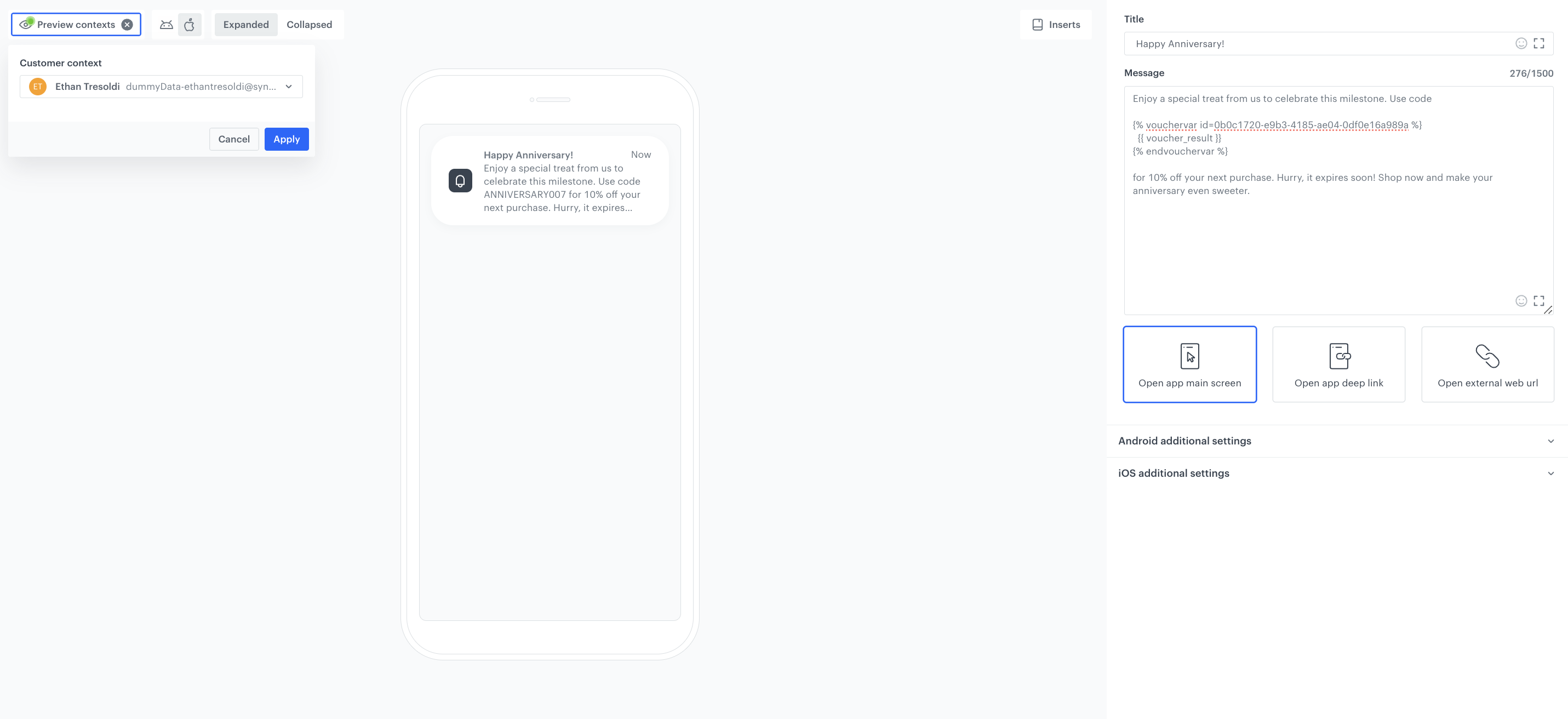
To add a voucher code in the form of the barcode, add the following insert:
Mobile push template example
## Create a workflow
---
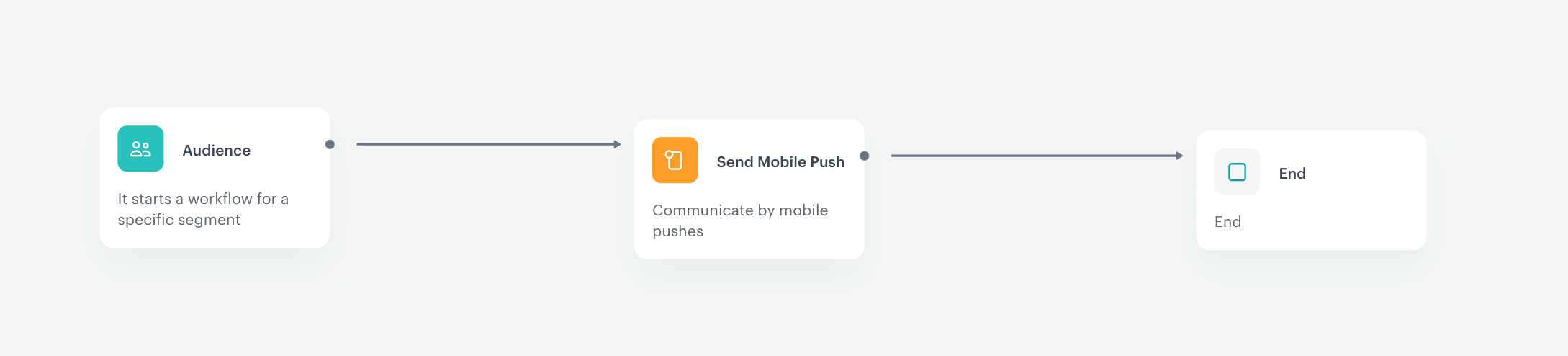
In this part of the process, create a workflow that will manage mobile push notifications with a promo code for customers with an anniversary of transaction. The mobile notifications will be sent once a day to the segment of customers whose transaction anniversary falls on the current day.
1. Go to **Automation Hub > Workflows > New workflow**.
2. Enter the name of the workflow.
3. As the first node of the workflow, add **Audience**. In the configuration of the node:
1. Select **New audience** and **Define conditions**.
2. From **Choose event** dropdown menu, select the aggregate created in the [previous step](/use-cases/transaction_anniversary#prepare-an-aggregate).
3. From the **Choose operator** dropdown menu, select **Date > Current date > Matches current day**.
4. From **Choose filter** dropdown menu, select the [aggreagate](/use-cases/transaction_anniversary#prepare-an-aggregate).
5. From the **Choose operator** dropdown menu, select **Date > Current date > Matches current month**.
6. From **Choose filter** dropdown menu, select the [aggreagate](/use-cases/transaction_anniversary#prepare-an-aggregate).
7. From the **Choose operator** dropdown menu, select **Date > Current date > Matches current year**.
8. In the condition **Matches current year** define the attribute Contacts **not matching**.
9. Confirm your audience settings by clicking **Apply**.
10. Confirm by clicking **Apply**.
4. As the next node, add **Send Mobile Push**. In the configuration of the node:
1. Define the **Template type**.
2. Select the **Push template** you have created.
3. Confirm by clicking **Apply**.
5. Add the **End** node to finish the workflow.
6. Set a workflow capping where each customer can run a workflow once every 12 months. In the configuration of the **Capping**:
1. Define **Limit** as `1`.
2. Define the **Time** to `12 month`.
3. Confirm by clicking **Apply**.
7. To run the workflow, click **Save & Run**.
Configuration of the workflow
## Check the use case set up on the Synerise Demo workspace
---
You can check the configuration of each step from this use case in our Synerise Demo workspace:
- [Aggregate](https://app.synerise.com/analytics/aggregates/378f75ac-c7a3-3658-bf56-174facc48587)
- [Voucher pool](https://app.synerise.com/assets/vouchers/pools/0b0c1720-e9b3-4185-ae04-0df0e16a989a/coupons)
- [Workflow](https://app.synerise.com/automations/automation-diagram/bb591c14-3f83-4769-bd82-0e1c16cd423b)
If you’re our partner or client, you already have automatic access to the **Synerise Demo workspace (1590)**, where you can explore all the configured elements of this use case and copy them to your workspace.
If you’re not a partner or client yet, we encourage you to fill out the contact [form](https://demo.synerise.com/request) to schedule a meeting with our representatives. They’ll be happy to show you how our demo works and discuss how you can apply this use case in your business.
## Read more
---
- [Aggregates](/docs/analytics/aggregates/introduction-to-aggregates)
- [Jinjava inserts](/developers/inserts)
- [Segmentation](/docs/analytics/segmentations)
- [Mobile push](/docs/campaign/Mobile/simple_push)
- [Workflow](/docs/automation/creating-automation)
- [Voucher pools](/docs/assets/code-pools)

 **Behavioral Data Hub > Live Aggregates > Create aggregate**.
2. As the aggregate type, select **Profile**.
2. Enter the name of the aggregate.
3. Click **Analyze profiles by** and select **First**.
4. Select the **transaction.charge** event.
5. As the event parameter, select **TIMESTAMP**.
6. Set the period from which the aggregate will analyze the event to **Lifetime**.
7. Save the aggregate.
**Behavioral Data Hub > Live Aggregates > Create aggregate**.
2. As the aggregate type, select **Profile**.
2. Enter the name of the aggregate.
3. Click **Analyze profiles by** and select **First**.
4. Select the **transaction.charge** event.
5. As the event parameter, select **TIMESTAMP**.
6. Set the period from which the aggregate will analyze the event to **Lifetime**.
7. Save the aggregate.