Creating a transaction trends dashboard is an efficient way for businesses to keep track of their financial performance by analyzing transactional data. With this reporting tool, businesses can easily monitor trends in transaction values and purchase data. The goal of this dashboard is to provide a quick and clear overview of transactional activity, helping businesses to make data-driven decisions in real time.

In this use case, you will design a transaction trends dashboard that enables businesses to gain insights into their financial performance by visualizing transactional data.

## Prerequisites 
---
- Implement a [tracking code](/developers/web/installation-and-configuration) on your website.
- Implement transaction events using [SDK](/developers/web/transactions-sdk) or [API](https://developers.synerise.com/DataManagement/DataManagement.html#operation/CreateATransaction).
- Implement [OG tags](/developers/web/og-tags) on your website.

## Process
---

In this use case, you will go through the following steps:
1. [Create metrics](#create-metrics) for a number and value of transactions, Average Order Value (AOV), and number of bought products.
2. [Create a histogram](#create-a-histogram) that presents a number and value of transactions in time.
3. [Create an expression](#create-an-expression) that returns the month and year for the `product.buy` event.
3. [Create reports](#create-reports) for most frequently bought products, most frequently bought products by categories and by month, most frequently bought categories by month, most frequently visited products, most frequently visited products by categories.
4. [Create a dashboard](#create-a-dashboard) that gathers created analyses.


   <div class="admonition admonition-note"><div class="admonition-icon"><svg xmlns="http://www.w3.org/2000/svg" fill="none" viewBox="0 0 24 24" stroke="currentColor" stroke-width="2.5"><path stroke-linecap="round" stroke-linejoin="round" d="M13 16h-1v-4h-1m1-4h.01M21 12a9 9 0 11-18 0 9 9 0 0118 0z" /></svg></div><div class="admonition-body"><div class="admonition-content">

   These are just examples of analytics you can use, such a dashboard can be expanded with various other analytics suitable for your business needs.

   </div></div></div>


## Create metrics
---
In this part of the process, you will create four metrics for the `transaction.charge`, `product.buy` and `Visited page` events. They will be later used in [a histogram](#create-a-histogram),[reports](#create-reports) and [the dashboard](#create-a-dashboard).

### Number of transactions
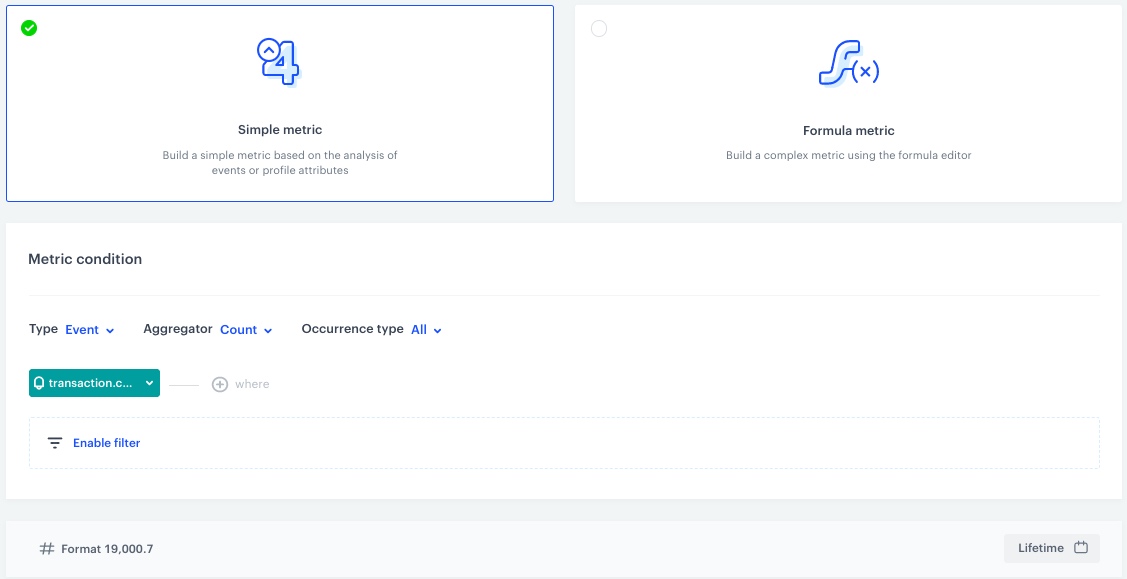
This metric will return the number of all transactions.

1. Go to <img src="/api/docs/image/54176ad07f146575310749eba44b7c2f42c1b327/icons/decision-hub-icon.svg" alt="Decision Hub icon" class="icon" > **Decision Hub > Metrics > New metric**.
2. Enter the name of the metric.
3. As a metric kind, select **Simple metric**.
4. As the type, set **Event**.
5. As the aggregator, set **Count**.
4. As the occurrence type, set **All**. 
5. From the **Choose event** dropdown list, select `transaction.charge`.
6. To select a specific time range, click the calendar icon. In our case, it will be **Lifetime**. Confirm your choice with the **Apply** button.
7. Click **Save**.

<figure>
<img src="/api/docs/image/54176ad07f146575310749eba44b7c2f42c1b327/use-cases/all-cases/_gfx/dash-transactions-no.png" alt="The view of the configuration of the metric returning the number of all transactions"  class="large">
<figcaption>Configuration of the metric returning the number of all transactions</figcaption>
</figure> 

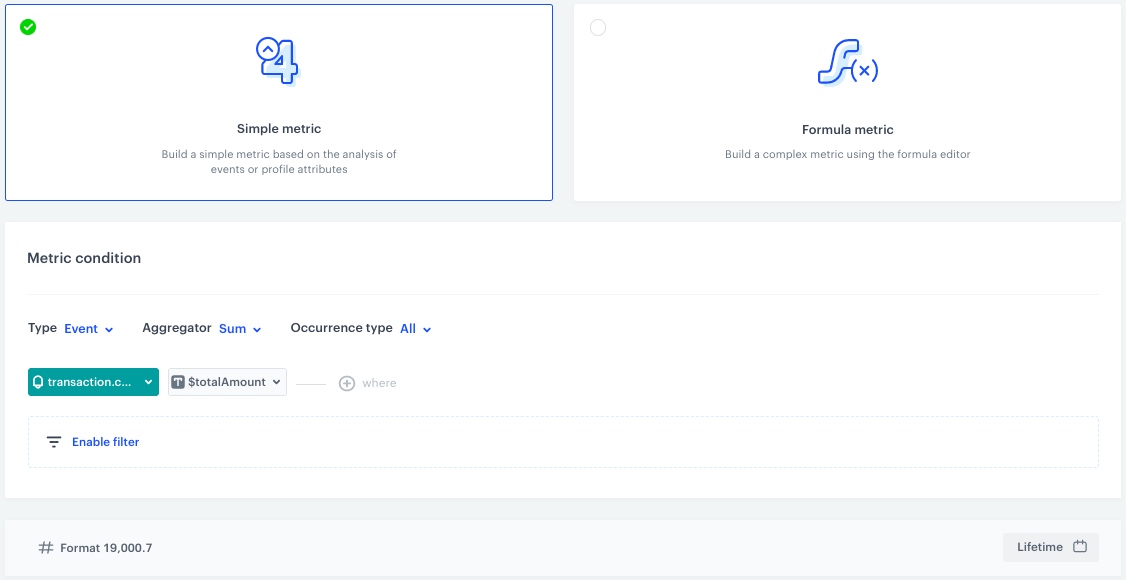
### Transactions value

This metric will return the value of transactions.

1. Go to <img src="/api/docs/image/54176ad07f146575310749eba44b7c2f42c1b327/icons/decision-hub-icon.svg" alt="Decision Hub icon" class="icon" > **Decision Hub > Metrics > New metric**.
2. Enter the name of the metric.
3. As a metric kind, select **Simple metric**.
4. As the type, set **Event**.
5. As the aggregator, set **Sum**.
4. As the occurrence type, set **All**. 
5. From the **Choose event** dropdown list, select `transaction.charge`.
6. Click the **+ where** button.  
    **Result**: The **Choose parameter** button appears. 
7. From the **Choose parameter** dropdown list, choose `$totalAmount`.
8. To select a specific time range, click the calendar icon. In our case, it will be **Lifetime**. Confirm your choice with the **Apply** button.
9. Click **Save**.
<figure>
<img src="/api/docs/image/54176ad07f146575310749eba44b7c2f42c1b327/use-cases/all-cases/_gfx/dash-value.png" alt="The view of the configuration of the metric returning the value of transactions"  class="large">
<figcaption>Configuration of the metric returning the value of transactions</figcaption></figure>

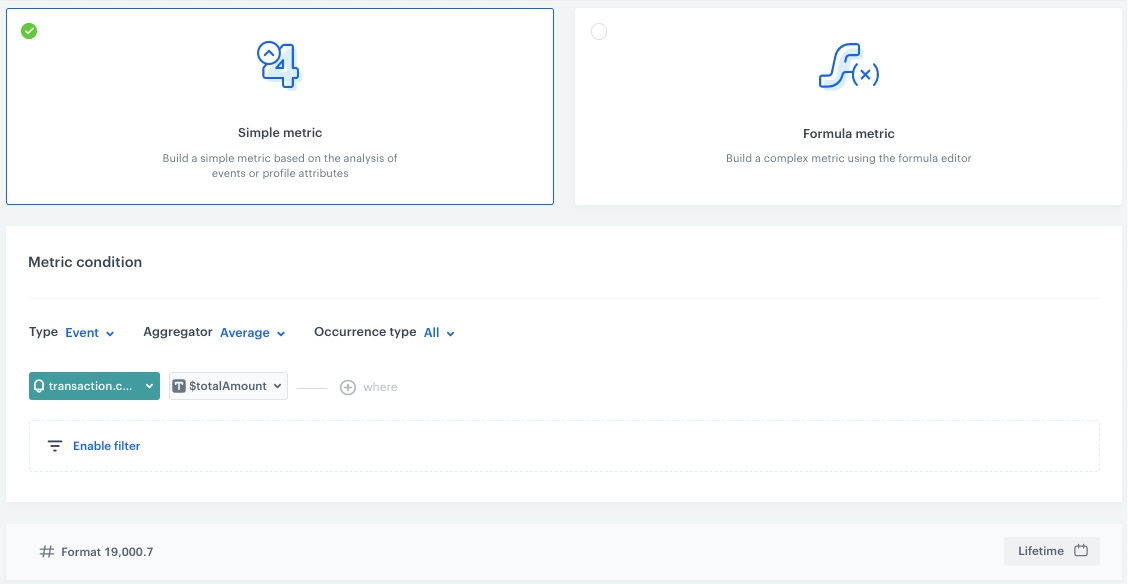
### AOV

This metric will return the avarage order value.

1. Go to <img src="/api/docs/image/54176ad07f146575310749eba44b7c2f42c1b327/icons/decision-hub-icon.svg" alt="Decision Hub icon" class="icon" > **Decision Hub > Metrics > New metric**.
2. Enter the name of the metric.
3. As a metric kind, select **Simple metric**.
4. As the type, set **Event**.
5. As the aggregator, set **Average**.
4. As the occurrence type, set **All**. 
5. From the **Choose event** dropdown list, select `transaction.charge`.
6. Click the **+ where** button.  
    **Result**: The **Choose parameter** button appears. 
7. From the **Choose parameter** dropdown list, choose `$totalAmount`.
8. To select a specific time range, click the calendar icon. In our case, it will be **Lifetime**. Confirm your choice with the **Apply** button.
9. Click **Save**.
<figure>
<img src="/api/docs/image/54176ad07f146575310749eba44b7c2f42c1b327/use-cases/all-cases/_gfx/dash-aov.png" alt="The view of the configuration of the metric returning the AOV"  class="large">*
<figcaption>Configuration of the metric returning the AOV</figcaption></figure>

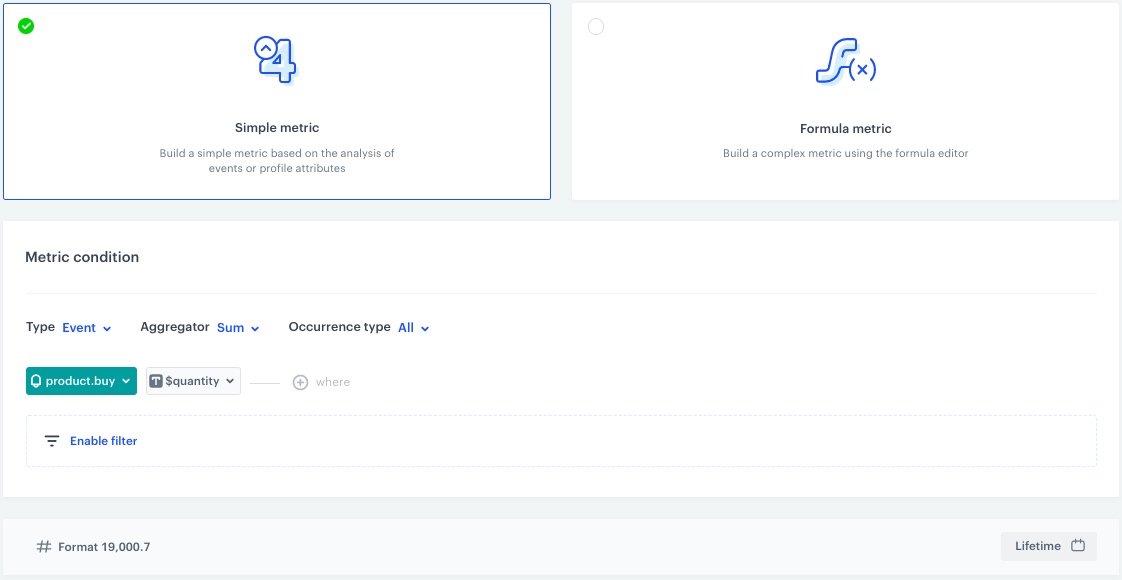
### Number of bought products

This metric will return the number of bought products.

1. Go to <img src="/api/docs/image/54176ad07f146575310749eba44b7c2f42c1b327/icons/decision-hub-icon.svg" alt="Decision Hub icon" class="icon" > **Decision Hub > Metrics > New metric**.
2. Enter the name of the metric.
3. As a metric kind, select **Simple metric**.
4. As the type, set **Event**.
5. As the aggregator, set **Sum**.
4. As the occurrence type, set **All**. 
5. From the **Choose event** dropdown list, select `product.buy`.
6. Click the **+ where** button.  
    **Result**: The **Choose parameter** button appears. 
7. From the **Choose parameter** dropdown list, choose `$quantity`.
8. To select a specific time range, click the calendar icon. In our case, it will be **Lifetime**. Confirm your choice with the **Apply** button.
9. Click **Save**.
<figure>
<img src="/api/docs/image/54176ad07f146575310749eba44b7c2f42c1b327/use-cases/all-cases/_gfx/dash-products.png" alt="The view of the configuration of the metric returning the number of bought products"  class="large">
<figcaption>Configuration of the metric returning the number of bought products</figcaption></figure>

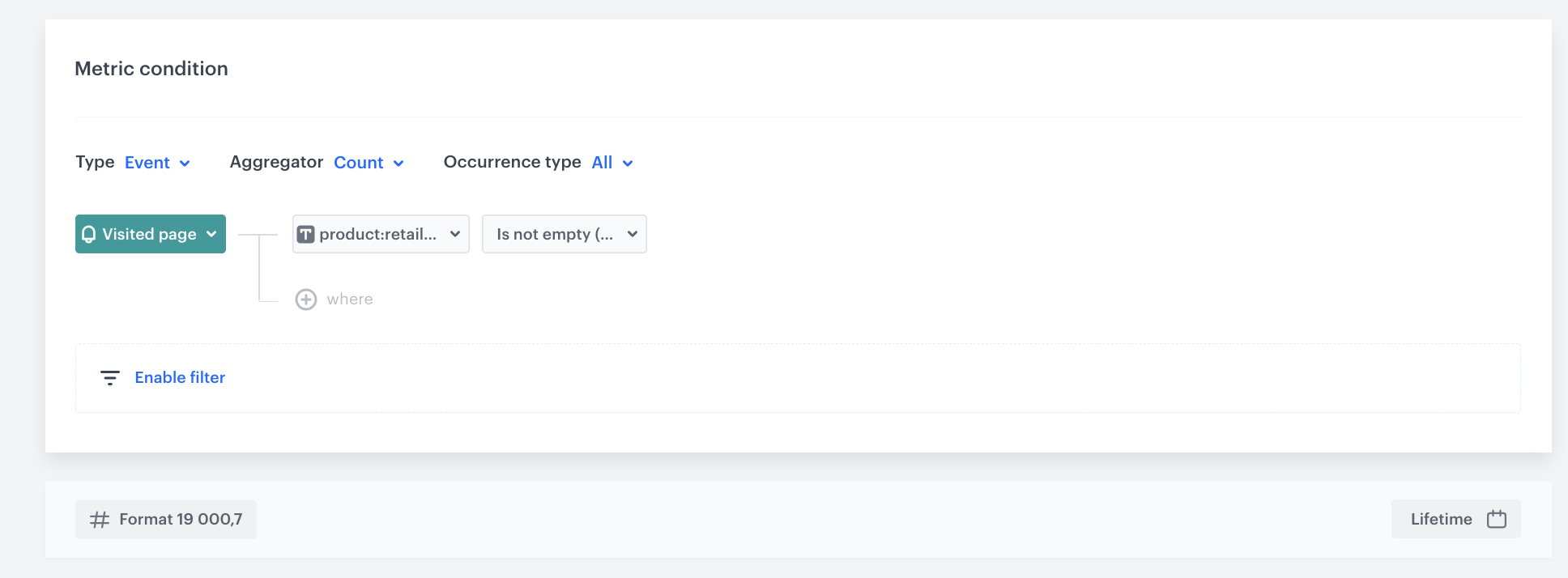
### Number of visits on the product page

This metric will return the number of visits on the product page.

1. Go to <img src="/api/docs/image/54176ad07f146575310749eba44b7c2f42c1b327/icons/decision-hub-icon.svg" alt="Decision Hub icon" class="icon" > **Decision Hub > Metrics > New metric**.
2. Enter the name of the metric.
3. As a metric kind, select **Simple metric**.
4. As the type, set **Event**.
5. As the aggregator, set **Count**.
4. As the occurrence type, set **All**. 
5. From the **Choose event** dropdown list, select `Visited page`.
6. Click the **+ where** button.  
    **Result**: The **Choose parameter** button appears. 
7. From the **Choose parameter** dropdown list, choose `product:retailer_part_no`.
5. From the **Choose operator** dropdown list, select **String** and **Is not empty**.
8. To select a specific time range, click the calendar icon. In our case, it will be **Lifetime**. Confirm your choice with the **Apply** button.
9. Click **Save**.
<figure>
<img src="/api/docs/image/54176ad07f146575310749eba44b7c2f42c1b327/use-cases/all-cases/_gfx/dash-pp-pv.png" alt="The view of the configuration of the metric returning the number of visits on the product page"  class="large">
<figcaption>Configuration of the metric returning the number of visits on the product page</figcaption></figure>

## Create a histogram
---
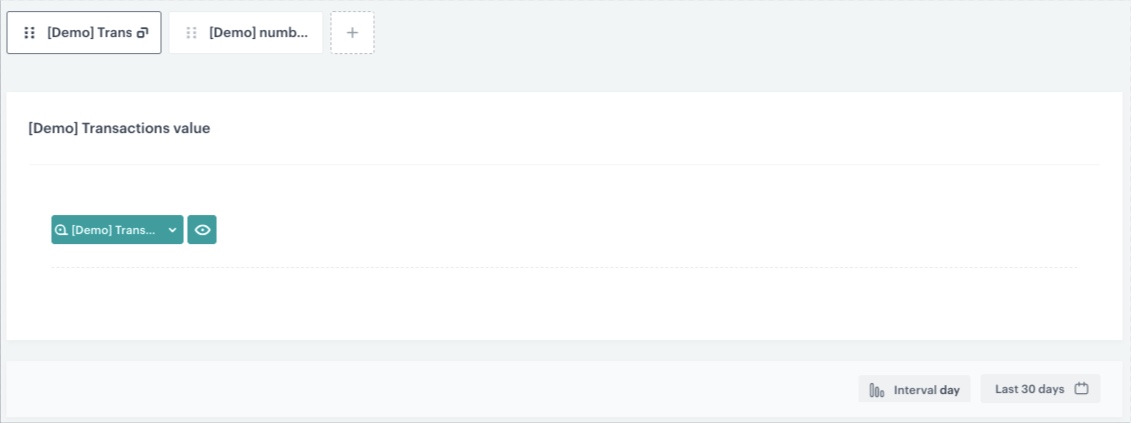
In this part of the process, you will create a histogram for the [transactions value](#transactions-value) and [number of bought products](#number-of-bought-products) metrics. They will be later used in [the dashboard](#create-a-dashboard).

1. Go to <img src="/api/docs/image/54176ad07f146575310749eba44b7c2f42c1b327/icons/decision-hub-icon.svg" alt="Decision Hub icon" class="icon" > **Decision Hub > Histograms > New histogram**.
2. Enter the name of the histogram.
3. From the **Choose metric** dropdown, select the [transactions value metric](#transactions-value) created in the previous step.
4. Click the **Interval** button and set it for **day**.
5. To select a specific time range, click the calendar icon. In our case, it will be **Last 30 days**. Confirm your choice with the **Apply** button.
6. Add another metric to the histogram:
    1. Click the <img src="/api/docs/image/54176ad07f146575310749eba44b7c2f42c1b327/icons/add-variant-icon.png" alt="Add new tab" class="icon" > button.
    2. Repeat steps 3-5 for the [number of bought products metric](#number-of-bought-products) created in the previous step.
7. Click **Save**.
    <figure>
    <img src="/api/docs/image/54176ad07f146575310749eba44b7c2f42c1b327/use-cases/all-cases/_gfx/dash-hist.png" alt="The view of the configuration of the histogram"  class="full">
    <figcaption>Configuration of the histogram</figcaption>
    </figure>

## Create an expression
--- 
In this part of the process, create an expression for the `product.buy` event. It will return month and year of the purchase and will be later used in [reports](#create-reports).

1. Go to <img src="/api/docs/image/54176ad07f146575310749eba44b7c2f42c1b327/icons/behavioral-data-hub-icon.svg" alt="Behavioral Data Hub icon" class="icon"> **Behavioral Data Hub > Expressions > New expression**.
2. Enter the name of the expression. 
3. Set the **Expression for** option to **Event**. 
4. From the **Choose event** dropdown list, select `product.buy` event.
5. Build the following formula of the expression:  

    <figure>
    <img src="/api/docs/image/54176ad07f146575310749eba44b7c2f42c1b327/use-cases/all-cases/_gfx/dash-expr.png" alt="The view of the configuration of the expression"  class="full">
    <figcaption>Configuration of the expression which returns the date in month/year format</figcaption>
    </figure>

6. Save the expression.    

## Create reports
---
In this part of the process, you will create reports:
- for most frequently bought products, 
- most frequently bought products by categories, 
- most frequently bought products by month, 
- most frequently bought categories by month, 
- most frequently visited products, 
- most frequently visited products by categories. 
All the reports will be used in the [dashboard](#create-a-dashboard) in the further part of the process.


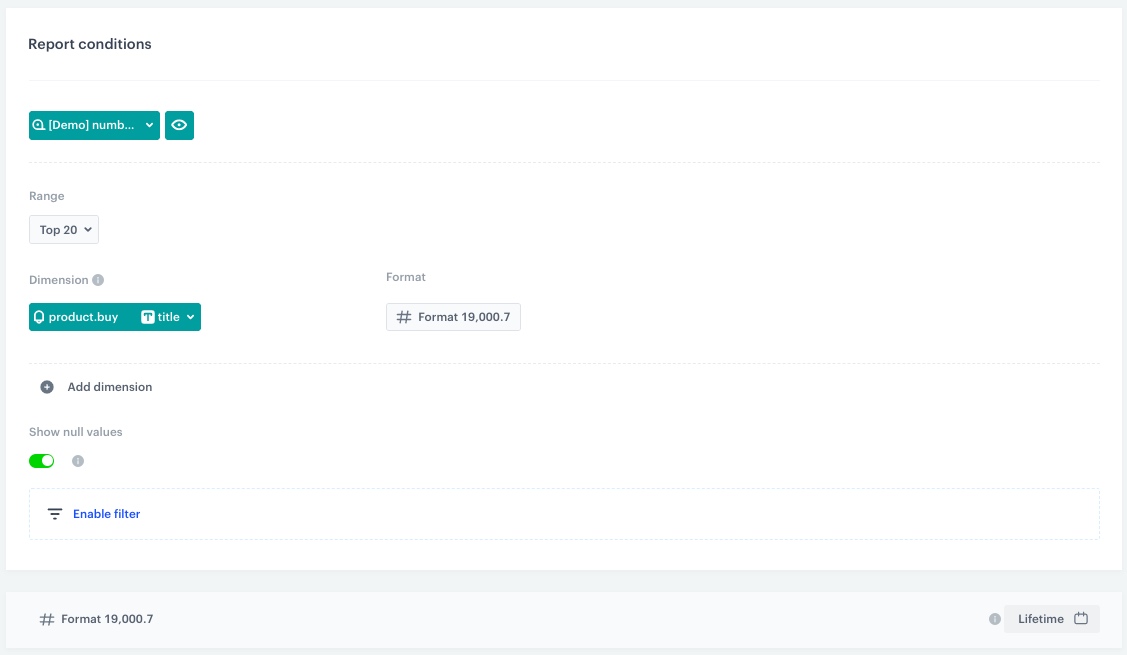
<details class="accordion"><summary>Most frequently bought products</summary><div class="accordion-content"><p>This report will return the names of most frequently bought products and its values.</p> <ol> <li>Go to <img src="/api/docs/image/54176ad07f146575310749eba44b7c2f42c1b327/icons/decision-hub-icon.svg" alt="Decision Hub icon" class="icon" > <strong>Decision Hub &gt; Reports &gt; New report</strong>. </li> <li>Enter a meaningful name of the report.</li> <li>Click the <strong>Choose metric</strong> and from the dropdown list, select <a href="#number-of-bought-products">a metric that returns the number of bought products, created in the previous part of the process</a>.</li> <li>From the <strong>Range</strong> dropdown list, select the number of top (the most frequently bought) products to be shown in the preview of the report. In this case, it will be <strong>TOP 20</strong> products.</li> <li>In the <strong>Dimension</strong> section, from the dropdown list, select <strong>Events &gt; Parameters</strong>. To be able to show product names in the report, choose <code>title</code>.</li> <li>To select a specific time range, click the calendar icon. In our case, it will be <strong>Lifetime</strong>. Confirm your choice with the <strong>Apply</strong> button.</li> <li>Click <strong>Save</strong>. <figure> <img src="/api/docs/image/54176ad07f146575310749eba44b7c2f42c1b327/use-cases/all-cases/_gfx/dash-repo-1.png" alt="The view of the configuration of the wost frequently bought products report" class="large"> <figcaption>Configuration of the most frequently bought products report</figcaption> </figure></li> </ol></div></details>


<details class="accordion"><summary>Most frequently bought products by categories</summary><div class="accordion-content"><p>This report will return the names of most frequently bought products and its values by its categories.</p> <ol> <li>Go to <img src="/api/docs/image/54176ad07f146575310749eba44b7c2f42c1b327/icons/decision-hub-icon.svg" alt="Decision Hub icon" class="icon" > <strong>Decision Hub &gt; Reports &gt; New report</strong>. </li> <li>Enter a meaningful name of the report.</li> <li>Click the <strong>Choose metric</strong> and from the dropdown list, select <a href="#number-of-bought-products">a metric that returns the number of bought products, created in the previous part of the process</a>.</li> <li>From the <strong>Range</strong> dropdown list, select the number of top (the most frequently bought) products to be shown in the preview of the report. In this case it will be <strong>TOP 20</strong> products.</li> <li>In the <strong>Dimension</strong> section, from the dropdown list, select <strong>Events &gt; Parameters</strong>. To be able to show products name in the report, choose <code>category</code>.</li> <li>To select a specific time range, click the calendar icon. In our case, it will be <strong>Lifetime</strong>. Confirm your choice with the <strong>Apply</strong> button.</li> <li>Click <strong>Save</strong>.</li> </ol></div></details>


<details class="accordion"><summary>Most frequently bought products - monthly comparison</summary><div class="accordion-content"><p>This report will return the names of most frequently bought products by categories and its values in a specific month.</p> <ol> <li>Go to <img src="/api/docs/image/54176ad07f146575310749eba44b7c2f42c1b327/icons/decision-hub-icon.svg" alt="Decision Hub icon" class="icon" > <strong>Decision Hub &gt; Reports &gt; New report</strong>. </li> <li>Enter a meaningful name of the report.</li> <li>Click the <strong>Choose metric</strong> and from the dropdown list, select <a href="#number-of-bought-products">a metric that returns number of bought products, created in the previous part of the process</a>.</li> <li>From the <strong>Range</strong> dropdown list, select the number of top (the most frequently bought) products to be shown in the preview of the report. In this case, it will be <strong>TOP 20</strong> products.</li> <li>In the <strong>Dimension</strong> section, from the dropdown list, select <strong>Events &gt; Parameters</strong>. To be able to show product names in the report, choose <code>title</code>.</li> <li>Click <strong>Add dimension</strong>. <ol> <li>Click <strong>Choose dimension</strong> and from the dropdown list, select <strong>Events &gt; Expressions</strong>. To be able to show the date of the transaction in the month/year format choose the <a href="#create-an-expression">expression</a> you created in the previous part of the process.</li> </ol> </li> <li>To select a specific time range, click the calendar icon. In our case it will be <strong>Lifetime</strong>. Confirm your choice with the <strong>Apply</strong> button.</li> <li>Click <strong>Save</strong>.</li> </ol></div></details>


<details class="accordion"><summary>Most frequently bought products by categories - monthly comparison</summary><div class="accordion-content"><p>This report will return the names of most frequently bought products by categories and its values in a specific month.</p> <ol> <li>Go to <img src="/api/docs/image/54176ad07f146575310749eba44b7c2f42c1b327/icons/decision-hub-icon.svg" alt="Decision Hub icon" class="icon" > <strong>Decision Hub &gt; Reports &gt; New report</strong>. </li> <li>Enter a meaningful name of the report.</li> <li>Click the <strong>Choose metric</strong> and from the dropdown list, select <a href="#number-of-bought-products">a metric that returns the number of bought products, created in the previous part of the process</a>.</li> <li>From the <strong>Range</strong> dropdown list, select the number of top (the most frequently bought) products to be shown in the preview of the report. In this case, it will be <strong>TOP 20</strong> products.</li> <li>In the <strong>Dimension</strong> section, from the dropdown list, select <strong>Events &gt; Parameters</strong>. To be able to show products name in the report, choose <code>category</code>.</li> <li>Click <strong>Add dimension</strong>. <ol> <li>Click <strong>Choose dimension</strong> and from the dropdown list, select <strong>Events &gt; Expressions</strong>. To be able to show the date of the transaction in the month/year format choose the <a href="#create-an-expression">expression</a> you created in the previous part of the process.</li> </ol> </li> <li>To select a specific time range, click the calendar icon. In our case, it will be <strong>Lifetime</strong>. Confirm your choice with the <strong>Apply</strong> button.</li> <li>Click <strong>Save</strong>.</li> </ol></div></details>


<details class="accordion"><summary>Most frequently visited products</summary><div class="accordion-content"><p>This report will return the names of most frequently visited products and its values.</p> <ol> <li>Go to <img src="/api/docs/image/54176ad07f146575310749eba44b7c2f42c1b327/icons/decision-hub-icon.svg" alt="Decision Hub icon" class="icon" > <strong>Decision Hub &gt; Reports &gt; New report</strong>. </li> <li>Enter a meaningful name of the report.</li> <li>Click the <strong>Choose metric</strong> and from the dropdown list, select <a href="#number-of-visits-on-the-product-page">a metric that returns the number of visits on the product page, created in the previous part of the process</a>.</li> <li>From the <strong>Range</strong> dropdown list, select the number of top (the most frequently bought) products to be shown in the preview of the report. In this case, it will be <strong>TOP 20</strong> products.</li> <li>In the <strong>Dimension</strong> section, from the dropdown list, select <strong>Events &gt; Parameters</strong>. To be able to show product names in the report, choose <code>og:title</code>.</li> <li>Switch off the <strong>Show null values</strong> toggle.</li> <li>To select a specific time range, click the calendar icon. In our case it will be <strong>Lifetime</strong>. Confirm your choice with the <strong>Apply</strong> button.</li> <li>Click <strong>Save</strong>.</li> </ol></div></details>


<details class="accordion"><summary>Most frequently visited products by categories</summary><div class="accordion-content"><p>This report will return the names of most frequently visited products and its values by categories.</p> <ol> <li>Go to <img src="/api/docs/image/54176ad07f146575310749eba44b7c2f42c1b327/icons/decision-hub-icon.svg" alt="Decision Hub icon" class="icon" > <strong>Decision Hub &gt; Reports &gt; New report</strong>. </li> <li>Enter a meaningful name of the report.</li> <li>Click the <strong>Choose metric</strong> and from the dropdown list, select <a href="#number-of-visits-on-the-product-page">a metric that returns the number of visits on the product page, created in the previous part of the process</a>.</li> <li>From the <strong>Range</strong> dropdown list, select the number of top (the most frequently bought) products to be shown in the preview of the report. In this case, it will be <strong>TOP 20</strong> products.</li> <li>In the <strong>Dimension</strong> section, from the dropdown list, select <strong>Events &gt; Parameters</strong>. To be able to show products name in the report, choose <code>product:category</code>.</li> <li>Switch off the <strong>Show null values</strong> toggle.</li> <li>To select a specific time range, click the calendar icon. In our case, it will be <strong>Lifetime</strong>. Confirm your choice with the <strong>Apply</strong> button.</li> <li>Click <strong>Save</strong>.</li> </ol></div></details>
 

## Create a dashboard
---
In the final part of the process you will create a dashboard with the [metrics](#create-metrics), [reports](#create-reports) and [the histogram](#create-a-histogram) created in previous steps. 

1. Go to <img src="/api/docs/image/54176ad07f146575310749eba44b7c2f42c1b327/icons/decision-hub-icon.svg" alt="Image presents the Decision Hub icon" class="icon"> **Decision Hub > Dashboards > Add dashboard**.
2. Enter the name of the dashboard.
3. To add a widget to the dashboard, click an icon on the <img src="/api/docs/image/54176ad07f146575310749eba44b7c2f42c1b327/icons/dashboard-analysis-selection.png" alt="The panel of analysis icons" class="icon"> panel. The icons are (left to right): HTML code, text field, image, [segmentation](/docs/analytics/segmentations/creating-segmentations), [trend](/docs/analytics/trends/creating-trends), [funnel](/docs/analytics/funnels/creating-funnels), [metric](/docs/analytics/metrics/creating-simple-metrics), [histogram](/docs/analytics/histograms/creating-histograms), [aggregate](/docs/analytics/aggregates/creating-aggregates), [expression](/docs/analytics/expressions), and a [report](/docs/analytics/reports/creating-reports). 

    
   <div class="admonition admonition-tip"><div class="admonition-icon"><svg xmlns="http://www.w3.org/2000/svg" fill="none" viewBox="0 0 24 24" stroke="currentColor" stroke-width="2.5"><path stroke-linecap="round" stroke-linejoin="round" d="M9.663 17h4.673M12 3v1m6.364 1.636l-.707.707M21 12h-1M4 12H3m3.343-5.657l-.707-.707m2.828 9.9a5 5 0 117.072 0l-.548.547A3.374 3.374 0 0014 18.469V19a2 2 0 11-4 0v-.531c0-.895-.356-1.754-.988-2.386l-.548-.547z" /></svg></div><div class="admonition-body"><div class="admonition-content">

   You can create a custom template according to your business needs with the help of this [article](/docs/analytics/analytics-dashboard/creating-dashboards) or follow the sample instructions below.

   </div></div></div>


4. Add a metric by clicking the <img src="/api/docs/image/54176ad07f146575310749eba44b7c2f42c1b327/icons/metric-icon-dash.png" alt="Metric icon on the dashboard panel" class="icon"> on the panel.
    
   <div class="admonition admonition-tip"><div class="admonition-icon"><svg xmlns="http://www.w3.org/2000/svg" fill="none" viewBox="0 0 24 24" stroke="currentColor" stroke-width="2.5"><path stroke-linecap="round" stroke-linejoin="round" d="M9.663 17h4.673M12 3v1m6.364 1.636l-.707.707M21 12h-1M4 12H3m3.343-5.657l-.707-.707m2.828 9.9a5 5 0 117.072 0l-.548.547A3.374 3.374 0 0014 18.469V19a2 2 0 11-4 0v-.531c0-.895-.356-1.754-.988-2.386l-.548-.547z" /></svg></div><div class="admonition-body"><div class="admonition-content">

   You can adjust the size of widgest by dragging their lower right corner.

   </div></div></div>

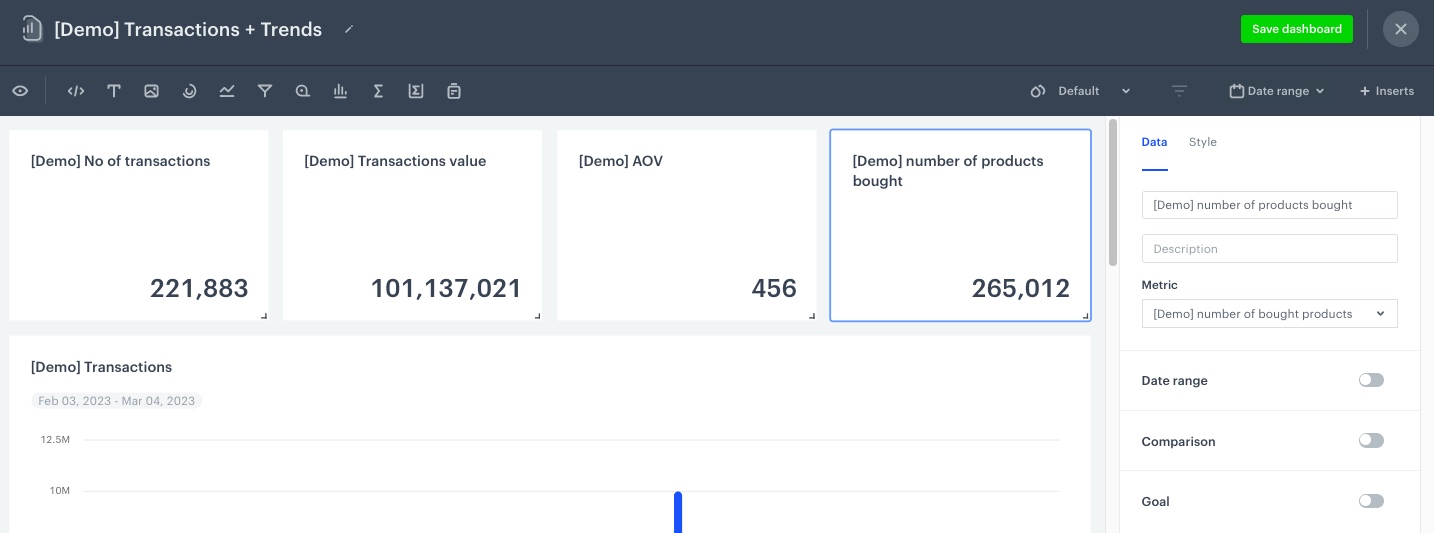
5. Edit widget contents with the editor on the right. In the **Metric** section, choose the [metric that returns the number of all transactions you have created in the previous part of the process](#number-of-transactions). You can change the title and description. Do the same for the following [metrics created in the previous part of the process](#create-metrics): transactions value, AOV, and number of bought products
     <figure>
    <img src="/api/docs/image/54176ad07f146575310749eba44b7c2f42c1b327/use-cases/all-cases/_gfx/demo-dash.png" alt="The view of the configuration of the metric on the dashboard"  class="large">
    <figcaption>Configuration of the metric widget</figcaption>
    </figure>
6. Add a histogram by clicking the Histogram icon on the panel.
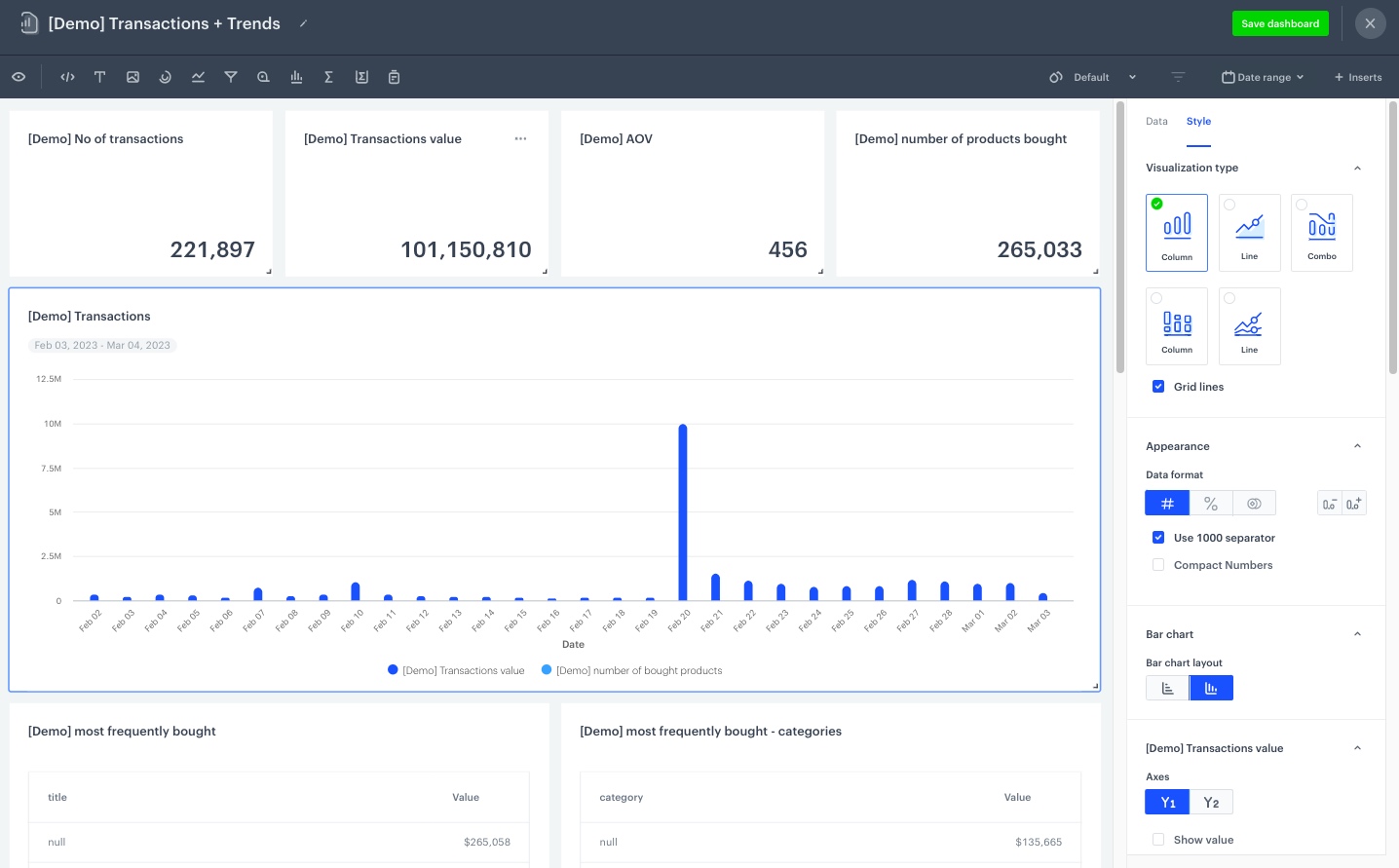
7. Edit widget contents with the editor on the right. In the **Histograms** section, choose the [histogram for the transactions value and number of bought products you have created in the previous part of the process](#create-a-histogram). You can change the title and description.
8. Click the **Style** section in the widget editor and change **Visualization type** to **Column**.

    <figure>
        <img src="/api/docs/image/54176ad07f146575310749eba44b7c2f42c1b327/use-cases/all-cases/_gfx/hist-dash.png" alt="The view of the style configuration of the histogram"  class="full">
        <figcaption>Style configuration of the histogram</figcaption>
        </figure>

9. Add a report by clicking the Report icon on the panel. 
10. Edit widget contents with the editor on the right. In the **Reports** section, choose the [report for most frequently bought products you have created in the previous part of the process](#create-reports). You can change the title and description.
11. Click the **Style** section in the widget editor and change **Visualization type** to **Table**.
12. Do the same for the following [reports created in the previous part of the process](#create-reports): most frequently bought products by categories, most frequently bought products - month comparison, most frequently bought products by categories - month comparison, most frequently visited products, most frequently visited products by categories.
    
    <div class="admonition admonition-note"><div class="admonition-icon"><svg xmlns="http://www.w3.org/2000/svg" fill="none" viewBox="0 0 24 24" stroke="currentColor" stroke-width="2.5"><path stroke-linecap="round" stroke-linejoin="round" d="M13 16h-1v-4h-1m1-4h.01M21 12a9 9 0 11-18 0 9 9 0 0118 0z" /></svg></div><div class="admonition-body"><div class="admonition-content">

    You can look up the sample dashboard created in the Demo workspace [here](https://app.synerise.com/analytics/dashboards/9a11421a-8da9-40ad-bf9f-6693c44663f5)

    </div></div></div>

10. When you complete creating the dashboard, click **Save dashboard**.  
    
   <div class="admonition admonition-tip"><div class="admonition-icon"><svg xmlns="http://www.w3.org/2000/svg" fill="none" viewBox="0 0 24 24" stroke="currentColor" stroke-width="2.5"><path stroke-linecap="round" stroke-linejoin="round" d="M9.663 17h4.673M12 3v1m6.364 1.636l-.707.707M21 12h-1M4 12H3m3.343-5.657l-.707-.707m2.828 9.9a5 5 0 117.072 0l-.548.547A3.374 3.374 0 0014 18.469V19a2 2 0 11-4 0v-.531c0-.895-.356-1.754-.988-2.386l-.548-.547z" /></svg></div><div class="admonition-body"><div class="admonition-content">

   By default, a new dashboard is private. If you want to share it with others, check the instruction [here](/docs/analytics/analytics-dashboard/sharing-dashboards).

   </div></div></div>


## Check the use case set up on the Synerise Demo workspace
---
You can check all configurations directly in Synerise Demo workspace:

- Metrics
    - [Number of transactions](https://app.synerise.com/analytics/metrics/6b93889f-3967-4149-b6a5-37fbd26e3155)
    - [Value of transactions](https://app.synerise.com/analytics/metrics/774a54a2-9830-4e7f-9a69-c32009552a3a)
    - [AOV](https://app.synerise.com/analytics/metrics/2d536298-dd87-4d73-be8f-a2ae493044fe)
    - [Number of bought products](https://app.synerise.com/analytics/metrics/2ee8c7e4-300f-4d26-a0f0-0be7d0a61ecc)
    - [Number of visits on the product card](https://app.synerise.com/analytics/metrics/eb1d3b8c-9e71-42bf-8cfe-6f5d56c66863)
- [Histogram](https://app.synerise.com/analytics/histograms/50645c5d-bcbd-4731-96c7-946b151621b7)
- [Expression](https://app.synerise.com/analytics/expressions/7a25c893-45be-4dfd-a54e-fa9f0ff68c5f)
- Reports
    - [Most frequently bought products](https://app.synerise.com/analytics/reports/e9665c7b-03d4-42ed-9c4e-919a75e4160e)
    - [Most frequently bought products by categories](https://app.synerise.com/analytics/reports/c888152c-ab63-4bb9-916e-723a54701595)
    - [Most frequently bought products - month comparison](https://app.synerise.com/analytics/reports/ee008cde-256e-4767-b316-adf2855fc939)
    - [Most frequently bought products by categories - month comparison](https://app.synerise.com/analytics/reports/3c286572-ba0a-47d7-9aaf-7d485910f63b)
    - [Most frequently visited products](https://app.synerise.com/analytics/reports/a1867119-e1d3-4557-8523-4b8d1f416cb3)
    - [Most frequently visited products by categories](https://app.synerise.com/analytics/reports/eb01a20c-12f6-45b8-bbca-402531f7e06a)
- [Dashboard](https://app.synerise.com/analytics/dashboards/9a11421a-8da9-40ad-bf9f-6693c44663f5)

If you’re our partner or client, you already have automatic access to the **Synerise Demo workspace (1590)**, where you can explore all the configured elements of this use case and copy them to your workspace.  

If you’re not a partner or client yet, we encourage you to fill out the contact [form](https://demo.synerise.com/request) to schedule a meeting with our representatives. They’ll be happy to show you how our demo works and discuss how you can apply this use case in your business. 

## Read more
---
- [Dashboards](/docs/analytics/analytics-dashboard)
- [Expressions](/docs/analytics/expressions)
- [Histograms](/docs/analytics/histograms)
- [Metrics](/docs/analytics/metrics)
- [Reports](/docs/analytics/reports)