TrustMate is a tool that enables building online brand image through management of reviews of your online shop or company. You can integrate it with Synerise using dedicated node in Automation to build a variety of business scenarios. The node enables you to get two survey links - to rate the purchased product and to rate the company.

This use case describes the process of creating a workflow to generate a survey link from TrustMate and send it in email communication to encourage customers to leave their feedback about the purchased products. The link to the survey will be sent after 7 days from the day of purchase.  


## Prerequisites
---
- Contact TrustMate to receive access key for API requests.
- Implement transaction events using [SDK](/developers/web/transactions-sdk) or [API](https://developers.synerise.com/DataManagement/DataManagement.html#operation/CreateATransaction).
- [Create an email account](/docs/campaign/e-mail/configuring-email-account).
- [Create an email template](/docs/campaign/e-mail/creating-email-templates).

## Process 
---
1. [Create a workflow](/use-cases/trustmate-integration#create-a-workflow)
3. [Track survey answers](/use-cases/trustmate-integration#track-survey-answers)

## Create a workflow
---
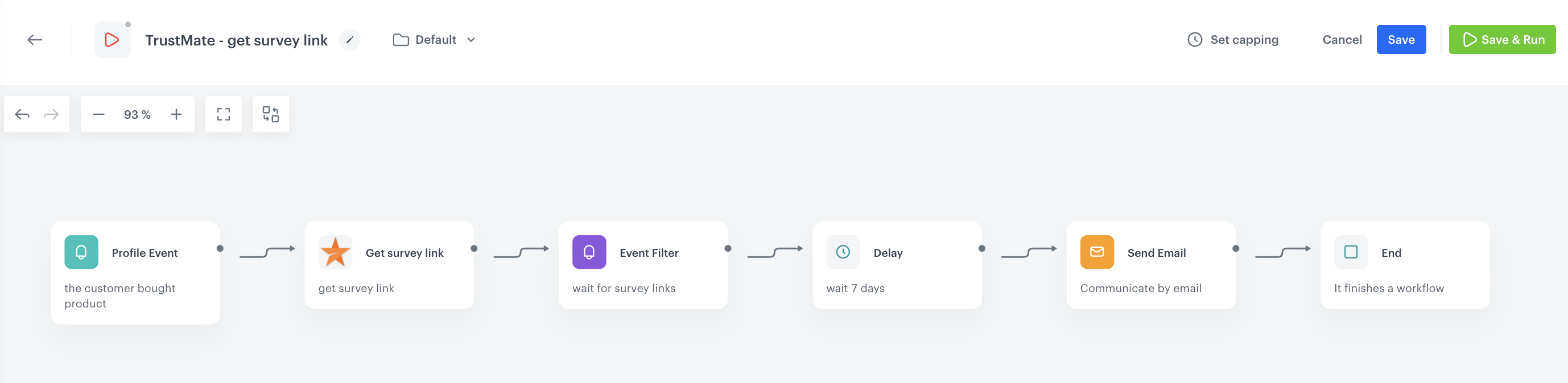
Create a workflow that is triggered by every product purchase. In response to the purchase, the system sends a request to TrustMate with the details of the purchased products. In exchange, a link to the survey is saved to Synerise. After 7 days, the workflow sends an email to a customer.

<figure>
<img src="/api/docs/image/54176ad07f146575310749eba44b7c2f42c1b327/use-cases/all-cases/_gfx/tm-work.png" alt="Trustmate integration workflow" class="full">
<figcaption>Trustmate integration workflow that generates link to the survey</figcaption>
</figure> 

### Define the Profile Event trigger
---

1. In Synerise, go to **Automation Hub > Workflows > New workflow**.
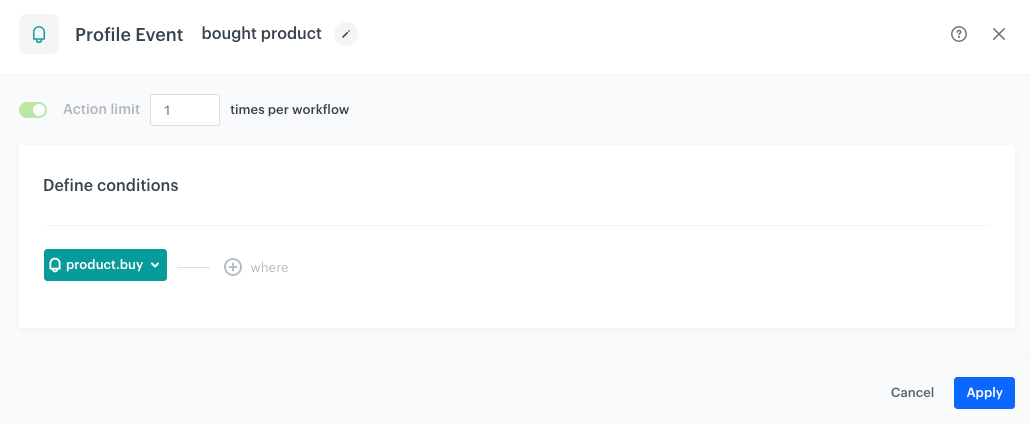
2. Add the first node - **Profile Event**. In the node configuration:  
    1. Select an event that signifies a purchase of an item (in this use case it's `product.buy`).
    2. Confirm by clicking **Apply**.  
        <figure>
        <img src="/api/docs/image/54176ad07f146575310749eba44b7c2f42c1b327/use-cases/all-cases/_gfx/trustmate-trigger.png" alt="Configuration of the Profile Event node" class="full">
        <figcaption>Configuration of the Profile Event node</figcaption>
        </figure> 

### Configure TrustMate Integration node
---
In this part of the process, you will configure an action that workflow performs - outgoing integration that sends the details of purchased products to TrustMate and generates the `trustMate.getSurveyLinks` event with survey links. The values of the integration parameters are dynamic and they are sourced from the event trigger by using [inserts](/developers/inserts/automation).

1. On the **Profile Event** node, click the plus icon.
2. From the dropdown list, select **TrustMate**.
3. From the dropdown list, select **Get Survey Link**.
4. Click the node. 
5. Click **Select connection**.  
6. From the dropdown list, select the connection.  
   If you haven't established a connection yet, see [Create a connection](/use-cases/sending-events-facebook#create-a-connection).

#### Create a connection
Use an access key which allows you to send a request.  

1. At the bottom of the **Select connection** dropdown list, click **Add connection**.  
2. In the **Access key** field, enter the access key received from TrustMate.   
3. Click **Next**.  
4. In the **Connection name** field, enter the name for the connection you created. 
5. Click **Apply**.  
        **Result**: A connection is created and selected. 

#### Define the integration parameters

1. In the **Customer’s firstname** field, enter the insert that extracts the customer's first name  from the customer's attribute: `{{ customer['firstname'] }}`
2. In the **Customer’s email** field, enter the insert that extracts the email of your customer from the customer's attribute: `{{ customer['email'] }}`
3. In the **Order Id** field, enter the insert that extracts the order ID of the purchase from the **Profile Event** trigger: `{{ event.params['$orderId'] }}`
4. In the **Product’s name** field, enter the insert that extracts the name of the purchased product from the **Profile Event** trigger: `{{ event.params['$name'] }}`
5. In the **Product’s category** field, enter the insert that extracts the category of the purchased product from the **Profile Event** trigger: `{{ event.params['$category']|join(' / ') }}` 

    
   <div class="admonition admonition-note"><div class="admonition-icon"><svg xmlns="http://www.w3.org/2000/svg" fill="none" viewBox="0 0 24 24" stroke="currentColor" stroke-width="2.5"><path stroke-linecap="round" stroke-linejoin="round" d="M13 16h-1v-4h-1m1-4h.01M21 12a9 9 0 11-18 0 9 9 0 0118 0z" /></svg></div><div class="admonition-body"><div class="admonition-content">

   TrustMate requires to separate categories path elements with `/`, ex. `clothes/dresses/pink-dresses`

   </div></div></div>


1. In the **Product’s SKU** field, enter the insert that extracts the SKU of the purchased product from the **Profile Event** trigger: `{{ event.params['$sku'] }}` 
2. In the **Product’s image URL** field, enter the image URL of the purchased product. Use the following insert to extract it from the profile event trigger: `{{ event.params['image-link'] }}`. 
3. In the **Product’s URL** field, enter the insert that extracts the SKU of the purchased product from the **Profile Event** trigger: `{{ event.params['$url'] }}` 


   <div class="admonition admonition-important"><div class="admonition-icon"><svg xmlns="http://www.w3.org/2000/svg" fill="none" viewBox="0 0 24 24" stroke="currentColor" stroke-width="2.5"><path stroke-linecap="round" stroke-linejoin="round" d="M12 8v4m0 4h.01M21 12a9 9 0 11-18 0 9 9 0 0118 0z" /></svg></div><div class="admonition-body"><div class="admonition-content">

   The names of the parameters you send in the transaction events may differ in your case, so make sure that Jinjava inserts correspond with the parameters' names you send in the transaction events. 

   If you do not pass some of the parameters required to configure TrustMate integration node in transaction events, try extracting them from [the product catalog](/use-cases/import-product-feed-to-catalog) using [inserts](/developers/inserts/insert-usage#extracting-items-from-catalogs-as-objects).

   </div></div></div>


<div class="admonition admonition-note"><div class="admonition-icon"><svg xmlns="http://www.w3.org/2000/svg" fill="none" viewBox="0 0 24 24" stroke="currentColor" stroke-width="2.5"><path stroke-linecap="round" stroke-linejoin="round" d="M13 16h-1v-4h-1m1-4h.01M21 12a9 9 0 11-18 0 9 9 0 0118 0z" /></svg></div><div class="admonition-body"><div class="admonition-content">

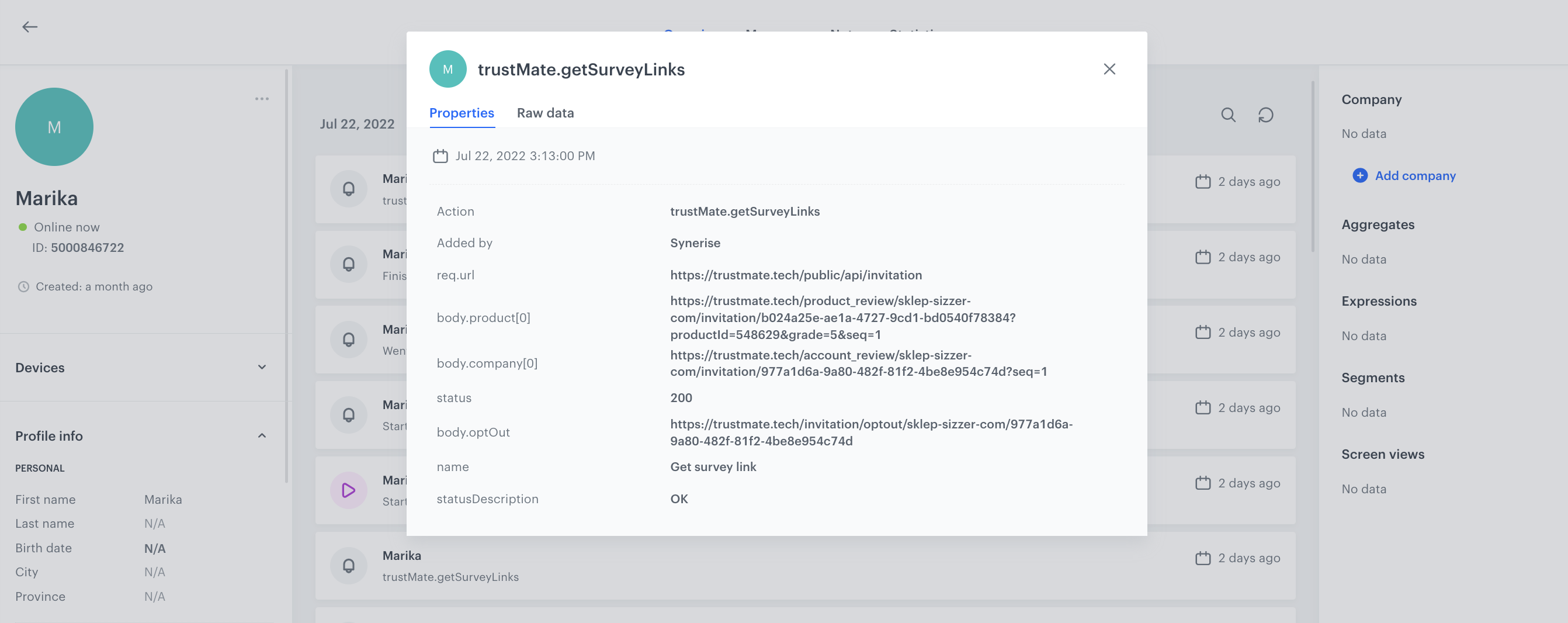
When the TrustMate node is launched, `trustMate.getSurveyLinks` event is generated on the customer's profile. There are links to surveys in event parameters.  
<figure>
<img src="/api/docs/image/54176ad07f146575310749eba44b7c2f42c1b327/use-cases/all-cases/_gfx/trustmate-event.png" alt="Event generated on the customer's profile" class="full">
<figcaption>Event generated on the customer's profile</figcaption>
</figure>

</div></div></div>


### Configure the Event Filter node

This node enables you to make sure the link to survey is generated and keeps it as [the context for the workflow](/developers/inserts/automation#context).

4. Add **Event Filter**. In the configuration of the node: 
    
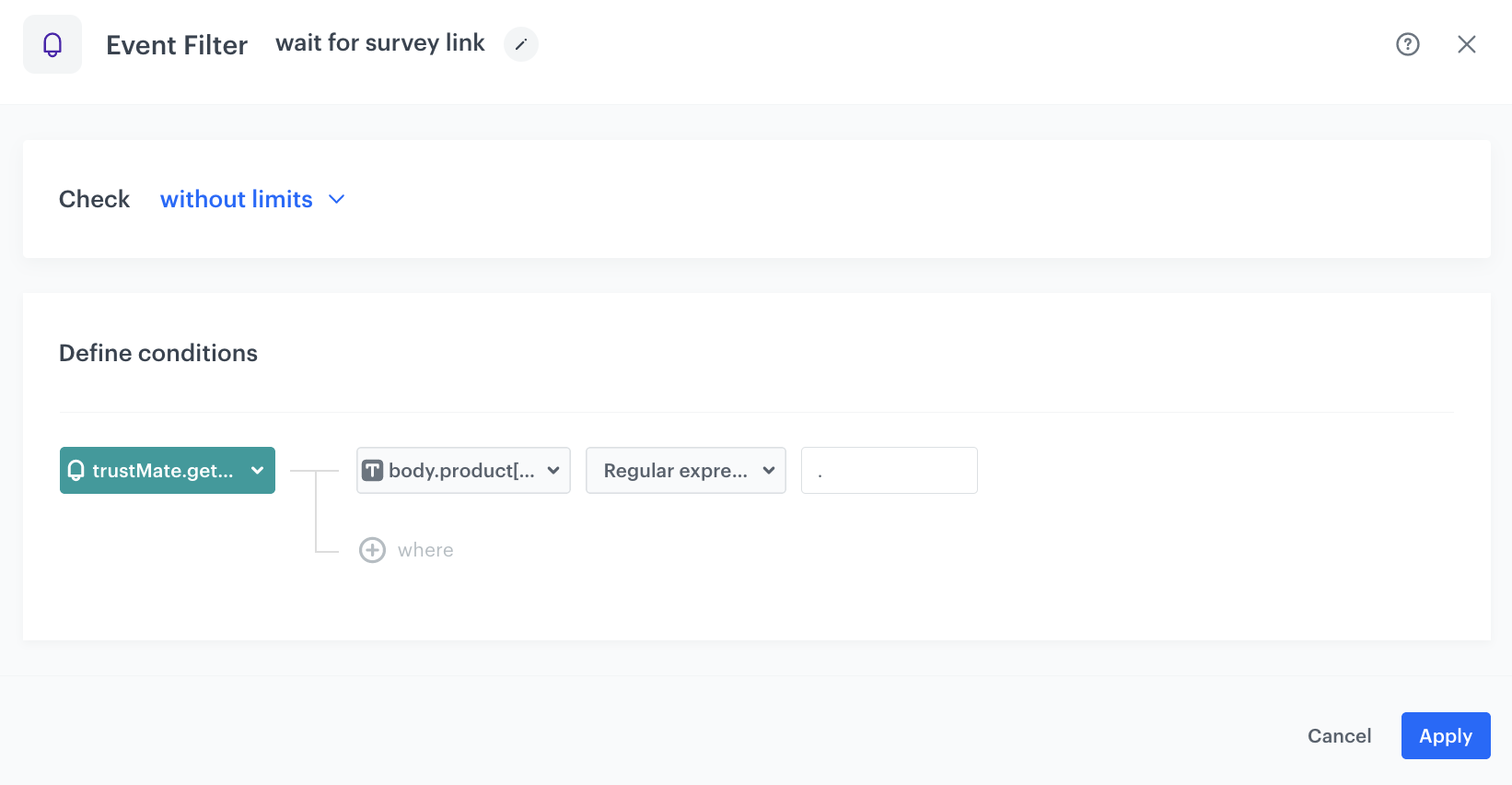
    3. In the **Define conditions** field, from the **Choose event** dropdown menu, choose `trustMate.getSurveyLinks` event.
    4. Click **where** button.
    5. From the dropdown menu, select the `body.product[0]` parameter.
    6. From the **Choose operator** dropdown menu, select `Regular expression (String)`.
    7. Enter the `.` value.
    4. Confirm by clicking **Apply**.

<figure>
<img src="/api/docs/image/54176ad07f146575310749eba44b7c2f42c1b327/use-cases/all-cases/_gfx/wait-survey-link.png" alt="Final configuration of the Event Filter node" class="full">
<figcaption>Final configuration of the Event Filter node</figcaption>
</figure>

### Configure the Delay node
---
Add the Delay node to define the lag between the purchase and sending an email with survey link. In this example it is 7 days.

1. On the **Get Survey Link** node, click the plus icon.
2. From the dropdown list, select **Delay**.
4. Click the node. 
5. In the **Delay** field enter `7`.
6. From the **Unit** dropdown menu, select `Day`.

### Configure settings for email
1. As the next node, add **Send Email**. Configure it according to your business needs.
2. Configure the sender details section.
3. Configure the Content section.
    1. In the **Subject** field, enter your message subject.
    2. In the **Template** section, choose the template email template prepared earlier.
    3. You can define **UTM & URL parameters**.
4. Confirm by clicking **Apply**.
    
   <div class="admonition admonition-important"><div class="admonition-icon"><svg xmlns="http://www.w3.org/2000/svg" fill="none" viewBox="0 0 24 24" stroke="currentColor" stroke-width="2.5"><path stroke-linecap="round" stroke-linejoin="round" d="M12 8v4m0 4h.01M21 12a9 9 0 11-18 0 9 9 0 0118 0z" /></svg></div><div class="admonition-body"><div class="admonition-content">

   You need to enrich your email template with the survey link generated in the TrustMate integration node. The link to survey about purchased product is stored in the `body.product[0]` parameter of the `trustMate.getSurveyLinks` event, so you can use the following [Jinjava code](/developers/inserts/automation#event-parameters) in your email template: `{{ event.params['body.product[0]'] }}`

   </div></div></div>


9. Add the **End** node.
10. In the upper right corner, click **Save & Run**.  


### Track survey answers
---

Optionally, you can level up your communication with customers based on the answers from the survey. To make it possible, configure a custom event that will be sent to Synerise through API and which will include the rate of a product. When a customer fills in the survey, this event will be sent to Synerise. 

Exemplary event frame:  

<pre><code class="language-json">{
   "action":"client.review",
   "client":{
      "email":"string"
   },
   "params":{
      "author_name":"string",
      "created_at":"2021-04-28T14:09:27.000Z",
      "grade":0,
      "brand":"string",
      "category":"string",
      "group_id":"string",
      "gtin":"string",
      "image_url":"string",
      "local_id":"string",
      "name":"string",
      "product_url":"string",
      "public_identifier":"string"
   }
}</code></pre>


<div class="admonition admonition-tip"><div class="admonition-icon"><svg xmlns="http://www.w3.org/2000/svg" fill="none" viewBox="0 0 24 24" stroke="currentColor" stroke-width="2.5"><path stroke-linecap="round" stroke-linejoin="round" d="M9.663 17h4.673M12 3v1m6.364 1.636l-.707.707M21 12h-1M4 12H3m3.343-5.657l-.707-.707m2.828 9.9a5 5 0 117.072 0l-.548.547A3.374 3.374 0 0014 18.469V19a2 2 0 11-4 0v-.531c0-.895-.356-1.754-.988-2.386l-.548-.547z" /></svg></div><div class="admonition-body"><div class="admonition-content">

You can find the API method [here](https://developers.synerise.com/DataManagement/DataManagement.html#operation/CustomEvent).

</div></div></div>


## Check the use case set up on the Synerise demo workspace
---
You can also check the workflow configuration directly in Synerise Demo workspace at this [link](https://app.synerise.com/automations/workflows/automation-diagram/4891c9c3-d4e4-40e6-9ff1-74afd2169b58). 

If you’re our partner or client, you already have automatic access to the **Synerise Demo workspace (1590)**, where you can explore all the configured elements of this use case and copy them to your workspace.  

If you’re not a partner or client yet, we encourage you to fill out the contact [form](https://demo.synerise.com/request) to schedule a meeting with our representatives. They’ll be happy to show you how our demo works and discuss how you can apply this use case in your business. 
## Read more
---
- [Automation inserts](/developers/inserts/automation)
- [Creating workflows](/docs/automation/creating-automation)
- [Outgoing Integration](/docs/automation/actions/webhook-node)
