
You can create a dashboard with quantile-type metrics to see how values is distributed and compare results between different cohorts and time periods.

In this example, you will create a dashboard that displays quantile values (0.25; 0.50; 0.75) and average values of transaction amounts made by male and female customers.  

The use case can be modified easily by adding more metrics with other quantile values, or other conditions, such as using age groups or geographical location instead of sex, or using different events and attributes for the analysis.

The process consists of two stages:
- Creating eight metrics to include in the dashboard
- Creating the dashboard

## Prerequisites
---

- In this example, the customers' profiles must include information about their sex.

## Process 
---

In this use case, you will go through the following steps:
1. [Create eight metrics](/use-cases/understand-distribution#create-metrics) for `transaction.charge` event.
2. [Create dashboards](/use-cases/understand-distribution#create-dashboard) presented all metrics.

## Create metrics
---
In this stage, you will create eight metrics for `transaction.charge` events. The procedure describes creating a single metric, you will need to repeat the steps for each metric separately, changing the conditions each time.

1. Go to  <img src="/api/docs/image/54176ad07f146575310749eba44b7c2f42c1b327/icons/decision-hub-icon.svg" alt="Decision Hub icon" class="icon"> **Decision Hub > Metrics > New metric**.
2. Give the metric a meaningful name.  
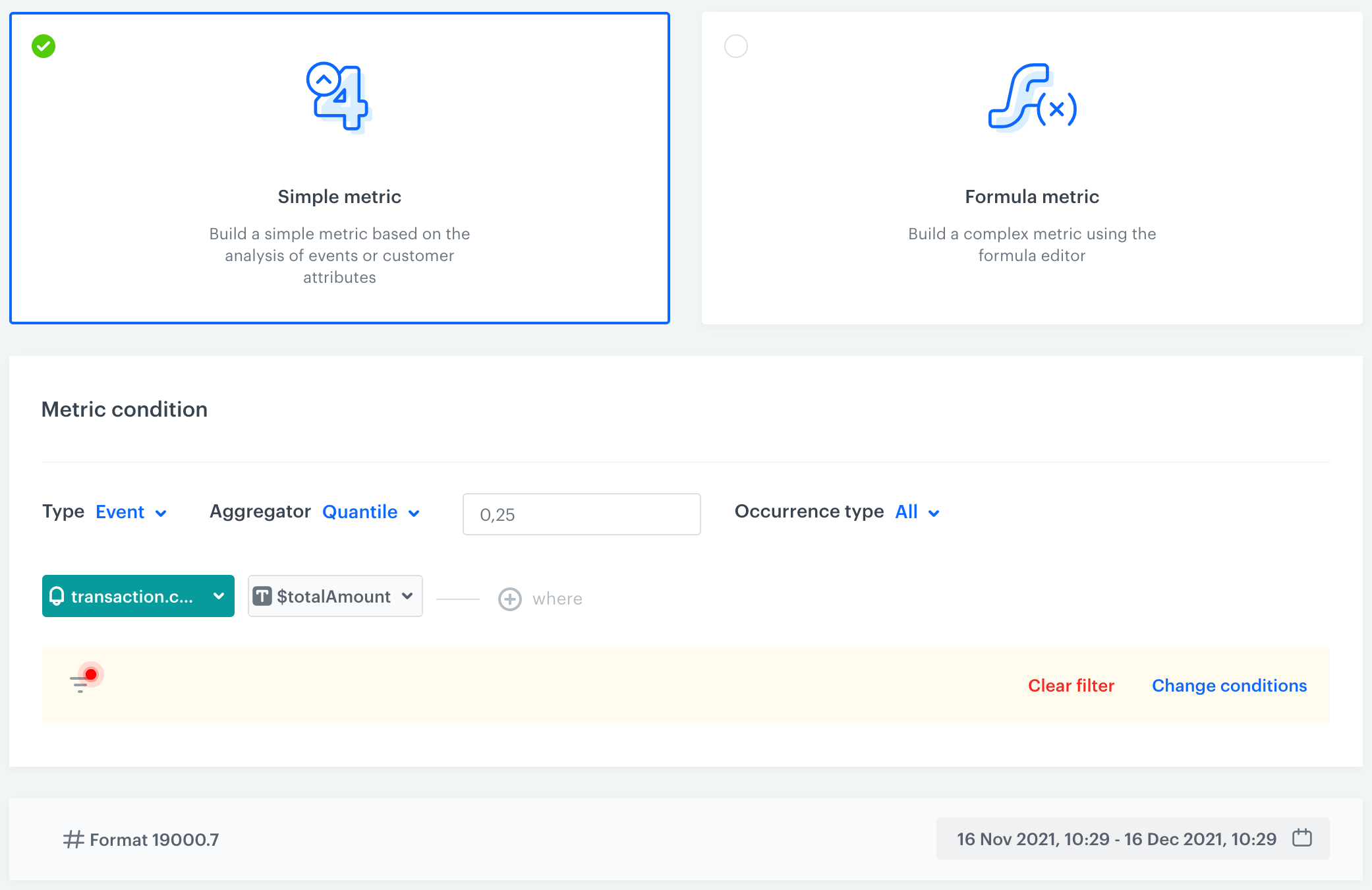
    For the purpose of this example, the first metric is for quantile 0,25 of transactions made by females.
3. Leave **Type** at **Event**.
4. Change the **Aggregator** to **Quantile**.
5. In the input field which appears next to the aggregator, type `0,25`
5. Leave **Occurrence type** at **All**.
6. Click **Choose event** and select **transaction.charge**.  
    
   <div class="admonition admonition-tip"><div class="admonition-icon"><svg xmlns="http://www.w3.org/2000/svg" fill="none" viewBox="0 0 24 24" stroke="currentColor" stroke-width="2.5"><path stroke-linecap="round" stroke-linejoin="round" d="M9.663 17h4.673M12 3v1m6.364 1.636l-.707.707M21 12h-1M4 12H3m3.343-5.657l-.707-.707m2.828 9.9a5 5 0 117.072 0l-.548.547A3.374 3.374 0 0014 18.469V19a2 2 0 11-4 0v-.531c0-.895-.356-1.754-.988-2.386l-.548-.547z" /></svg></div><div class="admonition-body"><div class="admonition-content">

   Events may have different labels between workspaces, but you can always find them by their action name (in this step, it's **transaction.charge**).

   </div></div></div>

6. Next to the event selector, click **Choose param** and select **$totalAmount**.
7. Click **Enable filter**.
8. Click **Choose filter** and use the **Search** field to find and select the **Sex** attribute.
9. In the text field, type `1`.  
    <figure><img src="/api/docs/image/54176ad07f146575310749eba44b7c2f42c1b327/use-cases/all-cases/_gfx/contact-filter-female.png" class="full" alt="Contact filter to include only female customers"><figcaption>Contact filter to include only female customers</figcaption></figure>
    
   <div class="admonition admonition-note"><div class="admonition-icon"><svg xmlns="http://www.w3.org/2000/svg" fill="none" viewBox="0 0 24 24" stroke="currentColor" stroke-width="2.5"><path stroke-linecap="round" stroke-linejoin="round" d="M13 16h-1v-4h-1m1-4h.01M21 12a9 9 0 11-18 0 9 9 0 0118 0z" /></svg></div><div class="admonition-body"><div class="admonition-content">

   The values for this parameter mean:
   - `0`: not specified
   - `1`: female
   - `2`: male
   - `3`: other

   </div></div></div>

1.  Click **Apply**.
2.  Save the metric.  
    <figure><img src="/api/docs/image/54176ad07f146575310749eba44b7c2f42c1b327/use-cases/all-cases/_gfx/metric-with-quantile.png" class="full" alt="A completed quantile metric"><figcaption>A completed quantile metric</figcaption></figure>
3.  Create the remaining metrics:
    - For females: quantiles 0.5 and 0.75, and average value (**Average** is one of the aggregators)
    - For males: quantiles 0.25, 0.5, 0.75, and average value
    - Optionally, add metrics for the `undefined` and `other` values of the `sex` attribute.  

    
   <div class="admonition admonition-tip"><div class="admonition-icon"><svg xmlns="http://www.w3.org/2000/svg" fill="none" viewBox="0 0 24 24" stroke="currentColor" stroke-width="2.5"><path stroke-linecap="round" stroke-linejoin="round" d="M9.663 17h4.673M12 3v1m6.364 1.636l-.707.707M21 12h-1M4 12H3m3.343-5.657l-.707-.707m2.828 9.9a5 5 0 117.072 0l-.548.547A3.374 3.374 0 0014 18.469V19a2 2 0 11-4 0v-.531c0-.895-.356-1.754-.988-2.386l-.548-.547z" /></svg></div><div class="admonition-body"><div class="admonition-content">

   You can do this faster by clicking **<img src="/api/docs/image/54176ad07f146575310749eba44b7c2f42c1b327/icons/threedoticon.png" alt="Three dots icon" class="icon" > > Duplicate** next to a metric in the list of metrics and then modifying the conditions in the created duplicate.

   </div></div></div>


## Create dashboard
---

In this stage, you create a dashboard to display the results of all metrics in one place for easier analysis. 

1. Go to <img src="/api/docs/image/54176ad07f146575310749eba44b7c2f42c1b327/icons/decision-hub-icon.svg" alt="Decision Hub icon" class="icon" > **Decision Hub > Dashboards > Add dashboard**.
1. Add the metrics to the dashboard:
    1. Click <img src="/api/docs/image/54176ad07f146575310749eba44b7c2f42c1b327/icons/metric-icon-dash.png" alt="Metric icon" class="icon">.
    2. Click the widget that appears.
    3. From the **Metric** drop-down list, select one of the [metrics that you created previously](#create-metrics).
    4. On the **Tab**, add two more decimal places to display (by default, none are displayed).
    5. Repeat steps **2a-2d** until all the metrics are added.
2. Click **Save dashboard**.
**Result:**  
You can now open the dashboard and use the **Date range** picker to check data for different periods.
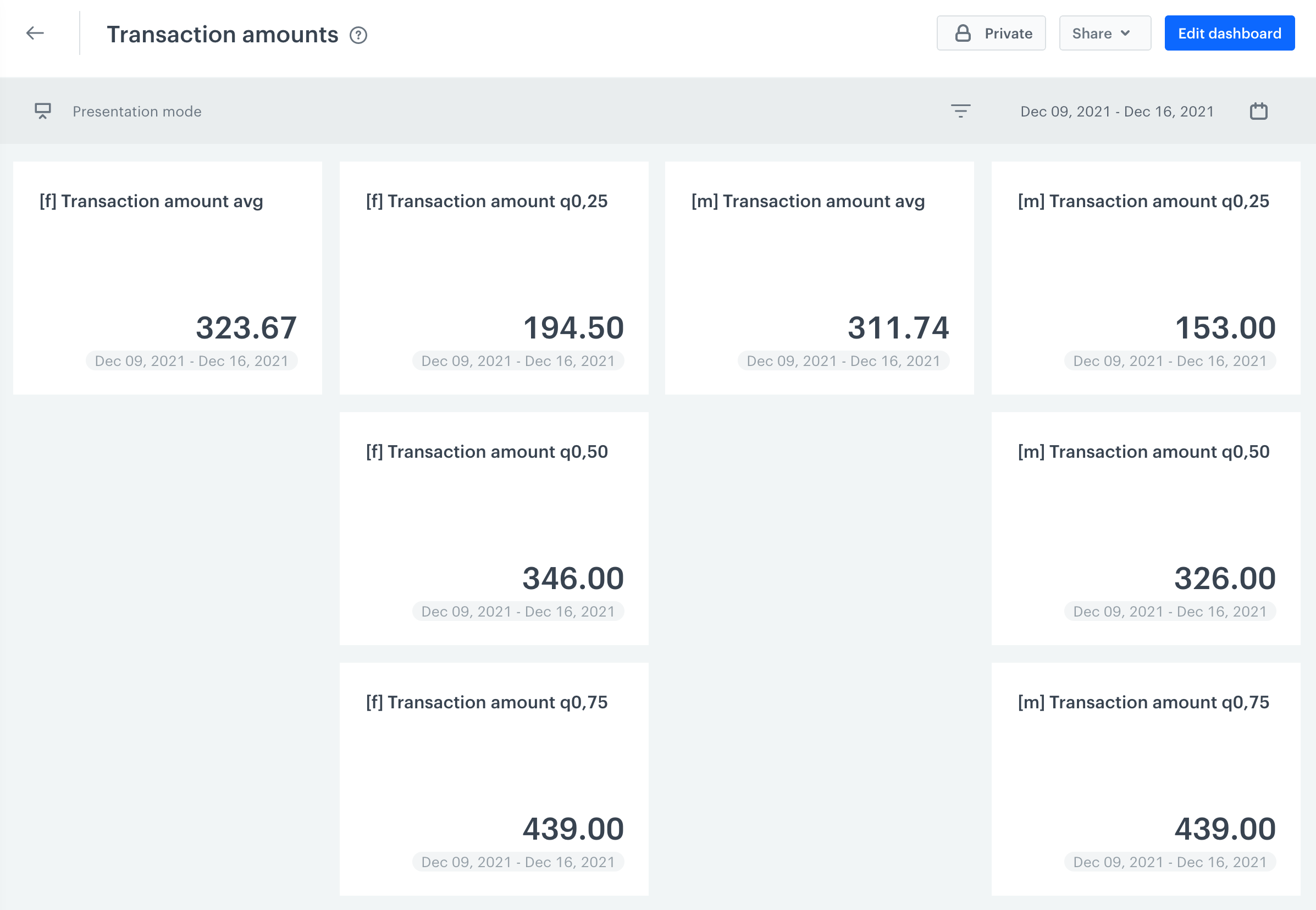
<figure><img src="/api/docs/image/54176ad07f146575310749eba44b7c2f42c1b327/use-cases/all-cases/_gfx/quantile-dashboard.png" class="full" alt="A dashboard with eight metrics and an enabled date selector"><figcaption>A dashboard with eight metrics and an enabled date picker</figcaption></figure>


<div class="admonition admonition-note"><div class="admonition-icon"><svg xmlns="http://www.w3.org/2000/svg" fill="none" viewBox="0 0 24 24" stroke="currentColor" stroke-width="2.5"><path stroke-linecap="round" stroke-linejoin="round" d="M13 16h-1v-4h-1m1-4h.01M21 12a9 9 0 11-18 0 9 9 0 0118 0z" /></svg></div><div class="admonition-body"><div class="admonition-content">

To learn more about viewing, sharing, and formatting dashboards, see [this section of the User Guide](/docs/analytics/analytics-dashboard).

</div></div></div>


## Check the use case set up on the Synerise Demo workspace
---

You can all items created in this use case in our Synerise Demo workspace:
- [0,25 quantile of transactions made by females](https://app.synerise.com/analytics/metrics/75713c7f-1480-4377-b11a-0ab656660e08)
- [0,5 quantile of transactions made by females](https://app.synerise.com/analytics/metrics/22423a36-6c96-49d0-b3c3-e19cd9ecf6c0)
- [0,75 quantile of transactions made by females](https://app.synerise.com/analytics/metrics/7f0815d2-b6b4-445b-ad7d-386625a48ddd)
- [Average of transactions made by females](https://app.synerise.com/analytics/metrics/3f334b83-bffe-4d67-a053-83c607afdc1d)
- [0,25 quantile of transactions made by males](https://app.synerise.com/analytics/metrics/3192ab2d-35c4-4ad1-9de4-cdf9b75d9e02)
- [0,5 quantile of transactions made by males](https://app.synerise.com/analytics/metrics/257c9129-9849-45b0-b7dc-f8ebaa28f788)
- [0,75 quantile of transactions made by males](https://app.synerise.com/analytics/metrics/adc59fd7-c9c8-4b19-9921-97ec67e417c9)
- [Average of transactions made by males](https://app.synerise.com/analytics/metrics/465fda5a-61c5-430a-b82c-d0993e774fa8)

- [Dashboard with presented metrics](https://app.synerise.com/analytics/dashboards/836813e4-d660-49fa-969d-d7d866d8d90b)
- [Dynamic content campaign](https://app.synerise.com/campaigns/create/37c5fadb-8628-47a4-ad8c-61a5e2b4a46b)

If you’re our partner or client, you already have automatic access to the **Synerise Demo workspace (1590)**, where you can explore all the configured elements of this use case and copy them to your workspace.  

If you’re not a partner or client yet, we encourage you to fill out the contact [form](https://demo.synerise.com/request) to schedule a meeting with our representatives. They’ll be happy to show you how our demo works and discuss how you can apply this use case in your business.

## Read more
---
- [Dashboards](/docs/analytics/analytics-dashboard)
- [Metrics](/docs/analytics/metrics)

