If you offer your customers a discount with a fixed value in response to their actions, you can use an expression as a variable in the templates of your messages (email, SMS, mobile push, web push) and other types of communication (dynamic content on websites) to display the discount value.
The main advantage of this solution is quick modification of the value of discount - when you modify the expression, its result is automatically updated in all templates the expression is used.
## Prerequisites
---
Implement [tracking code](/developers/web/installation-and-configuration#creating-a-tracking-code) on your website.
## Process
---
1. Create an [expression](/use-cases/update-dynamic-discount-value#use-the-expression-insert-in-templates).
2. Use the [expression insert](/use-cases/update-dynamic-discount-value#use-the-expression-insert-in-templates) in templates.
3. [Modify the expression](/use-cases/update-dynamic-discount-value#modify-the-expression).
## Create an expression
---
In this part of the process, you create an expression with a discount value, which will be used as a variable in the template of the message further in the process.
1. Go to **Behavioral Data Hub > Expressions > New expression**.
2. Enter the name of the expression.
3. Leave the **Expression for** option at default (**Attribute**).
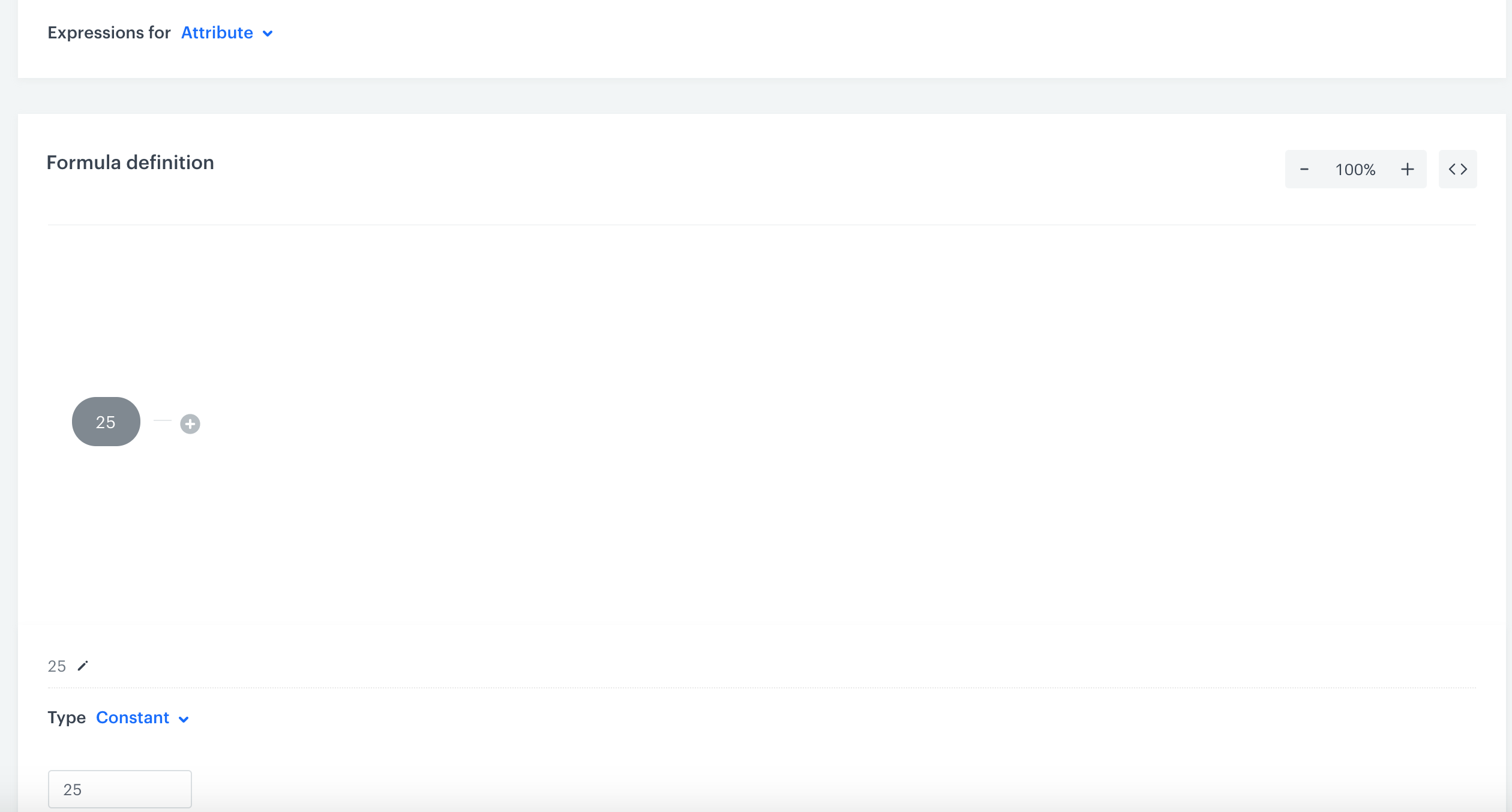
4. Build the formula of the expression.
1. Click **Select**.
2. From the dropdown list, select **Constant**.
3. Click the field that appeared on the dashboard.
4. Enter the value of discount.
5. Click **Save**.
Formula of the expression
## Use the expression insert in templates
---
In this part of the process, you use the expression as a variable in the message template.
1. Go to **Experience Hub** and select the type of message.
2. Go to the code editor.
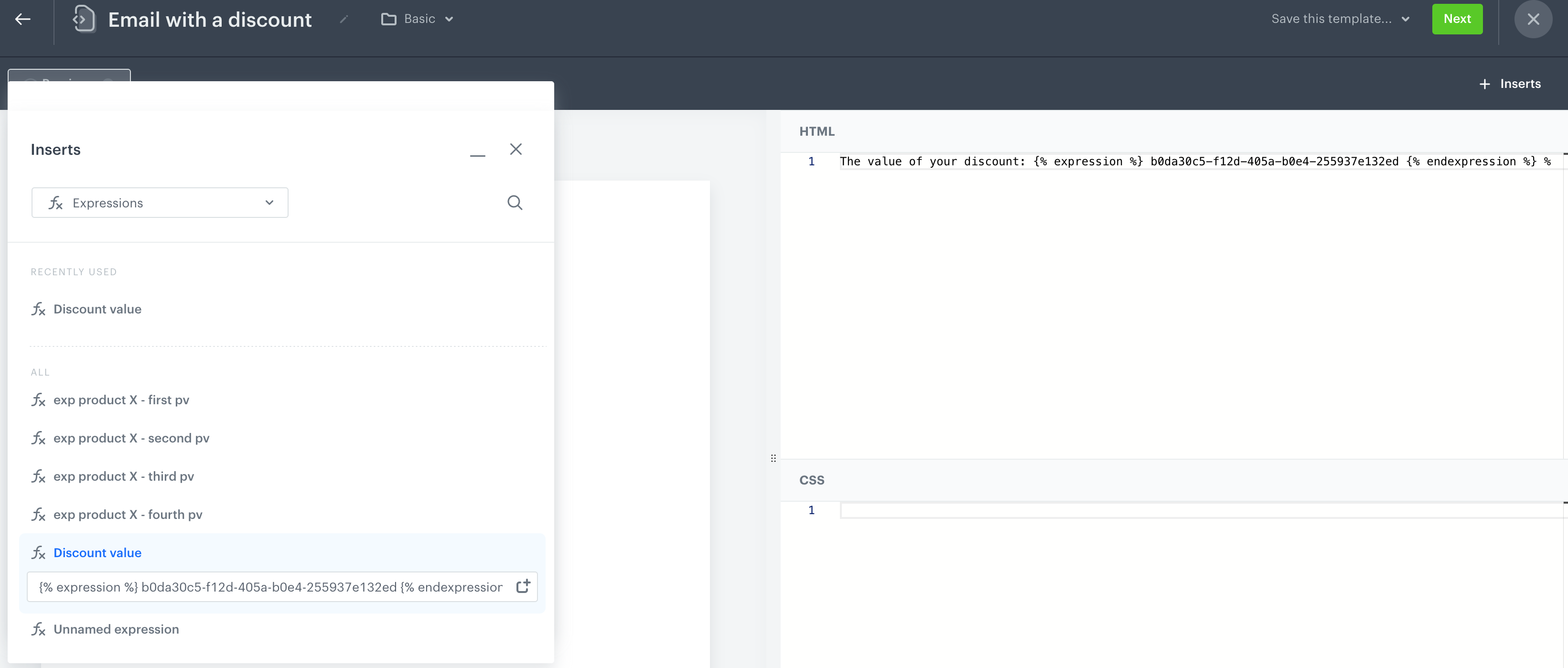
3. On the upper right side of the screen, click **+ Inserts**.
Selecting the expression on the list of inserts
4. From the dropdown list, select **Expressions**.
5. Find the expression you created in the first part of the process.
6. Click the name of the expression.
7. Copy the Jinjava code of the expression.
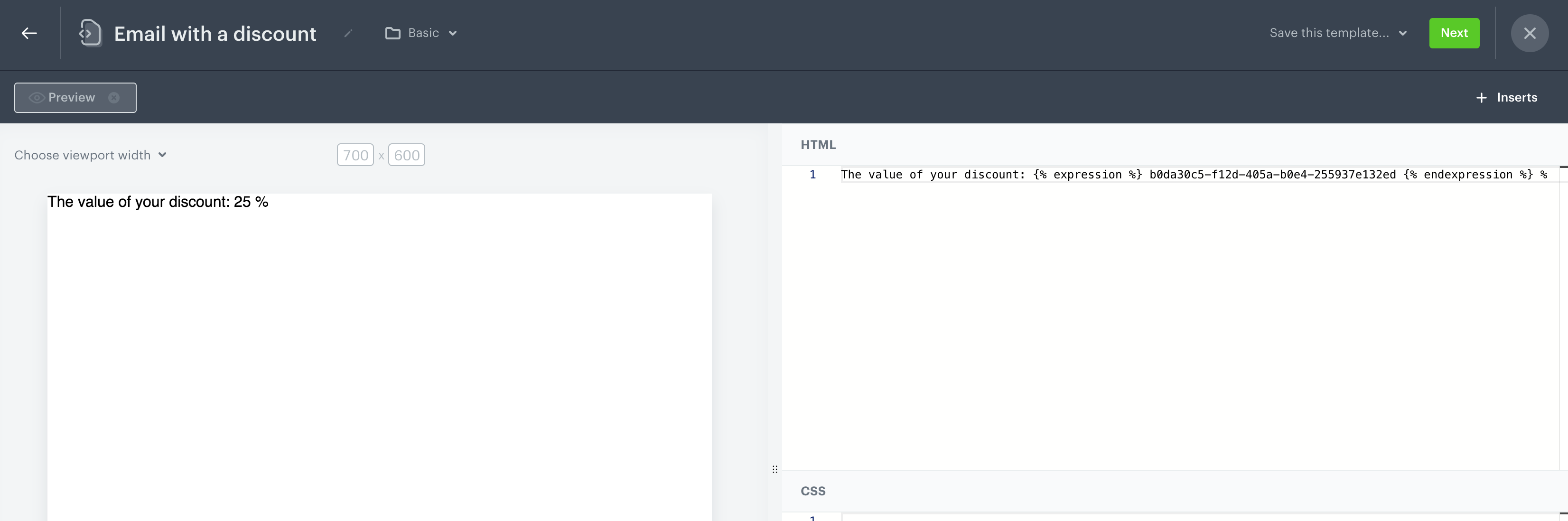
8. Paste it in the template.
9. Style the template according to your preferences.
Preview of the template that contains the expression variable
## Modify the expression
---
If you need to change the value of the discount, edit the expression you created in the beginning of the process. As a result, the expression will return the new value in all templates in which the expression is used as a variable.
To edit the expression:
1. Go to **Behavioral Data Hub > Expressions**.
2. Find the expression on the list.
3. Click the expression.
4. Make the changes to the formula of the expression.
5. Click **Publish**.
## Check the use case set up on the Synerise Demo workspace
---
In the Synerise Demo workspace, you can check the configuration of:
- the [expression](https://app.synerise.com/analytics/expressions/9caa08a3-2428-4eaa-81da-8ce86facd5f2)
- the [email template](https://app.synerise.com/campaigns/create/c562dfbc-d6bf-4331-9df4-4a9e2e34c67f)
If you’re our partner or client, you already have automatic access to the **Synerise Demo workspace (1590)**, where you can explore all the configured elements of this use case and copy them to your workspace.
If you’re not a partner or client yet, we encourage you to fill out the contact [form](https://demo.synerise.com/request) to schedule a meeting with our representatives. They’ll be happy to show you how our demo works and discuss how you can apply this use case in your business.
## Read more
---
- [Expressions](/docs/analytics/expressions)
- [Inserts](/developers/inserts/insert-usage#expressions)