Customers expect personalized, data-driven experiences that reflect their real activity and status. Instead of building separate dashboards or static profile pages, you can use [Brickworks](/docs/assets/brickworks) to create a single, structured data model that dynamically assembles customer profile information and serves it directly inside an in-app message.

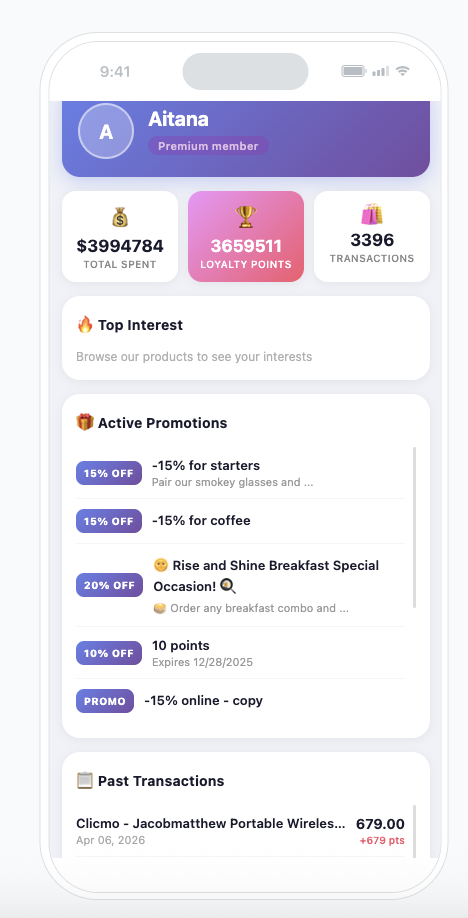
In this use case, you will build a **User Intelligence Panel** — a self-updating profile view displayed as an in-app message in a mobile application. The panel aggregates the following data for each customer in real time:

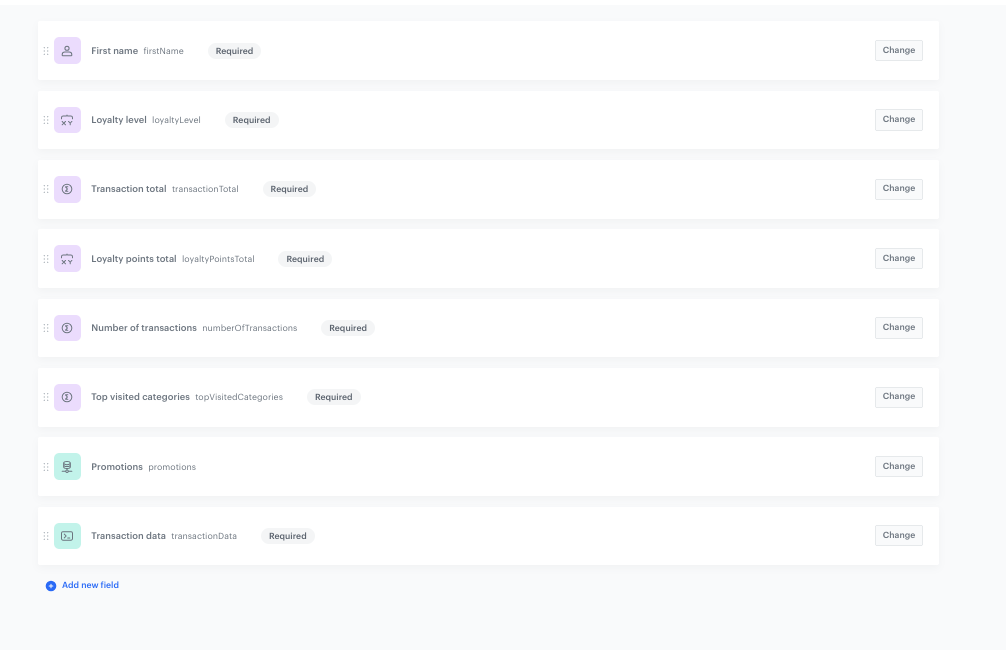
- First name
- Loyalty level (derived from an expression based on loyalty points thresholds)
- Total transaction value
- Total loyalty points (earned minus expired)
- Number of transactions
- Top visited product categories
- Active promotions assigned to the customer (fetched dynamically via an External Source)
- Historical transaction list with product names, amounts, dates, and loyalty points earned

Each customer sees a personalized version of the panel based on their own behavioral and transactional data. Every new purchase or interaction automatically updates what is displayed.

This approach eliminates the need for custom frontend-backend integrations by leveraging Brickworks as the single source of truth for the profile UI.

<figure>
<img src="/api/docs/image/54176ad07f146575310749eba44b7c2f42c1b327/use-cases/all-cases/_gfx/uc-intelligence-panel-cover.png" alt="User Intelligence Panel in-app message example" class="full no-frame">
</figure>

## Prerequisites
---
- [Implement Synerise SDK in your mobile app](/developers/mobile-sdk).
- Implement the [transaction events](/developers/web/transactions-sdk) using [SDK](/developers/web/transactions-sdk) or [API](https://developers.synerise.com/DataManagement/DataManagement.html#operation/CreateATransaction).
- Implement [tracking code](/developers/web/installation-and-configuration) on your website.
- Have a loyalty program configured in Synerise with loyalty points earning and expiration logic, including the `points.loyalty` event. Check this [use case](/use-cases/rolling-points-expiration)
- Have [promotions](/docs/ai-hub/promotions) configured and assigned to customers.
- [Create API keys](/docs/settings/tool/api#adding-api-keys) with permissions required for the Promotions API (used in the External Source configuration for the Brickworks schema).

## Process
---
In this use case, you will go through the following steps:

1. [Create aggregates for loyalty points](#create-aggregates-for-loyalty-points) to compute earned and expired points.
2. [Create aggregates for transaction and behavioral data](#create-aggregates-for-transaction-and-behavioral-data).
3. [Create expressions](#create-expressions) to compute loyalty points balance and loyalty level.
4. [Create segmentations for loyalty tiers](#create-segmentations-for-loyalty-tiers) that define thresholds for each loyalty level.
5. [Create additional aggregates for transaction history](#create-aggregates-for-transaction-history) to power the transaction list in the panel.
6. [Create a Brickworks schema](#create-a-brickworks-schema) that defines the data structure.
7. [Create a record](#create-the-record) that binds schema fields to actual data sources.
8. [Create an in-app campaign](#create-an-in-app-campaign) that renders the panel using the Brickworks schema.

## Create aggregates for loyalty points
---
In this part of the process, you will create two aggregates based on the `points.loyalty` event. These aggregates are later used in the expression that calculates the customer's net loyalty points balance, and in segmentations that determine the loyalty tier.

### Aggregate for earned loyalty points sum
---
This aggregate sums all loyalty points ever earned by the customer.

1. Go to <img src="/api/docs/image/54176ad07f146575310749eba44b7c2f42c1b327/icons/behavioral-data-hub-icon.svg" alt="Behavioral Data Hub icon" class="icon"> **Behavioral Data Hub > Live Aggregates > Create aggregate**.
2. As the aggregate type, select **Profile**.
3. Enter the name of the aggregate, for example `[UC] loyalty points sum`.
4. Click **Analyze profiles by** and select **Sum**.
5. From the **Choose event** dropdown list, select the `points.loyalty` event.
6. As the event parameter, select `points`.
7. Define the period to **Lifetime**.
8. Save the aggregate.

<figure>
<img src="/api/docs/image/54176ad07f146575310749eba44b7c2f42c1b327/use-cases/all-cases/_gfx/uc-loyalty-points-sum-aggregate.png" class="full" alt="Configuration of the earned loyalty points sum aggregate">
<figcaption>Configuration of the earned loyalty points sum aggregate</figcaption>
</figure>

### Aggregate for expired loyalty points
---
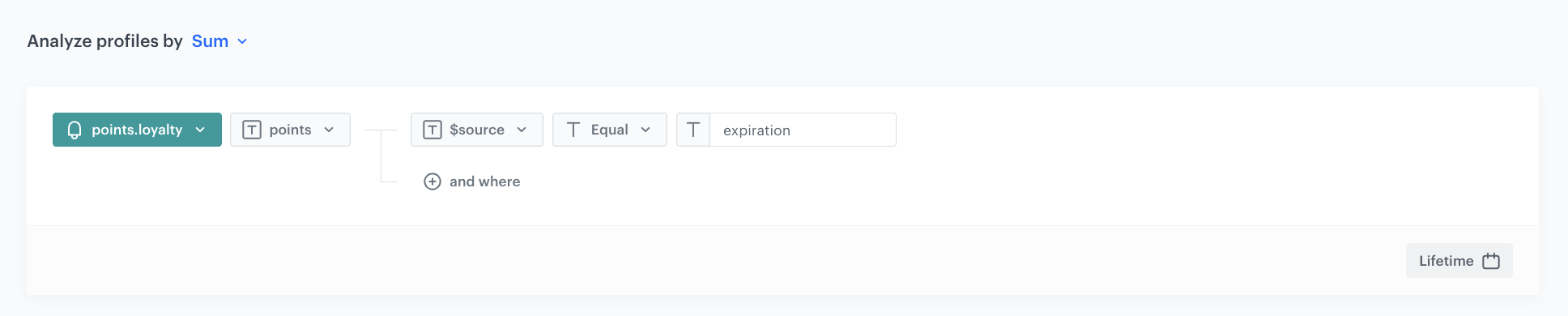
This aggregate sums only the loyalty points that have expired.

1. Go to <img src="/api/docs/image/54176ad07f146575310749eba44b7c2f42c1b327/icons/behavioral-data-hub-icon.svg" alt="Behavioral Data Hub icon" class="icon"> **Behavioral Data Hub > Live Aggregates > Create aggregate**.
2. As the aggregate type, select **Profile**.
3. Enter the name of the aggregate, for example `[UC] expired loyalty points`.
4. Click **Analyze profiles by** and select **Sum**.
5. From the **Choose event** dropdown list, select the `points.loyalty` event.
6. As the event parameter, select `points`.
7. Click the **+ where** button and add the condition: `$source` **Equal** `expiration`.
8. Define the period to **Lifetime**.
9. Save the aggregate.
<figure>
<img src="/api/docs/image/54176ad07f146575310749eba44b7c2f42c1b327/use-cases/all-cases/_gfx/uc-expired-loyalty-points-aggregate.png" class="full" alt="Configuration of the expired loyalty points aggregate">
<figcaption>Configuration of the expired loyalty points aggregate</figcaption>
</figure>

## Create aggregates for transaction and behavioral data
---
In this part of the process, you will create aggregates that supply transaction and browsing data to the Brickworks schema fields.

### Aggregate for sum of transactions
---
This aggregate calculates the total monetary value of all customer transactions.

1. Go to <img src="/api/docs/image/54176ad07f146575310749eba44b7c2f42c1b327/icons/behavioral-data-hub-icon.svg" alt="Behavioral Data Hub icon" class="icon"> **Behavioral Data Hub > Live Aggregates > Create aggregate**.
2. As the aggregate type, select **Profile**.
3. Enter the name of the aggregate, for example `[UC] Sum of transactions`.
4. Click **Analyze profiles by** and select **Sum**.
5. From the **Choose event** dropdown list, select the `transaction.charge` event.
6. As the event parameter, select `$totalAmount`.
7. Define the period to **Lifetime**.
8. Save the aggregate.

<figure>
<img src="/api/docs/image/54176ad07f146575310749eba44b7c2f42c1b327/use-cases/all-cases/_gfx/uc-sum-of-transactions-aggregate.png" class="full" alt="Configuration of the sum of transactions aggregate">
<figcaption>Configuration of the sum of transactions aggregate</figcaption>
</figure>

### Aggregate for number of transactions
---
This aggregate counts the total number of transactions for each customer.

1. Go to <img src="/api/docs/image/54176ad07f146575310749eba44b7c2f42c1b327/icons/behavioral-data-hub-icon.svg" alt="Behavioral Data Hub icon" class="icon"> **Behavioral Data Hub > Live Aggregates > Create aggregate**.
2. As the aggregate type, select **Profile**.
3. Enter the name of the aggregate, for example `[UC] Number of transactions`.
4. Click **Analyze profiles by** and select **Count**.
5. From the **Choose event** dropdown list, select the `transaction.charge` event.
6. Define the period to **Lifetime**.
7. Save the aggregate.

<figure>
<img src="/api/docs/image/54176ad07f146575310749eba44b7c2f42c1b327/use-cases/all-cases/_gfx/uc-number-of-transactions-aggregate.png" class="full" alt="Configuration of the number of transactions aggregate">
<figcaption>Configuration of the number of transactions aggregate</figcaption>
</figure>

### Aggregate for top 5 visited categories
---
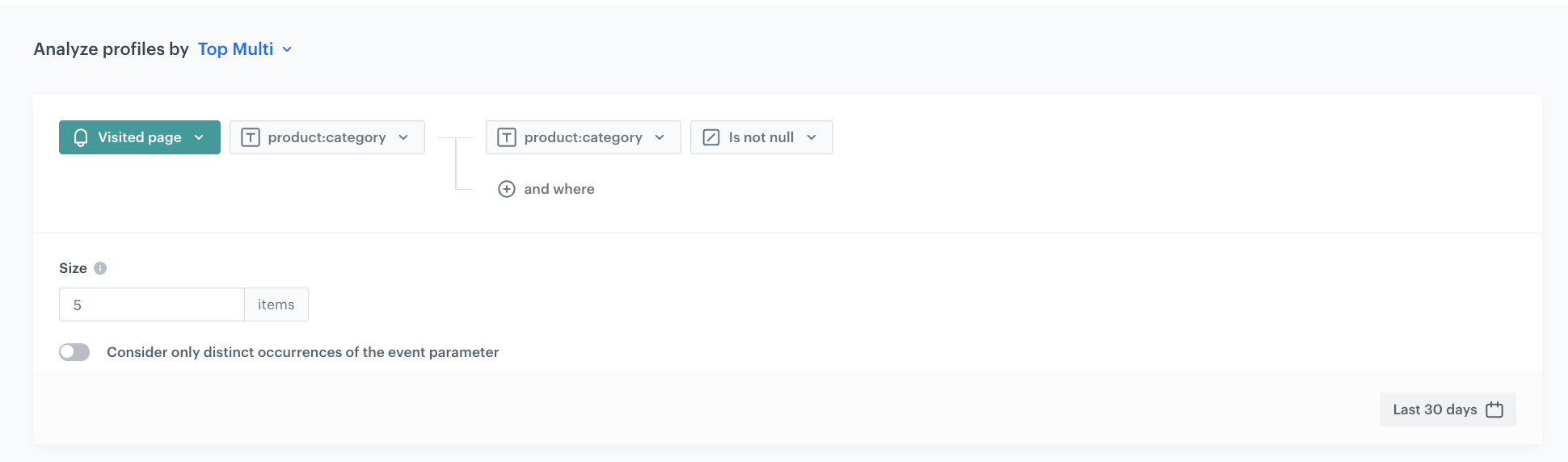
This aggregate returns the most frequently visited product categories for each customer.

1. Go to <img src="/api/docs/image/54176ad07f146575310749eba44b7c2f42c1b327/icons/behavioral-data-hub-icon.svg" alt="Behavioral Data Hub icon" class="icon"> **Behavioral Data Hub > Live Aggregates > Create aggregate**.
2. As the aggregate type, select **Profile**.
3. Enter the name of the aggregate, for example `[UC] Top 5 visited categories`.
4. Click **Analyze profiles by** and select **Top Multi**.
5. From the **Choose event** dropdown list, select the `page.visit` event.
6. As the event parameter, select `product:category`.
7. Click the **+ where** button and add the condition that `product:category` **is not null**.
8. In the **Size** field, enter `5`.
9. Define the period to the **Last 30 days**.
10. Save the aggregate.
<figure>
<img src="/api/docs/image/54176ad07f146575310749eba44b7c2f42c1b327/use-cases/all-cases/_gfx/uc-top-5-visited-categories-aggregate.png" class="full" alt="Configuration of the top 5 visited categories aggregate">
<figcaption>Configuration of the top 5 visited categories aggregate</figcaption>
</figure>

## Create expressions
---
In this part of the process, you will create expressions that compute derived values used in the Brickworks schema.

### Expression for loyalty points
---
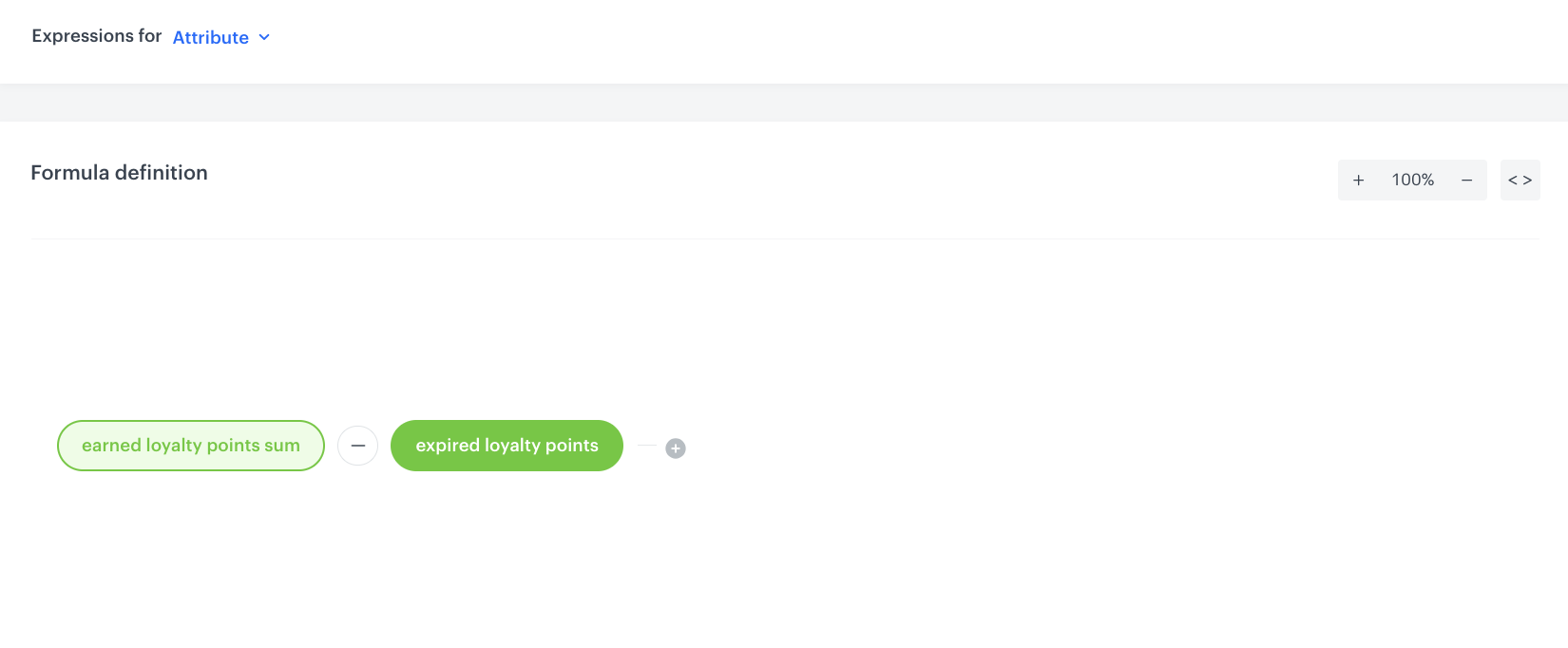
This expression calculates the customer's current net loyalty points balance by subtracting expired points from the total earned points.

1. Go to <img src="/api/docs/image/54176ad07f146575310749eba44b7c2f42c1b327/icons/behavioral-data-hub-icon.svg" alt="Behavioral Data Hub icon" class="icon"> **Behavioral Data Hub > Expressions > New expression**.
2. Enter the name of the expression, for example `[UC] Loyalty points`.
3. Set **Expressions for** to **Attribute**.
4. Enable **Show in profile card** if you want the result visible on customer profiles.
5. In the **Formula definition**, define the formula as:
    - `earned loyalty points sum` **minus** `expired loyalty points`
    
    where the first operand references the `[UC] loyalty points sum` aggregate and the second references the `[UC] expired loyalty points` aggregate, both created in the [previous step](#create-aggregates-for-loyalty-points).
6. Click **Publish**.
<figure>
<img src="/api/docs/image/54176ad07f146575310749eba44b7c2f42c1b327/use-cases/all-cases/_gfx/uc-loyalty-points-expression.png" class="full" alt="Configuration of the Loyalty points expression">
<figcaption>Configuration of the Loyalty points expression</figcaption>
</figure>

### Expression for loyalty level
---
This will expression determine the customer's loyalty tier based on the segmentations.

#### Create segmentations for loyalty tiers
---
In this part of the process, you will create segmentations that define the loyalty point thresholds for each tier. 

The loyalty tiers in this example are based on the following point thresholds:

| Tier | Condition |
|---|---|
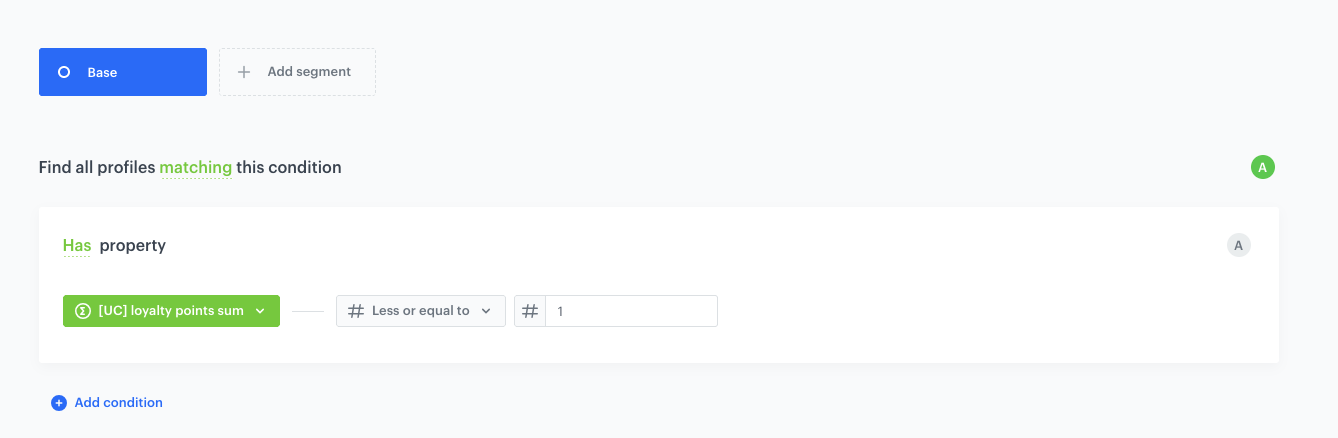
| Base | Loyalty points sum ≤ 1 |
| Silver | Loyalty points sum > 1 AND < 4,000 |
| Gold | Loyalty points sum ≥ 4,000 AND < 10,000 |
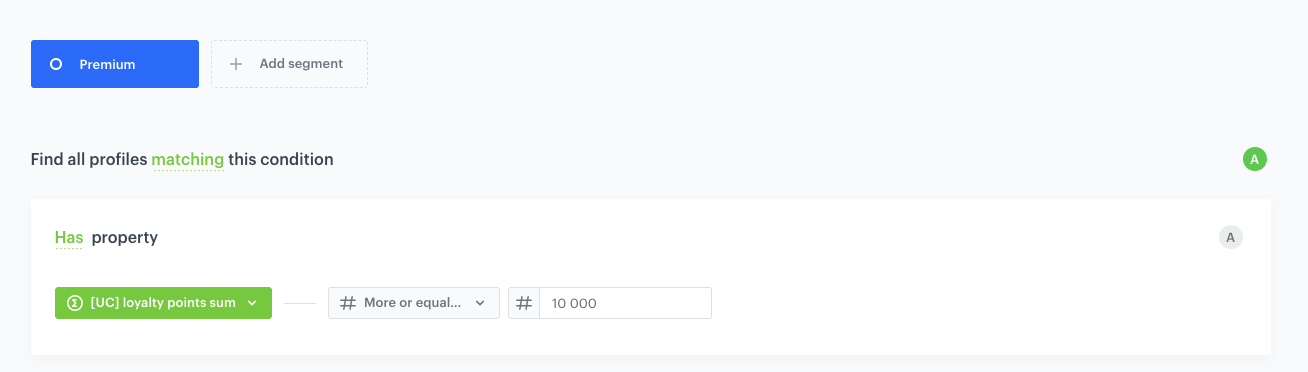
| Premium | Loyalty points sum ≥ 10,000 |

##### Segmentation for Gold loyalty level
---
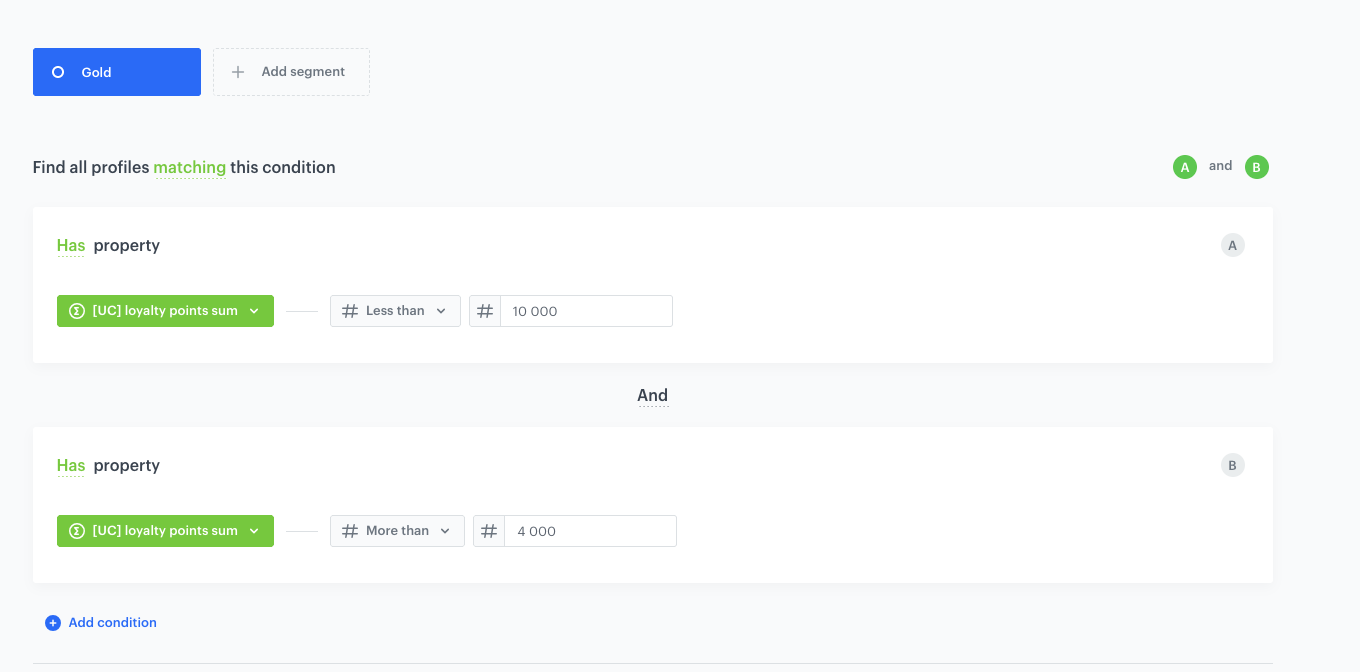
This example shows how to configure a loyalty tier segmentation. The remaining tiers follow the same pattern with different thresholds.

1. Go to <img src="/api/docs/image/54176ad07f146575310749eba44b7c2f42c1b327/icons/decision-hub-icon.svg" alt="Decision Hub icon" class="icon" > **Decision Hub > Segmentations > New segmentation**.
2. Enter the name of the segmentation, for example `[UC] Loyalty level - Gold`.
3. Name the segment `Gold`.
4. Click **Add condition**.
5. From the dropdown list, select **Has property**.
6. Choose the `[UC] loyalty points sum` expression.
7. From the **Choose operator** dropdown, select **Less than** and enter the value `10 000`.
8. Click **Add condition**.
9. Again select **Has property** and choose the `[UC] loyalty points sum` expression.
10. From the **Choose operator** dropdown, select **More than** and enter the value `4 000`.
11. Connect these conditions with the **And** operator.
12. Save the segmentation.
<figure>
<img src="/api/docs/image/54176ad07f146575310749eba44b7c2f42c1b327/use-cases/all-cases/_gfx/uc-loyalty-level-gold-segmentation.png" class="full" alt="Configuration of the Gold loyalty level segmentation">
<figcaption>Configuration of the Gold loyalty level segmentation</figcaption>
</figure>

##### Remaining loyalty tier segmentations
---
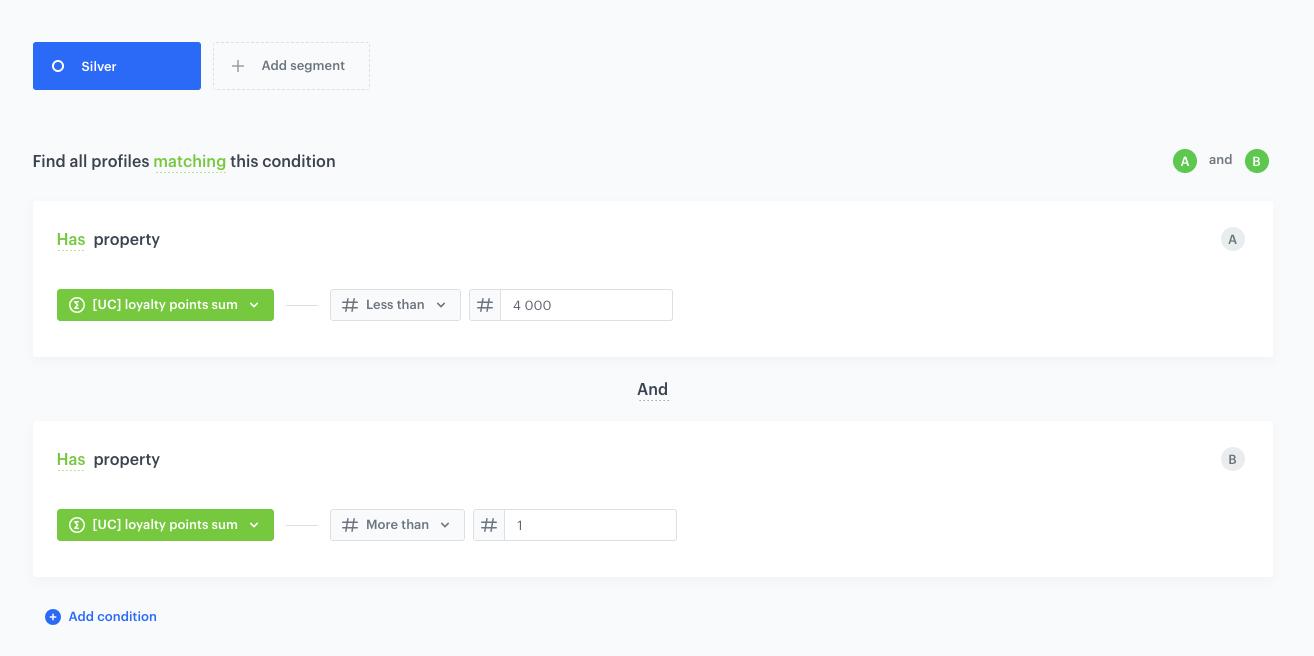
Create the remaining segmentations following the same approach as above, adjusting the thresholds:

- **[UC] Loyalty level - Silver**: `[UC] loyalty points sum` **More than** `1` **AND** `[UC] loyalty points sum` **Less than** `4 000`.

<figure>
<img src="/api/docs/image/54176ad07f146575310749eba44b7c2f42c1b327/use-cases/all-cases/_gfx/uc-loyalty-level-silver-segmentation.png" class="full" alt="Configuration of the Silver loyalty level segmentation">
<figcaption>Configuration of the Silver loyalty level segmentation</figcaption>
</figure>

- **[UC] Loyalty level - Premium**: `[UC] loyalty points sum` **More or equal to** `10 000`.

<figure>
<img src="/api/docs/image/54176ad07f146575310749eba44b7c2f42c1b327/use-cases/all-cases/_gfx/uc-loyalty-level-premium-segmentation.png" class="full" alt="Configuration of the Premium loyalty level segmentation">
<figcaption>Configuration of the Premium loyalty level segmentation</figcaption>
</figure>

- **[UC] Loyalty level - Base**: `[UC] loyalty points sum` **Less or equal to** `1`.

<figure>
<img src="/api/docs/image/54176ad07f146575310749eba44b7c2f42c1b327/use-cases/all-cases/_gfx/uc-loyalty-level-base-segmentation.png" class="full" alt="Configuration of the Base loyalty level segmentation">
<figcaption>Configuration of the Base loyalty level segmentation</figcaption>
</figure>


#### Create Expression with Loyalty Tiers

For this expression use segmentation created in the [previous step](#create-segmentations-for-loyalty-tiers).

1. Go to <img src="/api/docs/image/54176ad07f146575310749eba44b7c2f42c1b327/icons/behavioral-data-hub-icon.svg" alt="Behavioral Data Hub icon" class="icon"> **Behavioral Data Hub > Expressions > New expression**.
2. Enter the name of the expression, for example `[UC] Loyalty level`.
3. Set **Expressions for** to **Attribute**.
4. Enable **Show in profile card** if desired.
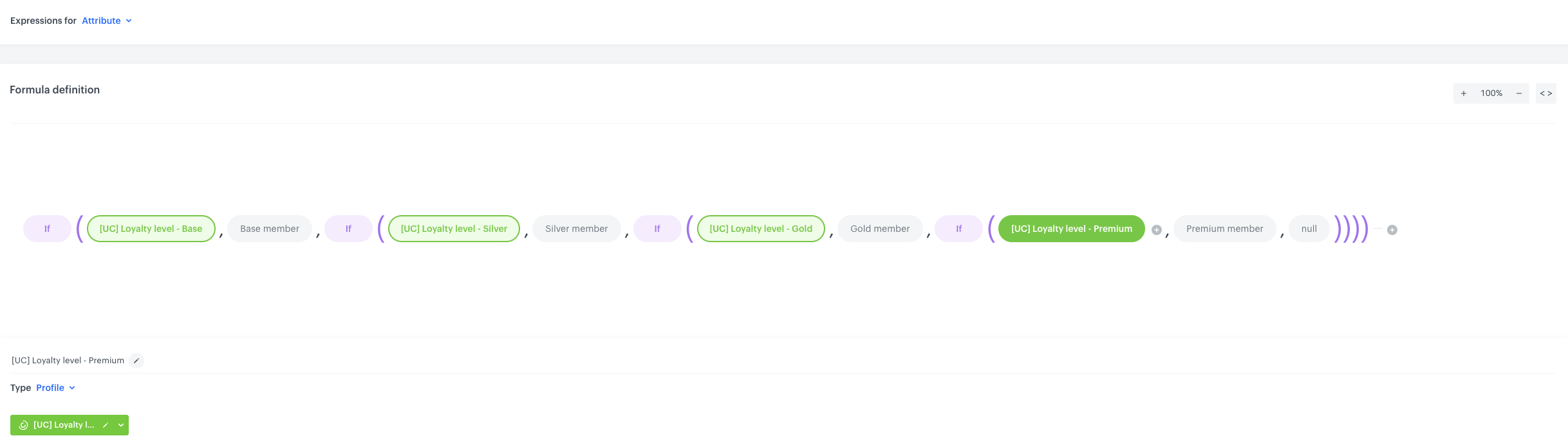
5. In the **Formula definition**, build a conditional formula using the following logic:
    - If `[UC] Loyalty level - Base` → return `Base member`
    - If `[UC] Loyalty level - Silver` → return `Silver member`
    - If `[UC] Loyalty level - Gold` → return `Gold member`
    - If `[UC] Loyalty level - Premium` → return `Premium member`
    - Otherwise → return `null`
    
    Each condition references the corresponding segmentation created in the [next step](#create-segmentations-for-loyalty-tiers).
6. Click **Publish**.
<figure>
<img src="/api/docs/image/54176ad07f146575310749eba44b7c2f42c1b327/use-cases/all-cases/_gfx/uc-loyalty-level-expression.png" class="full" alt="Configuration of the Loyalty level expression">
<figcaption>Configuration of the Loyalty level expression</figcaption>
</figure>

## Create aggregates for transaction history
---
The transaction history section of the panel requires six additional aggregates that are referenced inside a Jinjava code field in the Brickworks schema. Each aggregate collects a specific dimension of transaction data so it can be combined into a structured JSON list.

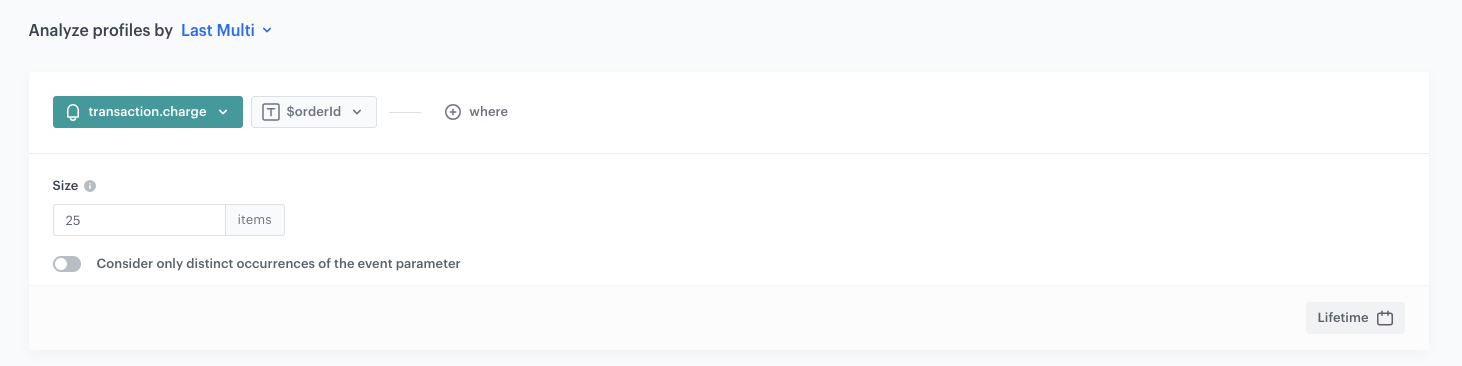
### Aggregate for transaction IDs
---
Collects the order IDs of the customer's transactions.

1. Go to <img src="/api/docs/image/54176ad07f146575310749eba44b7c2f42c1b327/icons/behavioral-data-hub-icon.svg" alt="Behavioral Data Hub icon" class="icon"> **Behavioral Data Hub > Live Aggregates > Create aggregate**.
2. As the aggregate type, select **Profile**.
3. Enter the name of the aggregate, for example `[UC] Transaction IDs`.
4. Click **Analyze profiles by** and select **Last Multi**.
5. From the **Choose event** dropdown list, select the `transaction.charge` event.
6. As the event parameter, select `$orderId`.
7. In the **Size** field, enter `25`.
8. Define the period to **Lifetime**.
9. Save the aggregate.
<figure>
<img src="/api/docs/image/54176ad07f146575310749eba44b7c2f42c1b327/use-cases/all-cases/_gfx/uc-txn-ids-aggregate.png" class="full" alt="Configuration of the transaction IDs aggregate">
<figcaption>Configuration of the transaction IDs aggregate</figcaption>
</figure>

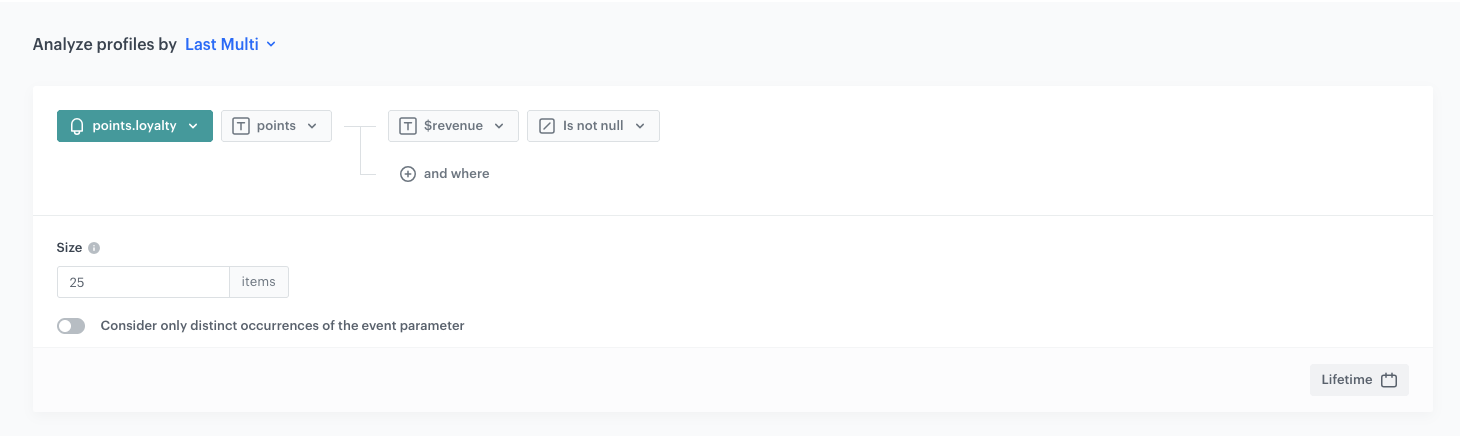
### Aggregate for transaction loyalty points
---
Collects the loyalty points associated with each transaction.

1. Go to <img src="/api/docs/image/54176ad07f146575310749eba44b7c2f42c1b327/icons/behavioral-data-hub-icon.svg" alt="Behavioral Data Hub icon" class="icon"> **Behavioral Data Hub > Live Aggregates > Create aggregate**.
2. As the aggregate type, select **Profile**.
3. Enter the name of the aggregate, for example `[UC] Transaction loyalty points`.
4. Click **Analyze profiles by** and select **Last Multi**.
5. From the **Choose event** dropdown list, select the `points.loyalty` event.
6. As the event parameter, select `points`.
7. Click the **+ where** button and add the condition: `$revenue` **Is not null**.
8. In the **Size** field, enter `25`.
9. Define the period to **Lifetime**.
10. Save the aggregate.
<figure>
<img src="/api/docs/image/54176ad07f146575310749eba44b7c2f42c1b327/use-cases/all-cases/_gfx/uc-txn-loyalty-points-aggregate.png" class="full" alt="Configuration of the transaction loyalty points aggregate">
<figcaption>Configuration of the transaction loyalty points aggregate</figcaption>
</figure>

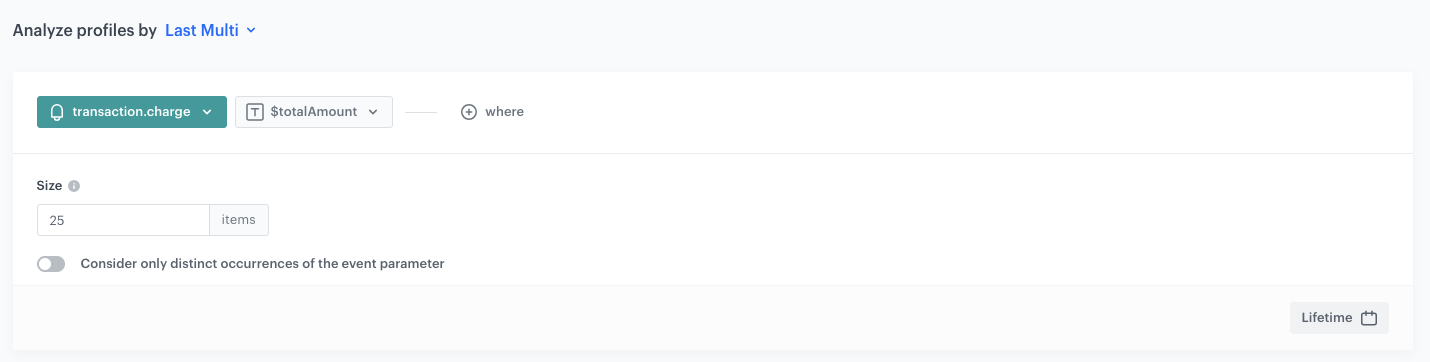
### Aggregate for transaction amounts
---
Collects the monetary amount of each transaction.

1. Go to <img src="/api/docs/image/54176ad07f146575310749eba44b7c2f42c1b327/icons/behavioral-data-hub-icon.svg" alt="Behavioral Data Hub icon" class="icon"> **Behavioral Data Hub > Live Aggregates > Create aggregate**.
2. As the aggregate type, select **Profile**.
3. Enter the name of the aggregate, for example `[UC] Transaction amounts`.
4. Click **Analyze profiles by** and select **Last Multi**.
5. From the **Choose event** dropdown list, select the `transaction.charge` event.
6. As the event parameter, select `$totalAmount`.
7. In the **Size** field, enter `25`.
8. Define the period to **Lifetime**.
9. Save the aggregate.
<figure>
<img src="/api/docs/image/54176ad07f146575310749eba44b7c2f42c1b327/use-cases/all-cases/_gfx/uc-txn-amounts-aggregate.png" class="full" alt="Configuration of the transaction amounts aggregate">
<figcaption>Configuration of the transaction amounts aggregate</figcaption>
</figure>

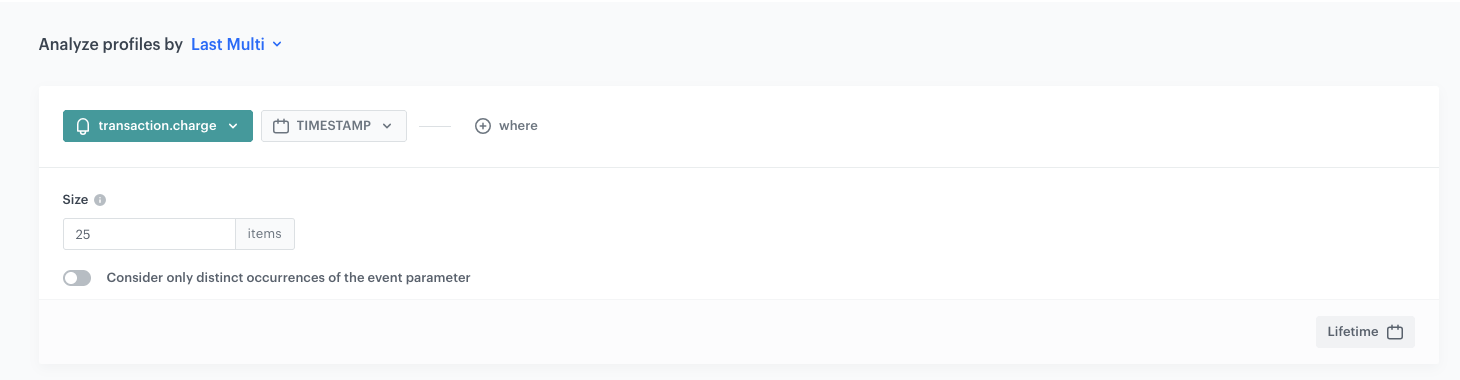
### Aggregate for transaction dates
---
Collects the timestamps of each transaction.

1. Go to <img src="/api/docs/image/54176ad07f146575310749eba44b7c2f42c1b327/icons/behavioral-data-hub-icon.svg" alt="Behavioral Data Hub icon" class="icon"> **Behavioral Data Hub > Live Aggregates > Create aggregate**.
2. As the aggregate type, select **Profile**.
3. Enter the name of the aggregate, for example `[UC] Transaction dates`.
4. Click **Analyze profiles by** and select **Last Multi**.
5. From the **Choose event** dropdown list, select the `transaction.charge` event.
6. As the event parameter, select `TIMESTAMP`.
7. In the **Size** field, enter `25`.
8. Define the period to **Lifetime**.
9. Save the aggregate.
<figure>
<img src="/api/docs/image/54176ad07f146575310749eba44b7c2f42c1b327/use-cases/all-cases/_gfx/uc-txn-dates-aggregate.png" class="full" alt="Configuration of the transaction dates aggregate">
<figcaption>Configuration of the transaction dates aggregate</figcaption>
</figure>

### Aggregate for product names from transactions
---
Collects the product names from individual bought items.

1. Go to <img src="/api/docs/image/54176ad07f146575310749eba44b7c2f42c1b327/icons/behavioral-data-hub-icon.svg" alt="Behavioral Data Hub icon" class="icon"> **Behavioral Data Hub > Live Aggregates > Create aggregate**.
2. As the aggregate type, select **Profile**.
3. Enter the name of the aggregate, for example `[UC] Transaction product names`.
4. Click **Analyze profiles by** and select **Last Multi**.
5. From the **Choose event** dropdown list, select the `product.buy` event.
6. As the event parameter, select `$name`.
7. In the **Size** field, enter `1 000`.
8. Define the period to **Lifetime**.
9. Save the aggregate.
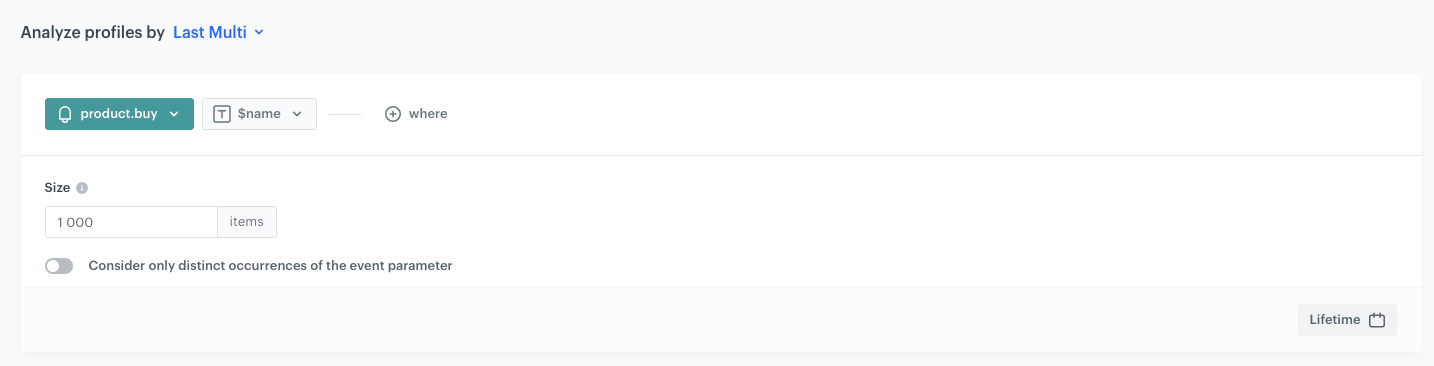
<figure>
<img src="/api/docs/image/54176ad07f146575310749eba44b7c2f42c1b327/use-cases/all-cases/_gfx/uc-txn-product-names-aggregate.png" class="full" alt="Configuration of the transaction product names aggregate">
<figcaption>Configuration of the transaction product names aggregate</figcaption>
</figure>

### Aggregate for order IDs from product buy events
---
Collects the order IDs associated with each product buy event, so products can be grouped by transaction.

1. Go to <img src="/api/docs/image/54176ad07f146575310749eba44b7c2f42c1b327/icons/behavioral-data-hub-icon.svg" alt="Behavioral Data Hub icon" class="icon"> **Behavioral Data Hub > Live Aggregates > Create aggregate**.
2. As the aggregate type, select **Profile**.
3. Enter the name of the aggregate, for example `[UC] Product buy order IDs`.
4. Click **Analyze profiles by** and select **Last Multi**.
5. From the **Choose event** dropdown list, select the `product.buy` event.
6. As the event parameter, select `$orderId`.
7. In the **Size** field, enter `1 000`.
8. Define the period to **Lifetime**.
9. Save the aggregate.
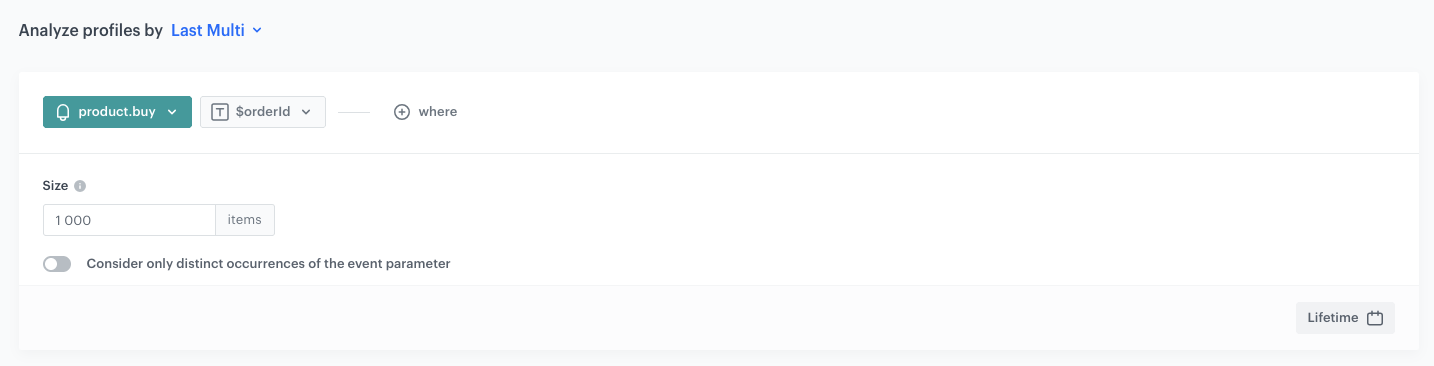
<figure>
<img src="/api/docs/image/54176ad07f146575310749eba44b7c2f42c1b327/use-cases/all-cases/_gfx/uc-txn-product-order-ids-aggregate.png" class="full" alt="Configuration of the product buy order IDs aggregate">
<figcaption>Configuration of the product buy order IDs aggregate</figcaption>
</figure>

## Create a Brickworks schema
---
In this part of the process, you will create a [Brickworks](/docs/assets/brickworks) Simple schema that defines the structure of the User Intelligence Panel. The schema specifies the field names, types, and configuration options. The actual binding of fields to data sources (expressions, aggregates, profile attributes) happens at the [record level](#create-the-record), where values are resolved via API at generation time for the requesting customer.


<div class="admonition admonition-important"><div class="admonition-icon"><svg xmlns="http://www.w3.org/2000/svg" fill="none" viewBox="0 0 24 24" stroke="currentColor" stroke-width="2.5"><path stroke-linecap="round" stroke-linejoin="round" d="M12 8v4m0 4h.01M21 12a9 9 0 11-18 0 9 9 0 0118 0z" /></svg></div><div class="admonition-body"><div class="admonition-content">

Use a **Simple Schema**. Simple schemas support [External Sources](/docs/assets/brickworks/quick-start/creating-a-schema) fields (such as the Promotion list), which is required for dynamically fetching promotion data in the in-app context.

</div></div></div>


1. Go to **Data Modeling Hub > Brickworks > New schema**.
2. Choose **Simple Schema**.
3. Enter the **Display name**, for example `User Intelligence Panel`.
4. Optionally, add a description.

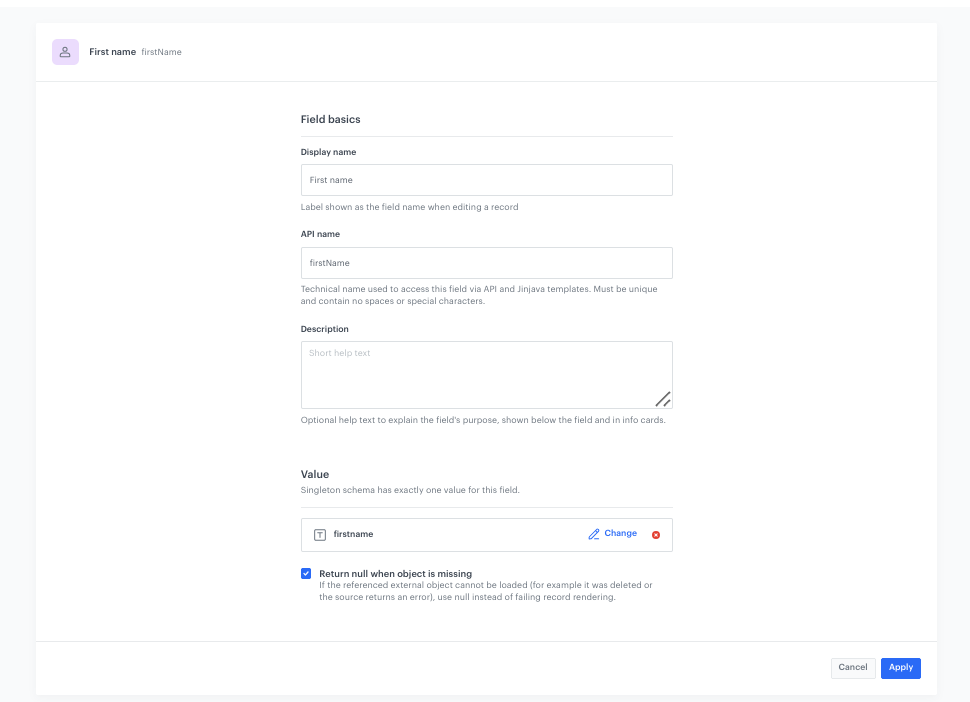
### Add First name field
---
1. Click **Add new field** and choose the appropriate field type.
2. In the **Field basics** section, complete the fields:
    - **Display name**: `First name`
    - **API name**: `firstName`
3. In the **Configuration** section, enable the **Return null when object is missing** checkbox.
4. In the **Validation** section, enable the **Required field** checkbox.
5. Click **Apply**.

<figure>
<img src="/api/docs/image/54176ad07f146575310749eba44b7c2f42c1b327/use-cases/all-cases/_gfx/uc-brickworks-firstname.png" class="full" alt="Configuration of the First name field in the Brickworks schema">
<figcaption>Configuration of the First name field in the Brickworks schema</figcaption>
</figure>

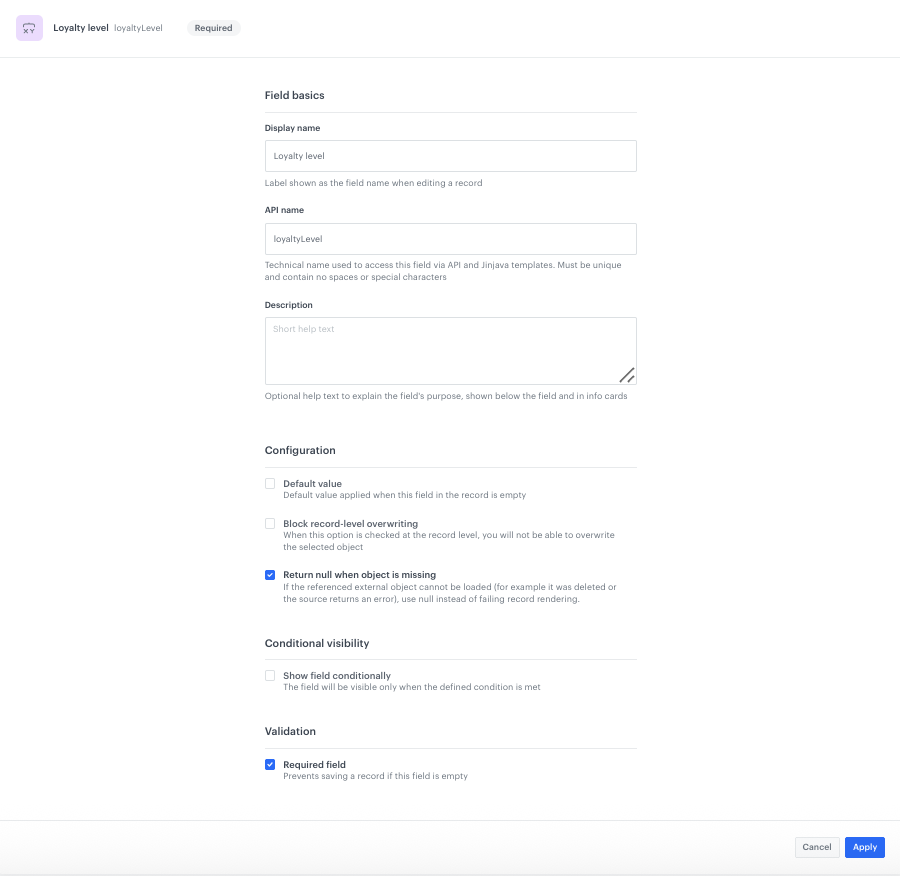
### Add Loyalty level field
---
1. Click **Add new field** and choose the appropriate field type.
2. In the **Field basics** section, complete the fields:
    - **Display name**: `Loyalty level`
    - **API name**: `loyaltyLevel`
3. In the **Configuration** section, enable the **Return null when object is missing** checkbox.
4. In the **Validation** section, enable the **Required field** checkbox.
5. Click **Apply**.

<figure>
<img src="/api/docs/image/54176ad07f146575310749eba44b7c2f42c1b327/use-cases/all-cases/_gfx/uc-brickworks-loyaltylevel.png" class="full" alt="Configuration of the Loyalty level field in the Brickworks schema">
<figcaption>Configuration of the Loyalty level field in the Brickworks schema</figcaption>
</figure>

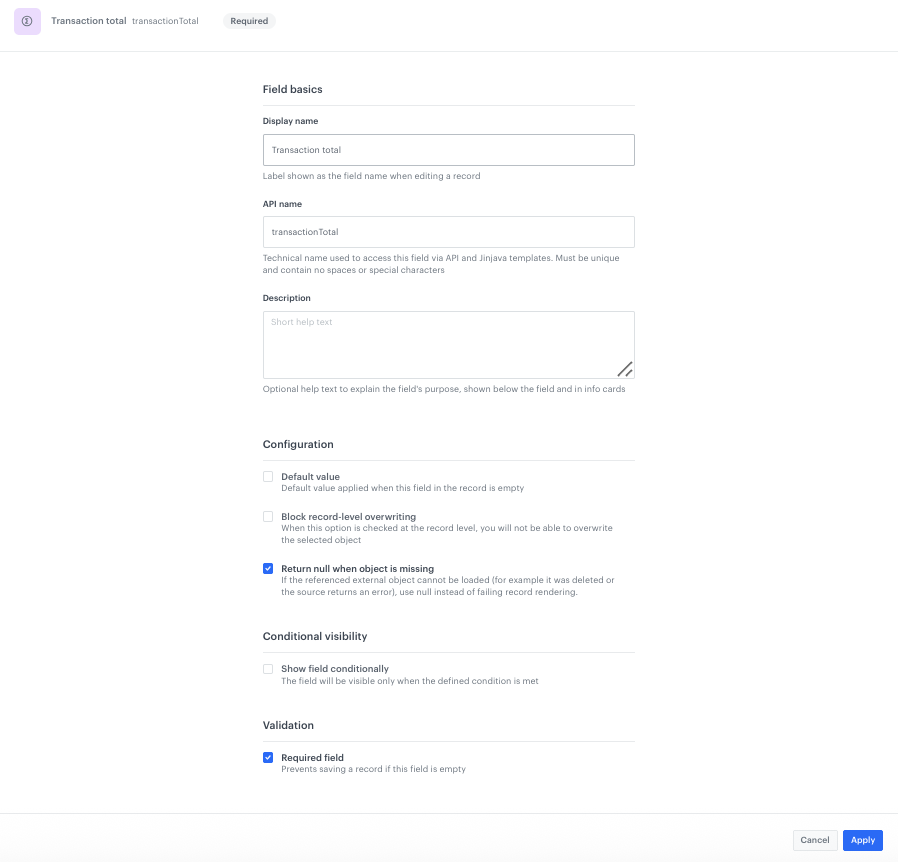
### Add Transaction total field
---
1. Click **Add new field** and choose the appropriate field type.
2. In the **Field basics** section, complete the fields:
    - **Display name**: `Transaction total`
    - **API name**: `transactionTotal`
3. In the **Configuration** section, enable the **Return null when object is missing** checkbox.
4. In the **Validation** section, enable the **Required field** checkbox.
5. Click **Apply**.

<figure>
<img src="/api/docs/image/54176ad07f146575310749eba44b7c2f42c1b327/use-cases/all-cases/_gfx/uc-brickworks-transactiontotal.png" class="full" alt="Configuration of the Transaction total field in the Brickworks schema">
<figcaption>Configuration of the Transaction total field in the Brickworks schema</figcaption>
</figure>

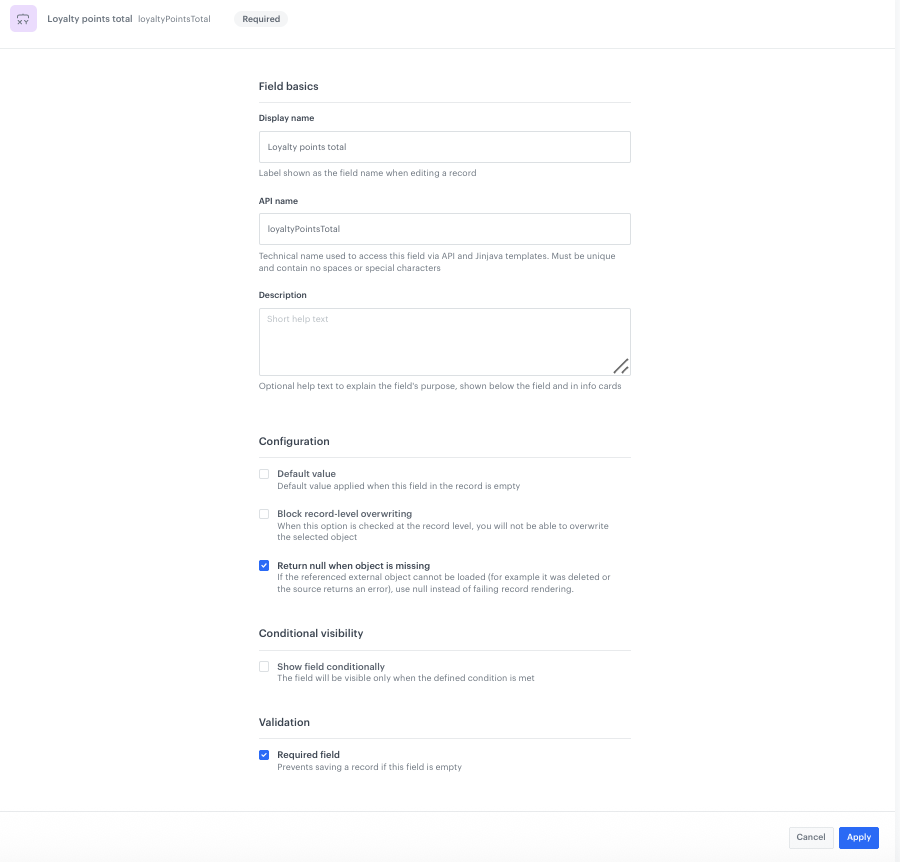
### Add Loyalty points total field
---
1. Click **Add new field** and choose the appropriate field type.
2. In the **Field basics** section, complete the fields:
    - **Display name**: `Loyalty points total`
    - **API name**: `loyaltyPointsTotal`
3. In the **Configuration** section, enable the **Return null when object is missing** checkbox.
4. In the **Validation** section, enable the **Required field** checkbox.
5. Click **Apply**.

<figure>
<img src="/api/docs/image/54176ad07f146575310749eba44b7c2f42c1b327/use-cases/all-cases/_gfx/uc-brickworks-loyaltypointstotal.png" class="full" alt="Configuration of the Loyalty points total field in the Brickworks schema">
<figcaption>Configuration of the Loyalty points total field in the Brickworks schema</figcaption>
</figure>

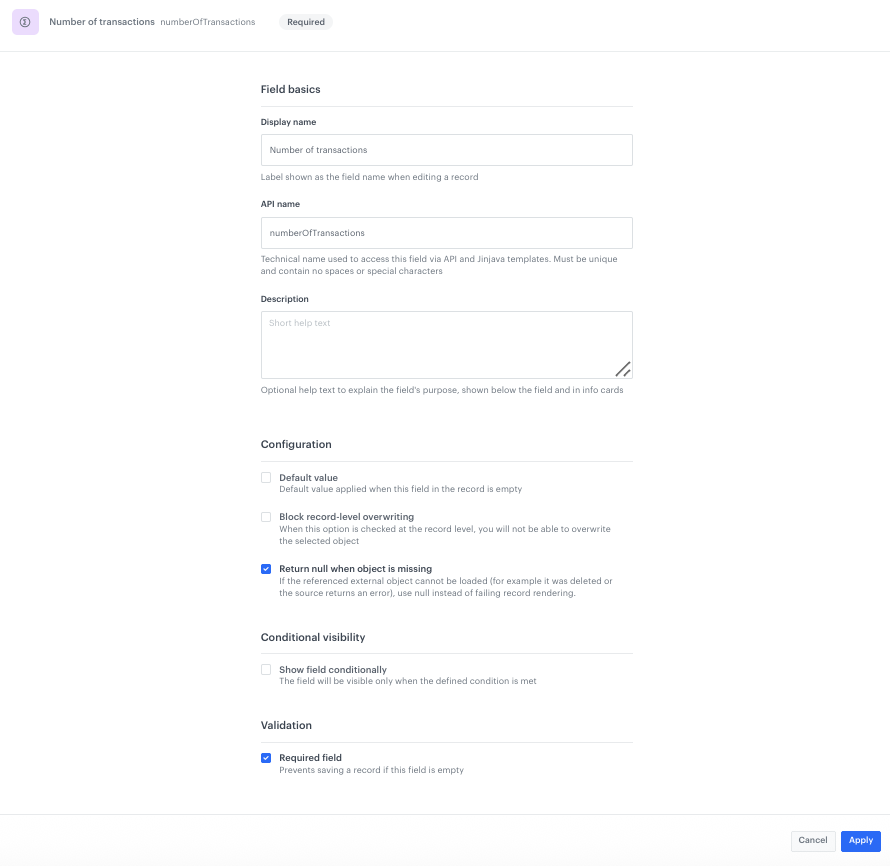
### Add Number of transactions field
---
1. Click **Add new field** and choose the appropriate field type.
2. In the **Field basics** section, complete the fields:
    - **Display name**: `Number of transactions`
    - **API name**: `numberOfTransactions`
3. In the **Configuration** section, enable the **Return null when object is missing** checkbox.
4. In the **Validation** section, enable the **Required field** checkbox.
5. Click **Apply**.

<figure>
<img src="/api/docs/image/54176ad07f146575310749eba44b7c2f42c1b327/use-cases/all-cases/_gfx/uc-brickworks-numberoftransactions.png" class="full" alt="Configuration of the Number of transactions field in the Brickworks schema">
<figcaption>Configuration of the Number of transactions field in the Brickworks schema</figcaption>
</figure>

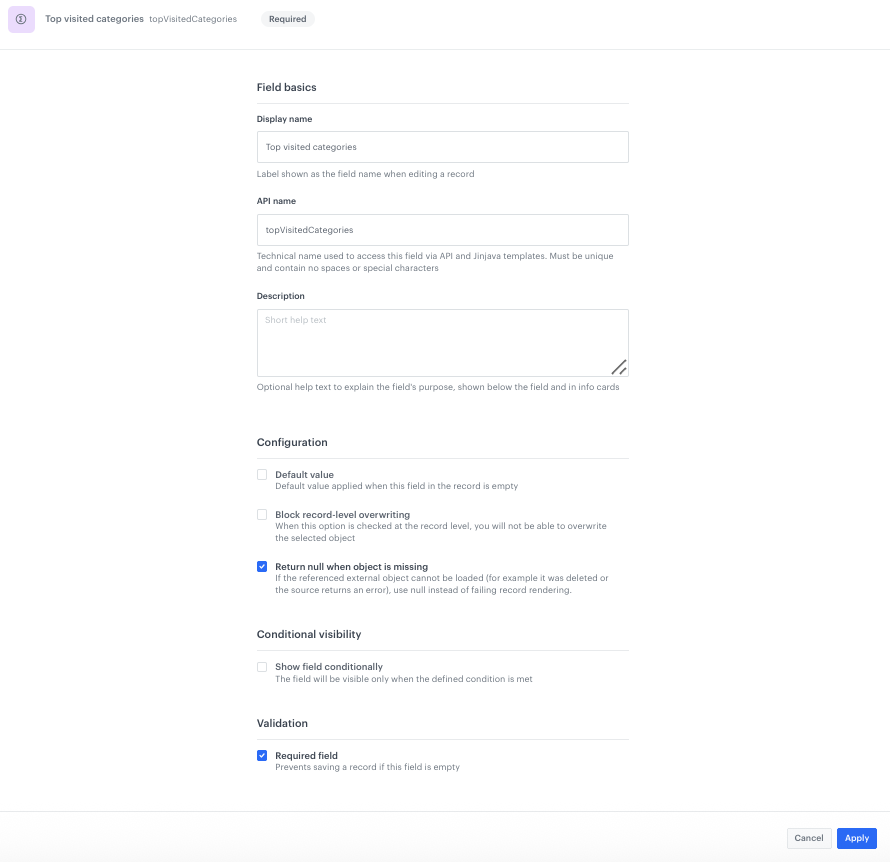
### Add Top visited categories field
---
1. Click **Add new field** and choose the appropriate field type.
2. In the **Field basics** section, complete the fields:
    - **Display name**: `Top visited categories`
    - **API name**: `topVisitedCategories`
3. In the **Configuration** section, enable the **Return null when object is missing** checkbox.
4. In the **Validation** section, enable the **Required field** checkbox.
5. Click **Apply**.

<figure>
<img src="/api/docs/image/54176ad07f146575310749eba44b7c2f42c1b327/use-cases/all-cases/_gfx/uc-brickworks-topvisitedcategories.png" class="full" alt="Configuration of the Top visited categories field in the Brickworks schema">
<figcaption>Configuration of the Top visited categories field in the Brickworks schema</figcaption>
</figure>

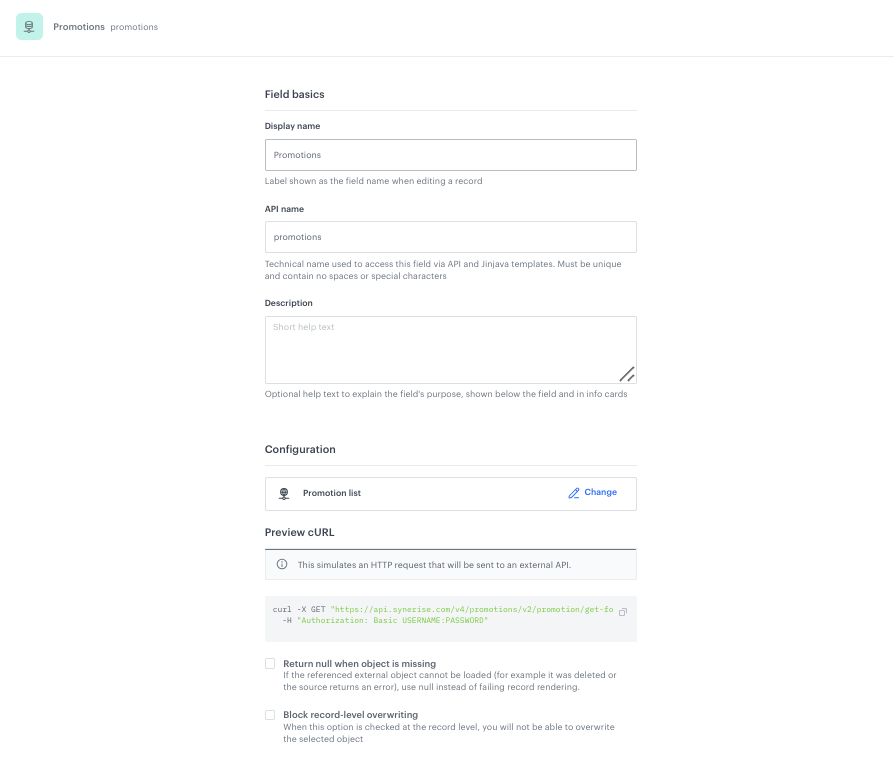
### Add Promotions field
---
This field uses the [External Source](/docs/assets/brickworks/quick-start/creating-a-schema) type to dynamically fetch the customer's active promotions from the Synerise Promotions API. Unlike other fields in the schema which only define a name and configuration, this field includes a data source configuration directly — it specifies an HTTP request that will be executed at generation time to retrieve the current list of promotions assigned to the customer.

1. Click **Add new field** and choose **External Data** > **Promotion list**.
2. In the **Field basics** section, complete the fields:
    - **Display name**: `Promotions`
    - **API name**: `promotions`
3. In the **Configuration** section, the field is preconfigured as a **Promotion list**. The **Preview cURL** section shows the HTTP request that will be sent:
    ```
    curl -X GET "https://api.synerise.com/v4/promotions/v2/promotion/get-for-client/clientId/{{customer.id}}?status=ACTIVE,ASSIGNED&fields=code,name,expireAt,discountType,discountValue,uuid,description" \
    -H "Authorization: Basic USERNAME:PASSWORD"
    ```
4. Click **Apply**.

<figure>
<img src="/api/docs/image/54176ad07f146575310749eba44b7c2f42c1b327/use-cases/all-cases/_gfx/uc-brickworks-promotions.png" class="full" alt="Configuration of the Promotions field in the Brickworks schema">
<figcaption>Configuration of the Promotions field in the Brickworks schema</figcaption>
</figure>

### Add Transaction data field
---
This field uses **Jinjava code** that is executed at generation time. Inside the Jinjava code, six aggregates created in the [transaction history step](#create-aggregates-for-transaction-history) are called directly by their hashes using the `{% aggregate HASH %}` syntax. These aggregates are **not** configured as separate fields in the schema — they exist only inside this Jinjava code, which combines their results into a single structured JSON output.

1. Click **Add new field** and choose **Jinjava code**.
2. In the **Field basics** section, complete the fields:
    - **Display name**: `Transaction data`
    - **API name**: `transactionData`
3. In the **Configuration** section:
    1. Enable the **Cast to** toggle and select **JSON Object** as the type.
4. In the **Validation** section, enable the **Required field** checkbox.
5. In the **Jinjava code** editor, paste the following code. Replace the aggregate hashes with the hashes of the aggregates you created in the [transaction history step](#create-aggregates-for-transaction-history):

  
   <pre><code class="language-jinja">{% set txn_ids = [] %}{% set txn_points = [] %}{% set txn_amounts = [] %}{% set txn_dates = [] %}{% set buy_names = [] %}{% set buy_order_ids = [] %}{% aggregate TRANSACTION_IDS_AGGREGATE_HASH %}{%- for res in aggregate_result -%}{% do txn_ids.append(res) %}{%- endfor -%}{% endaggregate %}{% aggregate TRANSACTION_POINTS_AGGREGATE_HASH %}{%- for res in aggregate_result -%}{% do txn_points.append(res) %}{%- endfor -%}{% endaggregate %}{% aggregate TRANSACTION_AMOUNTS_AGGREGATE_HASH %}{%- for res in aggregate_result -%}{% do txn_amounts.append(res) %}{%- endfor -%}{% endaggregate %}{% aggregate TRANSACTION_DATES_AGGREGATE_HASH %}{%- for res in aggregate_result -%}{% set splitDate = res|split(':') %}{% set splitDateLength = splitDate|length %}{% set finalDate = splitDate[0:splitDateLength-1]|join(':') ~ splitDate[splitDateLength-1] %}{% set finalDateFormatted = datetimeformat(finalDate|strtotime("yyyy-MM-dd'T'HH:mm:ss.SSSZ"), '%b %d, %Y') %}{% do txn_dates.append(finalDateFormatted) %}{%- endfor -%}{% endaggregate %}{% aggregate PRODUCT_NAMES_AGGREGATE_HASH %}{%- for res in aggregate_result -%}{% do buy_names.append(res) %}{%- endfor -%}{% endaggregate %}{% aggregate PRODUCT_ORDER_IDS_AGGREGATE_HASH %}{%- for res in aggregate_result -%}{% do buy_order_ids.append(res) %}{%- endfor -%}{% endaggregate %}{% set orders = [] %}{% for i in range(txn_ids | length) %}{% set order_id = txn_ids[i] %}{% set products = [] %}{% for j in range(buy_order_ids | length) %}{% if buy_order_ids[j] == order_id %}{% set _ = products.append(buy_names[j]) %}{% endif %}{% endfor %}{% set _ = orders.append({'orderId': order_id,'date': txn_dates[i],'amount': txn_amounts[i],'loyaltyPoints': txn_points[i],'products': products}) %}{% endfor %}{{ orders | reverse | tojson }}</code></pre>
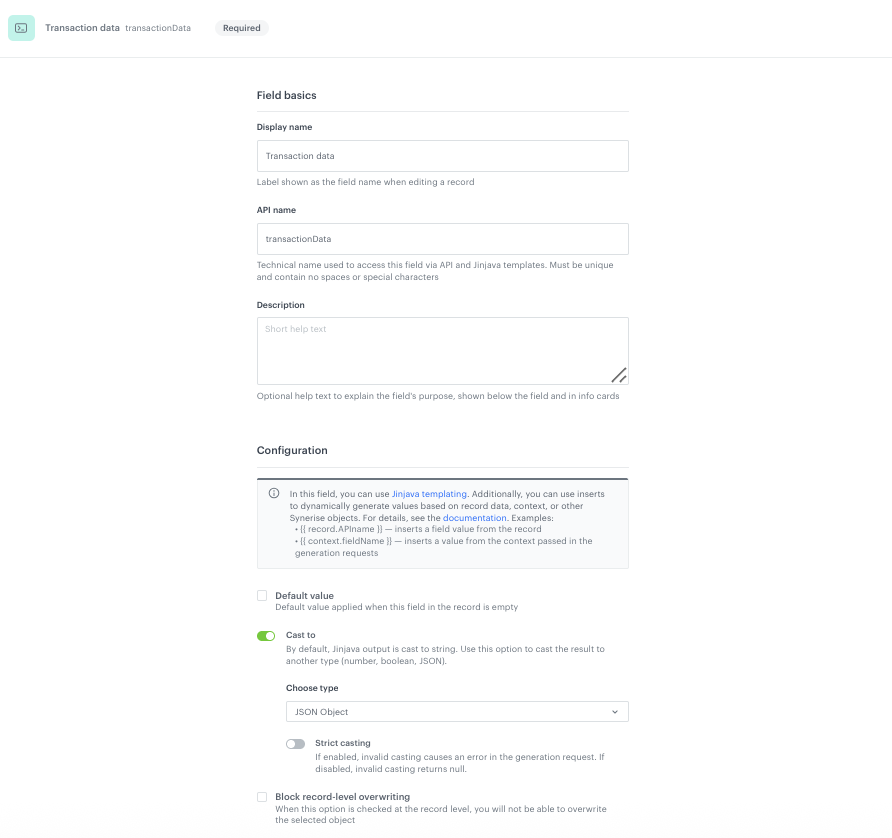

  
   <div class="admonition admonition-note"><div class="admonition-icon"><svg xmlns="http://www.w3.org/2000/svg" fill="none" viewBox="0 0 24 24" stroke="currentColor" stroke-width="2.5"><path stroke-linecap="round" stroke-linejoin="round" d="M13 16h-1v-4h-1m1-4h.01M21 12a9 9 0 11-18 0 9 9 0 0118 0z" /></svg></div><div class="admonition-body"><div class="admonition-content">

   This Jinjava code collects data from six aggregates (transaction IDs, loyalty points per transaction, transaction amounts, transaction dates, product names, and product order IDs), then combines them into a JSON array of order objects. Each order object contains the order ID, formatted date, total amount, loyalty points earned, and a list of product names. The result is reversed so the most recent transactions appear first.

   </div></div></div>


6. Click **Apply**.

<figure>
<img src="/api/docs/image/54176ad07f146575310749eba44b7c2f42c1b327/use-cases/all-cases/_gfx/uc-brickworks-transactiondata.png" class="full" alt="Configuration of the Transaction data field in the Brickworks schema">
<figcaption>Configuration of the Transaction data field in the Brickworks schema</figcaption>
</figure>

### Overview of the complete schema
---
After adding all fields, the schema should contain the following fields:

<figure>
<img src="/api/docs/image/54176ad07f146575310749eba44b7c2f42c1b327/use-cases/all-cases/_gfx/uc-brickworks-schema-overview.png" class="full" alt="Overview of all fields in the User Intelligence Panel Brickworks schema">
<figcaption>Overview of all fields in the User Intelligence Panel Brickworks schema</figcaption>
</figure>

### Set up the Audience & Settings
---
1. Click the **Audience & Settings** tab.
2. In the **Audience** section, click **Define**.
3. Choose **Everyone**.
4. Click **Apply**.
5. In the upper-right corner, click **Save**.

## Create the record
---
[Creating a record](/docs/assets/brickworks/quick-start/creating-a-record) means filling the schema structure with actual data source bindings. In a Simple schema, the record is where you assign concrete expressions, aggregates, and profile attributes to the fields defined in the schema. When the in-app message is displayed, the Brickworks engine uses the record configuration to resolve all field values via API in real time for the requesting customer.

1. Go to **Data Modeling Hub > Data collections > Select schema**.
2. Choose the [schema created in the previous step](#create-a-brickworks-schema).
3. Click **Add record**.
4. Add a name for the record, for example `User Intelligence Panel`.
5. Add a slug for the record. Slug is a unique, URL-friendly version of the name containing only lowercase letters, numbers, and hyphens. For example: `user-intelligence-panel`.
6. Fill in the field values by assigning the appropriate data sources to each field:
    - **First name** → select the `firstname` profile attribute
    - **Loyalty level** → select the [`[UC] Loyalty level` expression](#expression-for-loyalty-level)
    - **Transaction total** → select the [`[UC] Sum of transactions` expression](#aggregate-for-sum-of-transactions)
    - **Loyalty points total** → select the [`[UC] Loyalty points` expression](#expression-for-loyalty-points)
    - **Number of transactions** → select the [`[UC] Number of transactions` expression](#aggregate-for-number-of-transactions)
    - **Top visited categories** → select the [`[UC] Top 5 visited categories` aggregate](#aggregate-for-top-5-visited-categories)
    - **Promotions** → pre-configured via External Source (Promotion list) at the [schema level](#add-promotions-field)
    - **Transaction data** → pre-configured via Jinjava code at the [schema level](#add-transaction-data-field)
7. Click **Publish** to publish your record.


   <div class="admonition admonition-note"><div class="admonition-icon"><svg xmlns="http://www.w3.org/2000/svg" fill="none" viewBox="0 0 24 24" stroke="currentColor" stroke-width="2.5"><path stroke-linecap="round" stroke-linejoin="round" d="M13 16h-1v-4h-1m1-4h.01M21 12a9 9 0 11-18 0 9 9 0 0118 0z" /></svg></div><div class="admonition-body"><div class="admonition-content">

   After publishing the record, note the **schema ID** and **record ID** from the URL. You will need these IDs in the in-app template code to reference the Brickworks data via the `{% brickworksgeneratevar %}` tag.

   </div></div></div>


## Create an in-app campaign
---
In this part of the process, you will create an [in-app campaign](/docs/campaign/in-app-messages/create-inapp-message) that renders the User Intelligence Panel using data from the Brickworks schema.

1. Go to <img src="/api/docs/image/54176ad07f146575310749eba44b7c2f42c1b327/icons/experience-hub-icon.svg" alt="Experience Hub icon" class="icon" > **Experience Hub > In-app messages > Create in-app**.
2. Enter the name of the in-app message.

### Define the audience
---
1. In the **Audience** section, click **Define**.
2. Click **Everyone** (or define a specific segment according to your needs).
3. Click **Apply**.

### Define content
---
1. In the **Content** section, click **Define**.
2. Click **Create message**.
3. In the code editor, paste the in-app template code provided below.

   The template uses the `{% brickworksgeneratevar %}` tag to fetch all schema fields for the current customer and renders the profile panel with sections for stats, top interests, dynamically loaded promotions, and past transactions.

  
   <pre><code class="language-html">{% brickworksgeneratevar schemaId=SCHEMA_ID recordId=RECORD_ID %}
     &lt;div class="profile-container"&gt;
       &lt;button id="close-btn" onclick="SRInApp.close()"&gt;&amp;times;&lt;/button&gt;
       &lt;div class="profile-header"&gt;
         &lt;div class="avatar"&gt;{{ brickworks_result.firstName|default('P')|truncate(1, true, '') }}&lt;/div&gt;
         &lt;div class="header-info"&gt;
           &lt;h1 class="user-name"&gt;{{ brickworks_result.firstName|default('Profile') }}&lt;/h1&gt;
           &lt;span class="member-badge {{ brickworks_result.loyaltyLevel | lower | replace(' ', '-') }}"&gt;{{ brickworks_result.loyaltyLevel }}&lt;/span&gt; 
         &lt;/div&gt;
       &lt;/div&gt;
       &lt;div class="stats-row"&gt;
         &lt;div class="stat-card"&gt;
           &lt;div class="stat-icon"&gt;&amp;#128176;&lt;/div&gt;
           &lt;div class="stat-value"&gt;${{ brickworks_result.transactionTotal|default('0') }}&lt;/div&gt;
           &lt;div class="stat-label"&gt;Total Spent&lt;/div&gt;
         &lt;/div&gt;
         &lt;div class="stat-card highlight"&gt;
           &lt;div class="stat-icon"&gt;&amp;#127942;&lt;/div&gt;
           &lt;div class="stat-value"&gt;{{ brickworks_result.loyaltyPointsTotal|default('0') }}&lt;/div&gt;
           &lt;div class="stat-label"&gt;Loyalty Points&lt;/div&gt;
         &lt;/div&gt;
         &lt;div class="stat-card"&gt;
           &lt;div class="stat-icon"&gt;&amp;#128717;&lt;/div&gt;
           &lt;div class="stat-value"&gt;{{ brickworks_result.numberOfTransactions|default('0') }}&lt;/div&gt;
           &lt;div class="stat-label"&gt;Transactions&lt;/div&gt;
         &lt;/div&gt;
       &lt;/div&gt;
       {% set topVisitedCategories = brickworks_result.topVisitedCategories %}
       &lt;div class="section-card"&gt;
         &lt;div class="section-title"&gt;&amp;#128293; Top Interest&lt;/div&gt;
         &lt;div class="interest-bar"&gt;
           {%- if topVisitedCategories|length &gt; 0 -%}
           {%- for category in topVisitedCategories -%}
             {% set splitCategory = category[0]|split('Default Category &gt; ') %}
             &lt;div class="interest-item"&gt;
               &lt;span class="interest-label"&gt;{{ splitCategory[1] }}&lt;/span&gt;
             &lt;/div&gt;
           {%- endfor -%}
           {%- else -%}
           &lt;p class="empty-message"&gt;Browse our products to see your interests&lt;/p&gt;
           {%- endif -%}
         &lt;/div&gt;
       &lt;/div&gt;
       &lt;div class="section-card"&gt;
         &lt;div class="section-title"&gt;&amp;#127873; Active Promotions&lt;/div&gt;
         &lt;div class="promo-list"&gt;
           {%- if brickworks_result.promotions.data|length &gt; 0 -%}
           {%- for promo in brickworks_result.promotions.data -%}
             &lt;div class="promo-item"&gt;
               &lt;div class="promo-badge"&gt;{%- if promo.discountType != "NONE" -%}{{ promo.discountValue }}{%- endif -%}{%- if promo.discountType == "PERCENT" -%}% OFF{%- elif promo.discountType == "AMOUNT" -%}$ OFF{%- else -%}PROMO{%- endif -%}&lt;/div&gt;
               &lt;div class="promo-info"&gt;
                 &lt;div class="promo-name"&gt;{{ promo.name }}&lt;/div&gt;
                 &lt;div class="promo-exp"&gt;{{ promo.description|truncate(35) }}&lt;/div&gt;
               &lt;/div&gt;
             &lt;/div&gt;
           {%- endfor -%}
           {%- else -%}
           &lt;p class="empty-message"&gt;There are no promotions available for you&lt;/p&gt;
           {%- endif -%}
         &lt;/div&gt;
       &lt;/div&gt;
       &lt;div class="section-card"&gt;
         &lt;div class="section-title"&gt;&amp;#128203; Past Transactions&lt;/div&gt;
         &lt;div class="transactions-list"&gt;
           {%- if brickworks_result.transactionData|length &gt; 0 -%}
             {%- for transaction in brickworks_result.transactionData -%}
             &lt;div class="tx-item"&gt;
               &lt;div class="tx-info"&gt;
                 &lt;div class="tx-name"&gt;{{ transaction.products | join(', ') }}&lt;/div&gt;
                 &lt;div class="tx-date"&gt;{{ transaction.date }}&lt;/div&gt;
               &lt;/div&gt;
               &lt;div class="tx-right"&gt;
                 &lt;div class="tx-amount"&gt;{{ transaction.amount }}&lt;/div&gt;
                 &lt;div class="tx-points"&gt;+{{ transaction.loyaltyPoints }} pts&lt;/div&gt;
               &lt;/div&gt;
             &lt;/div&gt;
             {%- endfor -%}
           {%- else -%}
           &lt;p class="empty-message"&gt;You haven't made any transactions yet&lt;/p&gt;
           {%- endif -%}
         &lt;/div&gt;
       &lt;/div&gt;
     &lt;/div&gt;
     {% endbrickworksgeneratevar %}</code></pre>


   <div class="admonition admonition-important"><div class="admonition-icon"><svg xmlns="http://www.w3.org/2000/svg" fill="none" viewBox="0 0 24 24" stroke="currentColor" stroke-width="2.5"><path stroke-linecap="round" stroke-linejoin="round" d="M12 8v4m0 4h.01M21 12a9 9 0 11-18 0 9 9 0 0118 0z" /></svg></div><div class="admonition-body"><div class="admonition-content">

   Replace `SCHEMA_ID` and `RECORD_ID` with the actual IDs of your Brickworks schema and record. You can find the schema ID and the record ID in the URL when viewing them in the Synerise platform.

   </div></div></div>


4. Add the appropriate CSS styles to the template to style the profile panel (avatar, stats row, section cards, transaction list, promotion badges, and so on).
5. If the template is ready, in the upper right corner click **Save this template > Save as**.
6. On the pop-up, enter the template name and select the folder. Confirm by clicking **Apply**.
7. To continue configuring the in-app campaign, click **Next**.
8. Click **Apply**.


### Select events that trigger the in-app message display
---
Define which event triggers the display of the User Intelligence Panel. For example, you can display it when the customer opens a specific section of the application or taps a profile button.

1. In the **Trigger events** section, click **Define**.
2. Select **Add event** and from the dropdown list, choose the appropriate event (for example, `screen.view` with a parameter matching your profile screen).
3. Configure the event parameters according to your application's navigation structure.
4. Click **Apply**.

### Schedule the message and configure display settings
---
1. In the **Schedule** section, click **Define** and set the time when the message will be active.
2. In the **Display Settings** section, click **Change**.
3. Define the **Delay display**, **Priority index**, and enable the **Frequency limit** toggle to manage the frequency of display according to your business needs.
4. Click **Apply**.
5. Optionally, define UTM parameters and additional parameters.
6. Click **Activate**.

## Check the use case set up on the Synerise Demo workspace
---
You can check the configuration of each step directly in the Synerise Demo workspace:

- [Aggregate - loyalty points sum](https://app.synerise.com/analytics-v2/aggregates/27578b05-c68e-364d-be42-bd5034604a1b)
- [Aggregate - expired loyalty points](https://app.synerise.com/analytics-v2/aggregates/4963fed8-1784-352c-8777-27138eb9ded0)
- [Aggregate - Sum of transactions](https://app.synerise.com/analytics-v2/aggregates/55cf86a5-acd9-3540-8293-13737a495300)
- [Aggregate - Number of transactions](https://app.synerise.com/analytics-v2/aggregates/24011aa2-632d-319f-9047-8f13712105c8)
- [Aggregate - Top 5 visited categories](https://app.synerise.com/analytics-v2/aggregates/3280a45c-9319-364a-9b56-4a2b99ae6116)
- [Expression - Loyalty points](https://app.synerise.com/analytics/expressions/5b71b588-0088-4170-8489-6d18ab5ae010)
- [Expression - Loyalty level](https://app.synerise.com/analytics/expressions/08075ec6-e77e-40ef-a13e-f65e40e67369)
- [Segmentation - Gold loyalty level](https://app.synerise.com/analytics-v2/segmentations/64f1fa6e-a5aa-49ce-843f-a434b6bde9a0)
- [Brickworks schema](https://app.synerise.com/assets/brickworks/schemas/556629ff-fac9-494b-9471-45b9c689443e)
- [In-app campaign](https://app.synerise.com/communications/in-app/4f575259-5ce9-4e34-bd3d-e1d29d147352)

If you’re our partner or client, you already have automatic access to the **Synerise Demo workspace (1590)**, where you can explore all the configured elements of this use case and copy them to your workspace.  

If you’re not a partner or client yet, we encourage you to fill out the contact [form](https://demo.synerise.com/request) to schedule a meeting with our representatives. They’ll be happy to show you how our demo works and discuss how you can apply this use case in your business.

## Read more
---
- [Aggregates](/docs/analytics/aggregates)
- [Brickworks](/docs/assets/brickworks)
- [Expressions](/docs/analytics/expressions)
- [In-app messages](/docs/campaign/in-app-messages)
- [Promotions](/docs/ai-hub/promotions)
- [Segmentations](/docs/analytics/segmentations)