A voucher pool is a form of digital currency that allows businesses to provide rewards and incentives to their customers for engaging with their products or services. The pool of voucher codes can be redeemed for a variety of items, such as discounts, coupons, or special offers. While setting up a voucher pool, you typically add a certain number of codes to the pool, so it's a good practice to implement a kind of monitoring system that alarms you when codes in the voucher pool are slowly running out.

In this use case, you will learn how to build a monitoring system for all voucher pools you have in your workspace. The system will alert you when the number of codes in a voucher pool drops below a predetermined threshold (500 codes in a pool). This alert serves as a reminder for the business to replenish the pool with more codes, as well as an alert to customer service teams to communicate with customers to ensure they are aware of the updated balance. 

There are even more benefits:
- the monitoring system helps businesses avoid running out of vouchers, which can lead to customer dissatisfaction and loss of revenue. 
- it helps businesses ensure they have enough vouchers available to meet customer needs and maximize sales. 
- it allows businesses to plan ahead and easily adjust their voucher pool when needed. 
- this system allows businesses to quickly and efficiently track their voucher pools, making it easier to identify any discrepancies or irregularities.

In this use case, we present a method in which we create a profile in **Behavioral Data Hub > Profiles** for each voucher pool we want to monitor (1 voucher pool = 1 profile). This will enable us to set up a workflow which will monitor the number of active vouchers and send an alert when the number of codes in a pool drops below 500.


## Prerequisites 
---
- Implement a [tracking code](/developers/web/installation-and-configuration#creating-a-tracking-code).
- Configure an [email account](/docs/campaign/e-mail/configuring-email-account).
- Depending on your needs, you can send to a customer a general code with promotion, eg. SHOPPING20%, or coupon code individually for each customer. If you decide on this second option, you will have to import coupons to Synerise prepared in your ecommerce platform which will apply the appropriate discount in the shopping cart. In [this](/docs/assets/code-pools) article, you will find the rules and procedures needed to create and use voucher pool in Synerise. 
- You must have an API key of the **Workspace** type and in the permission matrix: `VOUCHERS_ITEM_LIST_BY_POOL_READ` permission must be checked, otherwise the webhook response will return the 403 error code.


## Process 
---

In this use case, you will go through the following steps:

1. [Add voucher pools to Profiles](/use-cases/voucherpools#add-voucher-pools-to-profiles).
2. [Prepare an email template](/use-cases/voucherpools#prepare-an-email-template).
3. [Create a workflow](/use-cases/voucherpools#create-a-workflow) which sends the email alert if the number of unassigned codes in a pool will be lower than 500.


## Add voucher pools to Profiles
---
In this part of the process, you will create Synerise profiles for each voucher pool you want to monitor, where 1 voucher pool = 1 profile in **Behavioral Data Hub > Profiles**. You can add them manually or using API. In this case, we present how to add them manually, API method is described below in the advanced section. 

1. Go to **Behavioral Data Hub > Profiles**
2. Click **Add new > Profile**. 
3. In the `firstname` box, add `Voucher Pool 1`.
4. In the `email` box, add any fake email, for example `fakevoucher1@pool.com`. 
5. In the properties section, select the `voucherpool_id` attribute, and as the value, add the ID of the voucher pool which you can find in the URL of a specific pool.  
    
   <div class="admonition admonition-tip"><div class="admonition-icon"><svg xmlns="http://www.w3.org/2000/svg" fill="none" viewBox="0 0 24 24" stroke="currentColor" stroke-width="2.5"><path stroke-linecap="round" stroke-linejoin="round" d="M9.663 17h4.673M12 3v1m6.364 1.636l-.707.707M21 12h-1M4 12H3m3.343-5.657l-.707-.707m2.828 9.9a5 5 0 117.072 0l-.548.547A3.374 3.374 0 0014 18.469V19a2 2 0 11-4 0v-.531c0-.895-.356-1.754-.988-2.386l-.548-.547z" /></svg></div><div class="admonition-body"><div class="admonition-content">

   If your workspace lacks the `voucherpool_id` attribute, you can add it in **Data Modeling Hub > Profile attributes**.

   </div></div></div>

6. Click **Create**.  
    **Result**: The separated profile for the voucher pool will be generated in the **Behavioral Data Hub > Profiles** in Synerise.

   <details class="accordion"><summary>Advanced version of adding pools using API</summary><div class="accordion-content"><p>Below you will find cURL with a ready request, which you can use in the Postman tool, where:</p> <ul> <li><p><code>token</code> - authorization token</p> </li> <li><p><code>firstName</code> - voucher pool name</p> </li> <li><p><code>voucherpool_id</code> - voucher pool ID for a specific pool (in <strong>Data Modeling Hub &gt; Voucher Pools</strong>, enter the details of the voucher to retrieve its ID from the URL)</p> </li> <li><p><code>customId</code> - voucher pool ID for a specific voucher (in <strong>Data Modeling Hub &gt; Voucher Pools</strong>, enter the details of the voucher to retrieve its ID from the URL)</p> </li> <li><p>optionally, <code>tag</code> in this case is <code>voucher_campaign</code></p> <pre><code class="language-json">curl --location --request POST 'https://api.synerise.com/v4/clients/batch' \ --header 'Accept: application/json' \ --header 'Api-Version: 4.4' \ --header 'Authorization: Bearer xxx' \ --header 'content-type: application/json' \ --data-raw '[ { "customId": "Insert a voucher pool ID here", "firstName": "Insert a voucher pool name", "agreements": { }, "attributes": { "voucherpool_id": "Insert a voucher pool ID here" }, "tags": [ "voucher_campaign" ] } ]'</code></pre></li> </ul> <div class="admonition admonition-note"><div class="admonition-icon"><svg xmlns="http://www.w3.org/2000/svg" fill="none" viewBox="0 0 24 24" stroke="currentColor" stroke-width="2.5"><path stroke-linecap="round" stroke-linejoin="round" d="M13 16h-1v-4h-1m1-4h.01M21 12a9 9 0 11-18 0 9 9 0 0118 0z" /></svg></div><div class="admonition-body"><div class="admonition-content"> <p>In this code we used <a href="https://developers.synerise.com/ProfileManagement/ProfileManagement.html#operation/BatchAddOrUpdateClients">the specific method from our API</a>. Read also about the <a href="https://developers.synerise.com/DataManagement/DataManagement.html#tag/Authorization">authorization process</a>.</p> </div></div></div> <p>Send this request as many times as you need, just changing the <code>voucherpool_id</code>, <code>firstName</code>, and <code>customId</code> parameters. The voucher pools created in <strong>Behavioral Data Hub &gt; Profiles</strong> will be available on the list of unrecognized profiles.</p></div></details>


## Prepare an email template
---

In this part of the process, prepare an email alert template that includes the information about the number of unassigned codes remaining in a voucher pool.

1. Go to <img src="/api/docs/image/54176ad07f146575310749eba44b7c2f42c1b327/icons/experience-hub-icon.svg" alt="Image presents the Experience Hub icon" class="icon"> **Experience Hub > Email**.  
2. On the left side of the screen, click **Templates**.  
3. Select the wizard.
4. In the content of the message, add this insert:
   
   <pre><code class="language-jinjava">{%set link = "https://app.synerise.com/assets/vouchers/pools/*/coupons"%}
      &lt;p&gt;{{customer.firstname}},&lt;/p&gt;
      &lt;h1&gt; Alert for Voucher pool: {{customer.firstname}} &lt;/h1&gt;
      &lt;p&gt; Remaining: {{ event.params['voucherCount'] }} vouchers &lt;/p&gt;
      &lt;a href='{{link|replace("*",customer.voucherpool_id)}}'&gt;
      &lt;p&gt; Link to voucher pool {{customer.firstname}} &lt;/p&gt;&lt;/a&gt;</code></pre>

5. Adjust the design of the template according to your needs.
6. Save the template.

## Create a workflow
---
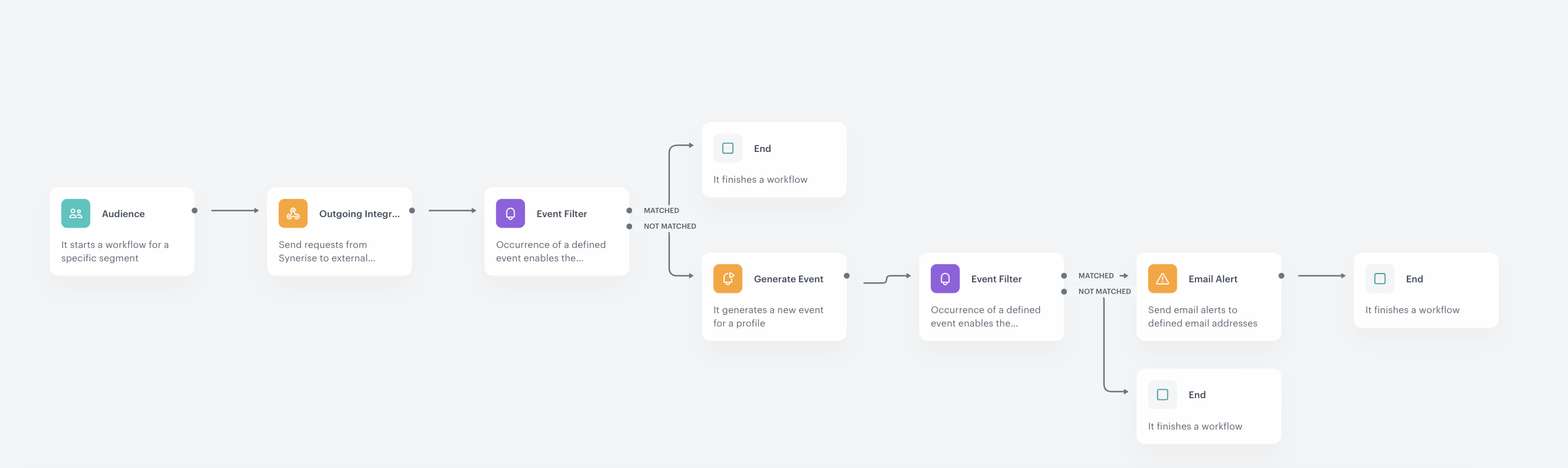
In this step create a workflow which sends the email alert if the number of codes in a voucher pool is lower than 500.

1. Go to **Automation Hub > Workflows > New workflow**.
2. Enter the name of the workflow.

### Configure the Audience node
---
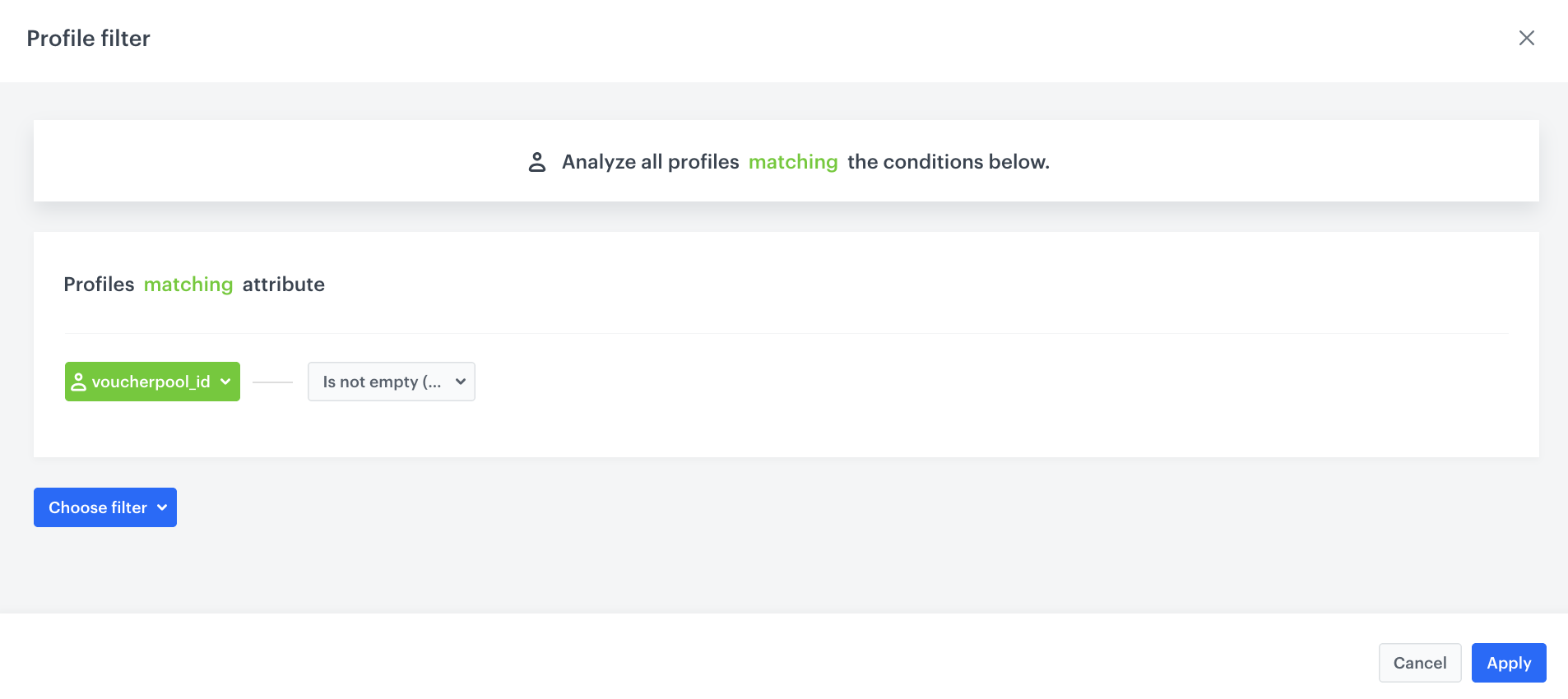
In this part of the process, select the audience for which you will run this campaign - all vouchers added as profiles. In our case, we start the workflow everyday at 7 A.M., for profiles (voucher pools) who has the `voucherpool_id` parameter defined. 


<div class="admonition admonition-note"><div class="admonition-icon"><svg xmlns="http://www.w3.org/2000/svg" fill="none" viewBox="0 0 24 24" stroke="currentColor" stroke-width="2.5"><path stroke-linecap="round" stroke-linejoin="round" d="M13 16h-1v-4h-1m1-4h.01M21 12a9 9 0 11-18 0 9 9 0 0118 0z" /></svg></div><div class="admonition-body"><div class="admonition-content">

In this case, we use the `voucherpool_id` parameter, but you can use any other parameter or tag which is assigned to your profiles (voucher pools). In our case based on the contents of cURL presented in previous steps, it might be for example a tag: `voucher_campaign`.

</div></div></div>


1. Click **Add trigger**.
2. From the dropdown list, select the **Audience** node. 
3. Leave the **Run trigger** option as default (**repeatable**).
4. Define the values for the **Interval** (frequency), **Begin at**, and **Timezone** fields according to your business requirements. In our case, it will be every day at 7 A.M.
4. In the **Define audience** section, click **New audience**.
5. Click **Define conditions**. 
6. From the **Choose filter** dropdown list, select the `voucherpool_id`.
5. From the **Choose operator** dropdown list, select **String** and **Is not empty**.
14. Confirm by clicking **Apply**.  

 <figure>
  <img src="/api/docs/image/54176ad07f146575310749eba44b7c2f42c1b327/use-cases/all-cases/_gfx/voucherpool1.png" class="full" alt="Configuration of the Audience node">
  <figcaption>Configuration of the Audience node</figcaption>
  </figure>  

### Add the Outgoing Integration node
---
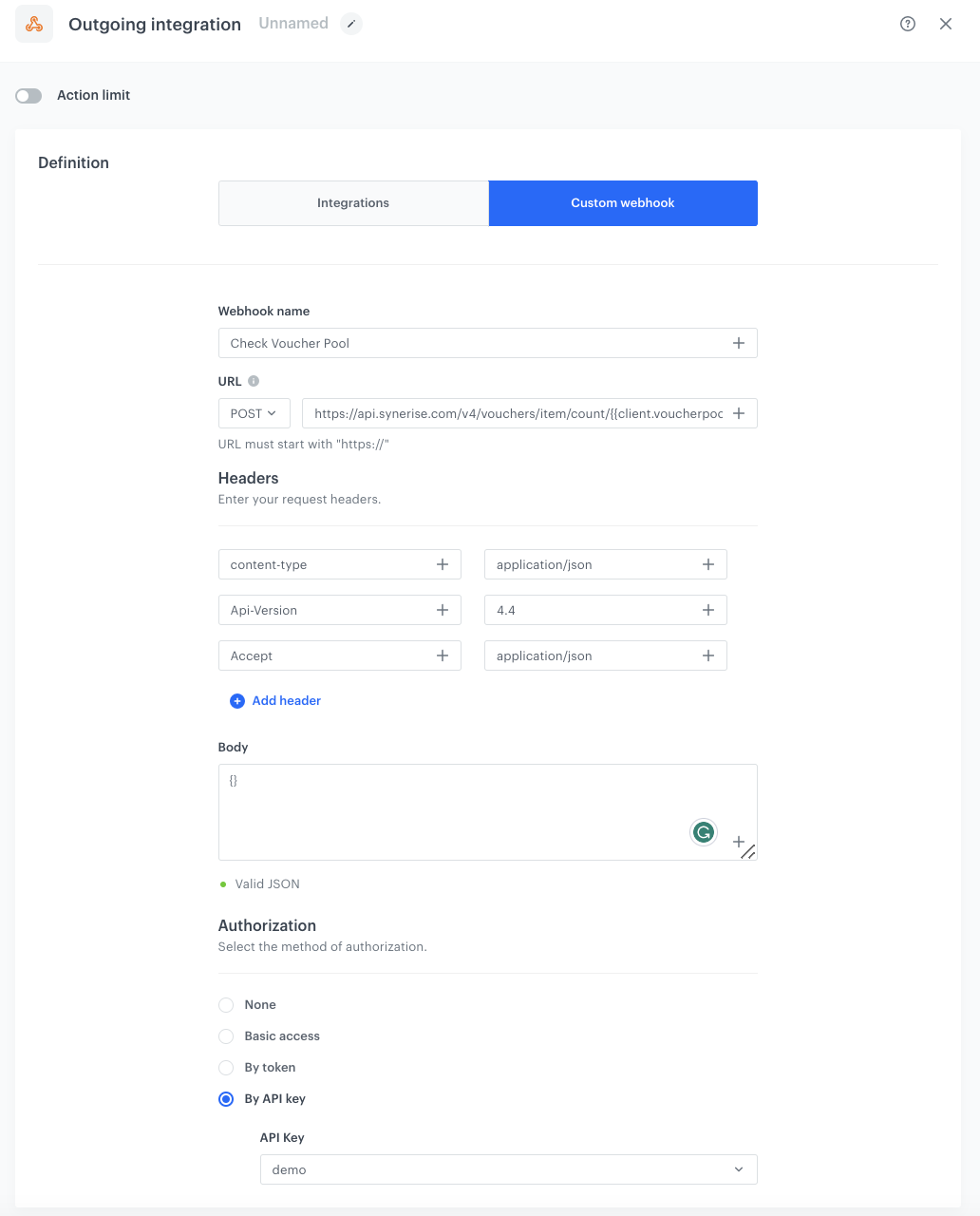
This node will be used to send a request to get the number of codes available in the voucher pools. You will use the following method: `https://api.synerise.com/v4/vouchers/item/count/{{client.voucherpool_id}}`.

1. Click **THEN**.  
2. From the dropdown list, select **Outgoing Integration**.
1. Select the **Custom webhook** tab, and **API Key** authorization.
3. From the dropdown list, select the Workspace API key that has enabled this permission: `VOUCHERS_ITEM_LIST_BY_POOL_READ`. 
2. In the **Action name** field, enter **Check Voucher Pool** (you can use different name, it's just an example). 
3. Select the **POST** method.
4. In the **Endpoint** field, enter `https://api.synerise.com/v4/vouchers/item/count/{{client.voucherpool_id}}` where `{{client.voucherpool_id}}` will be dynamically replaced with the ID of the monitored voucher pool.
4. Leave **content-type** at default: `application / json`. 
5. Click **Add header**.
6. Add **Api-Version** with the value set to `4.4`
5. Click **Add header**.
7. Add **Accept** with the value set to `application/json`.
5. Leave the request body at default (with `{}`). 
11. Confirm the settings by clicking **Apply**.

   <figure>
    <img src="/api/docs/image/54176ad07f146575310749eba44b7c2f42c1b327/use-cases/all-cases/_gfx/voucherpool2.png" alt="The configuration of the Outgoing Integration node" class="full">
    <figcaption> The configuration of the Outgoing Integration node </figcaption>
    </figure>


### Configure the Event Filter node
---
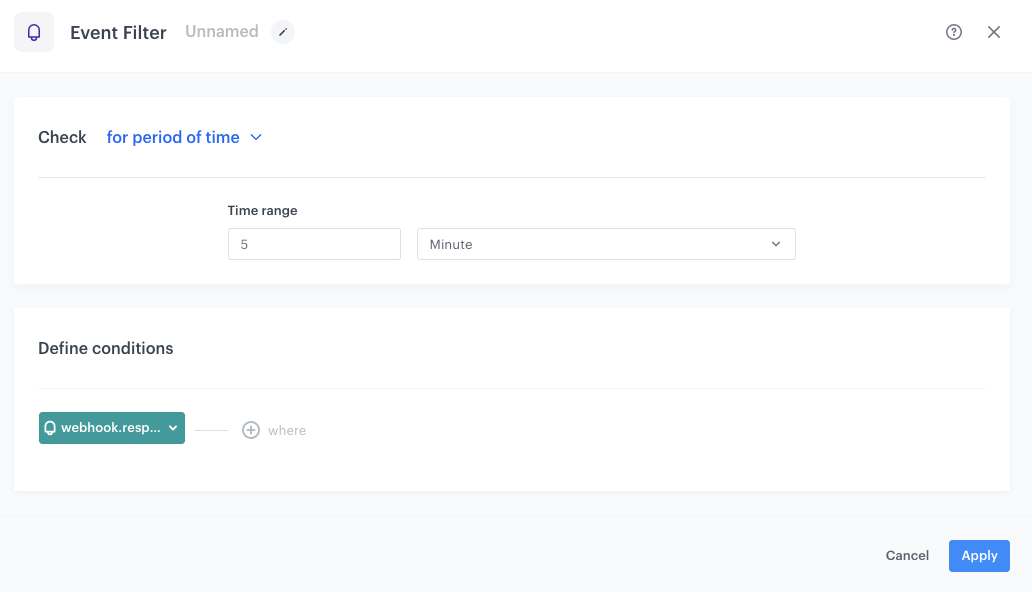
This node will be used to wait for the webhook response. Set the waiting time to 5 minutes, this period is recommended as it eliminates the possibility of the workflow completion due to lags in response.

1. As the next node, add **Event Filter**. In the configuration of the node: 
    1. In the **Check** field, from the dropdown menu choose **for period of time**.
    2. Set the time range. In our case, it is 5 minutes.
    3. In the **Define conditions** section, from the **Choose event** dropdown list, choose `webhook.response` event.
4. Confirm by clicking **Apply**.
5. For the **Not matched** path, add the **End** node.
6. For the **Matched** path, add the **Generate Event** node.

  <figure>
    <img src="/api/docs/image/54176ad07f146575310749eba44b7c2f42c1b327/use-cases/all-cases/_gfx/voucherpool3.png" alt="The configuration of the Event Filter node" class="full">
    <figcaption> The Event Filter node </figcaption>
    </figure>

### Define the Generate Event node
---

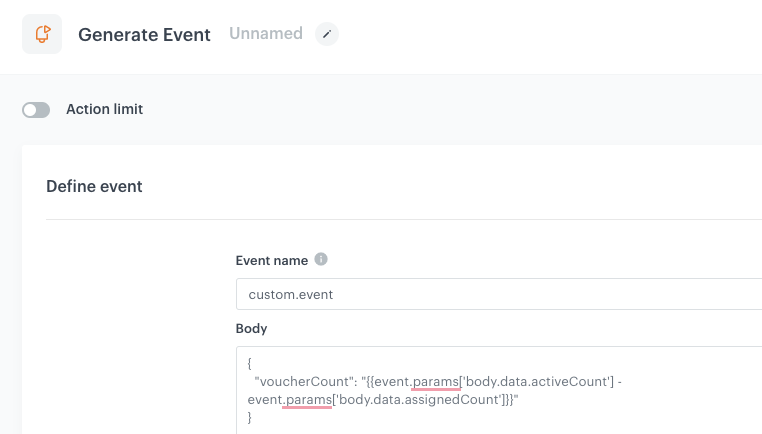
At this stage, we are checking the difference between the number of assigned and used codes. It will be responsible for showing the difference between the vouchers. This event will be generated only for those persons/vouchers that are in this group.

1. To the **Matched** path, add **Generate Event**. 
2. In the **Event name**, enter the name of the event that will be generated on the customer's profile. In this case, it is `custom.event`.
4. In the **Body** section, use the code below, and click **Apply**.

    
{
  "voucherCount": "{{event.params['body.data.activeCount'] - event.params['body.data.assignedCount']}}"
}
    

<figure>
    <img src="/api/docs/image/54176ad07f146575310749eba44b7c2f42c1b327/use-cases/all-cases/_gfx/voucherpool4.png" alt="The configuration of the Generate Event node" class="full">
    <figcaption> The Generate Event node </figcaption>
    </figure>

### Configure the Event Filter node
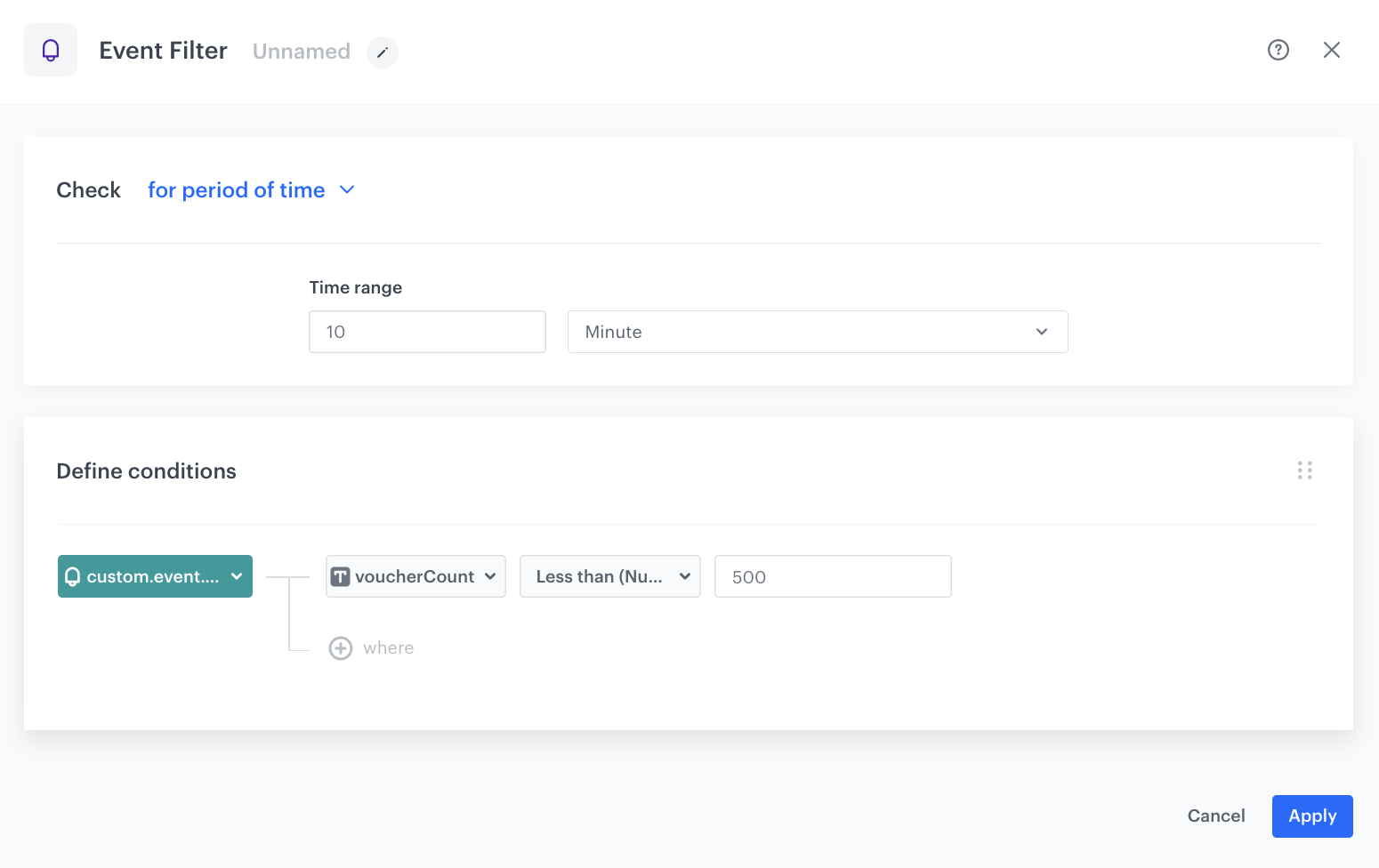
This node will check if the amount of codes dropped below a certain level. For us, it is 500. We will check it based on the event generated in the [previous step](/use-cases/voucherpools#define-the-generate-event-node). 

1. As the next node, add **Event Filter**. In the configuration of the node: 
    1. In the **Check** field, from the dropdown menu choose **for period of time**.
    2. Set the time range. In our case, it is 10 minutes.
    3. In the **Define conditions** field, from the **Choose event** dropdown menu, choose `custom.event`.
    4. Click **+ where**.
    5. As the parameter, choose `voucherCount`
    5. Choose **Less than (Number**).
    6. Set the value to `500`.
2. Confirm by clicking **Apply**.

<figure>
    <img src="/api/docs/image/54176ad07f146575310749eba44b7c2f42c1b327/use-cases/all-cases/_gfx/voucherpool5.png" alt="The configuration of the Event Filter node" class="full">
    <figcaption> The Event Filter node </figcaption>
    </figure>

### Configure the Email Alert node
---
In this step, if the number of vouchers has decreased below 500, an email alert will be sent to email addresses selected in the configuration of the node. After sending the email alert, the workflow ends.

1.  Add **Email Alert**. Configure according to your business needs.
2. Define Content:
    1. In the **Template for content** field, select an alert email template [prepared earlier](/use-cases/voucherpools#prepare-an-email-template).
    2. In the **Subject** field, enter your message subject.
3. In the **Recipient** section, create a list of recipients of the alert email.
4. Confirm by clicking **Apply**.
5. Add the **End** node.
6. Click **Save & Run**.

<figure>
    <img src="/api/docs/image/54176ad07f146575310749eba44b7c2f42c1b327/use-cases/all-cases/_gfx/voucherpool6.png" alt="The configuration of the workflow" class="full">
    <figcaption> The workflow configuration</figcaption>
    </figure>


## Check the use case set up on the Synerise Demo workspace
---
You can check the [workflow configuration](https://app.synerise.com/automations/automation-diagram/60a87da1-183c-4180-83c3-41b01dacdd5a) directly in Synerise Demo workspace. 

If you’re our partner or client, you already have automatic access to the **Synerise Demo workspace (1590)**, where you can explore all the configured elements of this use case and copy them to your workspace.  

If you’re not a partner or client yet, we encourage you to fill out the contact [form](https://demo.synerise.com/request) to schedule a meeting with our representatives. They’ll be happy to show you how our demo works and discuss how you can apply this use case in your business. 

## Read more
---
- [Automation Hub](/docs/automation)
- [API](/developers/api)
- [Catalogs](/docs/assets/catalogs/introduction-to-catalogs)
- [Voucher pools](/docs/assets/code-pools)