
 **Behavioral Data Hub > Live Aggregates > Create aggregate**.
2. As the aggregate type, select **Profile**.
2. Enter the name of the aggregate.
3. Click **Analyze profiles by** and select **Last**.
4. From the **Choose event** dropdown list, select the **Visited page** event.
5. As the event parameter, select **og:title**
6. Click the **+ where** button.
7. From the **Choose parameter** drop-down list, select the **product:retailer_part_no** parameter.
5. From the **Choose operator** dropdown list, select **String** and **Is not empty**.
6. Using the date picker in the lower-right corner, set the time range to **Custom > Last 12 hours**. Confirm your choice with the **Apply** button.
7. Click **Save**.
**Behavioral Data Hub > Live Aggregates > Create aggregate**.
2. As the aggregate type, select **Profile**.
2. Enter the name of the aggregate.
3. Click **Analyze profiles by** and select **Last**.
4. From the **Choose event** dropdown list, select the **Visited page** event.
5. As the event parameter, select **og:image**
6. Click the **+ where** button.
7. From the **Choose parameter** drop-down list, select the **product:retailer_part_no** parameter.
5. From the **Choose operator** dropdown list, select **String** and **Is not empty**.
6. Using the date picker in the lower-right corner, set the time range to **Custom > Last 12 hours**. Confirm your choice with the **Apply** button.
7. Click **Save**.
**Behavioral Data Hub > Live Aggregates > Create aggregate**.
2. As the aggregate type, select **Profile**.
2. Enter the name of the aggregate.
3. Click **Analyze profiles by** and select **Last**.
4. From the **Choose event** dropdown list, select the **Visited page** event.
5. As the event parameter, select **og:title**
6. Click the **+ where** button.
7. From the **Choose parameter** drop-down list, select the **product:retailer_part_no** parameter.
5. From the **Choose operator** dropdown list, select **String** and **Is not empty**.
6. Using the date picker in the lower-right corner, set the time range to **Custom > Last 12 hours**. Confirm your choice with the **Apply** button.
7. Click **Save**.
**Behavioral Data Hub > Live Aggregates > Create aggregate**.
2. As the aggregate type, select **Profile**.
2. Enter the name of the aggregate.
3. Click **Analyze profiles by** and select **Last**.
4. From the **Choose event** dropdown list, select the **Visited page** event.
5. As the event parameter, select **og:image**
6. Click the **+ where** button.
7. From the **Choose parameter** drop-down list, select the **product:retailer_part_no** parameter.
5. From the **Choose operator** dropdown list, select **String** and **Is not empty**.
6. Using the date picker in the lower-right corner, set the time range to **Custom > Last 12 hours**. Confirm your choice with the **Apply** button.
7. Click **Save**.
 **Behavioral Data Hub > Live Aggregates > Create aggregate**.
2. As the aggregate type, select **Profile**.
2. Enter the name of the aggregate.
3. Click **Analyze profiles by** and select **Last**.
4. From the **Choose event** dropdown list, select the **Visited page** event.
5. As the event parameter, select **og:url**
6. Click the **+ where** button.
7. From the **Choose parameter** drop-down list, select the **product:retailer_part_no** parameter.
5. From the **Choose operator** dropdown list, select **String** and **Is not empty**.
6. Using the date picker in the lower-right corner, set the time range to **Custom > Last 12 hours**. Confirm your choice with the **Apply** button.
7. Click **Save**.
**Behavioral Data Hub > Live Aggregates > Create aggregate**.
2. As the aggregate type, select **Profile**.
2. Enter the name of the aggregate.
3. Click **Analyze profiles by** and select **Last**.
4. From the **Choose event** dropdown list, select the **Visited page** event.
5. As the event parameter, select **og:url**
6. Click the **+ where** button.
7. From the **Choose parameter** drop-down list, select the **product:retailer_part_no** parameter.
5. From the **Choose operator** dropdown list, select **String** and **Is not empty**.
6. Using the date picker in the lower-right corner, set the time range to **Custom > Last 12 hours**. Confirm your choice with the **Apply** button.
7. Click **Save**.

 **Experience Hub > Web Push > Templates > Create new**.
2. Click **Drag&drop builder**.
3. Enter the name of the template.
4. In the **Title** field, define the title you want to display in the web push.
5. In the **Message** field, define the copy you want to appear in the web push. In our case it will be an insert with [aggregate returing the product title, created in the previous step](#aggregate-returning-the-title-of-the-last-visited-product). Enter the following code:
**Experience Hub > Web Push > Templates > Create new**.
2. Click **Drag&drop builder**.
3. Enter the name of the template.
4. In the **Title** field, define the title you want to display in the web push.
5. In the **Message** field, define the copy you want to appear in the web push. In our case it will be an insert with [aggregate returing the product title, created in the previous step](#aggregate-returning-the-title-of-the-last-visited-product). Enter the following code:
{% aggregate ae5d9077-d723-3649-8233-08fab406ec53 %}{{aggregate_result[0]}}{% endaggregate %}{% aggregate 87eba5f7-40ab-3b24-98df-ae2ac6263474 %}{{aggregate_result[0]}}{% endaggregate %}{% aggregate 71293b39-ea01-310c-b887-3cb91b6645e3 %}{{aggregate_result[0]}}{% endaggregate %}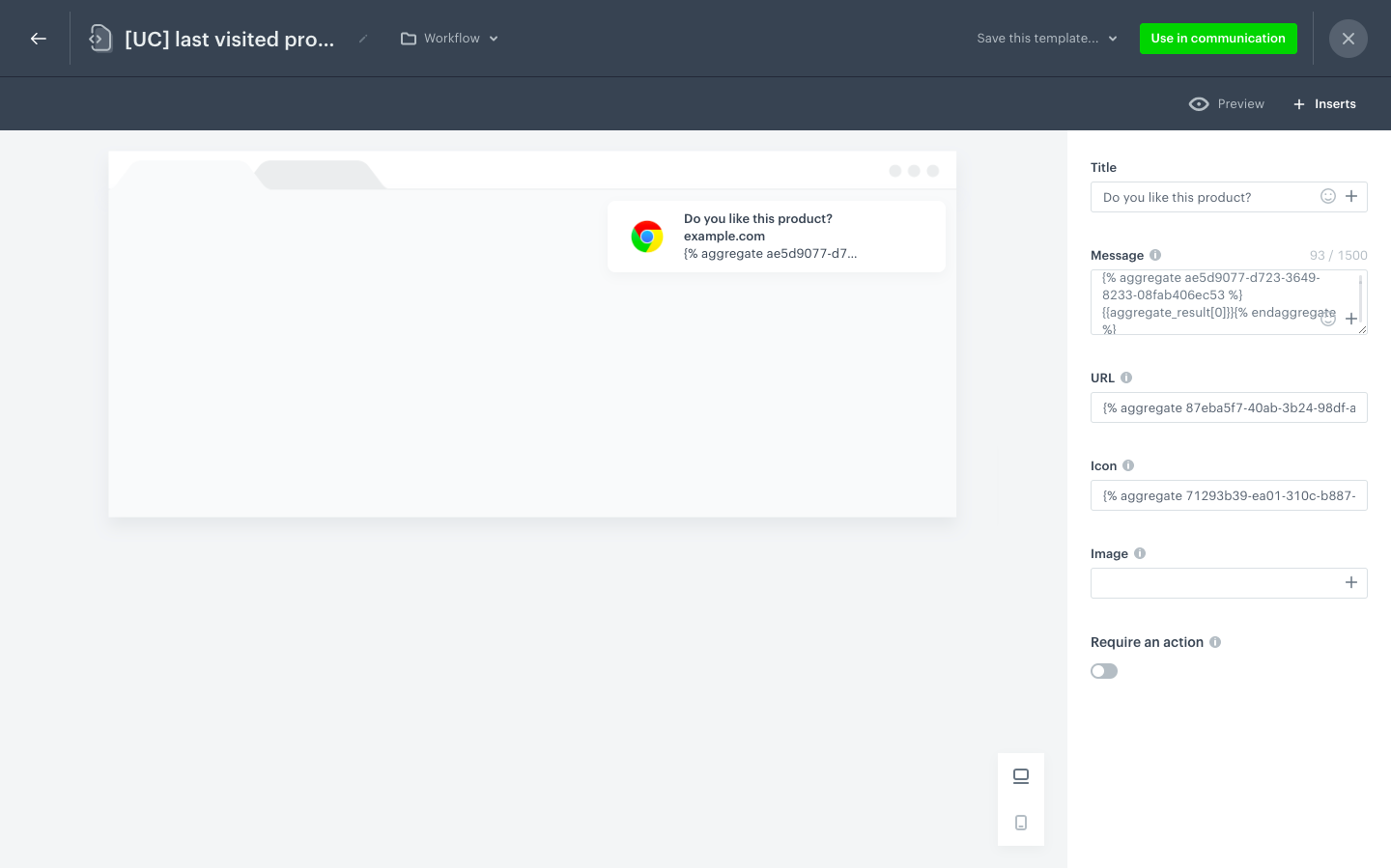
 **Automation Hub > Workflows > New workflow**.
2. Enter the name of the workflow.
### Define the trigger node
---
1. As the first node, add the **Profile Event**. In the settings of the node, select the **session.end** event.
2. Click **Apply**.
### Configure the Delay node
---
1. Add the **Delay** node. In the node settings:
1. In the **Delay** field, type `2`.
2. From the **Unit** dropdown list, choose **Hour**.
2. Click **Apply**.
### Configure the Send Web Push node
---
1. Add the **Send Web Push** node. In the node settings:
1. In the **Content** section, from the **Webpush template** dropdown, select [the template you created in the previous step](#create-a-web-push-template).
2. In the **Schedule** section, set the **Webpush lifespan (TTL)** according to your business needs.
3. You can describe campaigns with [additional parameters](/docs/campaign/Webpush/creating-webpush-campaigns#adding-custom-parameters).
2. Click **Apply**.
### Add the finishing node
---
1. Add the **End** node to the **Send Web Push** node.
2. In the upper right corner, click **Save & Run**.
**Automation Hub > Workflows > New workflow**.
2. Enter the name of the workflow.
### Define the trigger node
---
1. As the first node, add the **Profile Event**. In the settings of the node, select the **session.end** event.
2. Click **Apply**.
### Configure the Delay node
---
1. Add the **Delay** node. In the node settings:
1. In the **Delay** field, type `2`.
2. From the **Unit** dropdown list, choose **Hour**.
2. Click **Apply**.
### Configure the Send Web Push node
---
1. Add the **Send Web Push** node. In the node settings:
1. In the **Content** section, from the **Webpush template** dropdown, select [the template you created in the previous step](#create-a-web-push-template).
2. In the **Schedule** section, set the **Webpush lifespan (TTL)** according to your business needs.
3. You can describe campaigns with [additional parameters](/docs/campaign/Webpush/creating-webpush-campaigns#adding-custom-parameters).
2. Click **Apply**.
### Add the finishing node
---
1. Add the **End** node to the **Send Web Push** node.
2. In the upper right corner, click **Save & Run**.
