Engaging loyalty program users right after they join is crucial to turn a new signup into an active customer. One effective approach is to assign a welcome promotion right after they join. If they don’t use it within the specific time, you send a reminder email to nudge them. If they do use the promotion, you reward them with a second incentive — an instant bonus, automatically assigned.

This automated sequence keeps new users engaged, increases the chance of repeated purchases, and builds stronger loyalty through timely and relevant communication.

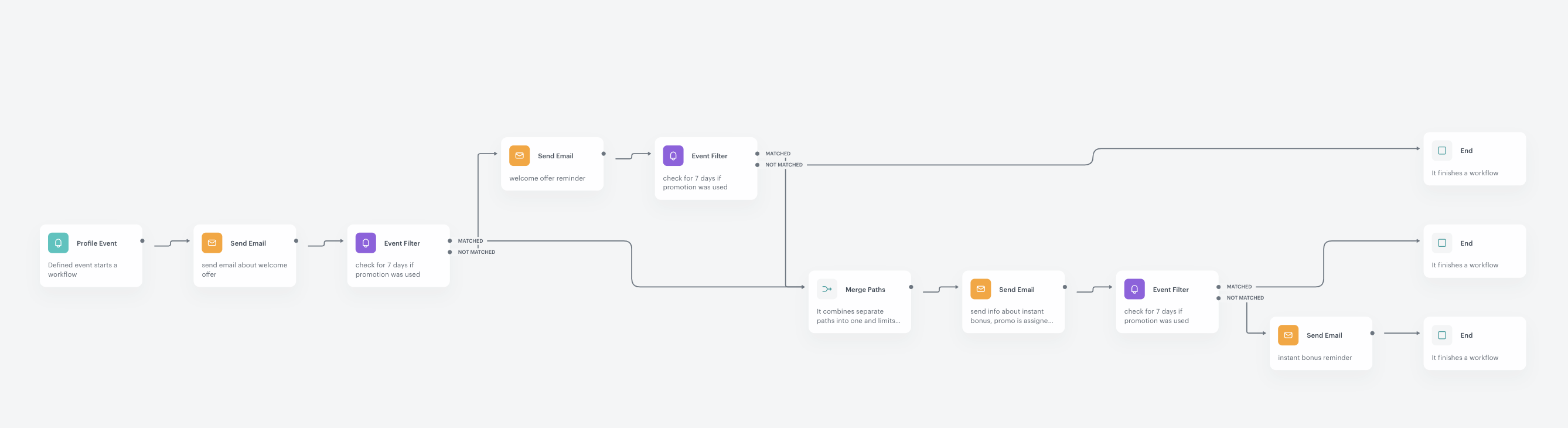
In this specific use case, we will implement an automated process for managing a welcome promotion and follow-up bonus for loyalty program users.

- When a user joins the loyalty program, they are automatically assigned a welcome promotion (20% discount).
- The promotion can only be used once.
- If the user does not use the promotion in 7 days, they will receive a reminder email.
- If the user uses the welcome promotion and made a transaction in 7 days, a new promotion (called instant bonus) is assigned automatically.
- If the instant bonus will not be used, one reminder will be sent.


## Prerequisites 
---
- Add [product Feed](/developers/product-feed).
- Implement [transaction events](/developers/web/transactions-sdk).
- [Create an email account](/docs/campaign/e-mail/creating-email-campaigns).
- [Integrate Synerise promotions](/docs/ai-hub/promotions/introduction-to-promotions) and create first promotions in Synerise.
- Implement the [custom event](/developers/mobile-sdk/event-tracking) which sends information to Synerise about joining a loyalty program (for example `client.register`). Such an event should be sent each time the the user will join the loyalty program.


## Process
---

In this use case, you will go through the following steps:
1. [Create a welcome promotion segmentation](/use-cases/welcome-promo#create-welcome-promotion-segmentation).
2. [Create an instant bonus promotion segmentation](/use-cases/welcome-promo#create-instant-bonus-promotion-segmentation).
1. [Create a welcome promotion](/use-cases/welcome-promo#create-welcome-promotion) for new members of the loyalty program.
2. [Create instant bonus promotion](/use-cases/welcome-promo#create-instant-bonus-promotion) for loyalty member users who used the welcome promotion in the last 14 days. 
5. [Create a workflow](/use-cases/discount-promotion-for-first-transaction#create-a-workflow) to manage the process of sending: 
    - welcome promotions, 
    - reminder if the user does not use the promotion in the specific time, 
    - the bonus for those who used the welcome promotion.

## Create welcome promotion segmentation
---
In this part of the process, create a segmentation which will be used as a target of the first welcome promotion.
1. Go to <img src="/api/docs/image/54176ad07f146575310749eba44b7c2f42c1b327/icons/decision-hub-icon.svg" alt="Behavioral Data Hub icon" class="icon"> **Decision Hub > Segmentation > New Segmentation**.
2. Enter the name of segmentation.
3. On the canvas, click **Add condition**.
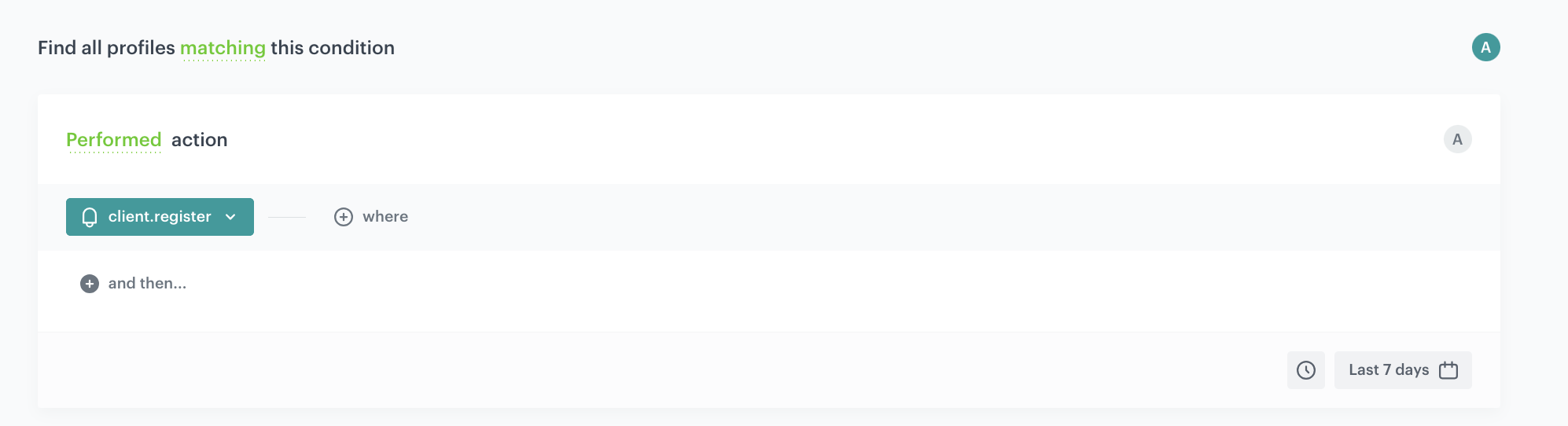
4. From the dropdown list, select the event **client.register**.
7. If we want to set a time limit for the promotion's validity, we can set the time range e.g. last 14 days
9. Click **Save**. 

<figure>
<img src="/api/docs/image/54176ad07f146575310749eba44b7c2f42c1b327/use-cases/all-cases/_gfx/welcome2.png" alt="The final configuration of the segmentation"  class="full">
<figcaption>The final configuration of the segmentation</figcaption>
</figure> 

## Create instant bonus promotion segmentation
---

In this part of the process, create a segmentation which will be used as a target of the instant bonus promotion.
1. Go to <img src="/api/docs/image/54176ad07f146575310749eba44b7c2f42c1b327/icons/decision-hub-icon.svg" alt="Behavioral Data Hub icon" class="icon"> **Decision Hub > Segmentation > New Segmentation**.
2. Enter the name of segmentation.
3. On the canvas, click **Add condition**.
4. From the dropdown list, select the event **client.removePoints**.
5. Choose from the attributes parameter **promotionUuid**. 
6. As the value set up the ID of the welcome [promotion](#create-welcome-promotion).
7. If we want to set a time limit for the promotion's validity, we can set the time range e.g. last 14 days
9. Click **Save**. 

Remember to change the name and choose the unique name of the [promotion](/docs/ai-hub/promotions/creating-promotions) which you will create in the next step, for example, **Instant bonus promotion**. 

<figure>
<img src="/api/docs/image/54176ad07f146575310749eba44b7c2f42c1b327/use-cases/all-cases/_gfx/welcome12.png" alt="The final configuration of the segmentation"  class="full">
<figcaption>The final configuration of the segmentation</figcaption>
</figure> 

## Create welcome promotion
---
In this part of the process, you create a [promotion](/docs/ai-hub/promotions/creating-promotions) assigned to users immediately after joining the loyalty program. 

1. Go to <img src="/api/docs/image/54176ad07f146575310749eba44b7c2f42c1b327/icons/ai-hub-icon.svg" alt="AI Hub icon" class="icon" > **AI Hub > Regular Promotions > Add promotion**.
2. Select the **For selected items** option.
3. As the name of the promotion choose the same name as you have added to the [segmentation, created in the previous step](#create-welcome-promotion-segmentation).
3. In the **Audience** section of the promotion, select the segmentation created in [this step](#create-welcome-promotion-segmentation). Your promotion will be activated only for this group of customers, for whom the event with the code of this promotion will be generated. Confirm your selection, by clicking **Apply**. 
4. In the **Content** section, define the name, description, and an image of the promotion. Confirm the settings by clicking **Apply**.
    
   <div class="admonition admonition-important"><div class="admonition-icon"><svg xmlns="http://www.w3.org/2000/svg" fill="none" viewBox="0 0 24 24" stroke="currentColor" stroke-width="2.5"><path stroke-linecap="round" stroke-linejoin="round" d="M12 8v4m0 4h.01M21 12a9 9 0 11-18 0 9 9 0 0118 0z" /></svg></div><div class="admonition-body"><div class="admonition-content">

   Save the promotion code from this section because it will be used later in the workflow.

   </div></div></div>

5. Choose the **Single** type of promotion.
5. In the **Limit per profile** field, enter `1` to make sure that this discount can be used only once.
6. In **Type & limits** section:  
    1. As **Discount type**, choose **Percentage**.
    2. As the value, enter `20`, and click **Apply**.
6. In the **Schedule** section, define the distribution period.
7. In **Items** section, choose the main product catalog with all products a customer can buy with this discount. If you want to narrow down the list of categories a customer can choose from, use one of the options presented below (Selected items/Filtered items).
9. In **Exclude items** section, you can exclude a specific product or categories for which the discount is not active.
10. To apply all changes and run the promotion, click **Publish**.

## Create instant bonus promotion
----
Create an instant bonus promotion for loyalty members who used the welcome promotion within the last 14 days.
This promotion will be sent 14 days after the first promotion was sent.

1. Go to <img src="/api/docs/image/54176ad07f146575310749eba44b7c2f42c1b327/icons/ai-hub-icon.svg" alt="AI Hub icon" class="icon" > **AI Hub > Regular Promotions > Add promotion**.
2. Select the **For selected items** option.
3. As the name of the promotion choose the same name as you have added to the [segmentation, created in the previous step](#create-instant-bonus-promotion-segmentation).
3. In the **Audience** section of the promotion, select the segmentation created in [this step](#create-instant-bonus-promotion-segmentation). Your promotion will be activated only for this group of customers, for whom the event with the code of this promotion will be generated. Confirm your selection, by clicking **Apply**. 
4. In the **Content** section, define the name, description, and an image of the promotion. Confirm the settings by clicking **Apply**.
    
   <div class="admonition admonition-important"><div class="admonition-icon"><svg xmlns="http://www.w3.org/2000/svg" fill="none" viewBox="0 0 24 24" stroke="currentColor" stroke-width="2.5"><path stroke-linecap="round" stroke-linejoin="round" d="M12 8v4m0 4h.01M21 12a9 9 0 11-18 0 9 9 0 0118 0z" /></svg></div><div class="admonition-body"><div class="admonition-content">

   Save the promotion code from this section because it will be used later in the workflow.

   </div></div></div>

5. Choose the **Single** type of promotion.
5. In the **Limit per profile** field, enter `1` to make sure that this discount can be used only once.
6. In **Type & limits** section:  
    1. As a Discount type, choose **Percentage**.
    2. As the value, enter `10`, and click **Apply**.
6. In the **Schedule** section, define the distribution period.
7. In **Items** section, choose the main product catalog with all products a customer can buy with this discount. If you want to narrow down the list of categories a customer can choose from, use one of the options presented below (Selected items/Filtered items).
9. In **Exclude items** section, you can exclude a specific product or categories for which the discount is not active.
10. To apply all changes and run the promotion, click **Publish**.

## Create a workflow
---
Create a workflow to manage the entire process: assigning the welcome promotion, sending a reminder if it’s not used, and assigning the instant bonus.
This workflow monitors promotion usage and controls the timing of follow-up communications and actions.

### Profile event node
---

1. Go to **Automation Hub > Workflows > New workflow**.
2. Enter the name of the workflow. 
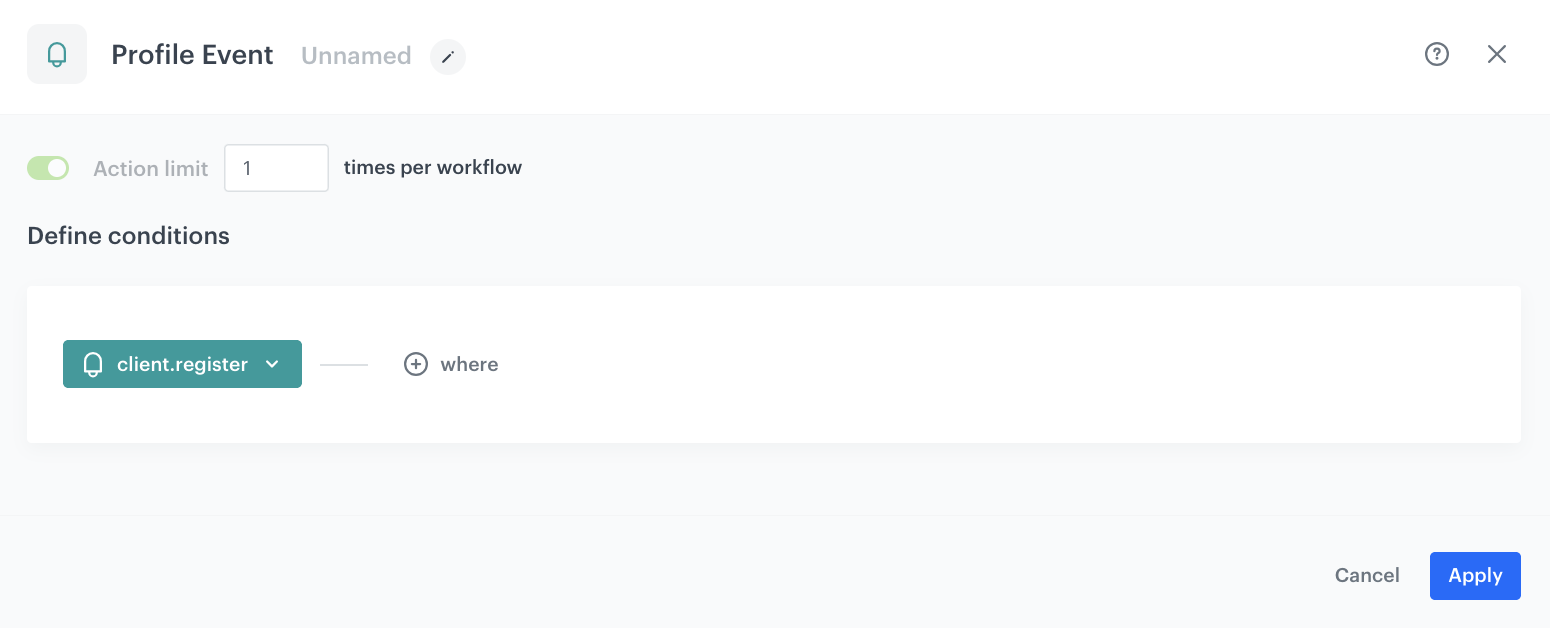
3. As the first node of the workflow, add **Profile event node**, and choose the parameter/event which signifies joining the loyalty program. In our case, it will be the `client.register` event.

<figure>
<img src="/api/docs/image/54176ad07f146575310749eba44b7c2f42c1b327/use-cases/all-cases/_gfx/welcome1.png" alt="Workflow configuration"  class="full">
<figcaption>Workflow configuration</figcaption>
</figure> 


### Add the Send Email node
---

1. Add the **Send Email** node. In the node settings:
    1. In the **Sender details** section, choose the email account from which the email will be sent.
    2. In the **Content** section, type the **Subject** and from the **Template** dropdown, select or directly create a short welcoming message for a new members in loyalty program.
    3. Click **Apply** to save your changes.


### Configure the Event Filter node
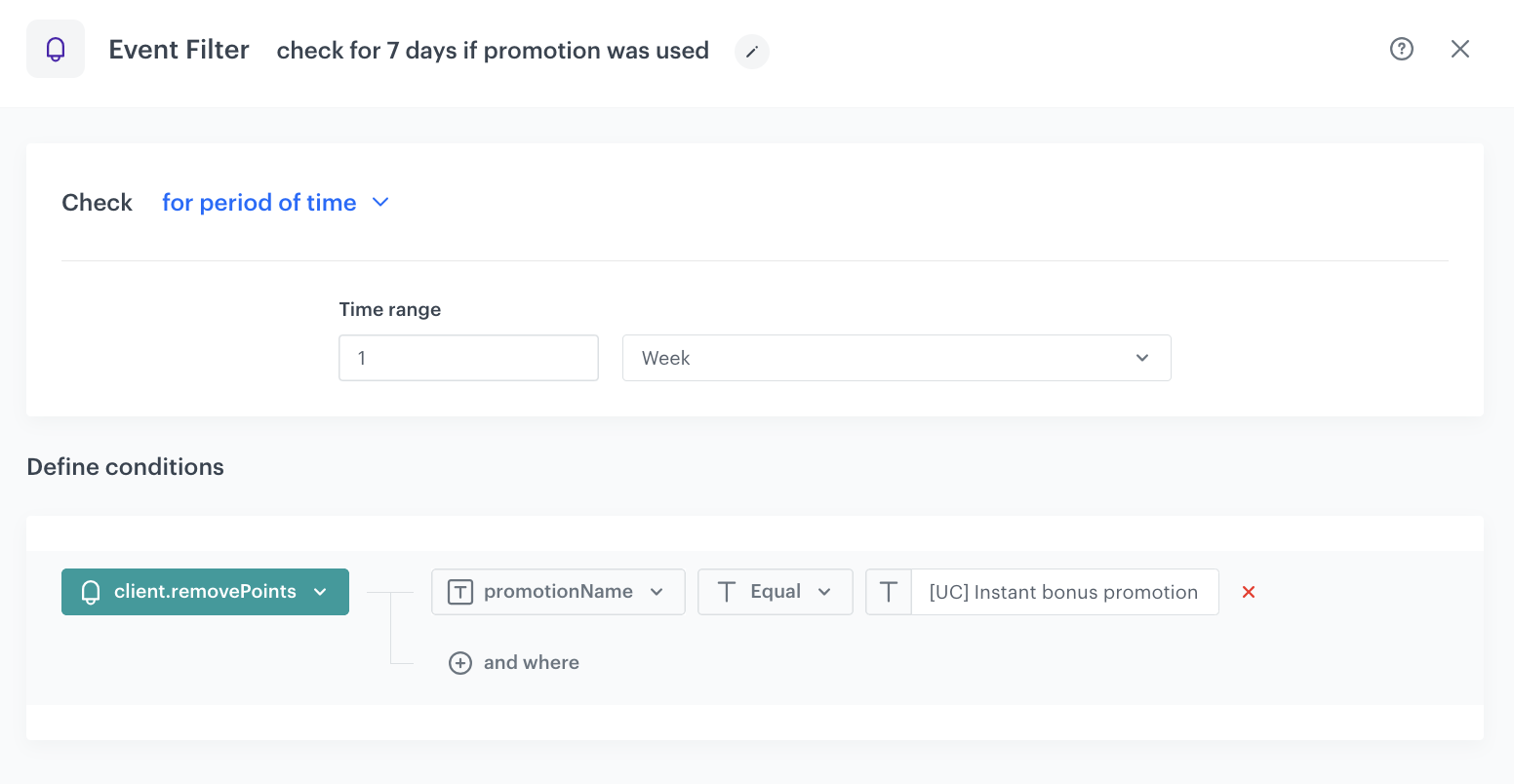
This node lets a customer check if promotion has been used in the last 7 days. This setting is just an example and can be configured according to your business needs.

1. As the next node, add **Event Filter**. In the configuration of the node: 
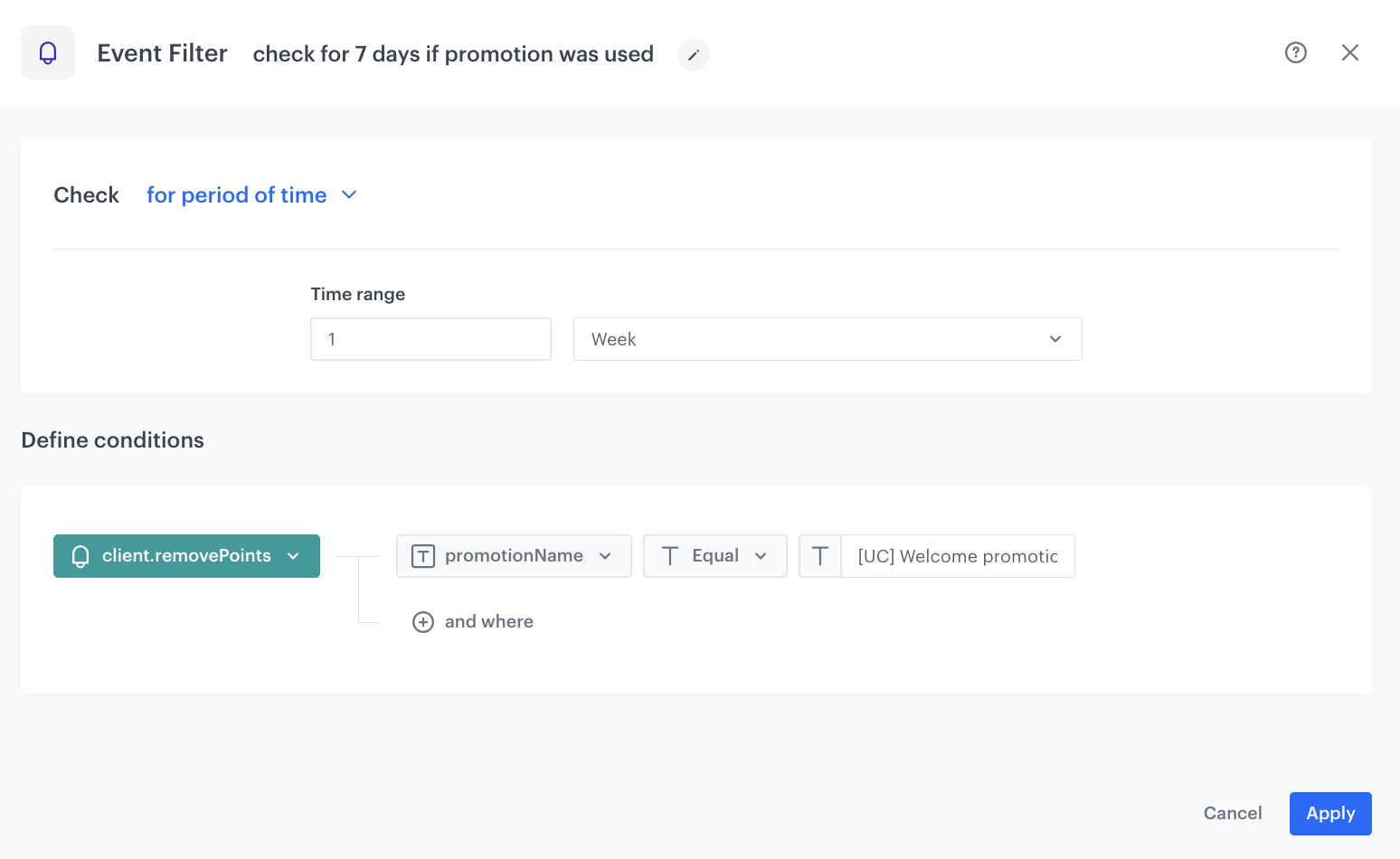
    1. In the **Check** field, from the dropdown menu choose **for period of time**.
    2. Set the time range. In our case, it is 1 week.
    3. In the **Define conditions** field, from the **Choose event** dropdown menu, choose `client.removePoints` event.
    4. As a parameter choose **promotionName** and use the exact name of the promotion crested in the [previous step](#create-welcome-promotion).
2. Confirm by clicking **Apply**.

<figure>
<img src="/api/docs/image/54176ad07f146575310749eba44b7c2f42c1b327/use-cases/all-cases/_gfx/welcome4.png" alt="Event filter configuration"  class="full">
<figcaption>Event Filter configuration</figcaption>
</figure> 

### Send Email node
---
1. Add the **Send Email** node to the **Not matched** path. In the node settings:
    1. In the **Sender details** section, choose the email account from which the email will be sent.
    2. In the **Content** section, type the **Subject** and from the **Template** dropdown, select or directly create a message with the reminder about promotion. The email will be send only to users with this promotion assigned.
    3. Click **Apply** to save your changes.


### Configure the Event Filter node
This node lets a customer check if promotion has been used in the last 7 days. 

1. As the next node, add **Event Filter**. 
2. You can duplicate the exact settings of the [Event Filter node, created earlier](#configure-the-event-filter-node)

## Merge Paths
---
To the **Not matched** path from the second **Event filter node** and to the **Matched** path from the first **Event filter node** add **Merged path node**. 

### Add Send email node with the instant bonus promotion
---
1. Add the **Send Email** node. In the node settings:
    1. In the **Sender details** section, choose the email account from which the email will be sent.
    2. In the **Content** section, type the **Subject** and from the **Template** dropdown, select or directly create a message with the link to instant bonus promotion.
    3. Click **Apply** to save your changes.
2. Additionally you can add another **Event Filter** to check if the instant bonus result in using the promotion or not. If not - you can send email reminder once again.

### Configure the Event Filter node
This node lets a customer check if instant bonus promotion has been used in the last 7 days. 

1. As the next node, add **Event Filter**. In the configuration of the node: 
    1. In the **Check** field, from the dropdown menu choose **for period of time**.
    2. Set the time range. In our case, it is 1 week.
    3. In the **Define conditions** field, from the **Choose event** dropdown menu, choose `client.removePoints` event.
    4. As a parameter choose **promotionName** and use the exact name of the promotion crested in the [previous step](#create-instant-bonus-promotion).
2. Confirm by clicking **Apply**.

<figure>
<img src="/api/docs/image/54176ad07f146575310749eba44b7c2f42c1b327/use-cases/all-cases/_gfx/welcome44.png" alt="Event filter configuration"  class="full">
<figcaption>Event Filter configuration</figcaption>
</figure> 

### Add Send email node with the instant bonus promotion
---
1. Add the **Send Email** node to the **Not matched** path. In the node settings:
    1. In the **Sender details** section, choose the email account from which the email will be sent.
    2. In the **Content** section, type the **Subject** and from the **Template** dropdown, select or directly create a message with the link to instant bonus promotion.
    3. Click **Apply** to save your changes.
2. Additionally you can add another **Event Filter** to check if the instant bonus result in using the promotion or not. If not - you can send email reminder once again.

### Final settings
---

7. Set the capping for the workflow to make sure that entrance to the process will be available once for every user (choose very distant date for example, once in 1000 months).
7. Confirm the settings by clicking **Apply**.
7. Add the **End** node to finish the workflow.
8. Click **Save & Run**. 

<figure>
<img src="/api/docs/image/54176ad07f146575310749eba44b7c2f42c1b327/use-cases/all-cases/_gfx/welcome3.png" alt="Workflow configuration"  class="full">
<figcaption>Workflow configuration</figcaption>
</figure> 

## Check the use case set up on the Synerise Demo workspace
---

In the Synerise Demo workspace, you can check: 
- [Segmentation for welcome message](https://app.synerise.com/analytics-v2/segmentations/f6d38a7e-fae6-430d-a439-e0bce4e0f66f) 
- [Segmentation for instant bonus](https://app.synerise.com/analytics-v2/segmentations/8cf011f4-8237-4b0a-a50b-ef4985938f56) 
- [Promotion with welcome message](https://app.synerise.com/campaigns/promotions/b823b86a-5ea9-4234-bfa5-10d9f5885b1b) 
- [Promotion with instant bonus](https://app.synerise.com/campaigns/promotions/79f50e74-622e-496b-bd2f-821002779dee)
- [Workflow](https://app.synerise.com/automations/workflows/automation-diagram/412fa7df-338e-4f13-aa33-f75d827cc8d5) 

If you’re our partner or client, you already have automatic access to the **Synerise Demo workspace (1590)**, where you can explore all the configured elements of this use case and copy them to your workspace.  

If you’re not a partner or client yet, we encourage you to fill out the contact [form](https://demo.synerise.com/request) to schedule a meeting with our representatives. They’ll be happy to show you how our demo works and discuss how you can apply this use case in your business.


## Read more
---
- [Creating promotions](/docs/ai-hub/promotions)
- [Loyalty programs basics](/use-cases/loyalty-programs-basics)
- [Workflow](/docs/automation/creating-automation)