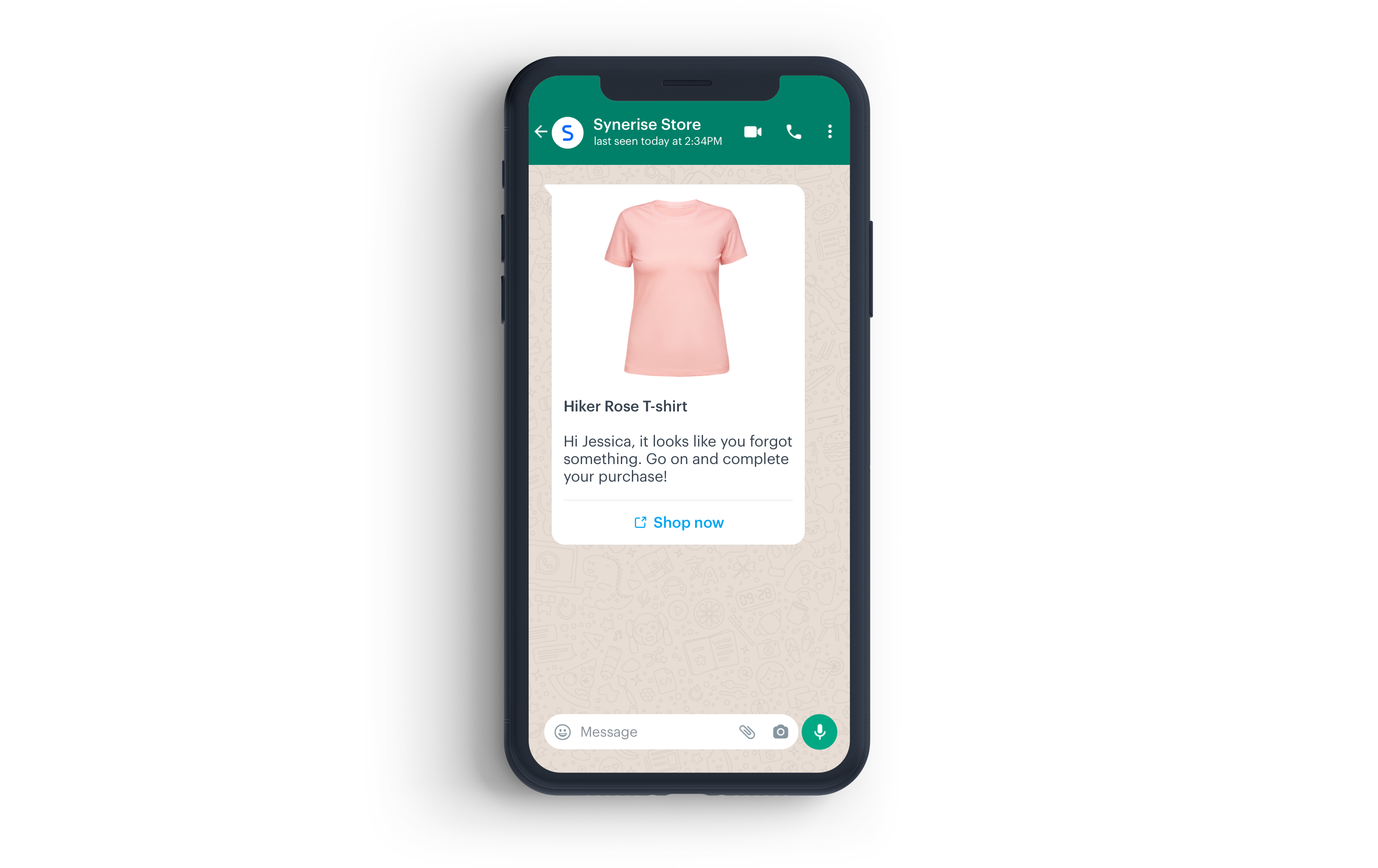
Businesses should understand the importance of personalized communication and aim to provide a seamless shopping experience for their customers. With Synerise, you can leverage your business using WhatsApp to send personalized messages to customers who have abandoned their shopping carts. Sending customized messages through WhatsApp may increase your sales and reduce cart abandonment rates. You can use this integration to ensure that your customers receive timely reminders about their abandoned carts, with personalized offers and incentives to encourage them to complete their purchase. 

In this use case, you will create a workflow sending a personalized message on WhatsApp encouraging customers who abandoned their cart to complete the transaction.

<figure>
<img src="/api/docs/image/54176ad07f146575310749eba44b7c2f42c1b327/use-cases/all-cases/_gfx/ac_mes.png" alt="Abandoned cart WhatsApp message"  class="full no-frame">
</figure>

## Prerequisites 
---
- Make sure you meet [all prerequisites](/docs/automation/integration/whats-app/send-template-message#prerequisites) to work with the **Send Template Message** node.
- Implement the [transaction events](/developers/web/transactions-sdk) using [SDK](/developers/web/transactions-sdk) or [API](https://developers.synerise.com/DataManagement/DataManagement.html#operation/CreateATransaction).
- [Implement the `cart.status` event](/developers/web/cart), which stores the current status of the basket in the form of an event on the customer's card. The event has to be sent to Synerise after every change in the cart status.
- Collect [product.addToCart event](/docs/assets/events).

## Process
---

In this use case, you will go through the following steps:
1. [Create an aggregate](#create-an-aggregate) with abandoned products.
2. [Create a message template in the Meta portal](#create-a-message-template-in-the-meta-portal)
3. [Create a workflow to send message to customers on WhatsApp](#create-a-workflow-to-send-message-to-customers-on-whatsapp)

## Create an aggregate
---
In this part of the process, create an aggregate that returns the list of the abandoned products. You will use the result of the aggregate as an insert to display products from the abandoned cart in your WhatsApp message.

1. Go to <img src="/api/docs/image/54176ad07f146575310749eba44b7c2f42c1b327/icons/behavioral-data-hub-icon.svg" alt="Behavioral Data Hub icon" class="icon"> **Behavioral Data Hub > Live Aggregates > Create aggregate**.
2. As the aggregate type, select **Profile**.  
2. Enter the name of the aggregate.
3. Click **Analyze profiles by** and select **Last**.
5. From the **Choose event** dropdown list, select the `cart.status` event.
6. As the event parameter, select **products**.
7. Set the analyzed period to **Lifetime**. 
12. Save the aggregate.

<figure>
<img src="/api/docs/image/54176ad07f146575310749eba44b7c2f42c1b327/use-cases/all-cases/_gfx/ac-aggregate.png" class="full" alt="The view of the configuration of the aggregate">
<figcaption>Configuration of the aggregate</figcaption>
</figure>

## Create a message template in the Meta portal 
---
Create a message template in the Meta portal that you will use in the next part of the process. In the body of the message, mark places where the dynamic elements will be added.

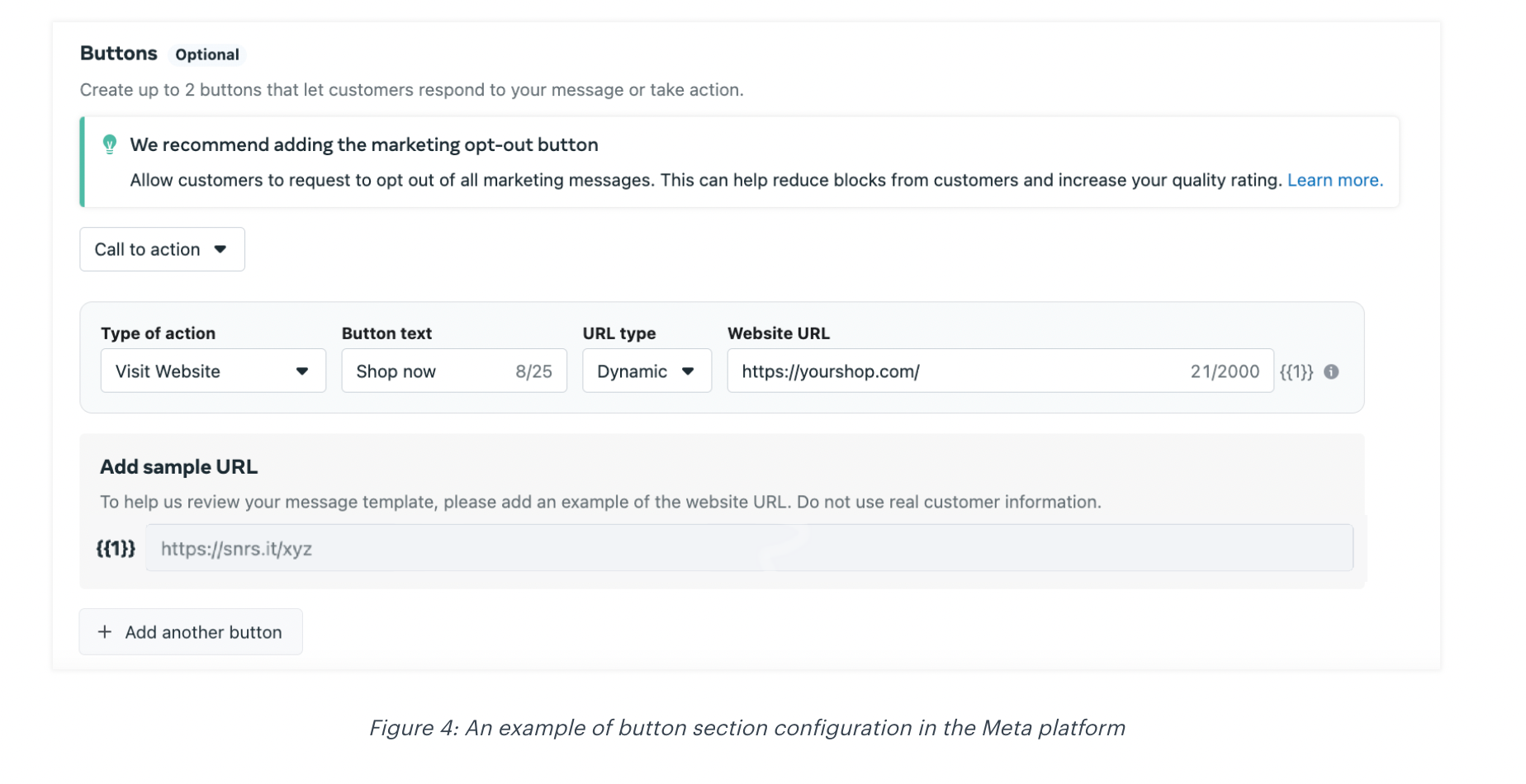
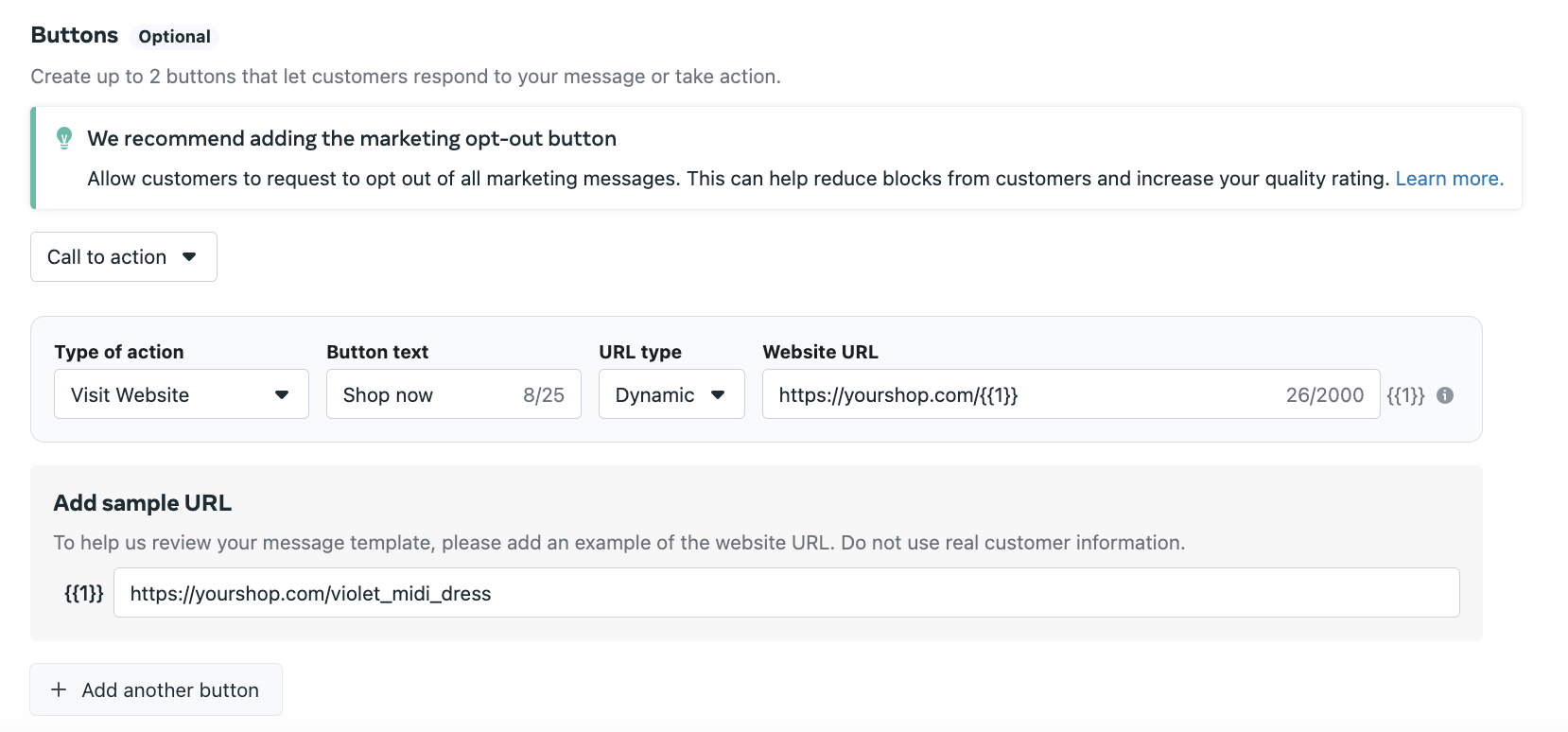
In addition, if you would like to add a CTA at the end of the message, you can add a button and define its copy. The page to which the customer will be redirected after clicking the button can be defined in Synerise.

The example message used in this use case:
`*{{1}}* Hi {{2}}, it looks like you forgot something. Go on and complete your purchase!`

Where `{{1}}` and `{{2}}` are markers that will be replaced with the dynamic values. This step will be done in Synerise.

The screen below shows an example of creating a template message in the Meta portal:

<figure>
<img src="/api/docs/image/54176ad07f146575310749eba44b7c2f42c1b327/use-cases/all-cases/_gfx/whatsapp_meta_ac.png" alt="The view of the message template configuration in the Meta platform"  class="full">
<figcaption>Configuration of the message</figcaption>
</figure>

In the following screen, you can see how a button can be defined in the Meta portal:

<figure>
<img src="/api/docs/image/54176ad07f146575310749eba44b7c2f42c1b327/use-cases/all-cases/_gfx/ac_button.png" alt="The view of the button configuration in the Meta platfrom"  class="full">
<figcaption>An example of button section configuration in the Meta platform</figcaption>
</figure>

## Create a workflow to send message to customers on WhatsApp
---
The workflow will be triggered by the `product.AddToCart` event. The delay is defined up to 1 day. If a customer does not make a transaction within one day, we will send a WhatsApp message with a reminder to buy products left in the cart.

1. Go to <img src="/api/docs/image/54176ad07f146575310749eba44b7c2f42c1b327/icons/automation-hub-icon.svg" alt="Automation Hub icon" class="icon" > **Automation Hub > Workflows > New workflow**.  
2. Enter the name of the workflow.

### Define the trigger node
---
1. As the first node, add the **Profile Event**. In the settings of the node, select the **productAddToCart** event.
2. Click **Apply**.

### Configure the Delay node
---
1. Add the **Delay** node. In the node settings:
    1. In the **Delay** field, type `1`.
    2. From the dropdown list, choose **Day**.
2. Click **Apply**.

### Define the Profile Filter node
---
As the next node, choose **Profile Filter** to check if a customer have made a transaction in the last 24 hours.

1. Add the **Profile Filter** node. In the node settings:
    1. From the **Choose filter** dropdown, select the `transaction.charge` event.
    3. Set the date range to the last 1440 minutes.     
    
   <div class="admonition admonition-important"><div class="admonition-icon"><svg xmlns="http://www.w3.org/2000/svg" fill="none" viewBox="0 0 24 24" stroke="currentColor" stroke-width="2.5"><path stroke-linecap="round" stroke-linejoin="round" d="M12 8v4m0 4h.01M21 12a9 9 0 11-18 0 9 9 0 0118 0z" /></svg></div><div class="admonition-body"><div class="admonition-content">

   Use 1440 minutes instead of 1 day – use smaller granulation, as in this case 1 day would take the time from current hour till the midnight, so such an analysis would not take into consideration all customers who meet the meet the filter conditions.

   </div></div></div>

2.  Click **Apply**.

### Define the Send a template mesage node 
---
1. To the **Not matched** path, add the WhatsApp **Send Template Message** node.
2. Click **Select connection**.
3. From the dropdown list, select the connection.
    - If no connections are available or you want to create a new one, see [Create a connection](/docs/automation/integration/whats-app/send-template-message#create-a-connection).
    - If you selected an existing connection, proceed to defining the integration settings.
4. In the **Sender ID** field, enter the phone number ID from which the message will be sent.
[You can find more information about phone number ID here](https://developers.facebook.com/docs/whatsapp/cloud-api/get-started/add-a-phone-number).
5. In the **Receiver** field, enter the phone number of the customer who will receive this message.
We recommend using the `{% customer phone %}` insert, which inserts the phone number of an individual customer who goes through this node.
6. In the **Message template** field, enter the name of the [message template](#create-a-message-template-in-the-meta-portal) you created earlier in the Meta portal.
7. From the **Language code** dropdown list, select the language used in the message.
8. In the **Message components** field, insert the object that contains the dynamic values in the order defined in the message template.  
   The example of object used in this use case:

    
   <div class="admonition admonition-note"><div class="admonition-icon"><svg xmlns="http://www.w3.org/2000/svg" fill="none" viewBox="0 0 24 24" stroke="currentColor" stroke-width="2.5"><path stroke-linecap="round" stroke-linejoin="round" d="M13 16h-1v-4h-1m1-4h.01M21 12a9 9 0 11-18 0 9 9 0 0118 0z" /></svg></div><div class="admonition-body"><div class="admonition-content">

   The aggregate ID is used as examples for the purpose of this use case.

   </div></div></div>


   <pre><code class="language-json">[  
            {    
                "type": "body",    
                "parameters": [      
                    {        
                        "type": "text",        
                        "text": "{% aggregate 17d214c4-5644-33b1-b0c6-9fab96b26b3e %}{% for item in aggregate_result %}{% catalog.store-1(item.sku).name %}{% endfor %}{% endaggregate %}"      
                        },      
                        {       
                            "type": "text",        
                            "text": "{% customer firstname %}"      
                            }    
                        ]
            },
            {
                "type": "button",
                "index": "0",
                "sub_type": "url",
                "parameters": [
                    {
                        "type": "url",
                        "text": "{% aggregate 17d214c4-5644-33b1-b0c6-9fab96b26b3e %}{% for item in aggregate_result %}{% catalogvar.store-1(item).url %}{{ catalog_result|replace('https://yourshop.com', '') }}{% endcatalogvar %}{% endfor %}{% endaggregate %}"
                        }
                        ]
            },
            {
                        "type": "header",
                        "parameters": 
                        [
                        {         
                        "type": "image",
                        "image": 
                        {
                        "link": "{% aggregate 17d214c4-5644-33b1-b0c6-9fab96b26b3e %}{% for item in aggregate_result %}{% catalogvar.store-1(item).image %}{{ catalog_result }}{% endcatalogvar %}{% endfor %}{% endaggregate %}"
                        }
                        }
                        ]
                }
            ]</code></pre>
 

9. Click **Apply**.

The following table explains all the inserts used in the body, button and header sections shown above.

| Section  | Insert value                                                                                                                                                                                                                          | Insert explanation                                                                                                                                                                                                                                                       |
|--------- |-------------------------------------------------------------------------------------------------------------------------------------------------------------------------------------------------------------------------------------- |------------------------------------------------------------------------------------------------------------------------------------------------------------------------------------------------------------------------------------------------------------------------- |
| body     | `{% aggregate 17d214c4-5644-33b1-b0c6-9fab96b26b3e %}{% for item in aggregate_result %}{% catalogvar.store-1(item).image %}{{ catalog_result }}{% endcatalogvar %}{% endfor %}{% endaggregate %}`                                     | The value of this insert is used as the value of `{{1}}` to return a product that the customer left in the cart and did not purchase within the estimated time period.                                                                                                   |
| body     | `{% customer firstname %}`                                                                                                                                                                                                            | The value of this insert is used as the value of `{{2}}`, so the name of a customer can be displayed in the message.                                                                                                                                                     |
| button   | `{% aggregate 17d214c4-5644-33b1-b0c6-9fab96b26b3e %}{% for item in aggregate_result %}{% catalogvar.store-1(item).url %}{{ catalog_result\|replace('https://yourshop.com', '') }}{% endcatalogvar %}{% endfor %}{% endaggregate %}`  | The value of this insert is used to return product url. Here we specify the URL omitting the domain, because we define the domain in the Meta platform, as you can see in the screenshot with the [button creation](#create-a-message-template-in-the-meta-portal).  |
| header   | `{% aggregate 17d214c4-5644-33b1-b0c6-9fab96b26b3e %}{% for item in aggregate_result %}{% catalogvar.store-1(item).image %}{{ catalog_result }}{% endcatalogvar %}{% endfor %}{% endaggregate %}`                                     | The value of this insert is used to return the url to the product image in the header.                                                                                                                                                                                   |

### Add the finishing node 
---
1. Add the **End** node to the **Send Template Message** node.
2. To the **Matched** path, add the **End** node.
3. In the upper right corner, click **Save & Run**.

## Check the use case set up on the Synerise Demo workspace
---
You can check the [aggregate](https://app.synerise.com/analytics/aggregates/17d214c4-5644-33b1-b0c6-9fab96b26b3e) and [workflow](https://app.synerise.com/automations/automation-diagram/7ea1d166-3125-4f70-ae45-659e2bfef5a3) configuration directly in Synerise Demo workspace. 

If you’re our partner or client, you already have automatic access to the **Synerise Demo workspace (1590)**, where you can explore all the configured elements of this use case and copy them to your workspace.  

If you’re not a partner or client yet, we encourage you to fill out the contact [form](https://demo.synerise.com/request) to schedule a meeting with our representatives. They’ll be happy to show you how our demo works and discuss how you can apply this use case in your business. 
## Read more
---

- [Aggregates](/docs/analytics/aggregates)
- [Automation Hub](/docs/automation)
- [Jinjava inserts](/developers/inserts)
- [WhatsApp Send Template Message node](/docs/automation/integration/whats-app/send-template-message)