In the Synonyms section, you can add and manage word substitutes for your search index. Synonyms expand search results so that customers find what they're looking for even when they use different terminology than what appears in your product catalog.
Synonyms can be added manually, imported from a CSV file, or proposed automatically by AI agents that analyze search patterns and product data.
TIP: You can also manage typos through a dedicated Handling typos and missing words article and query rules.
Synonym types
Each synonym pair works in one of two directions:
- One-way synonyms work in one direction only. For example, if "TV" is the source term and "television" is its synonym, searching for "TV" returns television products — but searching for "television" does not return TV results.
- Two-way synonyms work in both directions. Terms are treated as fully interchangeable and grouped together. For example, if "smartphone", "phone", and "mobile" are two-way synonyms, searching for any of these terms returns the same results.
Synonym states
Every synonym has a state that indicates its origin and whether it requires your attention:
| State | Description |
|---|---|
| Accepted | An active synonym — either one you created manually or an AI proposal you approved. |
| Rejected | An AI proposal you dismissed. |
How synonyms are created
Synonyms come from three sources:
- Manual — You enter synonyms one by one directly in the interface.
- CSV import — You upload a file containing multiple synonyms at once.
- AI agents — The system automatically proposes synonyms and submits them as Suggested for your review and manual activation. These synonyms are based on:
- User activity — The agent uses time-window analysis to detect patterns where users search for one term, then quickly search for a related term within the same session, indicating a synonym relationship.
- Product catalog data — For indexes with no search history yet, the agent can analyze your product catalog to generate relevant synonym proposals (cold start option).
Requirements
For imported synonyms:
- The file must be encoded in UTF-8; UTF-8 BOM is not supported.
- Use commas as the word separator.
For synonyms proposed by AI agents:
You must have a history of item.search events with the searchType parameter set to full-text-search. The agent analyzes search reformulations — sessions where a user searched for one term and then quickly searched for a related term — so events from such searches must be collected. This requirement does not apply to the cold start option.
Adding synonyms manually
IMPORTANT: Changes to synonyms are reflected within 30 minutes to several hours, depending on the size of the index.
Procedure
- Go to AI Hub > Indexes.
- In the list, click the index to which you want to add synonyms.
- Under the name of the index, select the Synonyms tab.
- Click Add synonym.
- From the dropdown list, select Add synonym.
- From the left dropdown list, define the type of the synonym:
- One way
- In the Word field, enter the source term.
- In the Synonym field, enter the synonym for the word.
- Two ways
- In the Synonyms field, enter the terms that are interchangeable with each other.
- One way
- To add more synonyms, click Add synonym.
- To save the list, click Add.
Result: The synonyms will be added and they will be assigned the Accepted status.
Adding synonyms by CSV import
- Go to AI Hub > Indexes.
- In the list, click the index to which you want to add synonyms.
- Under the name of the index, select the Synonyms tab.
- Click Add synonym.
- From the dropdown list, select Import CSV.
- Choose the import method:
- Replace — Deletes all existing synonyms added through the import and saves the ones from the file.
- Add — Adds the synonyms from the file to the existing list.
- Upload a CSV file.
- The imported synonyms will get the Accepted status.
- See example CSV files.
Example CSV files
One-way synonyms only
word,synonyms,type
phone,smartphone,oneway
If a customer enters phone, results include smartphones. Searching for smartphone returns only smartphones — not phones.
Two-way synonyms only
word,synonyms,type
,"computer,PC",synonyms
NOTE: The first column is empty; all synonyms are in the second column.
The search engine returns the same results for computer and PC.
One-way and two-way synonyms in one file
word,synonyms,type
phone,smartphone,oneway
,"computer,PC",synonyms- The first row defines a one-way synonym: searching for
phonereturns smartphones, but not the reverse. - The second row defines two-way synonyms (first column is empty):
computerandPCreturn the same results.
Adding synonyms by Synonym Agent
Enable the Synonym Agent
Before AI agents can propose synonyms, you must enable the Synonym Agent in the index settings.
IMPORTANT: Enabling the Synonym Agent may generate additional costs related to LLM usage. AI-generated suggestions may occasionally be inaccurate.
Procedure
- Go to AI Hub > Indexes.
- Click the index you want to configure.
- Under the name of the index, select the Settings tab.
- Find the Synonym Agent section.
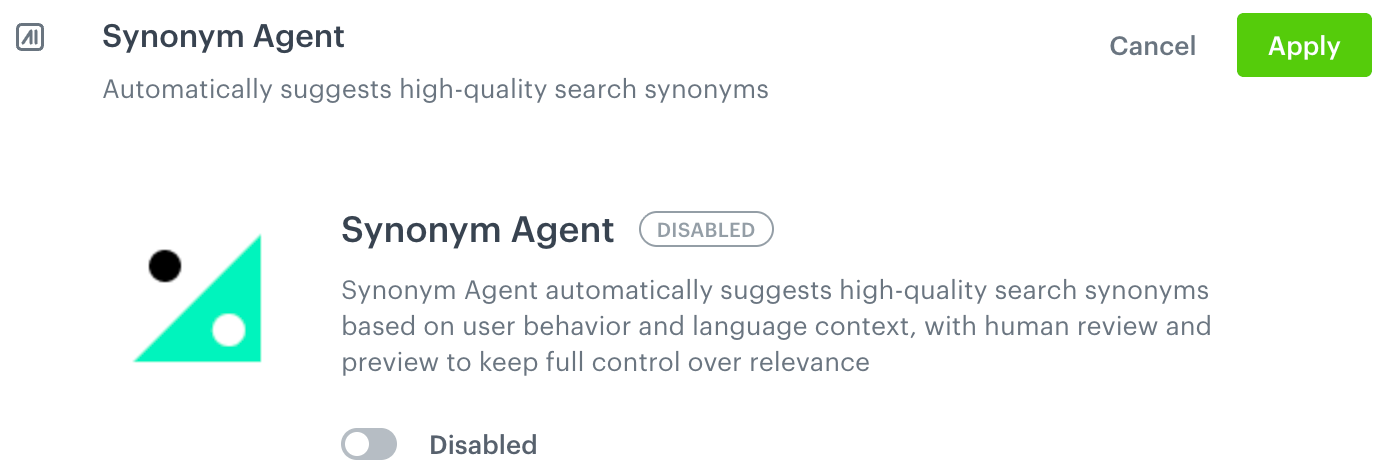
Synonym Agent settings section showing the agent in a disabled state - Toggle the switch from Disabled to Enabled.
Result:
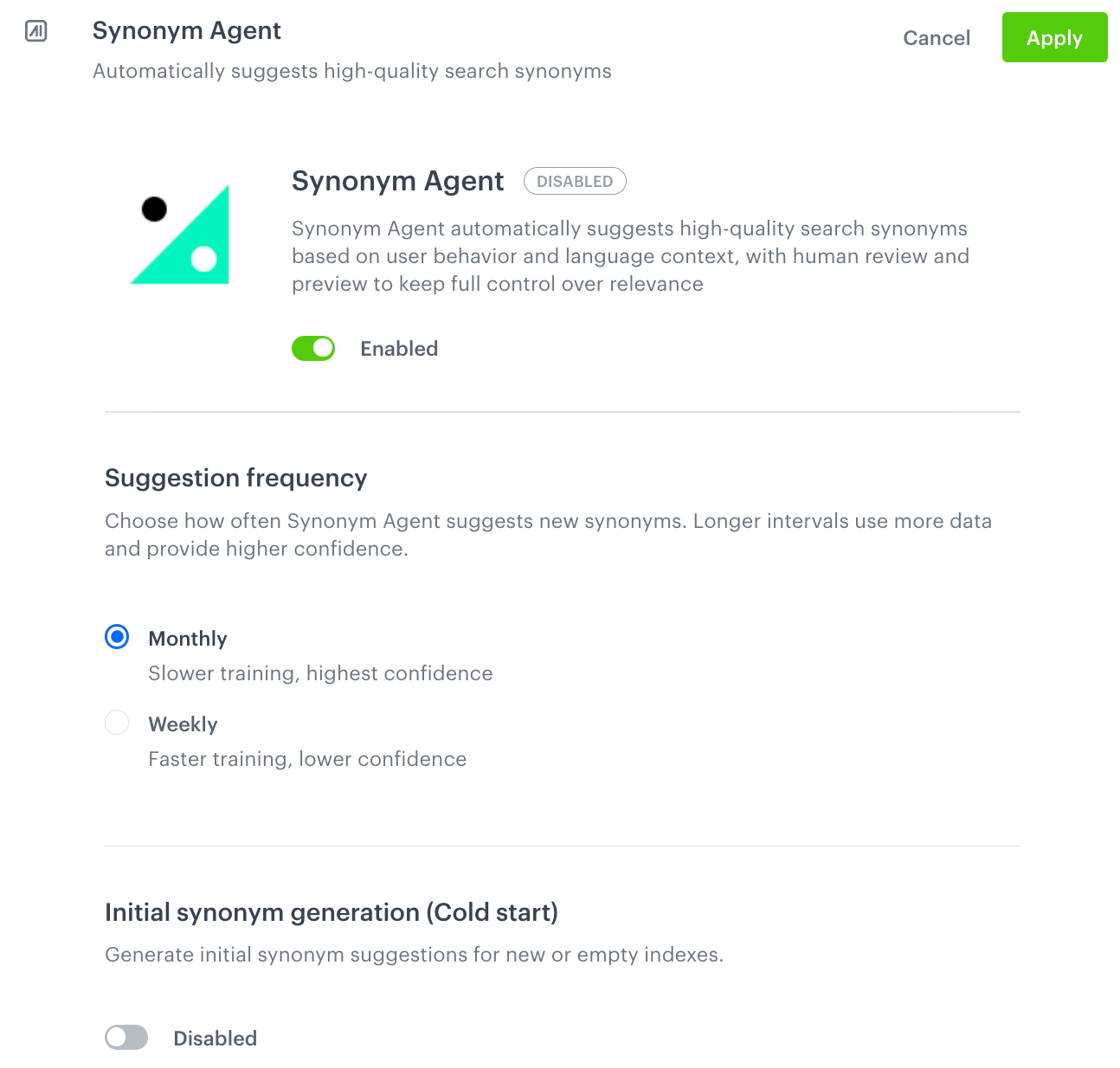
Synonym Agent settings section showing the agent in an enabled state - In the Suggestion frequency section, select how often the agent proposes new synonyms:
- Monthly — Uses more data for higher confidence, but learns more slowly (every 30 days).
- Weekly — Faster training, lower confidence.
- Click Apply.
Result: The agent runs at the selected frequency and proposes synonyms in the Synonyms tab. When the synonyms suggestions will be ready for review, a notification banner will appear on the list of synonyms.
NOTE: If you disable the agent, it is queued for shutdown and stops running at the next scheduled time.
Initial synonym generation (Cold start)
For new indexes with no search history, you can trigger a one-time synonym generation based on your product catalog data.
NOTE: Cold start is a single-use operation. Once it completes, it cannot be run again for that index (even after you disable and enable the Synonym Agent).
To run the cold start:
- In the Synonym Agent section, find Initial synonym generation (Cold start).
- Toggle the switch to enable it.
- Click Apply.
Review AI-proposed synonyms
AI agents run on a recurring schedule and propose new synonyms based on search behavior and catalog data. When the synonyms suggestions are ready for review, a notification banner appears on the list of synonyms.
Procedure
- Go to AI Hub > Indexes.
- Click the index you want to manage.
- Select the Synonyms tab.
Result: A notification banner is displayed above the synonym list.

Synonyms tab with a notification banner informing that the Synonym Agent has generated new synonym suggestions and prompting to review and approve them - On the notification banner, click Review suggestions.
Result: A pop-up appears.
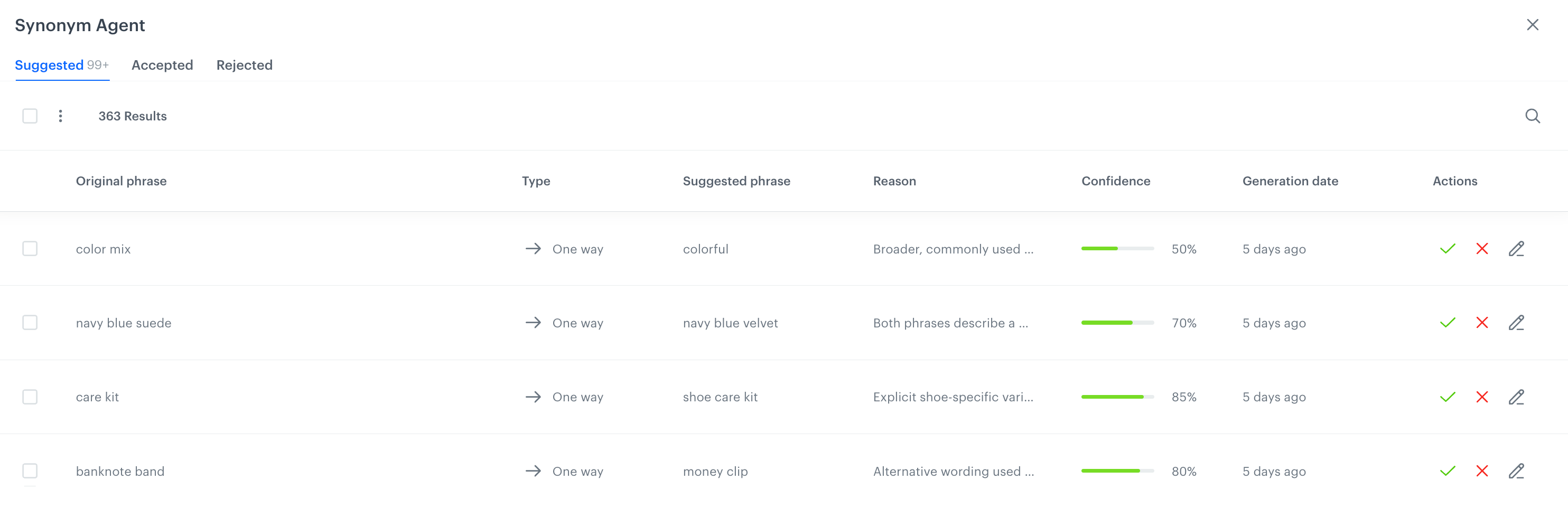
Synonym Agent pop-up showing the Suggested tab with a list of AI-proposed one-way synonyms, each with a confidence score and options to accept, reject, or edit Review each proposal and decide:
WARNING: Accepting and rejecting synonyms is irreversible.
- Accept the synonym.
- Reject to dismiss the proposal.
- Edit the proposal.
When you edit the proposal, you save and accept the edited proposal, this action is irreversible.
Accepted synonyms become active with the Accepted state. Rejected proposals are retained with the Rejected state for reference.