Facets let customers narrow down search results to items with common features, such as color or brand, and show how many items match each value. Unlike filterable attributes, facets do not simply include or exclude items — they expose attribute distributions alongside the results.
Automatic Facets does not replace the Facetable attributes configuration. It selects which of those pre-configured attributes to surface for each query. You must configure facetable attributes first, the algorithm draws exclusively from that pool.
Prerequisites
- An AI Search index must already exist in your workspace.
- The facetable attributes you want the algorithm to draw from must be configured in the Facetable attributes setting of the same index. For applicable limits, see AI Search limits.
WARNING: The sum of distinct attribute values for filterable and facetable attributes combined cannot exceed the index limit. Attributes with many distinct values reduce the capacity available for other attributes. For details, see Facetable attributes.
Configuring Automatic Facets
- Go to
 AI Hub > AI Search > Indexes.
 - Click the name of the index you want to configure.
Result: The index detail page opens. - Click the Settings tab.
- Scroll to the Automatic Facets section and click Define.
Result: The Automatic Facets configuration panel expands.
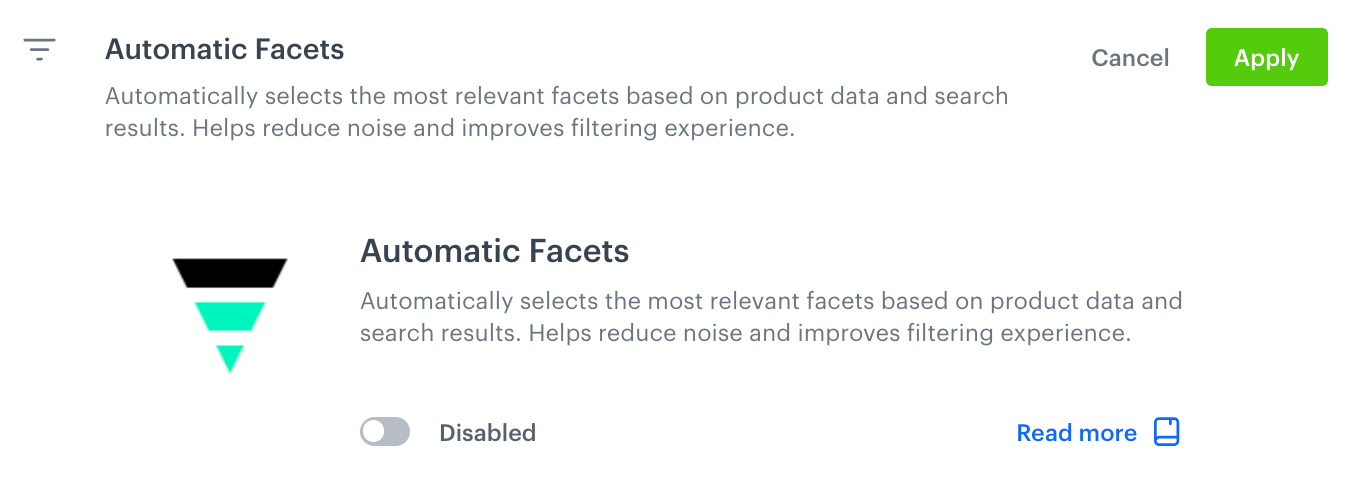
Disabled Automatic Facets - Toggle Enabled to turn the feature on or off.
Result:
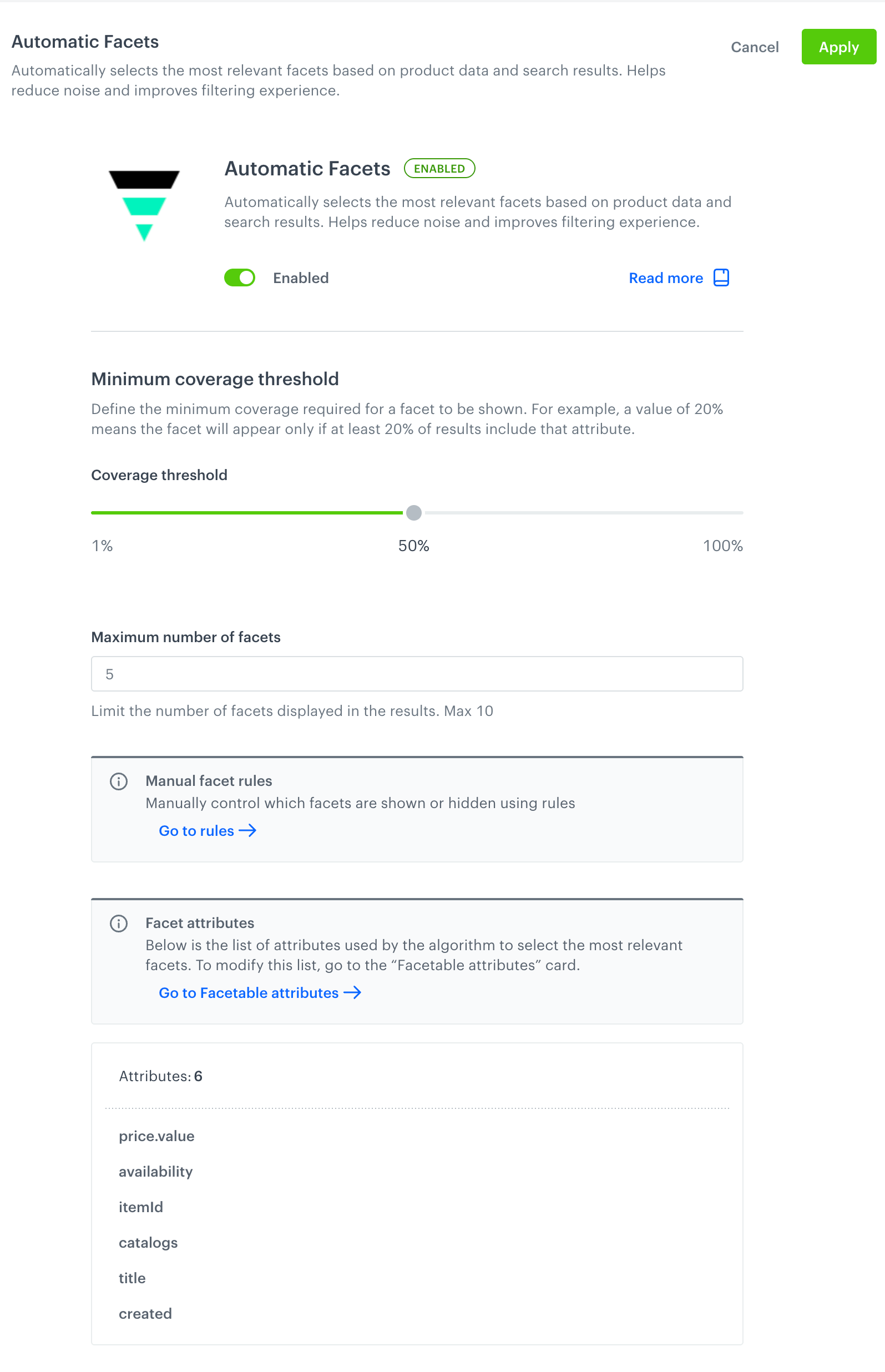
Enabled Automatic Facets - Under Minimum coverage threshold, drag the Coverage threshold slider to set the minimum percentage of results that must include an attribute before the facet is shown. The range is
1%to100%. From the Objective dropdown, select the goal the algorithm optimizes for when selecting facets:
- Coverage — selects facets that appear across the widest share of results.
- Popularity — selects facets based on how often customers use them to filter search results. This option is available in private preview.
- In the Maximum number of facets field, enter the maximum number of facets to display in the results. The maximum allowed value is
10. - Click Apply.
Result: The configuration is saved and the index applies the updated Automatic Facets settings.
TIP: To verify which facets the algorithm returns for a given query, use the search preview. See Previewing AI Search results.
Automatic Facets settings explanation
Enabled
Activates or deactivates Automatic Facets for the index. When disabled, facets are controlled solely by the Facetable attributes configuration and any manual rules.
Minimum Coverage Threshold
Defines the minimum percentage of search results that must contain a given attribute before that attribute is shown as a facet. For example, a value of 20% means a facet appears only if at least 20% of the results include that attribute. The slider range is 1% to 100%.
Use a higher threshold to reduce the number of facets shown for broad queries. Use a lower threshold to surface more specific attributes for narrower result sets.
Objective
Defines the goal the algorithm optimizes for when selecting which facetable attributes to surface:
- Coverage — prioritizes attributes that appear across the broadest share of results, maximizing how many items each facet can filter.
- Popularity — prioritizes attributes that customers use most often to filter search results.
NOTE: The Popularity objective is available in private preview and accessible only on selected workspaces. To get access, contact your account manager or Synerise support.
Maximum Number of Facets
Limits the total number of facets returned in the search results. The maximum allowed value is 10.
Facet Attributes
The Automatic Facets algorithm selects from the attributes configured in the Facetable attributes setting of the index. To view or modify the attribute pool, click Go to Facetable attributes within the configuration panel, or navigate to the Facetable attributes card in the same Settings tab.
Overriding Automatic Facets with rules
You can manually control which facets are shown or hidden regardless of the algorithm's selection. Manual rules always take precedence over the Automatic Facets algorithm — a facet forced by a rule will appear even if it does not meet the coverage threshold, and a suppressed facet will not appear even if the algorithm selects it.
To define manual rules, click Go to rules in the Manual facet rules section of the Automatic Facets panel. This opens the Rules tab. For instructions on creating rules, see Create rules.
TIP: Use manual facet rules when you need to guarantee that a specific facet always appears for certain queries, for example, always showing availability for any search.