Query Understanding analyzes search queries to detect facet values, such as brand, color, size, category, discount, or price range, directly within the phrase a customer types. When a value is detected, the search engine can apply it as a filter or use it to boost the relevance of matching items, without the customer having to select any additional filters.
Query Understanding can also detect sorting intents in the query, such as "cheapest" or "newest," and automatically sort the results accordingly. Unlike filter and boost values, sorting intents are fixed - you don't map them to attributes yourself. See Automatic sorting.
For example, when a customer searches for MyBrand size 40 black, Query Understanding detects MyBrand as the brand, 40 as the size, and black as the color, and applies the action you configured for each of these attributes (applying a filter or boosting). Similarly, a search for MyBrand below 300zł sorts the results by price in ascending order.
Each search request processed by Query Understanding produces an item.search.classification event. The detected and applied values are saved in the queryUnderstanding parameter.
Requirements
- An AI Search index must already exist in your workspace.
- To select attributes for filtering and boosting, add them in the Filterable attributes section in the index settings.
- For automatic sorting to work,
createdandeffectivePrice(orprice.value) must be added in the Sortable attributes section.
Enabling Query Understanding
- Go to
 AI Hub > Indexes.
 - From the list of indexes, click the one where you want to apply Query Understanding.
Result: The index statistics page opens. - Select the Settings tab.
- On the Predictive Filtering section, click Define.
Result:
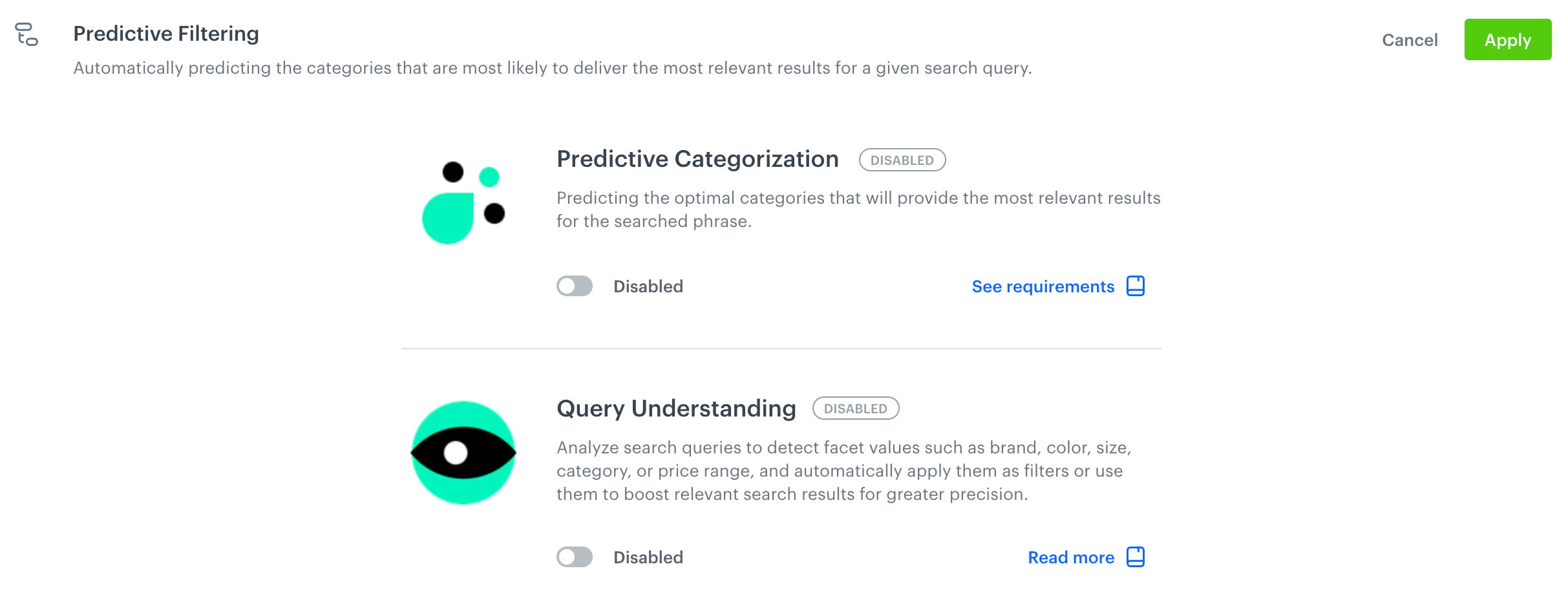
The Predictive Filtering section - In the Query Understanding subsection, switch the Enabled toggle on.
Automatic sorting
In addition to detecting filter and boost values, Query Understanding recognizes a fixed set of sorting intents in the search query and automatically sorts the results accordingly. You can't choose which attribute each intent sorts by — it's hardcoded, based on the following intents:
| Intent | Example query terms | Sorted by |
|---|---|---|
| Cheapest | "cheap", "budget", "cheapest" | Price (effectivePrice or price.value), ascending |
| Most expensive | "expensive", "premium" | Price (effectivePrice or price.value), descending |
| Newest | "newest", "new arrivals" | Creation date (created) |
For these intents to work, the corresponding attributes (created, effectivePrice or price.value) must be added in the Sortable attributes section of your index.
Configuring detectable attributes
Under Detectable attributes, map the properties Query Understanding can detect (such as Price, Discount, Brand, Size, Color) to the corresponding attributes in your item feed, then define how each detected value should influence search results.
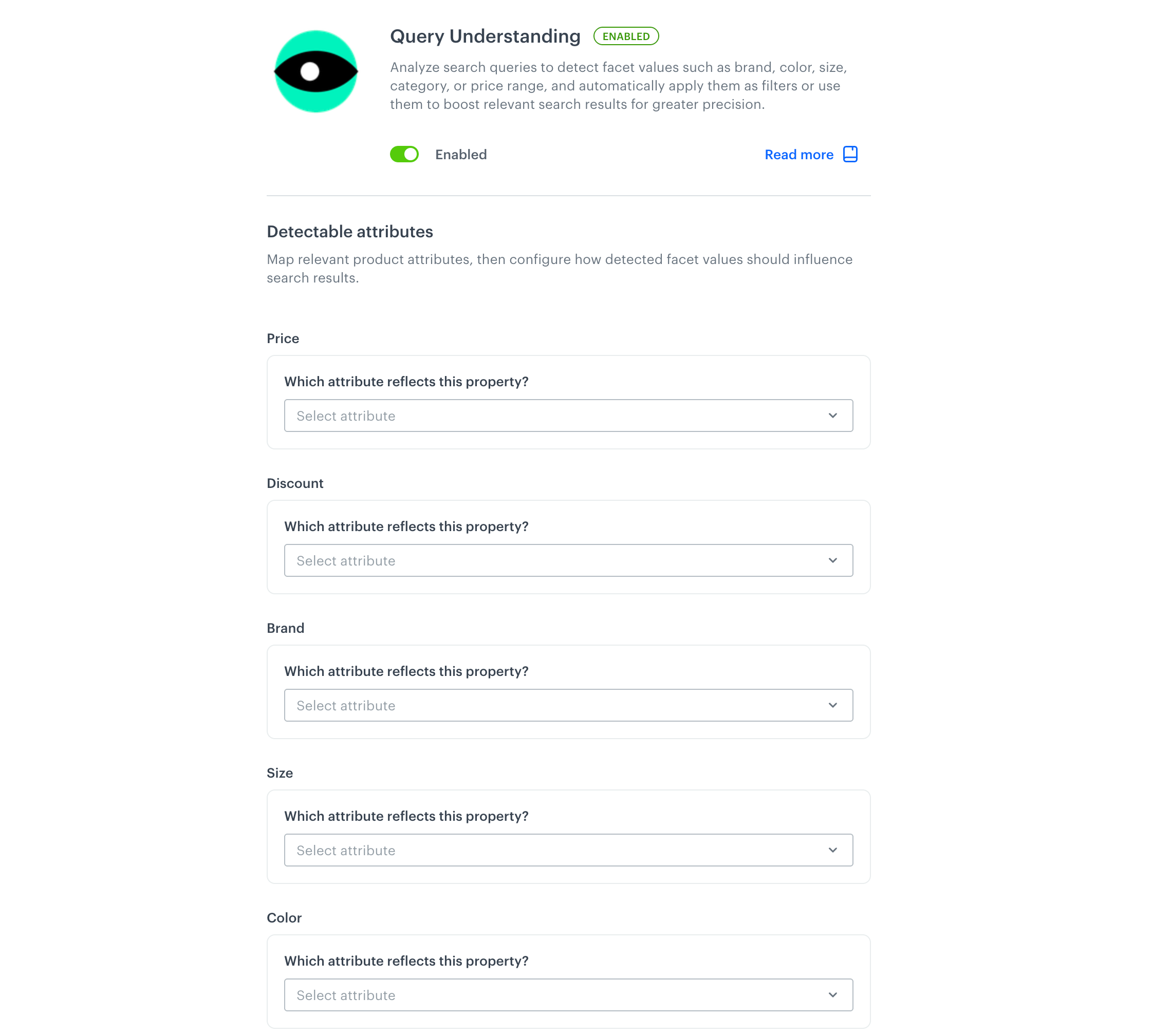
For each property:
- From the Which attribute reflects this property? dropdown, select the attribute from your item feed that corresponds to the property.
- Under When this attribute and its value are detected in a search query, choose one of the following actions:
- Automatically apply the corresponding filter - narrows the search results down to items that match the detected value.
- Boost products with the matching attribute value - increases the score of items that match the detected value, moving them higher in the search results, without excluding other items.
- If you selected Boost products with the matching attribute value, use the Boost impact slider to set how strongly matching items are boosted. The range is
0(low) to100(high). - Click Apply to save the configuration.
Example
You mapped and configured the following properties:
| Property | Attribute | Action | Boost impact |
|---|---|---|---|
| Brand | brand |
Boost items with the matching attribute value | 100 |
| Size | size |
Boost items with the matching attribute value | 50 |
| Color | color |
Boost items with the matching attribute value | 75 |
| Price | effectivePrice |
Boost items with the matching attribute value | 100 |
| Discount | discount |
Boost items with the matching attribute value | 60 |
When a customer searches for MyBrand size 40 black, Query Understanding detects MyBrand as the brand, 40 as the size, and black as the color, and boosts items matching each of these attribute values according to the configured boost impact.
Previewing Query Understanding
You can check how Query Understanding affects a query before publishing your configuration. See Previewing AI Search results.
- Go to the Preview tab of the index.
- In the Filters panel, under Smart search, use the Query Understanding toggle to enable or disable the feature for the current preview. Click Query details to see the current configuration.
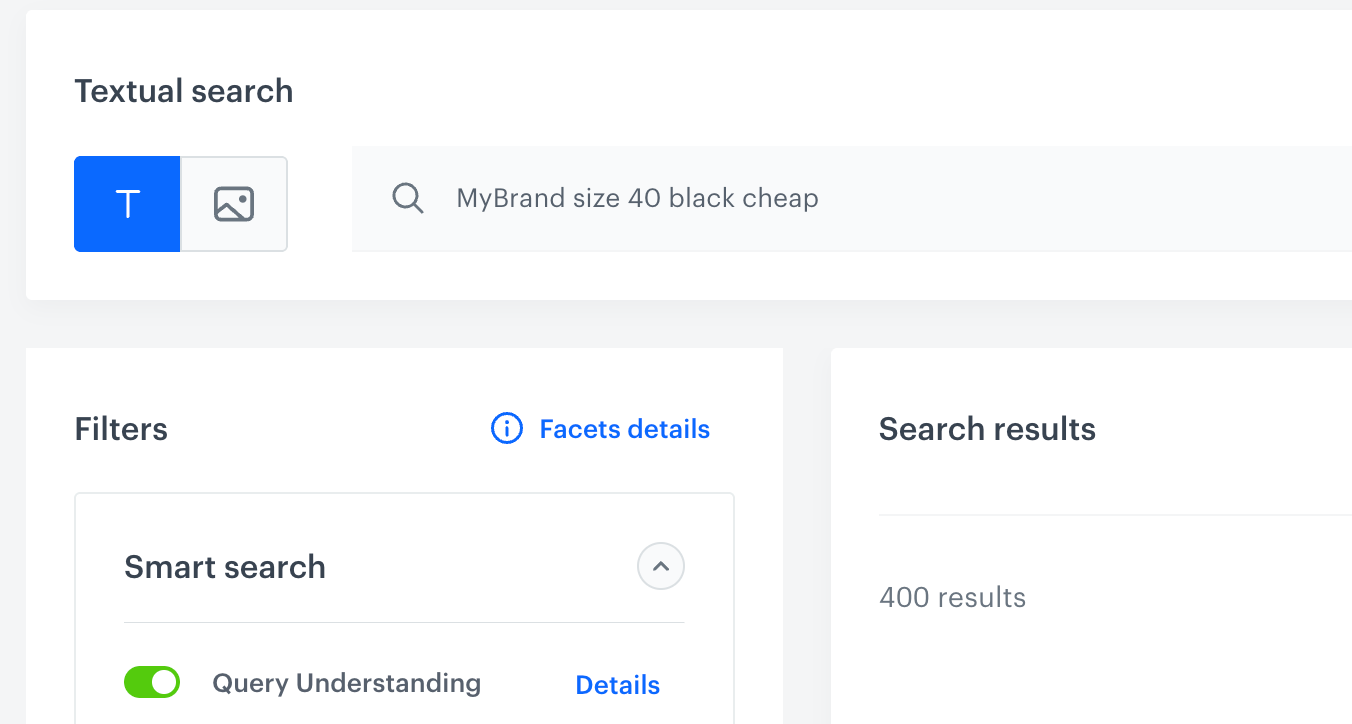
The Query Understanding toggle in the search preview - Enter a search query and open Query details.
Select the Query Understanding tab to see which attribute values were detected in the query.
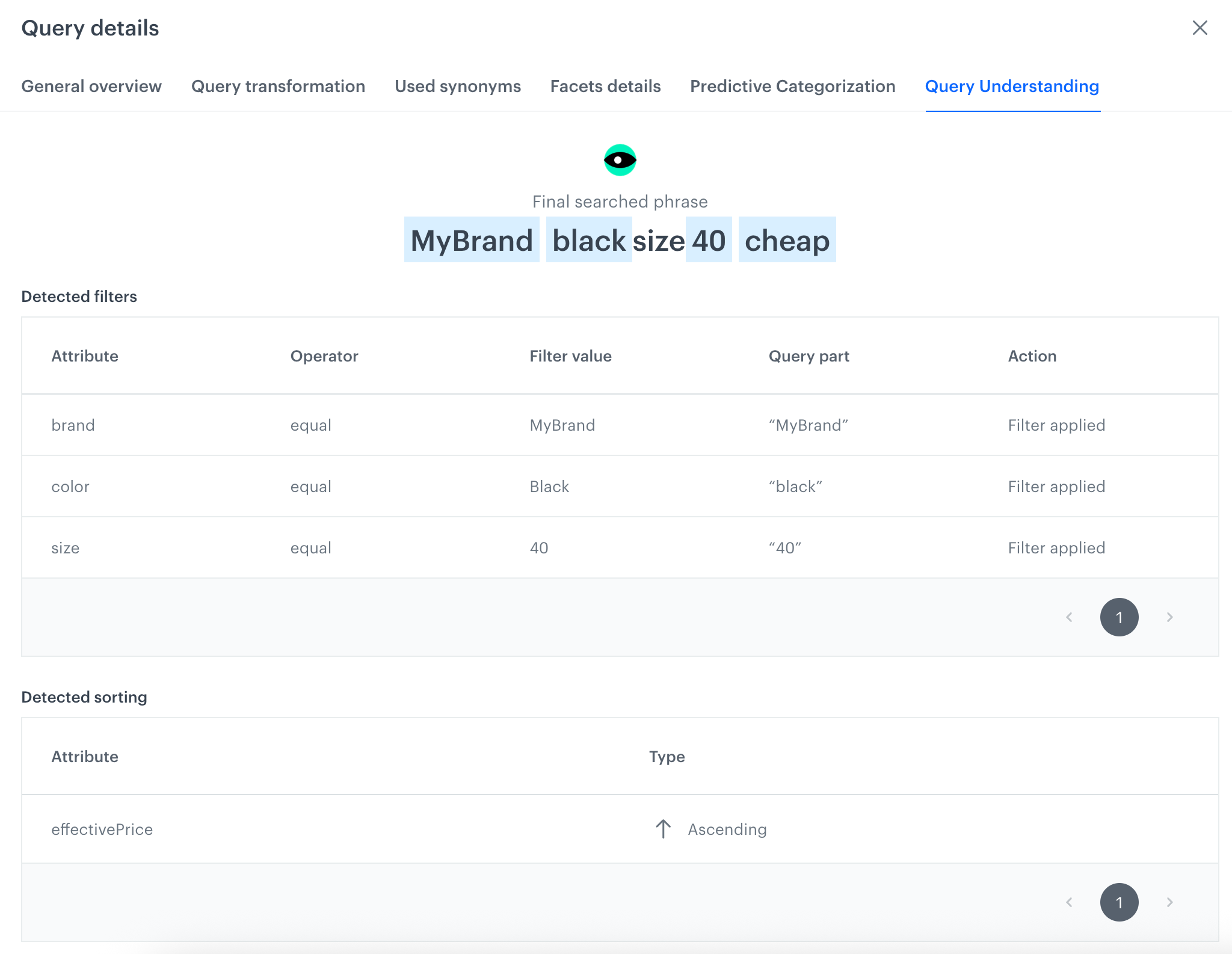
The Query Understanding tab in Query details - Final searched phrase - the searched phrase with the detected values highlighted.
- Detected filters - a table listing, for each detected value:
- Attribute - the attribute mapped to the detected property.
- Operator - the operator used to match the attribute value, for example
equal. - Filter value - the value detected in the query.
- Query part - the part of the original phrase the value was detected from.
- Action - whether the value was used to Filter applied or Boost the results, as configured in the detectable attributes settings.
- Detected sorting - a table listing, for each sorting intent detected in the query:
- Attribute - the attribute the results were sorted by, as described in Automatic sorting.
- Type - the sort order applied, Ascending or Descending.
Other examples
For the query mybrand below 300 zł, the Query Understanding tab of Query details shows the final searched phrase with the detected values highlighted, and the detected filters:
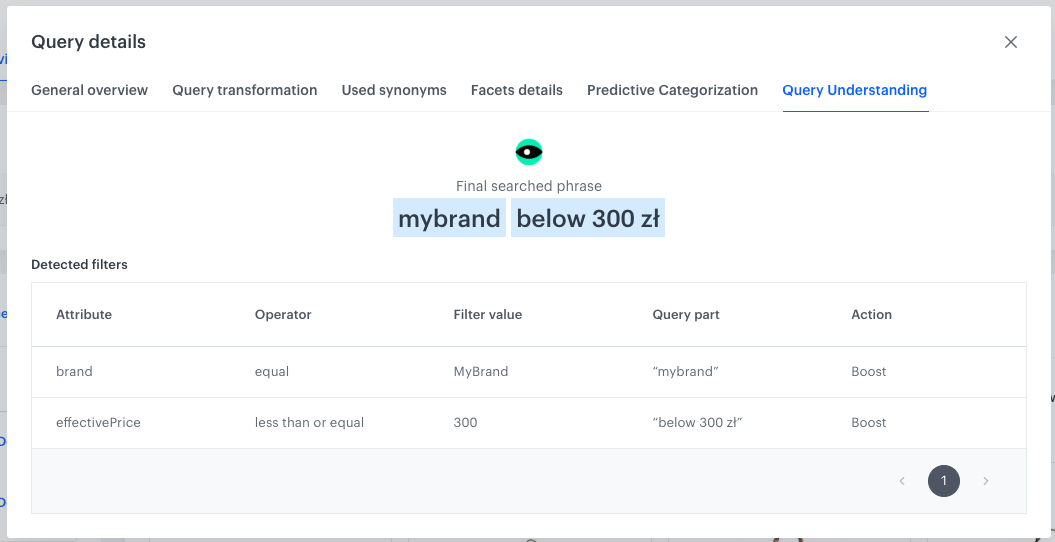
| Attribute | Operator | Filter value | Query part | Action |
|---|---|---|---|---|
brand |
equal | MyBrand |
"mybrand" | Boost |
effectivePrice |
less than or equal | 300 |
"below 300 zł" | Boost |