You can check the preview of the recommendation in the following cases:
- If you want to see the set of items recommended when there is a specific item or items in the shopping cart.
- If you want to see the set of items recommended for a selected customer.
- If you want to see the set of items recommended for a selected channel or channels.
The context of the preview depends on the recommendation type selected. Below, you can find a table that shows which context is used in the preview of each type of recommendation.
| Recommendation type | Item context | Customer context | Supplemental catalog context |
|---|---|---|---|
| Similar items | + | + | + |
| Cross-sell | + | + | + |
| Cart | + | + | + |
| Last seen | - | + | + |
| Top items | + | + | + |
| Personalized | + | + | + |
| Visual similarity | + | + | + |
| Item comparison | + | + | + |
| Recent interactions | - | + | + |
| Section page | + | + | + |
| Attribute | + | + | + |
| Next interaction | + | + | + |
External* |
n/a | n/a | n/a |
*- Previews are not available for external recommendations.
Previewing recommendations (item context)
This preview of recommendations is based on simulating the presence of an item in the cart.
- Go to AI Hub > (AI Recommendations) > Models.
- From the list of recommendations, click the recommendation you want to preview.
Result: You are redirected to the recommendation details. - Select the Preview tab.
NOTE: For the Top items, the preview of the items is shown immediately after selecting the tab.
- In the Item context section, from the Choose model item dropdown list, select an item. Result: An item is added to the cart. In the Recommended items section, you can see the items recommended based on the item selected in the cart.
Previewing recommendation (customer context)
This preview of recommendations is based on the profile of a selected customer.
IMPORTANT: Available only for the Personalized recommendation, Last seen, and Recent interactions type.
- Go to AI Hub > (AI Recommendations) > Models.
- From the list of recommendations, click the recommendation of which you want to preview.
Result: You are redirected to the recommendation details. - Select the Preview tab.
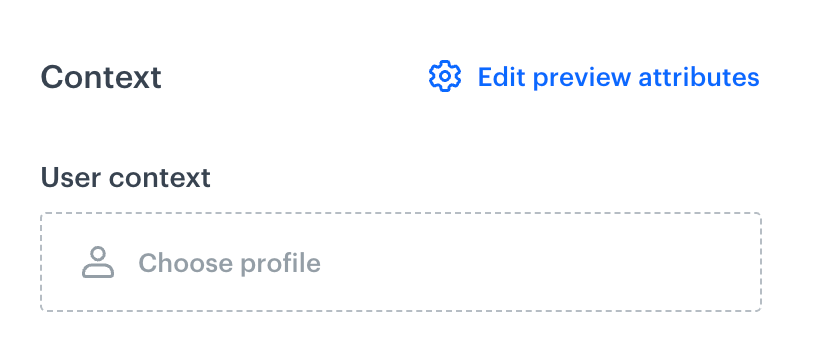
A dropdown menu that allows you to select a customer for whom the items in the recommendation are presented - In the User context section, from the Choose profile dropdown list, select a customer.
- If the recommendation campaign has co-brand personalization enabled, to include or exclude items from other workspaces in the group in the preview, enable the Co-Brand Personalization toggle.
Result: In the Recommended items section, you can see the items recommended displayed in the recommendation frame for the selected customer.
Previewing recommendation (supplemental catalog context)
The recommendation preview is based on the selected supplemental catalog and its chosen channel(s). This ensures that the results are filtered and adjusted to reflect the availability and pricing details specific to those channels. The raw data reflects these changes, but the visual preview does not show them. To see the updated data, click More Details on any item in the preview and select the Raw data tab.
- Go to Communication > Recommendations.
- From the list of recommendations, click the recommendation which you want to preview.
Result: You are redirected to the recommendation details. - Select the Preview tab.
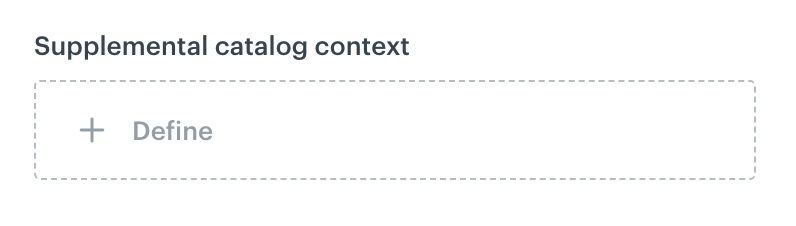
A dropdown menu that allows you to select a supplemental catalog, enabling filtering of recommended items based on the channels defined within that catalog - In the Supplement catalog context section, click Define.
- On the pop-up, to select a supplemental catalog, click Add.
- From the Catalog dropdown list, select the supplemental catalog.
- From the Channels dropdown list, select one or more channels whose item data you want to use for the recommendation preview.
- Confirm by clicking Apply.
- On any item in the preview, click More Details.
- Select the Raw data tab.
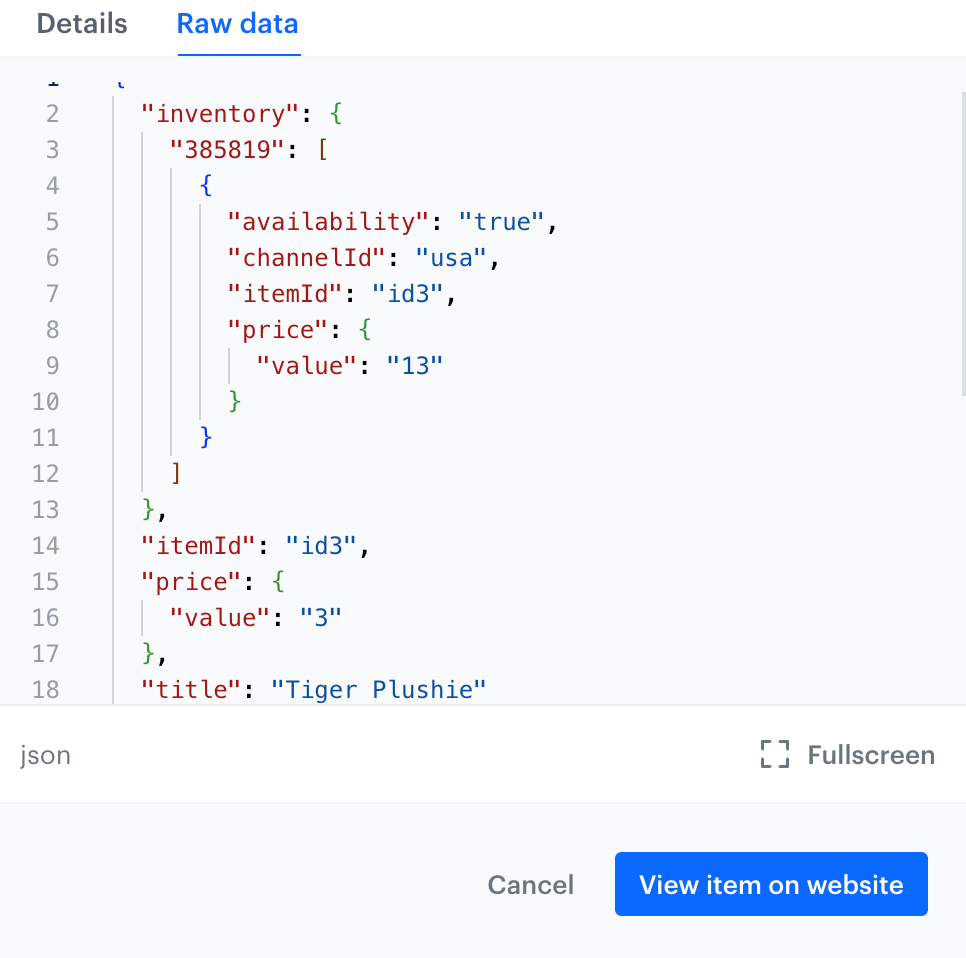
The Raw data tab presents information about an item sourced from the supplemental catalog 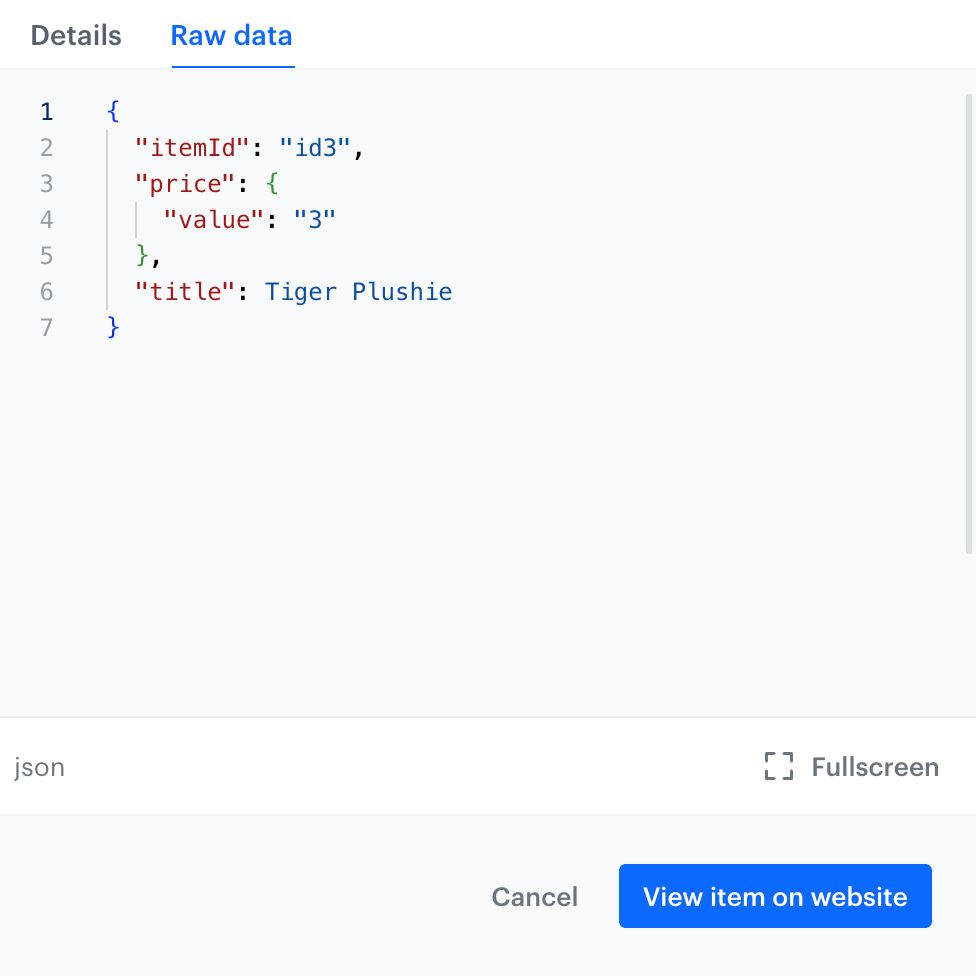
The Raw data presents information about an item sourced from the main feed
Editing preview attributes
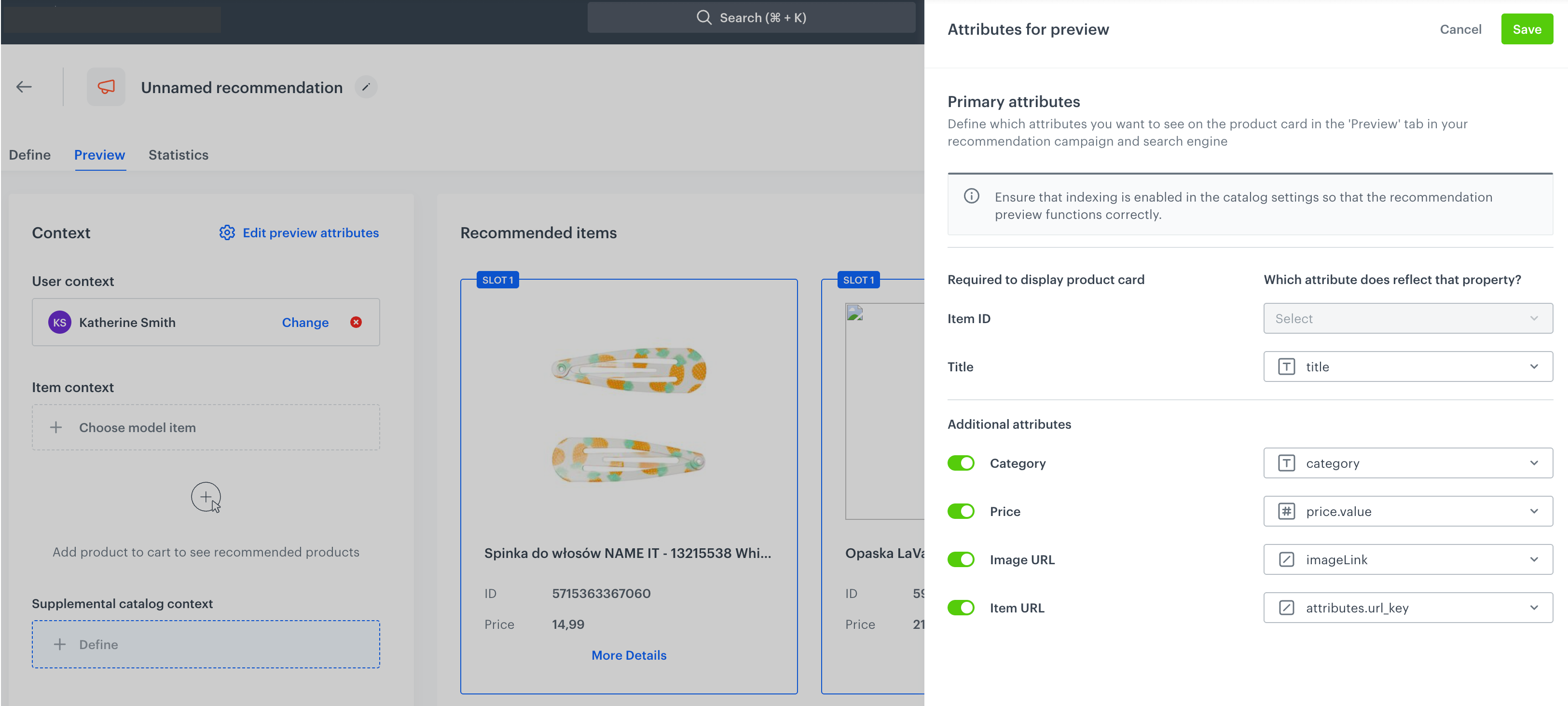
You can set the preview attributes by clicking Edit preview attributes. By changing the preview attributes, you can control the attribute values that will appear in the preview.
More information about attributes for preview is available the "Selecting attributes for preview" section.
NOTE: This setting is mutual for the Recommendation and AI search preview.