A sequence is a named, reusable group of connected workflow nodes. Instead of rebuilding the same node patterns in every workflow, you can capture a pattern once, save it to the sequence library, and insert it into any workflow with a single action.
Sequence types
Sequences come in two types:
| Type | What is saved |
|---|---|
| Structure | Nodes and their links only. Configuration is not saved, so you fill in the settings each time the sequence is inserted. |
| Configured | Nodes, links, and all parameter values. The sequence is ready to use as-is after insertion. |
IMPORTANT: Sequences are unchangeable. Once saved, a sequence cannot be edited. To update a pattern, save a new sequence and remove or replace the old one in the workflows that use it. This protects existing workflows from unintended changes.
Sequence library
The sequence library is the central management view for all sequences in the workspace. To open it, go to  Automation Hub > Sequences.
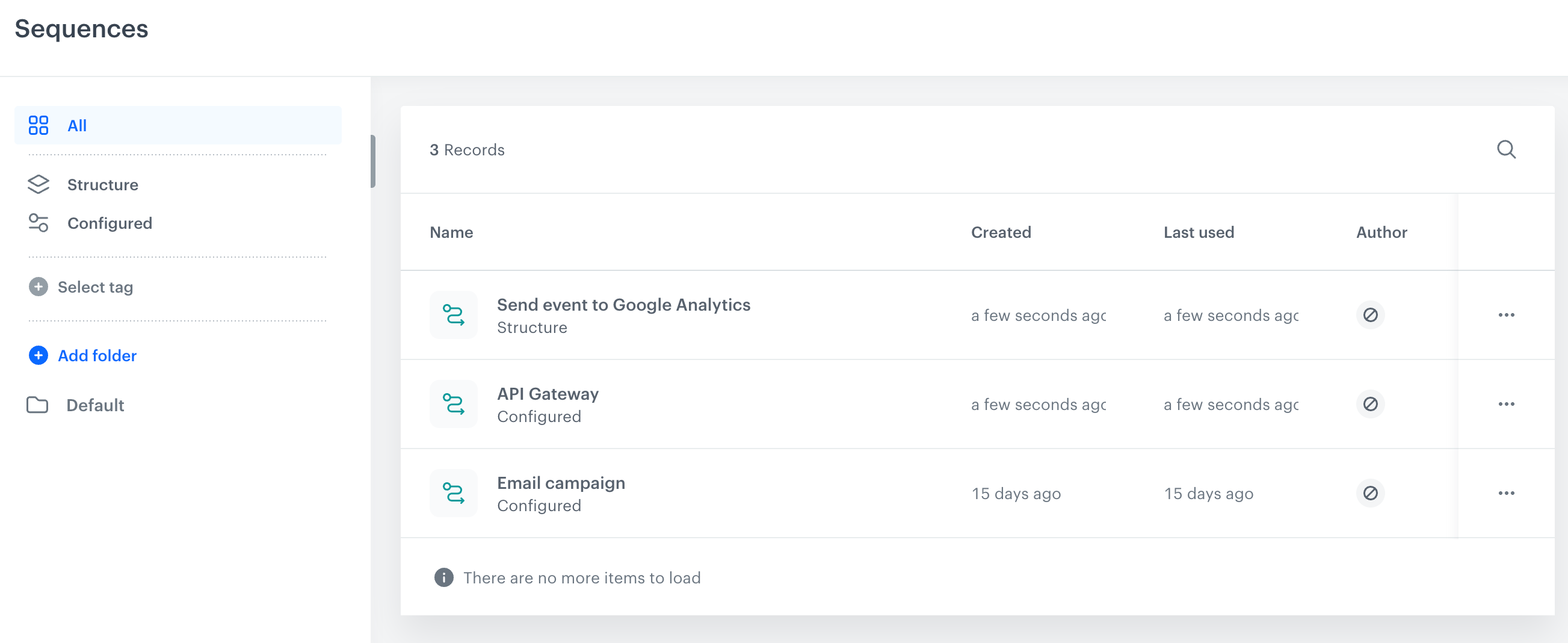
The library shows the following information for each sequence:
| Column | Description |
|---|---|
| Name | The display name assigned when the sequence was saved. |
| Type | Structure or Configured. |
| Created | When the sequence was created. |
| Last used | When the sequence was last inserted into a workflow. |
Organizing sequences into folders
You can create folders to group related sequences.
To add a folder:
- In the left panel, click Add folder.
- Enter the folder name and confirm.
To move a sequence to a folder, click  next to the sequence and select Move to.
Filtering sequences
- Use the All, Structure, and Configured tabs in the left panel to filter by type.
- Use Select tag to filter by tag. Tags are shared with workflow tags, so any tag you create here also appears in workflows and vice versa.
- Use the search icon in the upper-right corner of the list to search by name.
Access settings
You can limit which users or roles can manage a specific sequence. See Change access settings.
Saving a selection as a sequence
You can save any group of connected nodes from a workflow canvas as a sequence.
Requirements
- The workflow must be saved at least as a draft before you can save a sequence from it.
- The selected nodes must form a single connected chain with no gaps.
Procedure
- On the workflow canvas, select the nodes you want to save.
- Hold Shift and click individual nodes, or drag a selection box around the desired area.
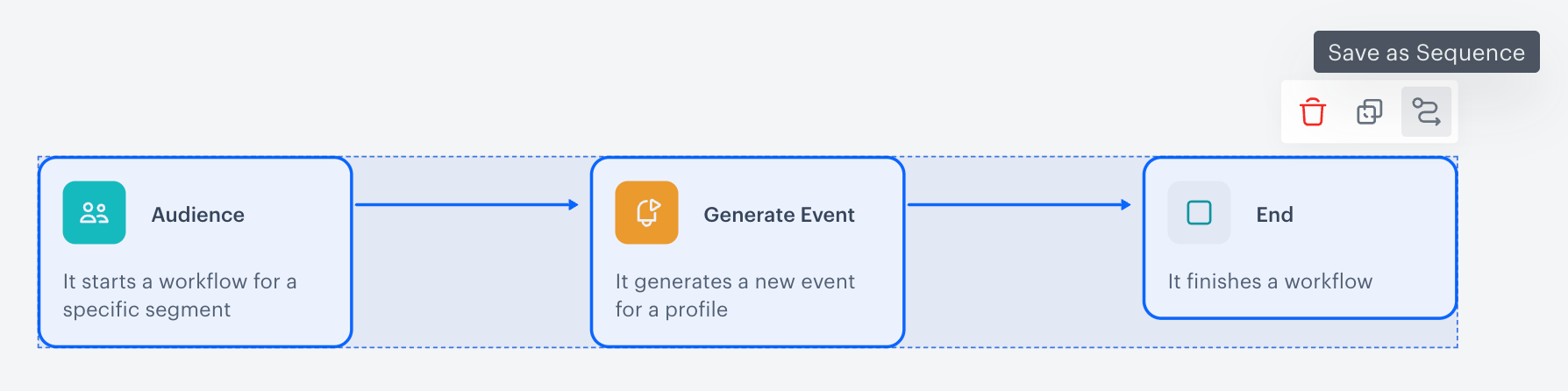
Selected nodes with the Save as Sequence toolbar - In the toolbar that appears above the selection, click the Save as Sequence icon.
Result: The Save as Sequence dialog opens.
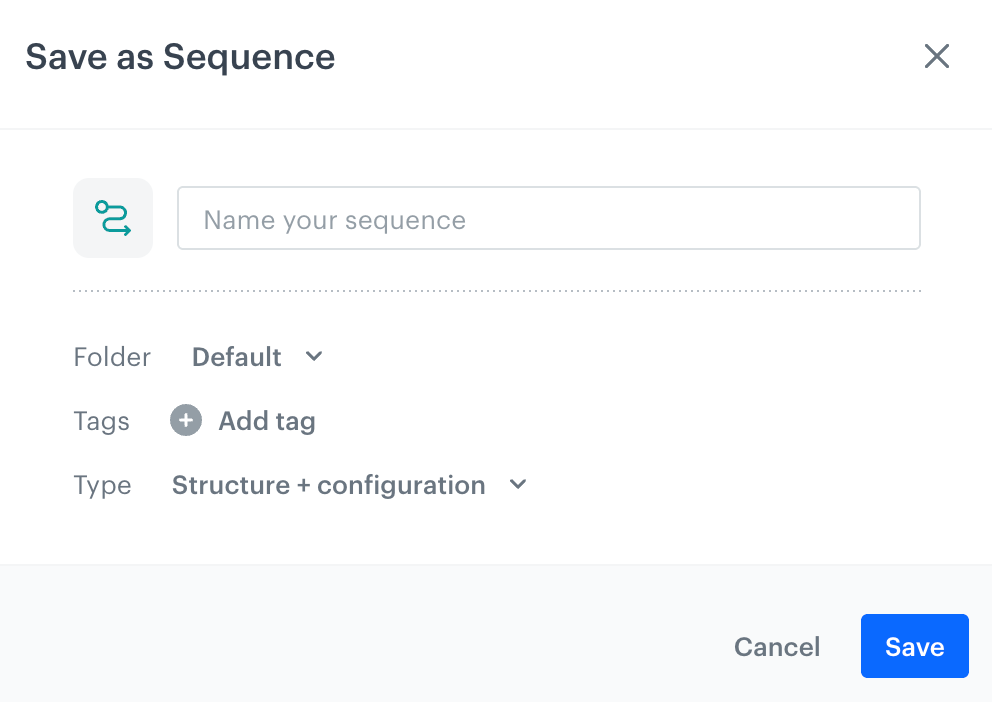
The Save as Sequence dialog - In the Name your sequence field, enter a name for the sequence.
- From the Folder dropdown, select the folder where the sequence will be saved.
If you want to create a new folder, click Add folder in the dropdown. - Optionally, add tags to help organize and find the sequence later.
From the Type dropdown, select the sequence type:
- Structure - saves nodes and connections only, without configuration.
- Configured - saves nodes, connections, and all configured parameter values.
- Click Save.
Result: The Sequence is saved and appears in the Sequence Library.
Inserting a sequence into a workflow
You can insert a sequence into a workflow in two ways: from the workflow canvas, or directly from the sequence library.
From the workflow canvas
- On the workflow canvas, click the THEN button on the node after which you want to insert the sequence.
Result: A node picker opens.
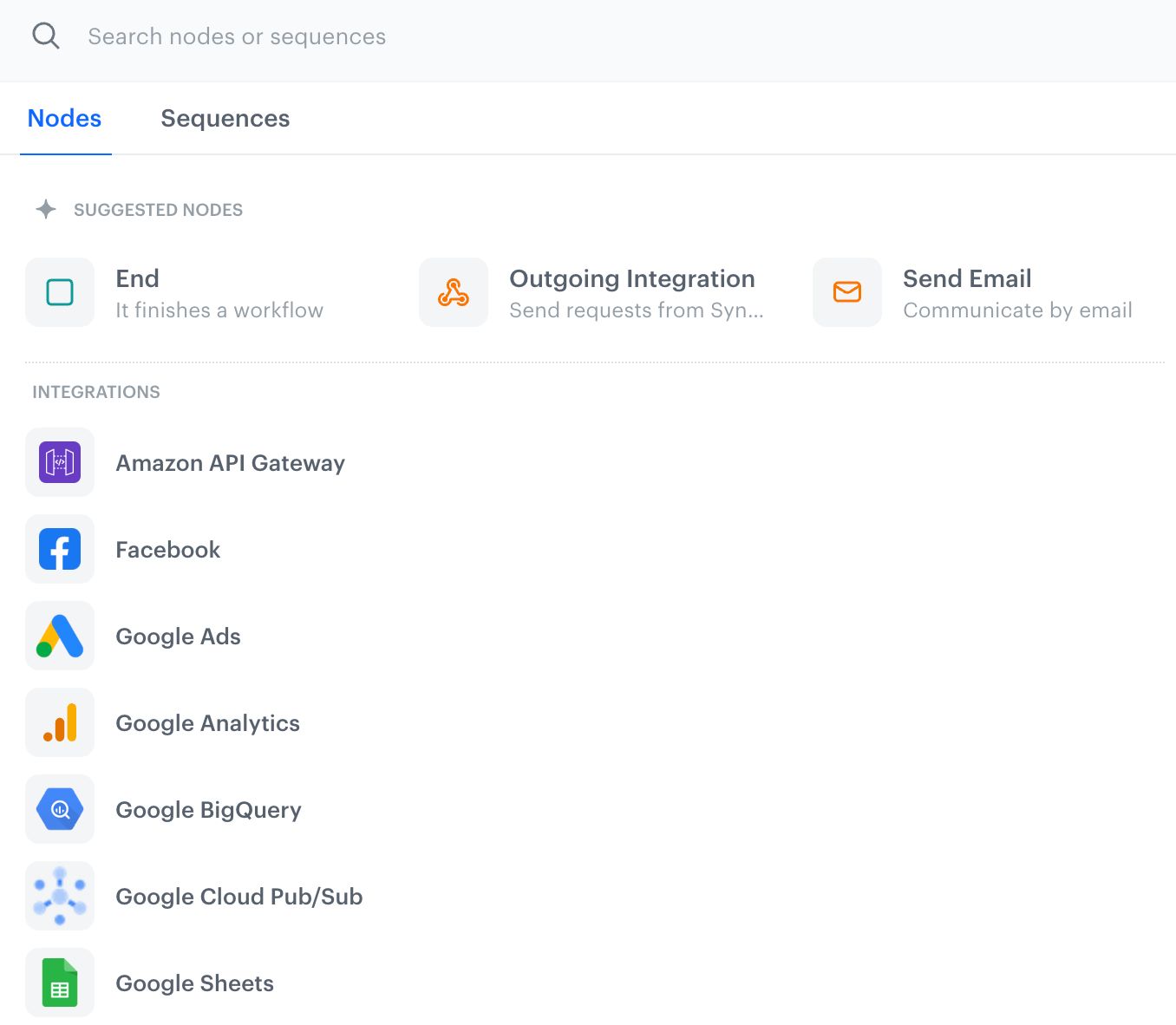
The node picker showing Sequences - Click the Sequences tab.
Result: The list of sequences appear. - Find the sequence you want to insert and click it.
Result: The nodes from the sequence appear on the canvas. - If the sequence type is Structure, configure each node before saving or activating the workflow.
If the sequence type is Configured, review the node settings and adjust any values specific to the current workflow.
From the sequence library
- Go to Automation Hub > Sequences.
- Find the sequence you want to use.
- Click next to the sequence and select Start with sequence.
Result: A new workflow is created with the sequence nodes already placed on the canvas.
Cloning a sequence to other workspaces
You can clone a Sequence to other workspaces, so you don't have to rebuild it in each of them. See Cloning sequences to other workspaces.
Deleting a sequence
WARNING: Deleting a sequence does not affect workflows that have already used it - the nodes are already inserted to those canvases. However, the sequence will no longer be available to insert into new workflows.
To delete a sequence:
- Go to Automation Hub > Sequences.
- Find the sequence you want to delete.
- Click on the right side of the row.
- Select Delete and confirm.