Event aggregates let you analyze an occurrence of an event and occurrences before it. These aggregates act like custom event parameters which can be used in filters. You can select the event aggregate in the filters (as a property or value) of other analyses, allowing for its application to events beyond those included in the aggregate.
There is no preview option for this type of aggregates.
Example
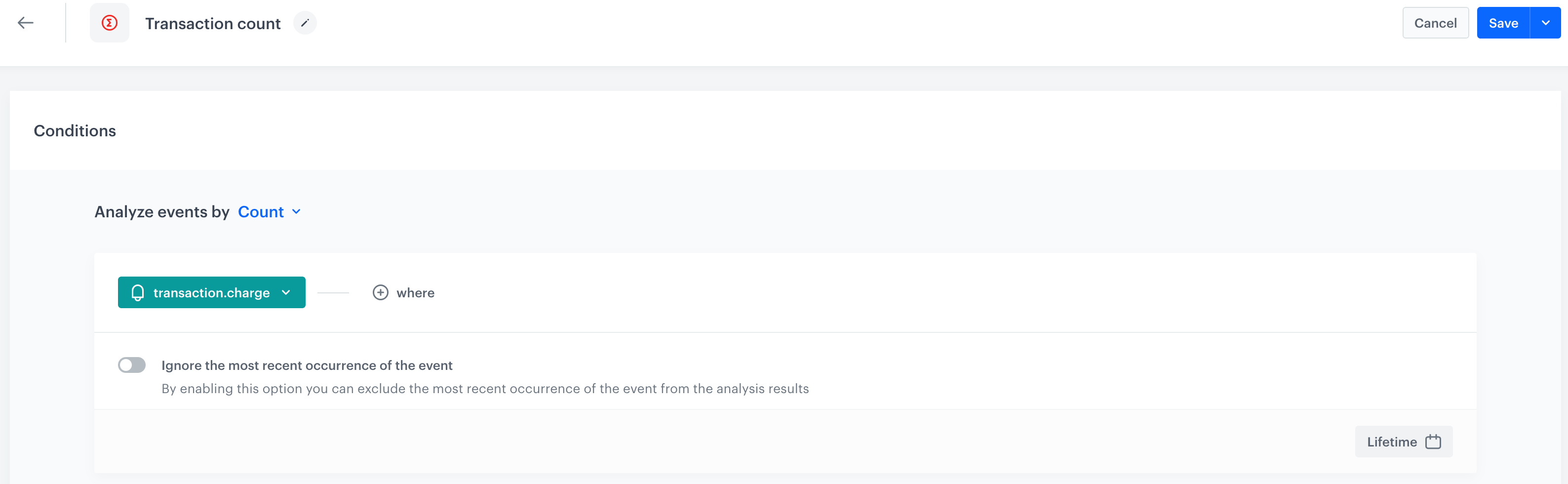
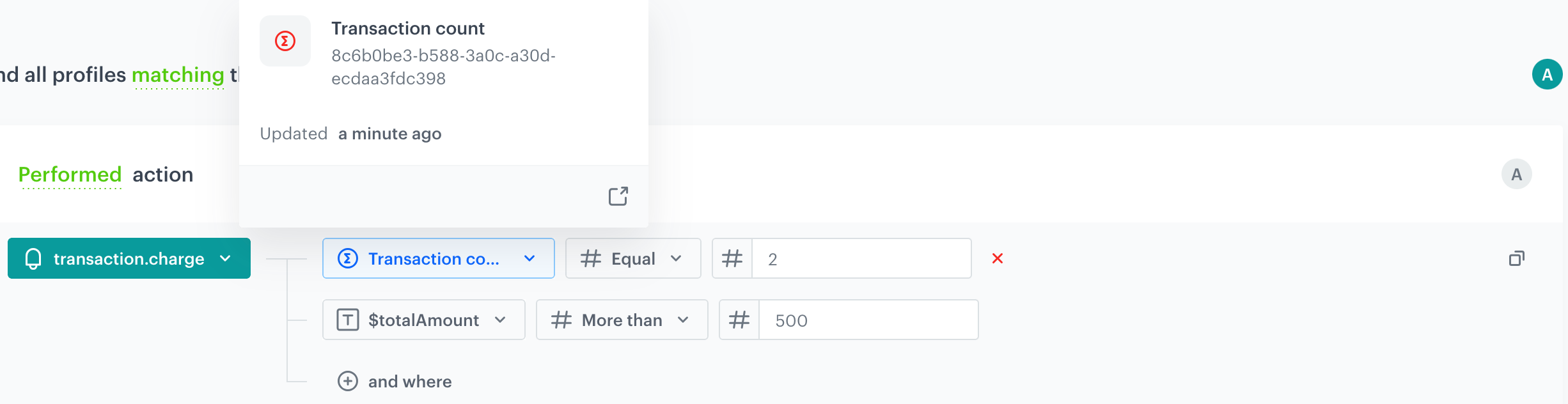
To illustrate this definition with a real-life example, let's examine the event aggregate below, which is generated from a transaction.charge event containing a transaction summary. This aggregate will be used in the condition of the segmentation to analyze the second transaction in the customer's history. The other condition in this segmentation is transaction value of over $500, allowing you to group customers with a second purchase value exceeding $500.
Transaction count
This aggregate runs from now to the past and stops at every occurrence of a transaction.charge event in order to return the total number of transactions made so far.
Now, you can use this aggregate in a segmentation to group customers whose value of the second transaction exceeds $500.
Creating an event aggregate
- Go to
 Behavioral Data Hub Hub > Aggregates > Create aggregate.
 - As the aggregate type, select Event.
- Enter the name of the aggregate.
- By clicking the
 button next to Analyze events by, define the function according to which events will be aggregated:
Function Description Profile aggregate Event aggregate Exists Returns a boolean value informing you whether a chosen event occurred in the selected time range. + + Sum Returns the total value of an event parameter from all matching event occurrences. + + Min Returns the minimal value of an event parameter. + + Median Returns the value separating the higher half from the lower half. For example, if you examine the total value of purchases for a single profile, the aggregate returns the middle value of amounts spent. + + Quantile Returns the value dividing the ordered statistical population into equal parts. For example, selecting the 80quantile shows the value above which 20% of results are higher and the rest are lower.+ + Max Returns the maximal value of an event parameter. + + Average Returns the average value of an event parameter. + + Count Returns the number of event occurrences. + + Count Distinct Returns the number of unique occurrences of an event parameter. + + Last Returns the latest value of an event parameter. + + Last - Time Window Works the same as Last, with the addition of a time window that limits results to event occurrences within a defined period. The maximum time window is 5 years. - + First Returns the first value of an event parameter. + + First - Time Window Works the same as First, with the addition of a time window that limits results to event occurrences within a defined period. The maximum time window is 5 years. - + First Multi Returns a list (of a size you define) of items. The list can include parameters from only the first event, or from the first event and subsequent events if the first one did not contain enough items. + + First Multi - Time Window Works the same as First Multi, with the addition of a time window that limits results to event occurrences within a defined period. The maximum time window is 5 years. - + Last Multi Returns a list (of a size you define) of items. The list can include parameters from only the last event, or from the last event and preceding events if the last one did not contain enough items. + + Last Multi - Time Window Works the same as Last Multi, with the addition of a time window that limits results to event occurrences within a defined period. The maximum time window is 5 years. - + Top Returns the most popular occurrence of an event parameter. + + Bottom Returns the rarest occurrence of an event parameter. + + Top Multi Returns a list (of a size you define) of items, showing the most popular occurrences of an event parameter. + + Bottom Multi Returns a list (of a size you define) of items, showing the least popular occurrences of an event parameter. + + - From the Choose event dropdown list, select an event.
- In the Size field, define the number of items to return.
- For Time Window functions (for example, First - Time Window), in the Time window field, enter a numeric value and select the interval (days, hours, or minutes). The maximum allowed time window is 5 years.
- If you want to be more specific and analyze a particular aspect of the event, click the Where button, to select event parameters.
- To exclude the event occurrence for which you are calculating this aggregate, enable Ignore the most recent occurrence of the event.
- To determine the time range from which the data will be analyzed, click the calendar icon.
- To complete the process, click the Save button.