Cloning objects allows you to copy a Synerise object (such as an expression, segmentation) to other workspaces you are using. The cloning extends to all elements the object contains such as other analysis nested in the object (for example, when a segmentation includes an expression). This is meant to save your time so you don't have to create these objects from scratch or clone them separately in every workspace you work on.
Objects you can clone:
- Analyses:
- funnels,
- segmentations,
- metrics,
- histograms,
- reports,
- trends,
- Sankey diagrams,
- aggregates,
- expressions,
- dashboards
- AI recommendations
- Predictions
- Communication-related objects:
- emails,
- SMS,
- web push notifications
- mobile push notifications
- dynamic content
- in-app messages
- message templates
- Automation-related objects:
- workflows
- sequences
The process of cloning involves:
- Selecting an object for cloning.
Resolving potential conflicts - a conflict occurs when the system detects the object of the same type and with the same name on the workspace where you want to clone the object. For example, if you clone the "Unnamed segmentation" to the target workspace and there already is a segmentation with identical name, a conflict occurs.
During this step, you will be redirected to a wizard and you must define what will happen with the object in the target workspace or workspaces:- overwrite the object in the target workspaces with the object version from the source workspace,
- don't overwrite (skip cloning)
- create a copy of the object version from the source workspace in the target workspaces.
Before you select an option, you can review the changes that cloning will make to the object in the target workspace.
- Mapping events/event parameters/attributes/item attributes between the source workspace and target workspace. In this step, you indicate the equivalents of these elements in the target workspaces.
For example, if the object you clone contains theshoeSizeattribute, but this attribute exists in the target space under a different name -size_of_shoe, you can map these two parameters together.
Reviewing changes before resolving a conflict
When an object you clone already exists in the target workspace, the Objects to clone section shows a comparison status under the object's name:
| Status | Meaning |
|---|---|
| Identical | The object's definition is the same in the source and target workspaces. |
| Differs · [number] changes | The definitions are different. You can preview the changes before you select a conflict solution. |
| Cannot compare | Comparison isn't available for this object type. |
If some elements of the object aren't mapped yet, Mapping pending is displayed next to the status. Until you complete the mapping, the comparison uses the names and IDs from the source workspace, so the number of changes may be different after mapping.
Comparison is available for analyses and AI recommendations, including the analyses and recommendations used in messages, workflows, and predictions. For workflows, only the number of changes is displayed, without a preview. For predictions, comparison isn't available.
Previewing changes
- Complete the mapping steps in the Cloning details section.
- In the Objects to clone section, next to the target workspace name, click the downward arrow icon.
Next to the object, click the Compare definitions icon.
Result: The Clone preview window opens. It shows the object's definition in JSON format:- The left column shows the object as it is now in the target workspace.
- The right column shows the object as it will look in the target workspace after you select Update.
- Lines highlighted in red will be removed from the target workspace. Lines highlighted in green will be added. If only part of a line changes, the old version of the line is highlighted in red, the new version in green, and the changed characters have a darker background. A hatched area means that there is no corresponding line on the other side.
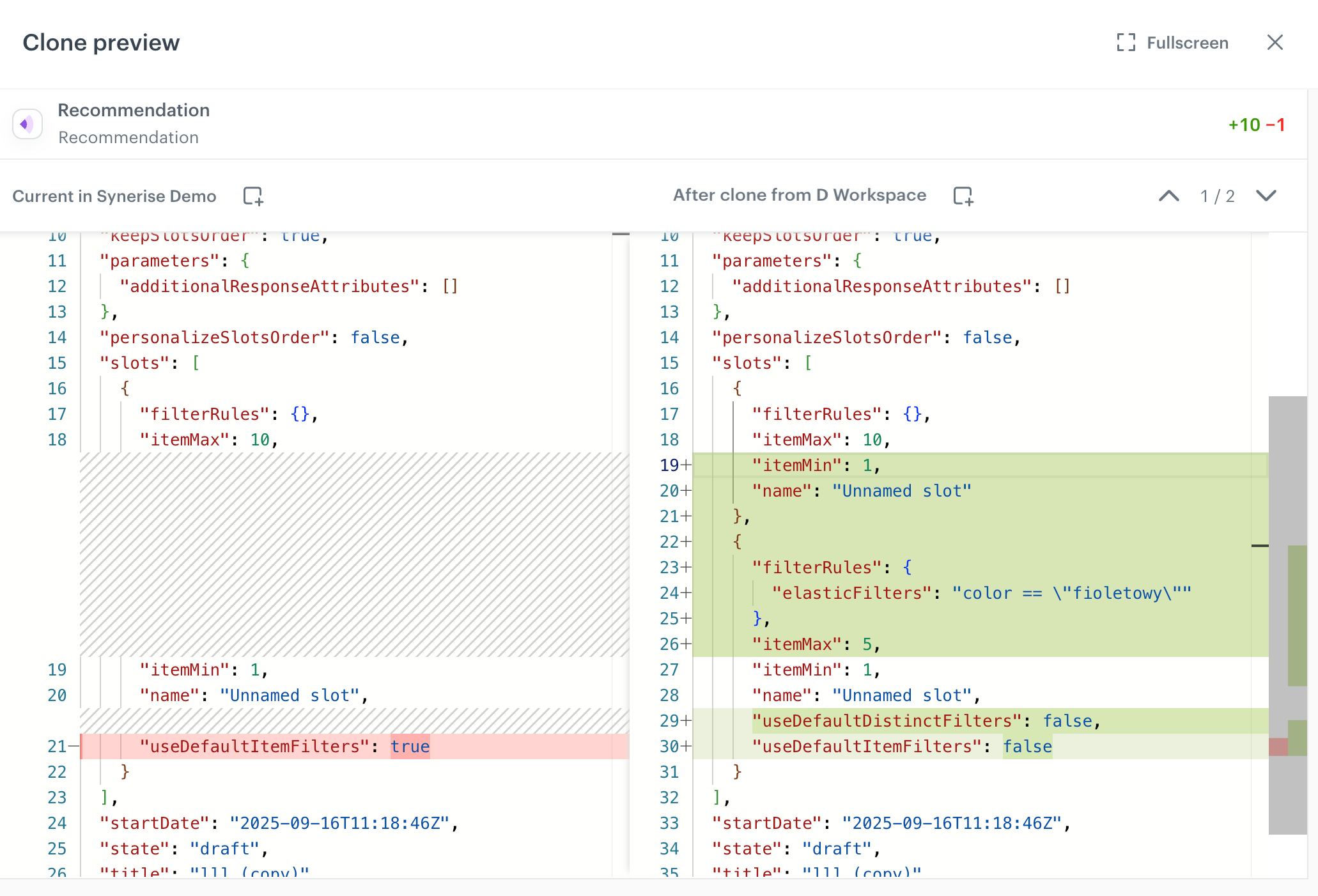
Clone preview window - To go to the next or previous change, use the arrows in the upper right corner of the window.
- Close the window and select the conflict solution.
The preview has the following limitations:
- Each object has a separate preview. The preview of an object doesn't include changes in the objects it uses. For example, the preview of a segmentation doesn't show changes in an aggregate used in that segmentation, so review each object on the list separately.
- References to other objects are shown as the IDs of these objects in the target workspace.
- A small change in the interface may result in many changed lines in the definition. For example, adding a second condition to a segmentation changes the structure of the whole filter.
- The preview isn't available when you select Create a copy, because cloning creates a new object in the target workspace.
If the comparison fails, the Comparison unavailable message is displayed. You can click Try again or resolve the conflict without the preview.
To check who created and most recently modified the object in each workspace, click the eye icon next to the object.