It is very important to improve customer loyalty with special **birthday coupons**. On your customer’s special day you can send them a code and at the same time reward yourself with a good chance of more sales for your online business. 

Your customers will definitely have a positive reaction when you help to celebrate the occasion and having a gift in the form of discount will make them more likely to spend. If you add automatic birthday emails into your loyalty program it will enable you to build a **more engaged and loyal** customer base. 

## Example of use - Retail industry

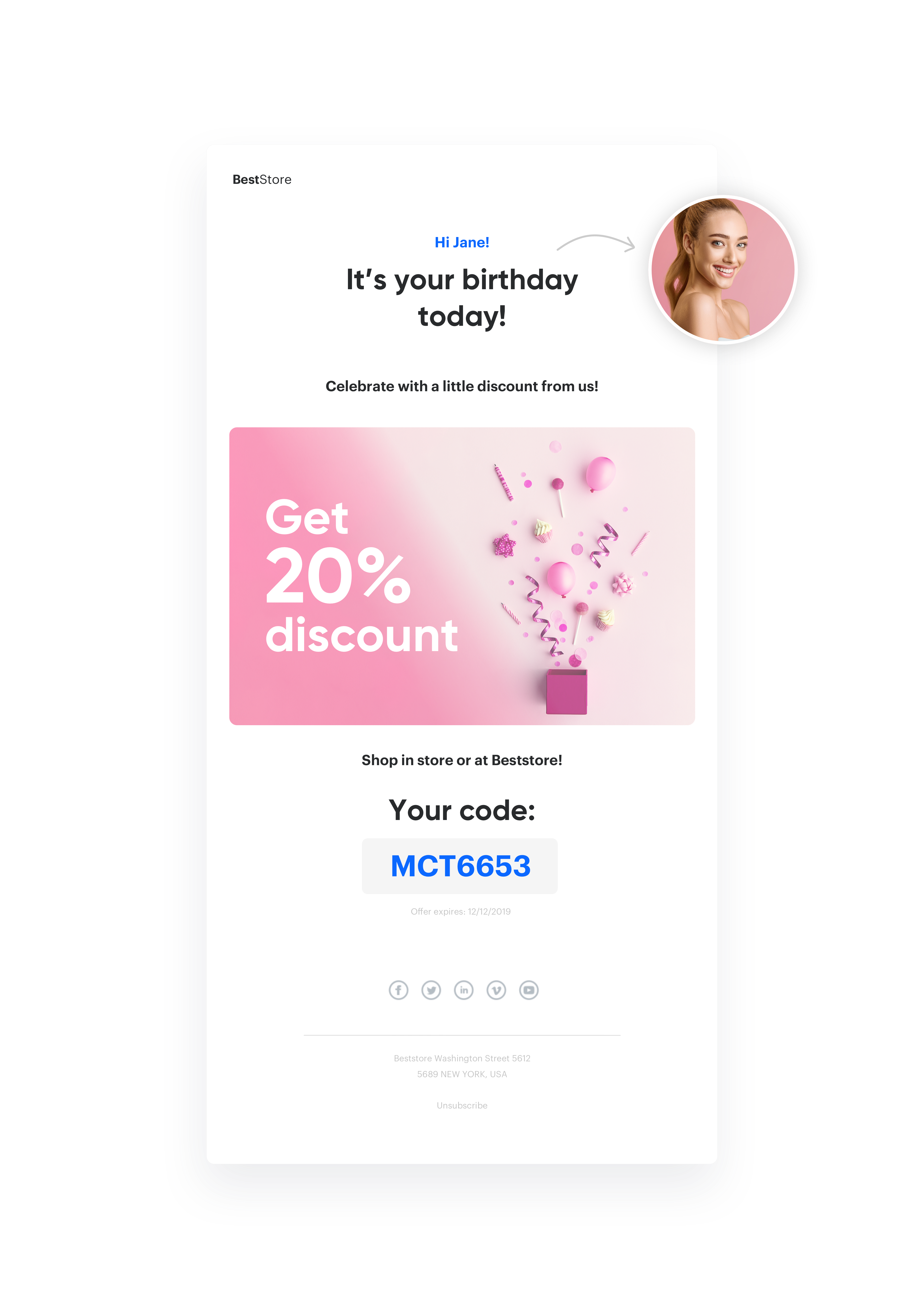
A customer from the fashion industry had a loyalty club where users shared their date of birth. Based on this information, the company could prepare a birthday email. As a medium, they used email. Customers received an individual discount coupon on their birthday for **20% off** on any product, valid for 14 days. The coupon was valid in both offline and online stores. 

  <figure>
  <img src="/api/docs/image/54176ad07f146575310749eba44b7c2f42c1b327/use-cases/all-cases/_gfx/birthday_coupon.png" alt="Email with a birthday coupon" class="full no-frame">
  <figcaption> Email with a birthday coupon </figcaption>
  </figure>

**Results**

- OR 12,16% 
- CTR 18,43% 

## Prerequisites 
---
- Implement [Synerise tracker](/developers/web/installation-and-configuration#creating-a-tracking-code) on your website.
- [Email account configuration](/docs/campaign/e-mail/configuring-email-account).
- Import of customer base with birthdate in format YYYY-MM-DD.
- Import of [code pools](/docs/assets/code-pools). 

## Process
---
To prepare such a scenario, you have to follow 4 important steps. 

1. [Import user base](/use-cases/birthday-coupon#import-user-base).
2. [Prepare coupon pool](/use-cases/birthday-coupon#prepare-coupon-pool).
3. [Prepare an email template](/use-cases/birthday-coupon#prepare-an-email-template).
4. [Prepare workflow](/use-cases/birthday-coupon#prepare-workflow).

## Import user base 
---
 To be able to send a message to users on their birthday, you have to store information about their birthdate. You can prepare a one-time **csv import**, which in basic format may contain only 2 columns:  

   1. email address.
   2. date of birthday. 

 
   <div class="admonition admonition-important"><div class="admonition-icon"><svg xmlns="http://www.w3.org/2000/svg" fill="none" viewBox="0 0 24 24" stroke="currentColor" stroke-width="2.5"><path stroke-linecap="round" stroke-linejoin="round" d="M12 8v4m0 4h.01M21 12a9 9 0 11-18 0 9 9 0 0118 0z" /></svg></div><div class="admonition-body"><div class="admonition-content">

   To prepare this use case, birthdates must be in the YYYY-MM-DD format.

   </div></div></div>


<details class="accordion"><summary>Explanation</summary><div class="accordion-content"><p>Import the prepared file to Synerise as import Clients according to the manual found <a href="/docs/automation/actions/synerise-integrations/import-customers/">here</a>. Also you can update users via <a href="https://developers.synerise.com/ClientManagement/ClientManagement.html#operation/BatchAddOrUpdateClients">API</a>, or send it from forms. No matter which method you use, you have to map those fields as Synerise default attributes: email and birthDate. </p></div></details>

## Prepare coupon pool 
---
 On a user’s birthday, you can send each of them an individual coupon code with a discount. To do it, you will have to import to Synerise coupons previously prepared in your ecommerce platform, which will apply the appropriate discount in the shopping cart. 

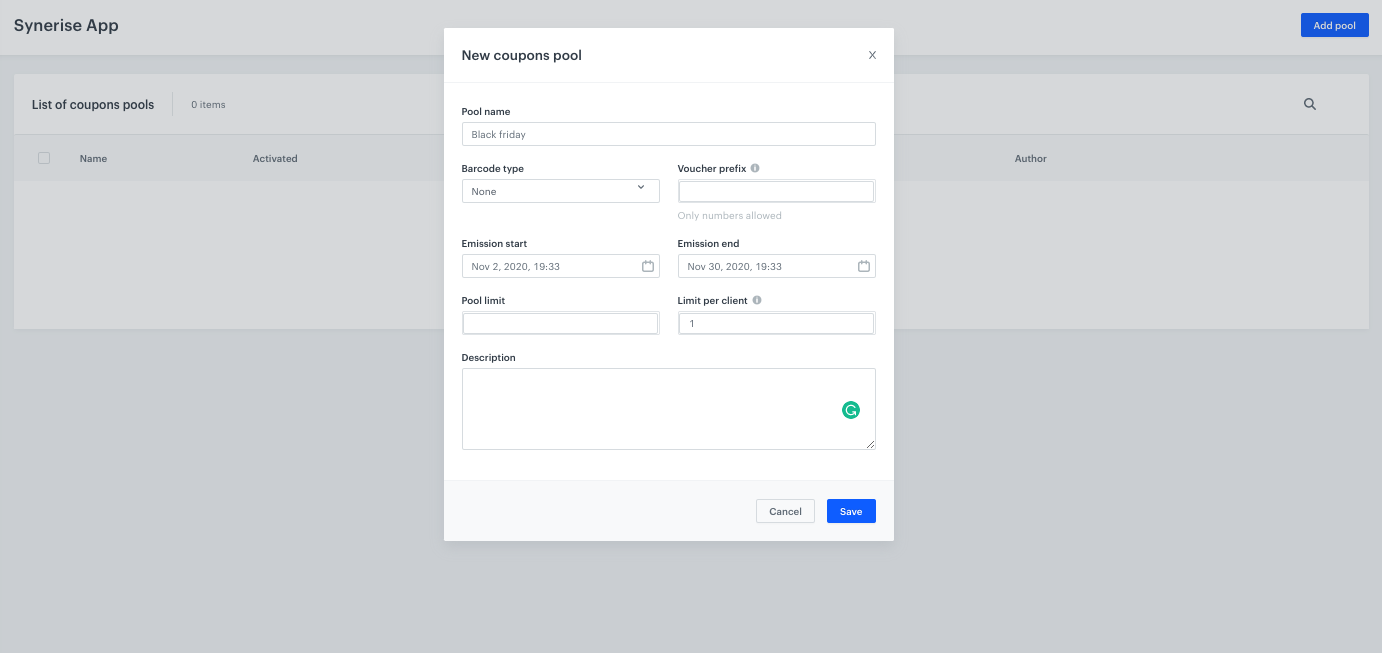
   1. To import such coupons, go to Vouchers and prepare a **Voucher pool**, to which you will add your coupons. 
   2. Add an obligatory **Pool name**, and set the Emission start and end dates. 
   3. When the pool is created, click **Import** and choose **CSV with vouchers**. 

  <figure>
    <img src="/api/docs/image/54176ad07f146575310749eba44b7c2f42c1b327/use-cases/all-cases/_gfx/birthday_coupon_4.png" alt="Screenshot presenting birthday coupon"  class="full">
    <figcaption> Prepare coupon pool </figcaption>
    </figure>

 
<div class="admonition admonition-tip"><div class="admonition-icon"><svg xmlns="http://www.w3.org/2000/svg" fill="none" viewBox="0 0 24 24" stroke="currentColor" stroke-width="2.5"><path stroke-linecap="round" stroke-linejoin="round" d="M9.663 17h4.673M12 3v1m6.364 1.636l-.707.707M21 12h-1M4 12H3m3.343-5.657l-.707-.707m2.828 9.9a5 5 0 117.072 0l-.548.547A3.374 3.374 0 0014 18.469V19a2 2 0 11-4 0v-.531c0-.895-.356-1.754-.988-2.386l-.548-.547z" /></svg></div><div class="admonition-body"><div class="admonition-content">

Remember that your csv should have only 1 column, without a name.

</div></div></div>
 

## Prepare an email template 
---
 To distribute coupon codes in an email, prepare a template.
 
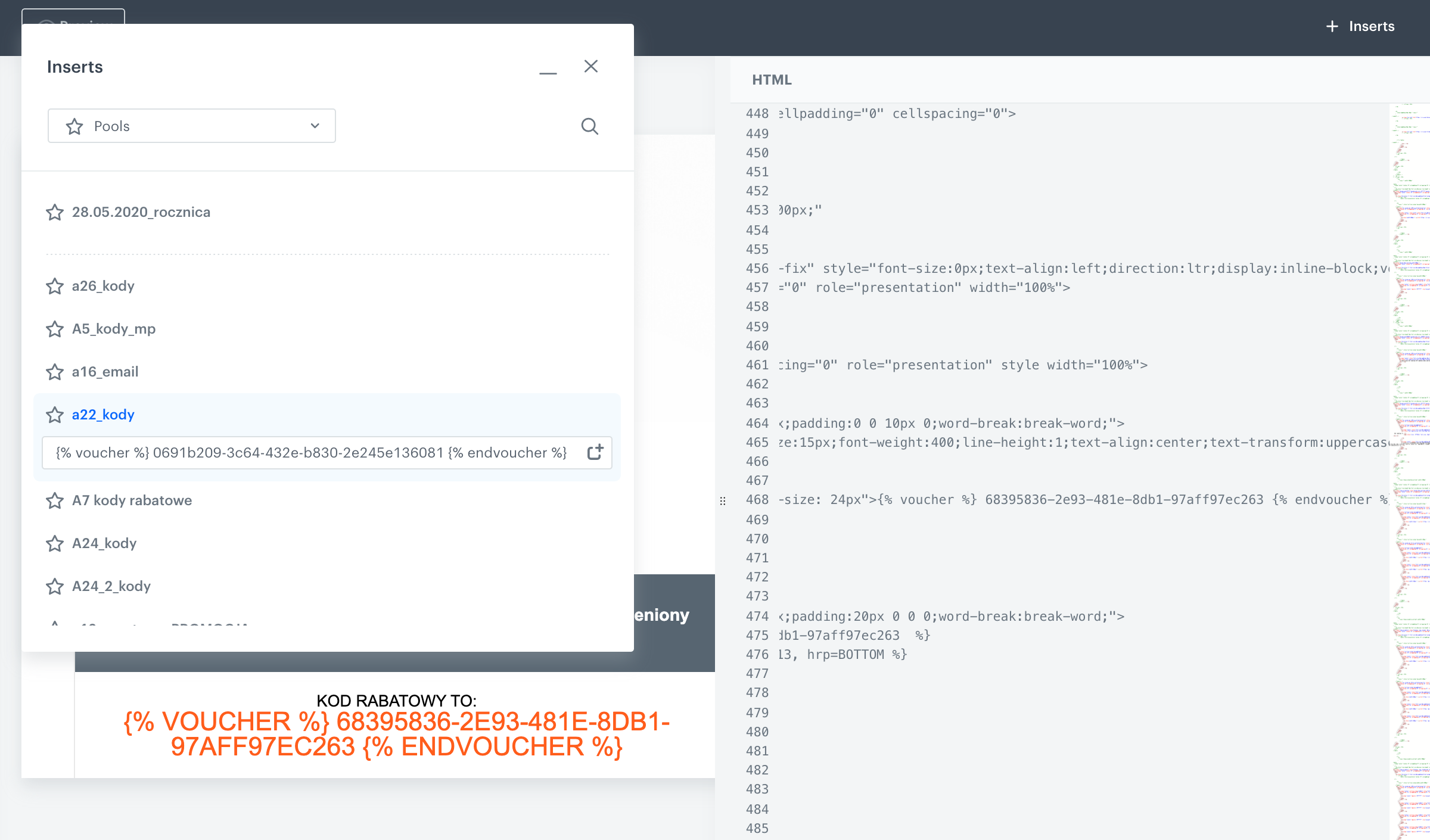
   1. Go to **Experience Hub > Emails > Templates > Drag&drop builder** or **Code editor** to create email template.
   2. Click **Inserts** in the upper right corner, find Pools on the list of inserts, then choose the **Coupon pool** prepared in the previous step. 
   3. Copy and paste it in the place where the coupon code should be shown to the user. Instead of **{% voucher %} voucher-hash {% endvoucher %}**, user will see his individual coupon code. 

 <figure>
    <img src="/api/docs/image/54176ad07f146575310749eba44b7c2f42c1b327/use-cases/all-cases/_gfx/birthday_coupon_5.png" alt="Screenshot presenting email template for birthday coupon"  class="full">
    <figcaption> Prepare email template </figcaption>
    </figure>

 
<div class="admonition admonition-tip"><div class="admonition-icon"><svg xmlns="http://www.w3.org/2000/svg" fill="none" viewBox="0 0 24 24" stroke="currentColor" stroke-width="2.5"><path stroke-linecap="round" stroke-linejoin="round" d="M9.663 17h4.673M12 3v1m6.364 1.636l-.707.707M21 12h-1M4 12H3m3.343-5.657l-.707-.707m2.828 9.9a5 5 0 117.072 0l-.548.547A3.374 3.374 0 0014 18.469V19a2 2 0 11-4 0v-.531c0-.895-.356-1.754-.988-2.386l-.548-.547z" /></svg></div><div class="admonition-body"><div class="admonition-content">

If your codes have the appropriate format, you can insert them as barcodes, details [here](/developers/inserts/insert-usage#barcodes).

</div></div></div>


## Prepare workflow 
---
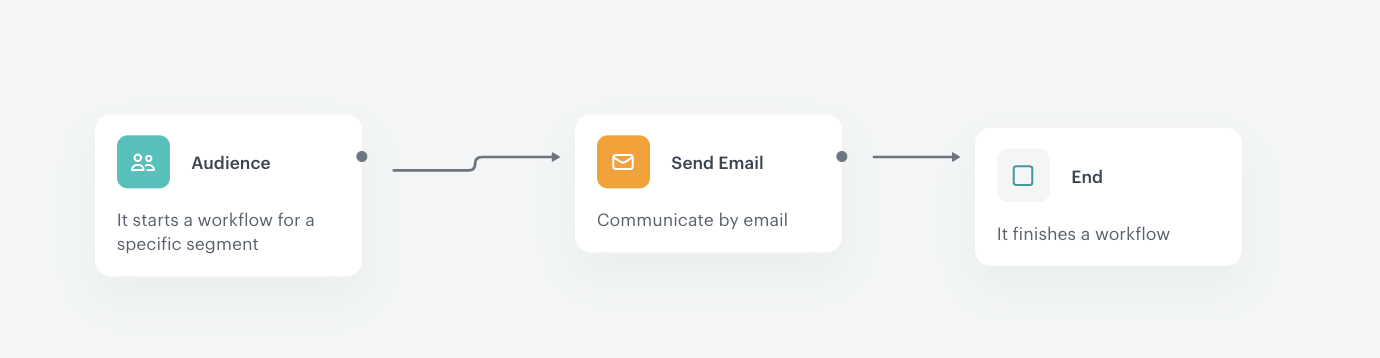
To start sending your prepared email template you have to create a workflow, which in basic configuration may look like the one below. To do this, go to **Automation Hub > Workflows > New workflow**.
 
<figure>
  <img src="/api/docs/image/54176ad07f146575310749eba44b7c2f42c1b327/use-cases/all-cases/_gfx/birthday_coupon_1.png" alt="Screenshot presenting automation for birthday coupon"  class="full">
  <figcaption> Prepare a workflow </figcaption></figure>

### Add the Audience node

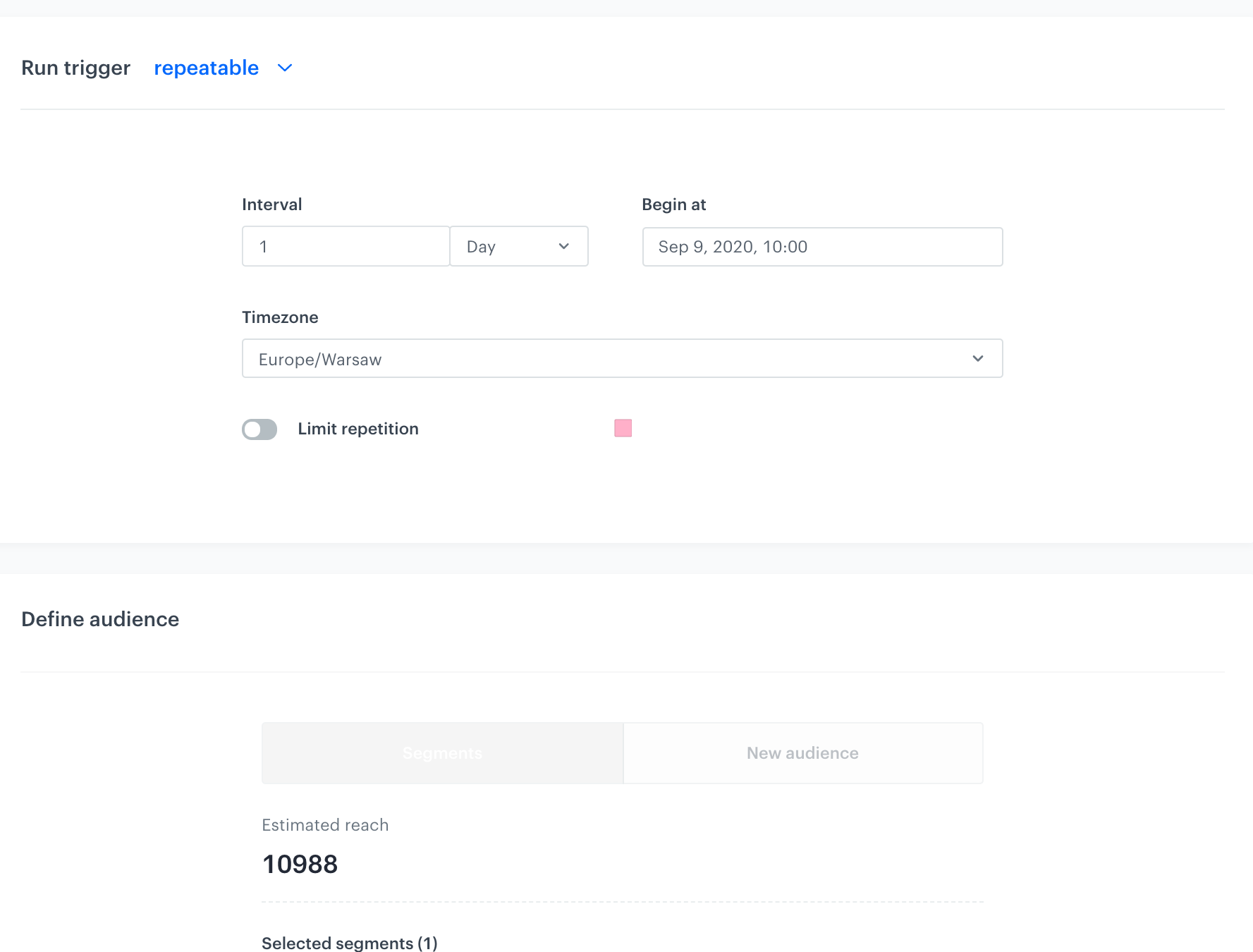
To start the workflow for every user who has a birthday on a given date, select the **Audience** node. Set the **Run trigger** option to **repeatable** with 1-day interval.

 <figure>
    <img src="/api/docs/image/54176ad07f146575310749eba44b7c2f42c1b327/use-cases/all-cases/_gfx/birthday_coupon_6.png" alt="Screenshot presenting choose the Audience trigger"  class="full">
    <figcaption> Audience trigger </figcaption></figure>


### Set up the birthday attribute

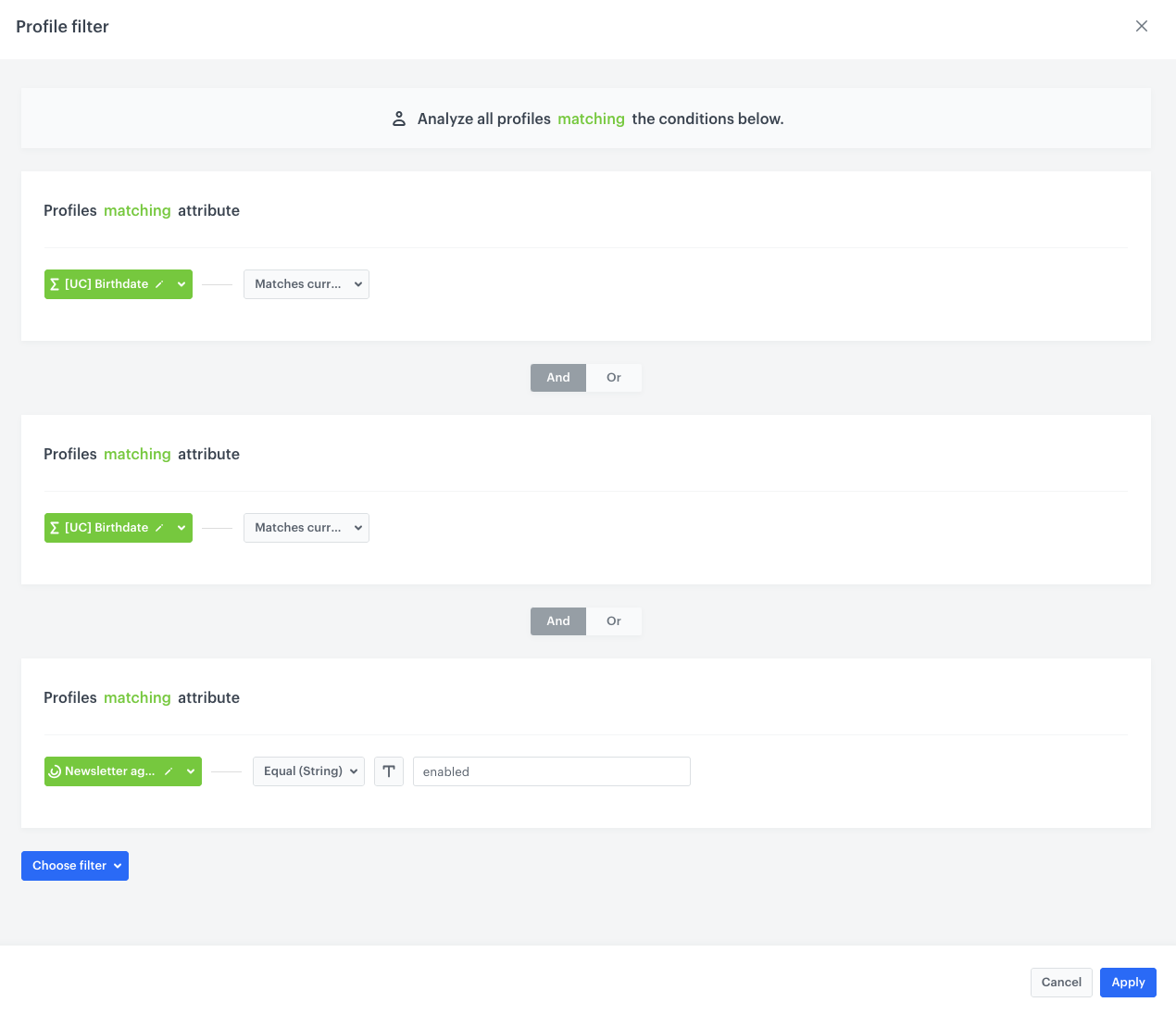
Your audience in this trigger has to be customers who have a birthday on this day. During segment creation choose the birthdate attribute, select date format and indicate that value in this attribute has to match the current day and month. 

 <figure>
    <img src="/api/docs/image/54176ad07f146575310749eba44b7c2f42c1b327/use-cases/all-cases/_gfx/birthday_coupon_2.png" alt="Screenshot presenting choose the birthdate attribute"  class="full">
    <figcaption> Birthdate attribute </figcaption></figure>


### Set up the birthday email 

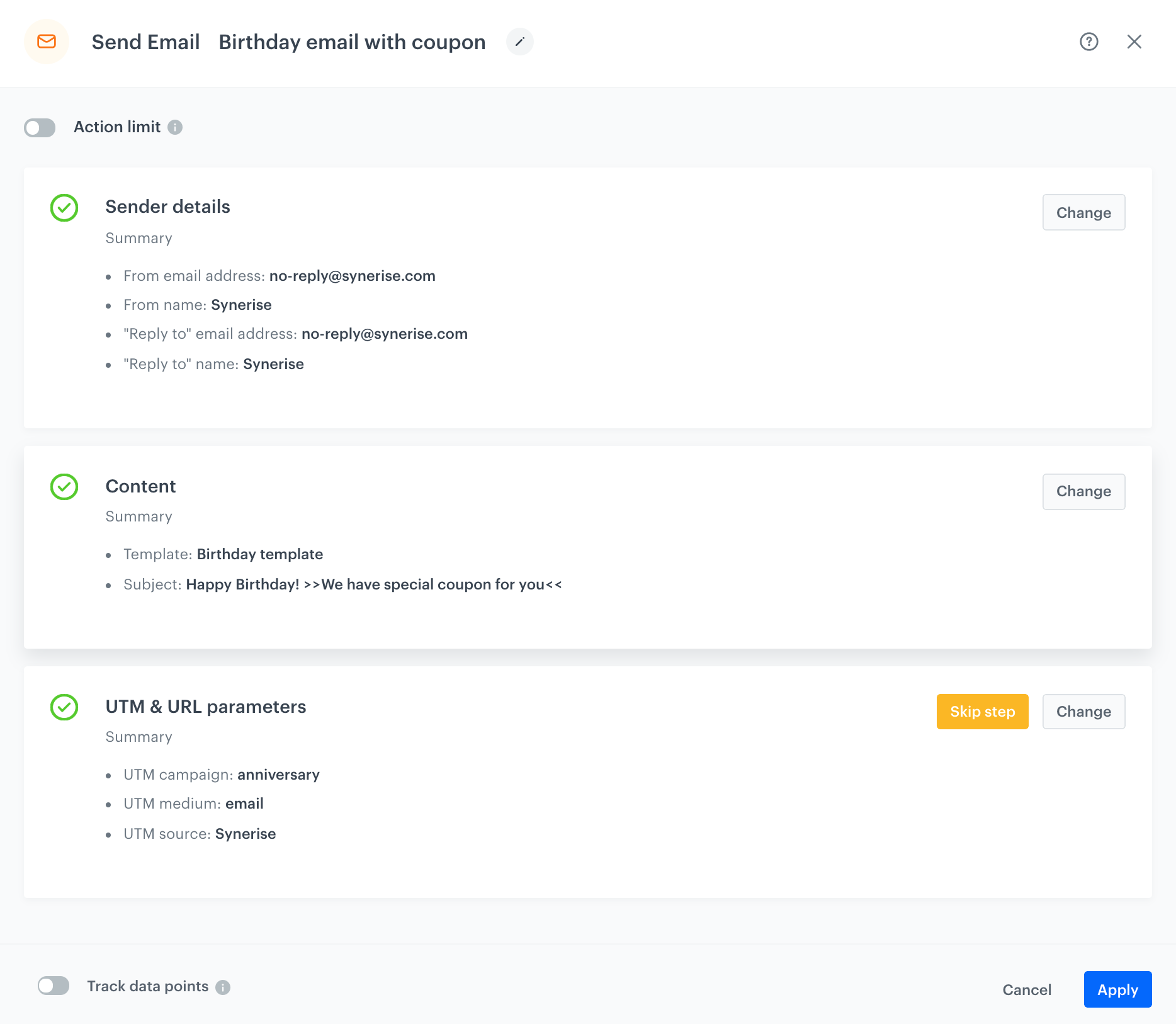
When you finish setting up the birthday attribute, you can set the **Send Email** node by selecting the appropriate email account, choosing the template that you prepared previously and adding the email subject and UTMs. 

<figure>
  <img src="/api/docs/image/54176ad07f146575310749eba44b7c2f42c1b327/use-cases/all-cases/_gfx/birthday_coupon_3.png" alt="Screenshot presenting Set the Send Email node"  class="full">
  <figcaption> Email datail </figcaption></figure>

### Prepare the final settings 

1. **Add End nodes** where the workflow should finish for users.
2. Define **capping**.
3. Optionally, **add titles** to each node so the workflow will be more understandable to your colleagues.
4. Name the **workflow**.
5. To save it as a draft, click Save, or activate the workflow by clicking **Save & Run**. 

 
   <div class="admonition admonition-tip"><div class="admonition-icon"><svg xmlns="http://www.w3.org/2000/svg" fill="none" viewBox="0 0 24 24" stroke="currentColor" stroke-width="2.5"><path stroke-linecap="round" stroke-linejoin="round" d="M9.663 17h4.673M12 3v1m6.364 1.636l-.707.707M21 12h-1M4 12H3m3.343-5.657l-.707-.707m2.828 9.9a5 5 0 117.072 0l-.548.547A3.374 3.374 0 0014 18.469V19a2 2 0 11-4 0v-.531c0-.895-.356-1.754-.988-2.386l-.548-.547z" /></svg></div><div class="admonition-body"><div class="admonition-content">

   Set capping 1 for 1 year to avoid a situation in which the customers change their date of birth to get an additional discount twice or more.

   </div></div></div>


## Check the use case set up on the Synerise Demo workspace
---

Check the [workflow settings](https://app.synerise.com/automations/automation-diagram/51b318f7-e9dc-477e-9a95-a7b99ee5a2d0) in Synerise Demo workspace.

If you’re our partner or client, you already have automatic access to the **Synerise Demo workspace (1590)**, where you can explore all the configured elements of this use case and copy them to your workspace.  

If you’re not a partner or client yet, we encourage you to fill out the contact [form](https://demo.synerise.com/request) to schedule a meeting with our representatives. They’ll be happy to show you how our demo works and discuss how you can apply this use case in your business.

## Read more
---
- [Creating code pools](/docs/assets/code-pools)
- [Email templates](/docs/campaign/e-mail)
- [Import clients](/docs/automation/actions/synerise-integrations/import-customers)
- [Inserting coupons](/developers/inserts/insert-usage#code-pools)
- [Updating users via API](https://developers.synerise.com/ClientManagement/ClientManagement.html#operation/BatchAddOrUpdateClients )
- [Workflow](/docs/automation)