Supplemental catalog
The supplemental catalog is a feed designed to store price and availability attributes for items across different stores or sales channels. It cannot operate as a standalone item feed and must be used alongside a main item feed that contains the complete item information. In this setup, the main item feed does not need to include price or availability data, as these will be sourced from the supplemental catalog.
The supplemental catalog obtains its data from a catalog created and populated in  Data Modeling Hub > Catalogs - this is the first step in implementing a supplemental catalog. Then, you create a supplemental catalog feed based on this catalog and link it to your chosen main item feed(s). For detailed instructions, see the “Implementing supplemental catalogs” section.
Business benefits
- Manage prices and availability individually for each store or sales channel.
- Achieve better organization of attributes in recommendation filters.
Purpose and usage
- Must contain the
priceandavailabilityitem attributes, but can include additional attributes as well. - When connected with the main item feed:
- The main item feed includes common item attributes.
- The supplemental catalog holds item prices and availability per store or sales channel.
- When supplemental catalog or catalogs are connected with the item feed, the supplemental attributes are available for use in:
-
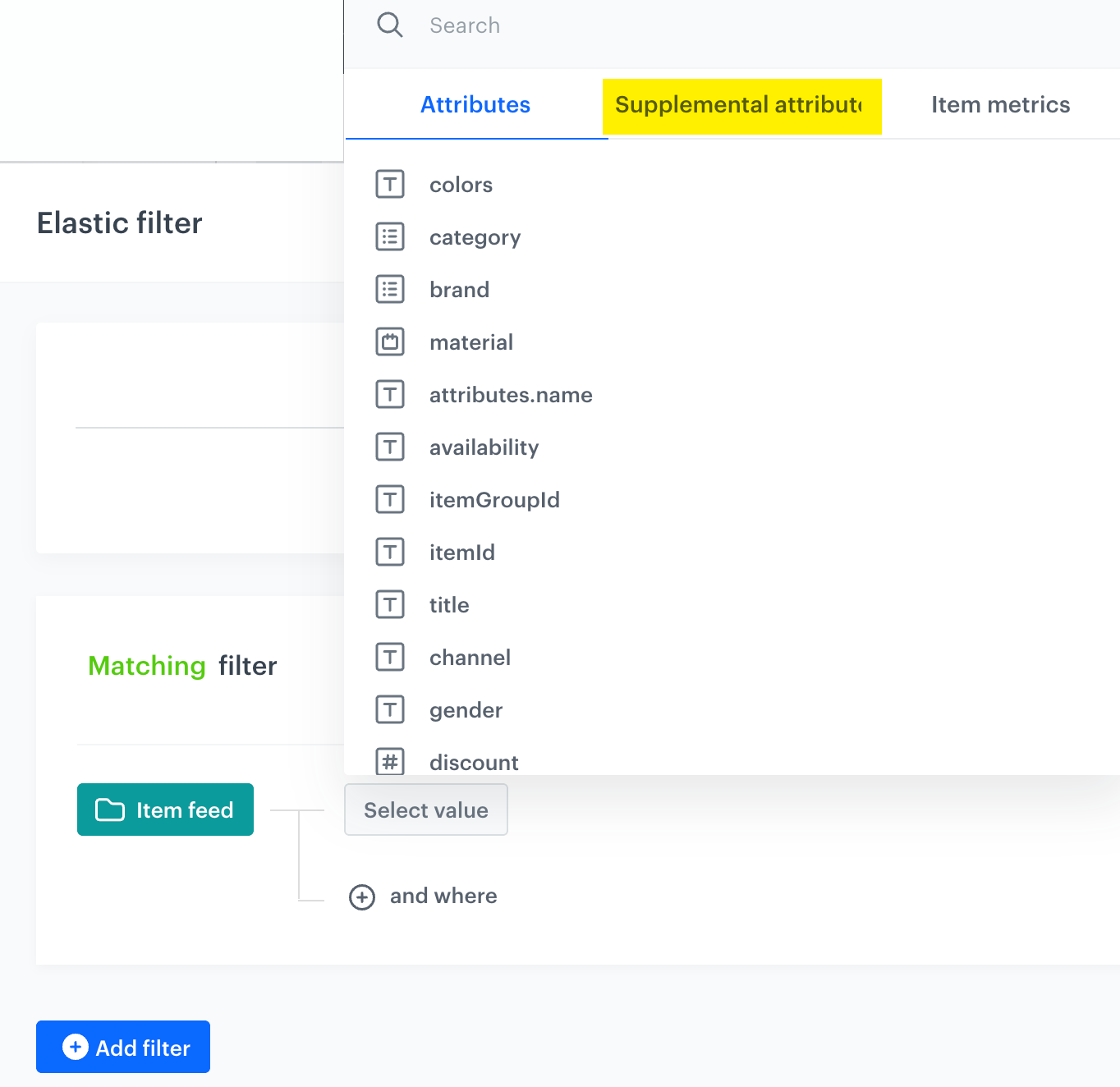
Highlighted tab contains supplemental attributes from the supplemental catalogs connected to the item feed in the filter visual builder -
the recommendation preview (only
channelattribute from the catalog):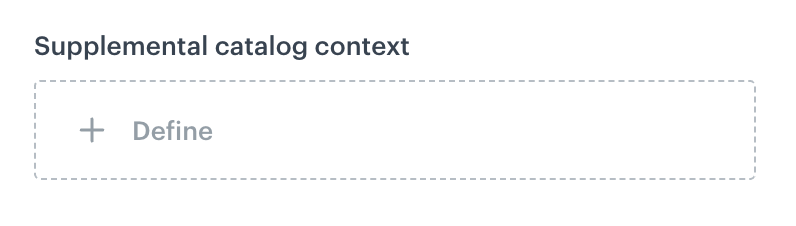
A dropdown menu that allows you to select a supplemental catalog, enabling filtering of recommended items based on the channels defined within that catalog
-
Requirements
- The file imported into a catalog must include the following attributes:
| Attribute | Description | Value type |
|---|---|---|
itemId |
Unique identifier of the item. | string |
channelId |
Identifier of a store or sales channel. | a string that matches this regular expression: ^[-_a-zA-Z0-9:]+$ |
price.value |
A price of an item in a store or sales channel | float |
availability |
Availability of an item in a store / sales channel | boolean |
When you import a CSV file to a catalog (either through a simple import or through a workflow), you must enable the JSON dot notation toggle.
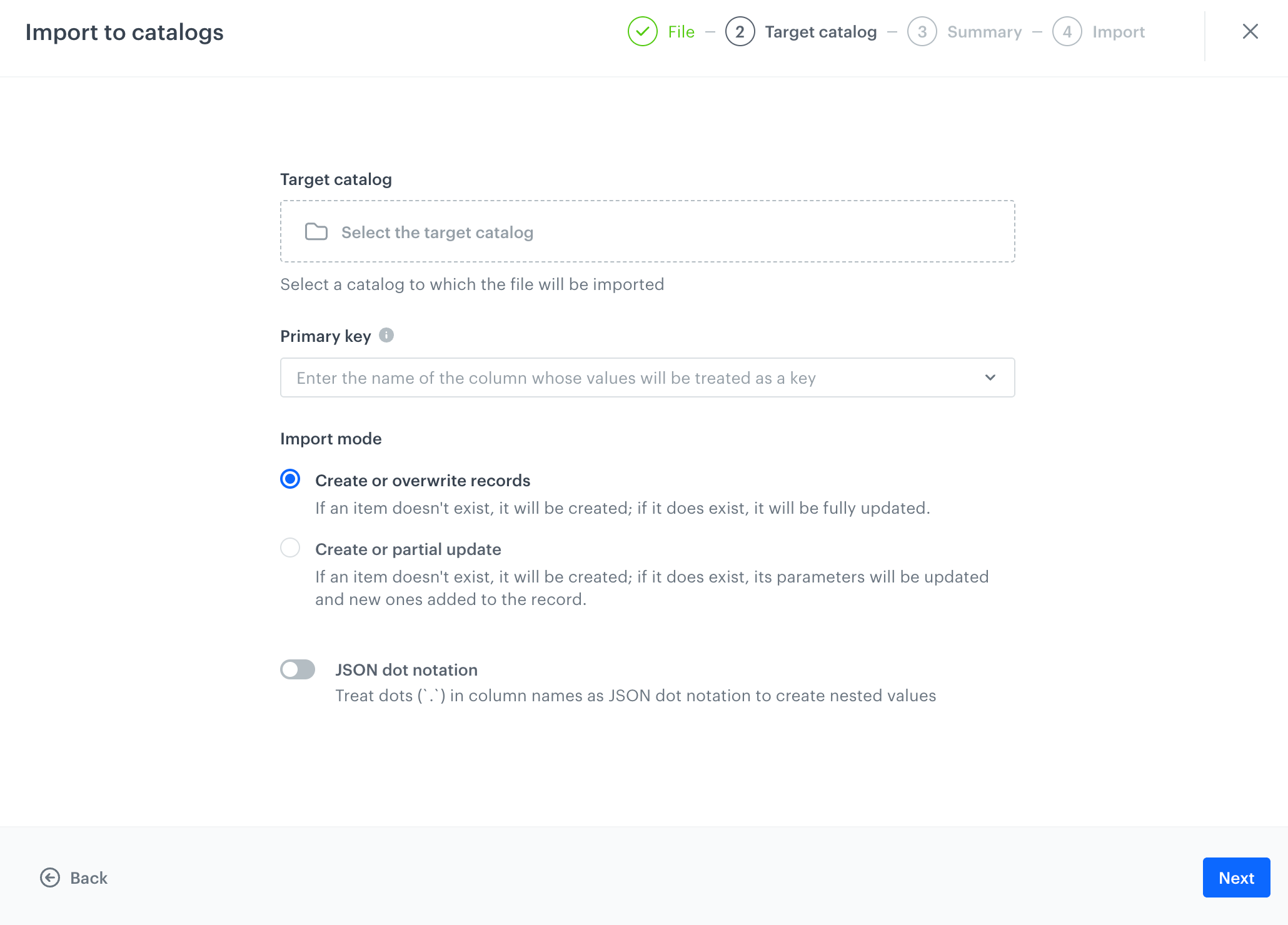
- The required file format depends on the method you will choose to upload data to a catalog:
- for a simple import - only CSV files are supported.
- for a workflow method - The accepted file format depends on the data source. Refer to the list of supported sources — only Get Data nodes allow sourcing data.
- for API request - Data is defined within the request payload. Be sure to follow the request size limits.
Example file
channelId,itemId,availability,price.value
store100,Xa34ad3d,true,29.99
store101,Xa34ad3d,true,25.99
store102,Xa34ad3d,true,27.99
store103,Xa34ad3d,false,28.99
Implementing supplemental catalogs
To connect a supplemental catalog to your main item feed, follow these steps:
Create a catalog to serve as the data source for the supplemental catalog
This catalog will hold the data that your supplemental catalog feed will use.
- Go to Data Modeling Hub > Catalogs > New catalog.
- In Catalog name, provide the name of the catalog.
- Confirm by clicking Apply.
Result: An empty catalog is added to the catalog list. - Upload a file with the required data.
- While uploading data to a catalog, you will need to indicate a primary key, for details see Requirements.
- You can upload data through the following methods:
- through a simple import to a catalog - this lets you conduct a one-off import of data
- through a workflow to a catalog - this lets you conduct one-off or cyclical imports to a catalog using the Automation Hub.
- through an API request to a catalog - this lets you conduct one-off or cyclical imports to a catalog using an API method.
Create a supplemental catalog feed linked to your catalog
This feed lets you use the catalog as a data source for price and availability information for your main item feed and control which item attributes will be available in the Supplemental attributes tab in the recommendation filter.
-
Go to Settings > AI engine configuration > Add feed.
Result: A pop-up appears.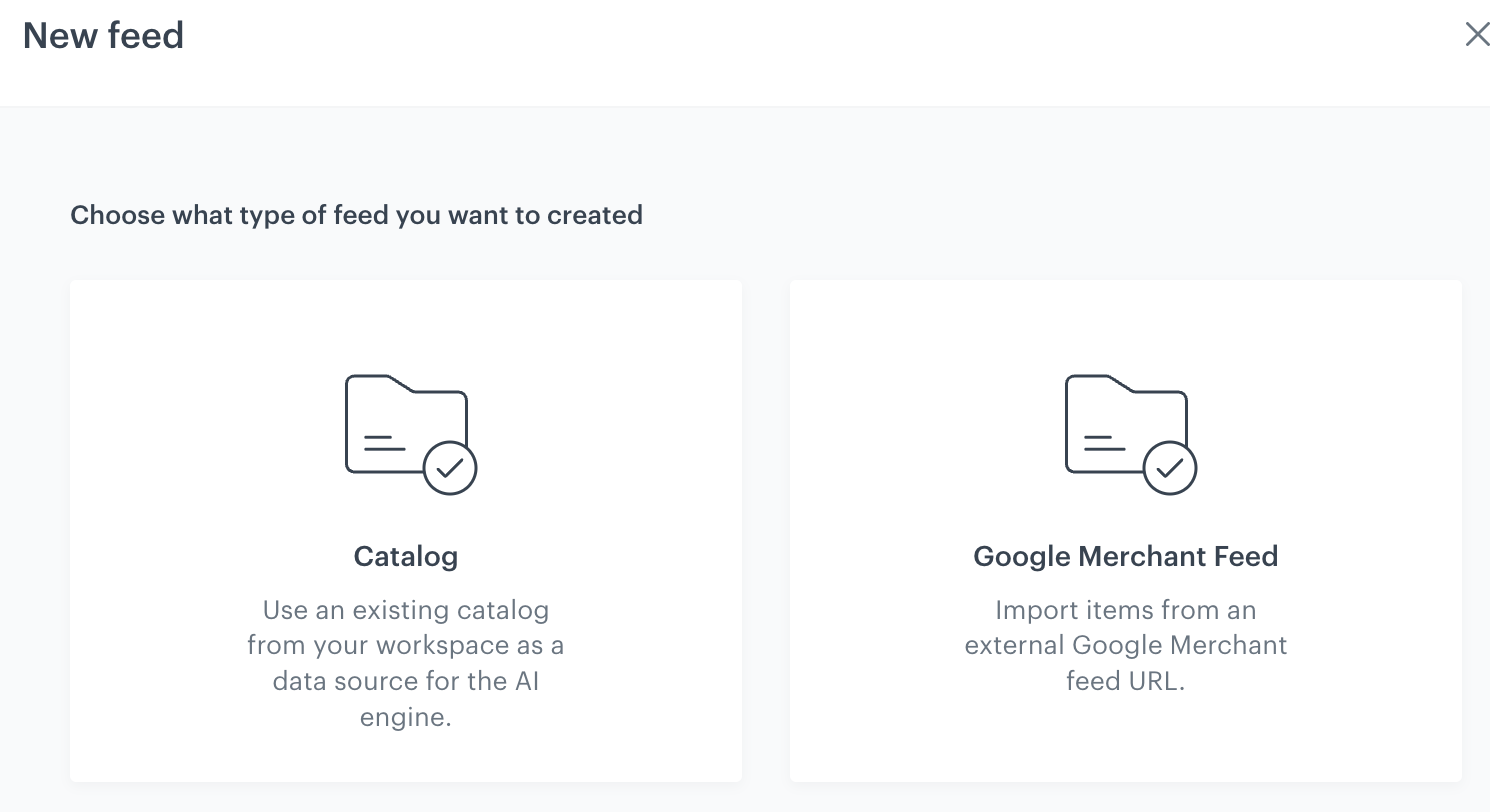
A pop-up with selection of the item feed type -
Select Catalog.
Result: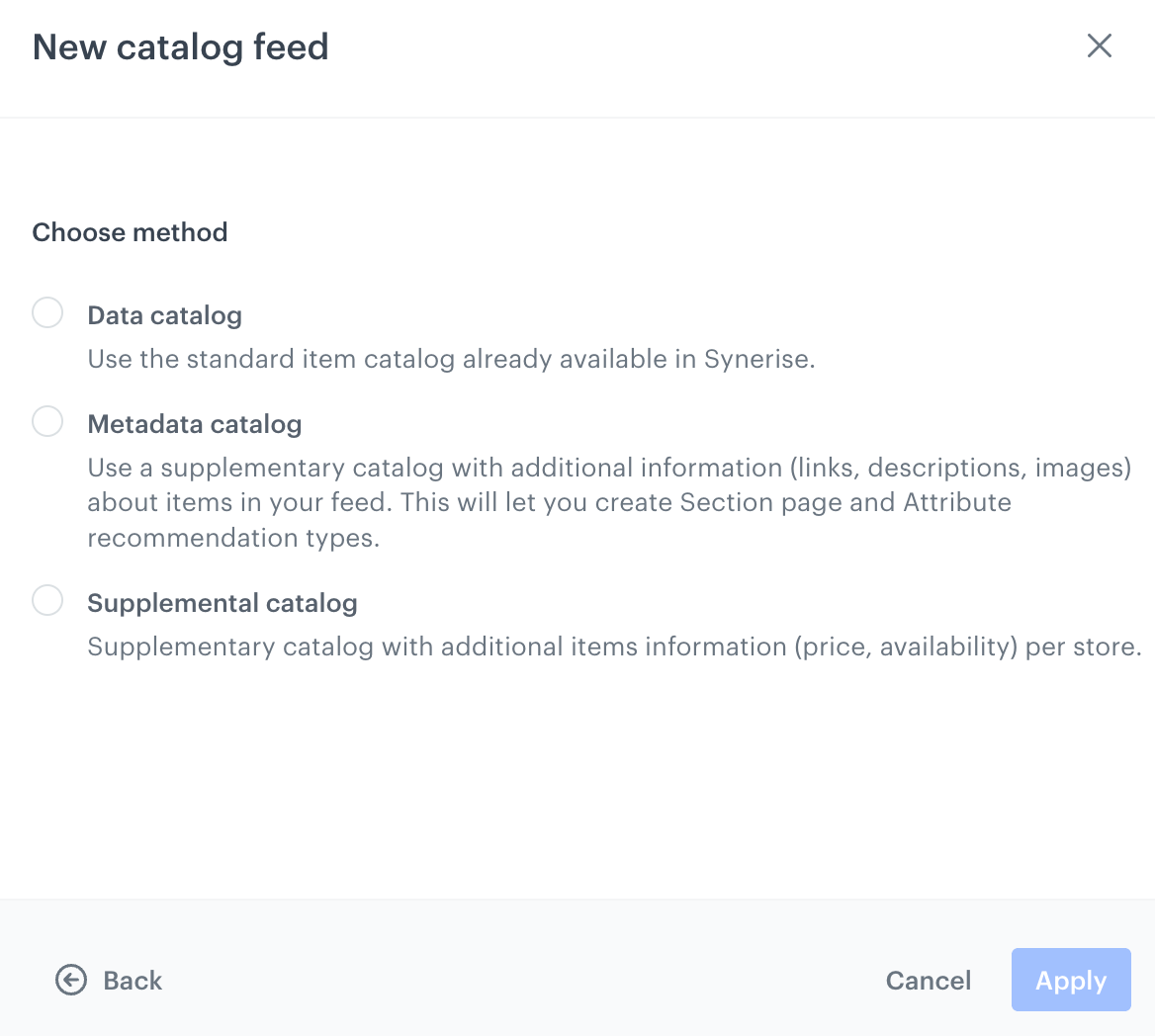
A pop-up with selection of the item feed type -
Select Supplemental catalog.
-
On the pop-up, from the Catalog dropdown list, select the catalog which will be the source of data.
Result: The supplemental catalog feed is added to the list. -
Find the created supplemental catalog feed on the list and click it.
-
In the Product feed connection section, connect this feed to your main item feed or feeds.
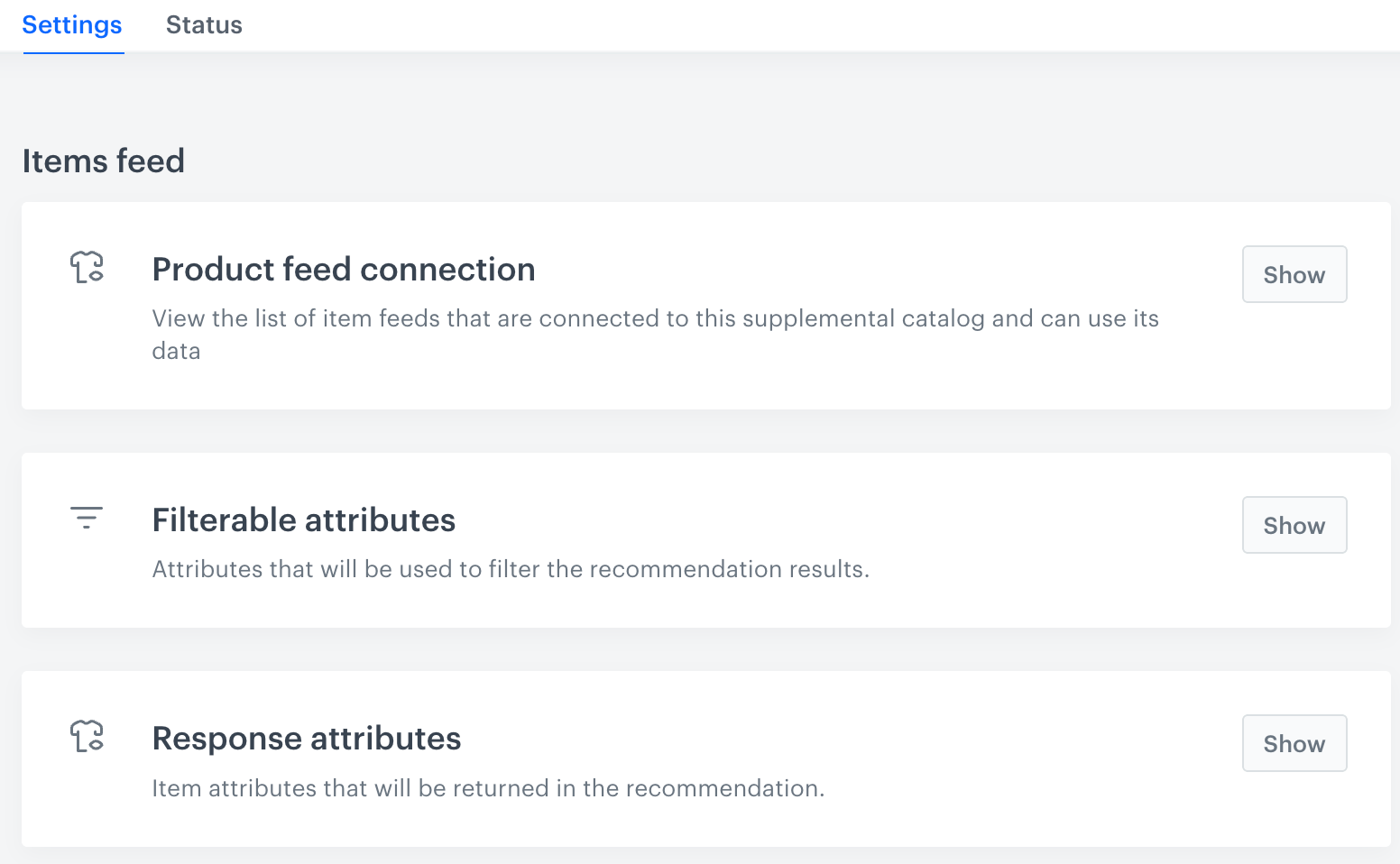
Configuration of the supplemental catalog -
In the Filterable attributes section, you must select the item attributes from the supplemental catalog which will be available in recommendation filters.
- The attributes will be available in recommendation filters in the Supplemental attributes tab.
- While selecting the attributes to be available in the filters you can define their value types by using: text, range, and datetime options.
WARNING: Make sureprice.valueis set to Range andchannelIdis set to Text.
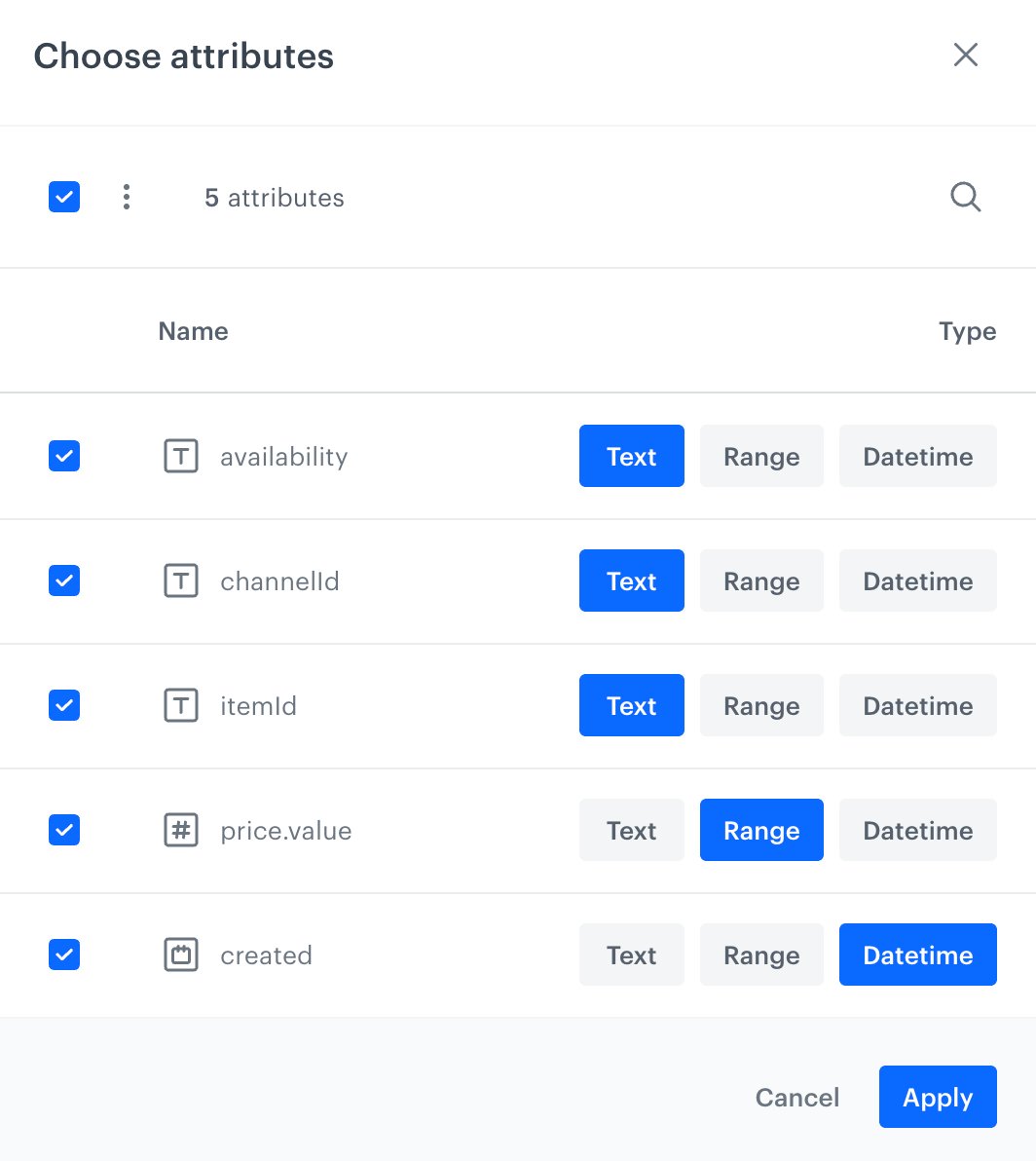
Defining value types for the attributes selected in the Filterable attributes section -
In the Response attributes section, you must select the item attributes from the supplemental catalog which will be returned in the recommendation.
-
Confirm the settings by clicking Save.
Supplemental attributes
A list of item attributes sourced from the supplemental catalog are available in the recommendation filters only when the item feed is connected with any supplemental catalog. If several supplemental catalog feeds are connected with the item feed, then this tab gathers all attributes from all supplemental catalogs.
-
In the visual builder, you can find them in the Supplemental attributes tab:
Highlighted tab contains supplemental attributes from the supplemental catalogs connected to the item feed in the filter visual builder -
In the IQL filter builder, you can find them in Supplemental attribute in the Attribute category:
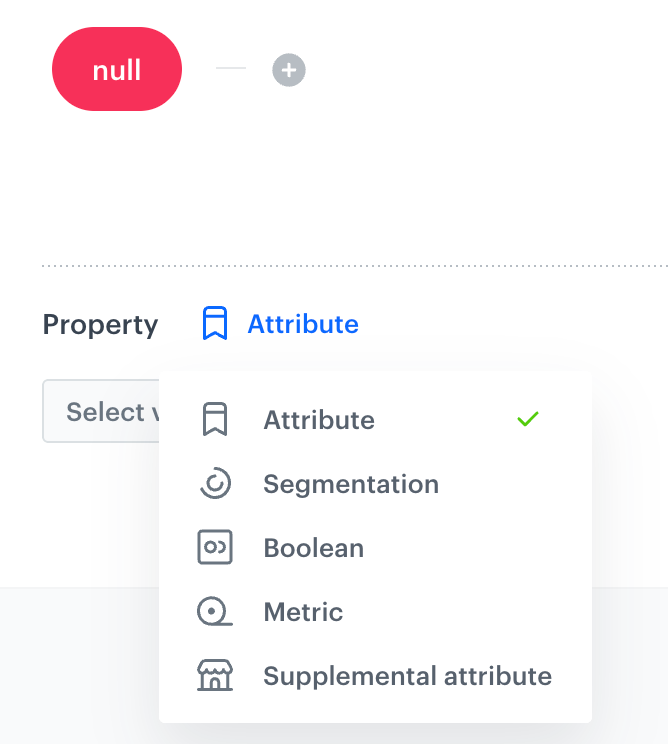
A dropdown for the Attribute category in IQL filter builder
Supplemental catalog status
You can track item inconsistency for the supplemental catalogs, more information is available in the “Item consistency” section.

