Personalized promotions is a set of promotions selected by the AI engine for a particular customer. The promotions are managed by creating any promotion type, which provide settings for the AI engine. When a promotion is generated for a customer, the AI retrieves the promotion available to the customer and selects the most relevant ones.
Business advantages
- High quality mechanisms of selecting items for a personalized promotion:
- Checking the group of customers to whom the promotion is assigned.
- Selecting the promotions whose start and end date covers the activity time of the personalized promotions.
- Configurable settings that prevent overlapping items included in general promotions and advertising flyers with the items in personalized promotions.
- In-built mechanism that prevents overlapping active promotions.
- The great flexibility of promotion sets allows users to create relevant promotions that will apply in the distant future (in a year and longer).
Prerequisites
- Configure the AI engine for personalized promotions - see that page's prerequisites for the full list of requirements.
While configuring the AI engine, you will add an item feed. Make sure the product identifiers (itemId) in the feed in the catalog are consistent with product identifiers from transaction and interaction events. See the About item feeds in Synerise article to get to know the method of item feed upload to Synerise.
Create promotion candidates
Required actions:
- create a promotion of any type, define the discount types, schedule and redemption settings
- select the items for the promotion
Items are required because they're used to personalize the promotion. For personalization, and for resolving distinct filters, Synerise uses up to 100 items per promotion, sorted by itemId. If the promotion's filter matches more items (for example, 1,000), only the first 100 are used.
The list of promotion candidates considered by the AI model is refreshed every 3 to 24 hours. When you add or edit a promotion, the model isn't aware of the change immediately.
IMPORTANT: In the Items section of the promotion, you must select items on the Selected items, Query or Filters tab. A promotion with Entire Catalog selected in the Items section can't be used as a candidate for a personalized promotion.
How candidates are selected for personalized promotions
When generating a personalized promotion, the AI engine checks every regular promotion against the following conditions. A promotion is used as a candidate only if it meets all of them:
- It has the Published status.
- It has the Assigned status for the customer profile.
- It's valid for the entire assignment period. For example, for an assignment starting at 9:00 and lasting 3 hours, the promotion's start date must be at or before 9:00, and its expiration date must be at or after 12:00.
- It has the same type as the type selected in the Types dropdown of the personalized promotion.
- It isn't already assigned to another personalized promotion campaign.
- If a Promotion Filter is selected for the slot, the promotion matches that filter.
- If the Avoid overlapping promotions toggle (equivalent of the
excludeByAvailableProductsparameter in API) is enabled:- Promotions of the General or Members only type are never used as candidates.
- A promotion of any other type is rejected as a candidate if any of its items are already available as part of a General or Members only promotion.
Create a personalized promotion
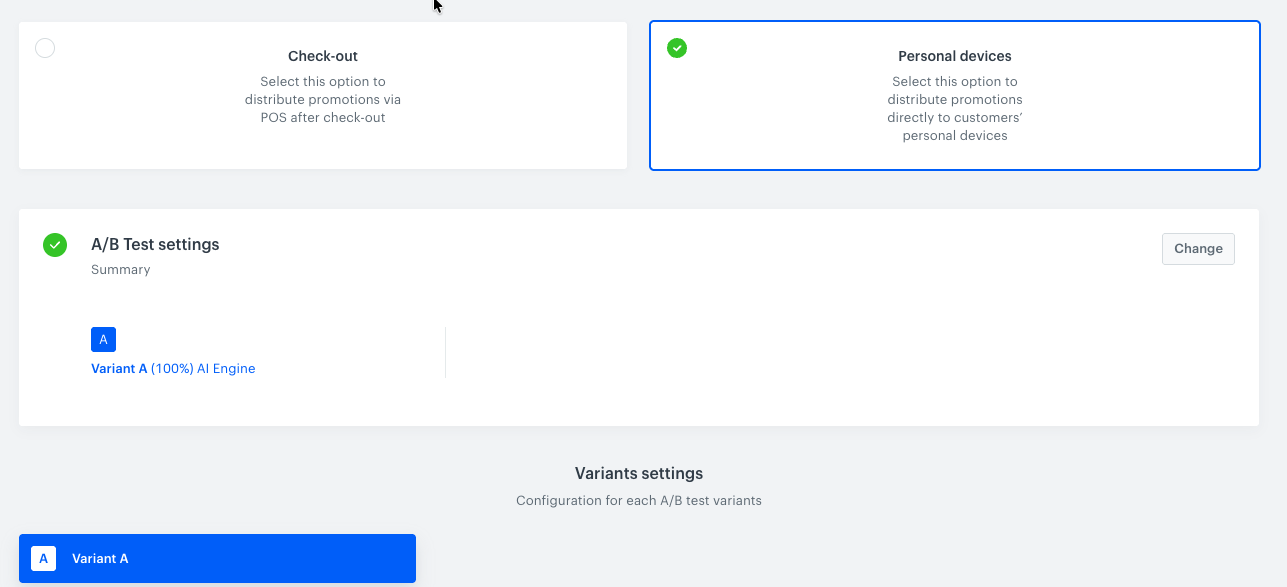
- Go to
 AI Hub > Personalized promotions > New promotion.
 Select the type of promotion:
Check-out - A promotion is generated based on their current transaction. This promotion type is handled by the following API methods:
- Personal devices - You can apply promotions dedicated only for the users and distribute them on user's personal devices. This promotion type is handled by the
generatemethods listed in Handbills.
In the A/B test settings add variants of the personalized promotion by clicking Define. You can define variants of the promotions and set up a control group. The control group is a part of the customer base that doesn't receive the promotions, so you can measure the effectiveness of your actions.
NOTE: You must add at least one variant to continue creating the promotion. You can add up to 10 variants.
Click the plus button to add the first (and/or more) variants.
- If you want to set up a control group, select the Enable a control group checkbox.
- Adjust the size of each variant and the control group by using the slider.

Variant size adjustment In the Advanced options, select the Control method — how items are selected for the promotion.
AI Engine - By selecting this option, the AI engine chooses the items to be included in the promotion.
- Randomization - By selecting this option, the items included in the promotions are chosen randomly.
IMPORTANT: Distinct filters are available only for variants with AI Engine selected. If you select Randomization, distinct filters can't be configured for that variant.
- Confirm by clicking Apply.
Result: The remaining configuration options become available.
IMPORTANT: The Filters and limits, Activity, and Engine settings sections below are configured separately for each variant you defined. Use the variant tabs (for example, Variant A, Variant B) to switch between them and repeat the configuration for each one.
Configure promotion filters and slots
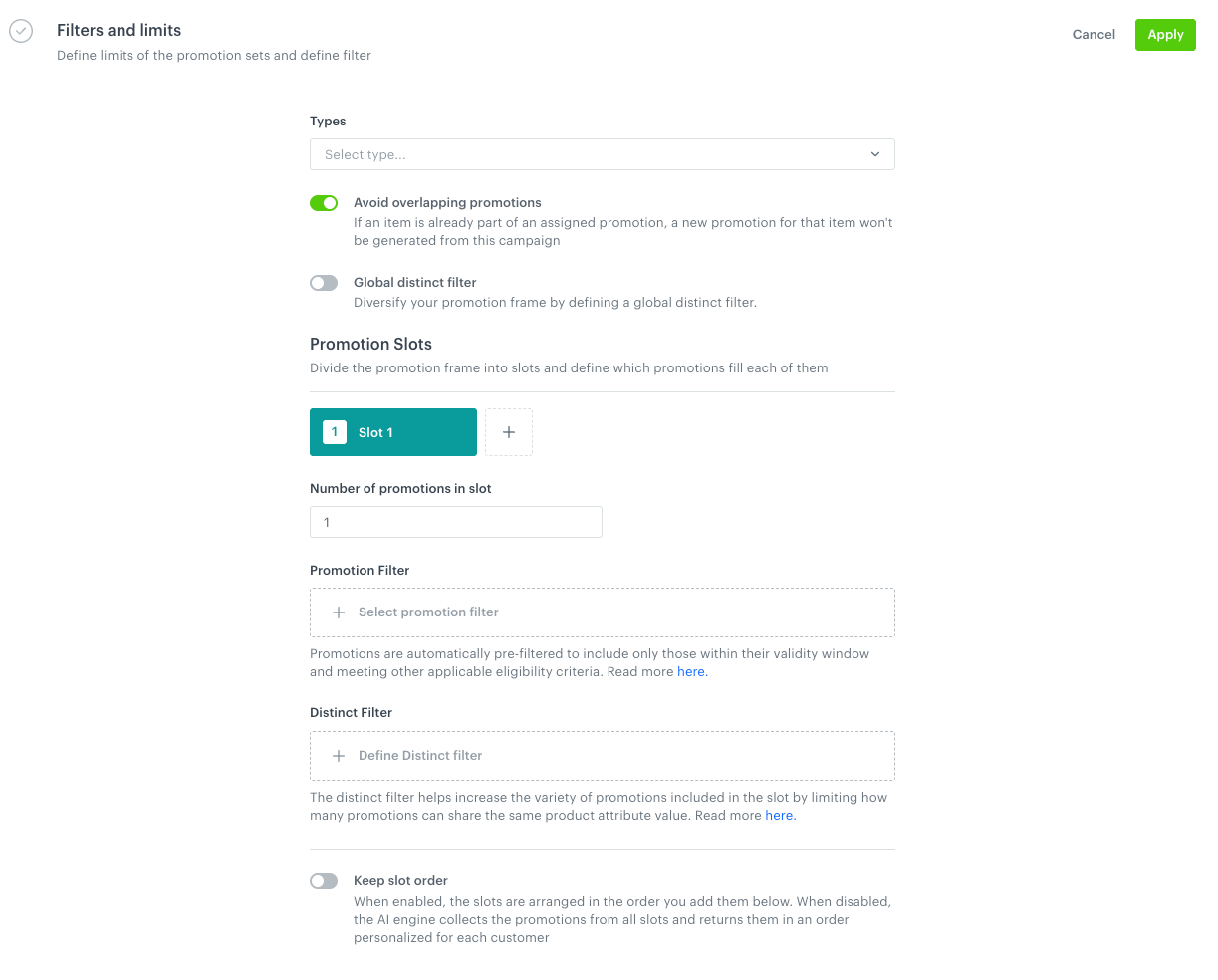
In the Filters and limits section, you can:
- From the Types dropdown, select the types of promotions that can be selected.
If you apply changes to this section without selecting a promotion type,Personalized promotion(previously Handbill) is selected as the default option — this is the type reserved for promotions meant to be used only by the AI promotion engine, shown as Personalized promotion in the regular promotion's Type dropdown. With the Avoid overlapping promotions toggle, choose what happens when an item is already part of an assigned promotion:
- Enabled (default): Promotions of the General or Members only type are never used as candidates. A promotion of any other type is rejected as a candidate if any of its items are already available as part of a General or Members only promotion.
- Disabled: A promotion can be used as a candidate even if its items are already available as part of a General or Members only promotion.
- With the Global distinct filter toggle, define a distinct filter that applies across the entire personalized promotion, instead of defining it separately for each slot.
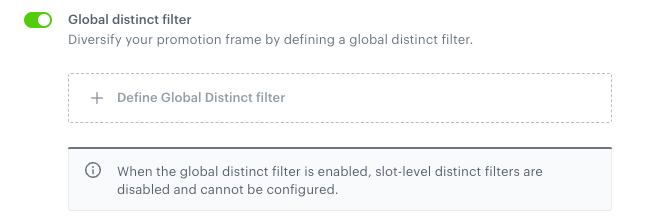
Global distinct filter enabled IMPORTANT: When the global distinct filter is enabled, slot-level distinct filters are disabled and can't be configured.
Promotion slots
Divide the promotion frame into slots and define which promotions fill each of them.
- To add a slot, click the + button next to the slot tabs.
You can add up to 10 slots. - Click a slot's tab to configure it.
- In the Number of promotions in slot field, define the maximum number of promotions returned from this slot. Fewer promotions can be returned if candidates are rejected by filters applied along the way.
- Optional: With the Promotion Filter selector, select a promotion filter to pre-filter the promotion candidates considered for this slot.
Regardless of whether a Promotion Filter is selected, at most 40,000 promotions per slot are taken as candidates, sorted by the promotion's priority (set when creating the promotion). If multiple promotions share the same priority, their relative order isn't guaranteed.
TIP: You don't have to create the filter in advance. Click Select promotion filter, and in the list that opens, use the button provided there to define a new filter without leaving this page. The filter is saved to the same list of promotion filters as filters created from the promotion list.
- Optional: If the global distinct filter is disabled, with the Distinct Filter selector, define a distinct filter for this slot.
Optional: To fill in the slot when not enough promotions match the previous filters:
- Click Select fallback promotion filter.
- Select an existing filter or click Create new and create one in the same way as when creating promotion filters.
Result: If, after applying the Promotion and Distinct filters, the number of returned promotions is lower than the minimum for the slot, the remaining positions in the slot are filled with promotions that match the fallback filter, ordered by priority. These promotions meet the conditions for candidate promotions.
- Repeat the previous steps for each slot you want to configure.
With the Keep slot order toggle, choose how items are ordered:
- Enabled: Promotions are grouped by slot and the slots are returned in the order you set.
- Disabled (default): Promotions are returned in an order personalized for each customer by the AI engine. They are not grouped by slots.
NOTE: When the AI engine is used, promotions are first sorted by priority. The filters described in How promotion candidates are selected for personalized promotions and segmentation are then applied. Up to 45,000 of the remaining promotions across all slots are considered for personalization. If this limit is exceeded, the number of candidates is reduced proportionally across slots, with at least 1,000 candidates retained per slot. For example, if three slots contribute 30,000, 20,000, and 900 candidates, the first two are reduced proportionally to 26,460 and 17,640, while the third remains unchanged at 900.
Distinct filter
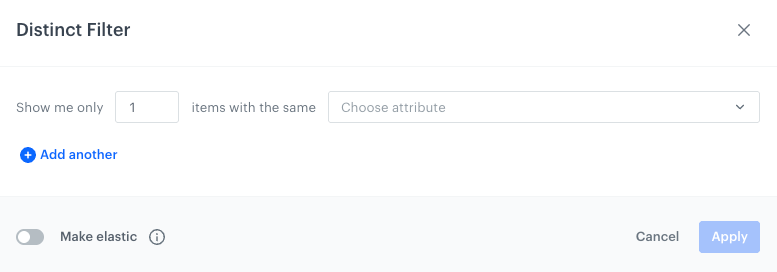
The distinct filter helps increase the variety of promotions included in a personalized promotion (or in a single slot) by limiting how many promotions can share the same value of a product attribute — for example, size, brand, or category. The attributes available for selection in this filter are defined in Configure AI Engine for Personalized Promotions.
IMPORTANT: Distinct filters are available only for variants with AI Engine selected as the control method. If Randomization is selected for a variant, distinct filters can't be configured for it.
You can define a distinct filter:
- Globally, with the Global distinct filter toggle described above — the limit applies across the entire personalized promotion.
- Per slot, with the Distinct Filter selector of a promotion slot — the limit applies only within that slot.
To define a distinct filter:NOTE: The per-slot Distinct Filter is available only when the global distinct filter is disabled.
- Click Define Distinct filter (or Define Global Distinct filter, if you're configuring the global one).
- In the Show me only field, enter the number of promotions whose attribute values can be the same.
- From the Choose attribute dropdown, select the attribute.
Thecategoryattribute is a special case — it lets you define which level of the category hierarchy the filter takes into account. See thecategoryattribute for details. - To add more conditions, click Add another and repeat the previous two steps.
- If you want the filter to supplement the promotion or slot with non-matching promotions when not enough matching ones are found, enable Make elastic.
- Click Apply.
Example
A slot is set to return 6 promotions, with a distinct filter limiting the slot to a maximum of 2 promotions per item brand.
Even if the AI engine ranks Solvex promotions as most relevant for a customer, the slot can contain at most 2 promotions with a Solvex item.
For example, the slot could return:
- Promotion with a Solvex item
- Promotion with a Solvex item
- Promotion with a Vantek item
- Promotion with a Vantek item
- Promotion with a Kelbra item
- Promotion with a Purenzo item
NOTE: A promotion counts toward the brand limit as soon as one of its items (out of up to 100 considered per promotion) has that brand.
Excluding items from promotions
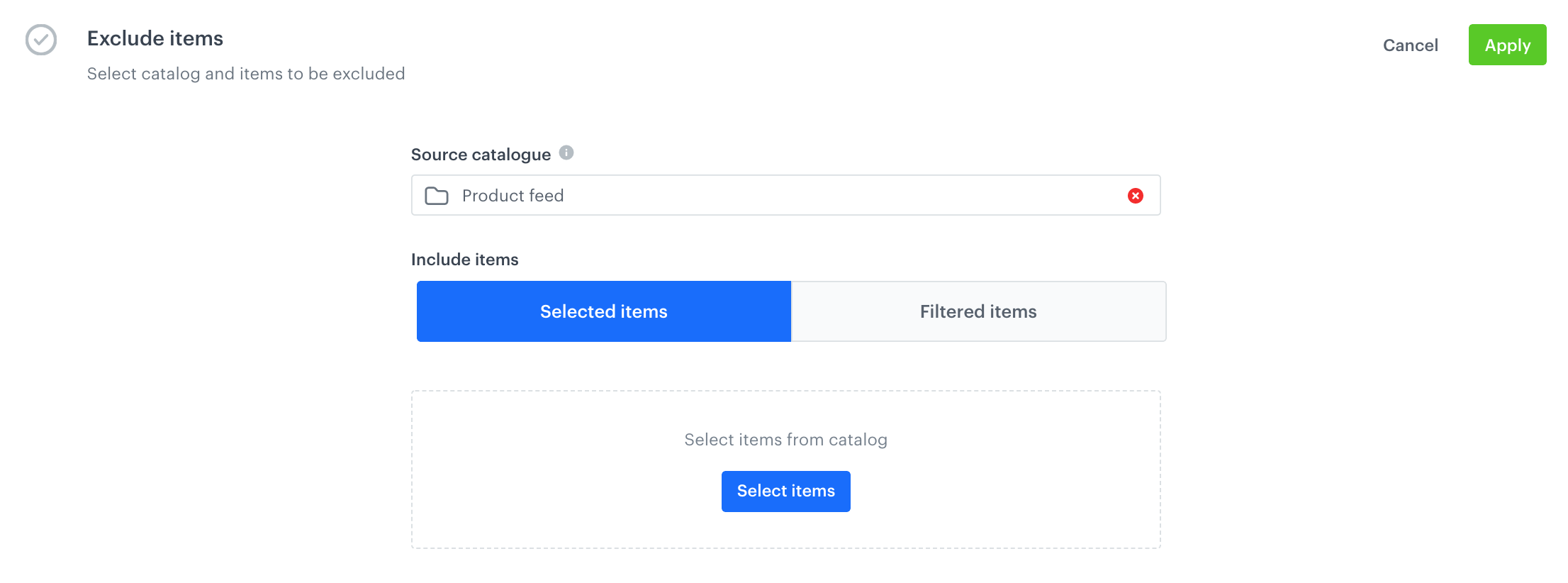
IMPORTANT: This option is available only for the Check-out type.
You can exclude items from the personalized promotion. You can either pick the items from a catalog or exclude an entire catalog.
Defining promotion schedule
In the Activity section, you can schedule the personalized promotions.
- Select the schedule type:
- Relative - Select the activity time of the promotion. It is counted from the moment of generating a promotion for a customer (for example, if you distribute personalized promotions through a mobile application, this happens when entering a section where the promotions are displayed). When the timer expires, it is replaced with another one (if there are promotion candidates available).
- In the left box, enter the amount of time units for the timer.
- From the dropdown list on the right, select the time unit.
- Recurring - Define the days of the week when the AI engine assigns a new promotion from the pool (if available).
- Select the days of the week.
- Select the time when a new promotion is assigned.
The time is the same on each day.
- Absolute - After a promotion is generated (for example, if you distribute personalized promotions through a mobile application, this happens when entering a section where the promotions are displayed), it expires at the selected date without offering a new promotion.
- Click Select date.
- From the calendar that opens, select the date.
- From the time picker that opens, select the time of day.
- Click Apply.
- Interval - Define how often a personalized promotion should be refreshed (for example, every 3 days) and select the date from which this refresh cycle starts counting (Begin at).
From the Begin at date onward, the promotion is replaced with another one (if there are promotion candidates available) at the end of each interval.
If you enter a future Begin at date, the currently assigned promotions remain assigned until the selected date, and then are refreshed according to the interval.
If you enter a past date, promotions are generated upon publishing the promotion and the refreshed according to the interval. For example, if you set a daily refresh at 12:00 and publish the promotion at 17:00, the next promotions are assigned tomorrow at 12:00.- In the Interval section:
- In the left box, enter the amount of time units for the interval.
- From the dropdown list on the right, select the time unit.
- Under Being at, click Select date and:
- From the calendar that opens, select the date.
- From the time picker that opens, select the time of day.
- Click Apply.
- In the Interval section:
- Relative - Select the activity time of the promotion. It is counted from the moment of generating a promotion for a customer (for example, if you distribute personalized promotions through a mobile application, this happens when entering a section where the promotions are displayed). When the timer expires, it is replaced with another one (if there are promotion candidates available).
- Save the schedule by clicking Apply.
Examples
- To generate new personalized promotions during the weekend, select Friday and Monday at 0:00. The personalized promotion will be generated on Friday at 00:00 and it will expire on Sunday at 23:59. On Monday at 0:00 the new personalized promotion is generated and it is valid to Thursday at 23:59.
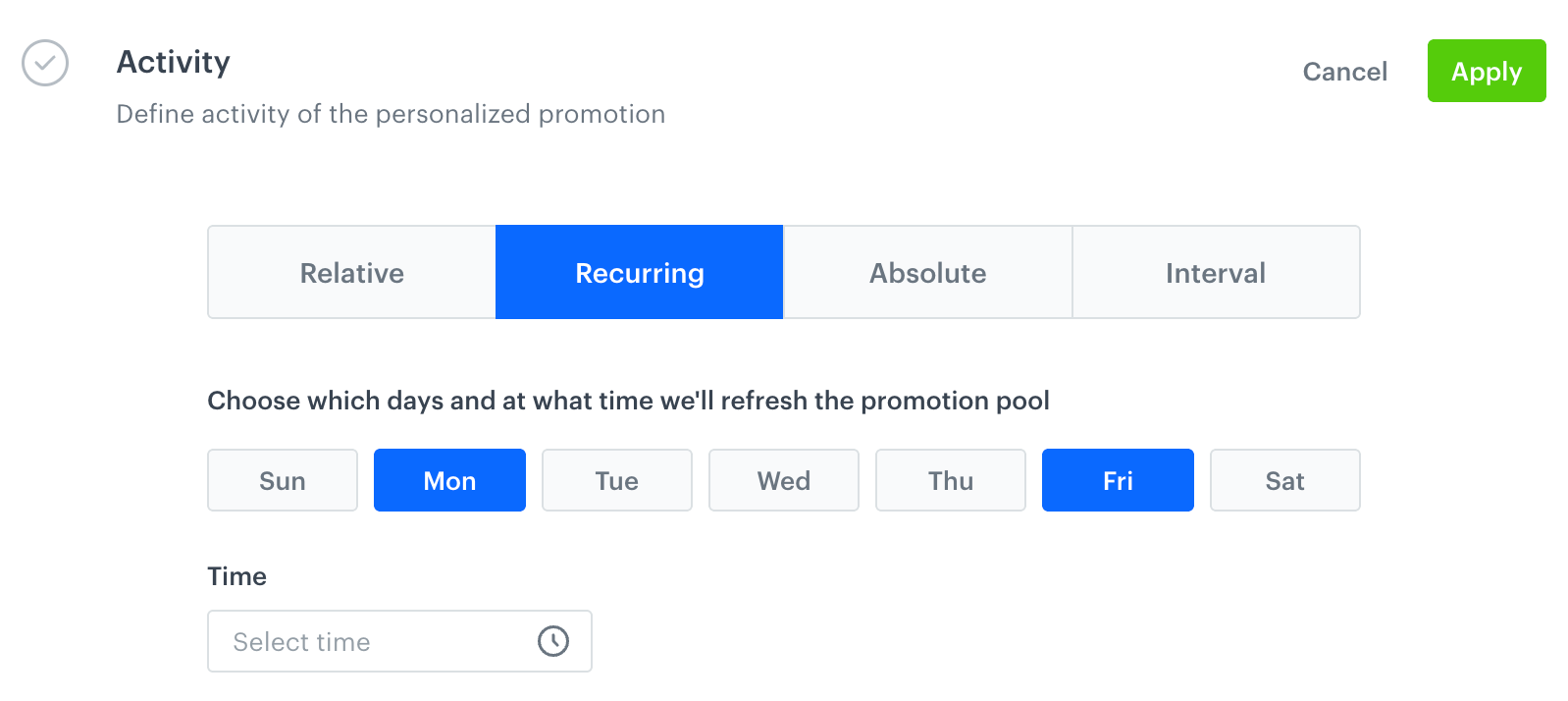
Recurring limit, personalized promotion assigned every Monday and Friday - To generate new promotions every Wednesday, copy the settings from the image below:
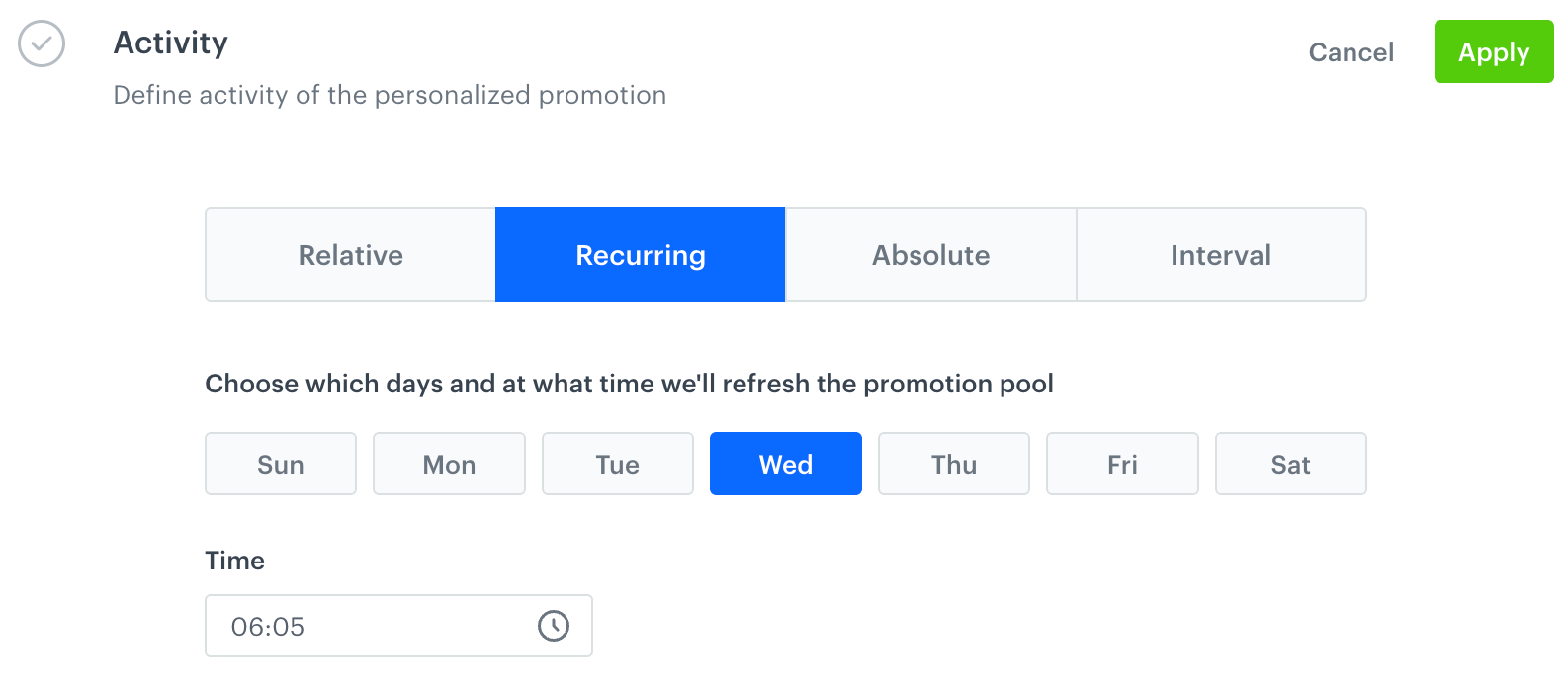
Recurring limit, personalized promotion generated every Wednesday - To generate new promotions every week after September 13, 16:00, copy the following settings.
If you publish such a promotion before September 13, currently assigned promotions are returned as usual, and then re-generated at the selected time.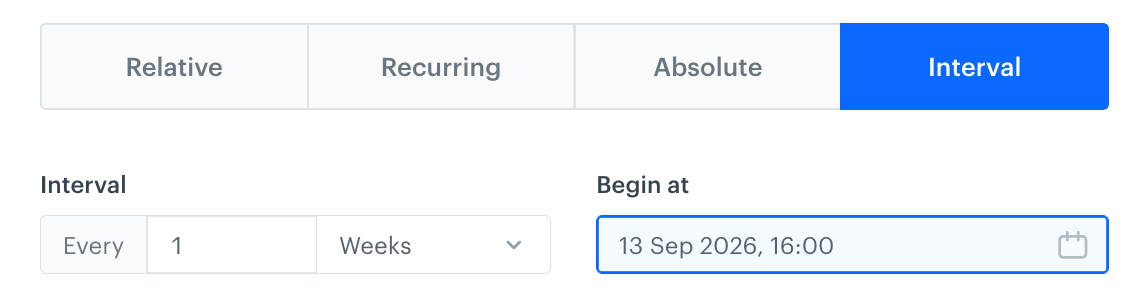
Intervals, personalized promotion generated once a week
AI engine boosting settings
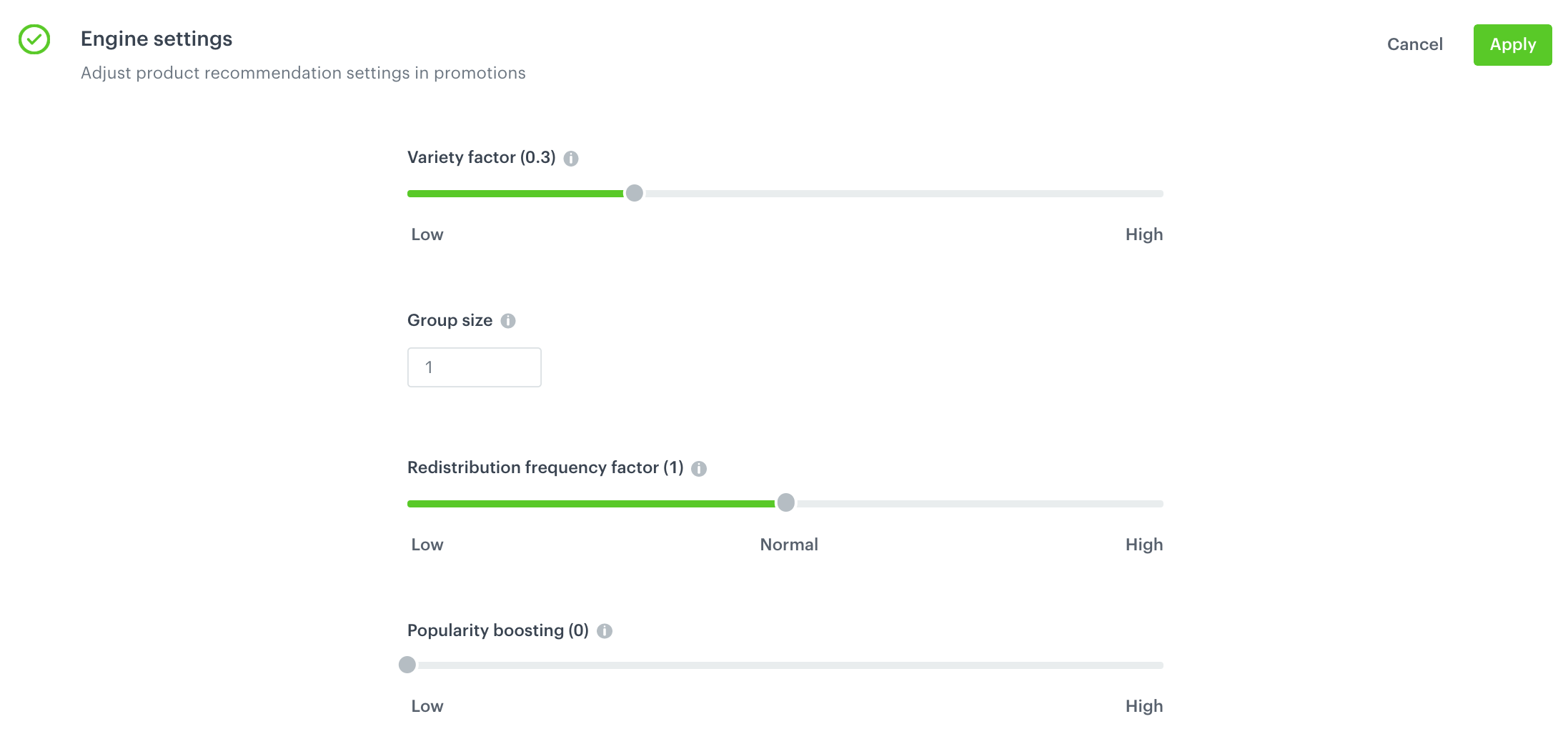
- If the items to your personalized promotion are selected by AI engine, in the Engine settings section, define the following parameters:
- Adjust the variety of offered products by using the Variety factor slider.
- In the Group size field, enter the maximum number of similar products that can be offered as promotions.
- Adjust the frequency of delivering the same items in a promotion by using the Redistribution frequency factor slider.
- Adjust the importance of a product's popularity by using the Popularity boosting slider.
- To be able to assign multiple sets of promotions to customers, create a filter on the list of promotions.