Before you can use Personalized Promotions, you must configure the AI engine.
Prerequisites
- At least 1,000 profiles.
- At least 10,000 events in total, of either:
page.visitevents from item pages andproduct.viewevents from item views in a mobile application- or
transaction.chargeevents
NOTE: If you don't meet these prerequisites yet, you can import profiles and transaction history to fulfill them.
To configure the AI engine, you must perform the following steps in order:
- Adding item feed
- Selecting an item feed
- Enabling the model
- Selecting attributes for distinct filters (optional)
IMPORTANT: You can use the same item catalog for Personalized Promotions, Recommendations, AI Search, and Predictions, however, in each workspace, only one catalog can be used for Personalized Promotions.
Adding item feed
he first step is selecting the feed from which items will be sourced. You can either select a catalog that contains a feed or use Google Merchant Feed. Make sure, the item feed includes the following attributes:
itemId- The identifier of the itemtitle- The name of the itemcategory- The category of the item
You can read about requirements for item feed:
- uploaded to a catalog
- pulled from an URL
Grouping feed attributes is available for this feed type.
If you previously configured a feed which you want to use now, you can omit this step.
- We recommend using Google Merchant XML instead of XML files due to the size limits (an XML file cannot exceed 10 MB).
- If you're enabling AI engine for visual similarity recommendation model, select the item feed which contains less than 1,000,000 items.
- Go to Settings > AI engine configuration.
- Click Add feed.
Result: A pop-up appears.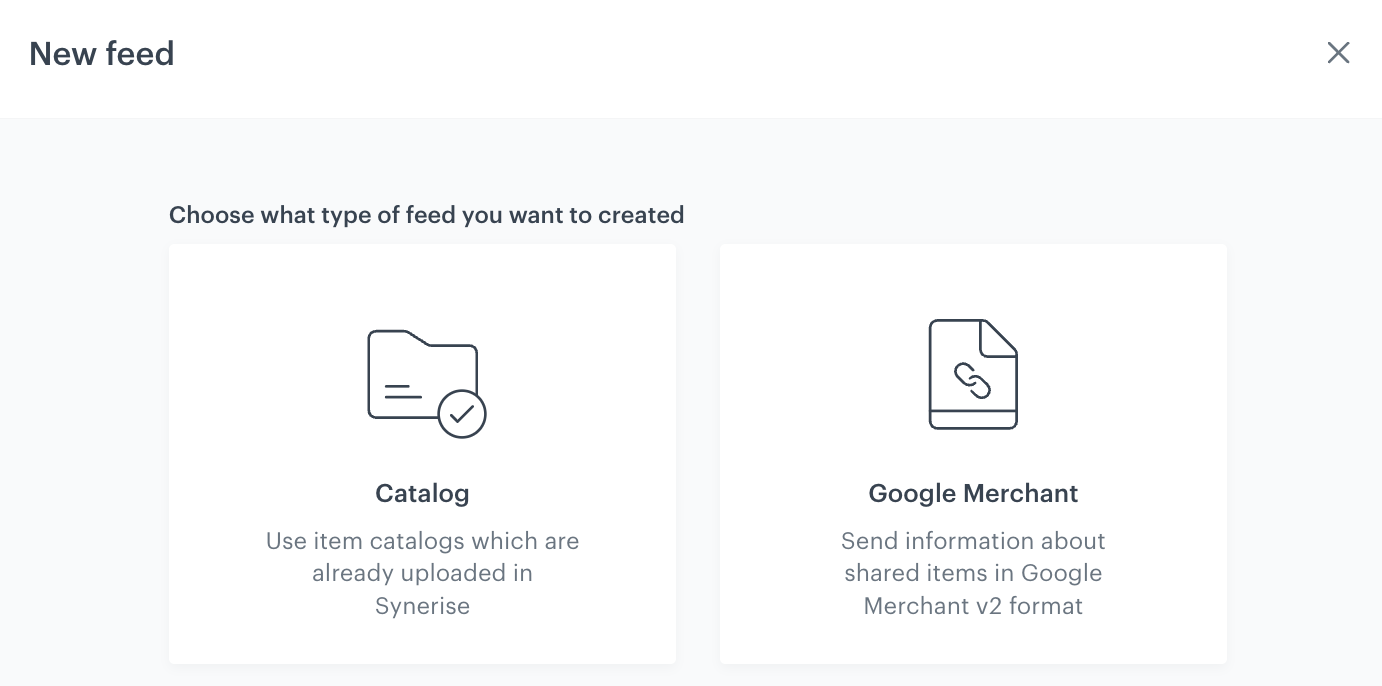
A pop-up with feed type selection - Select the product feed you want to use.
Catalog
- On the pop-up, select the type of catalog:
- Data catalog
- Metadata catalog
- From the dropdown list, select a catalog.
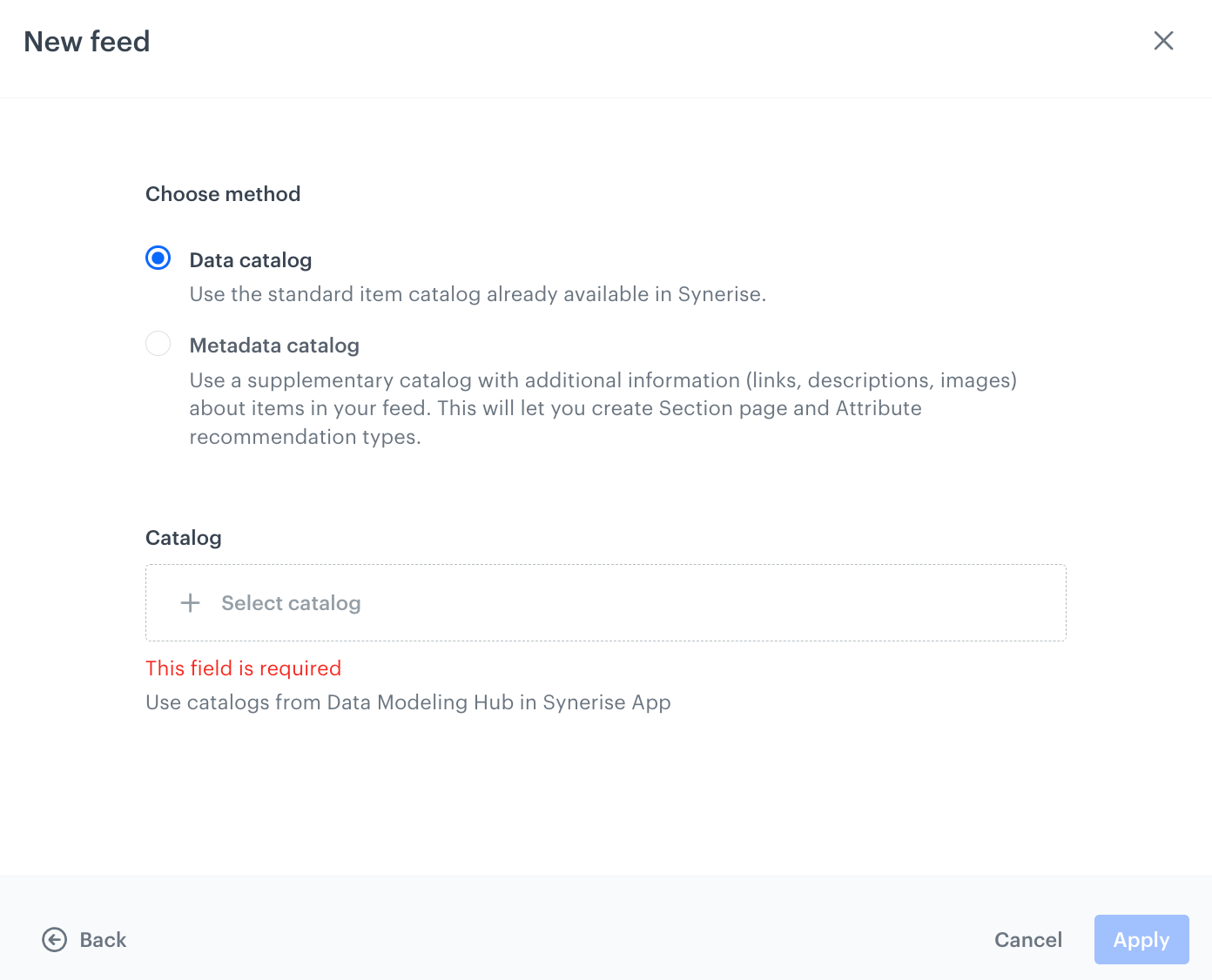
A pop-up with catalog type selection - Confirm by clicking Apply.
Result: An item feed based on the contents of the selected catalog appears on the list in Settings > AI Engine configuration.
- On the pop-up, select the type of catalog:
Google Merchant
TIP: Include the Last-Modified header to enable detection of whether the product feed import is necessary, this will help you reduce data transmission costs.
Provide the following information:
- the link to the Google Merchant feed (Feed link),
- the name of the field (Feed name),
this name will be visible on the list of item feeds in Synerise in Settings > AI Engine Configuration - the frequency of pulling updates from the feed to Synerise (Interval),
- authentication type (Authentication type),
- username and password (Basic authentication type)
- username, password, token type, URL (Bearer authentication type)
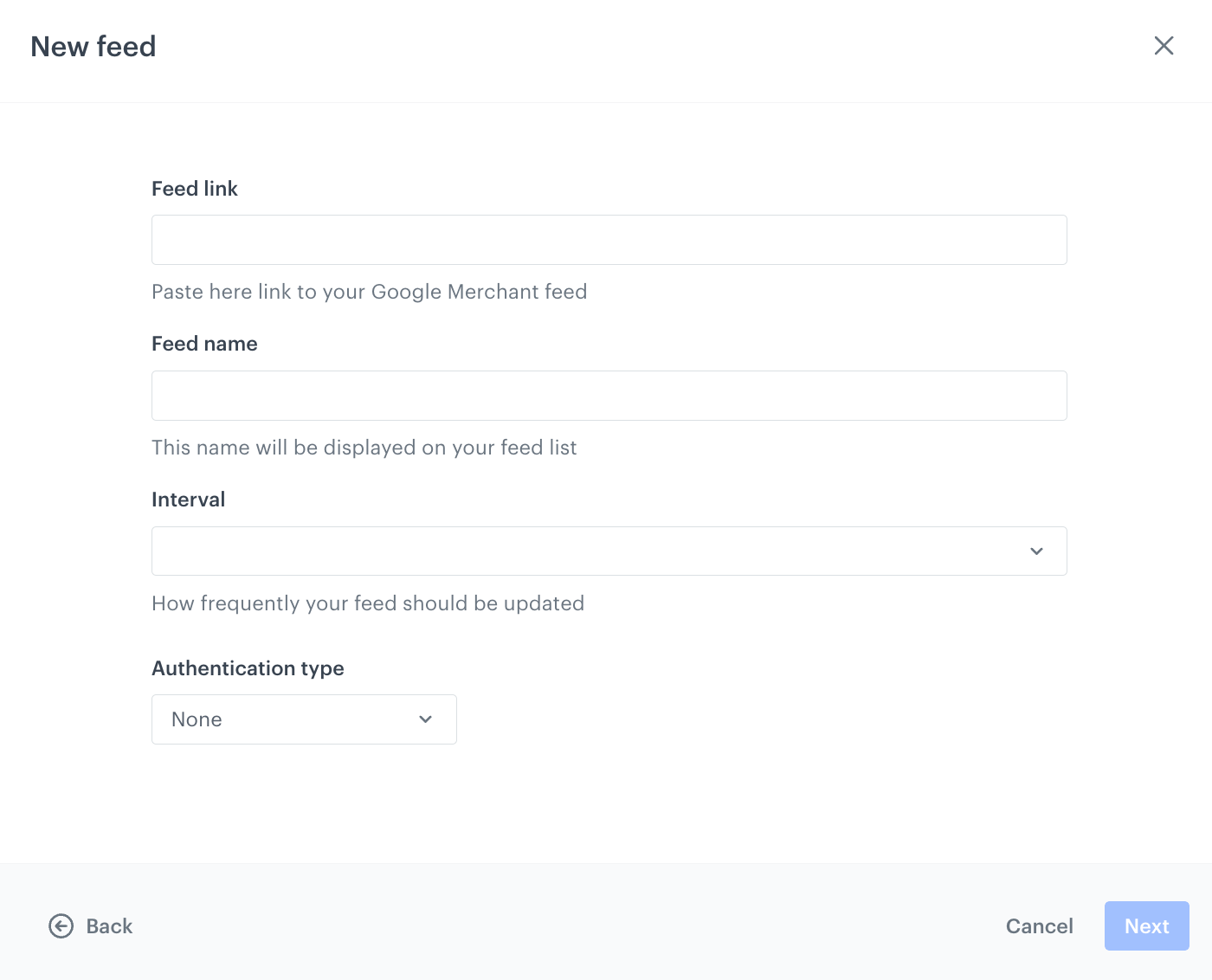
A pop-up with configuration of pulling data from Google Merchant Feed - Proceed to the next step by clicking Next.
- If you want to group feed attributes, enable the toggle. Further grouping settings are defined after adding the feed.
Grouping feed attributes refers to organizing the attributes or fields within an item feed into logical groups. Instead of treating each product variant — such as different sizes or colors — as a separate item in the feed, all variants of a product are combined and grouped into a single item.
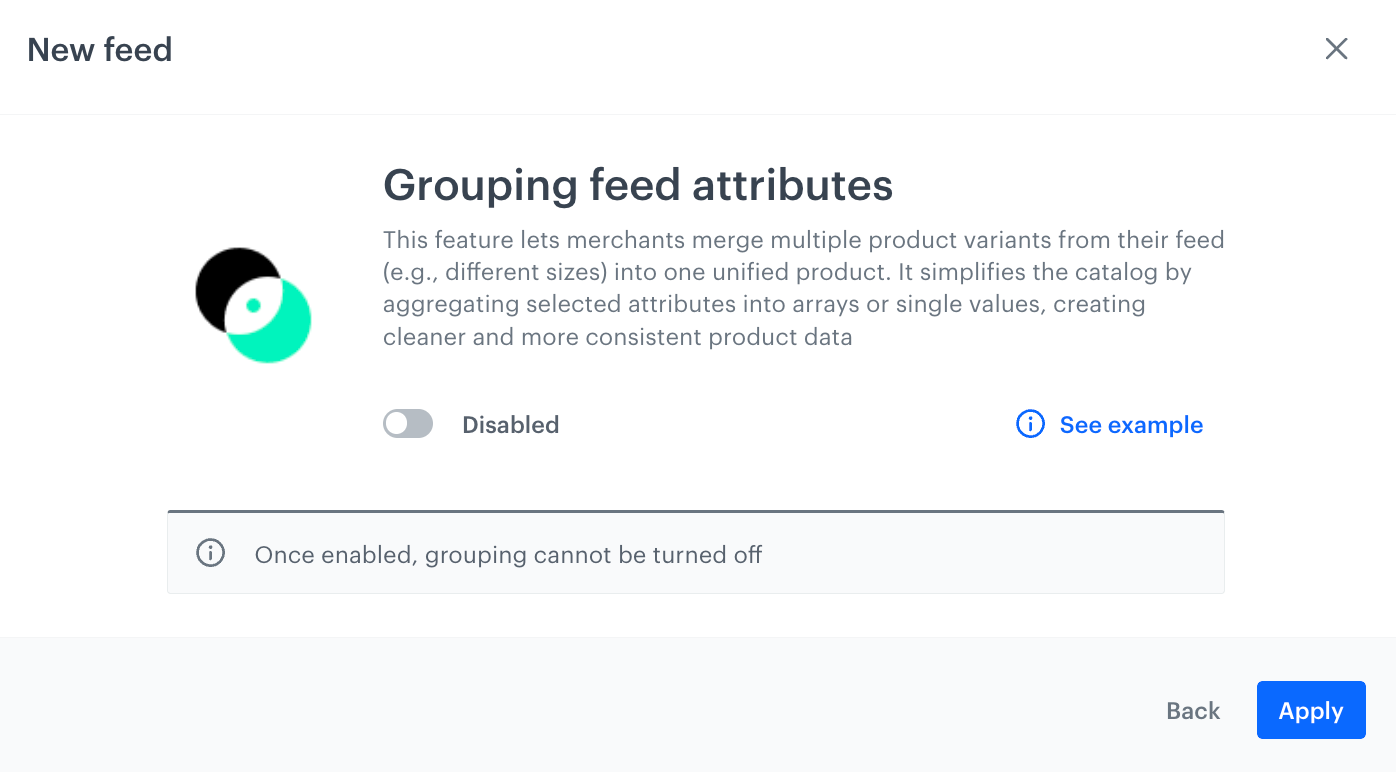
A pop-up with enabling grouping feed attributes WARNING: This action is irreversible after applying.
- Confirm by clicking Apply.
Result: The feed appears on the list in Settings > AI Engine configuration.
Selecting item feed
- In Settings > AI Engine Configuration, on the list of feeds, click the feed you added according to the Adding item feed procedure.
The configuration form opens. In the Item catalog section, the feed you are configuring is selected automatically and you can proceed to the next part of the configuration.
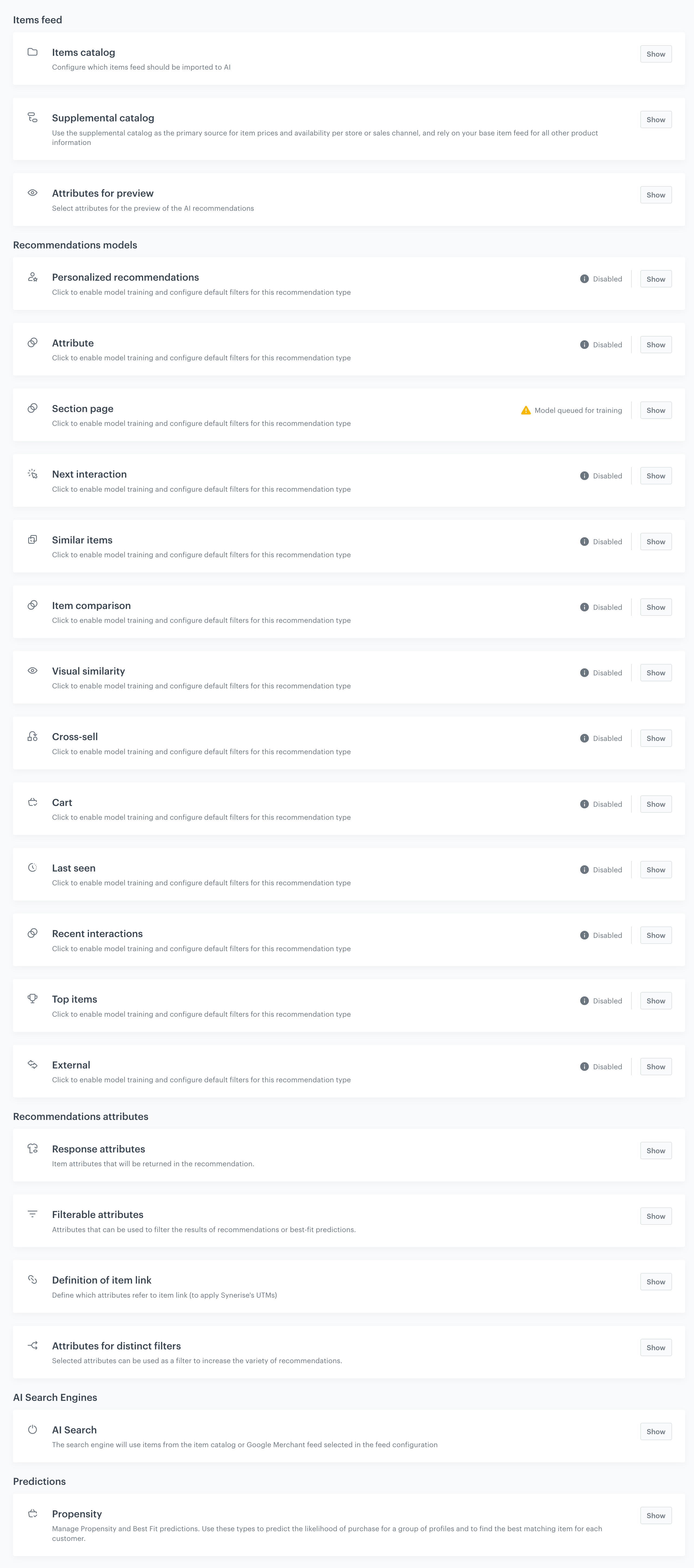
Blank model configuration form
Enabling the model
The list of promotion candidates considered by the AI model is refreshed every 3 to 24 hours. When you add or edit a promotion, the model isn't aware of the change immediately.
- In the Recommendation models section, on Personalized recommendations, click Show.
- Switch the Model enabled toggle on.
After the configuration:
- Contact the Synerise support to enable the model for a workspace - provide your workspace name and the ID of the catalog you selected as the item feed.
- Once Synerise support confirms that the model is active, you can create a personalized promotion.
Selecting attributes for distinct filters
Attributes for distinct filters are shared with AI Recommendations - if you already configured them for the same item feed, you can skip this step.
The attributes you select here become available in the Choose attribute dropdown when defining a distinct filter for a personalized promotion.
- On the Attributes for distinct filters tab, click Show.
- Click Select attributes.
- On the pop-up, from the list, choose up to 5 attributes.
- Click Apply.
- Confirm the settings of the tab by clicking Apply.
Removing item feed
You can remove item feeds from the list. While removing item feeds, any Synerise objects that rely on the feed as a source of information (such as predictions, recommendations, AI search) will be automatically disabled. Prior to confirming the removal operation, you will be presented with a list of objects that are currently using the feed to be removed. The feed will be removed after 7 days from confirming the action. During this transitional period, the feed and the objects associated with it will remain active. In the case of a feed within a catalog, the contents of the catalog will be deleted, while the catalog itself will be retained.
- Go to Settings > AI engine configuration.
- Next to the name of the feed you want to remove, click

- From the dropdown list, select Delete.
Result: A pop-up appears with the list of objects that are currently using the feed. - To confirm the operation, click Yes, delete feed.