You can summarize a data set created on the basis of a selected event within a specified time range. This analysis includes profile context, allowing for displaying the result for an individual profile. Within the aggregate preview, you can select a profile identifier to view the results for that specific profile.
Examples of what you can calculate with profile aggregates:
- You can calculate the number of visits of a profile on desktop and in the mobile application to help you understand profile preferences of a communication channel.
- You can calculate the duration of the latest visit on the website.
- You can create an aggregate which returns the SKU of an item recently purchased by a profile.
IMPORTANT: Segmentation, expression, and aggregate definitions are cached for 20 minutes after a node with the analysis is activated in a journey.
When another journey in the Automation Hub requests a result of the same analysis in that period, the cached definition is used to calculate the results. This means that if you edit a segmentation, aggregate, or expression used in a workflow, it takes 20 minutes for the new version to start being used in journeys.
This includes definitions of segmentations, expressions, and aggregates nested in other analyses and used in Inserts.
Creating a profile aggregate
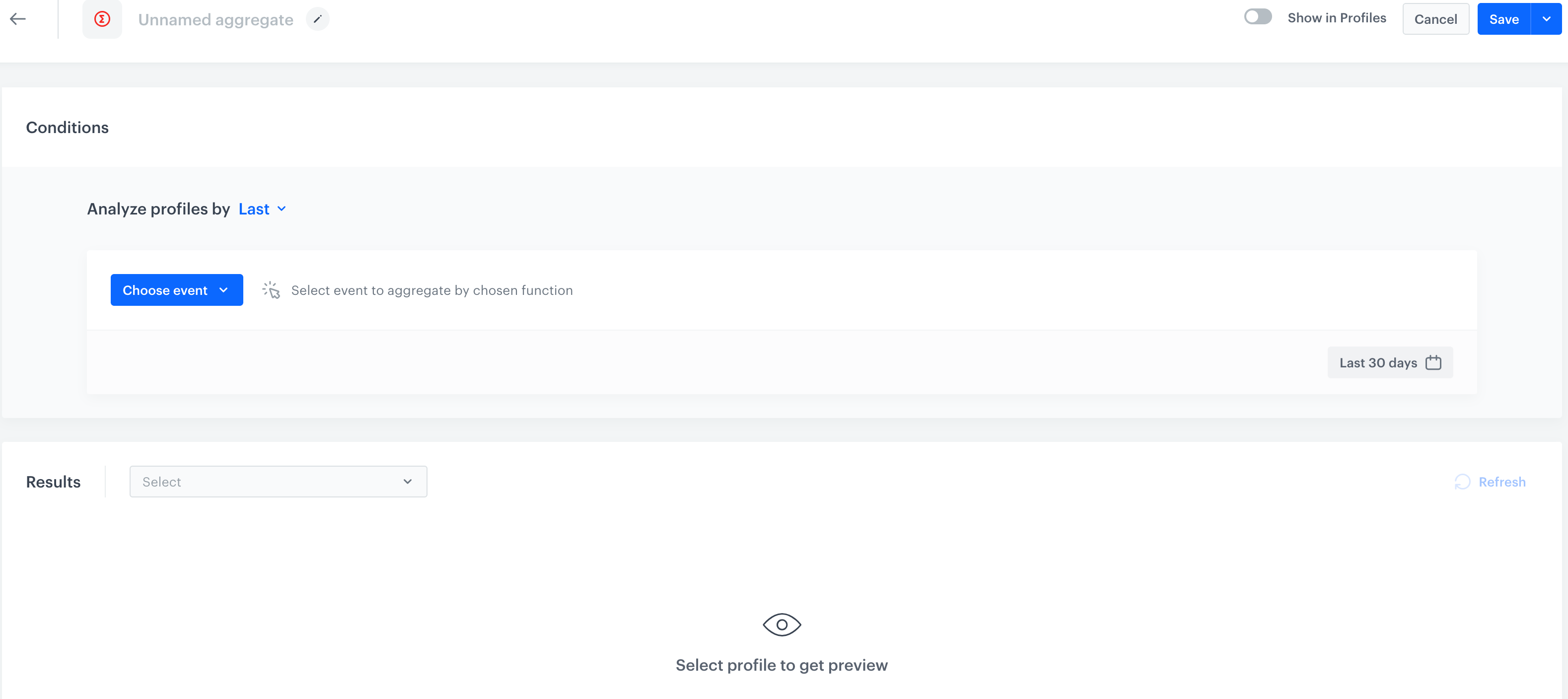
- Go to
 Behavioral Data Hub > Live Aggregates > Create aggregate.
 - As the aggregate type, select Profile.
- Enter the name of the aggregate.
- By clicking the
 button next to Analyze profiles by, define the type of aggregate result. You can choose from:
Function Description Profile aggregate Event aggregate Exists Returns a boolean value informing you whether a chosen event occurred in the selected time range. + + Sum Returns the total value of an event parameter from all matching event occurrences. + + Min Returns the minimal value of an event parameter. + + Median Returns the value separating the higher half from the lower half. For example, if you examine the total value of purchases for a single profile, the aggregate returns the middle value of amounts spent. + + Quantile Returns the value dividing the ordered statistical population into equal parts. For example, selecting the 80quantile shows the value above which 20% of results are higher and the rest are lower.+ + Max Returns the maximal value of an event parameter. + + Average Returns the average value of an event parameter. + + Count Returns the number of event occurrences. + + Count Distinct Returns the number of unique occurrences of an event parameter. + + Last Returns the latest value of an event parameter. + + Last - Time Window Works the same as Last, with the addition of a time window that limits results to event occurrences within a defined period. The maximum time window is 5 years. - + First Returns the first value of an event parameter. + + First - Time Window Works the same as First, with the addition of a time window that limits results to event occurrences within a defined period. The maximum time window is 5 years. - + First Multi Returns a list (of a size you define) of items. The list can include parameters from only the first event, or from the first event and subsequent events if the first one did not contain enough items. + + First Multi - Time Window Works the same as First Multi, with the addition of a time window that limits results to event occurrences within a defined period. The maximum time window is 5 years. - + Last Multi Returns a list (of a size you define) of items. The list can include parameters from only the last event, or from the last event and preceding events if the last one did not contain enough items. + + Last Multi - Time Window Works the same as Last Multi, with the addition of a time window that limits results to event occurrences within a defined period. The maximum time window is 5 years. - + Top Returns the most popular occurrence of an event parameter. + + Bottom Returns the rarest occurrence of an event parameter. + + Top Multi Returns a list (of a size you define) of items, showing the most popular occurrences of an event parameter. + + Bottom Multi Returns a list (of a size you define) of items, showing the least popular occurrences of an event parameter. + + - From the Choose event dropdown list, select an event.
- If you want to be more specific and analyze a particular aspect of the event click the Where button, to select event parameters.
- To determine the time range from which the data will be analyzed, click the calendar icon.
- Optionally, if you want to show this aggregate on a customer card, switch the Show in Profiles option on. As an effect, you can check the results of the aggregate for a particular customer on a customer card.
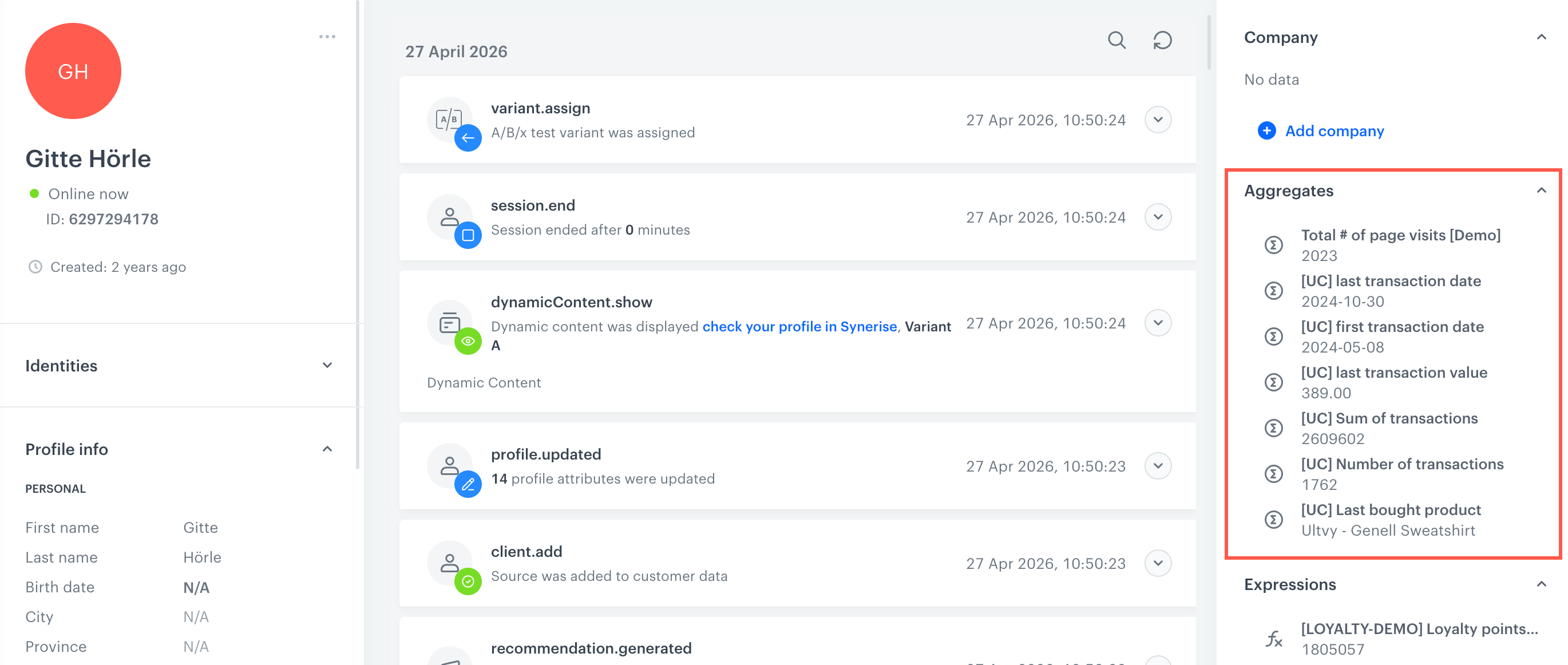
List of analyses on the profile card - To complete the process, click the Save button.