Connect Synerise with Google Wallet to let your customers add wallet passes to Google Wallet.
Requirements
Obtain the following information from Google Cloud Console and the Google Pay & Wallet Console:
| Value | What is it? | Where to find it? |
|---|---|---|
| Issuer ID | The unique identifier assigned to your Google Wallet issuer account. | In the Google Pay & Wallet Console. |
| Issuer name | The name configured for your Google Wallet issuer account. | In the Google Pay & Wallet Console. |
| Service account JSON key | The JSON key file of the service account Synerise uses to authenticate requests to the Google Wallet API. | Generated for the service account in Google Cloud Console. |
NOTE: Instead of connecting your own Google Wallet credentials, you can choose to use Synerise managed credentials when enabling the integration - see step 6 in Enabling Google Wallet in Synerise. In that case, you don't need to collect the values above.
Collecting integration parameters from Google Cloud
- Go to Google Cloud Console.
- Select an existing project, or create a new one.
- In the IAM & Admin section, create a service account.
- Generate a JSON key for the service account, and save the downloaded file—you'll upload it to Synerise as the service account JSON key.
- Go to the Google Wallet API and configure your issuer account.
- In the Google Pay & Wallet Console, copy the Issuer ID and Issuer name of your issuer account.
Enabling Google Wallet in Synerise
- Collect the integration parameters from Google Cloud.
- Go to
 Settings > Apps & Services.
 - In the list of integrations, click Google Wallet.
- Click New connection.
Result: A configuration form opens.
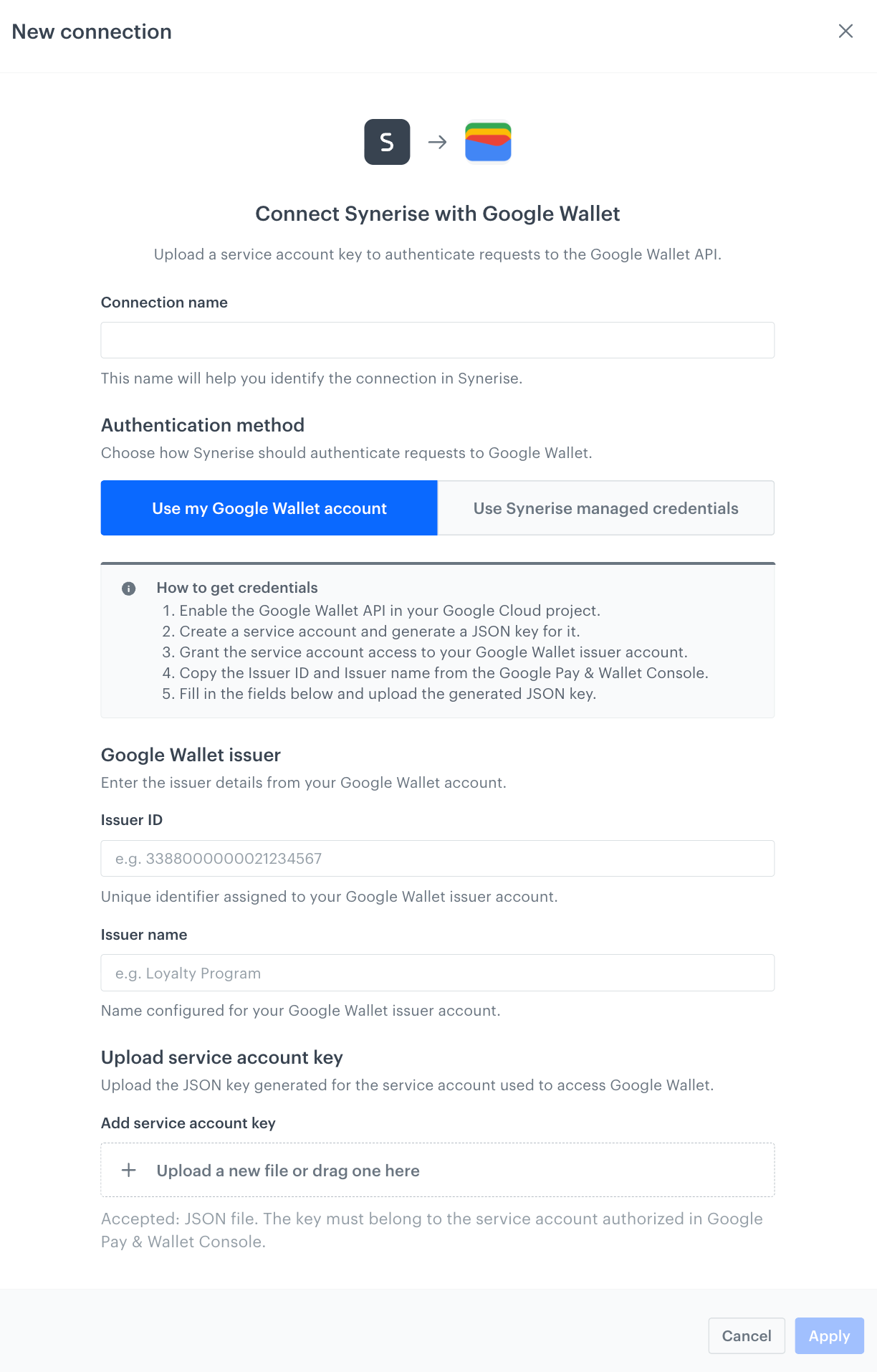
The Google Wallet connection configuration form - In the Connection name field, enter a name to identify the connection in Synerise.
Under Authentication method, choose how Synerise should authenticate requests to Google Wallet:
Use my Google Wallet account - connect using the credentials you collected above.
Use Synerise managed credentials - switch the Enable integration using Synerise credentials toggle on. Synerise configures and manages the credentials required to access Google Wallet, so no additional setup is required. Skip the remaining steps below.
TIP: Use Synerise managed credentials for the fastest setup, for example for a proof of concept:
- Practically instant onboarding.
- No need to create a Google Wallet Business account.
- No credentials for you to manage.
- Lower risk of misconfiguration.
Use your own Google Wallet account if you need full control:
- Full independence from Synerise's shared issuer.
- Your own Google Wallet issuer account.
- You manage access to the credentials on your side.
If you selected Use my Google Wallet account, under Google Wallet issuer:
- In the Issuer ID field, enter the issuer ID you copied from the Google Pay & Wallet Console.
- In the Issuer name field, enter the issuer name you copied from the Google Pay & Wallet Console.
- Upload the service account JSON key file you generated in Google Cloud Console.
- Click Apply.
Result: The connection with Google Wallet is created and ready to use as the Google credential ID when configuring a wallet pass's credentials.