IMPORTANT: This feature is available in private preview mode and accessible only on selected workspaces. To get access, contact your account manager or Synerise Support.
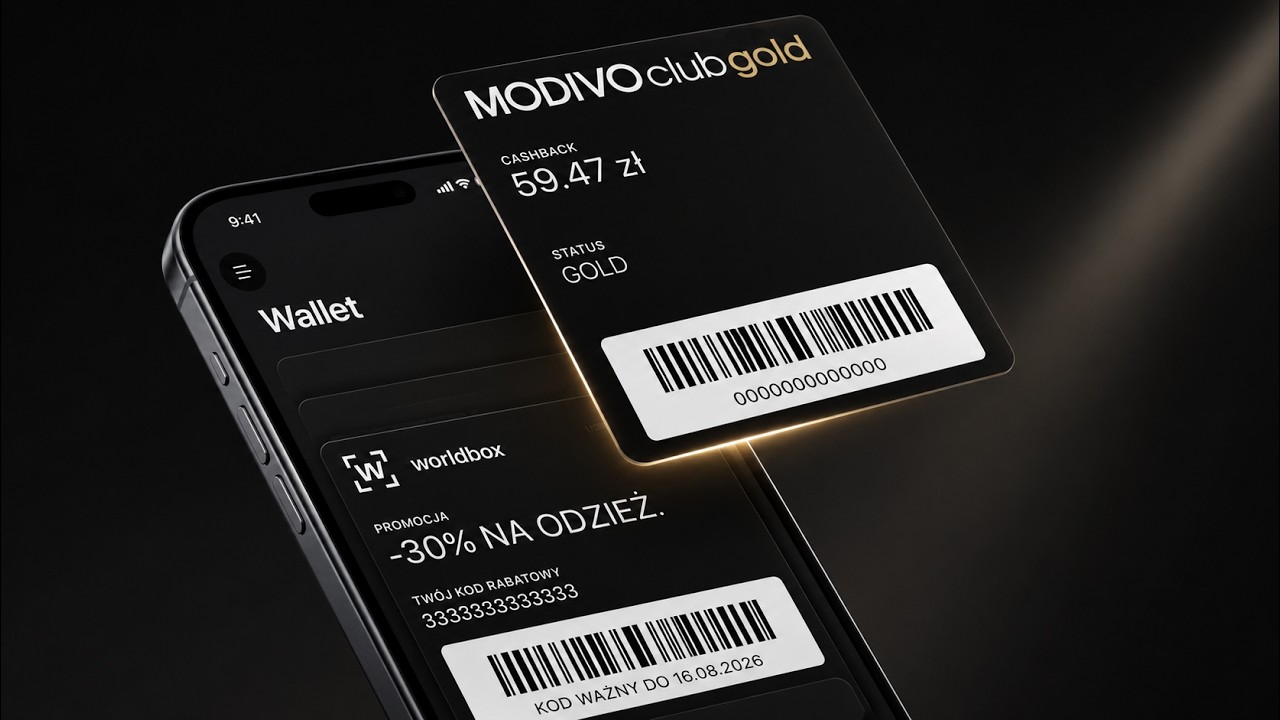
The wallet pass builder lets you design a digital card for Apple Wallet and Google Wallet directly from the platform, without writing any code. You define the card's type, layout, colors, images, and content once, and the builder generates the correct format for each wallet provider.
You can personalize the card by using Jinjava template inserts in any dynamic field, so the same template can display a different loyalty balance, member ID, or barcode value for each cardholder - for example, a cardholder's current points balance or a personalized product recommendation.
To let a customer add the pass to their wallet, generate a link to it in the builder - you can then share that link through any communication channel, such as a WhatsApp message or an email. See Distributing wallet passes.
Whenever the card's content changes, you can push that update to passes already installed on a customer's device. The cardholder is notified of the change, though whether the notification actually appears depends on the wallet provider. See Managing wallet passes.
Barcode types
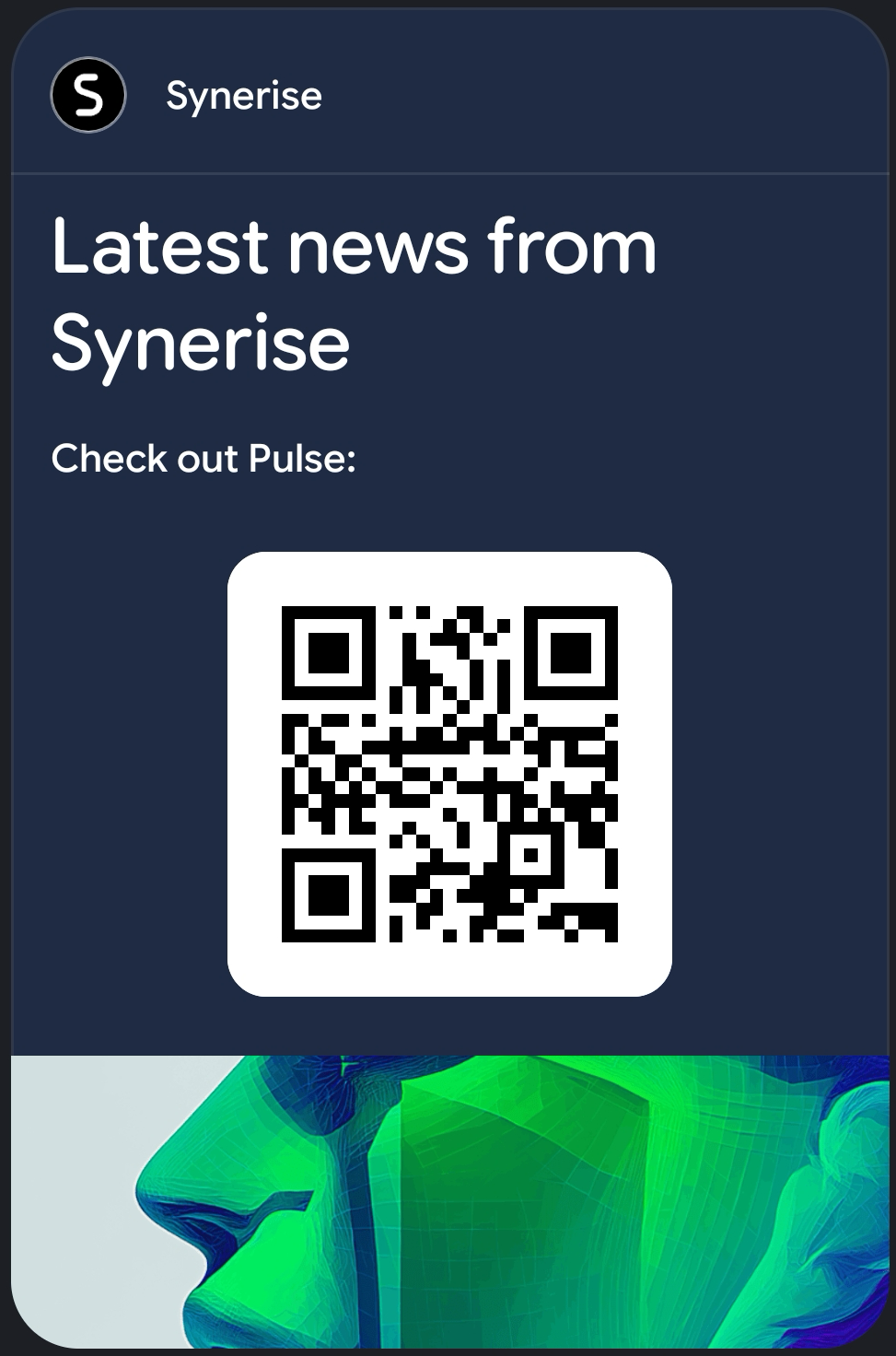
A wallet pass can show one of the following barcode types on its front, or no barcode at all:
- QR code
- PDF417 barcode
- Aztec code
- Code 128
Card structure
A wallet pass has a front, and, on Apple Wallet, a back:
- Front - The side the cardholder sees first. It shows the brand name and header, the logo and other images, the background and text colors, the headline, up to four additional dynamic front fields, and the barcode.
- Back (Apple Wallet only) - Holds longer-form content, such as up to four details entries and up to two links. The cardholder reveals it by tapping the information icon (ⓘ) on the front of the card. Google Wallet doesn't show this content.
For the full, field-by-field configuration, see Creating wallet passes.
Example use cases
For example, you can use wallet passes for:
- Live loyalty or cashback balance card - The card shows the cardholder's name and their current points or cashback balance, and can work as a supplement to your loyalty program or as the loyalty program itself. Trigger a pass update whenever the balance changes - for example, from an automation on the event that changes it - so the card reflects the new balance without the cardholder needing to open your app.
- In-store discount codes - A customer scans a QR code shown on a checkout or fitting-room display to add a discount code (for example, 15% off accessories) directly to their wallet.
- Out-of-home discount codes - A customer taps an NFC tag on a poster or screen, for example at a bus stop or in the subway, to add a discount code to their wallet.
- Personalized birthday vouchers - Based on the birthdate stored in the customer's profile, the system generates a personalized voucher (for example, a fixed amount off selected brands) and adds it to the customer's wallet automatically on their birthday.
- Gift cards - A customer receives a gift card as a wallet pass showing their remaining balance and a barcode to redeem it in-store or online; trigger a pass update after each purchase to keep the balance current.
- Event tickets - A customer adds their event ticket to their wallet, with a barcode used for entry at the venue, and details such as the seat, gate, or entry rules on the back.
- Membership cards - A customer's membership card shows their current tier (for example, Silver, Gold, or Platinum) and its benefits, personalized with their name and member ID; trigger a pass update whenever their tier changes to keep the card current.
Requirements
To publish a wallet pass, you need a Google Wallet and an Apple Wallet connection configured in Synerise.
You must be assigned a role with the permissions that allow you to create wallet pass credentials, and to create, edit, and publish wallet passes. See Experience Hub permissions.
Events generated
Synerise automatically generates events at each stage of a wallet pass's lifecycle, from the moment a user saves it to a wallet through its installation, updates, and expiration. This creates an audit trail you can use for analytics and to trigger further automation. Become familiar with the Wallet Pass event reference.
Wallet passes as Brickworks schema and records
Wallet passes are built on Brickworks.
Due to this, your workspace has a dedicated schema called "Wallet Card Design". DO NOT edit this schema.
In the audit log, operations on wallet pass templates are available under the brickworks consumer.