Post-purchase receipt with personalized recommendations and store coupon via in-app message
Bridging the gap between offline purchases and digital engagement is a key challenge for omnichannel retailers. When a customer completes a transaction in a physical store, the experience typically ends at the checkout counter. However, this moment represents a valuable opportunity to deepen the relationship by delivering a rich, personalized follow-up directly in the customer’s mobile app.
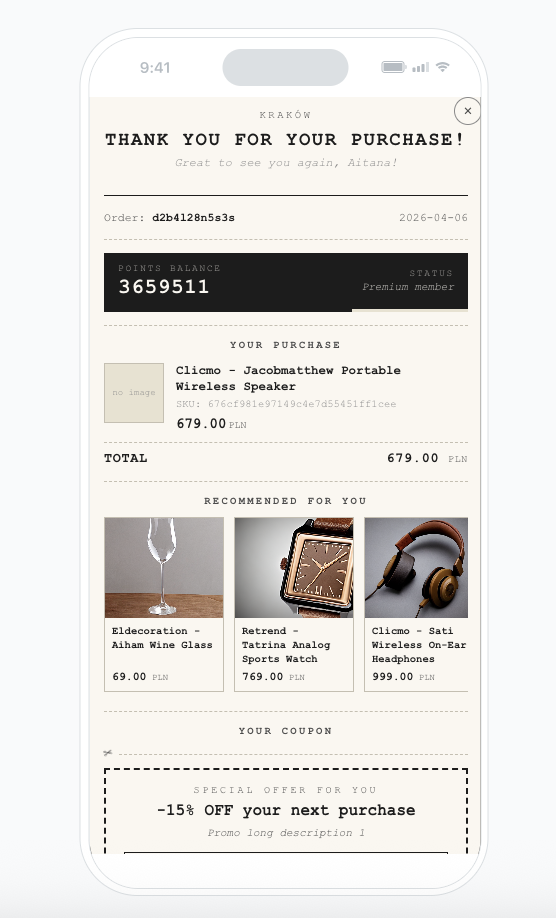
This use case describes how to generate a personalized digital receipt displayed as an in-app message shortly after an offline purchase. The receipt consolidates multiple data sources into a single view. The generated receipt includes:
- Personalized greeting with the customer’s first name
- Store name based on the location where the purchase was made
- Transaction details: order ID, date, list of purchased products with images, names, SKUs, prices, and total amount
- Loyalty program status: current points balance and membership tier with a visual progress bar
- AI-driven cross-sell recommendations (“Recommended for you”) based on the purchased products
- Store-specific promotional coupon with a tap-to-copy code, description, and expiration date
The entire payload is assembled using Brickworks, which combines customer attributes, aggregates, expressions, external data, AI recommendations, and catalog lookups into a ready-to-render template.
The workflow is triggered by the transaction.charge event (indicating an offline purchase), waits briefly via a delay node, and then sends a silent mobile push that triggers the in-app message display. The in-app template renders a receipt-style layout with all the personalized data.
Prerequisites
- Implement Synerise SDK in your mobile app.
- Implement the transaction events using SDK or API. The
transaction.chargeevent must include astoreIdparameter identifying the physical store. - Import a product feed to Synerise. You can find instructions here. Check the use case.
- Configure AI engine for recommendations; enable the cross-sell recommendation type.
- Have a loyalty program configured in Synerise with points and tiers.
- Create a catalog mapping store IDs to promotion UUIDs. Each record in this catalog should contain at minimum: a key matching the
storeIdand apromotionattribute holding the UUID of the promotion assigned to that store. - Create promotions in Synerise that will serve as store-specific coupons to be displayed on the receipt.
- Create API keys with appropriate permissions for the Brickworks external data fields (access to activities API and promotions API).
Process
In this use case, you will go through the following steps:
- Create aggregates for transaction data.
- Create an expression for loyalty points balance.
- Create an expression for loyalty level.
- Create an AI recommendation for cross-sell products.
- Create a Brickworks schema combining all data sources.
- Create the Brickworks record.
- Create an in-app campaign with the receipt template.
- Create a workflow to trigger the in-app via silent push.
Create aggregates for transaction data
In this part of the process, you will create aggregates that retrieve the details of the customer’s most recent transaction. These aggregates will be used as default values in the Brickworks schema fields.
Expression for transaction date
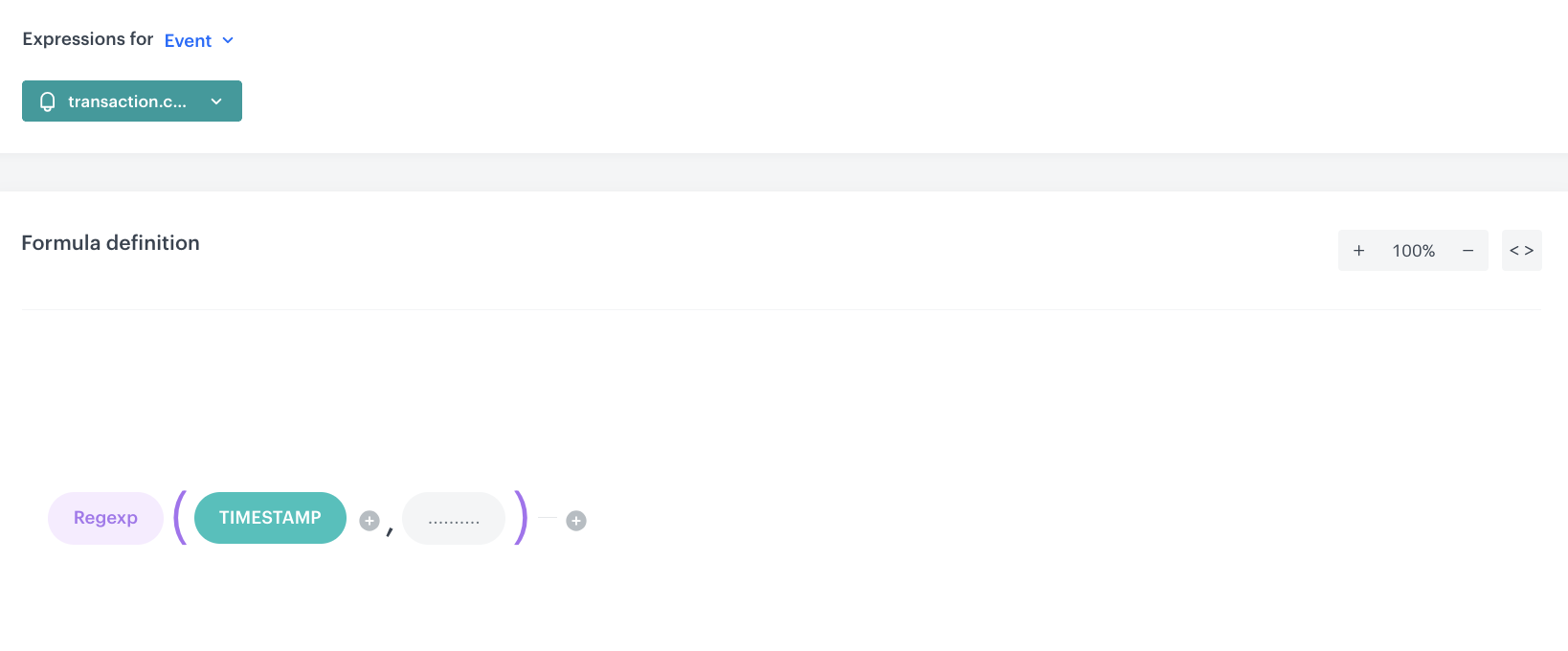
Before creating the aggregate, you need an expression that extracts a human-readable date from the transaction.charge event’s timestamp. This expression applies a regular expression (Regexp) to the TIMESTAMP event attribute of the transaction.charge event to parse the date value.
- Go to
 Behavioral Data Hub > Expressions > New expression.
 - Enter the name of the expression, for example
date [transaction.charge]. - Set Expressions for to Event.
- From the event dropdown list, select
transaction.charge. - In the Formula definition section, build the following formula presented on the screen below.
- TIMESTAMP is an Event attribute of type
TIMESTAMPfrom thetransaction.chargeevent, and the Regexp pattern extracts the date portion from the timestamp. - Save the expression.
Aggregate for last transaction date
This aggregate returns the date of the customer’s most recent transaction.charge event, using the expression created above.
- Go to Behavioral Data Hub > Live Aggregates > Create aggregate.
- As the aggregate type, select Profile.
- Enter the name of the aggregate, for example
Last transaction.charge lifetime - date. - Click Analyze profiles by and select Last.
- From the Choose event dropdown list, select the
transaction.chargeevent. - As the event parameter, select the expression
date [transaction.charge]created in the previous step. - Define the period to Lifetime.
- Save the aggregate.

Aggregate for last transaction order ID
This aggregate returns the order ID from the customer’s most recent transaction.charge event.
- Go to Behavioral Data Hub > Live Aggregates > Create aggregate.
- As the aggregate type, select Profile.
- Enter the name of the aggregate, for example
Last transaction.charge lifetime - $orderId. - Click Analyze profiles by and select Last.
- From the Choose event dropdown list, select the
transaction.chargeevent. - As the event parameter, select
$orderId. - Define the period to Lifetime.
- Save the aggregate.

Aggregate for last transaction amount
This aggregate returns the total amount from the customer’s most recent transaction.charge event.
- Go to Behavioral Data Hub > Live Aggregates > Create aggregate.
- As the aggregate type, select Profile.
- Enter the name of the aggregate, for example
Last transaction.charge lifetime - $totalAmount. - Click Analyze profiles by and select Last.
- From the Choose event dropdown list, select the
transaction.chargeevent. - As the event parameter, select
$totalAmount. - Define the period to Lifetime.
- Save the aggregate.

Aggregate for last transaction timestamp
This aggregate returns the timestamp of the customer’s most recent transaction.charge event. The timestamp is used in the in-app template to calculate a time window (±50 seconds) for retrieving the exact product.buy events belonging to that transaction via the external data field.
- Go to Behavioral Data Hub > Live Aggregates > Create aggregate.
- As the aggregate type, select Profile.
- Enter the name of the aggregate, for example
Last transaction.charge lifetime - timestamp. - Click Analyze profiles by and select Last.
- From the Choose event dropdown list, select the
transaction.chargeevent. - As the event parameter, select
timeSent. - Define the period to Lifetime.
- Save the aggregate.

Aggregate for last store ID
This aggregate returns the store ID from the customer’s most recent transaction. It is used in the workflow as an additional parameter in the silent push, enabling the in-app message to display the correct store name and store-specific coupon.
- Go to Behavioral Data Hub > Live Aggregates > Create aggregate.
- As the aggregate type, select Profile.
- Enter the name of the aggregate, for example
Last transaction storeId. - Click Analyze profiles by and select Last.
- From the Choose event dropdown list, select the
transaction.chargeevent. - As the event parameter, select
storeId. - Define the period to Lifetime.
- Save the aggregate.
Create an expression for loyalty points balance
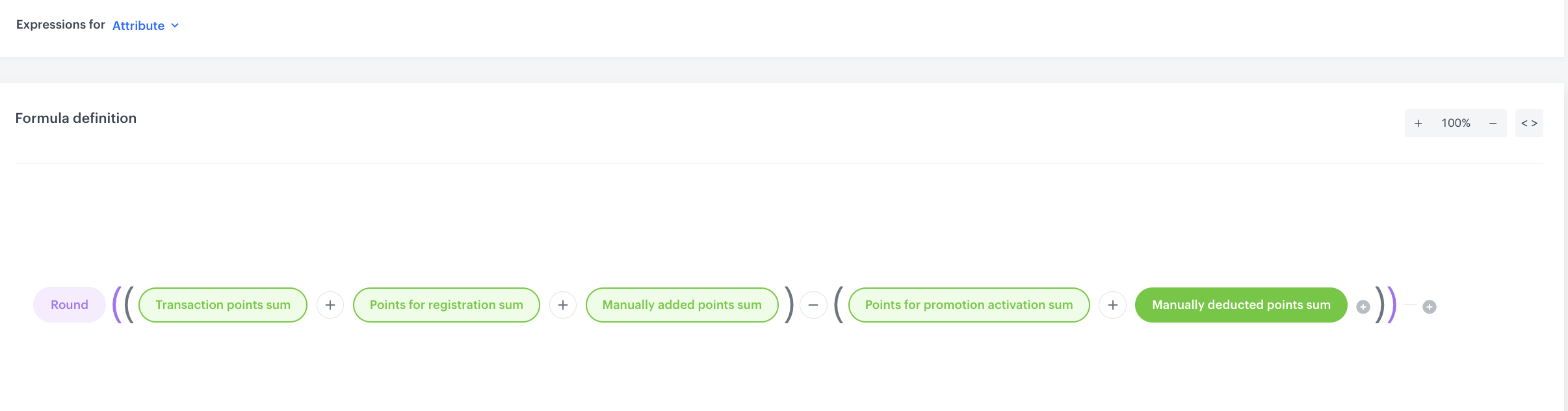
Create an expression that calculates the current loyalty points balance for the customer. The expression sums up all points earned (from transactions, registration, and manual additions) and subtracts all points spent (from promotion activations and manual deductions).
-
Go to
Behavioral Data Hub > Expressions > New expression. -
Enter the name of the expression, for example
Loyalty points balance. -
In the description, enter
Expression shows current amount of points that user is able to use. -
Set Expressions for to Attribute.
-
In the Formula definition section, build the following formula presented on the screen below.
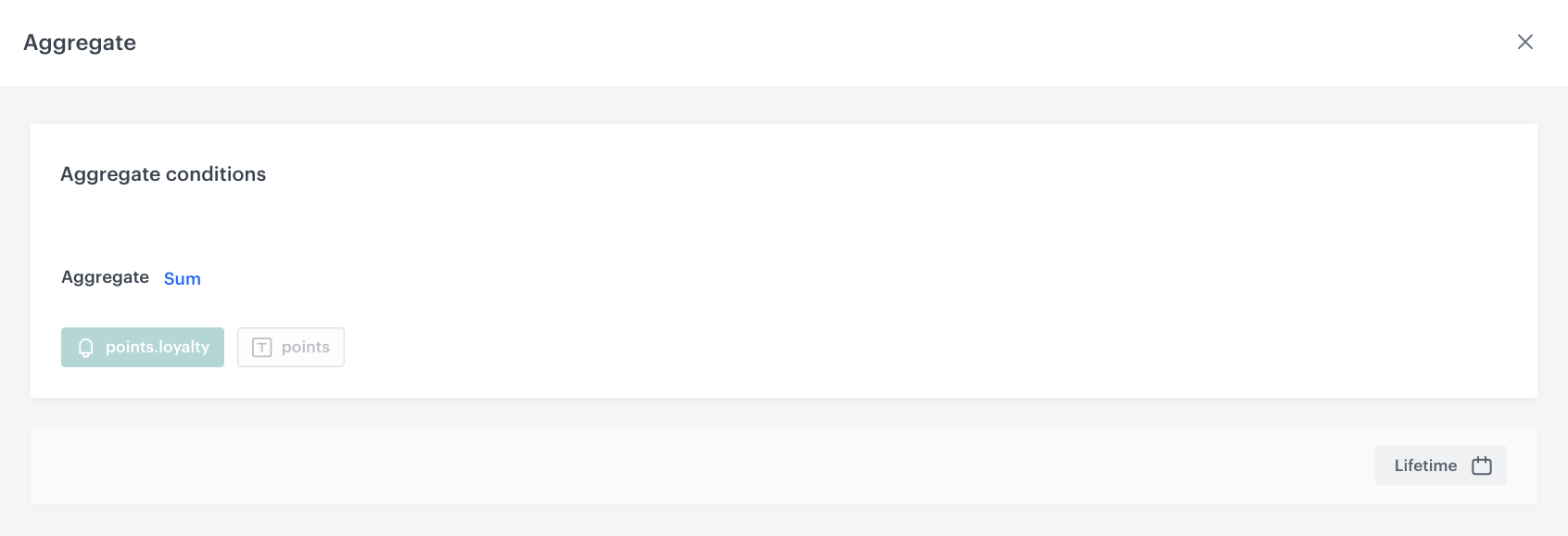
Where each component is a Profile-type aggregate:
- Transaction points sum: Aggregate Sum of the
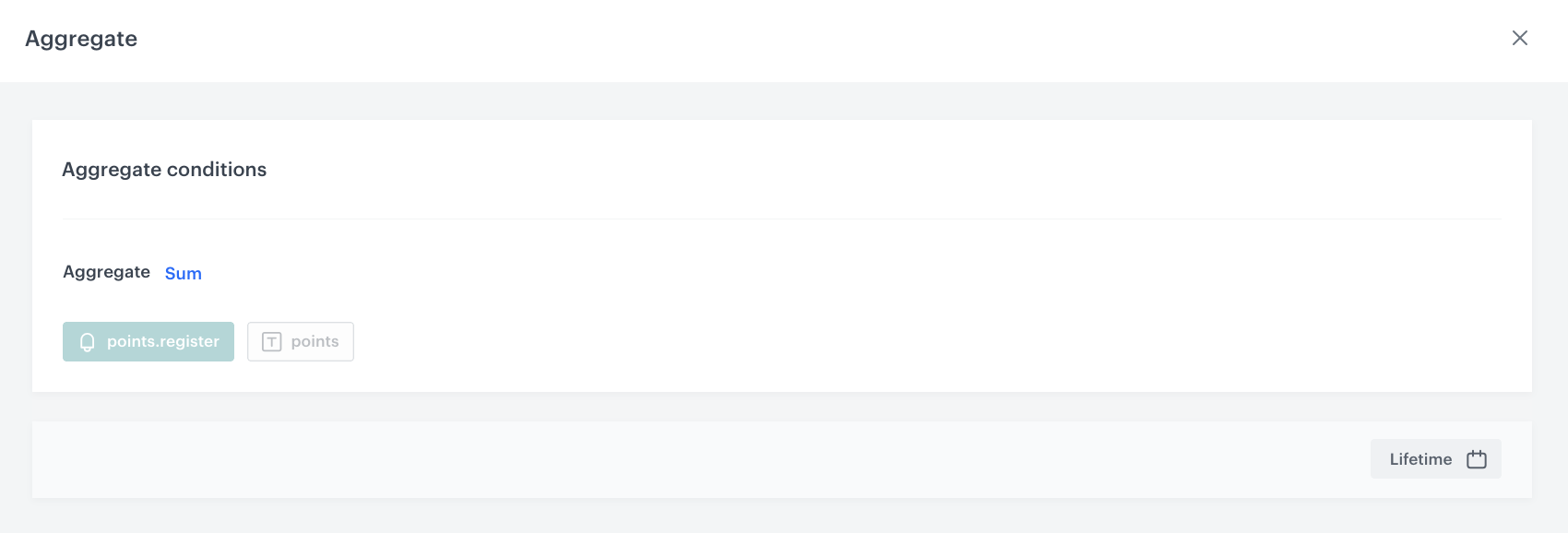
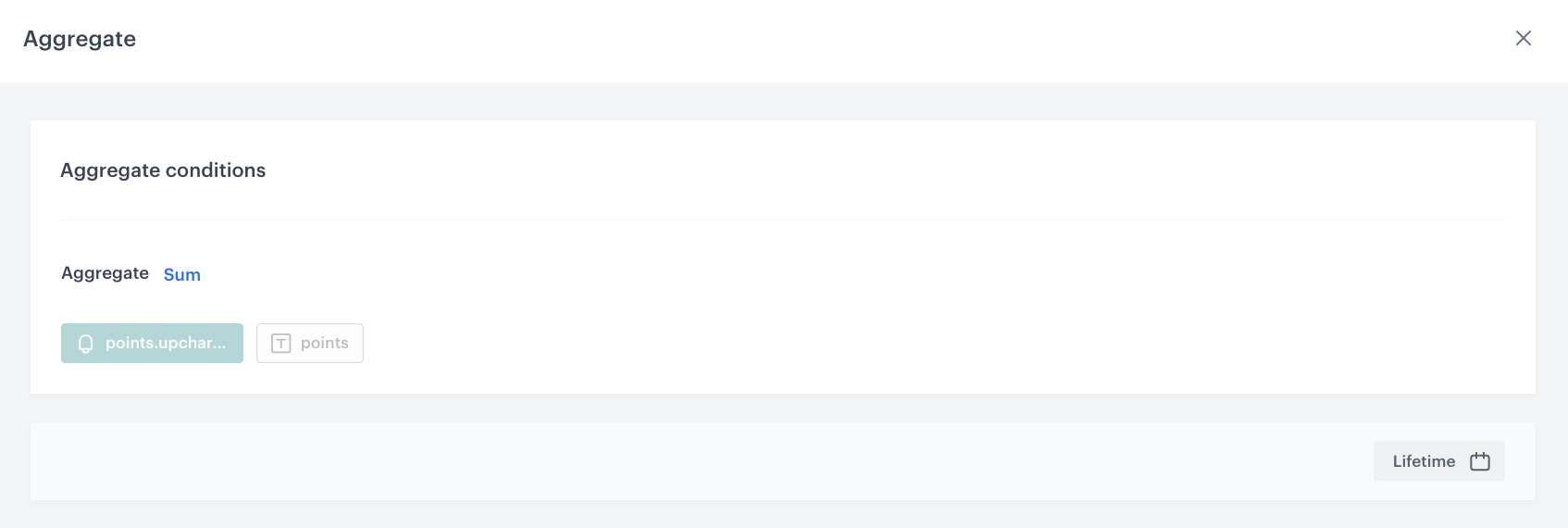
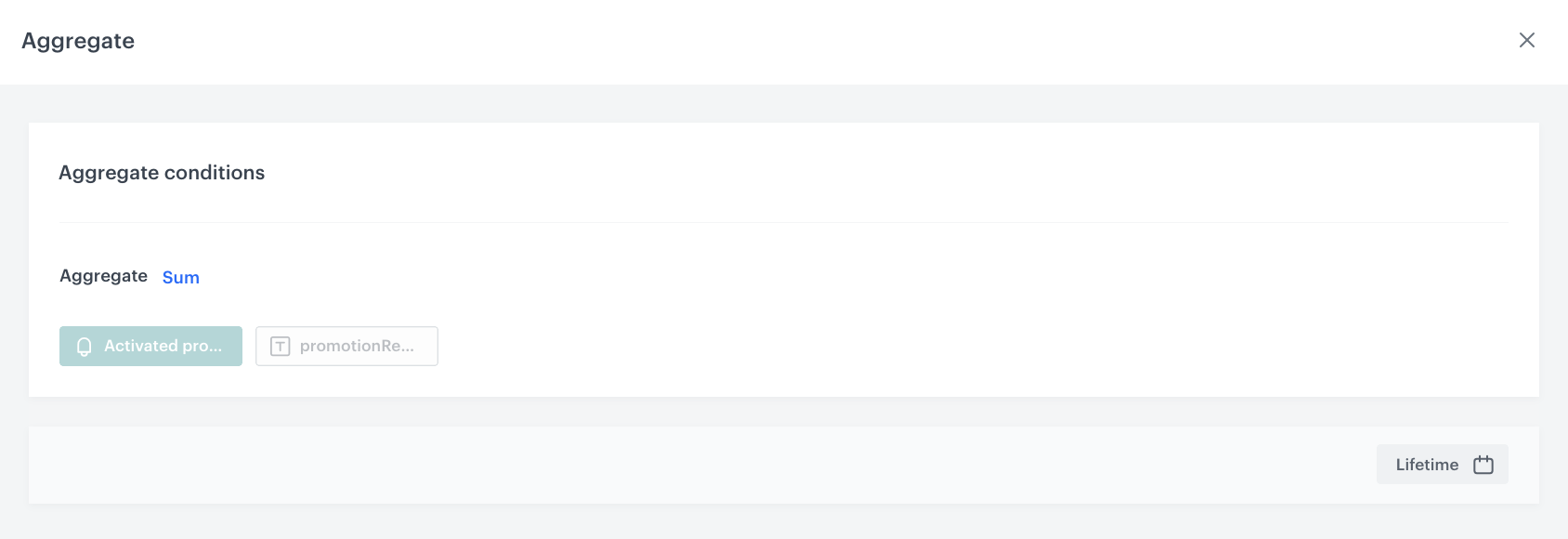
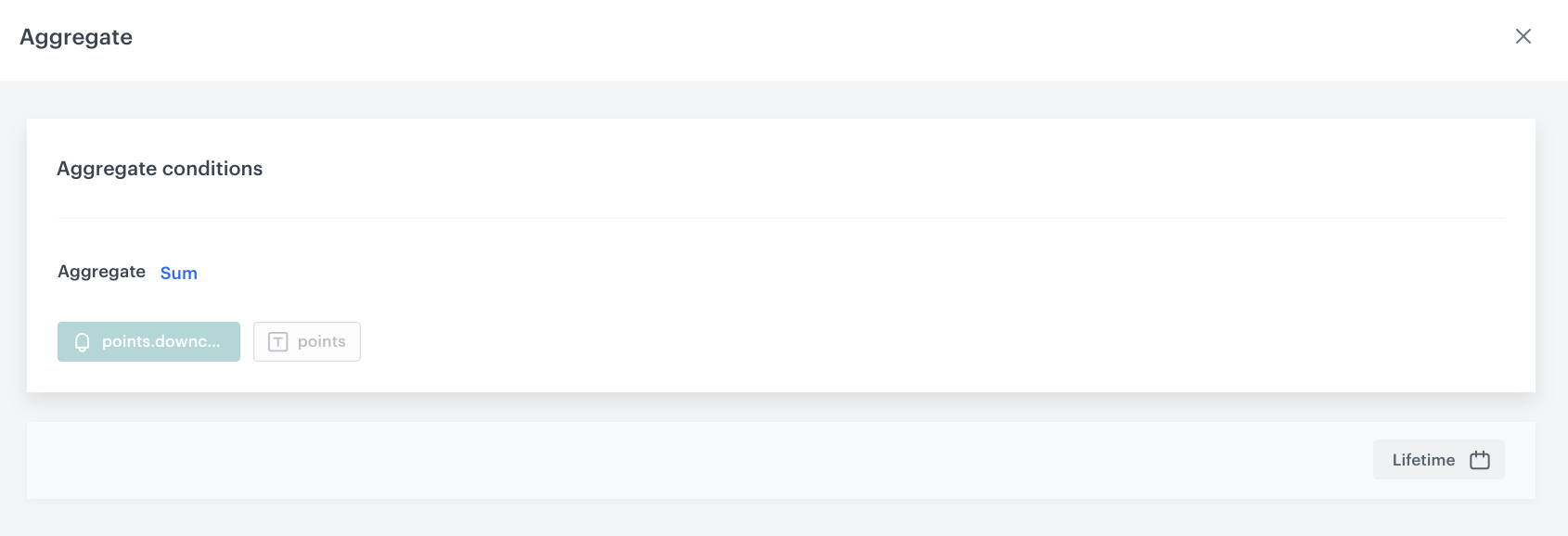
points.loyaltyevent, parameterpoints, period Lifetime. - Points for registration sum: Aggregate Sum of the
points.registerevent, parameterpoints, period Lifetime. - Manually added points sum: Aggregate Sum of the
points.upchargeevent, parameterpoints, period Lifetime. - Points for promotion activation sum: Aggregate Sum of the
client.activatePromotionevent, parameterpromotionRequireRedeemedPoints, period Lifetime. - Manually deducted points sum: Aggregate Sum of the
points.downchargeevent, parameterpoints, period Lifetime.
- Transaction points sum: Aggregate Sum of the
-
Save the expression.
Create an expression for loyalty level
Create an expression that returns the customer’s current loyalty tier based on conditional logic. The expression evaluates a series of segmentations — each representing a loyalty tier — and returns the corresponding label (for example, “Base member”, “Silver member”, “Gold member”, or “Premium member”).
-
Go to
Behavioral Data Hub > Expressions > New expression. -
Enter the name of the expression, for example
[UC] Loyalty level. -
Set Expressions for to Attribute.
-
In the Formula definition section, build a nested conditional (If) formula with the following logic:
If( [UC] Loyalty level - Base, "Base member", If( [UC] Loyalty level - Silver, "Silver member", If( [UC] Loyalty level - Gold, "Gold member", If( [UC] Loyalty level - Premium, "Premium member", null ) ) ) )Each green node (
[UC] Loyalty level - Base,[UC] Loyalty level - Silver,[UC] Loyalty level - Gold,[UC] Loyalty level - Premium) is a segmentation that checks whether the customer falls into the corresponding loyalty tier based on their points balance. The expression evaluates them in order and returns the first matching tier label. If none matches, it returnsnull. -
Save the expression.
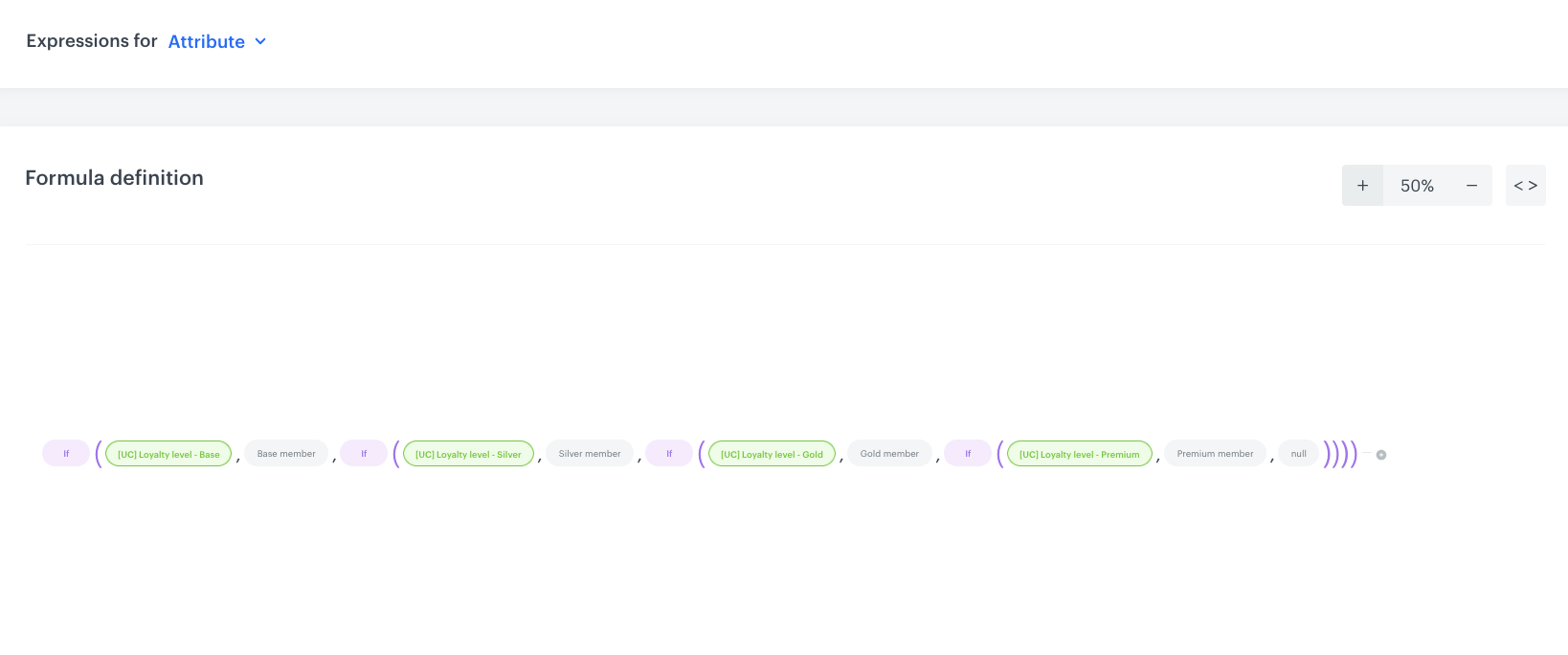
[UC] Loyalty level - Gold) define the point thresholds for each tier. You need to create these segmentations separately in Decision Hub > Segmentations before building this expression. Each segmentation should use a condition based on the customer’s loyalty points sum (for example, “points sum ≥ 4000 AND points sum < 10000” for the Gold tier). Adjust the thresholds to match your loyalty program requirements.Create an AI recommendation for cross-sell products
In this part of the process, you will configure a cross-sell (complementary products) recommendation. This recommendation suggests products related to what the customer has just purchased and is displayed in the “Recommended for you” section of the receipt.
- Go to
 AI Hub > (AI Recommendations) Models > Add recommendation.
 - Enter the name of the recommendation, for example
Recommending complementary products. - In the Type & Items feed section, click Define.
- From the Items Feed dropdown list, select the item catalog which you configured as a part of prerequisites.
- In the Type section, choose the Cross-sell recommendation type.
- Confirm the settings by clicking Apply.
- In the Items section, click Define.
- Define the items slot configuration according to your needs.
- Confirm by clicking Apply.
- In the Slots and items ordering section, click Define.
- Set Slots and items ordering to Arrange items in slot order.
- Set Items sorting method within slots to Sort by score.
- Confirm by clicking Apply.
- Optionally, define the Boosting factors.
- In the Additional settings section, click Define.
- Enable Exclude already bought products with the Elastic option and set the period to 180 days.
- Set Item context from analytics (aggregate, expression) to an aggregate or expression that returns the SKU of the last purchased product (for example,
Last 1 product.buy sku). - Confirm by clicking Apply.
- In the upper right corner, click Save.
Create a Brickworks schema
In this part of the process, you will create a Brickworks schema that serves as a structured container for all the data displayed on the personalized receipt. The schema combines customer attributes, aggregates, expressions, AI recommendations, external API data, and catalog lookups into a single renderable payload.
- Go to Data Modeling Hub > Brickworks > New schema.
- Choose Simple Schema.
- Enter a name for the schema, in Display name for example
Receipt Intelligence. API name is pre-filled with the value from Display name. - Optionally, fill in the Description field.
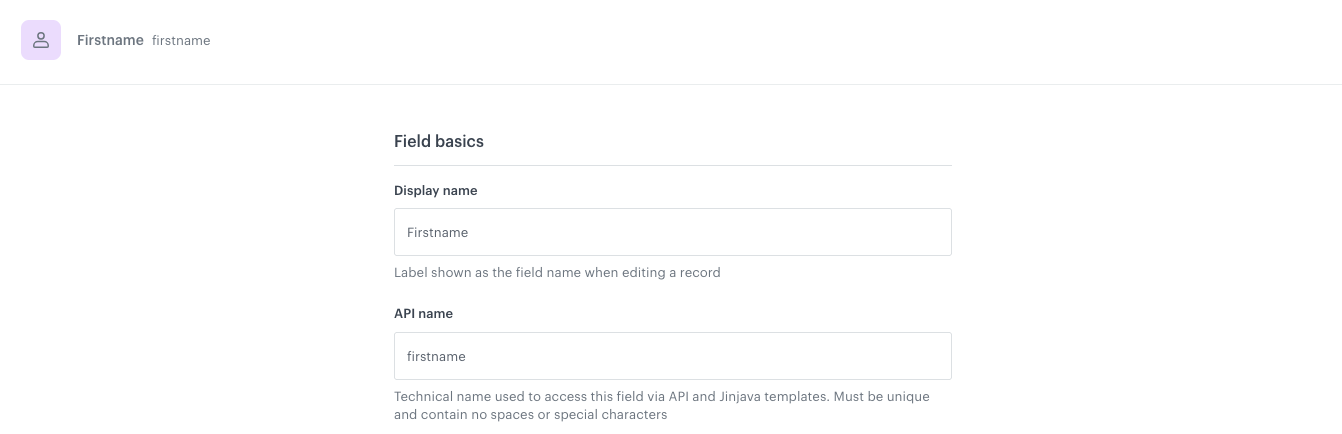
Add Firstname field
- Click Add new field and choose Customer attribute.
- Complete the fields:
- Display name:
Firstname - API name:
firstname(pre-filled automatically)
- Display name:
- Configure the field to return the customer’s
firstnameattribute. - To save your changes, click Apply.
Add Points balance field
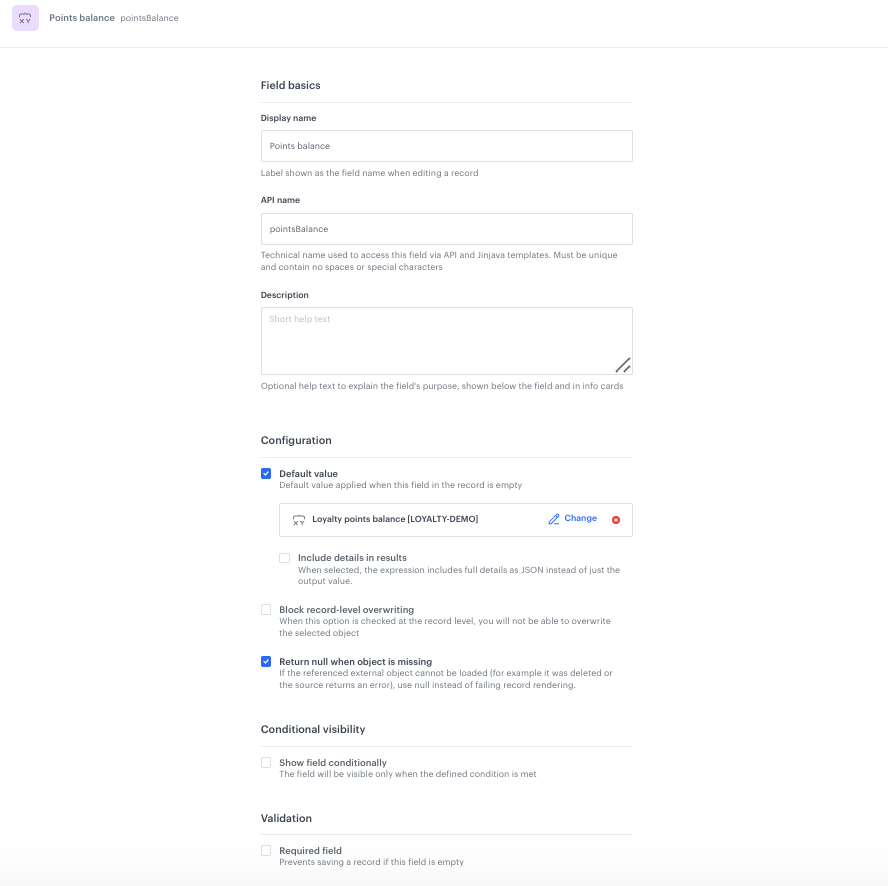
- Click Add new field and choose Expression.
- Complete the fields:
- Display name:
Points balance - API name:
pointsBalance(pre-filled automatically)
- Display name:
- In Configuration, enable Default value and select the expression
Loyalty points balance [LOYALTY-DEMO]created in the previous step. - Enable Return null when object is missing to prevent rendering errors if the expression returns no data.
- To save your changes, click Apply.
Add Loyalty level field
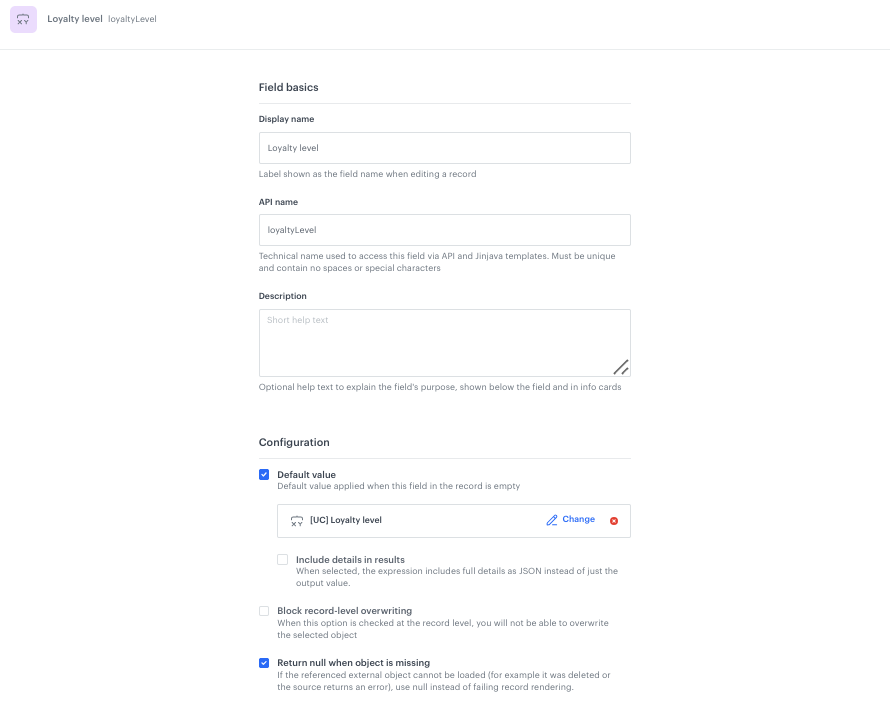
- Click Add new field and choose Expression.
- Complete the fields:
- Display name:
Loyalty level - API name:
loyaltyLevel(pre-filled automatically)
- Display name:
- In Configuration, enable Default value and select the expression
[UC] Loyalty levelcreated in the previous step. - Enable Return null when object is missing.
- To save your changes, click Apply.
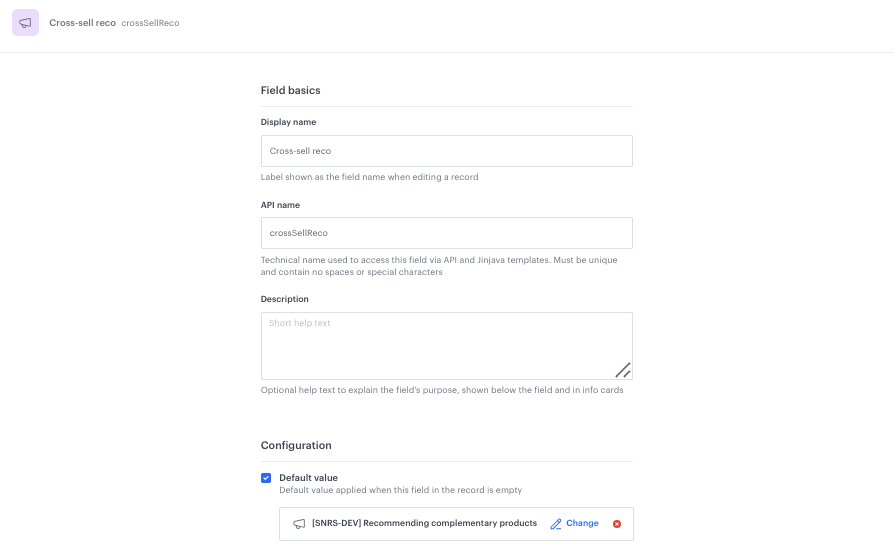
Add Cross-sell reco field
- Click Add new field and choose AI Recommendations.
- Complete the fields:
- Display name:
Cross-sell reco - API name:
crossSellReco(pre-filled automatically)
- Display name:
- In Configuration, enable Default value and select the AI recommendation
Recommending complementary productscreated in the previous step. - The Item context field can be left empty or configured with a Jinjava expression if you want to pass a specific product context for the cross-sell recommendation.
- To save your changes, click Apply.
Add product buy field (External Data)
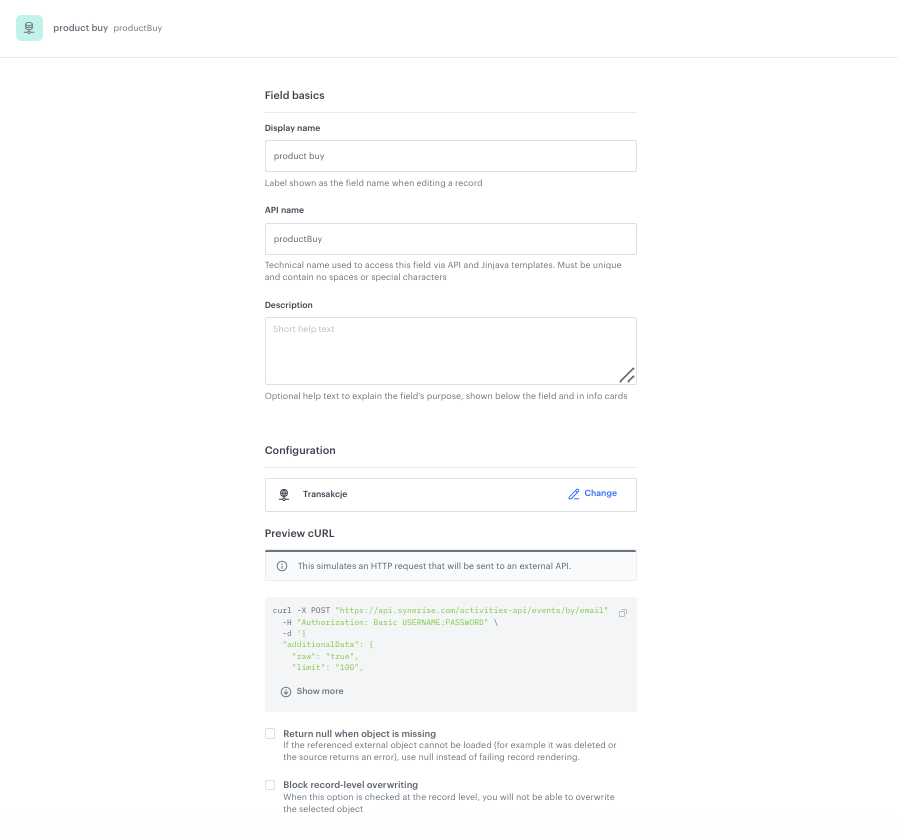
This field uses an external API call to retrieve the product.buy events that belong to the customer’s most recent transaction. It uses the transaction timestamp (passed via context) with a ±50 seconds window to identify the exact products from that transaction.
-
Click Add new field and choose External data.
-
Complete the fields:
- Display name:
product buy - API name:
productBuy(pre-filled automatically)
- Display name:
-
In Configuration, select the external data source (in this example named
Transactions). The external data source makes the following API call:curl -X POST "https://api.synerise.com/activities-api/events/by/email" \ -H "Authorization: Basic USERNAME:PASSWORD" \ -d '{ "additionalData": { "raw": "true", "limit": "100", "dateTo": "{{context.dateTo}}", "actions": "product.buy", "dateFrom": "{{context.dateFrom}}" }, "identifierValue": "{{ customer.email }}" }' -
To save your changes, click Apply.
dateFrom and dateTo context parameters are calculated dynamically in the in-app template code by taking the last transaction timestamp and adding/subtracting 50000 milliseconds (~50 seconds). This ensures only the product.buy events belonging to that specific transaction are returned.Add Promotion list field (External Data)
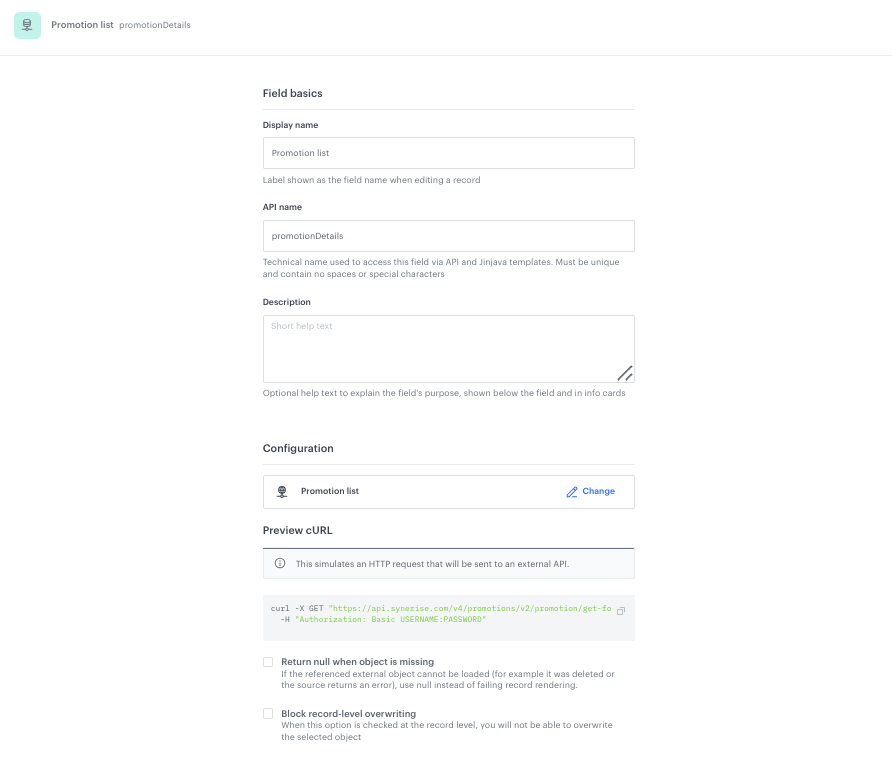
This field uses an external API call to retrieve the list of active and assigned promotions for the current customer. The in-app template then matches the promotion UUID (retrieved from the store-to-promotion catalog) against this list to display the correct store-specific coupon.
-
Click Add new field and choose External data.
-
Complete the fields:
- Display name:
Promotion list - API name:
promotionDetails(pre-filled automatically)
- Display name:
-
In Configuration, select the external data source (in this example named
Promotion list). The external data source makes the following API call:curl -X GET "https://api.synerise.com/v4/promotions/v2/promotion/get-for-client/clientId/{{customer.id}}?status=ACTIVE,ASSIGNED&fields=code,name,expireAt,discountType,discountValue,uuid,description,expireAt" \ -H "Authorization: Basic USERNAME:PASSWORD" -
To save your changes, click Apply.
Add Last transaction date field
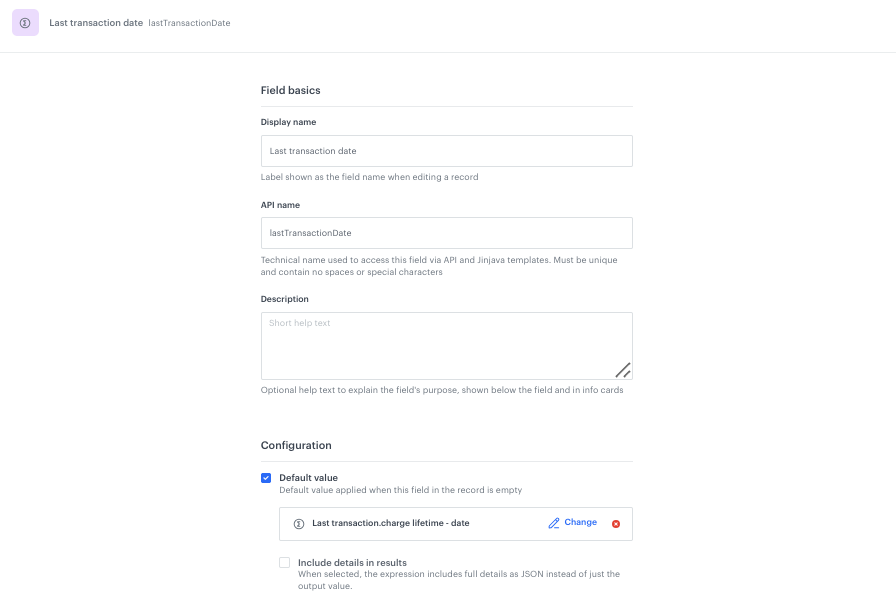
- Click Add new field and choose Expression.
- Complete the fields:
- Display name:
Last transaction date - API name:
lastTransactionDate(pre-filled automatically)
- Display name:
- In Configuration, enable Default value and select the aggregate
Last transaction.charge lifetime - datecreated in the earlier step. - To save your changes, click Apply.
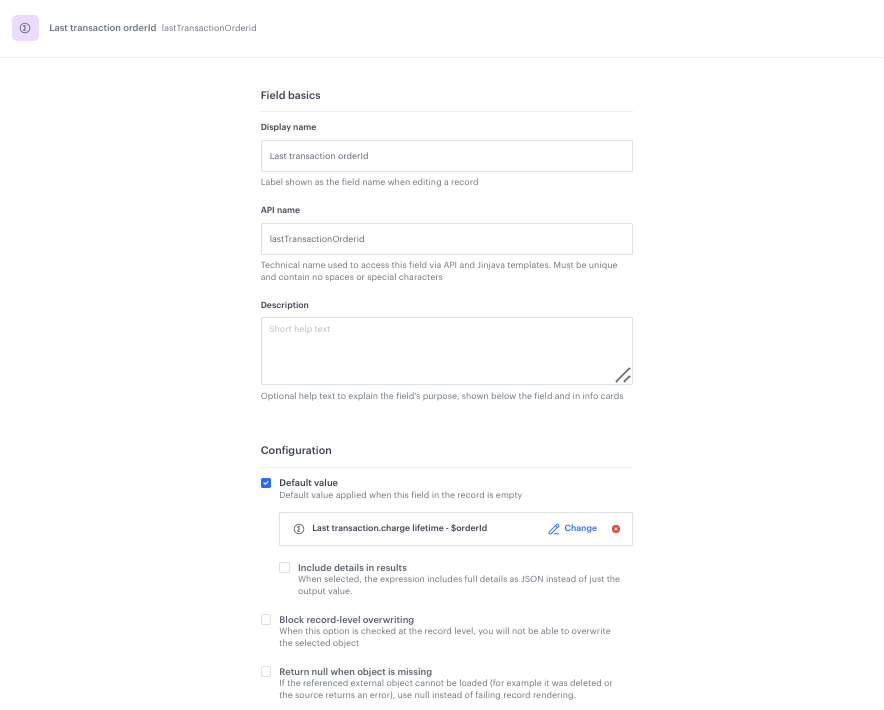
Add Last transaction orderId field
- Click Add new field and choose Expression.
- Complete the fields:
- Display name:
Last transaction orderId - API name:
lastTransactionOrderId(pre-filled automatically)
- Display name:
- In Configuration, enable Default value and select the aggregate
Last transaction.charge lifetime - $orderIdcreated in the earlier step. - To save your changes, click Apply.
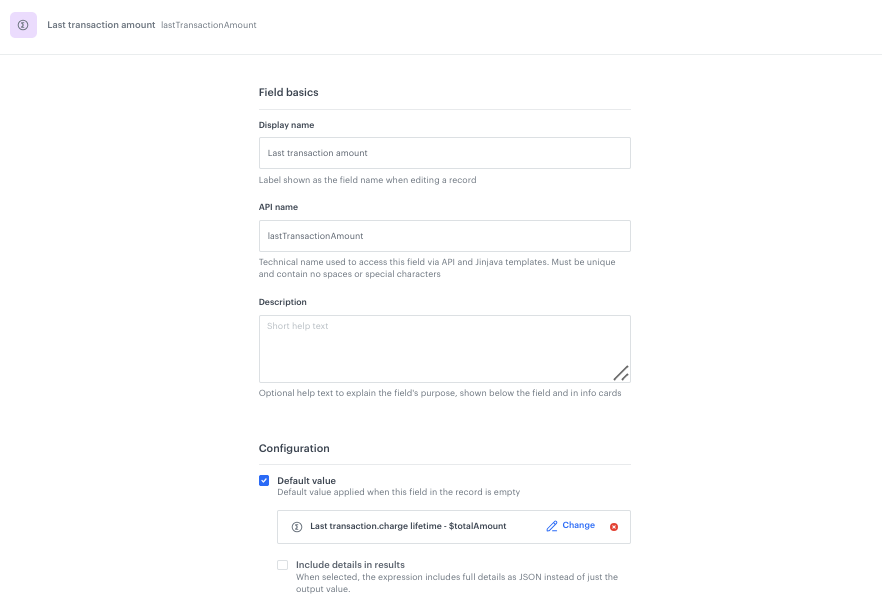
Add Last transaction amount field
- Click Add new field and choose Expression.
- Complete the fields:
- Display name:
Last transaction amount - API name:
lastTransactionAmount(pre-filled automatically)
- Display name:
- In Configuration, enable Default value and select the aggregate
Last transaction.charge lifetime - $totalAmountcreated in the earlier step. - To save your changes, click Apply.
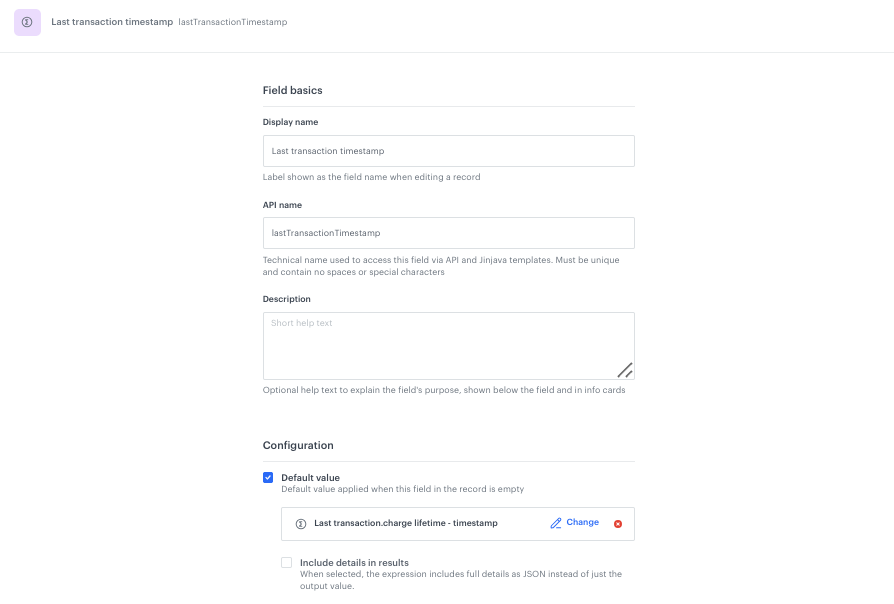
Add Last transaction timestamp field
- Click Add new field and choose Expression.
- Complete the fields:
- Display name:
Last transaction timestamp - API name:
lastTransactionTimestamp(pre-filled automatically)
- Display name:
- In Configuration, enable Default value and select the aggregate
Last transaction.charge lifetime - timestampcreated in the earlier step. - To save your changes, click Apply.
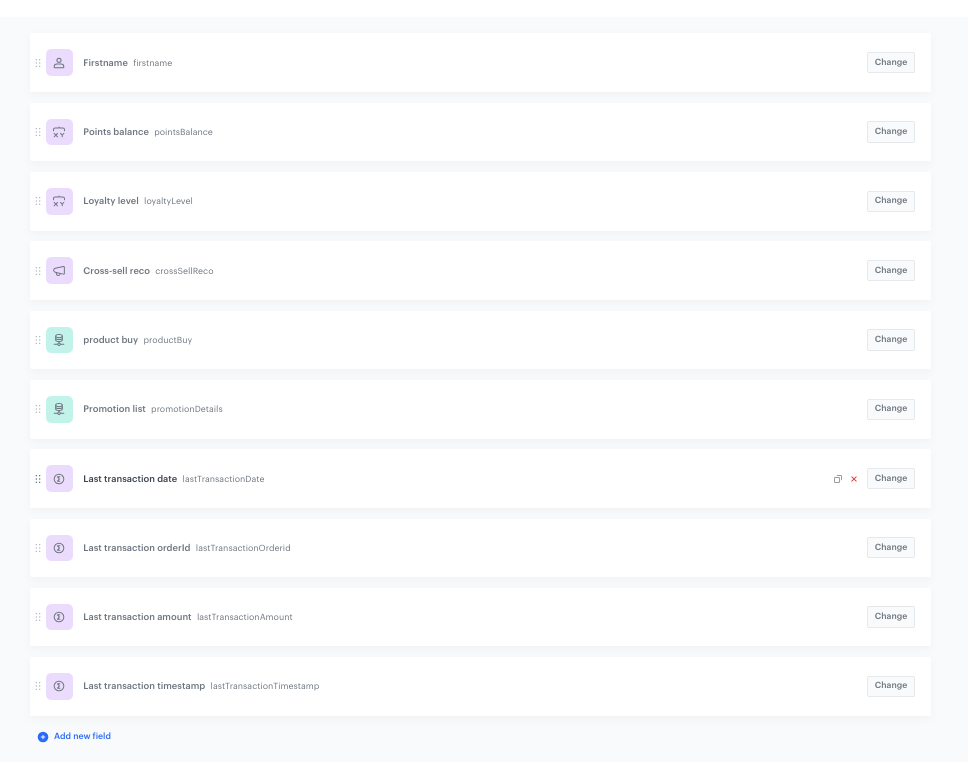
Overview of all schema fields
Set up the Audience & Settings
- Click the Audience & Settings tab.
- In the Audience section, click Define.
- Choose the schema recipients, in this case, choose Everyone.
- Click Apply.
- In the upper-right corner, click Save.
Create the Brickworks record
Creating a record fills the schema with actual values. In this case, the record uses dynamic context to resolve all fields at render time based on the requesting customer and their latest transaction.
- Go to Data Modeling Hub > Data collections > Select schema.
- Choose the schema created in the previous step.
- Click Add record.
- Add a name for the record.
- Add a slug for the record. Slug is a unique, URL-friendly version of the name. In this case, it is
receiptSimpleSchema1. - The record fields will inherit default values from the schema configuration:
- Firstname:
firstname(customer attribute) - Points balance: Loyalty points balance [LOYALTY-DEMO] (expression)
- Loyalty level:
[UC] Loyalty level(expression) - Cross-sell reco: Recommending complementary products (AI recommendation)
- product buy:
Transactions(external data) - Promotion list:
Promotion list(external data) - Last transaction date: Last transaction.charge lifetime - date (aggregate)
- Last transaction orderId: Last transaction.charge lifetime - $orderId (aggregate)
- Last transaction amount: Last transaction.charge lifetime - $totalAmount (aggregate)
- Last transaction timestamp: Last transaction.charge lifetime - timestamp (aggregate)
- Firstname:
- Click Publish to publish your record.
Previewing records
After publishing the record, you can preview the record for the context of a selected user. This context-driven approach enables your records to adapt dynamically based on the requesting customer and their transaction history.
- Go to Data Modeling Hub > Records.
- In the header, from the Select schema dropdown list, select the schema created previously.
- Find the record which you want to preview.
- Enter the record configuration.
- Click the Preview context.
- From the dropdown list, find a profile for whom you want to generate the record preview.
- Click Add parameter and add the context parameters:
storeId- the ID of the store (for example,1)locale- the locale (for example,pl-PL)dateFrom- the start of the time window for product.buy events (timestamp in milliseconds)dateTo- the end of the time window for product.buy events (timestamp in milliseconds)currency- the currency code (for example,PLN)
Result: You will see a dynamic preview with the customer’s first name, loyalty data, transaction details, cross-sell recommendations, and available promotions.
Create an in-app campaign
In this part of the process, you create an in-app campaign that displays the personalized receipt. The in-app is triggered by a silent push notification sent from the workflow after a purchase.
- Go to
 Experience Hub > In-app messages > Create new.
 - Enter the name of the in-app, for example
Receipt Intelligence.
Define the audience
- In the Audience section, click Define.
- Click Everyone.
- To save the audience, click Apply.
Define content
In this part of the process, you will create the in-app template from scratch using the code editor. The template is written in HTML, CSS, and JavaScript with Jinjava inserts that dynamically resolve data from the Brickworks schema at render time.
- In the Content section, click Define.
- Click Create message.
- Create a new template.
- Choose a code editor.
Result: You are redirected to the code editor where you can write the HTML, CSS, and JavaScript code for the receipt template.
The template code uses Jinjava to assemble the receipt from multiple data sources. Below is a description of the key parts of the template logic and the Jinjava inserts used in each part.
Retrieving the store-specific promotion UUID
The template first looks up the promotion UUID assigned to the store where the purchase was made. It does this by querying a catalog that maps store IDs to promotion UUIDs. The store ID is passed as a parameter (lastStoreId) via the silent push from the workflow.
{% catalogitemv2.CATALOG_ID(key) %}
{% do promoId.append(catalog_result.promotion) %}
{% endcatalogitemv2 %}
Calculating the transaction time window
The template uses the aggregate for last transaction timestamp to retrieve the timestamp of the most recent purchase. It then calculates a ±50 second window around this timestamp. This window is passed as dateFrom and dateTo context parameters to the Brickworks external data field, ensuring that only the product.buy events from that specific transaction are returned.
{% aggregate 6ce58d75-bbe6-3040-94b3-b532138d42a8 %}
  {% set date1 = aggregate_result[0] - 50000 %}
  {% set date2 = aggregate_result[0] - (-50000) %}
Generating the Brickworks payload
The template calls the brickworksgeneratevar Jinjava tag, passing the schema ID, record ID, and a dynamic context object. This triggers the Brickworks engine to resolve all fields in the schema (customer attributes, expressions, aggregates, AI recommendations, and external data) and return the result as a single brickworks_result object.
{% set myContext={
    "storeId":"1",
    "locale":"pl-PL",
    "dateFrom": date1,
    "dateTo": date2,
    "currency": "PLN"
    }
%}
{% brickworksgeneratevar schemaId=480b5a15-8b55-4645-9fc2-13962e88f551 recordId=18d3296f-8016-4933-b0aa-9ead88243bac context=myContext %}
Rendering the receipt sections
The template accesses the resolved data through the brickworks_result object and renders each section of the receipt:
brickworks_result.firstname— customer’s first name for the greetingbrickworks_result.pointsBalance— loyalty points balancebrickworks_result.loyaltyLevel— loyalty tier labelbrickworks_result.lastTransactionOrderid— order IDbrickworks_result.lastTransactionDate— transaction datebrickworks_result.lastTransactionAmount— total amountbrickworks_result.productBuy.data— array of purchased products (iterated with{% for product in brickworks_result.productBuy.data %})brickworks_result.crossSellReco.data— array of recommended productsbrickworks_result.promotionDetails.data— array of available promotions
Matching and displaying the store-specific coupon
The template iterates through the list of promotions returned by the external data field and matches the promotion UUID from the catalog lookup. Only the promotion matching the store is displayed to the customer.
{% for promo in brickworks_result.promotionDetails.data %}
  {% if promo.uuid == promoId|last %}
    <div class="coupon-name">{{ promo.name }}</div>
    <div class="coupon-code" onclick="copyCode('{{ promo.code }}', this)">
      {{ promo.code }}
    </div>
  {% endif %}
{% endfor %}
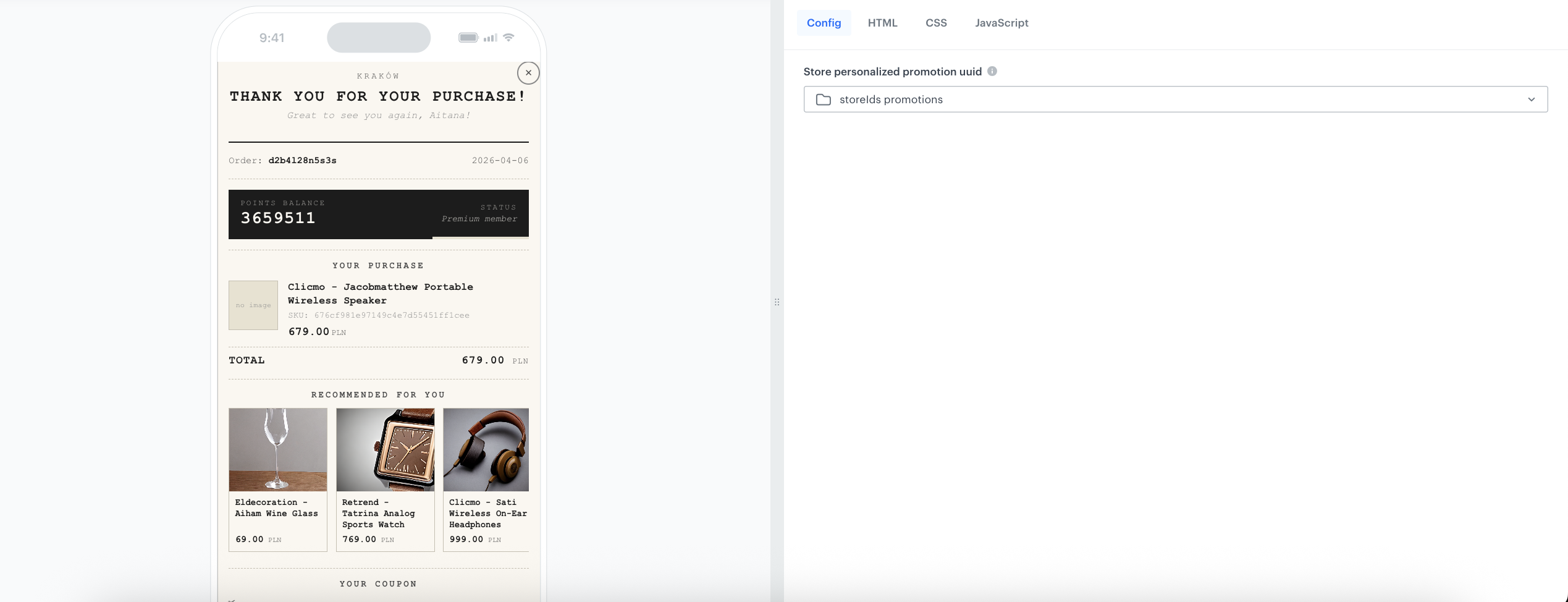
The rendered template includes the following visual sections:
- Header: Store name, thank-you message, personalized greeting with the customer’s first name
- Transaction details: Order ID and transaction date
- Loyalty strip: Points balance and loyalty tier with a visual progress bar
- Purchase details: List of products from the transaction with images, names, SKUs, and prices
- Total amount: Sum of the transaction
- Recommendations: Horizontally scrollable cross-sell product cards with images, names, and prices
- Coupon: Store-specific promotion with a tap-to-copy coupon code, description, and expiration date
- Footer: Call-to-action to visit again with the store name
JavaScript for coupon copy functionality
The code includes JavaScript that enables a tap-to-copy functionality for the coupon code:
function copyCode(code, el) {
  var hint = document.getElementById('copy-hint');
  try {
    if (navigator.clipboard) {
      navigator.clipboard.writeText(code).catch(function() { legacyCopy(code); });
    } else {
      legacyCopy(code);
    }
  } catch(e) { legacyCopy(code); }

  el.classList.add('copied');
  hint.textContent = 'Copied!';
  hint.style.fontStyle = 'normal';
  hint.style.fontWeight = '700';
  hint.style.color = 'var(--ink-mid)';

  setTimeout(function() {
    el.classList.remove('copied');
    hint.textContent = 'tap to copy';
    hint.style.fontStyle = '';
    hint.style.fontWeight = '';
    hint.style.color = '';
  }, 2000);
}

function legacyCopy(text) {
  var ta = document.createElement('textarea');
  ta.value = text;
  ta.style.cssText = 'position:fixed;opacity:0;top:0;left:0;';
  document.body.appendChild(ta);
  ta.select();
  try { document.execCommand('copy'); } catch(e) {}
  document.body.removeChild(ta);
}- After completing the template, click Save this template > Save as.
- On the pop-up:
- In the Template name field, enter the name of the template.
- From the Template folder dropdown list, select the folder where the template will be saved.
- Confirm by clicking Apply.
- To continue the process of configuring the in-app campaign, click Next.
- To save your content changes, click Apply.
Select events that trigger the in-app message display
The in-app message is triggered by the silent push notification sent from the workflow. Configure the trigger event according to the content identifier used in the silent push.
- In the Trigger events section, click Define.
- Configure the trigger event to match the silent push content identifier. In our case it will be
transaction.charge. - Click Apply.
Schedule the message and configure display settings
- In the Schedule section, click Define and set the time when the message will be active.
- In the Display Settings section, click Change.
- Define the Delay display, Priority index and enable the Frequency limit toggle to manage the frequency of the in-app message display.
- Click Apply.
- Optionally, you can define the UTM parameters and additional parameters for your in-app campaign.
- Click Activate.
Create a workflow
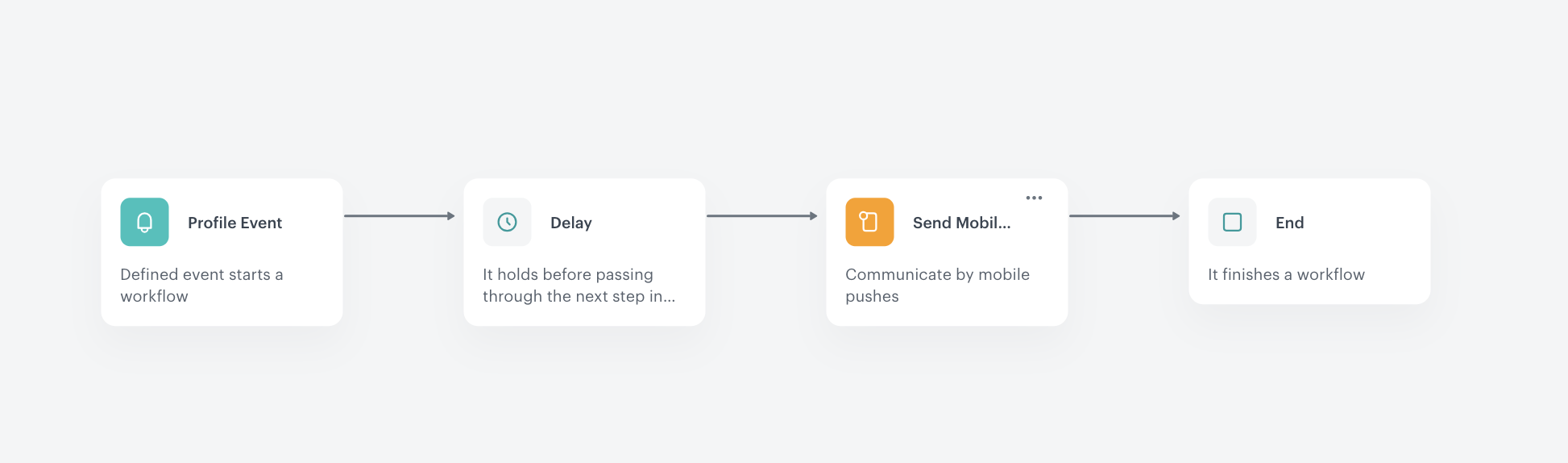
Create a workflow that triggers the in-app receipt display after an offline purchase. The workflow listens for transaction.charge events with a storeId parameter, waits for a short delay, and then sends a silent mobile push that activates the in-app message with the necessary context parameters.
- Go to
 Automation Hub > Workflows > New workflow.
 - Enter the name of the workflow, for example
Trigger in-app via silent push after purchase.
Define the Profile Event trigger node
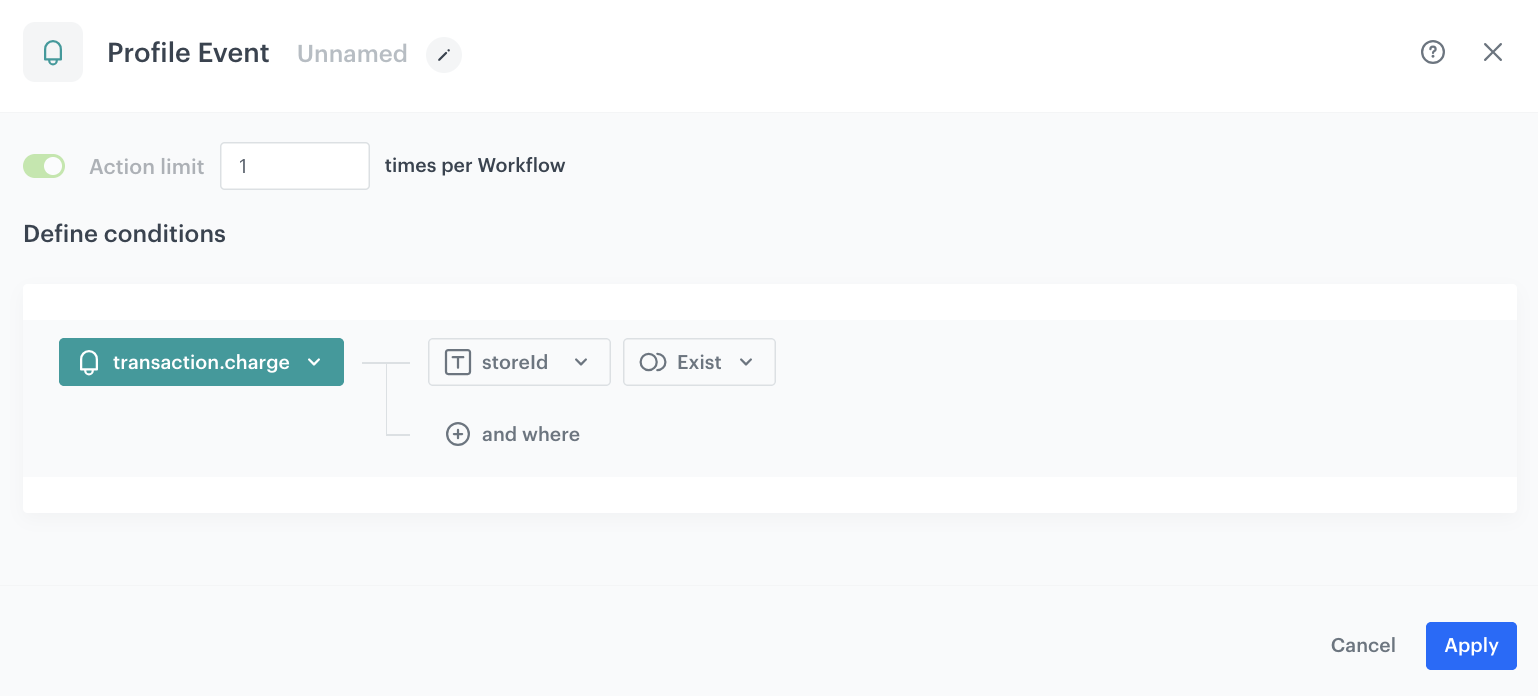
- As the first node of the workflow, add Profile Event. In the configuration of the node:
- From the Choose event dropdown menu, choose the
transaction.chargeevent. - Click the + where button, from the Choose parameter dropdown menu, choose
storeId. - From the Choose operator dropdown, choose Exist.
- From the Choose event dropdown menu, choose the
- Confirm by clicking Apply.
Configure the Delay node
- As the next node, add Delay.
- Set the delay duration according to your business needs (for example, a few minutes to allow all transaction data to be processed and indexed).
- Confirm by clicking Apply.
Configure the Send Mobile Push node
- As the next node, add Send Mobile Push. In the configuration of the node:
- In the Mobile push type section, click Change and select Silent push.
- In the Content section, click Change and select the in-place content linked to the in-app campaign.
- In the Additional parameters section, add two custom parameters:
- Parameter:
campaignName, Value:[UC] Receipt Intelligence - Parameter:
lastStoreId, Value: Insert the aggregate for last store ID created earlier. The value uses the Jinjava aggregate insert to dynamically resolve the store ID for each customer.
- Parameter:
- Confirm by clicking Apply.
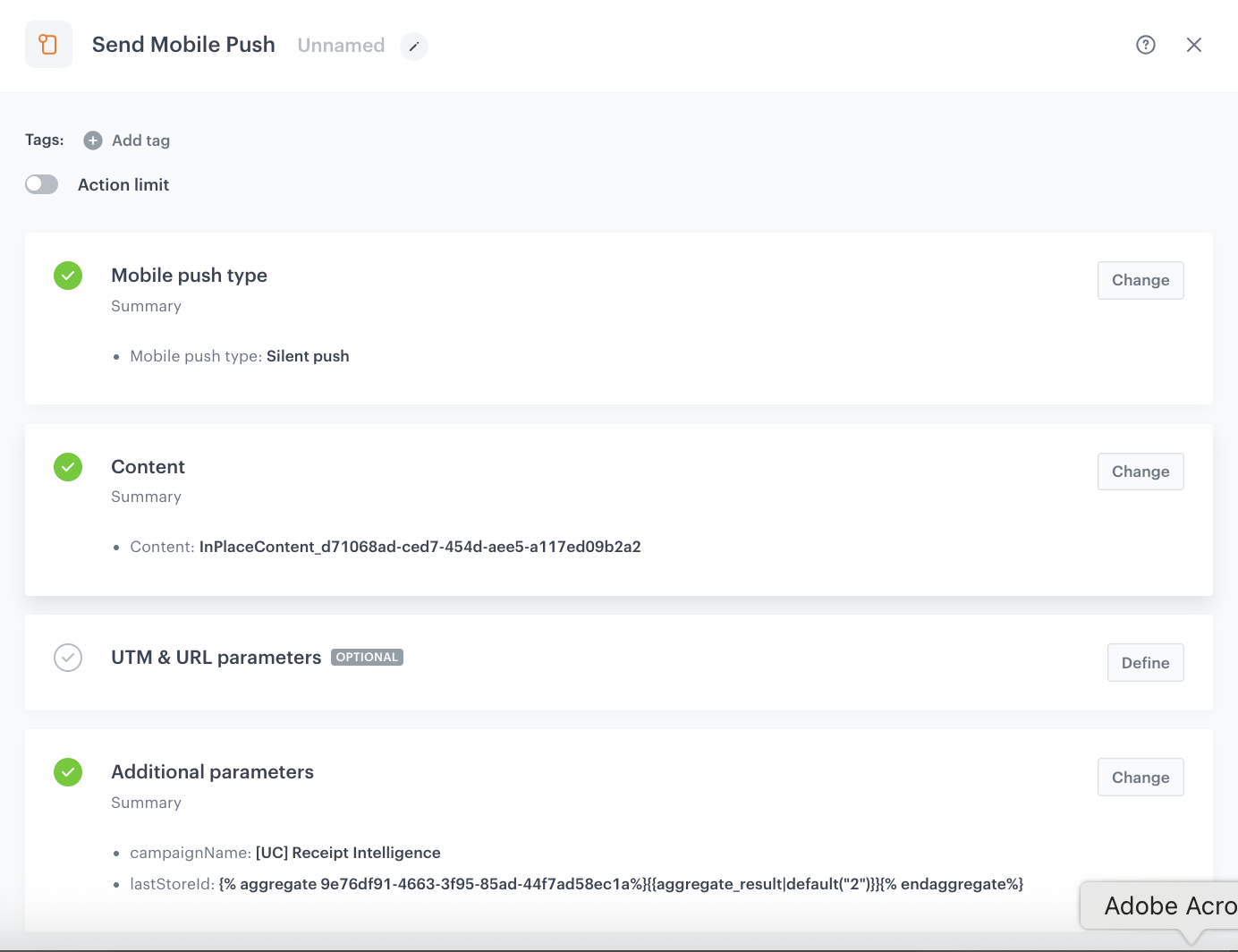
lastStoreId parameter is critical — it is passed to the in-app template as context and used to look up the store name and the store-specific promotion UUID from the catalog. The value is retrieved dynamically using the aggregate that returns the last storeId from the transaction.charge event.Add the finishing node
- Add the End node.
- In the upper right corner, click Save & Run.
What’s next
After implementing this use case, you can extend the receipt experience in several ways:
- Add a store locator link in the footer to help customers find the store for their next visit.
- Include a feedback survey link to gather post-purchase satisfaction data.
- Extend the template with loyalty program milestones (for example, showing how many points until the next tier).
- Reuse the Brickworks schema across other channels such as email or web push for a consistent post-purchase experience.
Check the use case set up on the Synerise Demo workspace
You can check the configuration of each step directly in the Synerise Demo workspace:
- Aggregate: Last transaction.charge lifetime - timestamp
- Aggregate: Last transaction.charge lifetime - $totalAmount
- Aggregate: Last transaction.charge lifetime - $orderId
- Aggregate: Last transaction.charge lifetime - date
- Expression: Loyalty points balance [LOYALTY-DEMO]
- AI Recommendation: Recommending complementary products
- Brickworks schema and record
- In-app campaign
- Workflow
If you’re our partner or client, you already have automatic access to the Synerise Demo workspace (1590), where you can explore all the configured elements of this use case and copy them to your workspace.
If you’re not a partner or client yet, we encourage you to fill out the contact form to schedule a meeting with our representatives. They’ll be happy to show you how our demo works and discuss how you can apply this use case in your business.

