IMPORTANT: This feature is available in public preview mode.
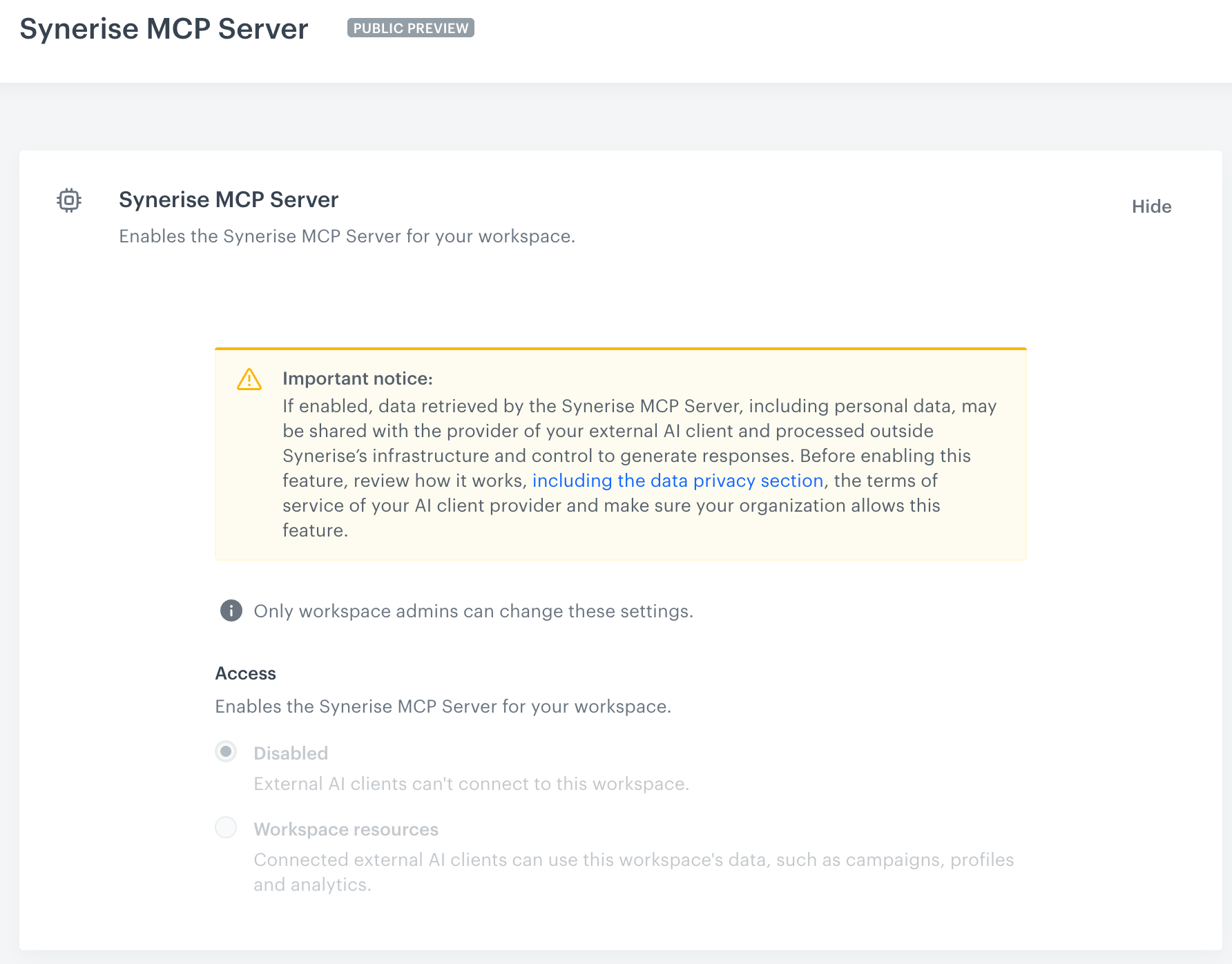
In the Synerise MCP Server settings, you decide whether AI clients outside Synerise, such as Claude or Cursor, can connect to your workspace through the Synerise MCP Server, and which actions they can perform there.
WARNING: External AI clients may receive personal data or other sensitive information from your workspace. See Data privacy and third-party AI clients before you enable access. For answers to questions about the EU AI Act and data processing, see the Synerise MCP Server FAQ.
Prerequisites
Only users with the PROFILE_ADMIN role can change these settings. Users with other roles can only view them.
Access levels
| Option | What external AI clients can do |
|---|---|
| Disabled (default) | External AI clients have no access to the workspace. |
| Workspace resources | External AI clients can access the resources in your workspace, such as campaigns, analyses, and profiles. |
Allowed actions
When you select Workspace resources, you also decide which actions external AI clients can perform on the resources:
- Read - clients can browse and view resources. This action is always enabled.
- Write - clients can also create and edit resources. This action is optional.
The Delete and Execute actions can't be selected.
Allowed actions and user permissions
An external AI client acts on behalf of the user who connected it, so it can only perform actions that are both allowed in the workspace settings and permitted by that user's permissions. For example, if a user has no access to campaigns, the client can't access campaigns for that user, even if Read is allowed in the workspace.
When Workspace resources is selected, the AI Agents > MCP Server permission appears in the role permission matrix. By default, this permission is granted to the basic roles (PROFILE_ADMIN and PROFILE_MANAGER) and to the predefined Synerise roles, so users with these roles can connect external AI clients without any changes to their roles. For custom roles, you must grant the permission yourself in the role permission matrix. You can also use the permission to limit the actions of external AI clients for specific roles. For details, see "AI Hub permissions". Changes to the MCP Server permission in a role can take up to 5 minutes to take effect.
NOTE: The permissions of predefined Synerise roles are fixed, so you can't remove the MCP Server permission from these roles.
Configuring access
- Go to
 Settings > Synerise MCP Server.
 - Click Show.
- In the Access section, select Disabled or Workspace resources. For details about the options, see Access levels.
- Optionally, if you selected Workspace resources, in the Allowed actions section, select Write to let external AI clients create and edit resources.
- Click Apply.
Result: The settings summary shows the selected access level and allowed actions.
After you enable access, users can connect their AI clients as described in Getting started.