What is Automation Hub in Synerise?
Automation Hub is Synerise's workflow engine for building multi-step customer journeys triggered by events, profile changes, or schedules. It combines filters, time delays, communication nodes, and branching logic to automate personalized interactions across email, push, SMS, and other channels without manual intervention for each individual customer.
What triggers can I use to start a workflow?
Several trigger types are available — see Trigger nodes explained for a complete list.
What is the difference between Automation Hub and Experience Hub?
Automation Hub handles complex, multi-step customer journeys with branching logic, delays, and real-time event triggers. Experience Hub focuses on standalone campaigns sent to a defined audience at a scheduled time. Use Automation Hub for behavioral, triggered journeys and Experience Hub for broadcast-style one-time or recurring campaigns.
What is the difference between stopping and pausing an automation?
Pausing temporarily halts a workflow — customers freeze at their current step and resume from there when the workflow is reactivated. Stopping permanently halts a workflow — customers complete their current step but cannot continue. In most cases, a stopped workflow cannot be reactivated and must be duplicated to run again. The exception is workflows that use the Audience trigger: activating a stopped Audience-triggered workflow restarts it for all customers, including those who previously completed it. For more information, see Workflow scheduler.
Can I edit a workflow while it is active?
In an active or paused workflow, you can edit individual node settings but cannot add or remove nodes. To restructure the workflow, you must stop it first. Deleting a communication template used by a send node while the workflow is active breaks that node and prevents it from functioning. For more information, see Creating workflows.
Are there any limits on how long a customer can stay in a workflow?
A customer can remain in a single workflow for a limited time. If a profile is still in the workflow after the allowed period — for example, because it did not meet the conditions of an Event Filter node — it is automatically removed. For current limits, see Limits and Workflow scheduler.
Which sender account is used in the Email Alert node in a workflow?
The Email Alert node sends a notification to specified Synerise users — not customers — from an email account selected in the node settings. The node is prefilled with the workspace default account, but you can change it per node. The send event is recorded on the triggering customer's profile, regardless of the alert recipient's address. For more information, see "Email Alert" node.
How long are tokens for establishing connections between Synerise and Google services valid?
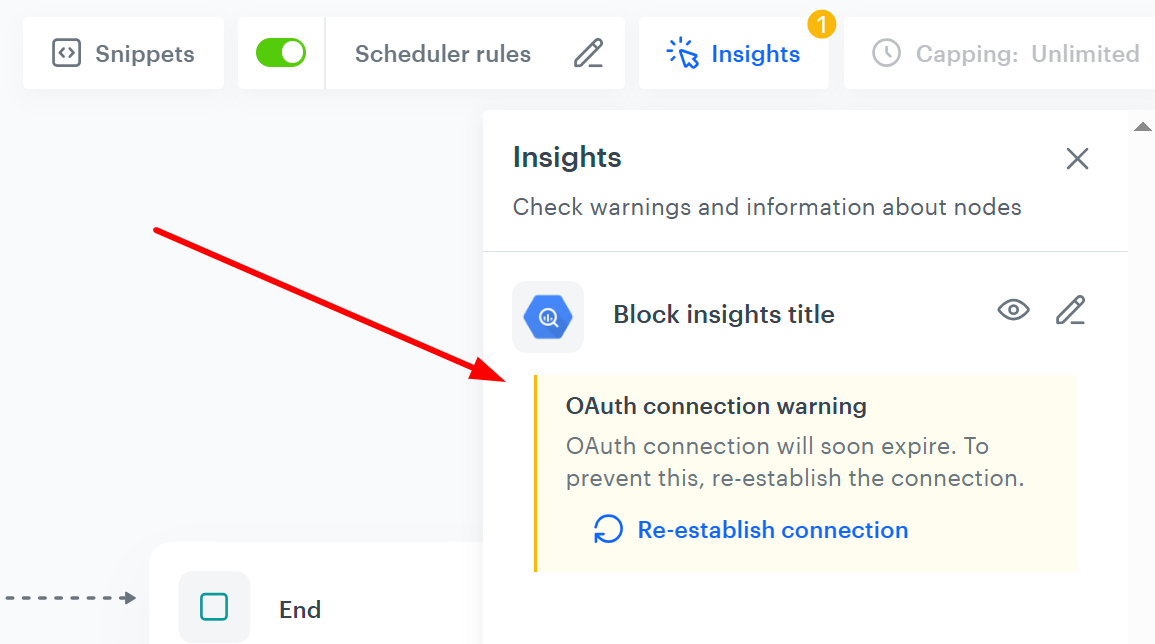
Tokens are valid for approximately 183 days (about 6 months) from the moment they are generated or last refreshed. This means that if you use such a token to establish connection between Synerise and Google service, you can generally expect the token to stay active for up to 6 months without needing to refresh it. To help you manage this, reminders about token expiration will appear in the Insights tab of your workflow, ensuring you have enough time to renew it on schedule.
What happens to customers already in a workflow when I stop it?
Customers already in the workflow complete their current step and then exit — they are not removed mid-journey. For reactivation behavior, see What is the difference between stopping and pausing an automation?
Can the same customer enter the same workflow more than once?
Yes, controlled by workflow capping. In the workflow settings, define how many times the workflow can be triggered per customer within a time window — for example, three times per day. The maximum capping period is 20 years. Without capping, a customer enters the workflow every time the trigger condition is met.
Can I test a workflow before activating it?
You can test outgoing integration nodes — such as webhooks or Google Ads conversions — in draft, paused, or active workflows using test profiles and their historical events. There is no full end-to-end simulation of an entire workflow. The Issues tab flags missing connections or configuration errors before you activate. For more information, see Testing outgoing integrations.
What is the difference between a Delay node and an Event Filter node?
A Delay node pauses a customer for a fixed or randomized amount of time before moving to the next step. An Event Filter node waits for the customer to perform a specific action. With a time limit configured, Event Filter creates two paths: one if the event occurs within the window, one if it does not.
Can I run multiple workflows for the same customer at the same time?
Yes. A customer can be enrolled in multiple different workflows simultaneously. Within a single workflow, the trigger limit (default: 1) controls how many concurrent paths a customer can follow. Increasing the trigger limit allows a customer to start a new path in the same workflow before completing the previous one.
How do I limit how frequently a customer enters a workflow?
Use workflow capping, configured via the Set capping button in the workflow settings. Define a maximum number of entries and a time window — for example, once per week per customer. The timer starts when the workflow is triggered. The maximum capping period is 20 years. For more information, see Limits.
Can I add or remove nodes after a workflow leaves the draft status?
No. Once a workflow is saved beyond the draft status, its structure is locked. In active, paused, or pending workflows, you can only modify individual node settings — you cannot add new nodes, remove nodes, or rewire connections. To restructure the workflow, stop it and duplicate it, then make structural changes in the new draft. For more information, see Creating workflows.
What is the maximum delay I can configure, and does it count toward the 60-day workflow limit?
A Delay node has a per-node maximum time limit. If a workflow contains more than one Delay node, the combined total across all of them is subject to the same ceiling — adding a second Delay node does not allow more total delay time overall. For current limits, see "Delay" node.
What is the difference between a defined and a randomized delay?
A defined delay applies the same fixed waiting period to every customer who passes through the node. A randomized delay picks a new random value from a configured range each time a customer passes — including repeat passes by the same customer. There is no sticky randomization: a customer who re-enters the same Delay node receives a freshly randomized delay, independent of any previous delay they received at that node. For more information, see "Delay" node.
What happens to downstream connections if I remove the time limit from an Event Filter node?
Removing the time limit from an Event Filter node that already has nodes connected to its paths deletes those downstream connections. An Event Filter without a time limit produces only a single MATCHED path; the NOT MATCHED path disappears along with anything wired to it. Reconfigure the time limit before removing it if you want to preserve the downstream logic. For more information, see "Event Filter" node.
When I filter by multiple parameters in an Event Filter, does the customer need to meet all of them or just one?
All of them. When you define multiple parameters for the same event in an Event Filter node, the node uses AND logic — the customer must perform an action that satisfies every parameter simultaneously. If you need OR logic across different events or parameter values, you must use separate Event Filter nodes on branching paths. For more information, see "Event Filter" node.
What is the difference between a Profile Filter node and an Event Filter node?
A Profile Filter node checks whether a profile matches a segmentation — which can be based on profile attributes, behaviors, or other criteria — at the moment the customer reaches the node. An Event Filter node waits for the customer to perform a specific action after reaching the node. Use a Profile Filter to route customers based on who they are right now; use an Event Filter to wait for and react to something they do next. For more information, see "Profile Filter" node and "Event Filter" node.
What happens to the other branches in a Split Path when one branch reaches an End node?
By default, when any branch in a Split Path reaches an End node, all other branches that are still in progress for that customer are immediately terminated. If you need the other branches to continue and finish independently, configure the End node to not stop the remaining paths. This behavior also applies when multiple Event Filters run in parallel after a Split Path — if both filters are matched, actions on each path may execute more than once. For more information, see "Split Path" node.
How do I prevent a customer from passing through a Merge Paths node more than once?
By default, the Merge Paths node processes a customer every time they arrive at it. In a workflow with a Split Path followed by a Merge Paths node, a customer who takes multiple branches can trigger the Merge Paths node — and any actions after it — multiple times. To prevent this, set a flow control limit directly on the Merge Paths node. For more information, see "Merge Paths" node.
Can a workflow send a message to a customer who has already reached their daily communication limit?
Yes, if the send node has the Ignore limits option enabled. By default, workspace-level communication limits apply and prevent over-messaging. Enabling Ignore limits on supported send action nodes bypasses those workspace limits for that specific send. This is intended for transactional messages such as order confirmations, shipping updates, or payment notifications. For more information, see Limits.
What are the limits of activity tracking data in workflow nodes?
The numbers shown directly on a node (how many profiles entered, finished, and so on) are stored separately from events and are not affected by retention. However, the profile list inside a node — which shows the individual customers who passed through — depends on the retention of the automation.clientStartPath, automation.clientPathStep, and automation.clientEndPath events. Customers whose events have expired will not appear in the list, even though they are included in the aggregate count.
The 7-day chart on a node shows daily aggregated data on a logarithmic scale. The Statistics tab shows up to the last 30 days by default, with custom date ranges available up to a maximum of 93 days. Timeline charts only include data from November 20, 2025 onward — activity before that date is not shown.
For more information, see Statistics and tracking automation events.