Running competitions between physical stores is a proven way to motivate staff and increase loyalty program sign-ups. By assigning each store a unique QR code that links to the registration page, you can track exactly which store drove each new membership.
This use case describes how to set up end-to-end tracking and reporting of in-store loyalty program registrations in Synerise. Each physical store distributes a unique QR code containing a registration URL with a store identifier (for example, https://www.example.com/create-account?store_ABC). When a customer scans the code and completes the full registration process — e.g. submitting the form, confirming the account, and opting in to the newsletter — the registration is attributed to that store.
Synerise collects the relevant events, builds a segmentation of fully qualified registrations, and generates a monthly report broken down by store. This use case covers the full process up to the point where the report is ready — how you choose to distribute the results (for example, via email, SharePoint, or another external tool) depends on your specific business needs.
Based on the report, the business can reward the stores with the highest number of complete registrations in a given period.
IMPORTANT: All event names, attributes, and business rules described in this use case are specific to this implementation and serve as an example. For other projects, different naming conventions, conditions, or constraints may apply — for example, which store identifier is used, which marketing agreements are required, or what the time window between registration and confirmation should be.
Prerequisites
- Implement a tracking code on your website.
- Have an integrated registration form on the website so that when a customer completes the form, a
form.submitevent is generated on their profile. This event must contain at least the following parameters:uri— the full URL of the registration page (including the store identifier in the query string),formType— the type of form, for example with the valueregistration.
- Have a mechanism for tracking account confirmation. In this example, the
profile.updatedevent is generated with theactivationparameter set totruewhen a customer confirms their account. - Have a mechanism for tracking newsletter agreement activation. In this example, the
marketingAgreement.turnOnevent is generated when a customer enables the newsletter agreement. - Have a custom profile attribute (in this example,
subscriptionDate) that stores the date when the customer opted in to the newsletter, in date format (yyyy-mm-dd). This attribute is not available by default — it must be implemented separately, for example by sending it from an external system or by creating a workflow that reacts to themarketingAgreement.turnOnevent and saves the current date to this attribute on the customer's profile. - Generate unique registration URLs per store with a consistent identifier pattern in the query string (for example,
?store_ABC,?store_XYZ). - Create API keys with appropriate permissions for report retrieval.
Process
In this use case, you will go through the following steps:
- Create an event aggregate that returns the last registration form URI.
- Create a profile aggregate for account confirmation with store origin.
- Create a segmentation of fully qualified registrations.
- Create a report with monthly registration counts per store.
Create an event aggregate for registration URI
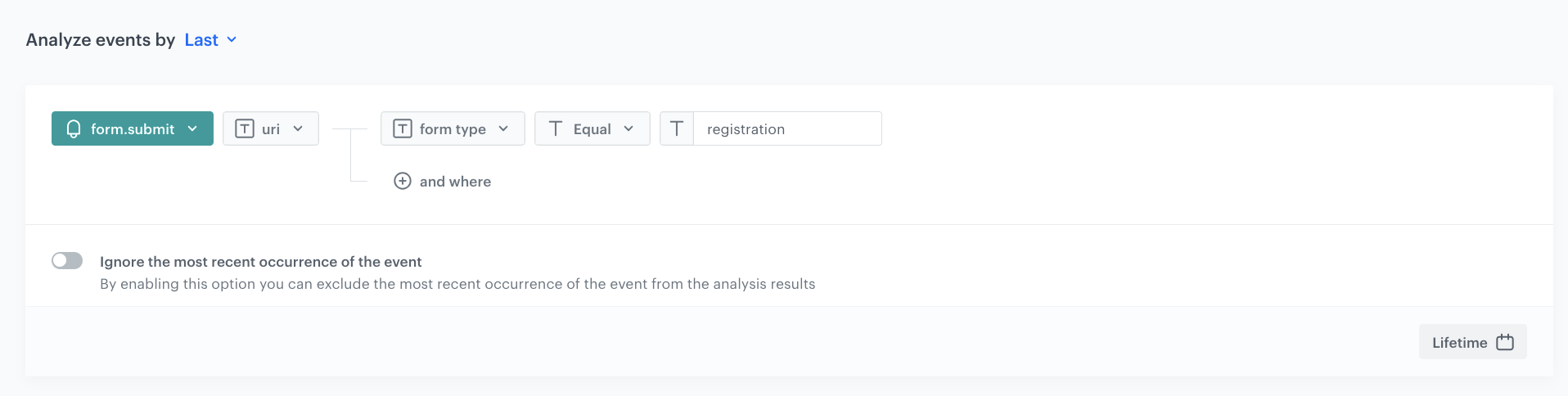
This aggregate returns the last URI from the form.submit event where the form type is registration. It will be used later in the profile aggregate and segmentation to check whether the registration originated from a store link.
- Go to
 Behavioral Data Hub > Live Aggregates > Create aggregate.
 - As the aggregate type, select Event.
- Enter a name for the aggregate, for example
Last URI from registration form submit. - Set Analyze events by to Last.
- From the Choose event dropdown list, select the
form.submitevent. - As the event parameter, select uri.
- Click the + where button.
- From the Choose parameter dropdown list, select the formType parameter.
- From the Choose operator dropdown, choose Equal.
- In the next field, enter
registration. - Set the time range to Lifetime.
- Save the aggregate.
Create a profile aggregate for account confirmation
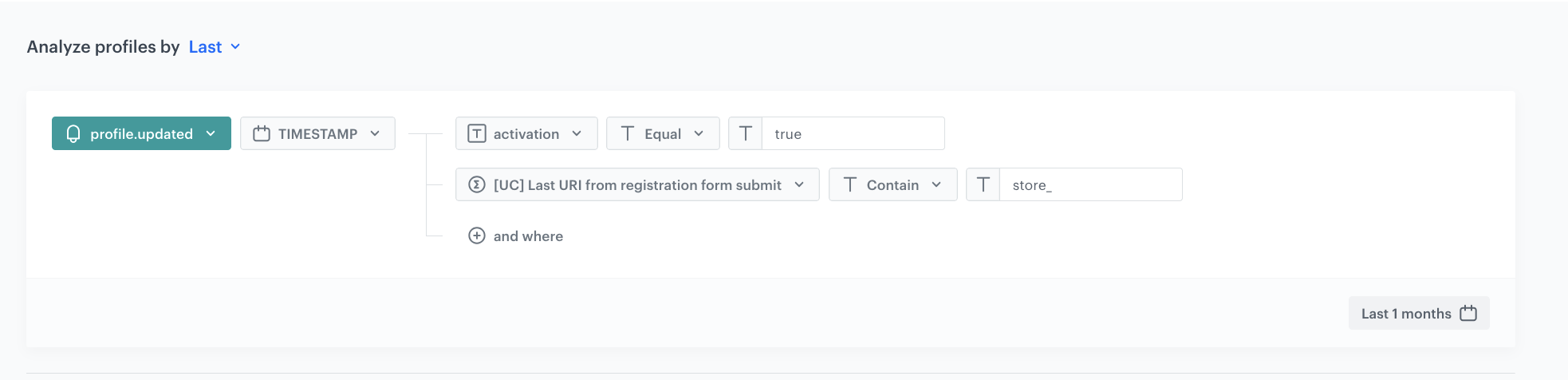
This aggregate returns the last timestamp of the profile.updated event where the account was confirmed (activation = true) and where the registration originated from a store link (the event aggregate from the previous step contains the store identifier). It will be used in the segmentation to verify the chronological order of events.
- Go to Behavioral Data Hub > Live Aggregates > Create aggregate.
- As the aggregate type, select Profile.
- Enter a name for the aggregate, for example
Account confirmation timestamp after in-store registration. - Set Analyze profiles by to Last.
- From the Choose event dropdown list, select the
profile.updatedevent. - As the event parameter, select TIMESTAMP.
- Click the + where button.
- From the Choose parameter dropdown list, select the activation parameter.
- From the Choose operator dropdown, choose Equal.
- In the next field, enter
true. - Click the + where button.
- From the Choose parameter dropdown list, select the event aggregate created in the previous step.
- From the Choose operator dropdown, choose Contain.
- In the next field, enter the store identifier prefix, for example
store_. - Set the time range to Last month (or adjust according to the reporting period).
- Save the aggregate.
Create a segmentation of qualified registrations
In this part of the process, create a segmentation that identifies customers who completed a full loyalty program registration through a store link. A customer qualifies if they performed all of the following actions within 7 days, in any order:
- Submitted the registration form (
form.submit) from a URL containing the store identifier. - Confirmed their account (
profile.updatedwithactivation=true). - Enabled the newsletter agreement (
marketingAgreement.turnOn).
The segmentation consists of two segments connected by an OR operator. The reason for splitting the segmentation into two segments is that there are two distinct groups of customers who qualify:
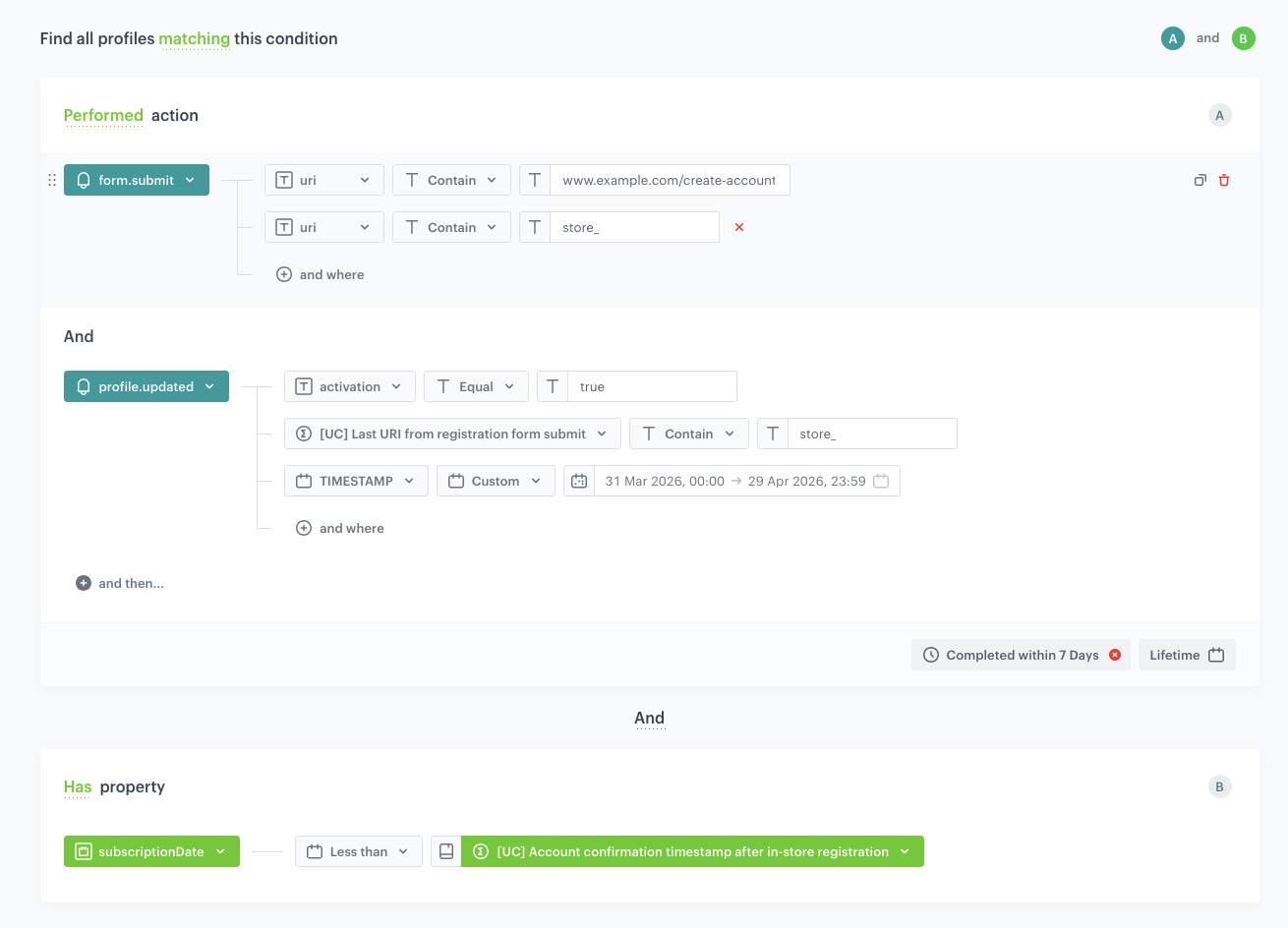
- Segment A — customers who registered through the store QR code, confirmed their account, and opted in to the newsletter — all within 7 days. These are entirely new customers who completed the full process during the competition period.
- Segment B — customers who registered through the store QR code and confirmed their account within 7 days, but already had the newsletter agreement from before (for example, they subscribed via the website footer months ago). These customers did not need to opt in again — they only needed to register and confirm.
To track when the newsletter agreement was originally given, this implementation uses a custom profile attribute (in this example, subscriptionDate) that stores the date of the newsletter opt-in in date format (yyyy-mm-dd). It must be set up beforehand (see Prerequisites).
- Go to
 Decision Hub > Segmentations > New segmentation.
 - Enter the name of the segmentation, for example
Fully qualified in-store loyalty registrations.
Configure Segment A
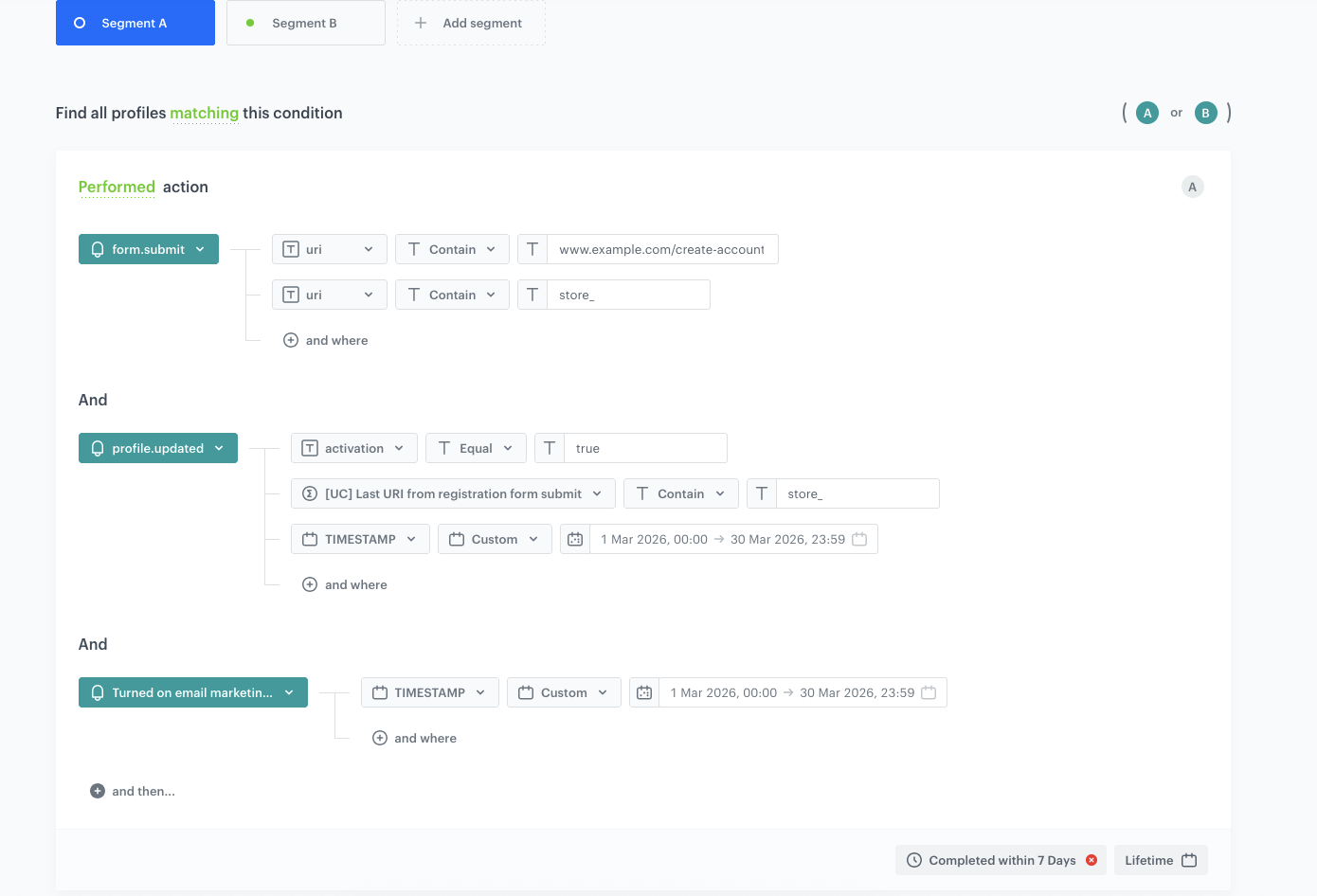
Segment A captures customers who completed all three actions (form submission, account confirmation, newsletter opt-in) within 7 days. Because the events can happen in different orders (for example, newsletter agreement before or after account confirmation), you define two condition groups connected by OR to cover both orderings.
First condition group:
- Click Add condition.
- From the dropdown list, select the
form.submitevent. - Click the + where button and select the uri parameter.
- From the Choose operator dropdown, choose Contain and enter the registration page URL, for example
www.example.com/create-account. - Click the + where button and select the uri parameter again.
- From the Choose operator dropdown, choose Contain and enter the store identifier prefix, for example
store_. - Below the first condition, in the and then... section, click Add condition.
- From the dropdown list, select the
profile.updatedevent. - Click the + where button and select the activation parameter.
- From the Choose operator dropdown, choose Equal and enter
true. - Click the + where button and select the event aggregate created earlier.
- From the Choose operator dropdown, choose Contain and enter the store identifier prefix, for example
store_. - Click the + where button and select the TIMESTAMP parameter.
- From the Choose operator dropdown, choose Custom and set the date range to the reporting period (for example,
1 Feb 2026, 00:00to28 Feb 2026, 23:59).
NOTE: The custom date range on the TIMESTAMP parameter should be adjusted each month to match the reporting period, or the segmentation should be configured to use a dynamic time range.
- In the and then... section, click Add condition.
- From the dropdown list, select the
marketingAgreement.turnOnevent. - Click the + where button and select the TIMESTAMP parameter.
- From the Choose operator dropdown, choose Custom and set the same date range as above.
- Set the completion window to Completed within 7 Days.
- Set the time range to Lifetime.
Second condition group:
- Click Add condition.
- Click Or to add an alternative condition group.
- Configure the same three events (
form.submit,marketingAgreement.turnOn,profile.updated) but in a different order to account for customers who enabled the newsletter agreement before confirming their account. - Apply the same filters, time ranges, and the 7-day completion window.
Configure Segment B
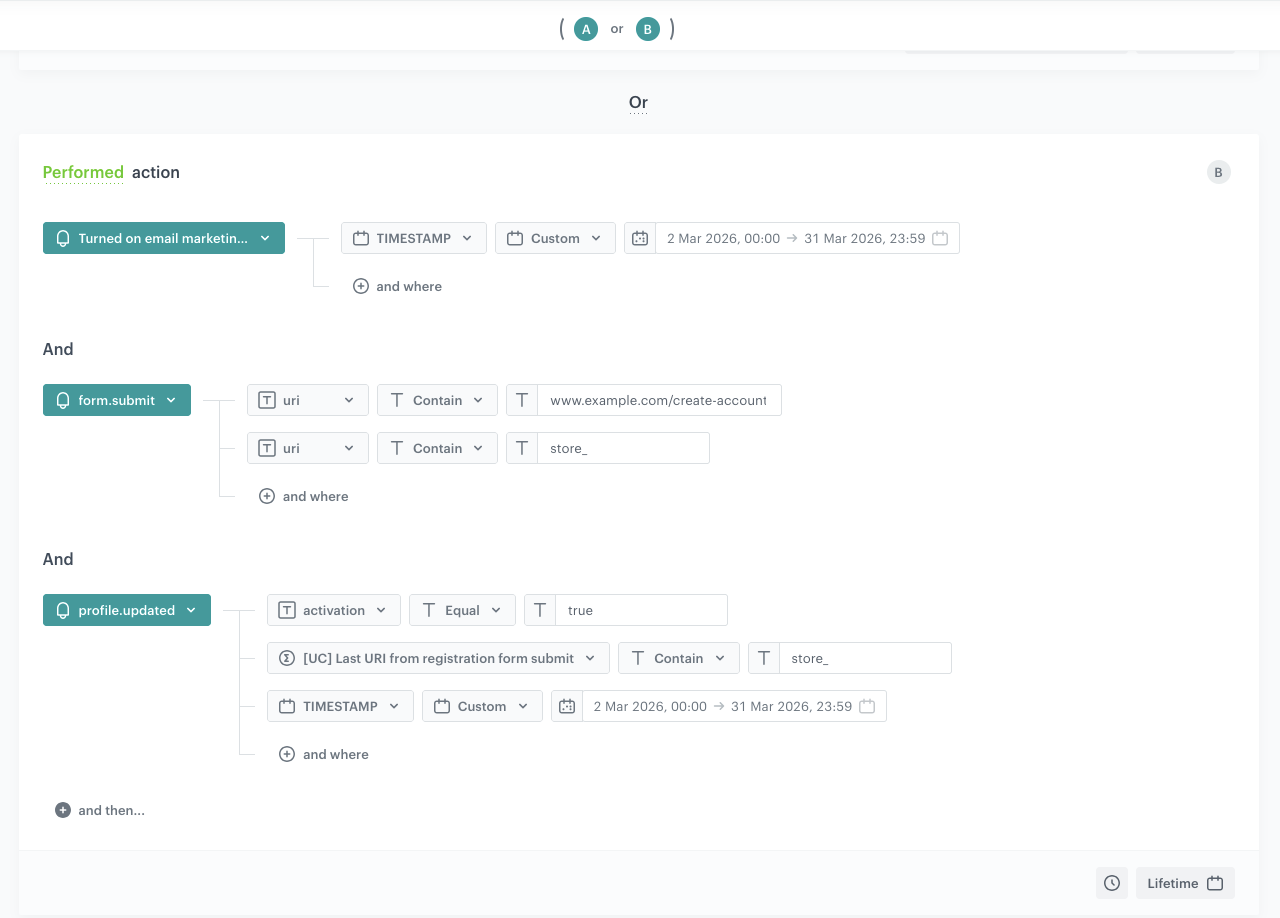
Segment B captures customers who registered through the store QR code and confirmed their account within 7 days, but already had the newsletter agreement from before the registration. This segment consists of two parts connected by an AND operator.
Part 1 — Performed action:
This part verifies that the customer submitted the registration form from a store link and confirmed their account within 7 days during the reporting period. Unlike Segment A, there is no marketingAgreement.turnOn event here — the newsletter opt-in happened earlier.
- Click Add segment to create Segment B.
- Click Add condition.
- From the dropdown list, select the
form.submitevent. - Click the + where button and select the uri parameter.
- From the Choose operator dropdown, choose Contain and enter the registration page URL, for example
www.example.com/create-account. - Click the + where button and select the uri parameter again.
- From the Choose operator dropdown, choose Contain and enter the store identifier prefix, for example
store_. - Below the first condition, in the and then... section, click Add condition.
- From the dropdown list, select the
profile.updatedevent. - Click the + where button and select the activation parameter.
- From the Choose operator dropdown, choose Equal and enter
true. - Click the + where button and select the event aggregate created earlier.
- From the Choose operator dropdown, choose Contain and enter the store identifier prefix, for example
store_. - Click the + where button and select the TIMESTAMP parameter.
- From the Choose operator dropdown, choose Custom and set the date range to the reporting period (for example,
1 Mar 2026, 00:00to31 Mar 2026, 23:59). - Set the completion window to Completed within 7 Days.
- Set the time range to Lifetime.
Part 2 — Has property (chronological check):
This part verifies that the customer's newsletter opt-in date (subscriptionDate attribute) is earlier than the account confirmation timestamp. This means the customer had already subscribed to the newsletter before completing the in-store registration.
- Below the performed action block, click Add condition and select Has property.
- Select the
subscriptionDateattribute (a custom attribute storing the date when the customer opted in to the newsletter). - From the Choose operator dropdown, choose Less than.
- As the value, select the profile aggregate for account confirmation created in the earlier step.
Finalize the segmentation
- Connect Segment A and Segment B using the OR operator (visible in the top-right corner of the conditions panel). A customer qualifies if they match either Segment A (all three actions within 7 days) or Segment B (registration + confirmation within 7 days, with a pre-existing newsletter agreement).
- Save the segmentation.
Create a report with registration counts per store
In this part of the process, create a report that returns the number of qualified registrations broken down by store and month. Before creating the report itself, you need to prepare several supporting analyses. The full list of elements to create in this section is:
- Metric — counts profiles matching the segmentation of qualified registrations.
- Aggregate: Newsletter agreement timestamp after in-store registration — returns the last
marketingAgreement.turnOntimestamp for store-originated registrations. - Aggregate: Account confirmation timestamp after in-store registration — returns the last
profile.updatedtimestamp for confirmed accounts from store-originated registrations. - Expression:
TIMESTAMP— returns the earlier available timestamp (newsletter agreement or account confirmation) usingIfNull. - Aggregate:
Last_store— returns the last store identifier fromform.submit, filtered by store origin and timestamp. - Expression:
Data— extracts the registration date (year-month) from the timestamp for grouping by month. - Expression:
Data_Store— combines the registration date with the store identifier into a single dimension. - Report — uses the metric and the three dimensions above.
Create a metric for counting qualified registrations
This metric counts all profiles that belong to the segmentation created in the previous step. It will be used as the base metric for the report.
- Go to Decision Hub > Metrics > New metric.
- Enter the name of the metric, for example
Count of in-store loyalty registrations. - As the metric kind, select Simple metric.
- As Type, select Profile.
- As Aggregator, select Count.
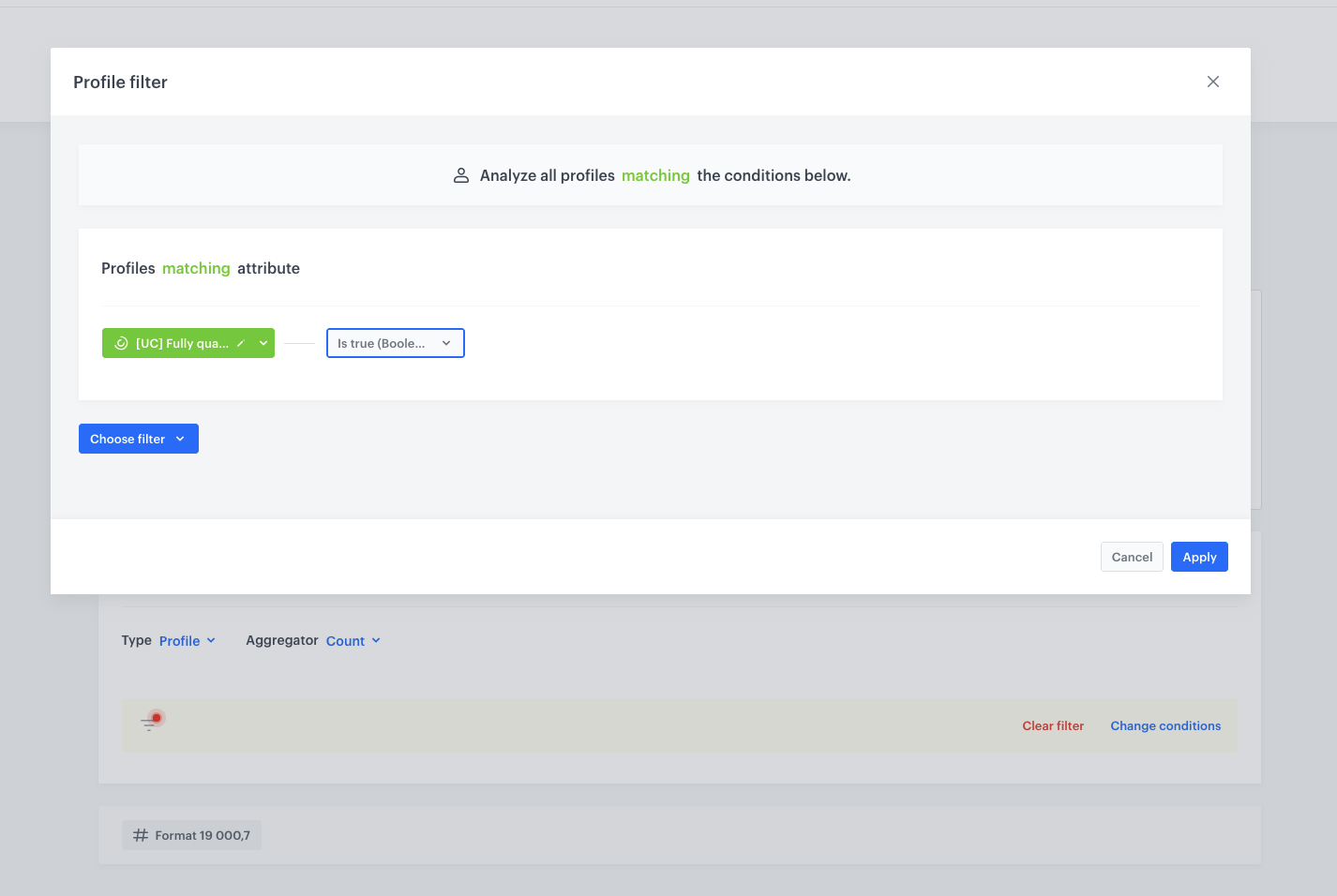
- Click the filter icon to add a profile filter.
- From the Choose filter dropdown, select the segmentation created in the previous step.
- From the Choose operator dropdown, choose Is true (Boolean).
- Confirm by clicking Apply.
- Save the metric.
Create an aggregate for newsletter agreement timestamp after in-store registration
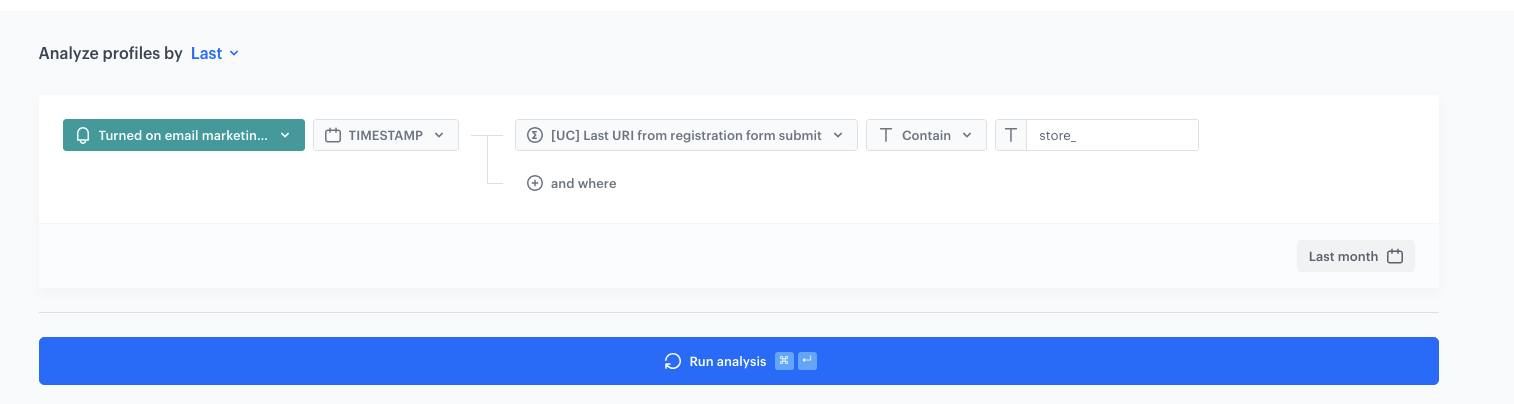
This aggregate returns the last timestamp of the marketingAgreement.turnOn event for customers whose registration originated from a store link. It will be used in the expressions that serve as report dimensions.
- Go to Behavioral Data Hub > Live Aggregates > Create aggregate.
- As the aggregate type, select Profile.
- Enter a name for the aggregate, for example
Newsletter agreement timestamp after in-store registration. - Set Analyze profiles by to Last.
- From the Choose event dropdown list, select the
marketingAgreement.turnOnevent. - As the event parameter, select TIMESTAMP.
- Click the + where button.
- From the Choose parameter dropdown list, select the event aggregate created in the first step (last URI from registration form submit).
- From the Choose operator dropdown, choose Contain (String).
- In the next field, enter the store identifier prefix, for example
store_. - Set the time range to Last 1 months before 1 months (this ensures the aggregate covers the previous month's data for reporting purposes).
- Save the aggregate.
Create an aggregate for account confirmation timestamp after in-store registration
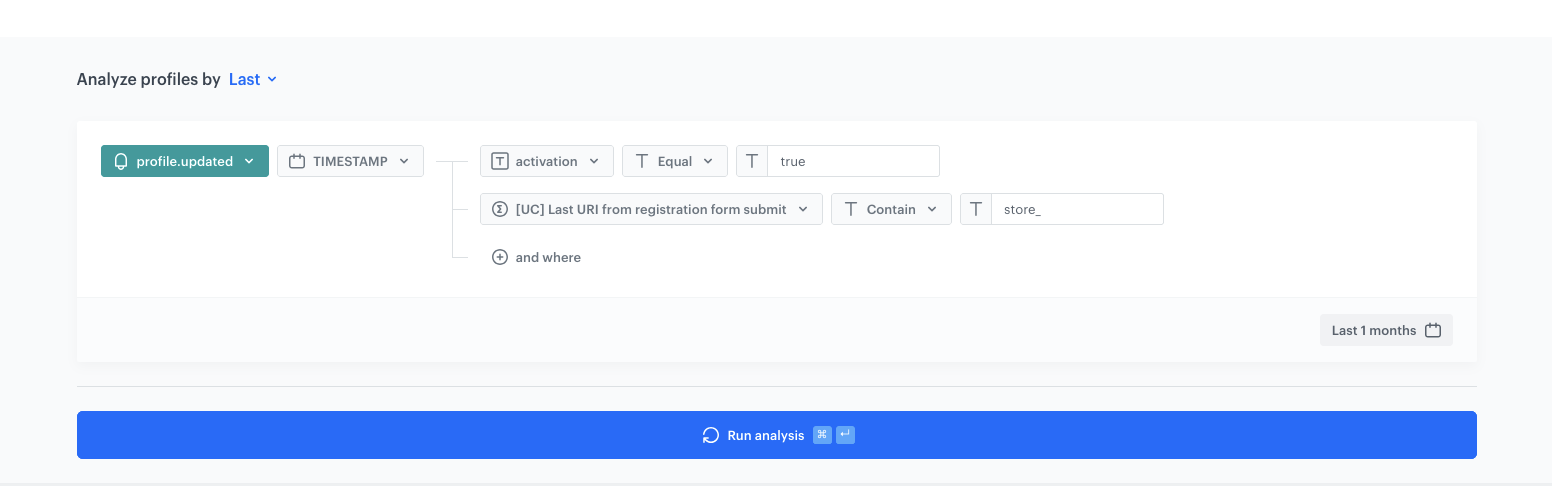
This aggregate returns the last timestamp of the profile.updated event where the account was confirmed and the registration originated from a store link. It will be used as the fallback value in the TIMESTAMP expression — for customers who already had the newsletter agreement before the registration and therefore did not trigger the marketingAgreement.turnOn event during the process.
NOTE: This aggregate uses the same event and conditions as the profile aggregate for account confirmation created earlier in the process, but its time range is set to Last 1 months to align with the monthly reporting cycle. You can reuse the same aggregate if the time range matches, or create a separate one for reporting purposes.
- Go to Behavioral Data Hub > Live Aggregates > Create aggregate.
- As the aggregate type, select Profile.
- Enter a name for the aggregate, for example
Account confirmation timestamp after in-store registration. - Set Analyze profiles by to Last.
- From the Choose event dropdown list, select the
profile.updatedevent. - As the event parameter, select TIMESTAMP.
- Click the + where button.
- From the Choose parameter dropdown list, select the activation parameter.
- From the Choose operator dropdown, choose Equal.
- In the next field, enter
true. - Click the + where button.
- From the Choose parameter dropdown list, select the event aggregate created in the first step (last URI from registration form submit).
- From the Choose operator dropdown, choose Contain.
- In the next field, enter the store identifier prefix, for example
store_. - Set the time range to Last 1 months.
- Save the aggregate.
Create the TIMESTAMP expression
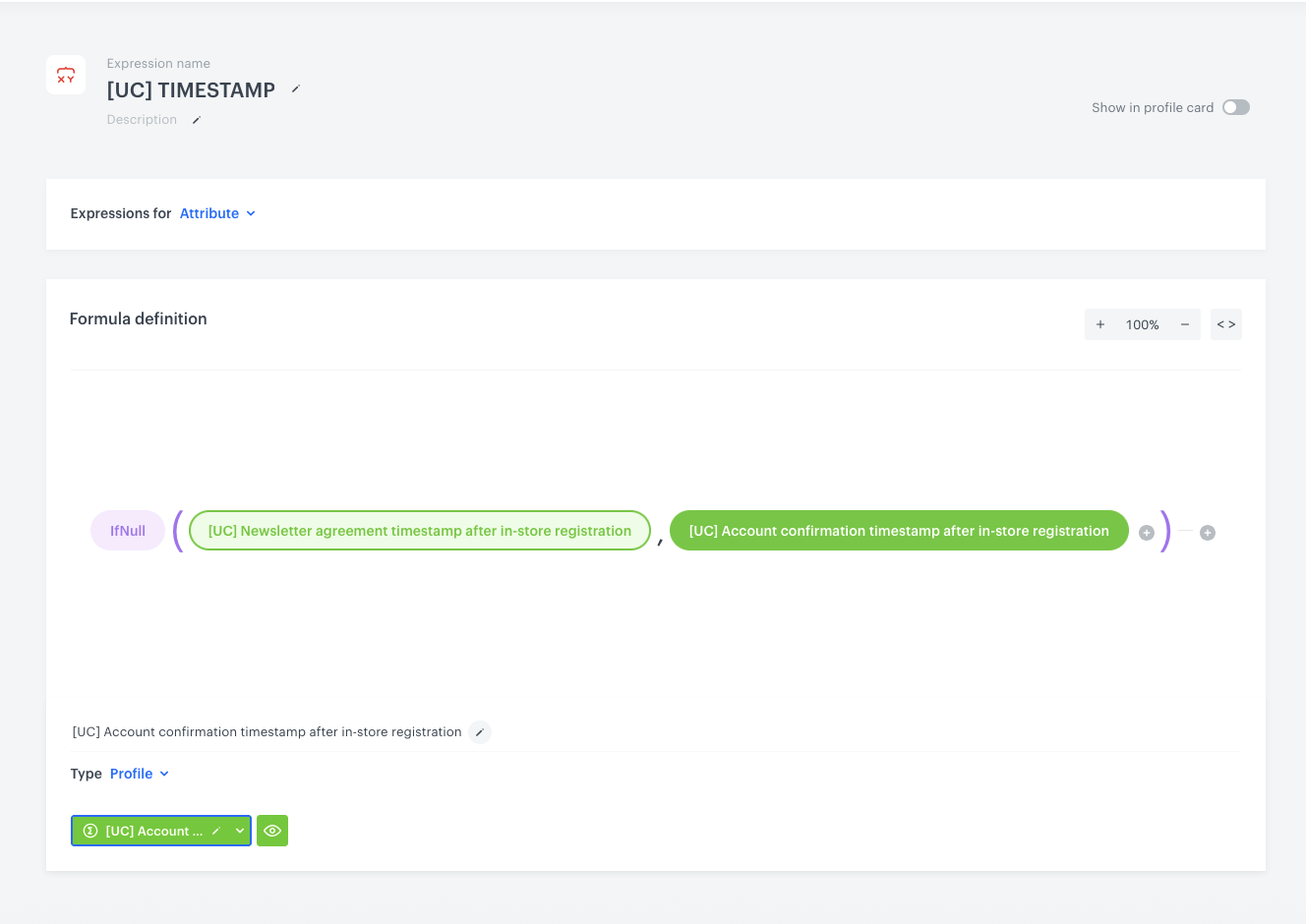
This expression returns the earliest available timestamp from the registration process — either the newsletter agreement timestamp or the account confirmation timestamp. It uses the IfNull function: if the newsletter agreement timestamp is available, it is returned; otherwise, the account confirmation timestamp is used as a fallback. This expression will be referenced in the Last_store aggregate (to ensure the form submission occurred before the confirmation) and serves as a building block for other report dimensions.
- Go to Behavioral Data Hub > Expressions > New expression.
- Enter the name of the expression:
TIMESTAMP. - Set Expressions for to Attribute.
- Build the formula using the following structure:
- IfNull - newsletter agreement timestamp aggregate, account confirmation timestamp aggregate
- The first argument is the aggregate for the newsletter agreement timestamp after in-store registration (created in the previous step).
- The second argument (fallback) is the profile aggregate for account confirmation created earlier.
- Save the expression.
Create the Last_store aggregate
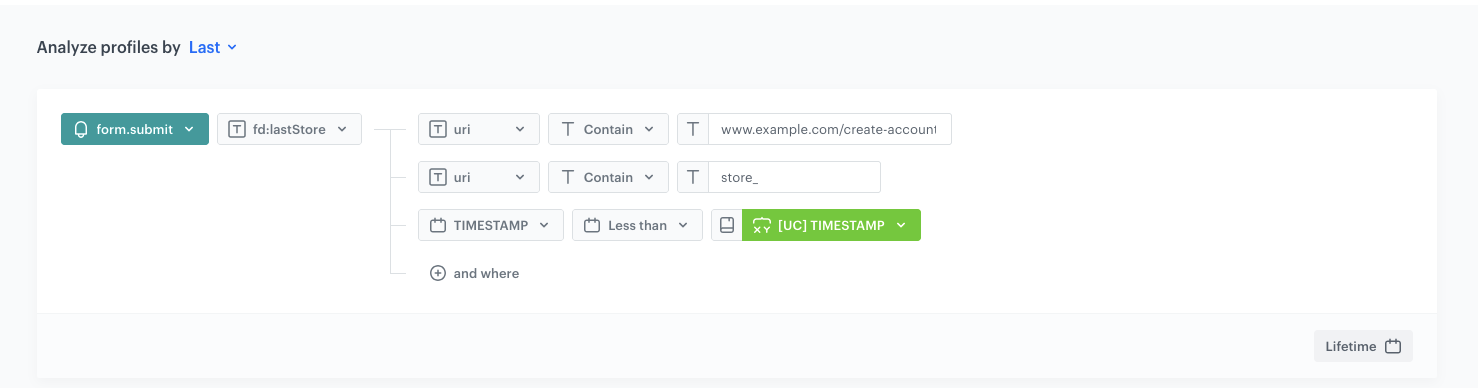
This aggregate returns the last store identifier extracted from the form.submit event. It filters for registrations that came from a store link and whose timestamp is earlier than the registration confirmation timestamp (using the TIMESTAMP expression). It will be used directly as a report dimension and also within the Data_Store expression.
- Go to Behavioral Data Hub > Live Aggregates > Create aggregate.
- As the aggregate type, select Profile.
- Enter a name for the aggregate:
Last_store. - Set Analyze profiles by to Last.
- From the Choose event dropdown list, select the
form.submitevent. - As the event parameter, select the parameter that contains the store identifier extracted from the URI (for example,
fd:lastStore_). - Click the + where button and select the uri parameter.
- From the Choose operator dropdown, choose Contain (String) and enter the registration page URL, for example
www.example.com/create-account. - Click the + where button and select the uri parameter again.
- From the Choose operator dropdown, choose Contain (String) and enter the store identifier prefix, for example
store_. - Click the + where button and select the TIMESTAMP parameter.
- From the Choose operator dropdown, choose Less than (Date).
- As the value, select the
TIMESTAMPexpression created in the previous step. - Set the time range to Lifetime.
- Save the aggregate.
Create the Data expression
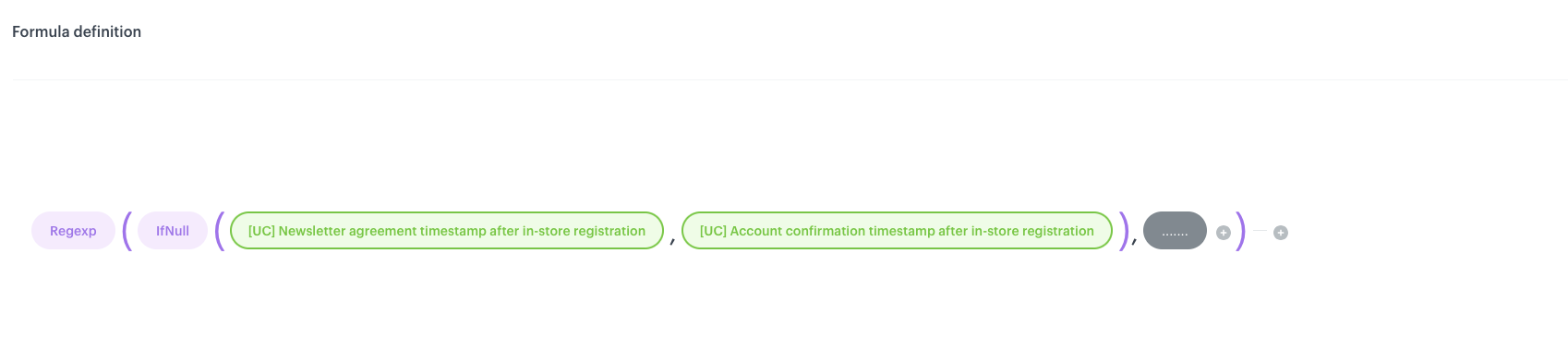
This expression returns the registration date (used as a report dimension to group results by month). It uses the Regexp and IfNull functions to extract the date from one of two aggregates: the newsletter agreement timestamp or the account confirmation timestamp — whichever is available first.
- Go to Behavioral Data Hub > Expressions > New expression.
- Enter the name of the expression:
Data. - Set Expressions for to Attribute.
- Build the formula using the following structure:
- Regexp ( IfNull (
[newsletter agreement timestamp aggregate],[account confirmation timestamp aggregate]) ,......) - The first argument of
IfNullis the aggregate for the newsletter agreement timestamp after in-store registration (created in the step above). - The second argument (fallback) is the profile aggregate for account confirmation created earlier.
- The
Regexppattern (......) extracts the date portion (for example, year-month) from the timestamp.
- Regexp ( IfNull (
- Save the expression.
Create the Data_Store expression
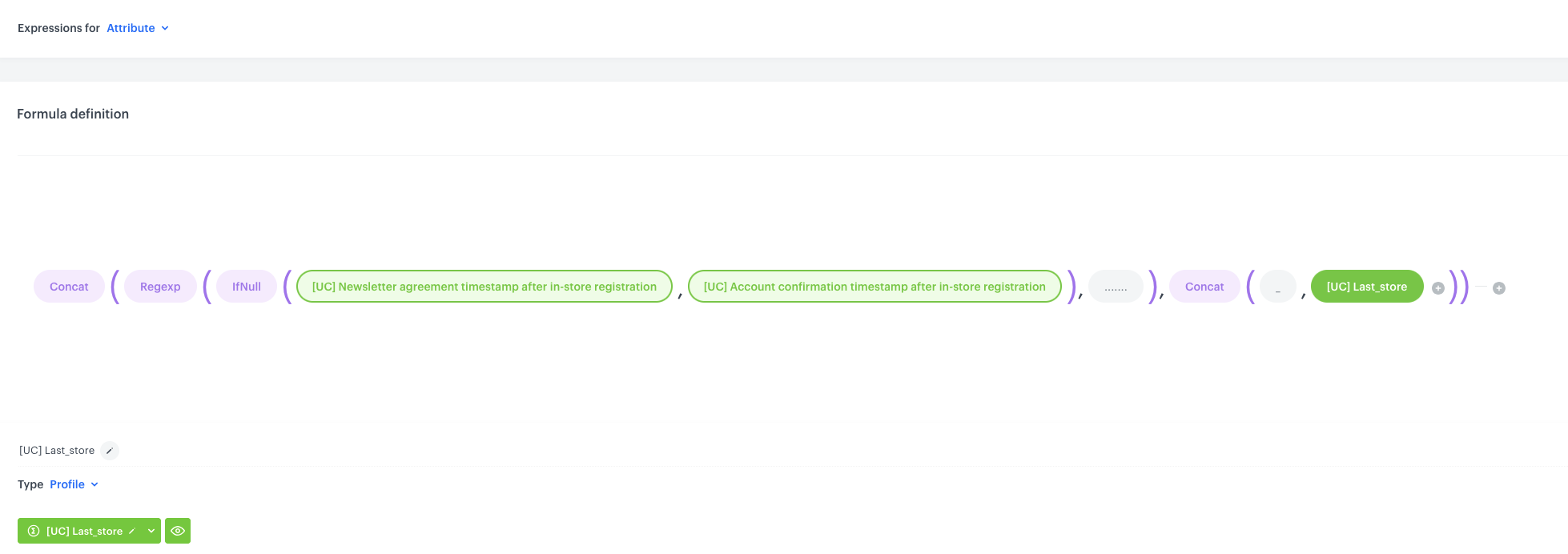
This expression combines the registration date with the store identifier into a single dimension. It uses the Concat function to join the date (extracted via Regexp and IfNull, same logic as in Data) with a separator (_) and the Last_store aggregate.
- Go to Behavioral Data Hub > Expressions > New expression.
- Enter the name of the expression:
Data_Store. - Set Expressions for to Attribute.
- Build the formula using the following structure:
- Concat ( Regexp ( IfNull (
[newsletter agreement timestamp aggregate],[account confirmation timestamp aggregate]) ,......) , Concat (_,Last_store) ) - The inner
Regexp(IfNull(...))portion is the same logic as in theDataexpression — it extracts the date from the first available timestamp. - The outer
Concatappends an underscore and the store identifier from theLast_storeaggregate.
- Concat ( Regexp ( IfNull (
- Save the expression.
Configure the report
Now that all the required analyses are ready, create the report.
- Go to
 Decision Hub > Reports > New report.
 - Enter the name of the report, for example
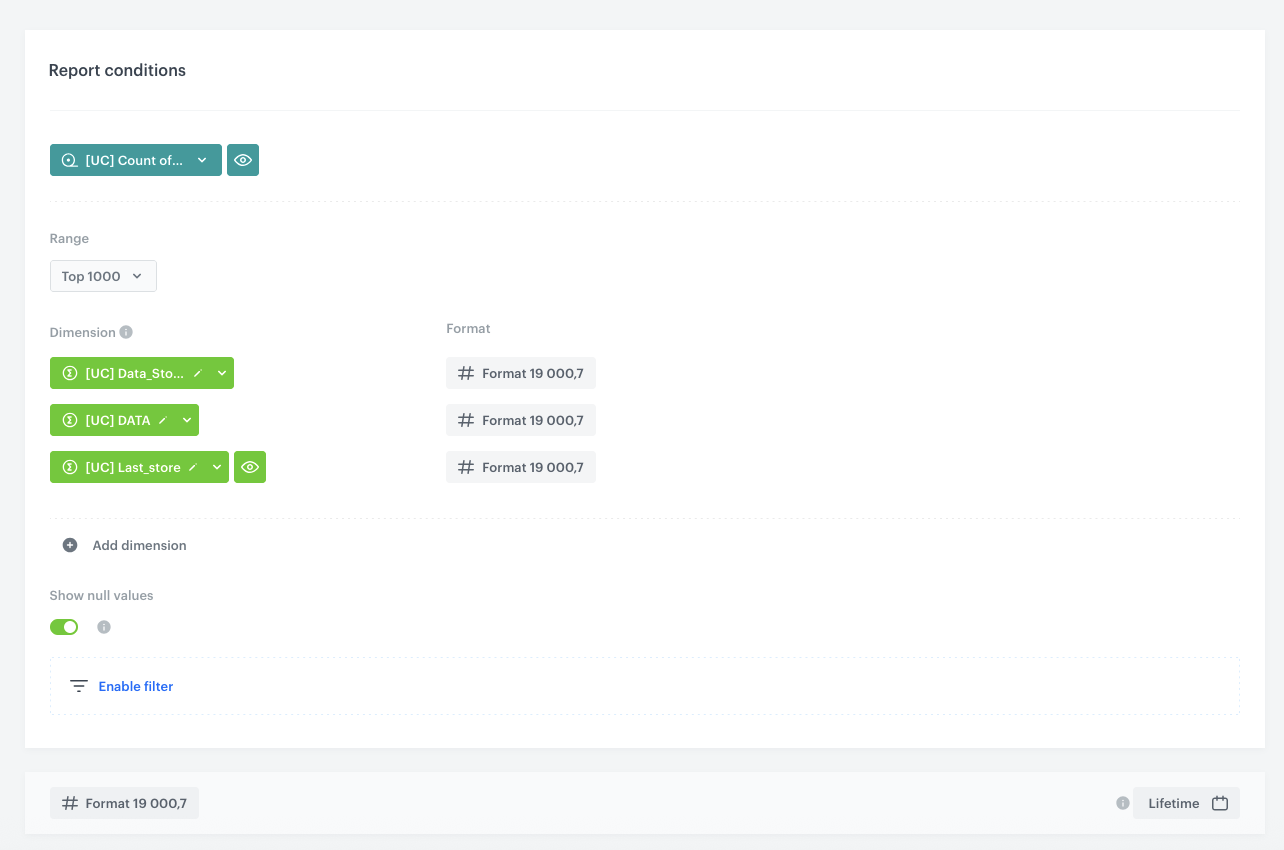
Monthly in-store loyalty registrations by store. - Click Choose metric and from the dropdown list, select the metric created above.
- From the Range dropdown list, select Top 1000.
- In the Dimension section, add the following dimensions:
Data_Store— the expression combining date and store identifier.Data— the expression returning the registration date.Last_store— the aggregate returning the store identifier.
- Set the Format to
19 000,7for all dimensions. - Enable the Show null values toggle.
- Set the time range to Lifetime.
- Save the report.
Result: The report returns a table with the month of registration, the store name, and the number of customers who completed a full registration from that store.
TIP: To ensure the report always returns data for the previous month without manual adjustments, set all aggregates used in the segmentation and report dimensions to a relative time range such as Last month or Last 1 months before 1 months. This way, the segmentation and report will automatically shift to the correct period each month, and the only element that may still require a manual update is the custom TIMESTAMP range inside the segmentation conditions (if used).
What's next
Once the report is configured and saved, you can distribute the results in a way that best fits your business needs. Some common options include:
- Email — use a workflow with the Send Email node to deliver the report results directly to the relevant stakeholders on a scheduled basis.
- External systems (e.g. Microsoft SharePoint, Google Sheets) — use a workflow with Outgoing Integration nodes to authenticate with the external API, generate the report via the Synerise API, transform the data using Jinjava, and upload it to the target location.
- Dashboards — add the report to an analytical dashboard for convenient, real-time access within Synerise.
- CSV export — export the report to a CSV file manually or automate the process via a workflow.
In each case, you can automate the delivery by creating a workflow triggered on a schedule (for example, on the first day of each month) that generates the report and sends or uploads the data to the desired destination.
Check the use case set up on the Synerise Demo workspace
You can check the configuration of each step directly in the Synerise Demo workspace:
- Event aggregate – Last URI from registration form submit
- Profile aggregate – Account confirmation timestamp after in-store registration
- Aggregate – Newsletter agreement timestamp after in-store registration
- Expression – TIMESTAMP
- Aggregate – Last_store
- Expression – Data
- Expression – Data_Store
- Metric – Count of in-store loyalty registrations
- Segmentation – Fully qualified in-store loyalty registrations
- Report – Monthly in-store loyalty registrations by store
If you’re our partner or client, you already have automatic access to the Synerise Demo workspace (1590), where you can explore all the configured elements of this use case and copy them to your workspace.
If you’re not a partner or client yet, we encourage you to fill out the contact form to schedule a meeting with our representatives. They’ll be happy to show you how our demo works and discuss how you can apply this use case in your business.
Generated events
This use case does not generate any events.