The Send Channel Message node allows you to create a business-oriented workflow for sending notifications to your team members in a Slack channel. For example, you may send notifications immediately after a deviation occurs in your workspace.
Prerequisites
Create an incoming webhook in Slack and learn how to build it JSON request body.
Node configuration
 icon accept
 - Go to Automation > Workflows > Create new.
- Start the workflow with a trigger node that doesn't contain a customer's context (for example, Scheduled Run).
- On the trigger node, click THEN.
- From the dropdown list, click Slack > Send Channel message.
- To allow the data exchange, establish a connection between Synerise and Slack, click Select connection.
- From the dropdown list, select the connection.
- If no connections are available or you want to create a new one, see Create a connection.
- If you selected an existing connection, proceed to defining the integration settings.
Create a connection
If you haven't established any connection yet or you want to create another, establish a connection between Synerise and Slack that facilitates the exchange of data.
- In the Connection name field, enter the name of the connection.
It's used to find the connection on the list. - In the Incoming webhook URL field, enter the webhook you created as a part of prerequisites.
- Confirm by clicking Apply.
Define the integration settings
From the Type of message dropdown list, select the type of the message you want to create:
- Simple message - Choosing this option lets you write a plain text.
- Interactive message (JSON) - Choosing this option lets you build messages with sections, buttons, links, simple surveys.
Follow the scenario according to the message type you selected:
- If you selected the Simple message option:
- In the Text of message field, enter the text you want to include in the message.
- If you selected the Interactive message (JSON) option:
- In the JSON body of message field, enter the structure of the message as the JSON body.
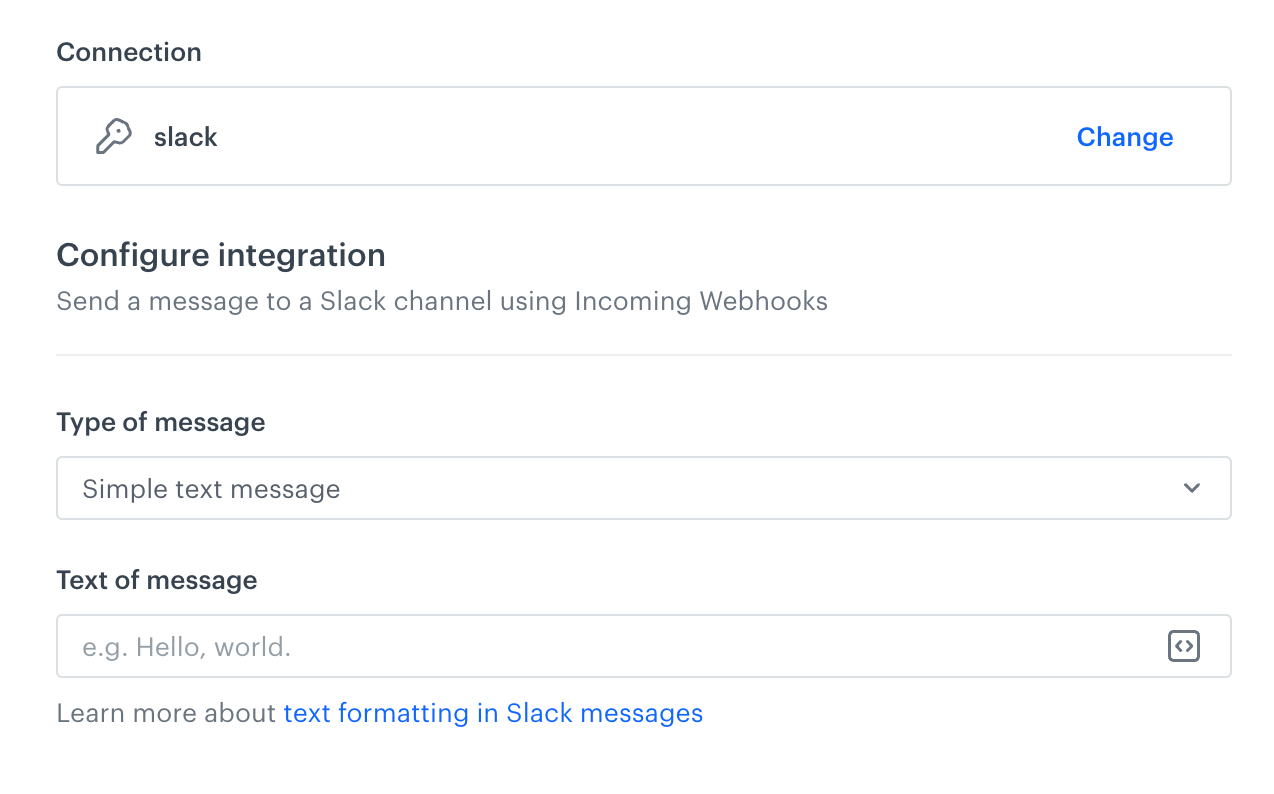
A blank configuration form in Send message to channel node (Slack)
- If you selected the Simple message option:
- Confirm by clicking Apply.
Result: When the Send Channel Message node is executed, aslack.sendChannelMessageevent is generated on the activity list of the profile who is the actor in the workflow.
Test integration
You can run a test request. If the request body contains a dynamic reference to a profile attribute and/or an event data from preceding nodes, then you can define the context using test profile data.
NOTE: Complete description of the feature is available in Testing outgoing integrations.
- In the Test integration section, click Send test request.
Result: A test request builder opens. If:- a request body contains dynamic references, the request preview appears after you select the context of test profiles and events.
- a request body contains static data, the preview of the body request appears immediately.
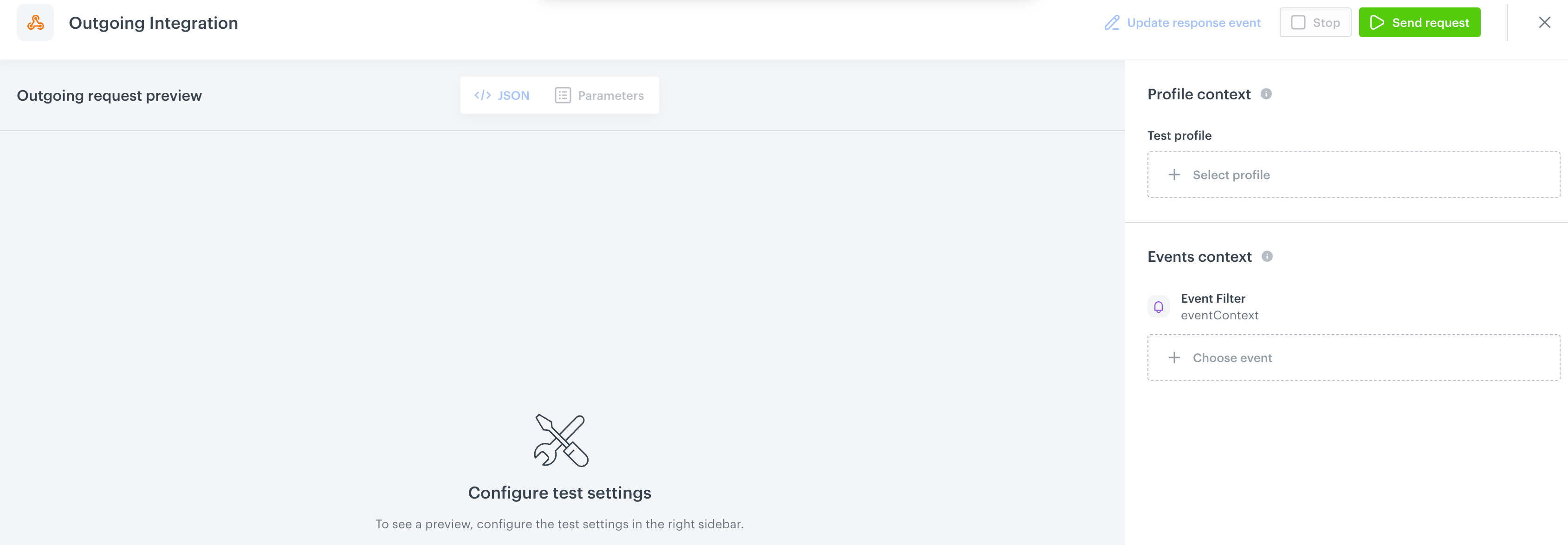
An empty test request builder - If your request contains dynamic references (otherwise, the options aren't available):
- From the Test profile dropdown, select a test profile in the context of whom the test request will be performed.
- From the Event context dropdown list, you can select a particular occurrence of an event whose values/information will be used for the test request.
- Select a test profile.
Result: A history of test profile events appears.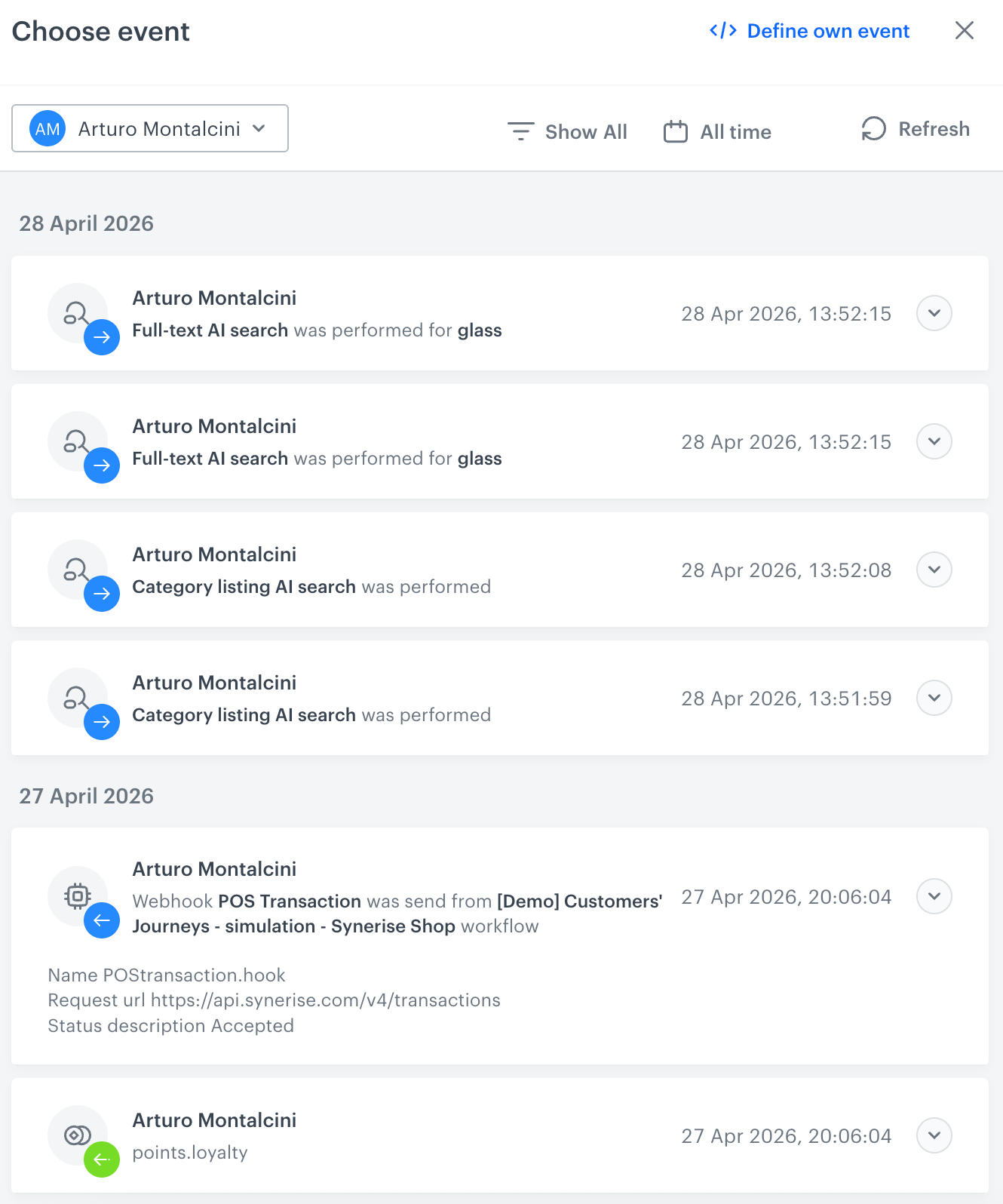
A stream of events of a test profile - From the list of events, select one whose data you want use as a context. If there is no event you can use, in the upper-right corner of the pop-up, click Define own event and provide the body of the event.
- Confirm by clicking Apply.
- Select a test profile.
- Verify the request body. If there is something you want to change, come back to the node settings from previous steps.
- If the request body is ready to test, in the upper-right corner, click Send request.
Result: The response section appears and the Update response event button becomes active. - Optionally, you can update response event with new parameters by clicking Update response event in the upper-right corner.
Example of use
Read our use case that uses the Send message to Slack channel node