This feature allows users to test outgoing integrations from workflows, specifically targeting HTTP-type integrations that connect to external APIs or services (for example, Send offline conversion (Google Ads), Send Custom Event (Facebook), Outgoing Integration node). You can run test requests for both business workflows and customer-oriented workflows in draft, paused, and active statuses.
This feature is available in the node settings in the Test integration section. This section opens a builder in which you can simulate integration requests by providing context from test profiles and historical events, enabling you to verify credential validity, connection status, and detect dynamic templating errors before deploying workflows live. Thanks to this, you can minimize errors, ensure proper rendering of dynamic values, and improve the reliability of integrations in production.
IMPORTANT: Testing requests works exclusively with test data (test profiles and their generated events); testing on production data is not possible.
Prerequisites
Your workspace must contain test profiles.
Key features
Selecting data for context
Not all integrations convey dynamic data, as some requests transmit static data. However, if the request body contains dynamic references — such as profile attributes ({{ customer.firstName }}) or an event reference, then in the test request builder, you must:
- Select a test profile to provide context values related to profile information.
- Select an event (for example,
page.visit) from the test profile’s historical events. - If the event doesn’t exist, you can create a custom event payload for testing.
Dynamic context rendering
If your outgoing request includes dynamic values — such as event context, profile attributes, item catalog fields, or analytics data — these will be rendered automatically. This makes it easy to validate your syntax, confirm business assumptions, and review the final rendered output.
Response handling
- The test result can be saved as an event in Data Modeling Hub > Events. Depending on the tested integration, the response action event will be either the one specified in the integration configuration (the name of the event is included in the request body preview) or the predefined action corresponding to a given integration.
- If the response event already exists, you can update it with new parameters.
- This response event can then be reused in workflows.
Error detection
- The test verifies credential validity and connection status (for example, expired tokens or invalid credentials).
- Dynamic templating errors (for example, missing or failing variable rendering in the integration request) are surfaced during the test.
- You get immediate feedback if values cannot be rendered properly or if the external service returns an error.
No impact on live workflows
- Test requests are sent on a separate path that does not affect active workflows or production data.
- You can run multiple tests repeatedly without pausing or disrupting live integrations.
Audit logging
- Every test request is logged in Settings > Audit Log with full traceability.
- This ensures transparency and accountability of test executions, preventing unauthorized or accidental data transmissions.
Flow
NOTE: Detailed instructions on filling out the Test integration section is available in the documentation of the nodes in which this section is available, for example, Send offline conversion (Google Ads), Send Custom Event (Facebook), Outgoing Integration node
- Fill out the integration node configuration (for example, Outgoing Integration node) as usual and in the Test integration section, click Send test request.
In the test request builder:
- provide a profile context, if required.
- provide the event context, if required.
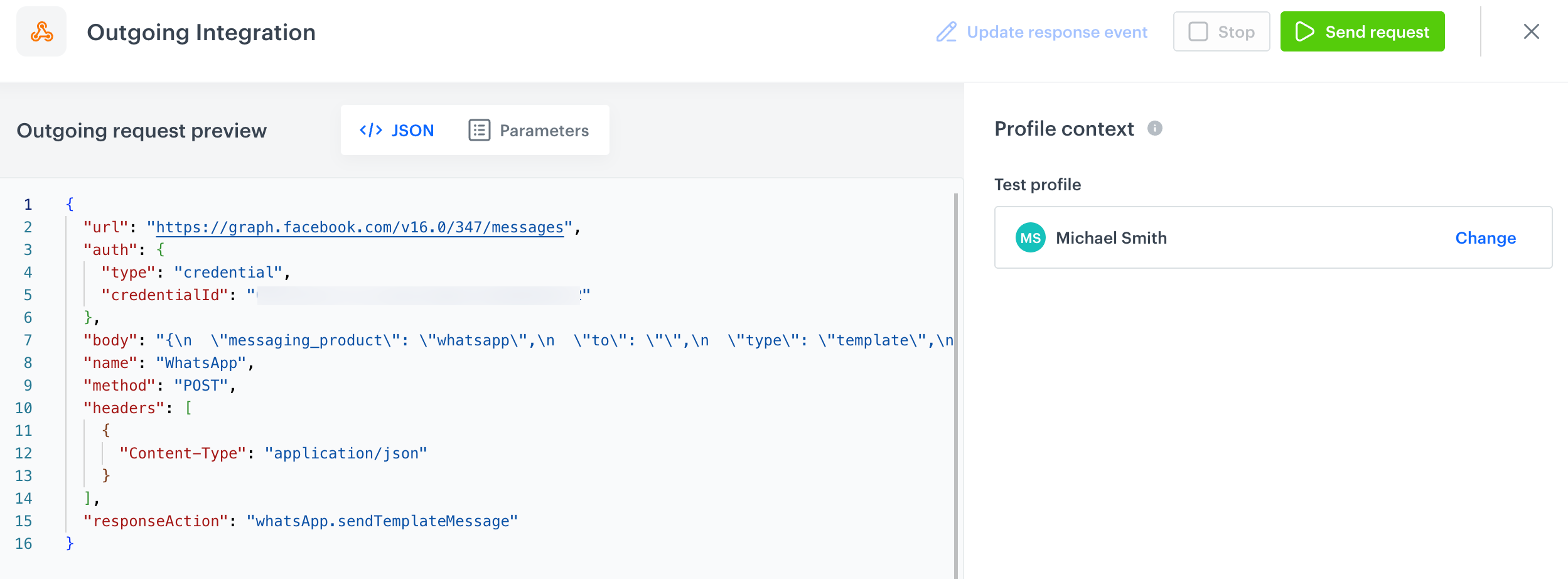
The right-hand panel used to supply the test with data context is built dynamically based on the integration configuration. If there are no references to profile data or event context, it may be empty (you don't need to do anything). However, if there is a reference to event context and the right-hand panel remains empty, make sure that the nodes you are referencing have assigned names.
WARNING: You can refer to the event context from the preceding nodes only by using the following syntax in the request body:
{{ automationPathSteps['nodeName'].event.params['paramName']A preview of a request body in a test request builder - Send the test request to the external integration endpoint.
- The system receives and displays the response immediately in a readable format (JSON or parameters view).
Result: AnAutomationTestentry in the Audit Log (Settings > Audit Log) is generated by theautomation-batservice.
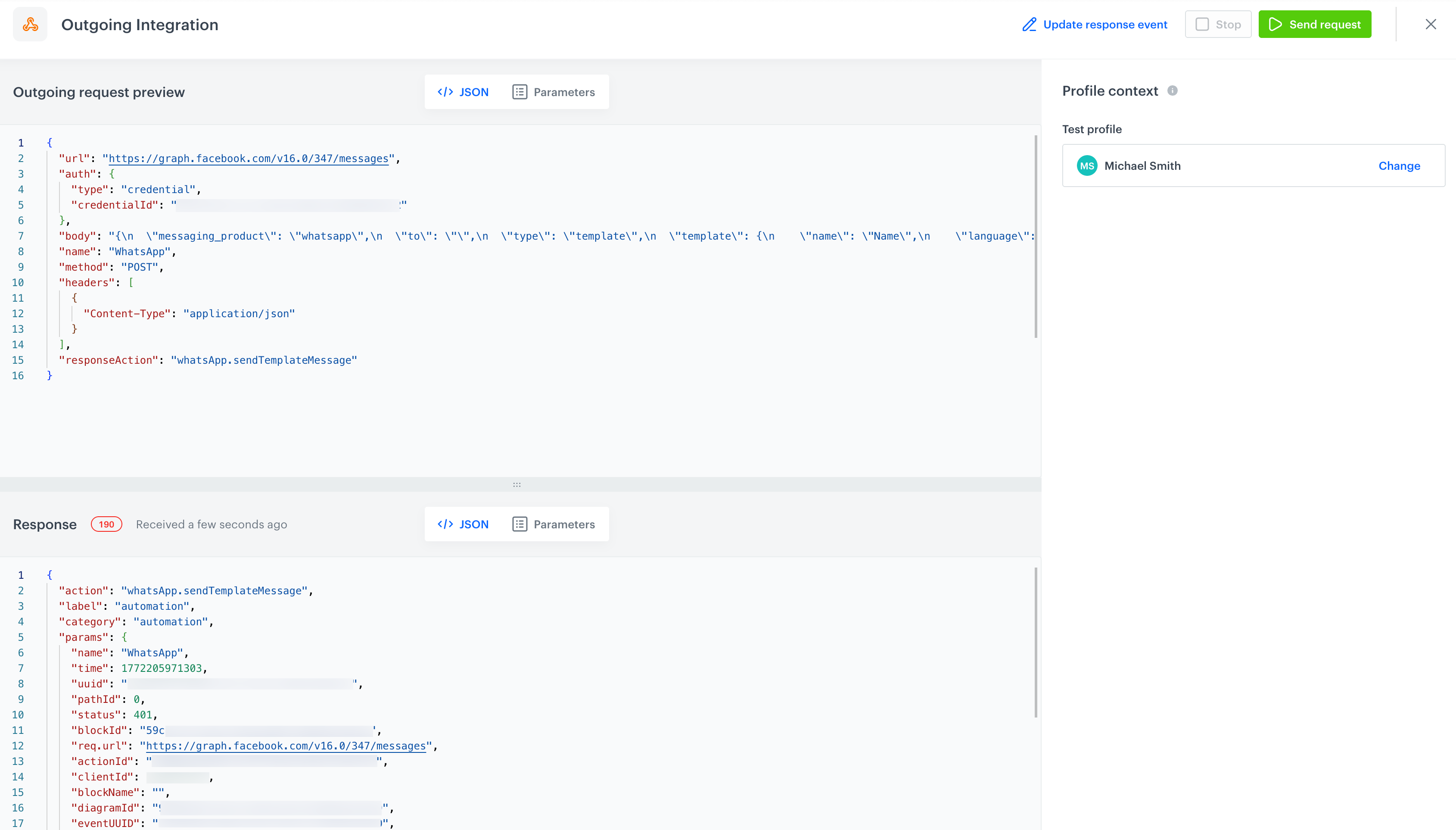
A preview of a response to a test request in a test request builder - Optionally, you can update the response event with new parameters, by clicking Update response event in the upper-right corner.
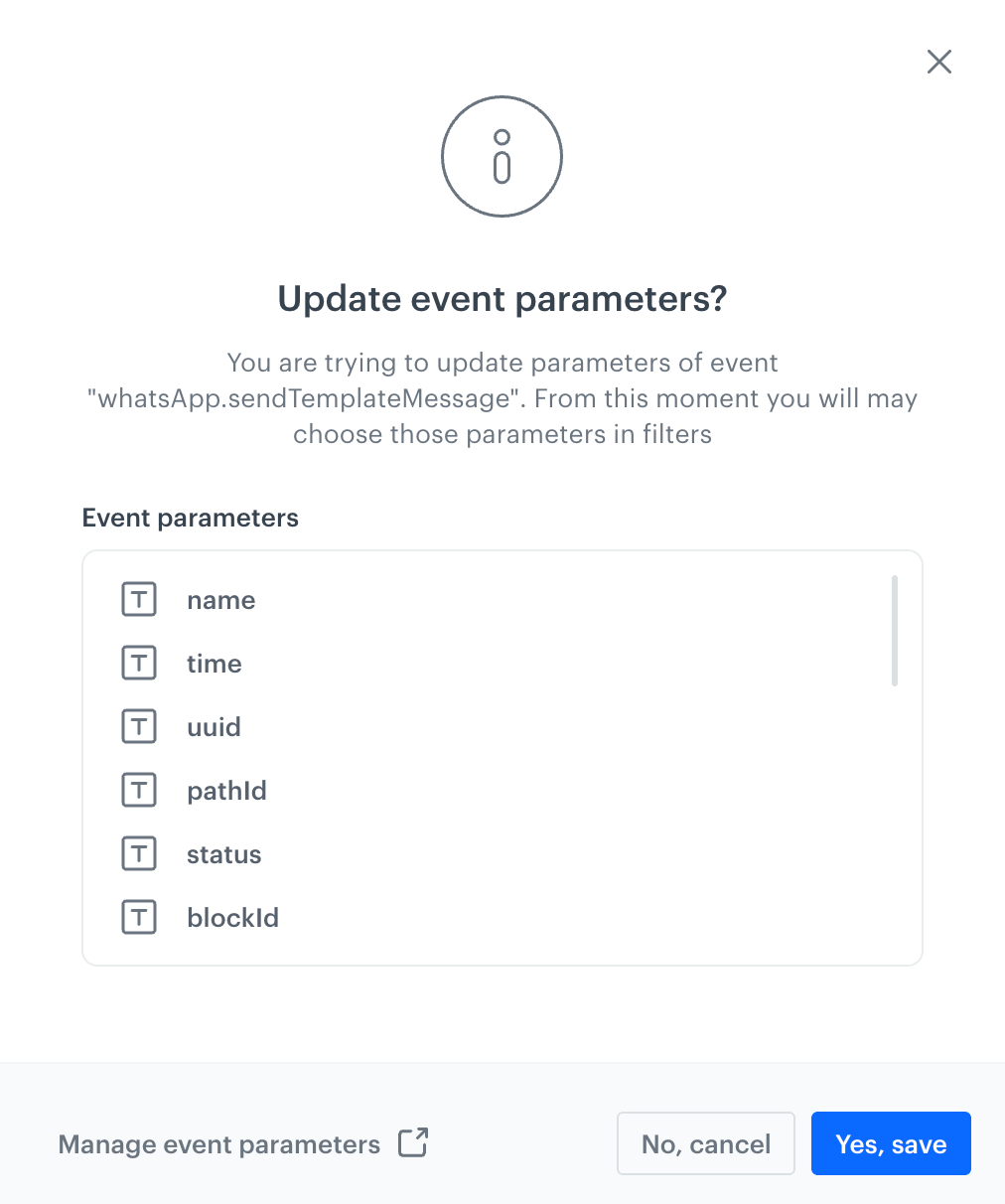
A pop-up with a summary of updated parameters in a response event - Confirm by clicking Yes, save.
Result: You can select these parameters across filters in the Synerise platform.