You can map Synerise profile attributes to fields of the VTEX customer record (the CL data entity in VTEX Master Data). When the value of a mapped attribute changes in a Synerise profile, the corresponding field is updated in VTEX.
The instructions in this document are compatible with:
- VTEX FastStore framework,
- VTEX Store Framework.
How synchronization works
- Synchronization is one-directional (from Synerise to VTEX).
This article describes only sending attribute changes from Synerise to VTEX. If you want to configure sending customer data in the opposite direction (from VTEX to Synerise), use the settings of the Synerise plugin in VTEX. For instructions, see "Enable sending customer data" in the integration guide for Store Framework or FastStore. - Synchronization starts only when the value of a mapped attribute changes in a Synerise profile. The source of the change doesn't matter (for example, an import, an API request, or a workflow). Values that existed before you created the mapping aren't sent.
- Only active mappings are synchronized.
- If the value in VTEX is the same as in Synerise, no update is sent.
- After a successful synchronization, the
integration.attributeSyncevent is added to the profile.
Matching profiles with VTEX customers
Synerise profiles are matched with VTEX customers by email address only:
| Situation | Result |
|---|---|
| The Synerise profile has no email address (for example, an anonymous profile or a profile identified only by a custom ID) | The change isn't sent to VTEX. The email address is the only identifier that links a Synerise profile with a VTEX customer, so without it, the customer can't be found. |
| The profile has an email address, but no VTEX customer has this email address | A new customer with this email address is created in VTEX. |
| Exactly one VTEX customer has the same email address as the profile | The mapped fields of this customer are updated in VTEX. |
| More than one VTEX customer has the same email address as the profile | The change isn't sent to VTEX. Synchronization works only when one profile matches exactly one customer, so that the data isn't saved in the wrong customer record. |
Prerequisites
- Your Synerise user account must have the Settings > Integration:
createpermission. - Add a VTEX connection in Synerise. Use the VTEX API key from this connection only for the Synerise integration.
Adding mappings
- Go to Settings > Attribute export.
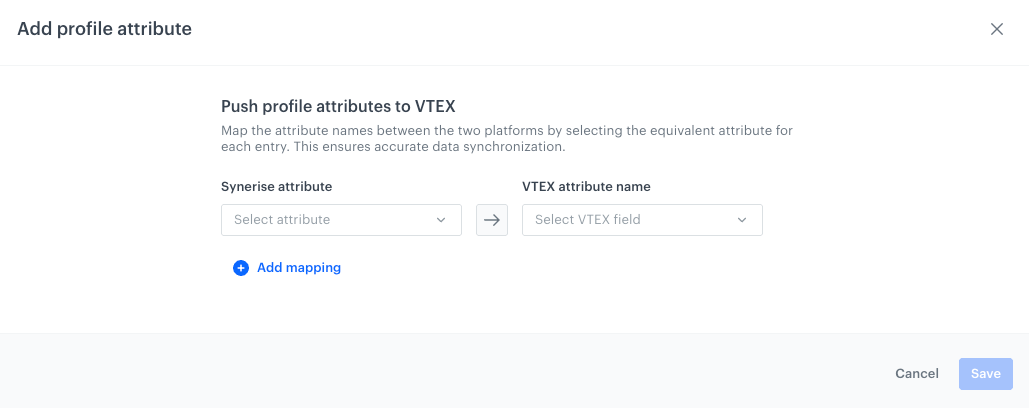
- Click Add mapping.
- From the Synerise attribute dropdown, select a profile attribute.
- From the VTEX attribute name dropdown, select a field of the VTEX customer record.
The list contains fields from the schema of the CL data entity. Custom fields that aren't included in the schema aren't listed. You can type their names manually. - Optionally, to map more attributes, click Add mapping and repeat steps 3 and 4.
You can map one Synerise attribute to several VTEX fields. - Click Save.
Result: The mappings are added to the list with the Active status.
Make sure that the data type of the Synerise attribute matches the type of the VTEX field.
Managing mappings
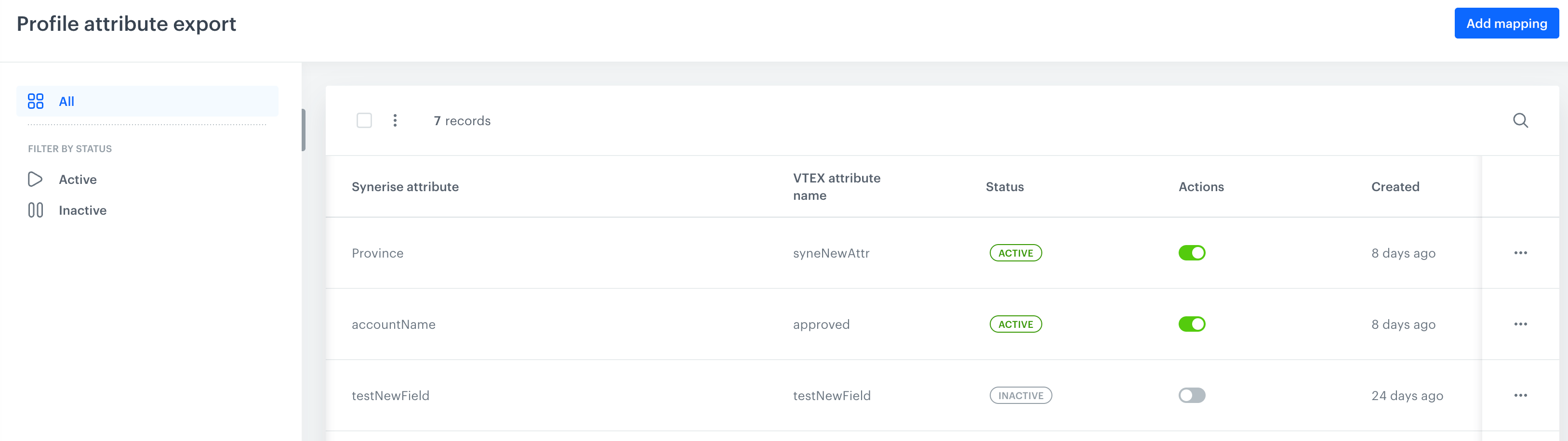
- To stop synchronizing an attribute, in the Actions column, turn off the toggle. The mapping status changes to Inactive. To resume synchronization, turn the toggle on.
- To show only active or inactive mappings, in the left pane, click Active or Inactive.
- To edit or delete a mapping, or copy its ID, click the three-dot icon in its row and select an option.