Workflow versioning let you keep several configurations of a workflow and switch between them. Each workflow can have many versions, but only one of them is the Public version. The Public version is the one that runs.
With versions, you can:
- prepare changes in a new version without affecting the version that is currently running,
- describe the changes introduced in each version,
- switch the running workflow to a different version,
- roll back to a previous version when a change doesn't work as expected,
- check who changed a version and when, in the audit log of the workflow.
Requirements
- Make sure you have permissions to create and edit workflows.
- To set a version as Public in an active workflow, you need permissions to save changes in an active workflow.
- The workflow must be saved at least once. A new workflow has no versions until you save it for the first time.
- To create versions, the workflow must have the Draft, Active, or Paused status.
How versions work
First version
- When you save a new workflow for the first time (by clicking Save or Save & Run), the system creates version v1 and sets it as Public. From then on, the Version selector is available next to the Save button.
- Workflows created before versioning was introduced have one version, v1, set as Public.
Saving changes
- Clicking Save overwrites the version you are viewing. To keep the current configuration and work on a copy, create a new version.
- If you save changes in the Public version of an active workflow, the changes apply to the running workflow immediately. To prepare changes without affecting the running workflow, make them in a new version.
- You can add, remove, and reconnect nodes only in a workflow with the Draft status. In workflows with other statuses, you can only change the settings of nodes, in every version.
- When you run a workflow for the first time, all versions which aren't Public become read-only. You can preview and remove them, but you can't save changes in them (including schedule rules), change their details, set them as Public, or copy them. Before you run a workflow for the first time, make sure that the version you want to run is Public.
Public version
- Only one version of a workflow can be Public at a time.
- When you run the workflow, the system runs the Public version. The Run workflow? pop-up shows the version that will run. If you click Save & Run while viewing a version which isn't Public, a warning appears that the Public version will run instead. To save the version you are viewing and run the Public version, click Continue.
- Schedule rules are part of a version. Only the schedule rules of the Public version apply. In a version which isn't Public, you can edit schedule rules, but you can't turn them on.
- You can't remove the Public version.
Changing the Public version
When you set another version as Public:
- the previous Public version stays in the version history. You can set it as Public again at any time.
- the schedule rules of the previous Public version stop working, and the schedule rules of the new Public version apply.
- node statistics continue from their previous values. Statistics aren't split by version.
- in an active workflow, new paths start according to the new Public version. Profiles which are already in the workflow continue according to the previous Public version until they reach a node that selects a path (for example, ABX Split). From that node, they continue according to the new Public version.
Version limit
A workflow can have up to 50 versions. When you reach the limit, you can't create new versions or copies. To create more versions, remove the ones you no longer need.
Cloning and duplicating workflows
- When you clone a workflow to another workspace, only the Public version is cloned. The version history isn't cloned. In the target workspace, the cloned workflow has one version, v1, set as Public.
- When you duplicate a workflow from the list of workflows, the duplicate is created from the Public version.
- The version history isn't duplicated. The duplicate is a draft with one version, v1, set as Public.
To duplicate a workflow from a version which isn't Public:
- Open the workflow.
- In the upper-right corner, click Version.
- On the list, click the version you want to duplicate.
- In the upper-right corner, click
 > Duplicate.
Result: A new workflow is created from the selected version.
Version list
To open the list of versions:
- Go to
 Automation Hub > Workflows.
- Open a workflow.
- In the upper-right corner, click Version.
Result: A list of versions appears. The version you are viewing is highlighted, the Public version is marked with the Public label, and versions which can't be edited are marked with the Read-only label.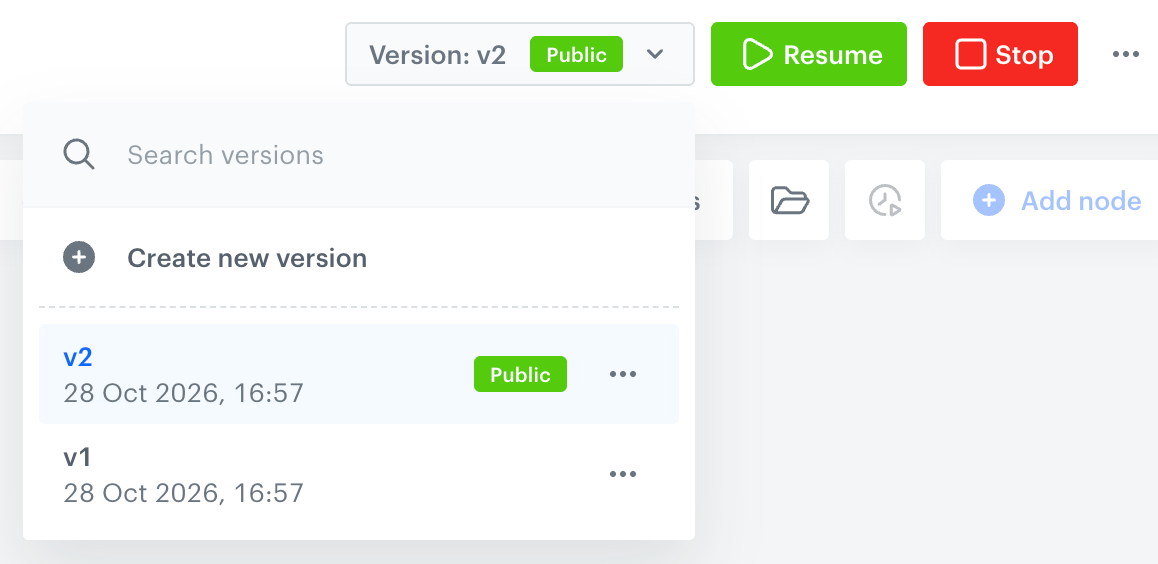
The list of workflow versions
To find a version, in the Search versions field, enter the name of the version.
To preview a version, click it on the list.
Result: The canvas shows the diagram of the selected version.
Creating a new version
A new version is a copy of the version you are viewing. For example, if you open v1 and create a new version, the new version contains the diagram of v1, even if v2 is the latest version.
- In the upper-right corner of the workflow, click Version.
- On the list, click the version you want to base the new version on.
Result: The canvas shows the diagram of the selected version. - Click Version again.
- Click Create new version.
Result: A pop-up appears.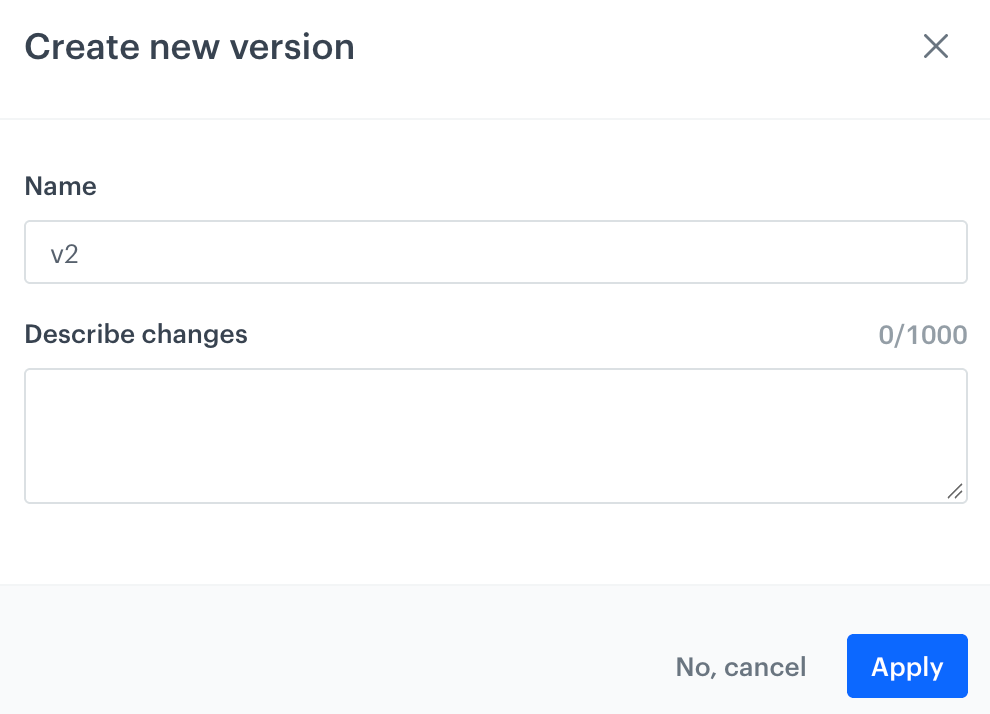
The Create new version pop-up - In the Name field, you can change the default name of the version.
You can't change the name after the version is created. - Optionally, in the Describe changes field, enter a description of the changes (up to 1000 characters).
- Confirm by clicking Apply.
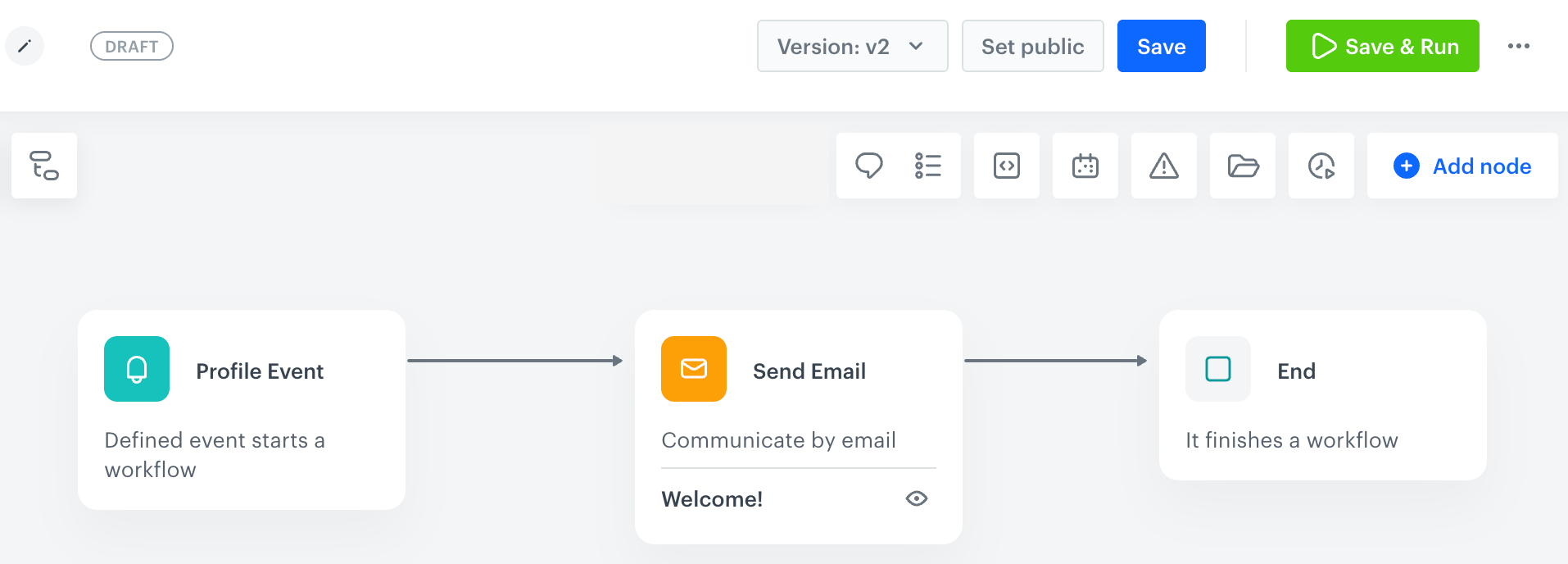
Result: The new version is created and opened on the canvas. - Edit the diagram.
If the workflow isn't a draft, you can only change the settings of nodes. - In the upper-right corner, click Save.
Result: The changes are saved in the new version. The new version doesn't run until you set it as Public.
TIP: To create a new version based on any version without opening it, use the Create a copy option.
Setting a version as Public
Setting a version as Public replaces the version that runs. Use this option to publish new changes or to roll back to a previous version.
- In the upper-right corner of the workflow, click Version.
- Next to the version you want to publish, click .
- Select Set public.
Result: A pop-up appears. It shows the current Public version and the version that will replace it.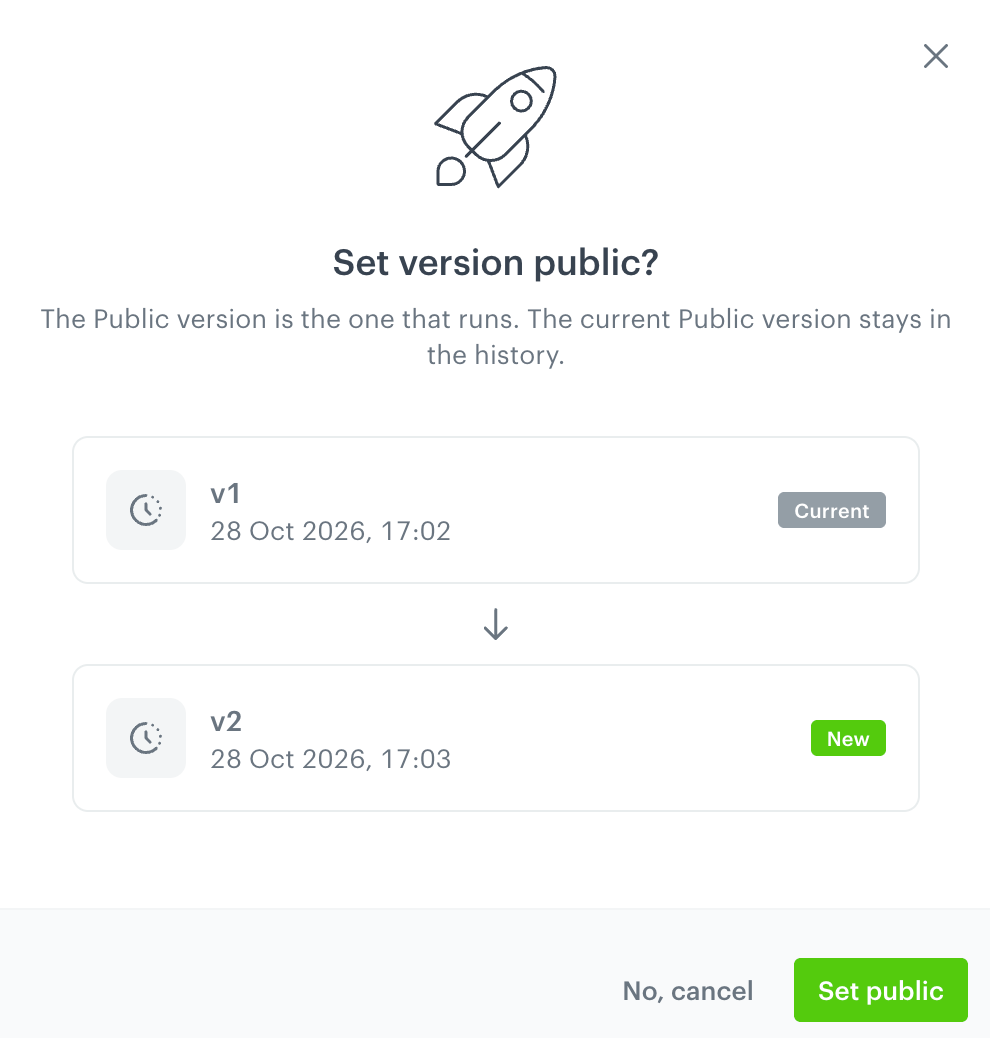
Confirmation pop-up - Confirm by clicking Set public.
When you are viewing a version which isn't Public, you can also click Set public in the upper-right corner of the workflow.
Managing versions
To manage a version, in the version list, click next to the version.
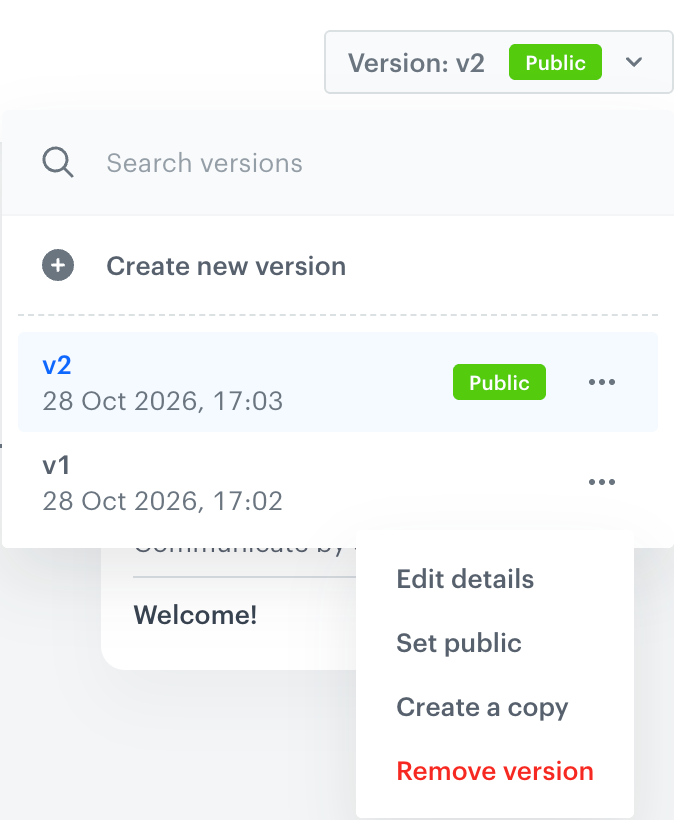
| Option | Description | Available for the Public version | Available for read-only versions |
|---|---|---|---|
| Edit details | Change the description of the changes in the version. You can't change the name of the version. | + | - |
| Set public | Make the version the one that runs. See Setting a version as Public. | - | - |
| Create a copy | Create a new version based on the selected version. | + | - |
| Remove version | Remove the version from the history. This operation can't be undone. | - | + |