An invalid latitude causes the weather API in this example to return an error instead of temperature data. Capturing that response makes its error details available to a Brickworks response transformer.
In this use case, you will extend the weather example to return a temperature for valid coordinates and an error message for invalid coordinates. A content consumer can use the resulting error flag to distinguish these two outcomes.
IMPORTANT: This option handles an external source that responds with an error. It does not handle connection failures such as timeouts or DNS errors, and this article does not describe recovery from those failures.
Prerequisites
- Complete Prepare current temperature data for content with Brickworks, including the external request and context configuration.
- Keep the existing Open Meteo Connection external source available for reuse.
- Have permissions to create an additional schema and configure its External Data field and response transformer.
Process
In this use case, you will go through the following steps:
- Create a separate schema for error handling that reuses the weather external source.
- Enable error details on its External Data field.
- Create the error-handling transformer with successful-response and error-response branches.
- Preview successful and failed responses before activating the transformer.
Create a separate schema for error handling
Use a separate schema for this example so that its output can be tested independently from the original schema. Reuse the external source without changing its request configuration.
- Go to Data Modeling Hub > Schemas > New schema.
- Set Display name to
Current Temperature (Error Handling) - Set the schema type to Singleton.
- Add an External Data field with the display name
Open Meteo Connection - Set the field's API name to
openMeteoConnection, which the transformer below references. - Select the existing
Open Meteo Connectionexternal source.
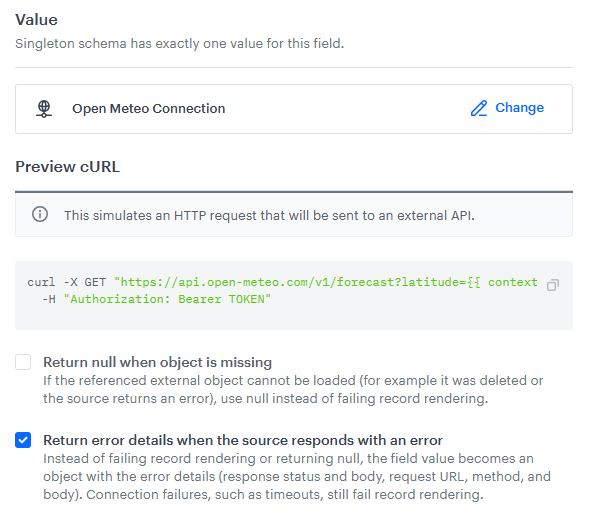
Enable error details on the External Data field
- Open the configuration of
openMeteoConnectionin the new schema. - Enable Return error details when the source responds with an error.
- Save the schema.
A successful call returns the weather payload with current and current_units, without a response.status key. The transformer below uses this difference to select a branch.
Create the error-handling transformer
For the invalid latitude example, the field returns an object that contains an HTTP status and the provider's error body. The relevant excerpt is:
{
  "response.status": 400,
  "response.body": {
    "reason": "Latitude must be in range of -90 to 90°. Given: 200.0.",
    "error": true
  }
}
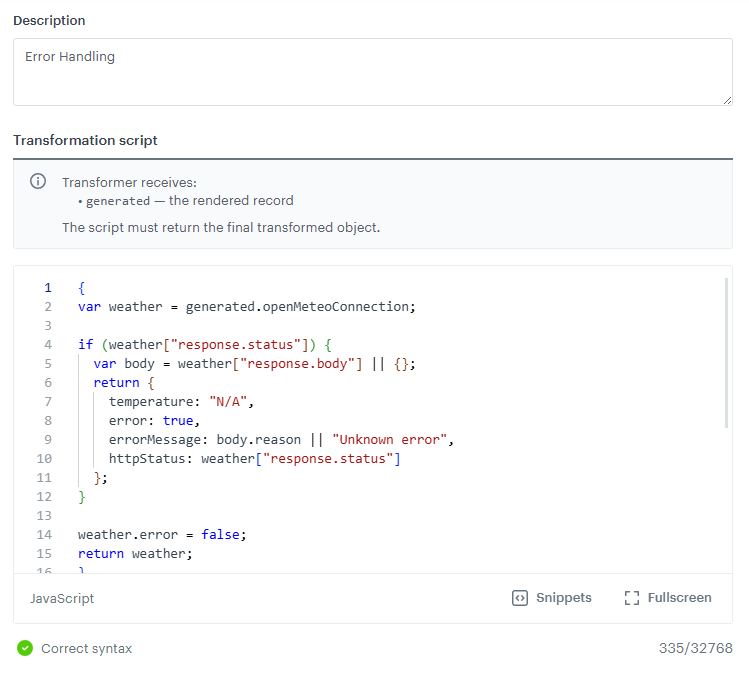
The keys response.status and response.body contain literal dots. The transformer accesses them with bracket notation, such as weather["response.status"]
The transformer returns error: false with the temperature after a successful request. For the documented error response, it returns error: true, a placeholder temperature, and an error message.
- In the schema editor, open Response transformers.
- Select Edit > Add transformer.
- Name the transformer
Error Handling - Enter the following script:
{ var weather = generated.openMeteoConnection; if (weather["response.status"]) { var body = weather["response.body"] || {}; return { temperature: "N/A", error: true, errorMessage: body.reason || "Unknown error" }; } return { temperature: weather.current.temperature_2m + weather.current_units.temperature_2m, error: false }; } - Click Save or Save and close.
IMPORTANT: The script is specific to the response shapes above. It does not handle every possible missing or malformed payload. Its Unknown error fallback covers a missing or empty reason in the selected error branch; it is not a fallback for timeouts or failed record generation.
Preview successful and failed responses
- Open the record preview:
- Set the context.
- Select
Error Handlingon the Transforming response tab.
NOTE: Use the inactive transformer for these checks before you change the active configuration.
Check valid coordinates
- Use the record preview to check the results.
- Set the context in Additional parameters to
latto50andlngto20. - On the Transforming response tab, select the
Error Handlingtransformer.
- Set the context in Additional parameters to
- Generate the preview.
- Check that
errorisfalseand thattemperaturecombines the value and unit returned by the weather provider.
For the sample weather response, the preview returns:
{
  "temperature": "23.6°C",
  "error": false
}
The temperature can differ in a new request.
Check invalid coordinatesf
- Use the record preview to check the results.
- Set the context in Additional parameters to
latto200and keeplngat20 - On the Transforming response tab, select the
Error Handlingtransformer.
- Set the context in Additional parameters to
- Generate the preview.
- Check that
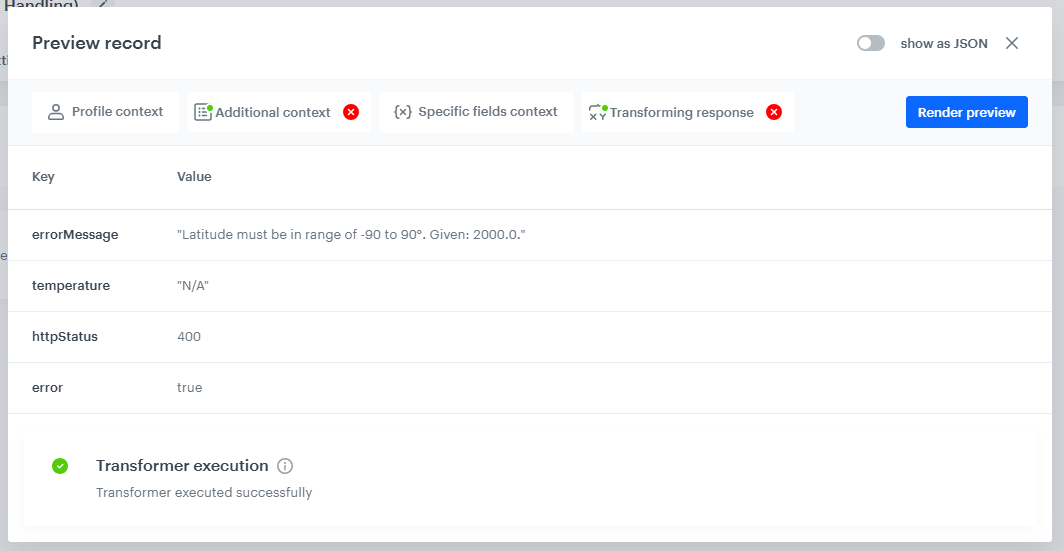
erroristrue,temperatureisN/A, anderrorMessagecontains the provider's reason.
For the sample error response, the preview returns:
{
  "temperature": "N/A",
  "error": true,
  "errorMessage": "Latitude must be in range of -90 to 90°. Given: 200.0."
}
Once the preview results are confirmed, select Error Handling as the active transformer for this schema, click Apply, and save the schema when ready to use the output.
What's next
For another external source, define which provider responses represent each business outcome, then map them to the fields expected by the consumer. Adapt and test the condition and error-body handling for that source instead of reusing the weather-specific script unchanged.