IMPORTANT: This feature is available in private preview mode and accessible only on selected workspaces. To get access, contact your account manager or Synerise Support.
This article explains how to configure the Customer Agent. The agent is a conversational tool embedded in your store that lets customers describe what they are looking for in natural language and receive matching products straight away, without scrolling through long product lists.
The agent can:
- Speak in your brand's voice - you give it a name, a motto, a tone of voice, and a style guide.
- Understand the context - it can use the customer's profile, the product page they are viewing, and their past conversations. To learn more, see Conversation context and history.
- Ask before guessing - when a request is too vague, it can ask clarifying questions instead of returning a best guess.
- Use your data and services - you can connect it to AI recommendation campaigns, Brickworks schemas, MCP servers, or your own frontend actions.
This feature generates events described in Customer Agent events.
Prerequisites
To work with the Customer Agent, you need the following permissions in the AI Assistant group:
- Chat:
read,create,delete - Conversation Logs:
read - Settings:
read,create,edit,delete - Statistics:
read
You also need permissions for the resources the agent uses, such as AI Search indexes and AI Recommendations. To learn more, see AI Hub permissions.
- Chat:
You must upload and configure an item feed:
- If you use Google Merchant feed, configure pulling it from a URL as described in Configure AI engine for your item feed.
- If you want to use a Synerise catalog, upload the feed through API request or through a workflow.
- You must configure AI engine for your item feed. If you use Google Merchant Feed, in this step, you can launch pulling the feed from the URL.
You must create an index. In the configuration of the index, you must:
- add the
categoryattribute to facetable attributes. - set the Matching words option to At least one word must match.
- add the
Best practices
- Keep text fields factual and concise. Most of them are inserted into the prompt sent to the underlying AI model on every conversation turn, not just displayed on a page — every extra sentence is resent, and paid for, on each AI call.
- Expect failures to be silent. A misconfigured field, filter, or mapping rarely produces an error message — it quietly returns wrong or empty results instead. After every Apply, test the change in the Preview tab rather than assuming it worked. For common symptoms and their causes, see Troubleshooting.
- Apply per section, then save the agent. Clicking Apply validates that section against live services, such as the search index, its product feed, or a filter; if validation fails, nothing in that section is saved. A successful Apply takes effect starting with the next new conversation, not inside a chat that is already open, and Preview always reflects your last Save, not unsaved edits.
- Configure Products before writing Brand and Assistant text. The search index you select in the configuration of the Customer Agent supplies the category list that the Business description and Assistant job fields depend on.
- Put each piece of content in the right field. Content in the wrong field usually has no effect and shows no error. If you're unsure where something belongs, see Choosing the right field.
Configuration
Creating a Customer Agent
- Go to
 AI Hub > AI Assistant > New AI Assistant.
Result: A configuration form displays.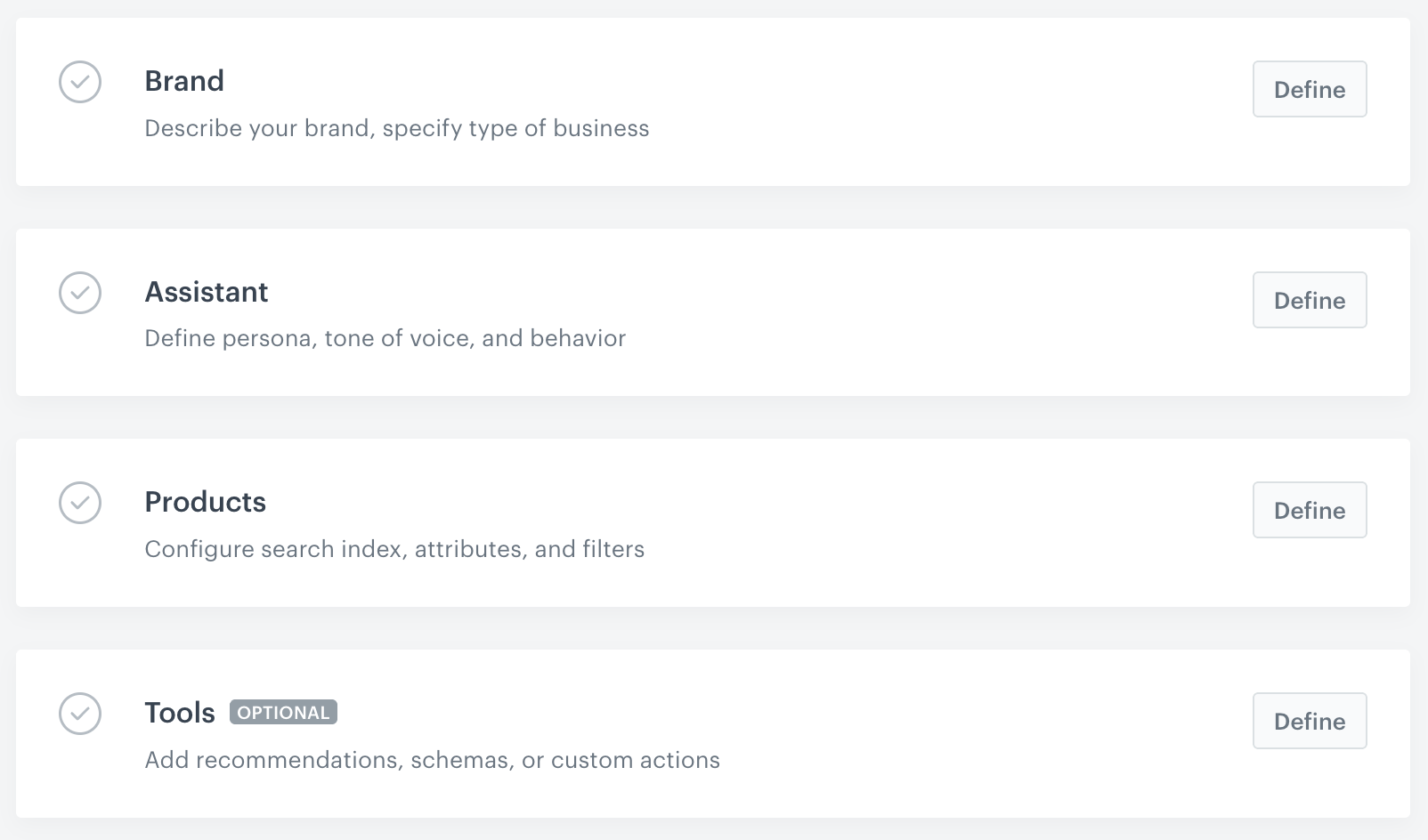
The Customer Agent configuration form
Brand
This section defines your brand identity. The agent uses this information as context in nearly every AI call it makes, so keep both fields factual - marketing language adds cost without improving results.
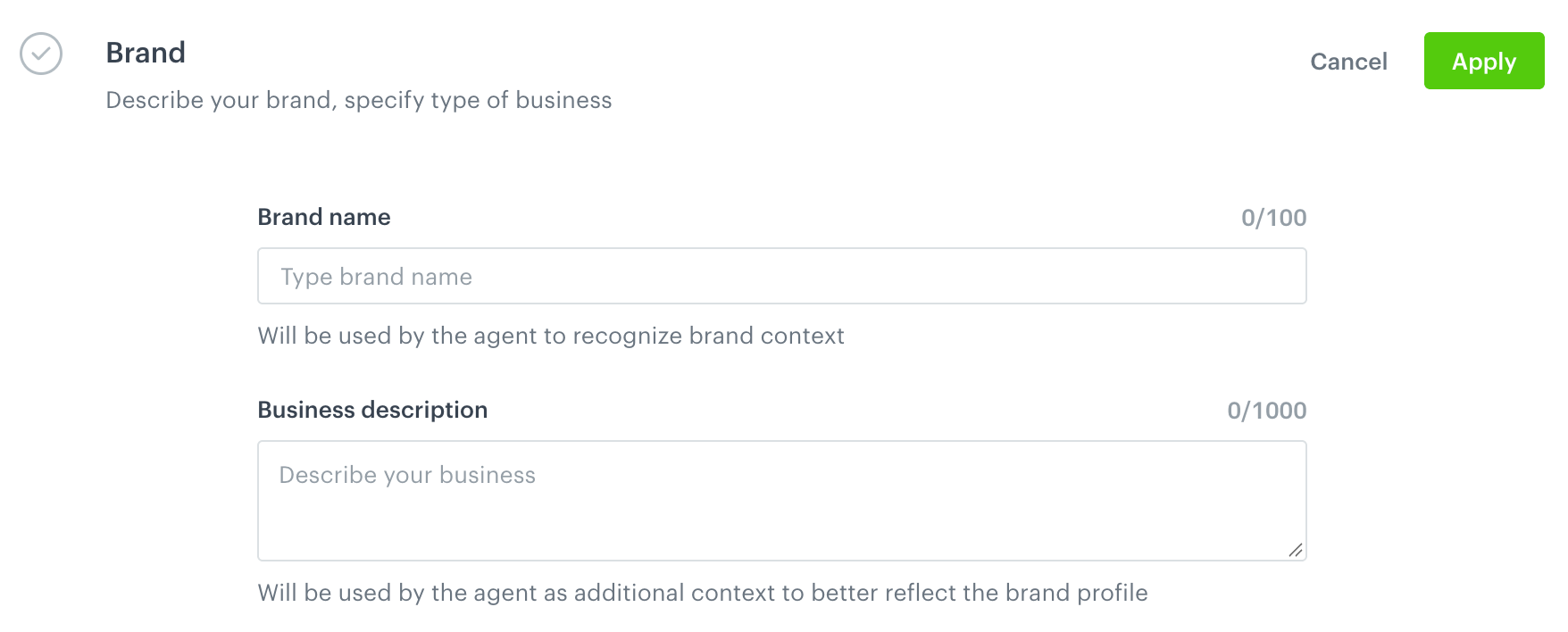
- In the Brand section, click Define.
- Fill in the fields described in the table below.
- Confirm the settings in this section by clicking Apply.
| Field | Description | Avoid |
|---|---|---|
| Brand name | The name of your brand or business, as customers know it. The agent speaks as this name in the first person, for example "we don't carry that", and can repeat it verbatim in replies. Maximum 100 characters. | An internal workspace label. |
| Business description | A few factual sentences about what your store sells, to whom, and what it explicitly does not sell. Together with the category list from your search index and the Assistant job field, this is how the agent understands your business. It decides whether a request is treated as on-topic, how ambiguous search terms are interpreted (for example, "mouse" means something different in a pet store than in an electronics store), and how well products are matched to a request. Maximum 1000 characters. | Omitting a category you carry. Implying a category you don't carry. |
Assistant
This section defines the persona, tone of voice, and behavior of the agent.
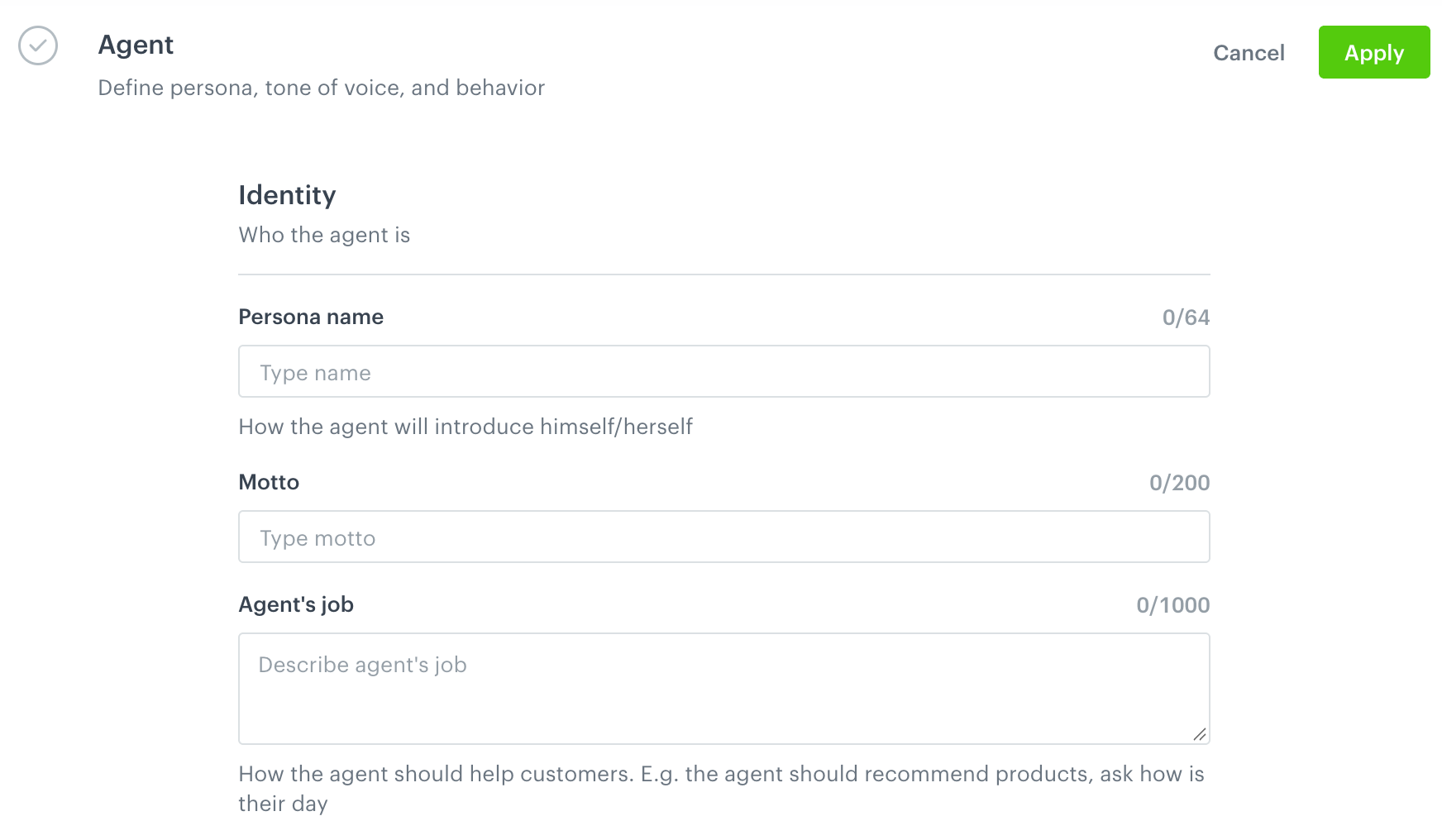
- In the Assistant section, click Define.
- Fill in the fields described in the tables below.
- Confirm the settings in this section by clicking Apply.
Identity
| Field | Description | Avoid |
|---|---|---|
| Persona name | The name the agent uses to introduce itself. The agent can repeat it to customers word for word, so enter only the name. Maximum 64 characters. | Extra text or instructions. |
| Motto | A short internal tagline that colors the agent's tone. Customers never see it. Maximum 200 characters. | Writing it as a customer-facing slogan. |
Catalog rules
| Field | Description | Avoid |
|---|---|---|
| Assistant job | Catalog and domain rules: which categories or brands to emphasize, which products or categories to avoid recommending, and seasonal priorities. This field has the strongest influence on what the agent searches for and recommends. It feeds the steps that decide whether a request is on-topic, build the search query, and rank the results. Maximum 1000 characters. | Rules that contradict your catalog, for example "only recommend items under 50 PLN" in a premium store. Tone or style instructions. |
| Capability restrictions (optional) | A comma-separated list of actions the agent must tell customers it cannot do, for example place orders, check delivery status, process returns. Phrase each item so it completes the sentence "You CANNOT ...". | Listing products your store doesn't sell. Enter them in Business description in the Brand section. |
| Allowed languages (optional) | The languages in which the agent accepts messages. Messages in other languages are refused. Leave the field empty to accept all languages. | - |
Voice
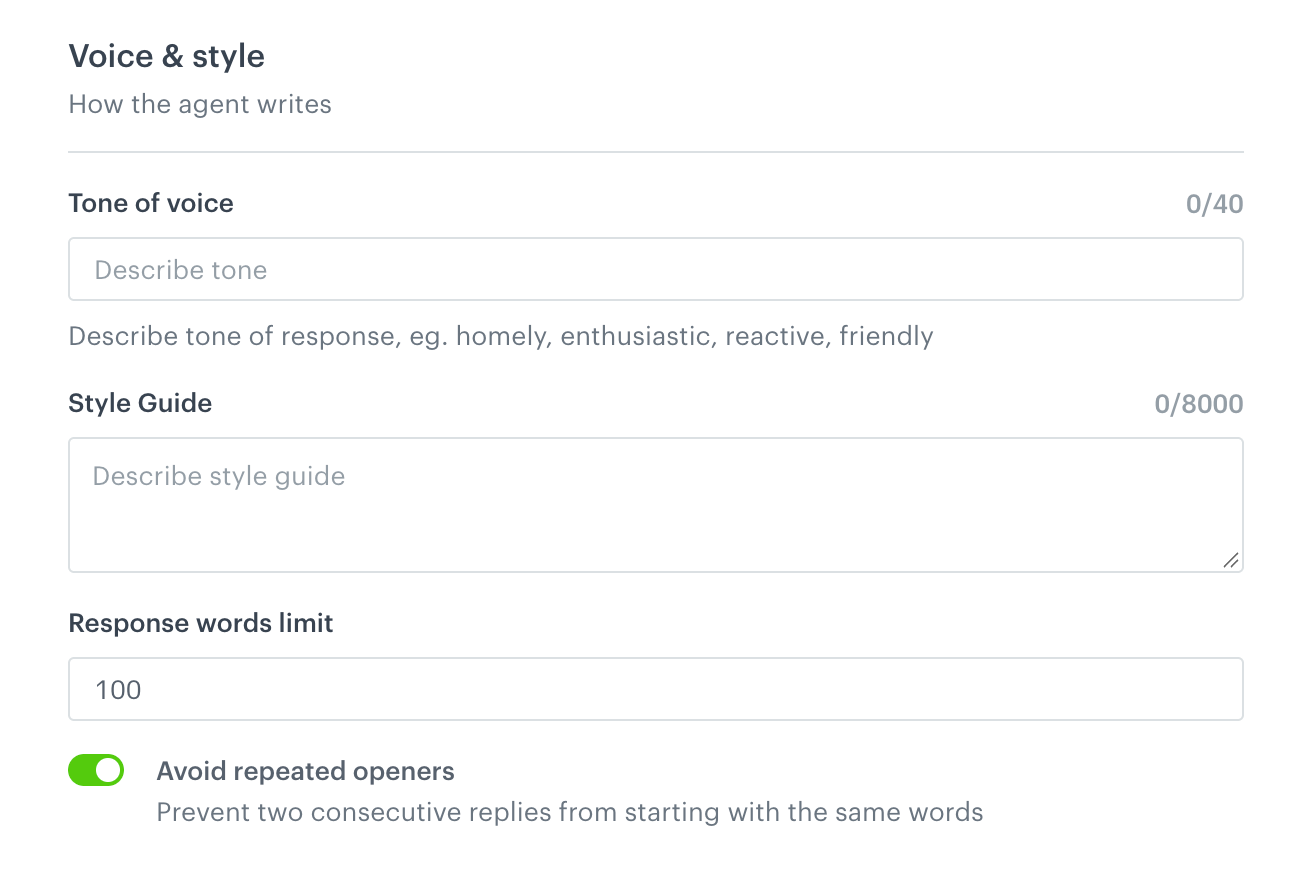
| Field | Description | Avoid |
|---|---|---|
| Tone of voice | Short adjectives, for example homely, enthusiastic, reactive, friendly. Maximum 40 characters. | Contradictory adjectives, such as "playful" and "formal". |
| Style Guide | Format (for example, plain prose instead of bullet lists, and not repeating information already shown on the product card), voice (tone do's and don'ts, filler to avoid), and a few example replies showing the tone you want alongside one or two showing what to avoid. This field replaces the platform's default style rules instead of adding to them. Maximum 8000 characters. | A short or generic guide, such as "be friendly and professional". |
| Response words limit | The target length of replies, in words. The agent treats it as a target, not a hard cutoff. Describing length both here and in Style Guide can produce conflicting instructions. | Describing reply length in Style Guide as well. |
| Avoid repeated openers (optional) | On by default. Prevents two replies in a row from starting with the same words, which makes longer conversations sound less repetitive. Turn it off to allow consecutive replies to start with the same words. | - |
Conversation flow
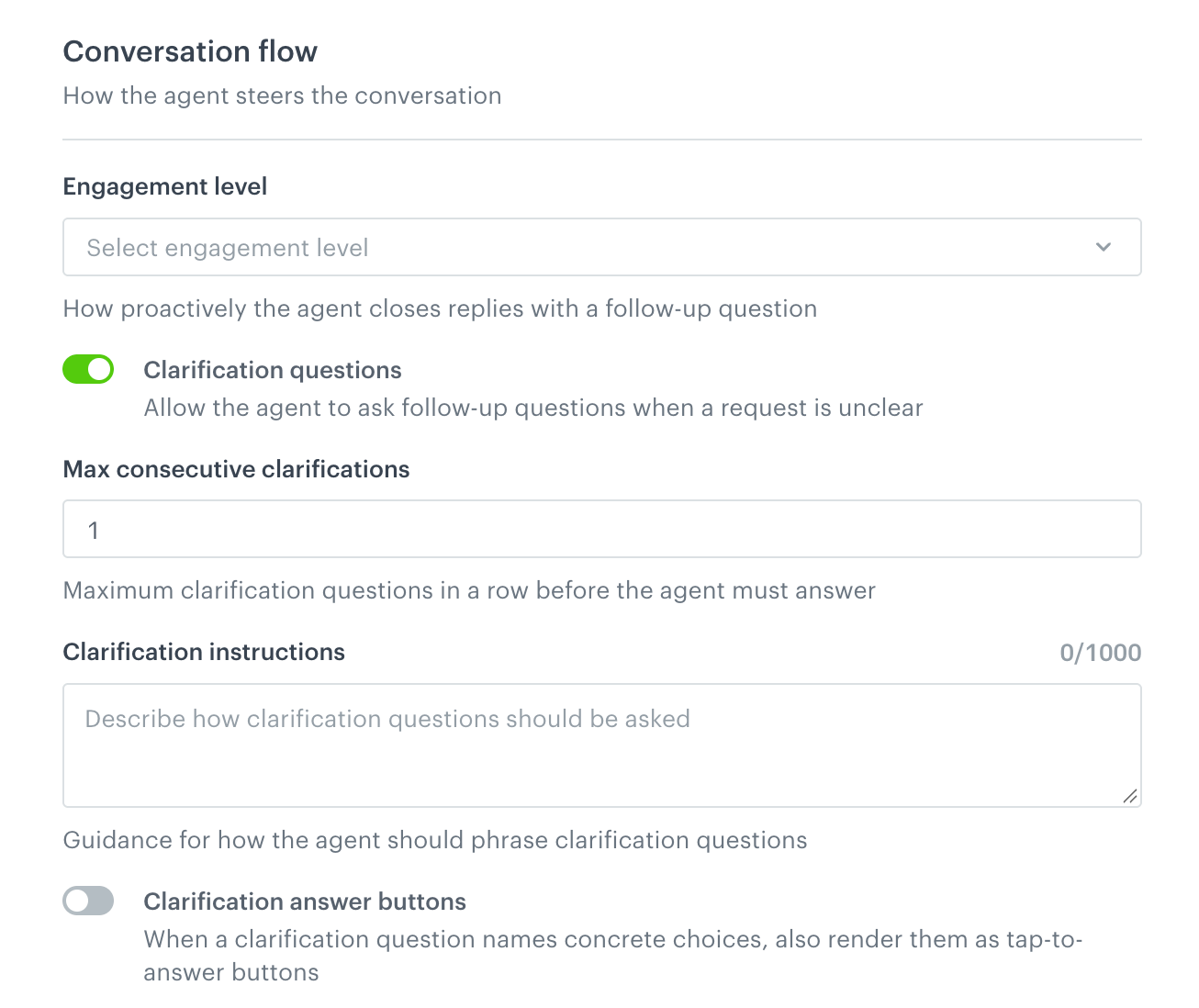
| Field | Description | Avoid |
|---|---|---|
| Engagement level | How proactively the agent closes replies with a follow-up question: None: the agent never adds a closing question. Moderate: the agent may add one short closing question when it is genuinely helpful. Eager: every reply that recommends products ends with a consultant-style question, for example "Do these fit, or should I look at larger models?" Eager suits considered purchases, such as electronics or furniture. |
Eager in stores where customers run quick, repeat errands. |
| Clarification questions (optional) | Lets the agent answer a vague request, for example "I need a laptop", with a clarifying question, for example "For gaming, work, or everyday browsing?", instead of guessing. Most useful for products where getting one detail wrong makes the recommendation useless, such as bike frame size or skincare for a specific skin type. With this option off, a one-word query such as "drill" or "perfume" returns an immediate best-guess set of products. | - |
| Max consecutive clarifications | Appears when Clarification questions is on. The number of clarifying questions the agent can ask in a row before it must search or decline. Default is 1. | - |
| Clarification instructions | Appears when Clarification questions is on. Store-specific rules for when and how the agent asks for clarification. | - |
Engagement level and Clarification questions work independently: a closing question follows a set of results, while a clarifying question replaces a search.
Greeting
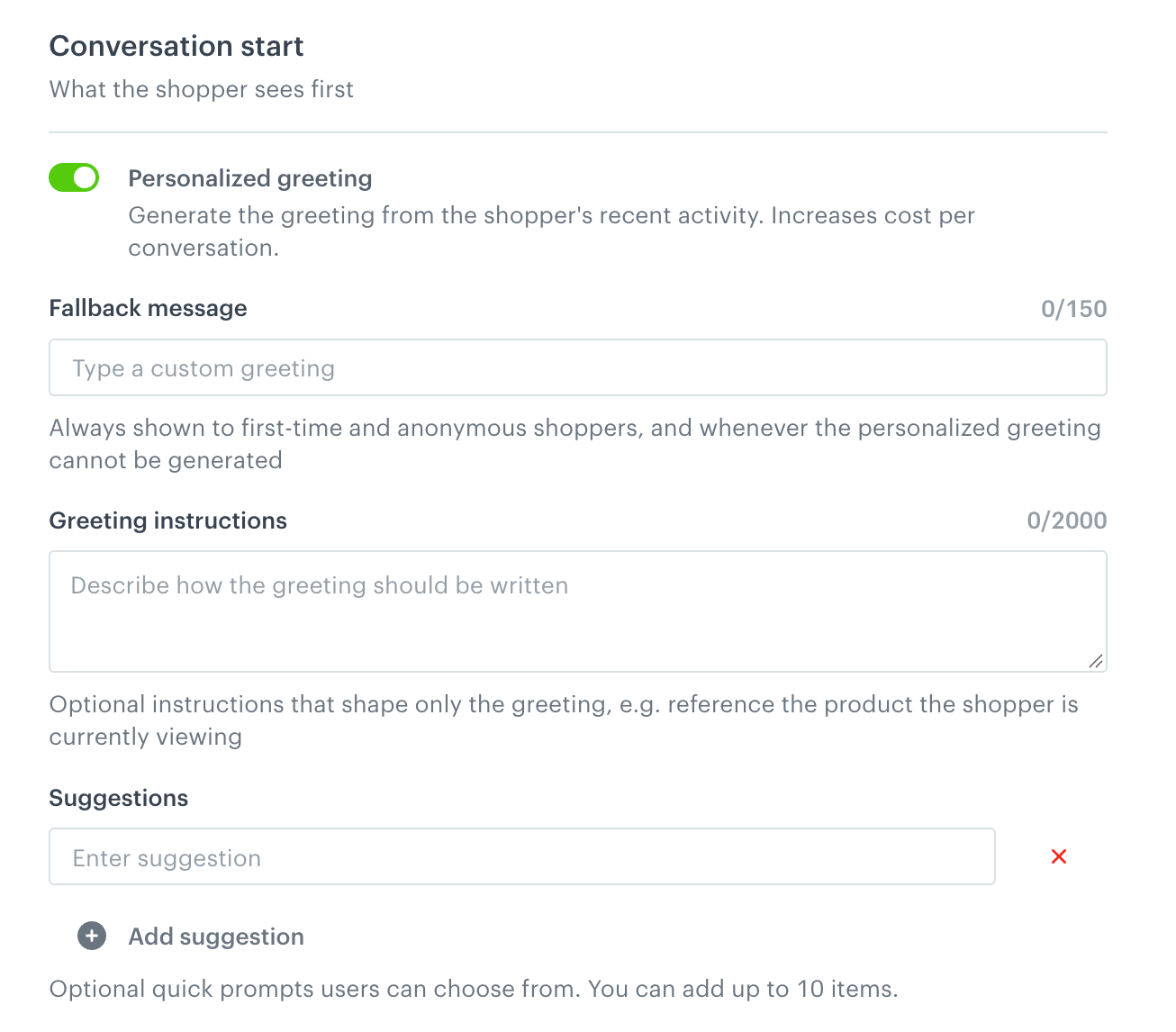
| Field | Description | Avoid |
|---|---|---|
| Personalized greeting (optional) | Lets the agent write the greeting based on the customer's recent activity, for example the product they are viewing or their most recent purchase. Turning it on renames Static message to Fallback message and enables Greeting instructions. Cost: one additional AI call each time the chat opens. |
- |
| Static message or Fallback message | The greeting shown when the conversation starts. It is shown exactly as written, with no AI involvement, so make sure it matches your store's language. If Personalized greeting is on, first-time and anonymous customers always see this message. It is also shown whenever the personalized greeting can't be generated, for example when the request times out or the greeting is blocked by guardrails. Maximum 150 characters. | Leaving the field empty. Placeholders such as "[fallback greeting]". |
| Greeting instructions | Available when Personalized greeting is on. How the agent writes the greeting, for example "Refer to the product the customer is currently viewing; if there is none, mention their most recent purchase. Never mention prices." These instructions affect only the greeting. Maximum 2000 characters. | One fixed sentence. Use Static message for that. |
Chat interface
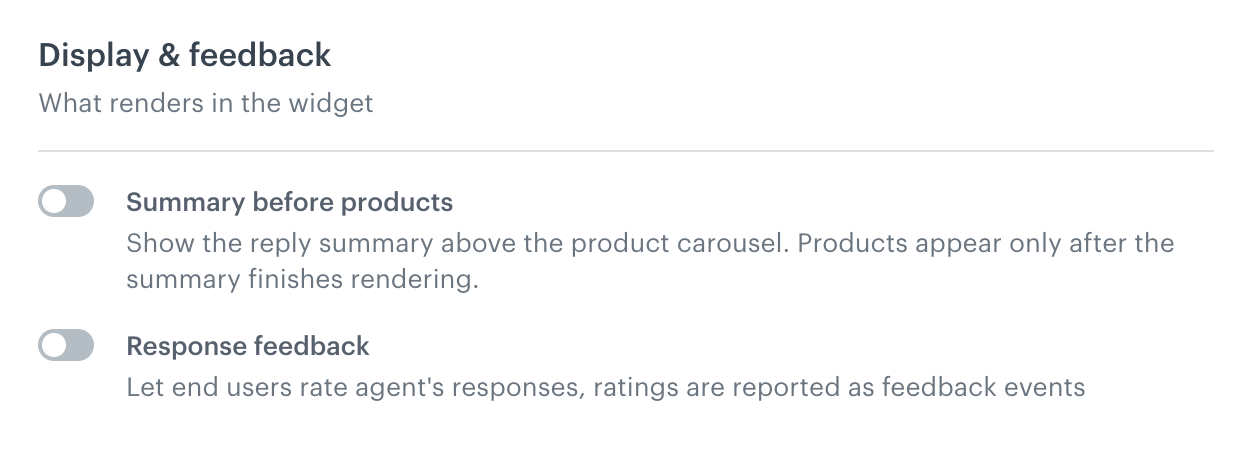
| Field | Description | Avoid |
|---|---|---|
| Suggestions (optional) | Quick prompts shown to the customer in the chat. Click Add suggestion to add each one. Phrase each suggestion as a request the agent can fulfill with your catalog or the tools you configure. You can add up to 10. | Requests such as "Check my order status" when no matching tool exists. |
| Summary before products (optional) | Shows a summary of the reply above the product carousel. Products appear only after the summary finishes rendering. | - |
| Response feedback (optional) | Adds thumbs up and thumbs down to each answer. Customers can add a comment after a thumbs down. To learn how to use the ratings, see Response ratings. | - |
Products
This section configures the product catalog the agent uses to find and return items.
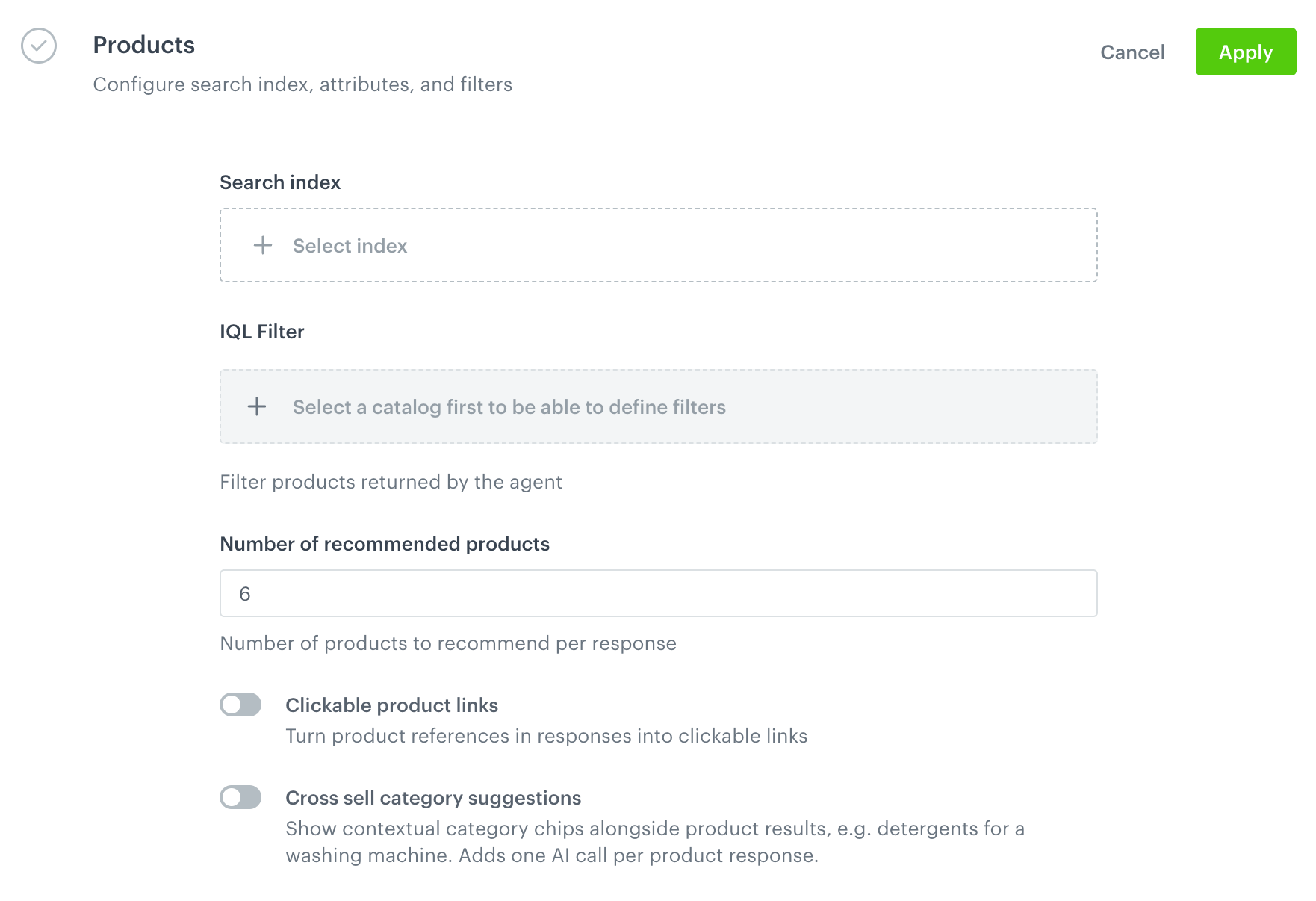
- In the Products section, click Define.
- Configure the options described in the subsections below.
- Confirm the settings in this section by clicking Apply.
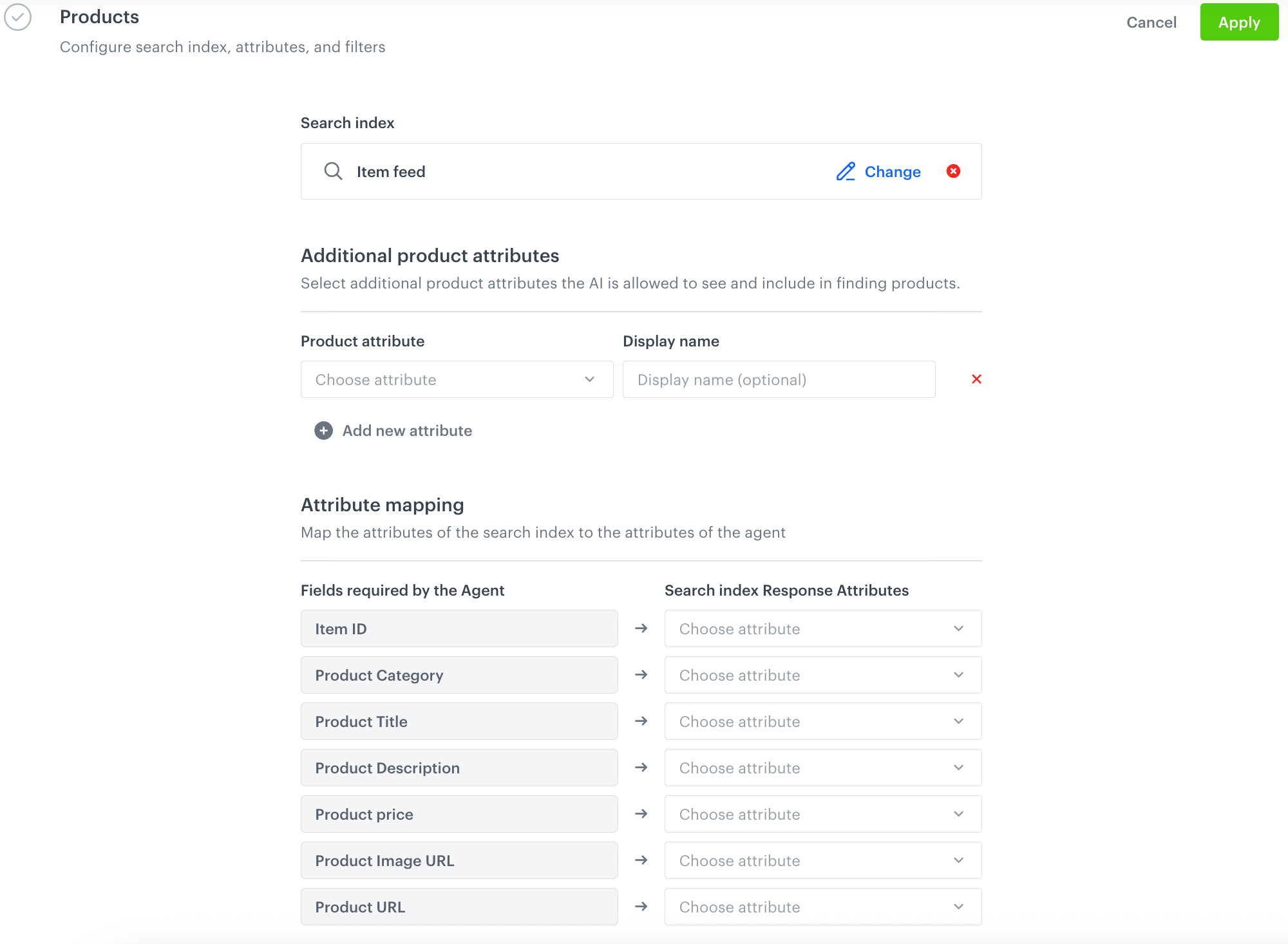
Search index
Click Select index to choose which AI Search index the agent will use. After selecting one, you can click Change to pick a different index, or click the X icon to remove the current selection. Selecting an index unlocks the attribute mapping, filter, and product-display options below.
The selected index supplies:
- the products for every search the agent runs,
- the category list shown to the agent,
- the search language, used for the search queries it writes and as the fallback reply language for ambiguous one-word messages,
- the product attributes shown on the product cards.
Additional product attributes (optional)
You can select additional product attributes the AI is allowed to see and include in finding products.
- Click Add new attribute.
- From the Product attribute dropdown, select an attribute.
- Optional: In the Display name field, enter the name of the attribute shown in the agent's responses.
To remove an attribute, click the X icon next to it.
Attribute mapping
After selecting a search index, map its attributes to the agent's built-in product attributes so it knows which field to use for each one, for example, which field holds the price or the image link. The table has two columns:
- Fields required by the Agent - the fixed list of attributes the agent needs, for example
Item ID,Product Category,Product Title,Product Description,Product price,Product Image URL,Product URL - Search index Response Attributes - the corresponding attribute from the selected search index, chosen from the dropdown.
The required fields (Product Title, Product Description, Product Image URL, Product URL, Product Category) must resolve to keys that exist in your feed and hold plain text, not numbers, collections, or JSON objects. Optional fields, such as Product price, are not validated at all.
| Mapping problem | Checked on Apply |
|---|---|
| A required attribute is missing | + (Apply is rejected with a message naming the attribute) |
| A required field is mapped to a key with the wrong data type | - |
A required field is mapped to a key that exists but holds the wrong content, for example Product Description mapped to an SEO field |
- |
| An optional field mapping contains a typo | - |
For what happens when a mapping problem isn't detected, see Troubleshooting.
Filtering and display options
These options are available only after you select a search index.
| Field | Description | Avoid |
|---|---|---|
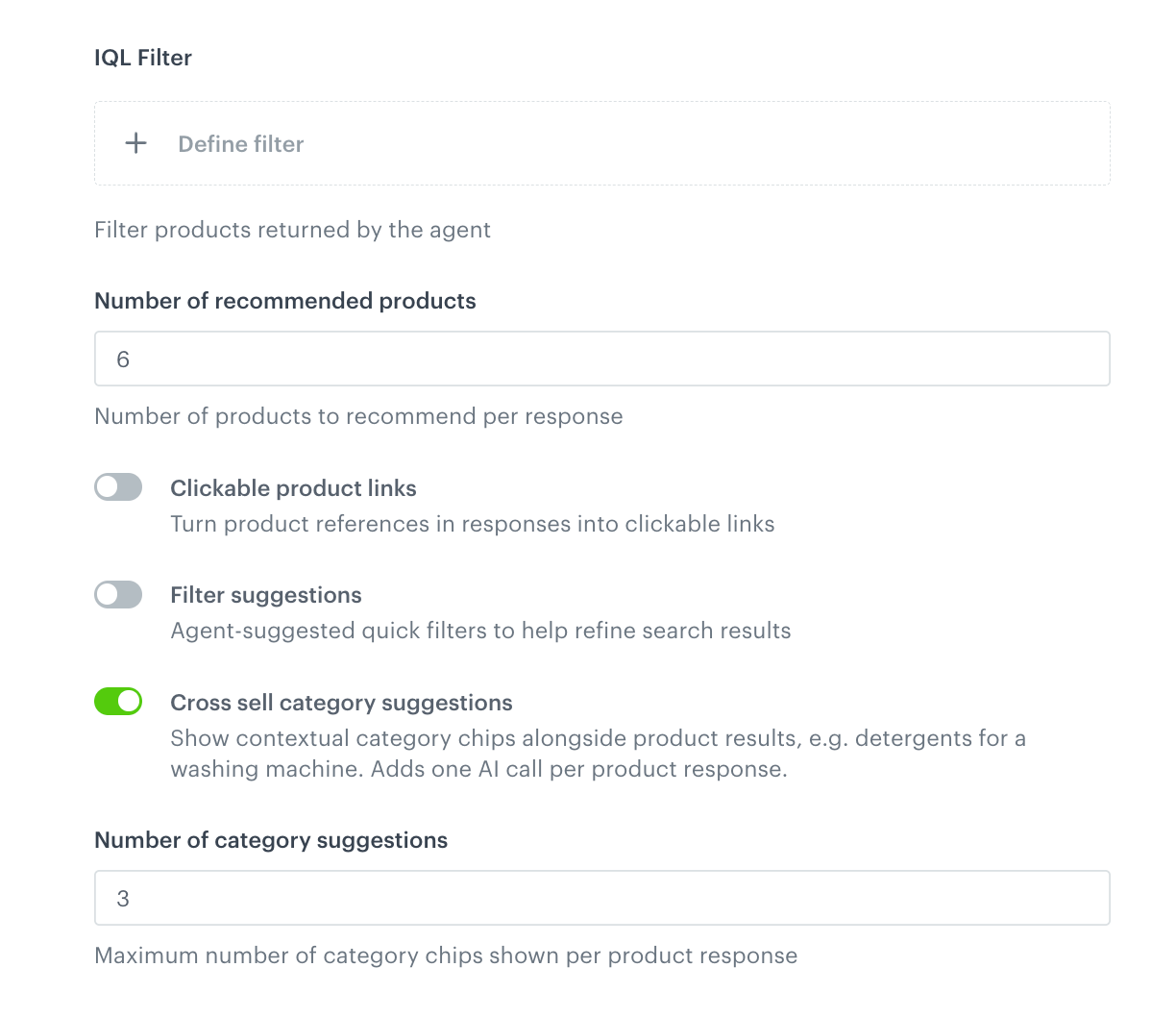
| IQL Filter (optional) | Click Define filter to add an IQL expression that limits which products the agent returns, for example to hide out-of-stock items or exclude a category entirely. The filter applies to every search and product lookup the agent makes. Example: availability == true AND category != "Alcohol"After you define a filter, the field shows Filter is enabled. To edit the filter, click Change. To remove it, click the X icon. |
A filter that is too strict. |
| Number of recommended products | How many products the agent shows per reply. Use the arrows or type a number. Default is 6. A higher number gives more variety but produces a longer reply, and it does not make the search broader: the agent still ranks from the same pool of candidates, it just keeps more of them. A lower number, for example 3-4, gives tighter, higher-confidence picks at the cost of variety. |
- |
| Clickable product links (optional) | Makes product names the agent mentions in its reply text clickable links to the product page. No additional fields appear when you turn this on. It requires every product in your feed to have a working link value. | Turning it on before you fix feed items that lack a link. |
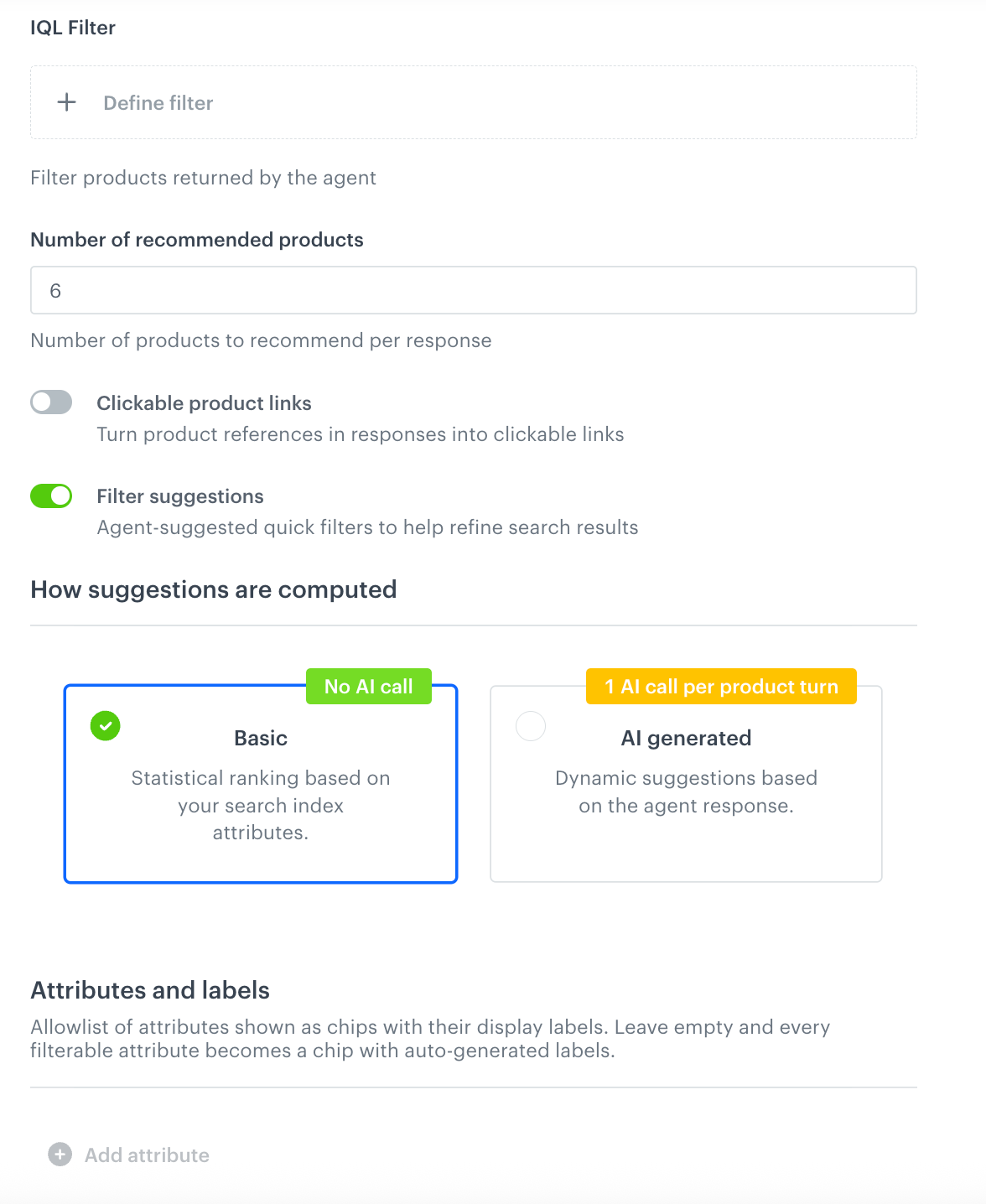
| Filter suggestions (optional) | Shows agent-suggested quick filters that help refine search results. When you turn it on, under How suggestions are computed, select one of the options: Basic: statistical ranking based on your search index attributes. Makes no AI call. AI generated: dynamic suggestions based on the agent response. Cost: with AI generated, one additional AI call per product turn. Optionally, under Attributes and labels, choose which attributes are shown as filter chips: click Add attribute, select an attribute, and enter its display label. If you leave the list empty, every filterable attribute becomes a chip with an automatically generated label. The list applies only to Basic. With AI generated, the list is disabled and ignored, but your attributes and labels are kept. |
- |
| Cross sell category suggestions (optional) | Shows chips with categories that complement the products in a response, for example detergents for a washing machine, or bits and screws for a drill. When a customer clicks a chip, the agent starts a new search in that category. Each suggested category is checked against the category tree of your catalog. Categories that don't exist, repeat, or belong to the same category as the products already shown are rejected. As a result, this option works only for catalogs with many distinct category branches, for example a DIY store. Check your category tree before you turn this option on. Cost: one additional AI call for each response that shows products. The call runs at the same time as the reply, so it barely affects the response time. |
Turning it on in stores that sell one type of product, for example contact lenses. |
| Number of category suggestions | Appears when Cross sell category suggestions is on. The maximum number of chips shown in a single response, from 1 to 10. Default is 3. The agent shows fewer chips when it doesn't find enough good matches, rather than adding weak suggestions. | - |
Tools (optional)
This section extends the agent with additional capabilities. You can add multiple tools. Each tool appears as a card with a delete and info icon.
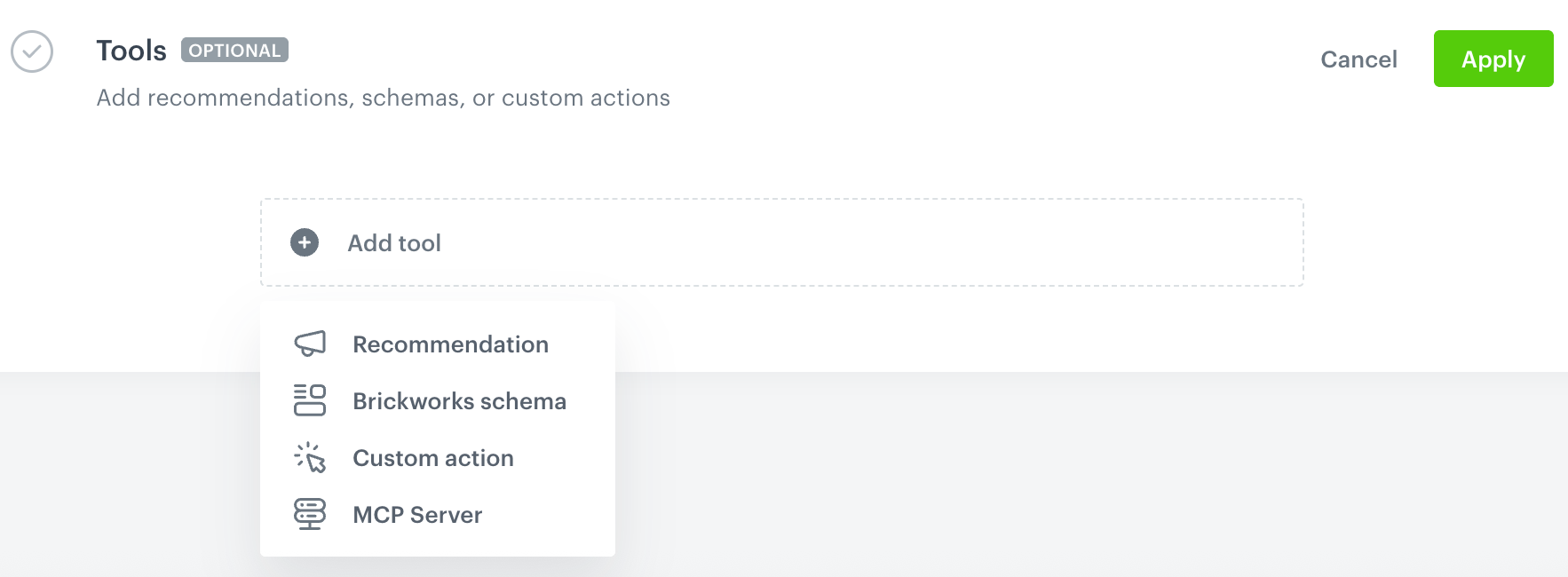
- Click Add tool and select a tool type from the menu.
- Fill in the common fields and the fields specific to the tool type.
- Confirm the settings in this section by clicking Apply.
Common fields
Every tool type has these fields.
| Field | Description | Avoid |
|---|---|---|
| Tool name | A name that identifies the tool. The agent decides when to use the tool based on Instructions, not on the name. Maximum 100 characters. | - |
| Instructions | When and how the agent should use the tool. This field doubles as the tool's routing rule: it is what the agent reads to decide whether a customer's message should trigger this tool. Write it as a specific, checkable condition, for example "the customer asks whether a specific product is in stock at a physical store". For a Brickworks schema tool, also describe what the schema's fields represent. Maximum 2000 characters. | Marketing copy. Vague descriptions. |
Recommendation
Links an AI recommendation campaign to the agent. The campaign can include its own filtering and boosting rules.
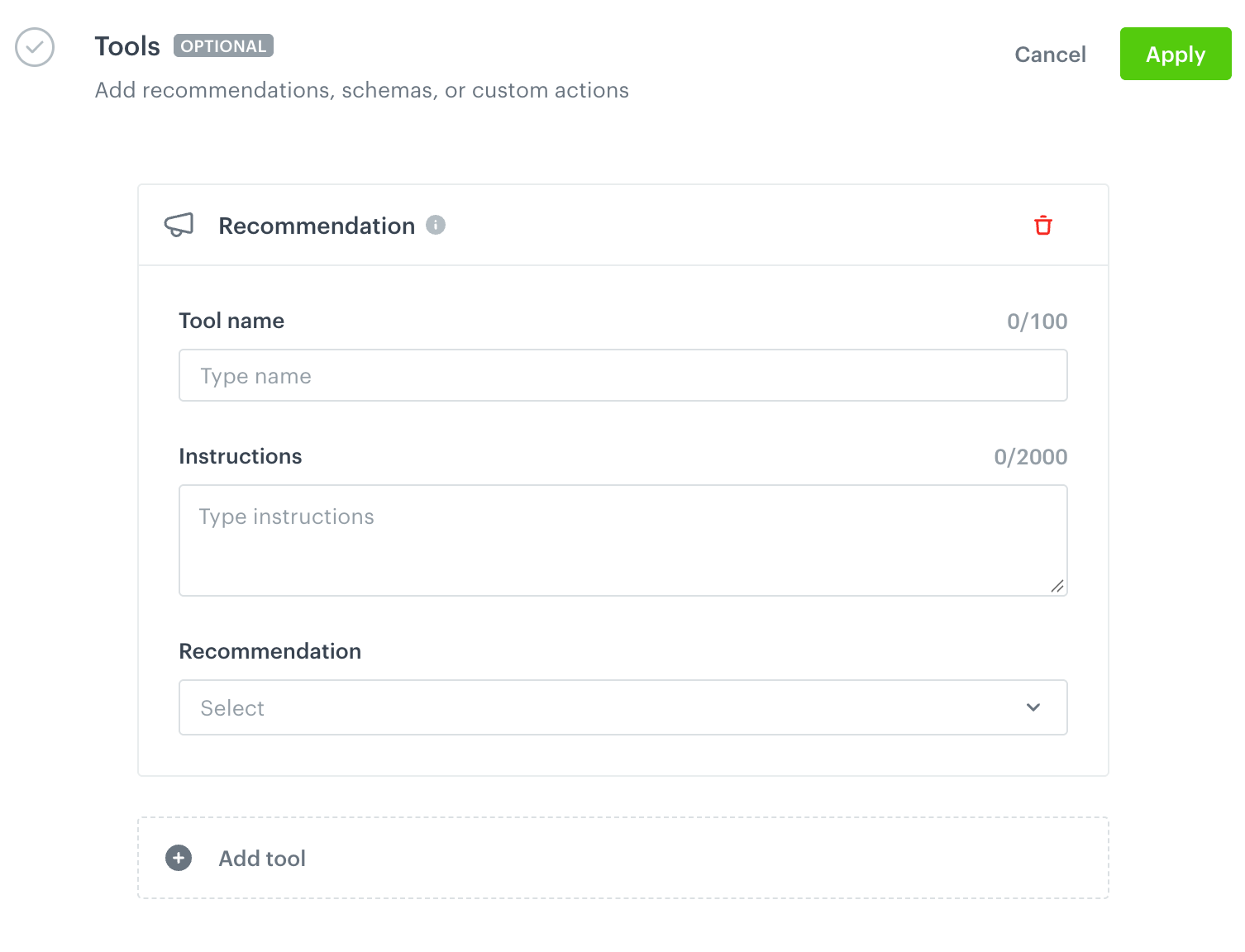
| Field | Description | Avoid |
|---|---|---|
| Recommendation | The recommendation campaign, selected from the dropdown. This selection is not validated on save. | Deleting or changing the campaign after you link it. |
Brickworks schema
Gives the agent access to a Brickworks schema. This allows it to pull data from Synerise objects like aggregates or expressions, or from external services.
| Field | Description | Avoid |
|---|---|---|
| Brickworks schema | The schema, selected from the dropdown. | - |
Custom action
Shows a button in the chat. When a customer clicks it, your website receives the action and decides what happens next, for example opens a contact form. To handle the action, use the onCustomAction callback described in Chat actions.
| Field | Description | Avoid |
|---|---|---|
| Custom action name | The name your website receives in the actionName field of the onCustomAction callback, which it uses to identify the action. This name is a contract with your frontend developers. Maximum 100 characters. |
Renaming it after your frontend already handles it. |
MCP Server
Connects the agent to an external MCP (Model Context Protocol) server so it can use external tools and data.
| Field | Description | Avoid |
|---|---|---|
| Connection | The MCP connection, selected from the list. This list loads the connections defined in Settings > Connections. You can also create a new connection directly from this field: click Select connection, then Add connection in the list that appears. A connection created this way is automatically assigned to the HTTPS category. | - |
| URL | The URL of the MCP server endpoint, for example https://example.com/mcp. The server must be accessible from outside your private network. Maximum 2000 characters. |
A private or internal address. |
| MCP tool name | The name of the tool on the MCP server. Maximum 200 characters. | - |
Credentials required by the MCP server are not validated on save.
Limits (optional)
This section sets usage limits for the agent and restricts the domains that product links can point to. Usage is calculated from the eventWeight parameter of the events that the agent generates. For the list of these events, see Customer Agent events.
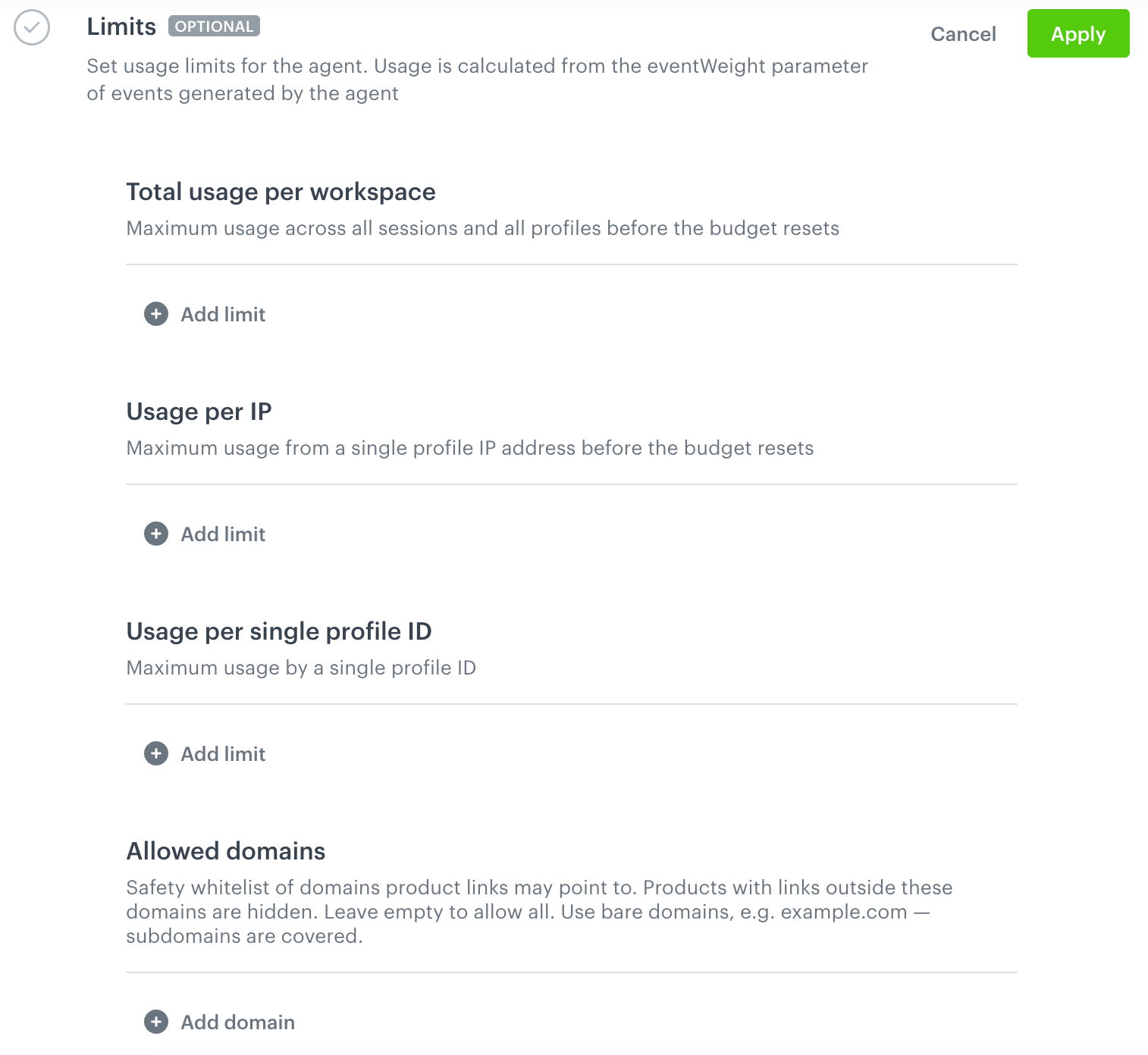
You can set three types of usage limits. When a limit is reached, the agent stops answering until the period resets.
| Limit type | Applies to | When the limit is reached |
|---|---|---|
| Total usage per workspace | All sessions and all profiles together | The agent stops answering all customers. |
| Usage per IP | Each IP address separately | The agent stops answering only that IP address. Other customers can still use the agent. |
| Usage per single profile ID | Each profile separately | The agent stops answering only that profile. Other customers can still use the agent. |
The chat stays on the page, and the customer sees an error message saying that the agent is temporarily unavailable. To handle this situation in your own way, for example to show your own message, use the error callbacks described in the Customer Agent SDK reference.
- In the Limits section, click Define.
- To add a usage limit, under the limit type, click Add limit.
- Fill in the limit fields.
- Optional: To restrict the domains that product links can point to, under Allowed domains, click Add domain and enter a domain without the protocol or path, for example example.com. Subdomains are covered automatically. Repeat this step for each domain.
Products with links outside these domains are hidden from the agent's responses. Leave the list empty to allow all domains. - Confirm the settings in this section by clicking Apply.
Limit fields
| Field | Description |
|---|---|
| Usage limit value | The maximum usage, expressed as the total of the eventWeight values of the agent's events. |
| Reset period | A number and a time unit: Minute, Hour, or Day. The period follows the calendar: for example, a 1 Day limit resets at the start of each day, not 24 hours after the first conversation. |
| Enabled | Make sure the checkbox is selected. To turn a limit off without removing it, clear the checkbox. |
You can add more than one limit of each type, for example an hourly limit that stops sudden spikes and a daily limit that caps the overall budget.
Saving your configuration
In the upper-right corner, click Save.
Testing the Customer Agent
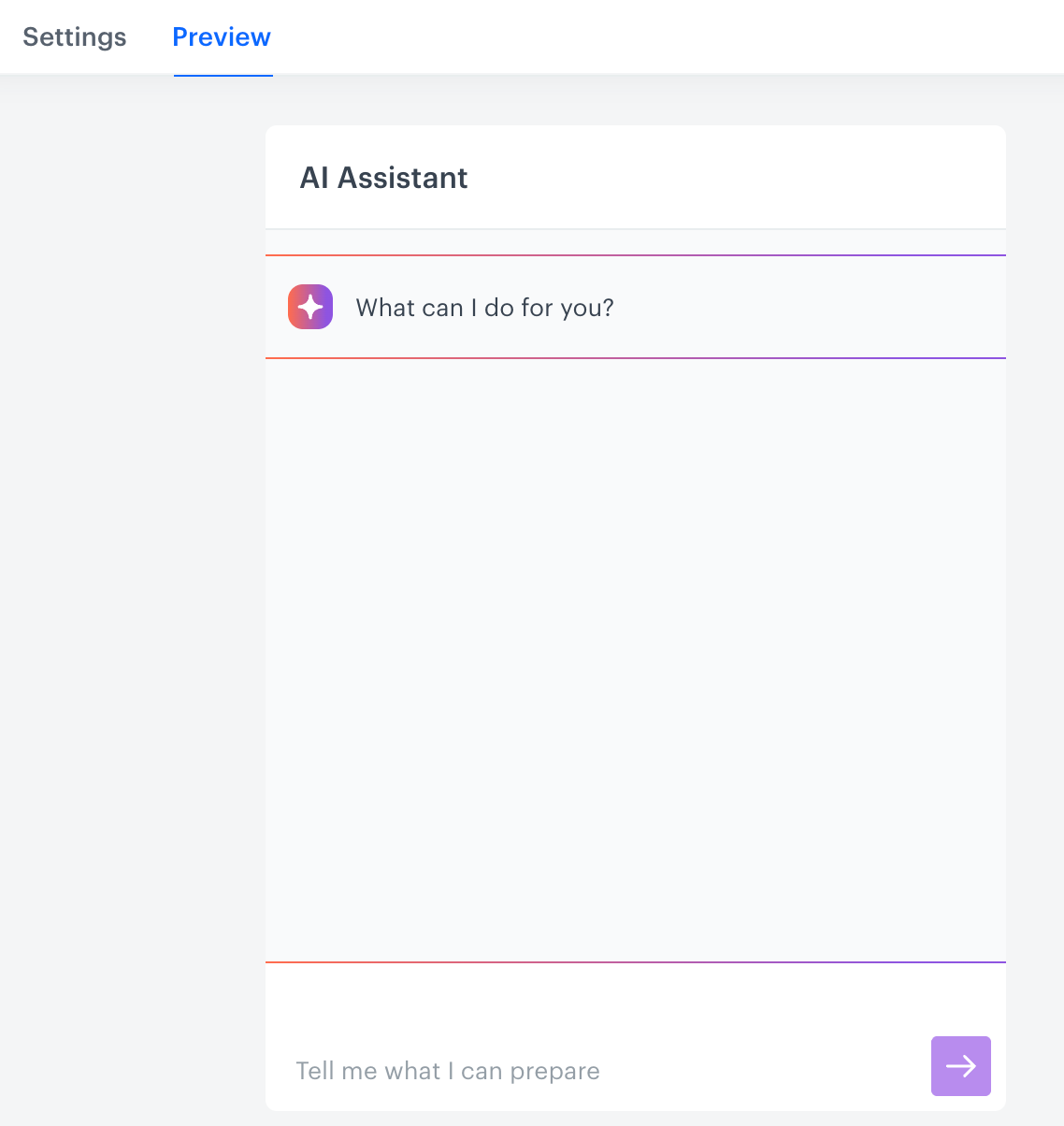
NOTE: If you're creating a new agent, the Preview tab appears only after you save the configuration for the first time.
If you're editing an existing agent, click Save in the upper-right corner again after making changes — the Preview tab only reflects your last saved configuration, not unsaved edits.
In the Preview tab, you can send test messages to see how the agent responds. Check that it handles your queries correctly and adjust the configuration if needed before going live.
Choosing the right field
Putting content in the wrong field is the most common configuration mistake, and it usually fails silently rather than showing an error. Use this as a quick reference:
| You want to... | Use |
|---|---|
| Tell the agent what your store sells and doesn't sell | Business description |
| Set catalog rules, such as preferred brands, category emphasis, or seasonal priorities | Assistant job |
| Change how the agent sounds | Tone of voice and Style Guide |
| Name the chat persona | Persona name |
| Control reply length | Response words limit, not the Style Guide text |
| Stop the agent from offering actions it cannot perform, such as placing orders | Capability restrictions |
| Refuse messages in languages your store does not support | Allowed languages |
| Set the greeting customers see when the chat opens | Static message, or Personalized greeting with Fallback message |
| Shape how the personalized greeting is written | Greeting instructions, not Assistant job |
| Give customers example questions to start with | Suggestions |
| Answer service questions, such as order status, hours, or a returns policy | Tools, not Suggestions |
Troubleshooting
Most configuration mistakes don't show an error. Instead, the agent behaves differently than you expect. Use this table to find the likely cause.
| Symptom | Likely cause | Where to fix |
|---|---|---|
| The agent uses an internal name for your store in replies. | Brand name contains an internal workspace label. The agent can repeat it verbatim in replies. | Brand > Brand name |
| Requests for a category you carry are treated as off-topic. | Business description omits that category. | Brand > Business description |
| Searches for a category never return anything. | Business description implies a category you don't carry. | Brand > Business description |
| Instructions or extra text appear in the chat. | Persona name contains more than a name. Anything you enter there can appear in the chat word for word. | Assistant > Persona name |
| A slogan entered as the motto never appears in the chat. | Motto is internal and never shown to customers. | Assistant > Motto |
| The agent skips products that match the request. | Assistant job contains a rule that contradicts your catalog. | Assistant > Assistant job |
| Tone or style instructions have no effect. | The instructions are in Assistant job, where they have no effect. | Assistant > Tone of voice and Style Guide |
| The agent's tone is inconsistent. | Tone of voice combines contradictory adjectives. | Assistant > Tone of voice |
| Replies list specs and prices, or start with "Here are the results". | Style Guide is too short or generic. It replaces the default style rules instead of adding to them. | Assistant > Style Guide |
| Closing questions read as an interrogation. | Engagement level is set to Eager in a store where customers run quick, repeat errands. | Assistant > Engagement level |
| Customers see a generic English greeting, regardless of your store's market. | Static message is empty. | Assistant > Static message |
| Customers see a placeholder such as "[fallback greeting]". | Fallback message contains a placeholder. Customers see the message word for word. | Assistant > Fallback message |
| Each chat opening costs an AI call for a greeting that never changes. | Greeting instructions contain one fixed sentence. | Assistant > Static message |
| The agent refuses a request from a suggestion. | The suggestion asks for something that no tool can handle. | Assistant > Suggestions, or Tools |
| The agent works with the wrong products, categories, and language, with no error. | The selected index is valid but points to the wrong catalog, for example a staging or a different brand's feed. | Products > Search index |
| The agent breaks on its first search request. | A required field is mapped to a key with the wrong data type, for example a number, collection, or JSON object. | Products > Attribute mapping |
| Results are quietly degraded. | A required field is mapped to a key that holds the wrong content, for example Product Description mapped to an SEO field. That text is what the ranker judges products by. |
Products > Attribute mapping |
| An optional attribute, such as the price, silently disappears. | The optional field mapping contains a typo. Optional fields are not validated. | Products > Attribute mapping |
| Searches unexpectedly return nothing, for example across a catalog with no availability attribute, such as digital goods. | The IQL filter is valid but too strict. | Products > IQL Filter |
| The agent offers categories that return no products. | The IQL filter has emptied these categories. The category list shown to the agent is fetched without this filter. | Products > IQL Filter |
| Product names in replies are plain text instead of links. | Clickable product links is on, but many items in your feed lack a link value. | Your product feed |
| No category chips appear, but you still pay for the additional AI calls. | Your catalog doesn't have enough distinct category branches, for example a store that sells only contact lenses, so all suggestions are rejected. | Products > Cross sell category suggestions |
| A tool fires on unrelated messages, or never fires at all. | The tool's Instructions are vague. | Tools > Instructions |
| The agent states incorrect information about a record from a Brickworks schema. | Instructions don't describe what the schema's fields represent, so the agent guesses at the meaning of the returned data. | Tools > Instructions |
| A Recommendation tool silently stops working, with no indication in the configuration. | The linked campaign was deleted or changed. | Tools > Recommendation |
| The click on a custom action silently breaks. | Custom action name was renamed after your frontend started handling it. | Tools > Custom action name, or your frontend |
| An MCP tool never appears as usable to the agent. | The URL points to a server that is accessible only from your private network. | Tools > URL |
| An MCP tool fails at runtime. | Credentials required by the MCP server aren't validated on save and surface only as failures at runtime. | Settings > Connections |
| Products disappear from responses without an error. | The product links in your feed use a domain that isn't on the Allowed domains list, for example a CDN or a tracking redirect. | Limits > Allowed domains |
What's next
After you save and test the agent, add the chat to your website. See Implementing the Customer Agent on your website. To learn what the chat looks like for your customers, see Introduction to the Customer Agent chat. Developers who need more control - for example over context, conversation history, or custom actions - can go further with the API described in Customer Agent SDK.