Synerise object fields are powerful tools which let you access data from other Synerise modules.
Common field properties
These properties exist in multiple field types:
- Display name (required): A human-readable name for the field, shown in the record editor.
- API name (required): A system name for the field.
- In the
{{ record.APIname }}insert, this name is theAPIname - When retrieving/creating/updating a record with the API, this name is the identifier of the field.
- When generating an object from a record, this is the name of the key that stores the field's value.
- In the
- Description: A human-readable description of the field's purpose, shown in the record editor.
- Block record-level overwriting: Disables changing any values in this field in individual records. You must provide a default value, which will be applied to all records in the schema.
- Return null when object is missing: If the requested object (such as an expression result or external source) doesn't exist, the field returns
nullinstead of causing an error in content generation. - Conditional visibility: Enforces adding a value to a field when another field meets a condition.
See explanation below. - Use as record title: If the record doesn't have a set name, the value of the field is used as the name.
- Required field: A record can only be saved if a value for this field is provided.
- Default value: The provided value will be used for object generation in records where a value is not set.
This is only used when a value isn't defined in a record. It is not a fallback. For example, if an expression referenced in a record returns null or an error, the system doesn't use the default value. Default values are optional. - Unique values only: No other record in the schema may have the same value for this field.
You can use this to store your own unique record identifiers.
The number of fields with this setting is limited. - Enable search & filtering: The value can be used when searching and filtering records.
The number of fields with this setting is limited.
Conditional visibility
You can enforce entering a value into a field when another field meets a condition. If the condition isn't met, the field with this setting isn't visible in the schema editor/viewer.
The field that appears when the condition is met must have a default value (because it's required).
Example:
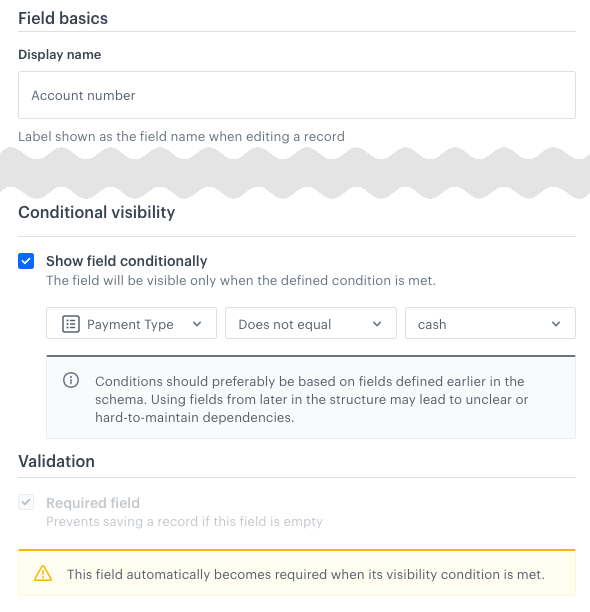
"cash"Operators:
The available operators depend on the type of the field that is checked:
| String | Number | Boolean | Enumeration |
|---|---|---|---|
|
|
|
|
Synerise object field summary
When creating schemas and defining records, you can leverage existing data within Synerise by adding Synerise objects as fields. These objects enable advanced personalization and dynamic content, such as:
- personalizing messages using expression or aggregate results
- implementing social proof through metric insights
- delivering AI-driven item recommendations
- distributing discount codes
- displaying detailed information stored in catalogs
| Field name | Stored values | Primitive data type | Can be searchable1 | Can be unique2 | Accepts Jinjava | Nullable |
|---|---|---|---|---|---|---|
| Profile attribute | Inserts the value of an attribute from the context profile | - | - | - | - | + |
| Expression | This field type lets you add a dropdown with a list of expressions. This way you can display an expression result in a record. | - | - | - | - | + |
| Metric | This field type lets you add a dropdown with a list of metrics. This way, you can display a metric result in a record. | - | - | - | - | + |
| Aggregate | This field type lets you add a dropdown with a list of aggregates. This way you can display an aggregate result in a record. | - | - | - | - | + |
| Voucher | This field type lets you add a dropdown with a list of voucher pools and select a code from the pool. | - | - | - | + | + |
| AI Recommendations | This field type lets you add a dropdown with list of AI recommendations. This way you can display the recommendation results in a record. | - | - | - | + | + |
| AI Search | Shows the result of a search query | - | - | - | - | + |
| AI Search listing | Shows the result of a listing from a search index | - | - | - | - | + |
| Catalog | This field type lets you select a Synerise catalog as a context for data displayed in a record, for example, if you want to display information about a product. | - | - | - | - | + |
1,2The number of fields with this setting is limited.
Synerise object field reference
Profile attribute
This field lets you insert the value of an attribute from the profile for which content is generated from a record.
Field configuration in a schema
In Default value, you can select the default attribute to be inserted.
Expression
This field type lets you select an expression. The result of the expression is calculated in the context of a profile when generating an object from a record.
IMPORTANT: Expressions without a result are generated as null when generating content from the record.
Field configuration in a schema
- In Default value, you can select the default expression.
- If you want to return the full scope of information about the expression, select the Include details in results checkbox.
Object generation example
Expressions don't require extra parameters in the object generation request.
In the following example, an expression calculates the age of the customer.
{
    "name": "Demo calculate age",
    "clientId": 11804828266,
    "result": 26,
    "expressionId": "b2c5cc0b-2830-435f-82a6-a2f0ebadd6d9",
    "variables": [],
    "title": "Demo calculate age "
}26Metric
This field type lets you select a metric. The result of the metric is calculated in the context of a profile when generating an object from a record.
Field configuration in a schema
- In Default value, you can select the default metric to calculate.
- If you want to return the full scope of information about the metric, select the Include details in results checkbox.
Object generation example
Metrics don't require extra parameters in the object generation request.
{
    "result": 10770077,
    "numberMetrics": [],
    "clientMetrics": [],
    "eventMetrics": []
}10770077Aggregate
This field type lets you select an aggregate. The result of the aggregate is calculated in the context of a profile when generating an object from a record.
- For "TOP_MULTI" aggregates with the "Return null when object is missing" setting, the Brickworks result is an empty array (
[]). - In other aggregate types, when the aggregate results in no value, the Brickworks result is
null.
Field configuration in a schema
- In Default value, you can select the default aggregate.
- If you want to return the full scope of information about the aggregate, select the Include details in results checkbox.
Object generation example
Aggregates don't require extra parameters in the object generation request.
In the following example, the aggregate returns an item ID.
{
    "dateFilter": {
        "type": "RELATIVE",
        "duration": {
            "type": "DAYS",
            "value": 30
        },
        "offset": {
            "type": "DAYS",
            "value": 0
        },
        "timeZone": "Europe/Warsaw"
    },
    "clientId": 11804828266,
    "result": "WINDBREAKER ZEPHYR",
    "variables": [],
    "analyticVersion": null,
    "title": "Last seen item from jacket category",
    "aggregateUuid": "8c950378-82fd-320d-abec-b90cec5208d5",
    "aggregateId": "8c950378-82fd-320d-abec-b90cec5208d5"
}
"WINDBREAKER ZEPHYR"Voucher
This field type lets you return a code from a voucher pool.
Field configuration in a schema
- In Default value, you can select a default pool to get codes from.
- If you want to assign a voucher and always return the same voucher in subsequent requests for this profile, select the Assign to user checkbox.
This setting can be changed per record.
Object generation example
The voucher code is returned in the barcode key.
Vouchers don't require extra parameters in the object generation request.
{
    "barcode": "23123321321"
},
AI recommendation
This field type lets you include AI recommendations.
For each record, you can select a recommendation and display its results while generating an object with the record result. If a selected recommendation model requires an item context, you must provide it. The system checks for the context item in the following order:
- ID provided in the object generation request.
- ID from the record.
- Default ID from the schema.
In the "Recommendation model summary" section, you can find a table in which you can check which recommendation models require an item context.
Field configuration in a schema
- From the Item context format dropdown list, select how the context item ID is inserted:
- String to provide a static string.
- Jinjava to provide an insert from which the ID will be extracted.
The value can be changed per record or when generating an object from the record, but the type (static string or Jinjava) is enforced by the schema.
See the Recommendation model summary to learn when a context item ID is required.
- In Default value, you can set the default:
- Recommendation campaign
- Context item ID
Object generation example
When generating an object from a record, you can provide an item context. This overrides the default from the schema and the values saved in the record.
This data is provided in the fieldContext.FIELDNAME object.
You can also add any additional request properties described in the "Get recommendations by campaign" endpoint in the API reference. In the following example, additionalFilters is such a field.
"fieldContext": {
    "exampleRecommendation": {
        "itemId": "dd9f0a0e6ca8f385776c14de9dd277",
        "additionalFilters": "brand == exampleBrand"
    }
}
The result is a recommendation frame, same as in the recommendations API. To learn more about the properties, see the "Get recommendations by campaign" endpoint in the API reference.
{
    "data": [
        {
            "name": "Infurniture - Jazmin Wine Glass",
            "price": 59,
            "brand": {
                "id": "86",
                "label": "Infurniture"
            },
            "product_subtype": {
                "id": "113",
                "label": "Wine Glass"
            },
            "itemId": "dd9f0a0e6ca8f385776c14de9dd277",
            "category": "Root Catalog > Default Category > Home > Glasses",
            "productUrl": "https://demoshop.synerise.com/infurniture-jazmin-wine-glass.html?snrai_campaign=yYjFMYPeofN5&snrai_id=9bbaee0d-b2d1-4a0f-9af2-1f2d49ae28d4",
            "image": "https://demoshop.synerise.com/media/catalog/product/d/d/dd9f0a0e6ca8f385776c14de9dd277.png"
        },
        {
            "name": "Lahome - Arcangel Chef's Knife",
            "price": 139,
            "brand": {
                "id": "87",
                "label": "Lahome"
            },
            "product_subtype": {
                "id": "123",
                "label": "Chef's Knife"
            },
            "itemId": "a84fe2f02fc18986600f956bb22864",
            "category": "Root Catalog > Default Category > Home > Knives",
            "productUrl": "https://demoshop.synerise.com/lahome-arcangel-chef-s-knife.html?snrai_campaign=yYjFMYPeofN5&snrai_id=9bbaee0d-b2d1-4a0f-9af2-1f2d49ae28d4",
            "image": "https://demoshop.synerise.com/media/catalog/product/a/8/a84fe2f02fc18986600f956bb22864.png"
        },
        {
            "name": "Homeset - Montell Bread Knife",
            "price": 389,
            "brand": {
                "id": "85",
                "label": "Homeset"
            },
            "product_subtype": {
                "id": "124",
                "label": "Bread Knife"
            },
            "itemId": "3640594393744b17d72aa3996c25f7",
            "category": "Root Catalog > Default Category > Home > Knives",
            "productUrl": "https://demoshop.synerise.com/homeset-montell-bread-knife.html?snrai_campaign=yYjFMYPeofN5&snrai_id=9bbaee0d-b2d1-4a0f-9af2-1f2d49ae28d4",
            "image": "https://demoshop.synerise.com/media/catalog/product/3/6/3640594393744b17d72aa3996c25f7.png"
        }
    ],
    "extras": {
        "campaignId": "yYjFMYPeofN5",
        "contextItems": null,
        "correlationId": "9bbaee0d-b2d1-4a0f-9af2-1f2d49ae28d4",
        "slots": [
            {
                "id": 0,
                "itemIds": [
                    "dd9f0a0e6ca8f385776c14de9dd277",
                    "a84fe2f02fc18986600f956bb22864",
                    "3640594393744b17d72aa3996c25f7"
                ],
                "name": "Unnamed slot",
                "rows": null
            }
        ]
    }
}
AI Search
This field lets you show the results of an AI search query.
Field configuration in a schema
- From the Query format dropdown list, select how the query can be entered:
- String to provide a static string.
- Jinjava to provide an insert from which the query will be extracted.
The value can be changed per record or when generating an object from the record, but the type (static string or Jinjava) is enforced by the schema.
- In Default value, you can select the default:
- Search index
- Query text
Object generation example
The result in a generated object is a response from the /search/v2/indices/{indexId}/query endpoint.
{
    "data": [
        {
            "itemId": "example1"
        }
    ],
    "extras": {
        "facetsOrdering": [],
        "appliedRules": [],
        "suggestions": [],
        "searchId": "fb4f34dec80bcf2be335b6bd0602e7b9",
        "correlationId": "fb4f34dec80bcf2be335b6bd0602e7b9"
    }
}
AI Search listing
This field lets you show the results of an AI search listing query.
Field configuration in a schema
In Default value, you can select the default search index.
Object generation example
The result in a generated object is a response from the /search/v2/indices/{indexId}/list endpoint.
{
    "data": [
        {
            "itemId": "example1"
        },
        {
            "itemId": "example2"
        },
        {
            "itemId": "example3"
        }
    ],
    "extras": {
        "facetsOrdering": [],
        "appliedRules": [],
        "searchId": "fb4f34dec80bcf2be335b6bd0602e7b9",
        "correlationId": "fb4f34dec80bcf2be335b6bd0602e7b9"
    }
}
Catalog
This field type lets you select a Synerise catalog and an item from that catalog. The item's data (without the item key) is included in the response when an object is generated from a record.
Field configuration in a schema
- From the Primary key format dropdown list, define how you will provide the context:
- String to provide a default static ID of the product which will serve as the context.
- Jinjava to provide a default insert from which the ID will be extracted.
The values can be changed per record, but the type (static string or Jinjava) is enforced by the schema.
- In Default value, you can set the default:
- Catalog ID
- Primary key value (unique identifier of an item in the catalog)
Object generation example
If the catalog item ID is inserted with the {{ context.keyName }} insert, provide the value for the key:
"context": {
    "keyName": "sku1234"
}
In the following example, the catalog item has two properties. The primary key isn't returned.
{
    "name": "WINDBREAKER ZEPHYR",
    "color": "blue"
}