This article outlines which Synerise data you can export, the export methods, and accessing the exported files and export logs.
Prerequisites
You must be assigned with a user role with the following permissions:
- export data - to access Export feature in Data Modeling Hub
- create and edit workflows - to export using Automation Hub
- to download CSV from a report preview:
- Analytics > Report:
read,create,execute - Analytics > Metrics:
read
- Analytics > Report:
- to export catalogs: Assets > Catalogs:
read
Data type and available export methods
The table lists the data types you can export from Synerise and the export methods available for each. Each export method downloads a file in the formats shown in the table, except when stated differently.
You can access the exported files regardless of the export method in  Data Modeling Hub > Exports.
| Data Type | Export Methods | File format |
|---|---|---|
| Profiles | - Simple export - Automation Hub |
- CSV,- JSON,- JSONL |
| Segmentations | Go to Decision Hub > Segmentations (on segmentation list, next to the segmentation which you want to export, click  > Export) > Export) |
- CSV,- JSON,- JSONL |
| Schema Records (Brickworks) | - Simple export - In Automation Hub |
- JSON,- JSONL |
| Metric results | - Automation Hub | - CSV,- JSON,- JSONL |
| Report results | - From report preview (CSV format) - go to Descision Hub > Reports, select a report, then select the Preview tab, - Automation Hub IMPORTANT: Automation Hub report export is limited to a maximum of 250,000 records |
- CSV,- JSON,- JSONL |
| Communication Statistics | Automation Hub | - CSV,- JSON,- JSONL |
| Catalog records | - Simple export - Automation Hub |
- CSV, - JSON,- JSONL |
What is simple export?
A simple export is a built-in feature available directly within Synerise components that allows you to quickly export data to a file. For example, to perform a one-off export of profiles:
- Go to Behavioral Data > Profiles.
- In the upper-right corner, click Export > Export single file.
This method provides a straightforward way to export data without the need for additional configurations or workflows.
What is Automation Hub export?
The Automation Hub export method allows you to create workflows that perform either one-off or recurring exports of data to various destinations:
- Downloadable file from the Synerise platform:
For example, a workflow that performs a one-off export of statistics from a specific email campaign to a file.

This workflow performs a one-off export of statistics of specific email campaign to a file - External sources with which there are native integrations:
For example, a scheduled workflow that retrieves metrics results on a defined date and sends the file to Azure Blob Storage.
NOTE: Check the list of native integrations available in Automation Hub - the Send File node actions (for example, Amazon S3 Bucket "Send File" node) let you export the files further.

This workflow is scheduled at a define date, retrieves results from a selected metrics, and send the file to Azure Blob Storage - Any endpoint:
For example, a one-off export of statistics from a specific email campaign to a custom endpoint configured in the Outgoing Integration

This workflow performs a one-off export of statistics of specific email campaign to an endpoint defined in the settings of the Outgoing Integration node
Benefits
- Flexible scheduling: define when the export process starts.
- Control over frequency: run exports one-time or on a recurring basis
- Data customization: modify the data file before export by applying transformation rules.
NOTE: To modify data before exporting, you first need to create a transformation rule first, and then create a workflow which contains "Outgoing Integration" node placed before a node that exports data.
For certain data types (for example, profiles and schema records), Synerise provides draft workflows that you can use as-is or customize to fit your business scenario, you can read the instructions of using these workflows in:
- Configure and lanauch workflow section in the documentation for exporting schema records
- Export in Automation hub section in the documentation for exporting profiles
Accessing export logs and files
Whichever export method you choose, you can access logs and files from the list of exports in Data Modeling Hub.
Accessing logs
- Go to Data Modeling > Exports.
- On the left pane, select the location from which the export of data was initiated.
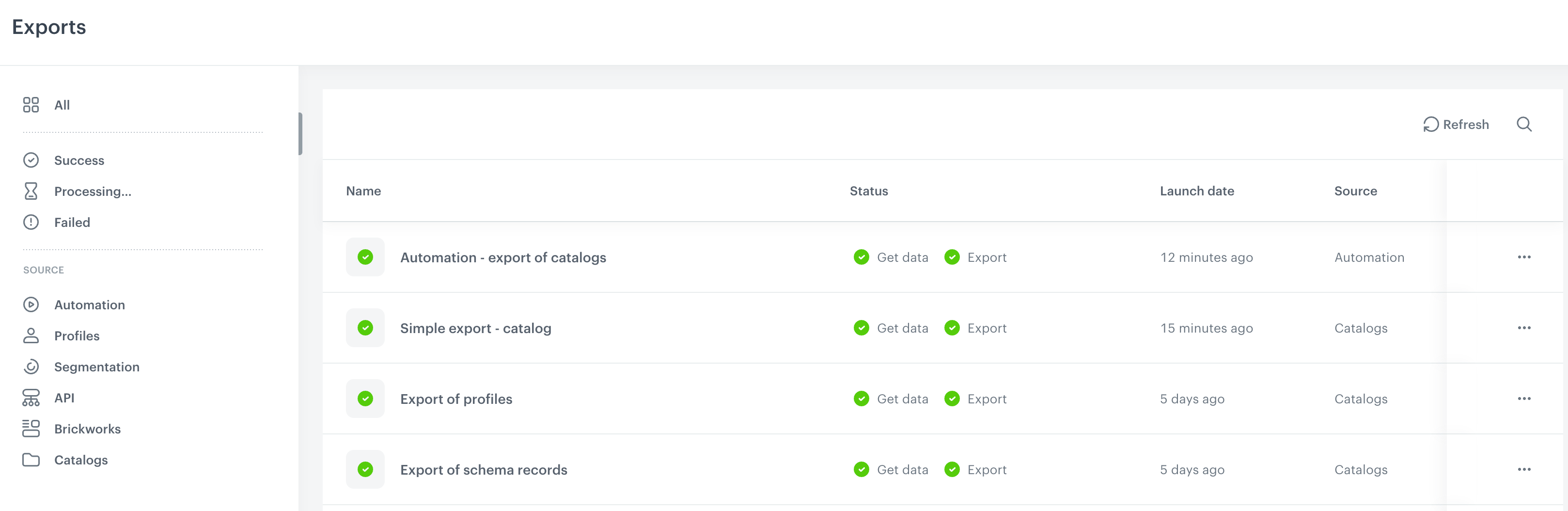
List of exports from Data Modeling > Exports - In the row with the export process, click
 .
. - Click Show details.
Accessing files
- Go to Data Modeling > Exports.
- On the left pane, select the location from which the export of data was initiated.
- In the row with the export process, click .
- From the menu select one of the following options:
- Download CSV
- Download JSON
- Download JSON lines