IMPORTANT: This node is available in private preview mode, meaning it is accessible only on selected workspaces.
In Synerise, Brickworks let you create and manage structured data tailored to your needs. You start by creating a schema that defines the structure and fields of your data. Optionally, you can specify the target audience for that schema. Then, you add data submissions, where each submission creates a single record based on the schema.
The Get Brickworks Schema Records node lets you retrieve a JSON or JSON Lines file with all records from a selected schema. You can combine this node with others, like Send File to Amazon S3 or Send File to Google Cloud Store, to export the data to external systems.
Alternatively, use this node and "Save File" node to export schema records to a file you can download directly from the Synerise platform (then, the file will be available in Data Modeling > Export > Automation).
What you can do with this node
- Select the schema to retrieve records from.
- Preview example data from the file to check its structure and content before exporting.
- If needed, modify the data using a data transformation rule applied through the Data Transformation node placed right after the Get Brickworks Schema Records node in your workflow.
IMPORTANT: This node can be used only in business workflows.
Prerequisites
- Create a schema
- Add records to schema
- To retrieve a file with schema records, you must be assigned with a role with the following permissions:
Node configuration
- To create a workflow that lets you export the file with schema records, go to Automation Hub > Workflows > New workflow.
- Select one of the business trigger nodes, for example Scheduled Run.
- Click THEN > Synerise > Get Brickworks Schema Records.
- Open the configuration form of the node by clicking it.
Result: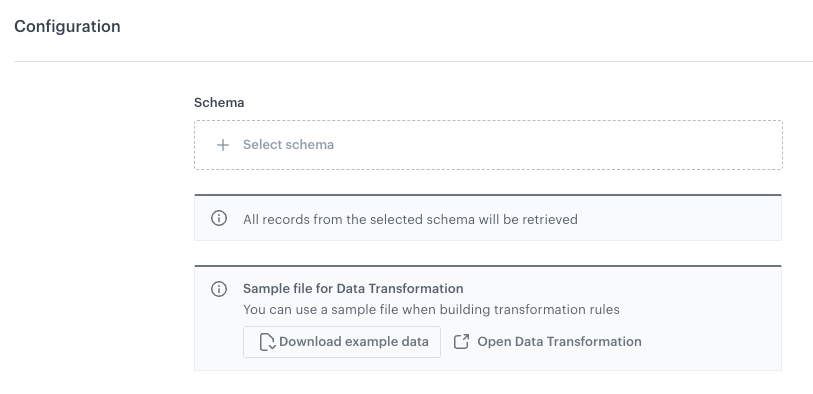
A blank node configuration form - From the dropdown list, select a schema whose records will be retrieved.
- Optionally, to get a preview of a file, click Download example data.
This way, you can find out what a sample data structure for export from the Brickworks schema looks like. - Optionally, to prepare a transformation rule that will modify the file with schema records, click Open Data Transformation.
Example of use
You can find instructions on workflow exporting schema records in the "Export through Automation Hub" section.