By means of the Get Data - Reverse ETL node, you can pull data from PostgreSQL to Synerise in any form.
You can easily test this connection and get a preview of the retrieved data through an SQL query, with a preview limit set to 10 records.
You can download the previewed data in JSON or CSV format, which can serve as a data sample for creating data transformation rules. These rules can be applied within a workflow to modify the data imported from PostgreSQL, ensuring it meets Synerise's requirements. Thus, you gain flexibility in customizing the data format while importing from PostgreSQL.
In the SQL query, you can use Jinjava inserts, except dynamic references to the Profile context (such as expressions, aggregates or {% customer <attribute> %} and {{ customer.<attribute> }}).
The integration also lets you retrieve incremental data, eliminating the need to pull all the data each time. This allows you to import only the data that has been added since the last import. This is possible through the Jinjava tag: {{lastRunDate}}
Prerequisites
If you use a firewall or an allowlist, make sure to allow the IP addresses listed below:
Azure EU
52.146.154.208/29(whole range in use:52.146.154.208-52.146.154.215)20.67.16.0/28(whole range in use:20.67.16.0-20.67.16.15)
Azue US
23.100.20.128/30(whole range in use:23.100.20.128-23.100.20.132)23.100.20.228/30(whole range in use:23.100.20.228-23.100.20.232)23.100.22.32/30(whole range in use:23.100.22.32-23.100.22.35)
Google Cloud Platform
35.205.120.12135.233.100.13134.77.196.14234.140.213.162104.155.38.10634.79.223.23234.77.87.1334.78.208.88
- Maximum size of the retrieved data: 5 GB (5 000 000 000 bytes).
- Maximum database rows in the file:
20,000,000.
Best practices
- Avoid using your main database for this purpose.
It's better to create a separate database that is read-only and set up replication. This helps reduce the workload on your main database and minimizes the risk of data loss. - Synchronize only the data that you’ll use in Synerise.
This improves performance and reduces the chance of exposing sensitive information. Select only the columns that are important to you and use the{{lastRunDate}}Jinjava tag (described further in this article) to limit synchronization to data that has changed since the last synchronization. - Set a reasonable synchronization size of data and interval to avoid overwhelming your database.
Monitor the initial synchronizations to make sure they don't affect the security and performance of your system. You can send maximum 20,000,000 rows per journey and the data will be processed 1,000,000 per 2 minutes. - Keep in mind regional data regulations.
If your database is in the US, but your Synerise workspace is based in Europe, you need to comply with GDPR and other data regulations. Before connecting your database to Synerise, ensure you are following the rules for your region.
Node configuration
- Go to Automation > Workflows > Create new.
- Start the workflow with a trigger node that doesn't contain a customer's context (for example, Scheduled Run).
- On the trigger node, click THEN.
- From the dropdown list, click PostgreSQL > Get Data - Reverse ETL.
- To establish a connection between Synerise and PostgreSQL and allow the data exchange, click Select connection.
- From the dropdown list, select the connection.
- If no connections are available or you want to create a new one, see Create a connection.
- If you selected an existing connection, proceed to defining the integration settings.
Create a connection
If you haven't established any connection yet or you want to create another, establish a connection between Synerise and PostgreSQL that facilitates the exchange of data.
- In the Connection name field, enter the name of the connection.
It's used to find the connection on the list. - In Host, provide the name of the server.
- In Port, provide the port number the server is listening on
- In Username, provide the database user on whose behalf the connection is being made.
- In Password, provide database user’s password
Optionally, you can enable SSH tunneling for additional security for the connection by enabling the Enable SSH tunneling option. From SSH connection type dropdown list, select one of the following types:
- Public Key – It lets you authenticate using a pair of cryptographic keys instead of a password. You will be able to generate them and download a public key, which you will need to add to the server.
- In Login, provide the PostgreSQL user name on whose behalf the connection is being made.
- Optionally, in Password, provide the user's password.
- In Port, provide the number of port the server is listening on.
- In the Public key section, generate the key and download it.
- Confirm by clicking Create.
- Username & Password - It lets you authenticate with a username and password.
- In Username, provide the PostgreSQL user name on whose behalf the connection is being made.
- In Password, provide the user's password.
- In Port, provide the number of port the server is listening on.
- Confirm by clicking Create.
- Public Key – It lets you authenticate using a pair of cryptographic keys instead of a password. You will be able to generate them and download a public key, which you will need to add to the server.
Define the integration settings
In this step, fill in the form that allows you to get data from the storage.
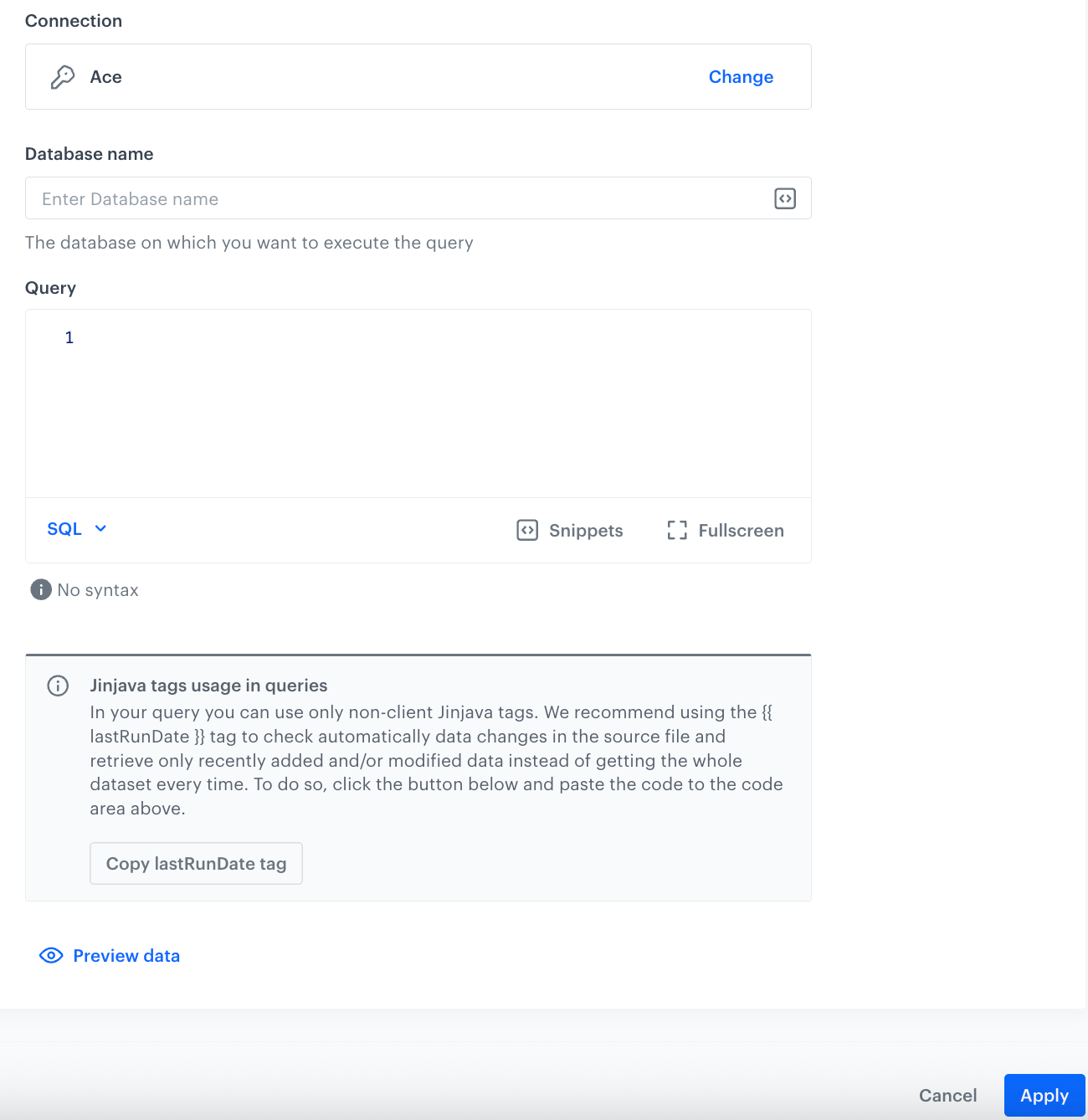
- In Database name, enter the name of the database from which you want to retrieve data.
In the Query field, enter the SQL query that retrieves specific data from the PostgreSQL. To optimize your query, consider the following:
Find out whether you are charged for query or data amount pulled within a query.
- Querying large data sets may result in timeouts.
- Retrieve up to 20,000,000 rows in one request.
- Limit requests to 1 request per hour.
Retrieve incremental data using the
{{ lastRunDate }}tag:Your resource in PosgreSQL must contain a column with the date of the latest update (recommended time format: ISO-8601)
- Add the
{{ lastRunDate }}tag to your query, for example:
SELECT * FROM myTableName WHERE columnWithModificationDate > {{lastRunDate}}
- The value of the
{{ lastRunDate }}is saved by Synerise with each successful data pull from PostgreSQL within a specific workflow.
To test the connection and preview data that will be retrieved, click Preview data.
The preview includes up to 10 records.- To download a file with preview data, click Download Sample Data.
- Select the format file:
- .json file (recommended)
- .csv file
- If you want to use this sample to configure Data Transformation to modify the data according to Synerise requirements, click Open Data Transformation.
This feature lets you create data transformation rules according to which the data will be modified, for example, you can make operations on the column names (to comply with the Synerise import requirements), on the values inside the columns, and so on. Later on, you can add the Data Transformation node to the workflow, after the Get Data - Reverse ETL node, and in the configuration of the node select the data transformation rule to modify the incoming data.
Confirm by clicking Apply.
We recommend monitoring the workflows that use the Get Data - Reverse ETL node. You can do it by:- previewing the statistics of the node directly in the settings of the active workflow.
- previewing the Transformation logs tab in the workflow view.
Example of use
This example shows how to send your customers' opinions about your company stored in PostgreSQL by means of a periodic import.
An example of the data used in the example:
| description | rate | |
|---|---|---|
| This product is life-changing. Finally, I have comfortable shoes. | 5 | john.doe@example.com |
| I'm satisfied with my purchase. | 5 | joan.smith@example.com |
These opinions will be imported to Synerise as a custom opinion.import event and will be available on the profiles of customers. This event will contain the following information:
- the descriptive part of the opinion, contained in the
descriptionparameter. - the rating, which will take values from 1 to 5 (1 being the lowest), contained in the
rateparameter.
Additionally, this example contains a process of creating a transformation rule based on the preview data received from the Get Data - Reverse ETL node. This way, we will prepare the incoming data to comply with the Synerise requirements to be imported as events.

- Start your workflow with the Scheduled Run node. In the configuration of the node:
- Change the Run trigger option to all time. Define the frequency of triggering this node (for example, once a day).
- Confirm by clicking Apply.
- As the next node, select PostgreSQL > Get Data - Reverse ETL.
Configure the node as described in the Node configuration section.
In the Query field, enter a query that retrieves email, opinion, and rating. The snippets below contain queries that:
create a table
- retrieve all data from the table (which is treated as the first import; then the import date is rendered to
1970-01-01T00:00) - retrieve the incremental data since the date of the latest import.
NOTE: These example queries serve as demonstrations, and their specific structure may vary depending on the data structure in your database.
CREATE TABLE events (
event_id STRING,
email STRING,
opinion STRING,
rate TINYINT,
updated_at TIMESTAMP
);
SELECT event_id, email, opinion, rate FROM events;SELECT event_id, email, opinion, rate FROM events WHERE updated_at > {{lastRunDate}};- Preview the data and download it as a JSON file.
- Click Open Data Transformation.
Transform the file as follows:
Add the following columns and values:
Column name Column value actionopinion.importlabelImport of opinions from PostgreSQLtypecustom- Rename the column name with the customer email to:
client.email - Optionally, you can change the names of columns which contain the descriptive opinion and rating.
- Save the transformation rule.
- Add the Data Transformation node. In the configuration of the node, select the transformation rule you created in the previous step.
- Add the Import events node. This node doesn't require configuration.
- Add the End node.
- Click Save & Run.
Result: When the workflow is launched, theopinion.importevent will be generated on the activity list of the customers who left an opinion on your company. You can later prepare analyses based on this event and its parameters and implement marketing strategy towards these customers.