The Create a Lead node is a native integration between Synerise and Salesforce CRM that enables seamless synchronization of lead data. Whenever a new lead appears on the Synerise radar (for example, a visitor to the website submits a form), you can create a workflow that automatically sends a request to the Salesforce API to create that lead in Salesforce CRM. This integration ensures real-time lead transfer and helps you keep your Salesforce CRM updated.
This node is available only in the customer-oriented workflows.
Node configuration
- Go to Automation Hub > Workflows > New workflow.
- Create a workflow by adding nodes and arranging them in an order that aligns with your business requirements and the intended logic.
TIP: You can read more about the workflow basics in Creating workflows.
- As one of the nodes, select Salesforce CRM > Create a Lead.
- To allow the data exchange, establish a connection between Synerise and Salesforce CRM, click Select connection.
From the dropdown list, select the connection.
- If no connections are available or you want to create a new one, see Create a connection.
- If you selected an existing connection, proceed to defining the integration settings.
Create a connection
If you haven't established any connection yet or you want to create another, establish a connection between Synerise and Salesforce CRM that facilitates the exchange of data.
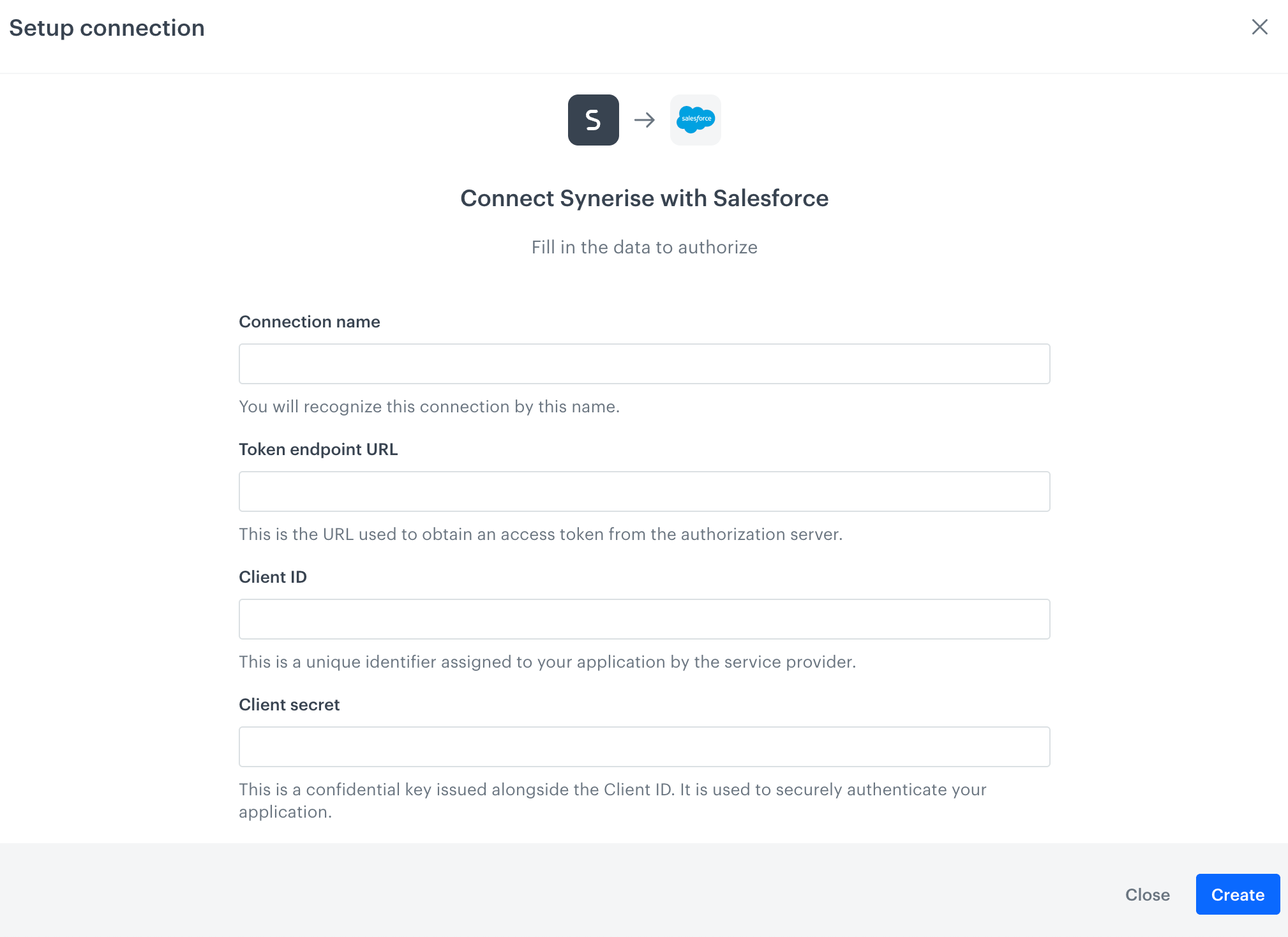
- In the Connection name field, enter the name of the connection.
It's used to find the connection on the list. - In Token endpoint URL, enter the URL used to obtain an access token from the authorization server.
- In Client ID, enter a unique identifier assigned to your application by Salesforce CRM.
- In Client secret, enter client secret assigned to your application by Salesforce CRM.
- Confirm by clicking Create.
Result: You will be redirected to the form in which you will define the integration settings. The connection you created is available in Settings > Connections.
IMPORTANT: We recommend setting the app-specific token timeout in Salesforce to at least 1 hour. Read more about Salesforce OAuth Settings.
Define the integration settings
In this part of the process, fill in the configuration form so that you can send lead data.
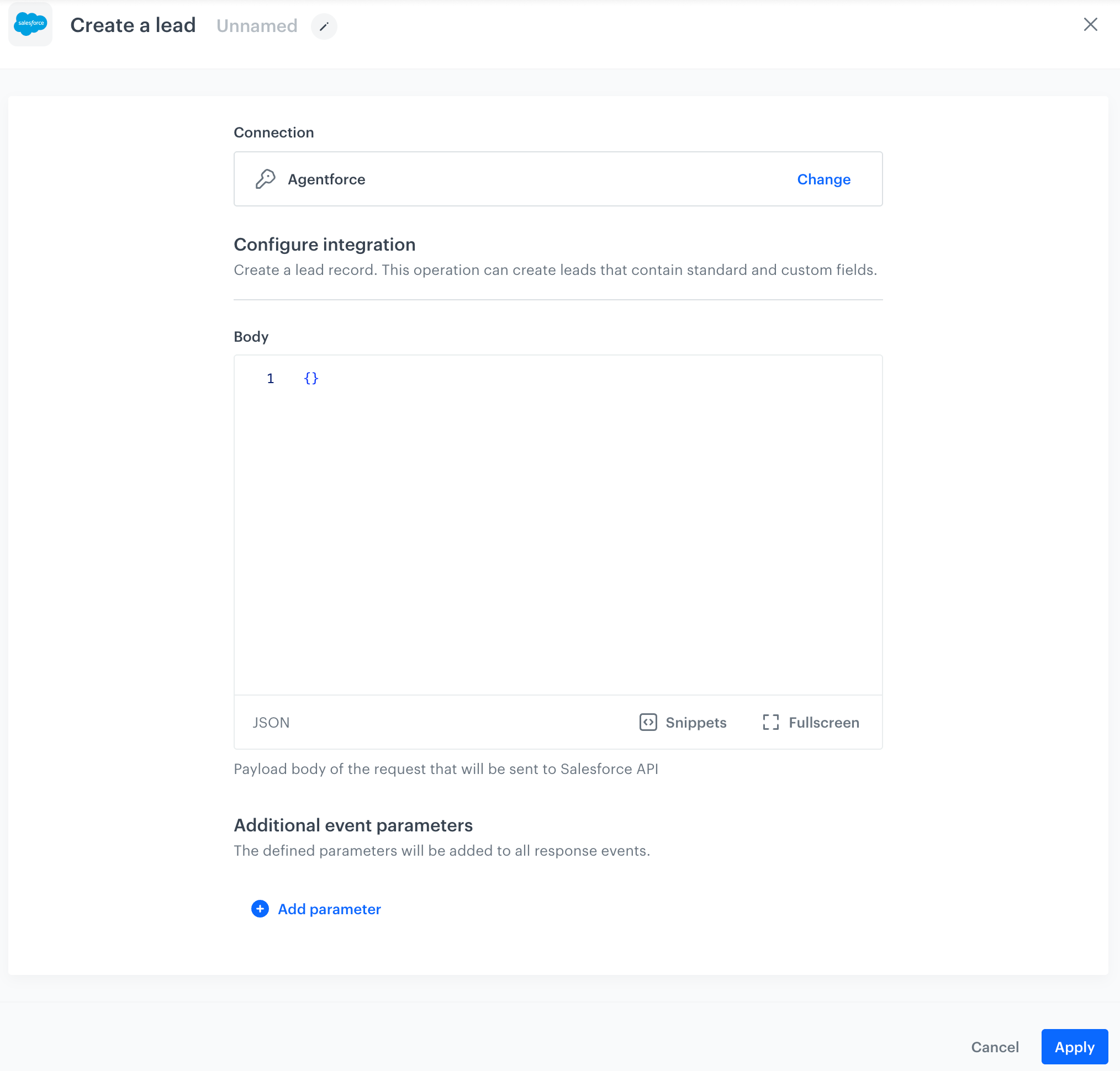
- In Body, provide information about the lead in
JSONformat which will be created in Salesforce CRM.- You can add custom information.
- You can add standard information (make sure the parameter names you use conform with the Salesforce API requirements).
For further information, check the Salesforce createLead endpoint documentation. - You can use Jinjava in this field.
- In the Additional event parameters section, you can add parameters (jinjava in values not allowed) which will be added to the automatically generated salesforce.leadCreated events.
- In the Parameter field, provide the name of the event parameter.
- In Value, provide the value of the event parameter.
- Confirm by clicking Apply.
Result: When the Create a Lead node is executed, asalesforce.leadCreatedevent is generated on the activity list of the profile who is the actor in the workflow.
Example of use
You can create a workflow that sends a request to Salesforce CRM to create a lead each time a profile submits the form.
- As the first node, add Profile Event. In the settings of the node, select the event which signifies submitting data in a form.
- As the next node, add Create a Lead. Fill out the node settings according to the instructions in the "Define the integration settings".
You can use data received from the event selected in the Profile Event node and include them in the request body to the Salesforce CRM. To learn how to insert this data dynamically, see "Event parameters" section. - As the final node, add End.
Result:
Final workflow configuration